Normal view

Received — 8 June 2026 Kaspersky official blog

Elon Musk’s XChat: how secure is the new messaging app? | Kaspersky official blog

Pavel Durov and his “private” messaging app have a brand new rival, and it’s — drumroll, please — Elon Musk and his XChat. On our blog, we’ve discussed more than once why Durov’s claims about Telegram privacy and security are exaggerated, to put it mildly. Here, I’ll just remind the reader that standard (non-secret) chats on Telegram aren’t protected by end-to-end encryption — the bare minimum required for user data to stay private.

But let’s get back to Musk. In late April 2026, the XChat app launched for iOS users. The tech mogul had been touting his messaging app for a long time, pitching it from day one as an incredibly private and secure way to communicate, and as a direct threat to Signal, WhatsApp, Telegram, and iMessage. Today, we look at whether we should actually trust Musk’s promises this new service, break down its core features, and stack it up against the competition.

Bitcoin-style encryption

Musk initially teased XChat on June 1, 2025, naturally via his X (formerly Twitter) account. Responding to another user’s question about when to expect the new service, Musk wrote: “This week if there are no scaling issues.”

Apparently, scaling issues there were: the app’s beta didn’t drop until September 2025, and iOS users didn’t get full access until April 2026. As for Android, there is zero info on when that version would launch at the time of this writing. That said, an XChat page is already live on Google Play where users can queue up “pre-register”, whatever that means.

But let’s go back to Musk’s post announcing XChat. That specific post turned a lot of heads in the privacy and cybersecurity community, and here’s why: the tech mogul wrote that the service would be built on an “entirely new architecture”, written in Rust, and featuring “Bitcoin-style encryption”.
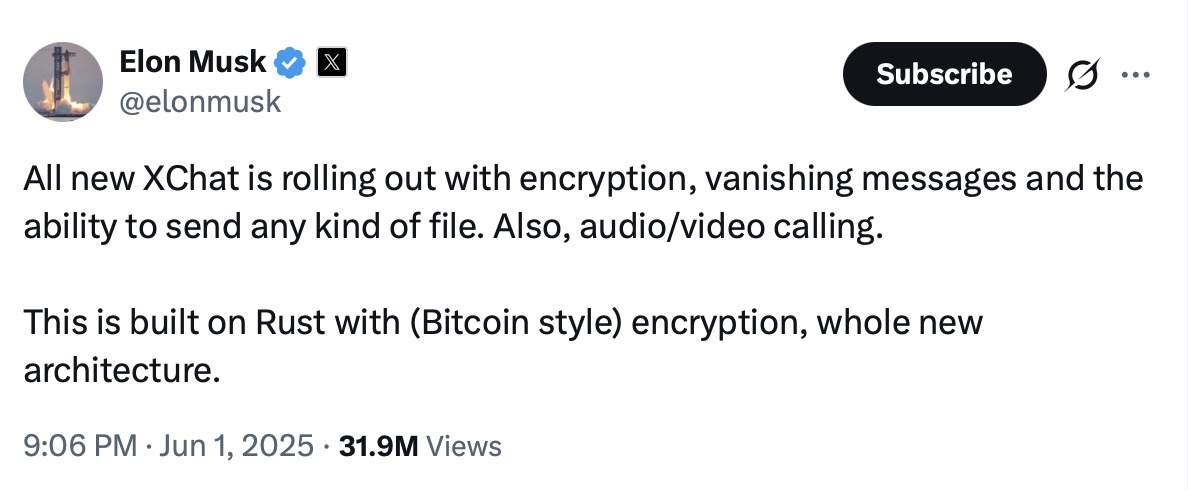
Elon Musk's announcement of XChat

Elon Musk announces the launch of XChat, claiming the new messaging app is written in Rust and uses “Bitcoin-style encryption”. Source

The expert community spent a long time scratching their heads and trying to figure out what Musk actually meant. After all, Bitcoin isn’t an anonymous, encrypted data exchange system. The blockchain does use public and private cryptographic keys, but for something entirely different: signing transactions. Meanwhile, these transactions aren’t hidden from prying eyes; they’re out in the open for anyone to see, forever. Simply put, Bitcoin protects its users not by ensuring privacy, but quite the opposite — through ultimate transparency.

Most likely, Musk used “Bitcoin-style encryption” as a marketing gimmick. Bitcoin was trading near all-time highs at the time of his announcement, and cryptocurrency was the talk of the town. Technically, the XChat beta that dropped in September 2025 protected user chats with a “kind of” end-to-end encryption, but this was implemented in a way that raised serious doubts among cryptography experts.

And not without a reason. Normally, setting up an end-to-end encrypted chat automatically generates a public and private key pair. The public key is used to encrypt messages, while the private key decrypts them. Because other users need your public key to start a secure chat with you, these keys are usually stored on the app’s servers.

The private key, however, should ideally live only on the user’s device — which is exactly how Signal does it. This serves as a simple, ironclad guarantee that neither the company itself nor any third party breaching its infrastructure can access user chats, even if they really want to.

But Elon Musk’s projects always march to the beat of their own drum: the XChat developers decided it would be a great idea to store users’ private keys on XChat servers. X claims they’ll use hardware security modules (HSMs) to store these private keys — specialized appliances designed to prevent even the system owner from easily accessing the data inside. However, experts are also questioning the reliability of this setup, and coming to a grim conclusion: if X really wants to get a user’s private key, they will most likely be able to do so.

How encrypted messaging in XChat works in practice

Finally, once the scaling issues were ironed out nearly a year after the announcement, X officially rolled out the XChat app for iOS in April 2026. Now anyone can use it, but from a practical standpoint, the situation with encrypted chats seems even more convoluted than in Telegram.

According to the social network’s help center, to use end-to-end chat encryption in XChat, both users must have an X account, set up XChat, and have some sort of connection between them:

  • Follow, or be subscribed to each other
  • Have exchanged messages before
  • Have previously accepted a direct message request
  • Be a member of the same Premium Business / Premium Organization subscription on X

If users don’t follow each other and haven’t interacted before, XChat might still let them send a message request. However, that initial request goes out without end-to-end encryption.

Again, this is how the process is described in the messaging app’s official help documentation. Sound overly complicated? Let me reassure you: in practice, it works — or rather, doesn’t — completely differently. I personally managed to send a message to another user who had NOT set up XChat. The app itself, of course, gave me absolutely no warning about this.
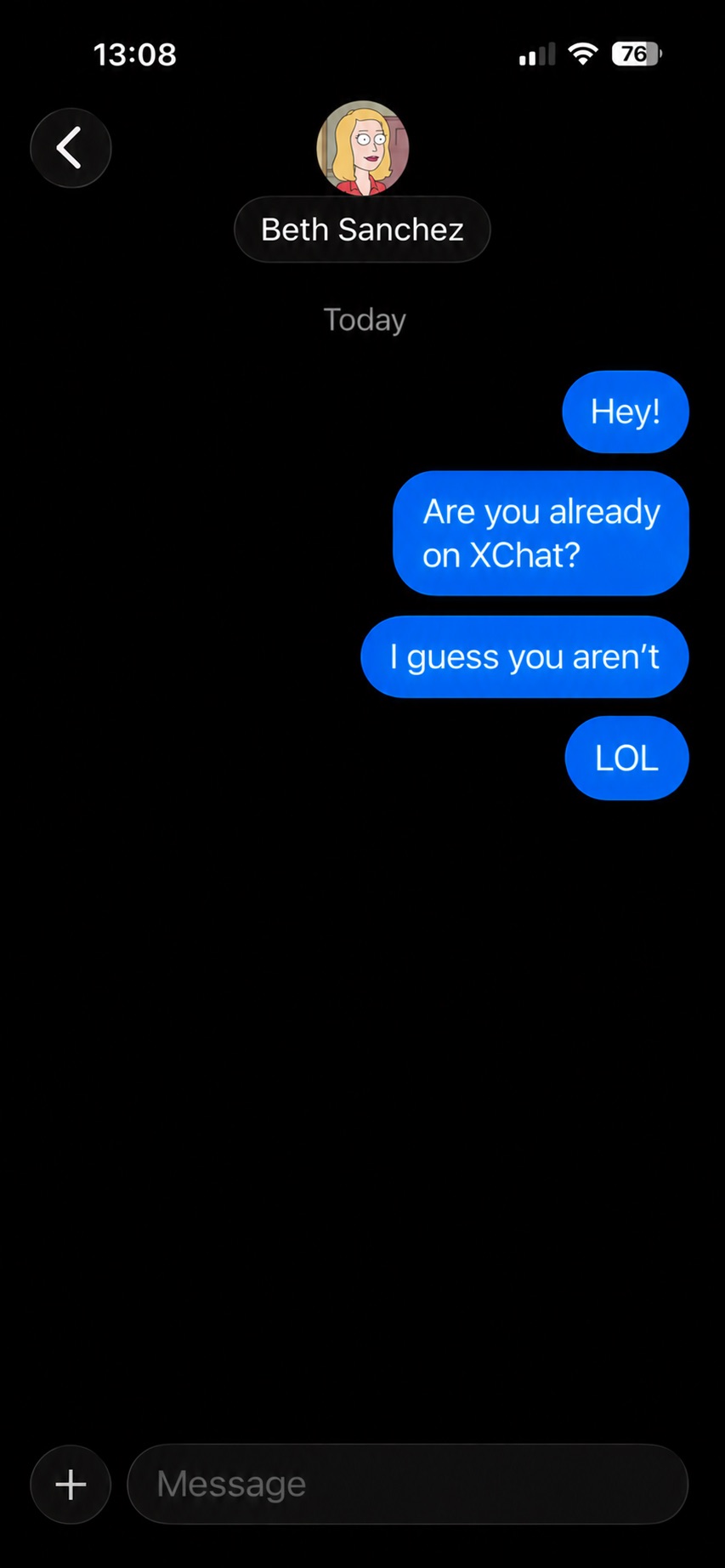
XChat lets users send messages to people who haven't set up the app

The app allows you to start a chat with a user who hasn’t even set up XChat yet, without giving the sender any heads-up.

It gets even better. The user I messaged saw a notification for it on the web version of X, but couldn’t actually access the message. Here’s the catch: to start using XChat, the user first has to create a four-digit PIN. Yet, the app asks for this PIN the very first time the user tries to open it — meaning, before they even get a chance to create one. Along with this prompt, the user also sees a warning stating that without the PIN, they won’t be able to view past encrypted chats.
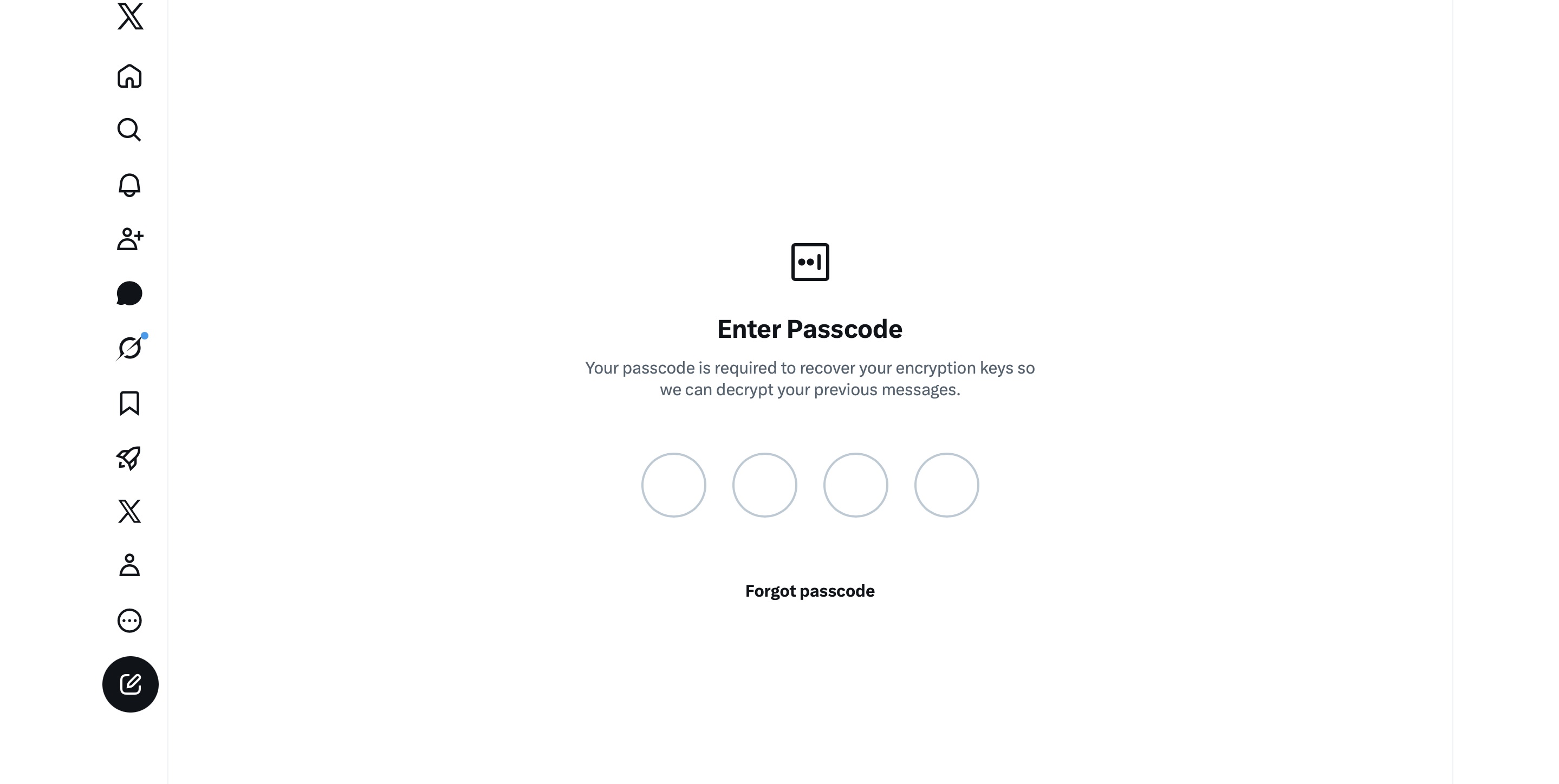
XChat asks for a PIN before one is even created

The user is prompted to enter a PIN to decrypt past messages before even completing the initial XChat setup.

The only workaround I found to actually start using XChat is to tap “Forgot PIN?” — even though that PIN never existed in the first place — confirm your identity, and create a new (well, your first) PIN. Naturally, you lose access to your chat history this way, so you won’t be able to read any messages sent to you in XChat before you officially set up the app.

XChat: the new Telegram, WhatsApp, Signal… or Facebook Messenger?

All these PIN hurdles actually exist for a reason. Remember, unlike WhatsApp and Signal, the XChat developers decided to store users’ private keys on their own servers. Consequently, the app uses these four-digit PINs to encrypt those keys.

According to the XChat help documentation, this mechanism was designed to ensure a “seamless” multi-device experience. It’s impossible not to point out that both WhatsApp and Signal managed to pull this off without sketchy workarounds like PIN requirements or server-side private key storage.

The problem is, workarounds like these undermine any claims of app privacy and security. First and chief among them, a PIN isn’t exactly the most secure way to protect sensitive data. We’ve mentioned time and again that four-digit combinations are easy to crack via brute force — especially since XChat gives you a generous 20 attempts to guess the right code.
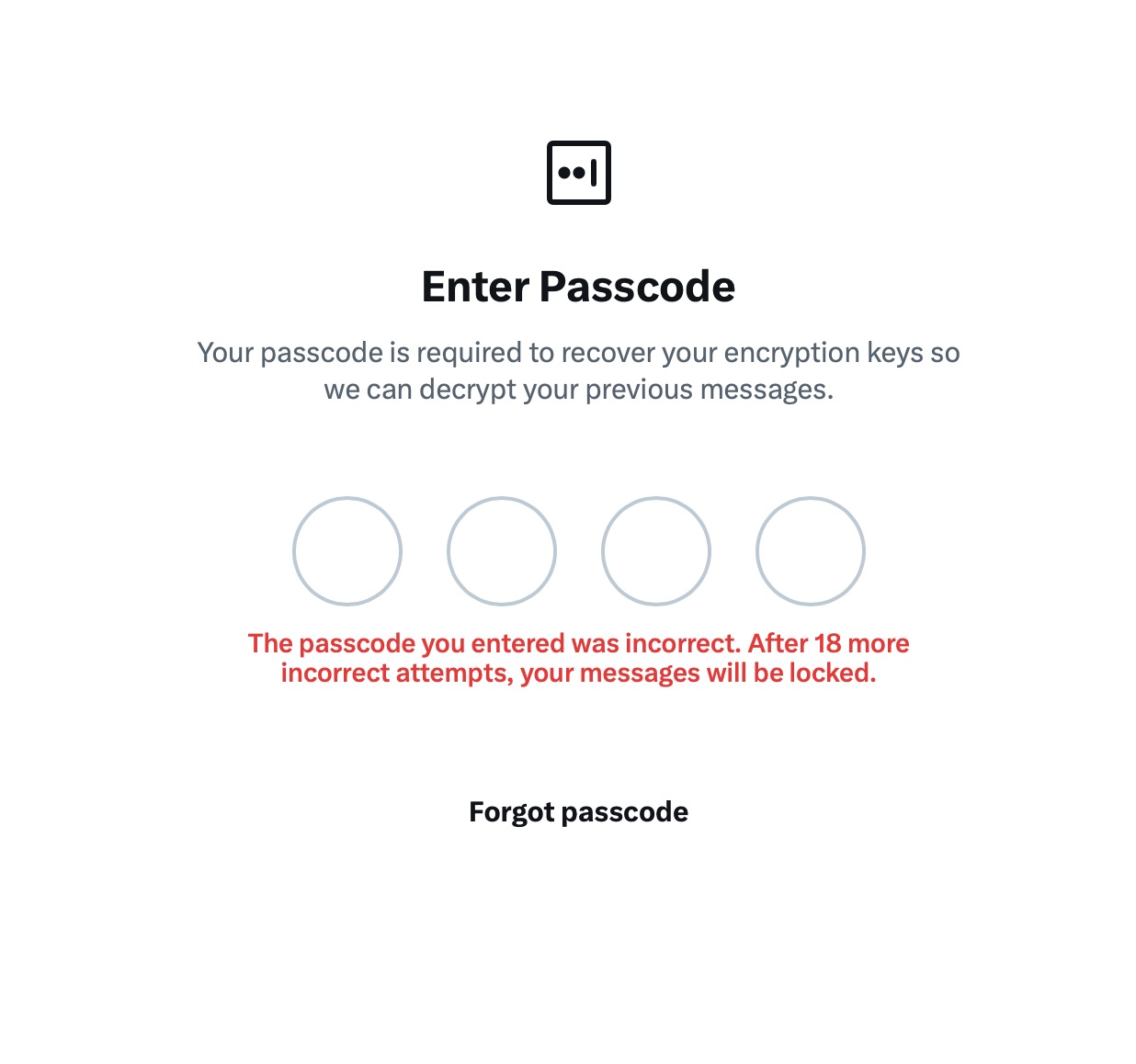
XChat warns of lockout after 20 failed attempts

The app allows up to 20 attempts to enter the four-digit PIN. Once the limit is reached, XChat warns that access to messages will be permanently lost.

Stepping away from the bizarre implementation of end-to-end encryption compared to other messaging apps, it’s hard to ignore the overall sense of pointlessness that comes with trying to use XChat. As a Wired journalist rightly pointed out, the app feels less like a relative of WhatsApp, Signal, or Telegram, and much more like Facebook Messenger. Except people usually open Messenger to read a text from their mom or grandma, whereas XChat seems meant for anyone wanting to check in on that weird nephew who spends all his free time on X, still believes John McAfee’s promise of $500 000 Bitcoin, and fanboys over Elon Musk.

So, what’s the bottom line on XChat?

The best way to wrap up this post is with a quote from a cybersecurity expert: “If what you want is good security, use Signal. If what you want is to be able to talk to pretty much anybody using encrypted messages, use WhatsApp. If your whole life is based around X, I guess this is better than nothing.”

If you do use XChat, rule number one is to avoid a predictable PIN — absolutely don’t use your birth year or, worse, 1234. It’s also crucial not to forget this code, because if you do, your entire chat history is gone for good. Finally, just like your other passwords, you shouldn’t keep it in your notes app, but rather in a secure password manager. This won’t only save you from having to memorize dozens of character combinations, but will also reduce the risk of losing access to your vital data and conversations.

To learn more about secure messaging in other apps, check out our other posts:

Scams in messengers: exposing the global scam-cartels exploiting everyday messagesng-heist | Kaspersky official blog

1 June 2026 at 09:00

It starts with the familiar: a short message, a trusted name, a routine tone. Delivery updates, work pings, brand alerts hum in the background, rarely attracting scrutiny. You check, you answer… — until minutes later you’ve slipped into a trap built to lower your guard and hijack your trust.

That’s why messaging scams cut deep: they exploit everyday habits where instinct, not caution, leads. Communication once moved slowly, leaving room for doubt. Now it’s instant — and that speed is a weapon in criminal hands.

On our blog, we’ve already examined numerous scam schemes in messaging apps — from pig butchering, where the victim is groomed for a very long time, or catfishing, where the scammer creates a fake identity, to phishing via chatbots or through gift-giving campaigns in messaging apps.

Now, for the first time, Kaspersky has set out to capture the full end-to-end reality of messaging-based scams to understand how quickly harm occurs, how they impact trust and what remains after the interaction ends. What emerges is a highly organized and industrialized scam ecosystem embedded within everyday messaging channels such as SMS, WhatsApp, and email.

Kaspersky experts have prepared a report on targeted scams in messaging apps, detailing not only the financial but also the emotional damage caused by such attacks, as well as providing tips on how to protect yourself and avoid them. In this post, we explore the most interesting facts, but you can find more details in the full report.

The damage is underestimated

How much do you think a single successful attack via a messaging app costs the average victim? Ten dollars? Or maybe 50? You’re underestimating the scammers. Although more than a third (36%) of victims incur losses of less than $135, on average a victim loses… $733!

Country Average loss per victim
Senegal $392.94
Serbia $493.32
Morocco $504.28
Greece $609.32
United Kingdom $617.38
Côte d’Ivoire $654.11
Spain $672.67
United States $724.73
Portugal $868.20
Italy $896.02
France $1,193.58
Germany $1,369.35

The average amount lost by a victim in a successful attack via a messaging app

On the one hand, the financial hit doesn’t look catastrophic in isolation. These are micro-losses by design. Small enough that some never report them to the police. Small enough that banks don’t always investigate. Small enough to be dismissed as bad luck rather than organized crime.

But $733 is not nothing. It’s enough to cover a month’s worth of groceries, school or daycare fees, or utility bills. Against the backdrop of the global cost-of-living crisis, a single such loss can seriously dent a family’s budget.

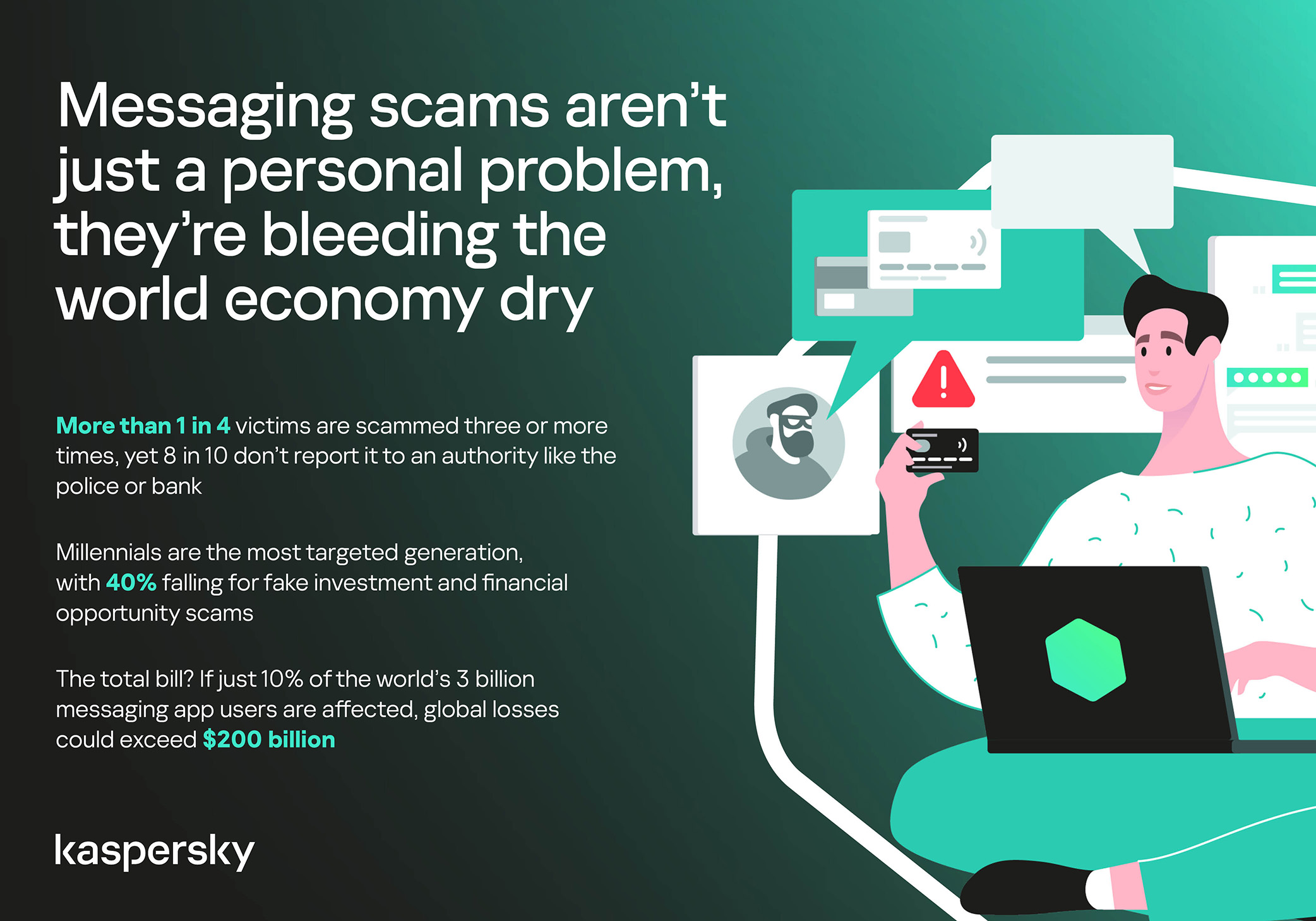
In 11% of cases, losses exceed $1,350, and more than a quarter of victims (28%) report having been scammed three or more times in the past six months. Once scammers discover that a phone number responds, that contact becomes an asset, circulating from one database to another.

Now imagine the scale of the problem: if just 10% of the three billion messaging‑app users worldwide fell victim with the average loss, the total damage would amount to… nearly $220 billion! This is comparable to the GDP of Greece, and exceeds that of Morocco, Serbia, or Côte d’Ivoire.

It becomes clear that behind the daily flood of fraudulent schemes lie large scam cartels operating on an industrial scale, using AI to personalize messages that mimic those of family members, friends, and familiar brands. This, in essence, forms the basis of a full-fledged economy built on digital identity theft.

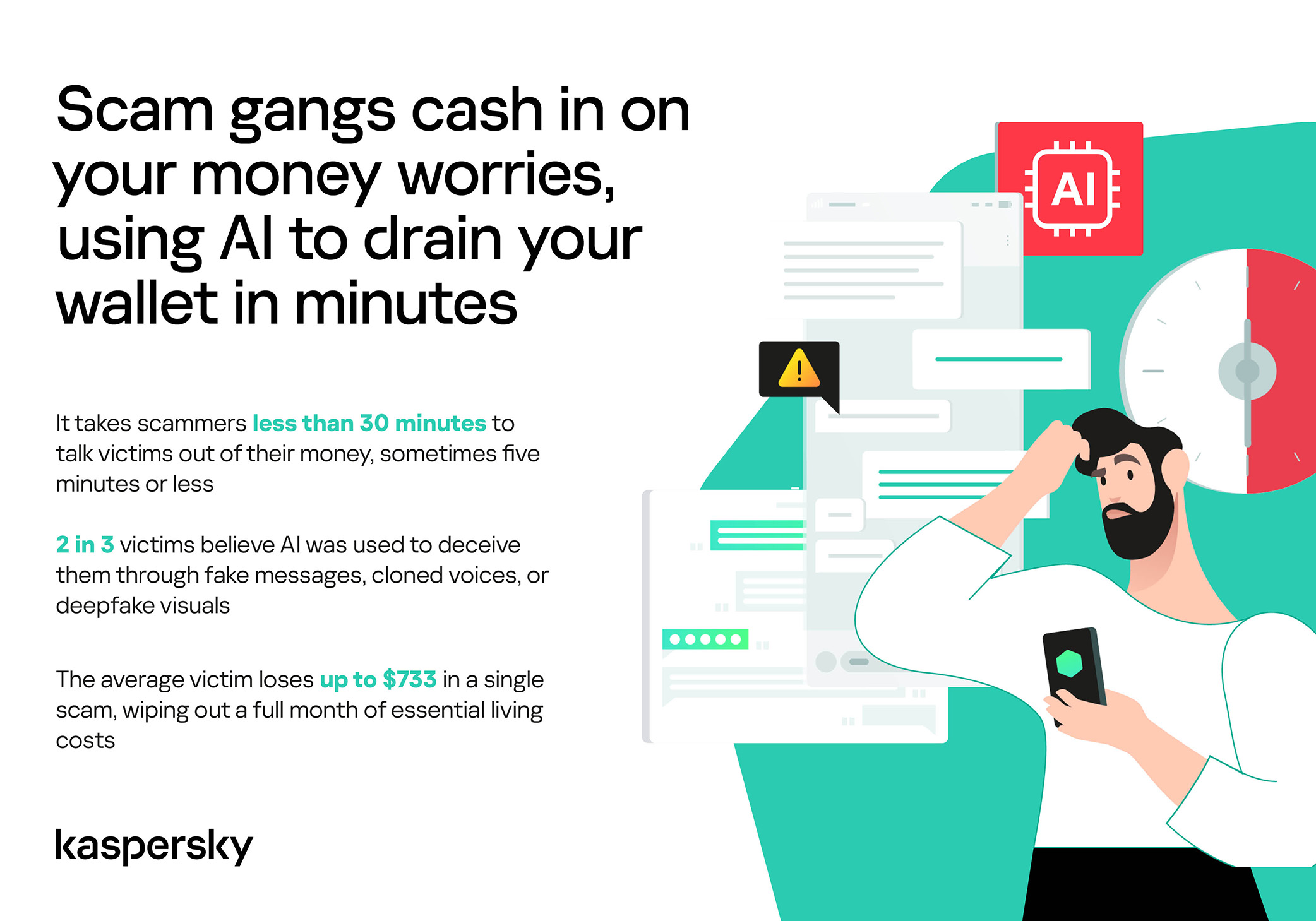
Scam gangs cash in on your money worries, using AI to drain your wallet in minutes

Speed beats scrutiny

More than half of successful messaging scams (52%) unfold in under 30 minutes — from first contact to the moment money or personal data changes hands — or even faster, before the victim begins to doubt the legitimacy of the sender. In fact, one in seven scams takes less than five minutes — quicker than boiling an egg!

The speed isn’t accidental. It’s the method. Scammers structure their schemes to deny the victim a chance to come to their senses. Every element is engineered to compress the decision-making window: the urgency of the scenario, the familiarity of the format, the plausibility of the request.

They rush you — faster, faster, don’t tell anyone, you only have a few minutes, solve the problem, don’t ask questions. Click the link, fill in the details, approve the transaction, or else… Or else what? The scammers’ imagination knows no bounds here, but if you don’t do something right now, you’ll definitely regret it.

Alas, the realization of what has happened usually comes when the damage is already irreversible. More than half of victims (51%) lose money; another 43% hand over their personal data — most commonly phone numbers, names, and email addresses — to scammers, and often the victim loses both.

Where and how attacks occur

A delivery notification, a bank alert, a message from a merchant you ordered from last week — messaging apps permeate every aspect of everyday life, making such interactions completely normal. An attack shouldn’t feel like an attack. It should feel like the same message you’ve received hundreds of times.

It’s no surprise that scammers focus their attention on this method of communication first and foremost. The most popular platforms for scams are predictable: WhatsApp (43%), SMS/iMessage (40%), Facebook (27%), Telegram (22%), and Instagram (19%) — these are the ones that people trust most.

A wide variety of schemes is used. Brand impersonation is now one of the three most common types of messaging scam worldwide — accounting for 31% of cases. Fake delivery notifications top the list at 38%, followed by investment scams at 37%.

At the same time, nearly two-thirds (63%) of fraudulent schemes span multiple platforms, moving from SMS to WhatsApp, from WhatsApp to Telegram, etc. In this way, scammers achieve two goals: they mimic organic messaging and evade moderation algorithms.

AI has taken scams to a new level

Just a couple of years ago, fraudulent messages gave themselves away with bad grammar, awkward phrasing, illogical requests, and an obsessive sense of urgency. Today, a phishing message looks, sounds, and reads just like the real thing.

Scam cartels want to catch people in motion — between meetings, on a commute, or during everyday tasks — when your attention is already fragmented. They mimic your mother’s turn of phrase. They match your bank’s tone of voice. They copy your courier’s format exactly. They mirror the rhythm, structure, and style of authentic brand communications across messaging platforms. And AI is accelerating all of it.

What this creates is overlap. Legitimate and fraudulent messages appear in the same environment, using the same formats, language, and triggers. The difference between them is no longer obvious.

The data shows that two-thirds of victims (66%) believe AI was used in the scam against them, 42% cite messages written by AI, 31% report generated or cloned voices, and 25% encountered deepfake images or videos.

That’s why mere awareness and “tech-savviness” may no longer be enough to protect oneself. From Gen Z to Gen X, messaging scams cut across every generation.

And what about the emotional toll?

But money is far from the only problem a victim is left with after an attack. After what they’ve been through, people develop distrust toward incoming messages, unfamiliar numbers, and any requests for action. As a result, 99% of fraud victims say they no longer trust incoming notifications in messaging apps.

This creates a crisis of trust in all digital channels in general. Every legitimate message can now be perceived as a scam. Brands, banks, and delivery services are forced to operate in an environment where the customer is, by default, in a state of distrust.

Dr. Elizabeth Carter, a forensic linguist and criminologist at Kingston University in London, notes that scammers use familiar contexts, common social settings and embedded linguistic norms to create the illusion for the victim that their decision-making is rational and reasonable in the moment. However, what is actually happening is that they construct false realities in which those decisions end up causing financial and psychological harm. She also notes that it is very hard to identify a false reality while you are in it.

After realizing they had been deceived, more than half of victims felt anger — the kind that comes from having trusted something and discovering it was used against you. 42% of victims report frustration, 38% — feeling upset. Moreover, several months later, these feelings haven’t gone away: nearly half of all victims (48%) are still angry, a third (33%) remain frustrated, and 30% are upset.

And nearly one in 10 victims don’t tell anyone what happened. They feel shame, a sense of having fallen for something so obvious. This leaves a significant portion of the actual damage unreported: only 24% of victims contact the police, and only 23% report it to their bank.

Messaging scams aren't just a personal problem, they're bleeding the world economy dry

So what can be done?

The crisis of trust — and even a touch of paranoia — that has arisen due to widespread attacks on users can linger in victims’ minds for a long time, affecting their quality of life. To prevent this, follow these guidelines:

  • Pause before you act. The sense of urgency you feel is almost always artificial. A legitimate bank, retailer, or delivery service won’t penalize you for taking 30 seconds to verify before clicking a link or confirming details. It’s precisely this instinct to resolve the situation quickly that scammers are counting on.
  • Verify through another channel. If a message appears to be from a relative, colleague, or company you trust — contact them through another channel before taking any action. Use secure verification methods, and cross-check identities when something doesn’t feel right. For families, agreeing on a “safe word” in advance can defeat even the most convincing voice clones.
  • Use a password manager. It will not only help you generate strong, unique passwords for all your accounts and store them securely, syncing them across all your devices, but also protect you from spoofed sites. Even if you click a phishing link and land on such a site, our password manager will notify you about the domain mismatch and refuse to autofill your username and password.
  • Use protection that works in real time. Modern security solutions, such as Kaspersky Premium, provide real-time protection against malicious links and phishing attempts in the apps and websites you use every day. On Android devices, a dedicated layer of anti-phishing security scans and neutralizes suspicious links as they appear, even within notifications, before you even have a chance to click them.

We’ve covered other threats in messaging apps in similar articles:

Received — 12 March 2026 Kaspersky official blog

How to disable unwanted AI assistants and features on your PC and smartphone | Kaspersky official blog

5 March 2026 at 13:25

If you don’t go searching for AI services, they’ll find you all the same. Every major tech company feels a moral obligation not just to develop an AI assistant, integrated chatbot, or autonomous agent, but to bake it into their existing mainstream products and forcibly activate it for tens of millions of users. Here are just a few examples from the last six months:

On the flip side, geeks have rushed to build their own “personal Jarvises” by renting VPS instances or hoarding Mac minis to run the OpenClaw AI agent. Unfortunately, OpenClaw’s security issues with default settings turned out to be so massive that it’s already been dubbed the biggest cybersecurity threat of 2026.

Beyond the sheer annoyance of having something shoved down your throat, this AI epidemic brings some very real practical risks and headaches. AI assistants hoover up every bit of data they can get their hands on, parsing the context of the websites you visit, analyzing your saved documents, reading through your chats, and so on. This gives AI companies an unprecedentedly intimate look into every user’s life.

A leak of this data during a cyberattack — whether from the AI provider’s servers or from the cache on your own machine — could be catastrophic. These assistants can see and cache everything you can, including data usually tucked behind multiple layers of security: banking info, medical diagnoses, private messages, and other sensitive intel. We took a deep dive into how this plays out when we broke down the issues with the AI-powered Copilot+ Recall system, which Microsoft also planned to force-feed to everyone. On top of that, AI can be a total resource hog, eating up RAM, GPU cycles, and storage, which often leads to a noticeable hit to system performance.

For those who want to sit out the AI storm and avoid these half-baked, rushed-to-market neural network assistants, we’ve put together a quick guide on how to kill the AI in popular apps and services.

How to disable AI in Google Docs, Gmail, and Google Workspace

Google’s AI assistant features in Mail and Docs are lumped together under the umbrella of “smart features”. In addition to the large language model, this includes various minor conveniences, like automatically adding meetings to your calendar when you receive an invite in Gmail. Unfortunately, it’s an all-or-nothing deal: you have to disable all of the “smart features” to get rid of the AI.

To do this, open Gmail, click the Settings (gear) icon, and then select See all settings. On the General tab, scroll down to Google Workspace smart features. Click Manage Workspace smart feature settings and toggle off two options: Smart features in Google Workspace and Smart features in other Google products. We also recommend unchecking the box next to Turn on smart features in Gmail, Chat, and Meet on the same general settings tab. You’ll need to restart your Google apps afterward (which usually happens automatically).

How to disable AI Overviews in Google Search

You can kill off AI Overviews in search results on both desktops and smartphones (including iPhones), and the fix is the same across the board. The simplest way to bypass the AI overview on a case-by-case basis is to append -ai to your search query — for example, how to make pizza -ai. Unfortunately, this method occasionally glitches, causing Google to abruptly claim it found absolutely nothing for your request.

If that happens, you can achieve the same result by switching the search results page to Web mode. To do this, select the Web filter immediately below the search bar — you’ll often find it tucked away under the More button.

A more radical solution is to jump ship to a different search engine entirely. For instance, DuckDuckGo not only tracks users less and shows little ads, but it also offers a dedicated AI-free search — just bookmark the search page at noai.duckduckgo.com.

How to disable AI features in Chrome

Chrome currently has two types of AI features baked in. The first communicates with Google’s servers and handles things like the smart assistant, an autonomous browsing AI agent, and smart search. The second handles locally more utility-based tasks, such as identifying phishing pages or grouping browser tabs. The first group of settings is labeled AI mode, while the second contains the term Gemini Nano.

To disable them, type chrome://flags into the address bar and hit Enter. You’ll see a list of system flags and a search bar; type “AI” into that search bar. This will filter the massive list down to about a dozen AI features (and a few other settings where those letters just happen to appear in a longer word). The second search term you’ll need in this window is “Gemini“.

After reviewing the options, you can disable the unwanted AI features — or just turn them all off — but the bare minimum should include:

  • AI Mode Omnibox entrypoint
  • AI Entrypoint Disabled on User Input
  • Omnibox Allow AI Mode Matches
  • Prompt API for Gemini Nano
  • Prompt API for Gemini Nano with Multimodal Input

Set all of these to Disabled.

How to disable AI features in Firefox

While Firefox doesn’t have its own built-in chatbots and hasn’t (yet) tried to force upon users agent-based features, the browser does come equipped with smart-tab grouping, a sidebar for chatbots, and a few other perks. Generally, AI in Firefox is much less “in your face” than in Chrome or Edge. But if you still want to pull the plug, you’ve two ways to do it.

The first method is available in recent Firefox releases — starting with version 148, a dedicated AI Controls section appeared in the browser settings, though the controls are currently a bit sparse. You can use a single toggle to completely Block AI enhancements, shutting down AI features entirely. You can also specify whether you want to use On-device AI by downloading small local models (currently just for translations) and configure AI chatbot providers in sidebar, choosing between Anthropic Claude, ChatGPT, Copilot, Google Gemini, and Le Chat Mistral.

The second path — for older versions of Firefox — requires a trip into the hidden system settings. Type about:config into the address bar, hit Enter, and click the button to confirm that you accept the risk of poking around under the hood.

A massive list of settings will appear along with a search bar. Type “ML” to filter for settings related to machine learning.

To disable AI in Firefox, toggle the browser.ml.enabled setting to false. This should disable all AI features across the board, but community forums suggest this isn’t always enough to do the trick. For a scorched-earth approach, set the following parameters to false (or selectively keep only what you need):

  • ml.chat.enabled
  • ml.linkPreview.enabled
  • ml.pageAssist.enabled
  • ml.smartAssist.enabled
  • ml.enabled
  • ai.control.translations
  • tabs.groups.smart.enabled
  • urlbar.quicksuggest.mlEnabled

This will kill off chatbot integrations, AI-generated link descriptions, assistants and extensions, local translation of websites, tab grouping, and other AI-driven features.

How to disable AI features in Microsoft apps

Microsoft has managed to bake AI into almost every single one of its products, and turning it off is often no easy task — especially since the AI sometimes has a habit of resurrecting itself without your involvement.

How to disable AI features in Edge

Microsoft’s browser is packed with AI features, ranging from Copilot to automated search. To shut them down, follow the same logic as with Chrome: type edge://flags into the Edge address bar, hit Enter, then type “AI” or “Copilot” into the search box. From there, you can toggle off the unwanted AI features, such as:

  • Enable Compose (AI-writing) on the web
  • Edge Copilot Mode
  • Edge History AI

Another way to ditch Copilot is to enter edge://settings/appearance/copilotAndSidebar into the address bar. Here, you can customize the look of the Copilot sidebar and tweak personalization options for results and notifications. Don’t forget to peek into the Copilot section under App-specific settings — you’ll find some additional controls tucked away there.

How to disable Microsoft Copilot

Microsoft Copilot comes in two flavors: as a component of Windows (Microsoft Copilot), and as part of the Office suite (Microsoft 365 Copilot). Their functions are similar, but you’ll have to disable one or both depending on exactly what the Redmond engineers decided to shove onto your machine.

The simplest thing you can do is just uninstall the app entirely. Right-click the Copilot entry in the Start menu and select Uninstall. If that option isn’t there, head over to your installed apps list (Start → Settings → Apps) and uninstall Copilot from there.

In certain builds of Windows 11, Copilot is baked directly into the OS, so a simple uninstall might not work. In that case, you can toggle it off via the settings: Start → Settings → Personalization → Taskbar → turn off Copilot.

If you ever have a change of heart, you can always reinstall Copilot from the Microsoft Store.

It’s worth noting that many users have complained about Copilot automatically reinstalling itself, so you might want to do a weekly check for a couple of months to make sure it hasn’t staged a comeback. For those who are comfortable tinkering with the System Registry (and understand the consequences), you can follow this detailed guide to prevent Copilot’s silent resurrection by disabling the SilentInstalledAppsEnabled flag and adding/enabling the TurnOffWindowsCopilot parameter.

How to disable Microsoft Recall

The Microsoft Recall feature, first introduced in 2024, works by constantly taking screenshots of your computer screen and having a neural network analyze them. All that extracted information is dumped into a database, which you can then search using an AI assistant. We’ve previously written in detail about the massive security risks Microsoft Recall poses.

Under pressure from cybersecurity experts, Microsoft was forced to push the launch of this feature from 2024 to 2025, significantly beefing up the protection of the stored data. However, the core of Recall remains the same: your computer still remembers your every move by constantly snapping screenshots and OCR-ing the content. And while the feature is no longer enabled by default, it’s absolutely worth checking to make sure it hasn’t been activated on your machine.

To check, head to the settings: Start → Settings → Privacy & Security → Recall & snapshots. Ensure the Save snapshots toggle is turned off, and click Delete snapshots to wipe any previously collected data, just in case.

You can also check out our detailed guide on how to disable and completely remove Microsoft Recall.

How to disable AI in Notepad and Windows context actions

AI has seeped into every corner of Windows, even into File Explorer and Notepad. You might even trigger AI features just by accidentally highlighting text in an app — a feature Microsoft calls “AI Actions”. To shut this down, head to Start → Settings → Privacy & Security → Click to Do.

Notepad has received its own special Copilot treatment, so you’ll need to disable AI there separately. Open the Notepad settings, find the AI features section, and toggle Copilot off.

Finally, Microsoft has even managed to bake Copilot into Paint. Unfortunately, as of right now, there is no official way to disable the AI features within the Paint app itself.

How to disable AI in WhatsApp

In several regions, WhatsApp users have started seeing typical AI additions like suggested replies, AI message summaries, and a brand-new Chat with Meta AI button. While Meta claims the first two features process data locally on your device and don’t ship your chats off to their servers, verifying that is no small feat. Luckily, turning them off is straightforward.

To disable Suggested Replies, go to Settings → Chats → Suggestions & smart replies and toggle off Suggested replies. You can also kill off AI Sticker suggestions in that same menu. As for the AI message summaries, those are managed in a different location: Settings → Notifications → AI message summaries.

How to disable AI on Android

Given the sheer variety of manufacturers and Android flavors, there’s no one-size-fits-all instruction manual for every single phone. Today, we’ll focus on killing off Google’s AI services — but if you’re using a device from Samsung, Xiaomi, or others, don’t forget to check your specific manufacturer’s AI settings. Just a heads-up: fully scrubbing every trace of AI might be a tall order — if it’s even possible at all.

In Google Messages, the AI features are tucked away in the settings: tap your account picture, select Messages settings, then Gemini in Messages, and toggle the assistant off.

Broadly speaking, the Gemini chatbot is a standalone app that you can uninstall by heading to your phone’s settings and selecting Apps. However, given Google’s master plan to replace the long-standing Google Assistant with Gemini, uninstalling it might become difficult — or even impossible — down the road.

If you can’t completely uninstall Gemini, head into the app to kill its features manually. Tap your profile icon, select Gemini Apps activity, and then choose Turn off or Turn off and delete activity. Next, tap the profile icon again and go to the Connected Apps setting (it may be hiding under the Personal Intelligence setting). From here, you should disable all the apps where you don’t want Gemini poking its nose in.

How to disable AI in macOS and iOS

Apple’s platform-level AI features, collectively known as Apple Intelligence, are refreshingly straightforward to disable. In your settings — on desktops, smartphones, and tablets alike — simply look for the section labeled Apple Intelligence & Siri. By the way, depending on your region and the language you’ve selected for your OS and Siri, Apple Intelligence might not even be available to you yet.

Other posts to help you tune the AI tools on your devices:

Received — 13 February 2026 Kaspersky official blog

Quick digest of Kaspersky’s report “Spam and Phishing in 2025” | Kaspersky official blog

11 February 2026 at 22:32

Every year, scammers cook up new ways to trick people, and 2025 was no exception. Over the past year, our anti-phishing system thwarted more than 554 million attempts to follow phishing links, while our Mail Anti-Virus blocked nearly 145 million malicious attachments. To top it off, almost 45% of all emails worldwide turned out to be spam. Below, we break down the most impressive phishing and spam schemes from last year. For the deep dive, you can read the full Spam and Phishing in 2025 report on Securelist.

Phishing for fun

Music lovers and cinephiles were prime targets for scammers in 2025. Bad actors went all out creating fake ticketing aggregators and spoofed versions of popular streaming services.

On these fake aggregator sites, users were offered “free” tickets to major concerts. The catch? You just had to pay a small “processing fee” or “shipping cost”. Naturally, the only thing being delivered was your hard-earned cash straight into a scammer’s pocket.

Free Lady Gaga tickets? Only in a mousetrap

With streaming services, the hustle went like this: users received a tempting offer to, say, migrate their Spotify playlists to YouTube by entering their Spotify credentials. Alternatively, they were invited to vote for their favorite artist in a chart — an opportunity most fans find hard to pass up. To add a coat of legitimacy, scammers name-dropped heavy hitters like Google and Spotify. The phishing form targeted multiple platforms at once — Facebook, Instagram, or email — requiring users to enter their credentials to vote hand over their accounts.

A phishing page masquerading as an artist voting platform

This phishing page mimicking a multi-login setup looks terrible — no self-respecting designer would cram that many clashing icons onto a single button

In Brazil, scammers took it a step further: they offered users the chance to earn money just by listening to and rating songs on a supposed Spotify partner service. During registration, users had to provide their ID for Pix (the Brazilian instant payment system), and then make a one-time “verification payment” of 19.9 Brazilian reals (about $4) to “confirm their identity”. This fee was, of course, a fraction of the promised “potential earnings”. The payment form looked incredibly authentic and requested additional personal data — likely to be harvested for future attacks.

An imitation service claiming to pay users for listening to tracks on Spotify

This scam posed as a service for boosting Spotify ratings and plays, but to start “earning”, you first had to pay up

The “cultural date” scheme turned out to be particularly inventive. After matching and some brief chatting on dating apps, a new “love interest” would invite the victim to a play or a movie and send a link to buy tickets. Once the “payment” went through, both the date and the ticketing site would vanish into thin air. A similar tactic was used to sell tickets for immersive escape rooms, which have surged in popularity lately; the page designs mirrored real sites to lower the user’s guard.

A fake version of a popular Russian ticketing aggregator

Scammers cloned the website of a well-known Russian ticketing service

Phishing via messaging apps

The theft of Telegram and WhatsApp accounts became one of the year’s most widespread threats. Scammers have mastered the art of masking phishing as standard chat app activities, and have significantly expanded their geographical reach.

On Telegram, free Premium subscriptions remained the ultimate bait. While these phishing pages were previously only seen in Russian and English, 2025 saw a massive expansion into other languages. Victims would receive a message — often from a friend’s hijacked account — offering a “gift”. To activate it, the user had to log in to their Telegram account on the attacker’s site, which immediately led to another hijacked account.

Another common scheme involved celebrity giveaways. One specific attack, disguised as an NFT giveaway, stood out because it operated through a Telegram Mini App. For the average user, spotting a malicious Mini App is much harder than identifying a sketchy external URL.

Phishing bait featuring a supposed papakha NFT giveaway by Khabib Nurmagomedov

Scammers blasted out phishing bait for a fake Khabib Nurmagomedov NFT giveaway in both Russian and English simultaneously. However, in the Russian text, they forgot to remove a question from the AI that generated the text, “Do you need bolder, formal, or humorous options?” — which points to a rushed job and a total lack of editing

Finally, the classic vote for my friend messenger scam evolved in 2025 to include prompts to vote for the “city’s best dentist” or “top operational leader” — unfortunately, just bait for account takeovers.

Another clever method for hijacking WhatsApp accounts was spotted in China, where phishing pages perfectly mimicked the actual WhatsApp interface. Victims were told that due to some alleged “illegal activity”, they needed to undergo “additional verification”, which — you guessed it — ended up with a stolen account.

A Chinese method for hijacking WhatsApp accounts

Victims were redirected to a phone number entry form, followed by a request for their authorization code

Impersonating Government Services

Phishing that mimics government messages and portals is a “classic of the genre”, but in 2025, scammers added some new scripts to the playbook.

In Russia, vishing attacks targeting government service users picked up steam. Victims received emails claiming an unauthorized login to their account, and were urged to call a specific number to undergo a “security check”. To make it look legit, the emails were packed with fake technical details: IP addresses, device models, and timestamps of the alleged login. Scammers also sent out phony loan approval notifications: if the recipient hadn’t applied for a loan (which they hadn’t), they were prompted to call a fake support team. Once the panicked victim reached an “operator”, social engineering took center stage.

In Brazil, attackers hunted for taxpayer numbers (CPF numbers) by creating counterfeit government portals. Since this ID is the master key for accessing state services, national databases, and personal documents, a hijacked CPF is essentially a fast track to identity theft.

A fake Brazilian government services portal

This fraudulent Brazilian government portal of surprisingly high quality

In Norway, scammers targeted people looking to renew their driver’s licenses. A site mimicking the Norwegian Public Roads Administration collected a mountain of personal data: everything from license plate numbers, full names, addresses, and phone numbers to the unique personal identification numbers assigned to every resident. For the cherry on top, drivers were asked to pay a “license replacement fee” of 1200 NOK (over US$125). The scammers walked away with personal data, credit card details, and cash. A literal triple-combo move!

Generally speaking, motorists are an attractive target: they clearly have money and a car and a fear of losing it. UK-based scammers played on this by sending out demands to urgently pay some overdue vehicle tax to avoid some unspecified “enforcement action”. This “act now!” urgency is a classic phishing trope designed to distract the victim from a sketchy URL or janky formatting.

A fake demand for British motorists to pay overdue vehicle tax

Scammers pressured Brits to pay purportedly overdue vehicle taxes “immediately” to keep something bad from happening

Let us borrow your identity, please

In 2025, we saw a spike in phishing attacks revolving around Know Your Customer (KYC) checks. To boost security, many services now verify users via biometrics and government IDs. Scammers have learned to harvest this data by spoofing the pages of popular services that implement these checks.

A fake Vivid Money page

On this fraudulent Vivid Money page, scammers systematically collected incredibly detailed information about the victim

What sets these attacks apart is that, in addition to standard personal info, phishers demand photos of IDs or the victim’s face — sometimes from multiple angles. This kind of full profile can later be sold on dark web marketplaces or used for identity theft. We took a deep dive into this process in our post, What happens to data stolen using phishing?

AI scammers

Naturally, scammers weren’t about to sit out the artificial intelligence boom. ChatGPT became a major lure: fraudsters built fake ChatGPT Plus subscription checkout pages, and offered “unique prompts” guaranteed to make you go viral on social media.

A fake ChatGPT checkout page

This is a nearly pixel-perfect clone of the original OpenAI checkout page

The “earn money with AI” scheme was particularly cynical. Scammers offered passive income from bets allegedly placed by ChatGPT: the bot does all the heavy lifting while the user just watches the cash roll in. Sounds like a dream, right? But to “catch” this opportunity, you had to act fast. A special price on this easy way to lose your money was valid for only 15 minutes from the moment you hit the page, leaving victims with no time to think twice.

A phishing page offering AI-powered earnings

You’ve exactly 15 minutes to lose €14.99! After that, you lose €39.99

Across the board, scammers are aggressively adopting AI. They’re leveraging deepfakes, automating high-quality website design, and generating polished copy for their email blasts. Even live calls with victims are becoming components of more complex schemes, which we detailed in our post, How phishers and scammers use AI.

Booby-trapped job openings

Someone looking for work is a prime target for bad actors. By dangling high-paying remote roles at major brands, phishers harvested applicants’ personal data — and sometimes even squeezed them for small “document processing fees” or “commissions”.

A phishing page offering remote work at Amazon

“$1000 on your first day” for remote work at Amazon. Yeah, right

In more sophisticated setups, “employment agency” phishing sites would ask for the phone number linked to the user’s Telegram account during registration. To finish “signing up”, the victim had to enter a “confirmation code”, which was actually a Telegram authorization code. After entering it, the site kept pestering the applicant for more profile details — clearly a distraction to keep them from noticing the new login notification on their phone. To “verify the user”, the victim was told to wait 24 hours, giving the scammers, who already had a foot in the door, enough time to hijack the Telegram account permanently.

Hype is a lie (but a very convincing one)

As usual, scammers in 2025 were quick to jump on every trending headline, launching email campaigns at breakneck speed.

For instance, following the launch of $TRUMP meme coins by the U.S. President, scam blasts appeared promising free NFTs from “Trump Meme Coin” and “Trump Digital Trading Cards”. We’ve previously broken down exactly how meme coins work, and how to (not) lose your shirt on them.

The second the iPhone 17 Pro hit the market, it became the prize in countless fake surveys. After “winning”, users just had to provide their contact info and pay for shipping. Once those bank details were entered, the “winner” risked losing not just the shipping fee, but every cent in their account.

Riding the Ozempic wave, scammers flooded inboxes with offers for counterfeit versions of the drug, or sketchy “alternatives” that real pharmacists have never even heard of.

And during the BLACKPINK world tour, spammers pivoted to advertising “scooter suitcases just like the band uses”.

Even Jeff Bezos’s wedding in the summer of 2025 became fodder for “Nigerian” email scams. Users received messages purportedly from Bezos himself or his ex-wife, MacKenzie Scott. The emails promised massive sums in the name of charity or as “compensation” from Amazon.

How to stay safe

As you can see, scammers know no bounds when it comes to inventing new ways to separate you from your money and personal data — or even stealing your entire identity. These are just a few of the wildest examples from 2025; you can dive into the full analysis of the phishing and spam threat landscape over at Securelist. In the meantime, here are a few tips to keep you from becoming a victim. Be sure to share these with your friends and family — especially kids, teens, and older relatives. These groups are often the main targets in the scammers’ crosshairs.

  1. Check the URL before entering any data. Even if the page looks pixel-perfect, the address bar can give the game away.
  2. Don’t follow links in suspicious messages, even if they come from someone you know. Their account could easily have been hijacked.
  3. Never share verification codes with anyone. These codes are the master keys to your digital life.
  4. Enable two-factor authentication everywhere you can. It adds a crucial extra hurdle for hackers.
  5. Be skeptical of “too good to be true” offers. Free iPhones, easy money, and gifts from strangers are almost always a trap. For a refresher, check out our post, Phishing 101: what to do if you get a phishing email.
  6. Install robust protection on all your devices. Kaspersky Premium automatically blocks phishing sites, malicious attachments, and spam blasts before you even have a chance to click. Plus, our Kaspersky for Android app features a three-tier anti-phishing system that can sniff out and neutralize malicious links in any message from any app. Read more about it in our post, A new layer of anti-phishing security in Kaspersky for Android.

❌