Your Google Search history provides one of the most detailed windows into your private life, and I know this because when I looked at my own search history last year, I was overwhelmed by the information buried within.
Across just 18 months, Google tracked the 8,079 searches I made and the 3,050 websites I visited because of those searches. That included my late-night perusal of WebMD because of medical symptoms I’d looked up just seconds before, my tour of Goodwill donation sites as I searched for where to drop off clothes ahead of an upcoming move, and my ironically tracked visit to a Reddit thread titled “How do I delete most, if not all, of my info off of the Internet?” (One answer I learned: Don’t use Google Search.)
Google tracked my every question, concern, and flight of fancy—almost literally. On just one day in August 2025, Google recorded the seven flight searches I made on Google Flights and the six hotel searches I made on Google Travel.
Google also recorded the many questions and requests I made when researching topics for the Lock and Code podcast, which I host. And while all of that Google data made for an interesting investigation into what Google knows about me (which you can listen to below), it also made it clear that more people should know how to access this same information.
For most Google users, if Web & App Activity is turned on, Google is saving what they look up, what time they looked it up, and what websites they clicked on as a result. There are ways to turn that data tracking off, but the first step is to know where to look.
Here’s how to do that.
How to find your Google Search history
You can start by opening your web browser and signing into Google’s centralized hub for your data online at myactivity.google.com.
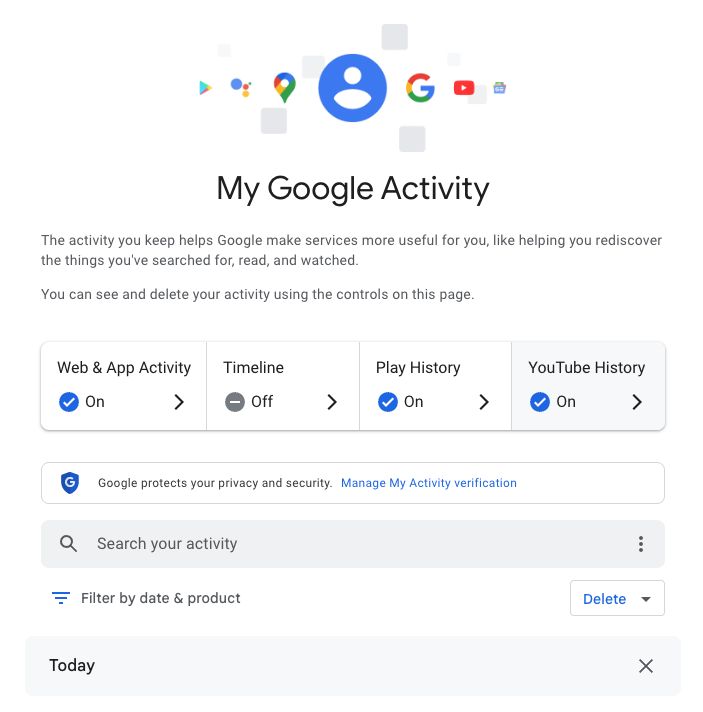
The My Google Activity home page
Once logged in, you’ll see the above welcome screen with quick settings that you can change, if you want to. Those settings are different for some users, but may include:
Web & App Activity
Timeline
Play History
YouTube History
Further down on the page, you can browse through your Google Search history. (Our screenshot gallery below can help walk you through the steps.)
First, look for the search bar in the welcome screen that says Search your activity.
Right below, you will find the words Filter by date & product. These words are clickable. Click them.
Once you’ve clicked Filter by date & product, you’ll see a pop-up menu where you can look through your Google activity by date or product. Instead of focusing on the date, scroll down through the list of Google products and check the box for Google Search.
Press Apply.
Find the search bar in the My Google Activity homepage
Click on the words “Filter by date & product”
Scroll down through the list of items until you find Google Search
Click on the Google Search checkbox and click “Apply”
After you press Apply, you’ll be taken to a webpage that lists your Google Search history in reverse chronological order, showing you your most recent activity first. As you scroll down, you can find older activity. You can also use the search bar at the top of the page to look for individual pieces of activity, like a search or series of searches that you previously made.
From here, you can also delete individual Google Search entries so that Google no longer stores that data. This will only apply to the individual search you made.
You can delete individual searches by clicking the “X” button in the top right corner of each search record
Confirm your deletion by pressing “Delete”
Your search is now no longer tied to your overall Google activity
If you want to better protect your privacy, making targeted deletions from your Google Search history is a difficult, lengthy, and imperfect method. Instead, you can simply tell Google to stop recording any of your searches from now on.
How to turn off Google Search history
There’s a simple way to instruct Google to stop saving your online searches to your Google Account, and it takes just a few clicks. Follow the instructions below, along with the image gallery, for guidance.
Go to your My Google Activity homepage (this is the same page you saw when first signing into myactivity.google.com)
Click on that quick control button we saw earlier: Web & App Activity
From here, you will see a new screen with the title Activity Controls
Find the button that says Turn off and click it
Choose between Turn off and Turn off and delete activity
Find the “Turn off” button from the Activity Controls webpage
You can choose one of two options for turning off your data
With one click, you can stop Google from recording your activity
If you selected Turn off, you’re done. Google will no longer save your Google Searches as part of your overall Google profile activity. This option means that Google still has your prior searches recorded, though. So, if you want, you can choose the second option, Turn off and delete activity.
When you select that option, Google will walk you through additional steps to choose what types of data you want erased, such as past activity tied to Google Search, Maps, Ads, Image Search, Google Play Store, Help and other services. All of these options reveal just how many products and pipelines Google has built to vacuum up your data.
Don’t be overwhelmed, though. Go through the list at your own pace and start making decisions about your data that are right for you.
We don’t just report on data privacy—we help you remove your personal information
Cybersecurity risks should never spread beyond a headline. With Malwarebytes Personal Data Remover, you can scan to find out which sites are exposing your personal information, and then delete that sensitive data from the internet.
In February 2026, the cybersecurity firm Oversecured published a report that makes you want to factory reset your phone and move into a remote cabin in the woods. Researchers audited 10 popular Android mental health apps — ranging from mood trackers and AI therapists to tools for managing depression and anxiety — and uncovered… 1575 vulnerabilities! Fifty-four of those flaws were classified as critical. Given the download stats on Google Play, as many as 15 million people could be affected. The real kicker? Six out of the ten apps tested explicitly promised users that their data was “fully encrypted and securely protected”.
We’re breaking down this scandalous “brain drain”: what exactly could leak, how it’s happening, and why “anonymity” in these services is usually just a marketing myth.
What was found in the apps
Oversecured is a mobile app security firm that uses a specialized scanner to analyze APK files for known vulnerability patterns across dozens of categories. In January 2026, researchers ran ten mental health monitoring apps from Google Play through the scanner — and the results were, shall we say, “spectacular”.
App Type
Installs
Security vulnerabilities
High-severity
Medium-severity
Low-severity
Total
Mood & habit tracker
10M+
1
147
189
337
AI therapy chatbot
1M+
23
63
169
255
AI emotional health platform
1M+
13
124
78
215
Health & symptom tracker
500k+
7
31
173
211
Depression management tool
100k+
0
66
91
157
CBT-based anxiety app
500k+
3
45
62
110
Online therapy & support community
1M+
7
20
71
98
Anxiety & phobia self-help
50k+
0
15
54
69
Military stress management
50k+
0
12
50
62
AI CBT chatbot
500k+
0
15
46
61
Total
14.7М+
54
538
983
1575
Vulnerabilities found in the 10 tested mental health apps. Source
The anatomy of the flaws
The discovered vulnerabilities are diverse, but they all boil down to one thing: giving attackers access to data that should be under lock and key.
For starters, one of the vulnerabilities allows an attacker to access any internal activity of the app — even that never intended for external eyes. This opens the door to hijacking authentication tokens and user session data. Once an attacker has those, they essentially could gain access to a user’s therapy records.
Another issue is insecure local data storage with read permissions granted to any other app on the device. In other words, that random flashlight app or calculator on your smartphone could potentially read your cognitive behavioral therapy (CBT) logs, personal notes, and mood assessments.
The researchers also found unencrypted configuration data baked right into the APK installation files. This included backend API endpoints and hardcoded URLs for Firebase databases.
Furthermore, several apps were caught using the cryptographically weak java.util.Random class to generate session tokens and encryption keys.
Finally, most of the tested apps lacked root/jailbreak detection. On a rooted device, any third-party app with root privileges could gain total access to every bit of locally stored medical data.
Shockingly, of the 10 apps analyzed, only four received updates in February 2026. The rest haven’t seen a patch since November 2025, and one hasn’t been touched since September 2024. Going 18 months without a security patch is a lifetime in this industry — especially for an app housing mood journals, therapy transcripts, and medication schedules.
Here’s a quick reminder of just how dangerous the misuse of this type of data gets. In 2024, the tech world was rocked by a sophisticated attack on XZ Utils, a critical component found in virtually every operating system based on the Linux kernel. The attacker successfully pressured the maintainer into handing over code commit permissions by exploiting the developer’s public admission of burnout and a lack of motivation to carry on with the project. Had the attack been completed, the damage would have been mind-boggling given that roughly 80% of the world’s servers run on Linux.
What could leak?
What do these apps collect and store? It’s the kind of stuff you’d likely only share with a trusted clinician: therapy session transcripts, mood logs, medication schedules, self-harm indicators, CBT notes, and various clinical assessment scales.
As far back as 2021, complete medical records were selling on the dark web for US$1000 each. For comparison, a stolen credit card number goes for anywhere between US$5 and US$30. Medical records contain a full identity package: name, address, insurance details, and diagnostic history. Unlike a credit card, you can’t exactly “reissue” your medical history. Furthermore, medical fraud is notoriously difficult to spot. While a bank might flag a suspicious transaction in hours, a fraudulent insurance claim for a phantom treatment can go unnoticed for years.
We’ve seen this movie before
The Oversecured study isn’t just an isolated horror story.
Back in 2020, Julius Kivimäki hacked the database of the Finnish psychotherapy clinic Vastaamo, making off with the records of 33 000 patients. When the clinic refused to cough up a €400 000 ransom, Kivimäki began sending direct threats to patients: “Pay €200 in Bitcoin within 24 hours, or else your records go public”. Ultimately, he leaked the entire database onto the dark web anyway. At least two people died by suicide, and the clinic was forced into bankruptcy. Kivimäki was eventually sentenced to six years and three months in prison, marking a record-breaking trial in Finland for the sheer number of victims involved.
In 2023, the U.S. Federal Trade Commission (FTC) slapped the online therapy giant BetterHelp with a US$7.8 million fine. Despite stating on their sign-up page that your data was strictly confidential, the company was caught funneling user info — including mental health questionnaire responses, emails, and IP addresses — to Facebook, Snapchat, Criteo, and Pinterest for targeted advertising. After the dust settled, 800 000 affected users received a grand total of… US$10 each in compensation.
By 2024, the FTC set its sights on the telehealth firm Cerebral, tagging them with a US$7 million fine. Through tracking pixels, Cerebral leaked the data of 3.2 million users to LinkedIn, Snapchat, and TikTok. The haul included names, medical histories, prescriptions, appointment dates, and insurance info. And the cherry on top? The company sent promotional postcards (sans envelopes) to 6000 patients, which effectively broadcasted that the recipients were undergoing psychiatric treatment.
In September 2024, security researcher Jeremiah Fowler stumbled upon an exposed database belonging to Confidant Health, a provider specializing in addiction recovery and mental health services. The database contained audio and video recordings of therapy sessions, transcripts, psychiatric notes, drug test results, and even copies of driver’s licenses. In total, 5.3 terabytes of data, 126 000 files, or 1.7 million records were sitting there without a password.
Why anonymity is an illusion
Developers love to drop the line: “We never share your personal data with anyone.” Technically, that might be true — instead, they share “anonymized profiles”. The catch? De-anonymizing that data isn’t exactly rocket science anymore. Recent research highlights that using LLMs to strip away anonymity has become a routine reality.
Even the “anonymization” process itself is often a mess. A study by Duke University revealed that data brokers are openly hawking the mental health data of Americans. Out of 37 brokers surveyed, 11 agreed to sell data linked to specific diagnoses (like depression, anxiety, and bipolar disorder), demographic parameters, and in some cases, even names and home addresses. Prices started as low as US$275 for 5000 aggregated records.
According to the Mozilla Foundation, by 2023, 59% of popular mental health apps failed to meet even the most basic privacy standards, and 40% had actually become less secure than the previous year. These apps allowed account creation via third-party services (like Google, Apple, and Facebook), featured suspiciously brief privacy policies that glossed over data collection details, and employed a clever little loophole: some privacy policies applied strictly to the company’s website, but not the app itself. In short, your clicks on the site were “protected”, but your actions within the app were fair game.
How to protect yourself
Cutting these apps out of your life entirely is, of course, the most foolproof option — but it’s not the most realistic one. Besides, there’s no guarantee you can actually nuke the data already collected — even if you delete your account. We previously covered the grueling process of scrubbing your info from data broker databases; it’s possible, but prepare for a headache. So, how can you stay safe?
Check permissions before you hit “Install”. In Google Play, navigate to App description → About this app → Permissions. A mood tracker has no business asking for access to your camera, microphone, contacts, or precise GPS location. If it does, it’s not looking out for your well-being — it’s harvesting data.
Actually read the privacy policy. We get it — nobody reads these multi-page manifestos. But when a service is vacuuming up your most intimate thoughts, it’s worth a skim. Look for the red flags: does the company share data with third parties? Can you manually delete your records? Does the policy explicitly cover the app itself, or just the website? You can always feed the policy text into an AI and ask it to flag any privacy deal-breakers.
Check the last updated date. An app that hasn’t seen an update in over six months is likely a playground for unpatched vulnerabilities. Remember: six out of the 10 apps Oversecured tested hadn’t been touched in months.
Disable everything non-essential in your phone’s privacy settings. Whenever prompted, always select “ask not to track”. When an app pleads with you to enable a specific type of tracking — claiming it’s for “internal optimization” — it’s almost always a marketing ploy rather than a functional necessity. After all, if the app truly won’t work without a certain permission, you can always go back and toggle it on later.
Don’t use “Sign in with…” services. Authenticating via Facebook, Apple, Google, or Microsoft creates additional identifiers and gives companies a golden opportunity to link your data across different platforms.
Treat everything you type like a public social media post. If you wouldn’t want a random stranger on the internet reading it, you probably shouldn’t be typing it into an app with over 150 vulnerabilities that hasn’t seen a patch since the year before last.
What else you should know about privacy settings and controlling your personal data online:
On February 8, during the Super Bowl in the United States, countless owners of one of the most popular smart products today got a bit of a wakeup call: Their Ring doorbells could be used to see a whole lot more than they knew.
In a commercial that was broadcast to one of most reliably enormous audiences in the country, Amazon, which owns the company Ring, promoted a new feature for its smart doorbells called “Search Party.” By scouring the footage of individual Ring cameras across a specific region, “Search Party” can implement AI-powered image recognition technology to find, as the commercial portrayed it, a lost dog. But immediately after the commercial aired, people began wondering what else their Ring cameras could be used to find.
“Ring’s Super Bowl ad exposed a scary truth: the technology in its doorbell cameras could be used to hunt down a lost pet…or a person. Amazon must discontinue its dystopian monitoring features.”
These “dystopian monitoring features” aren’t entirely new, but that’s not to say that most Ring owners knew what they were allowing when they originally bought their devices.
Bought by Amazon in 2018, Ring is the most popular manufacturer of a product that, as of 15 years ago, didn’t really exist. And while other “smart” innovations failed, smart doorbells have become a fixture of American neighborhoods, providing a mixture of convenience and security. For instance, a Ring owner away from home can verify and buzz in their mailman dropping off a package behind a gated entrance. Or, a Ring owner can see on their phone that the person knocking at their door is a salesman and choose to avoid talking to them. Or, a Ring owner can help police who are investigating a crime in their area by handing over relevant footage. Even the presence of a Ring doorbell, and its variety of motion-detecting alerts, could possibly serve as a deterrent to crime.
What has seemingly upset so many of those same owners, then, is learning exactly how their personal devices might be used for a company’s gains.
Today, on the Lock and Code podcast with host David Ruiz, we speak with Matthew Guariglia, senior policy analyst at Electronic Frontier Foundation, about Ring’s long history of partnering with—and sometimes even speaking directly for—police, who can access Ring doorbell footage both inside the company and outside it, and what people really open themselves up to when purchasing a Ring device.
”There’s this impression, a myth practically, that ‘I buy a ring doorbell to put on my house, I control the footage… But there is [an] entire secondary use of this device, which is by police that you don’t really get a lot of say in.”
If you don’t go searching for AI services, they’ll find you all the same. Every major tech company feels a moral obligation not just to develop an AI assistant, integrated chatbot, or autonomous agent, but to bake it into their existing mainstream products and forcibly activate it for tens of millions of users. Here are just a few examples from the last six months:
Google activated Gemini for all U.S. Chrome users, cranked its browser functionality to the max, aggressively expanded the reach of AI Overviews in search results, and baked a whole suite of AI features into its online services (Gmail, Google Docs, and others).
Apple integrated its own Apple Intelligence (conveniently sharing the AI acronym) into the latest OS versions across all device types and most of its native apps.
On the flip side, geeks have rushed to build their own “personal Jarvises” by renting VPS instances or hoarding Mac minis to run the OpenClaw AI agent. Unfortunately, OpenClaw’s security issues with default settings turned out to be so massive that it’s already been dubbed the biggest cybersecurity threat of 2026.
Beyond the sheer annoyance of having something shoved down your throat, this AI epidemic brings some very real practical risks and headaches. AI assistants hoover up every bit of data they can get their hands on, parsing the context of the websites you visit, analyzing your saved documents, reading through your chats, and so on. This gives AI companies an unprecedentedly intimate look into every user’s life.
A leak of this data during a cyberattack — whether from the AI provider’s servers or from the cache on your own machine — could be catastrophic. These assistants can see and cache everything you can, including data usually tucked behind multiple layers of security: banking info, medical diagnoses, private messages, and other sensitive intel. We took a deep dive into how this plays out when we broke down the issues with the AI-powered Copilot+ Recall system, which Microsoft also planned to force-feed to everyone. On top of that, AI can be a total resource hog, eating up RAM, GPU cycles, and storage, which often leads to a noticeable hit to system performance.
For those who want to sit out the AI storm and avoid these half-baked, rushed-to-market neural network assistants, we’ve put together a quick guide on how to kill the AI in popular apps and services.
How to disable AI in Google Docs, Gmail, and Google Workspace
Google’s AI assistant features in Mail and Docs are lumped together under the umbrella of “smart features”. In addition to the large language model, this includes various minor conveniences, like automatically adding meetings to your calendar when you receive an invite in Gmail. Unfortunately, it’s an all-or-nothing deal: you have to disable all of the “smart features” to get rid of the AI.
To do this, open Gmail, click the Settings (gear) icon, and then select See all settings. On the General tab, scroll down to Google Workspace smart features. Click Manage Workspace smart feature settings and toggle off two options: Smart features in Google Workspace and Smart features in other Google products. We also recommend unchecking the box next to Turn on smart features in Gmail, Chat, and Meet on the same general settings tab. You’ll need to restart your Google apps afterward (which usually happens automatically).
How to disable AI Overviews in Google Search
You can kill off AI Overviews in search results on both desktops and smartphones (including iPhones), and the fix is the same across the board. The simplest way to bypass the AI overview on a case-by-case basis is to append -ai to your search query — for example, how to make pizza -ai. Unfortunately, this method occasionally glitches, causing Google to abruptly claim it found absolutely nothing for your request.
If that happens, you can achieve the same result by switching the search results page to Web mode. To do this, select the Web filter immediately below the search bar — you’ll often find it tucked away under the More button.
A more radical solution is to jump ship to a different search engine entirely. For instance, DuckDuckGo not only tracks users less and shows little ads, but it also offers a dedicated AI-free search — just bookmark the search page at noai.duckduckgo.com.
How to disable AI features in Chrome
Chrome currently has two types of AI features baked in. The first communicates with Google’s servers and handles things like the smart assistant, an autonomous browsing AI agent, and smart search. The second handles locally more utility-based tasks, such as identifying phishing pages or grouping browser tabs. The first group of settings is labeled AI mode, while the second contains the term Gemini Nano.
To disable them, type chrome://flags into the address bar and hit Enter. You’ll see a list of system flags and a search bar; type “AI” into that search bar. This will filter the massive list down to about a dozen AI features (and a few other settings where those letters just happen to appear in a longer word). The second search term you’ll need in this window is “Gemini“.
After reviewing the options, you can disable the unwanted AI features — or just turn them all off — but the bare minimum should include:
AI Mode Omnibox entrypoint
AI Entrypoint Disabled on User Input
Omnibox Allow AI Mode Matches
Prompt API for Gemini Nano
Prompt API for Gemini Nano with Multimodal Input
Set all of these to Disabled.
How to disable AI features in Firefox
While Firefox doesn’t have its own built-in chatbots and hasn’t (yet) tried to force upon users agent-based features, the browser does come equipped with smart-tab grouping, a sidebar for chatbots, and a few other perks. Generally, AI in Firefox is much less “in your face” than in Chrome or Edge. But if you still want to pull the plug, you’ve two ways to do it.
The first method is available in recent Firefox releases — starting with version 148, a dedicated AI Controls section appeared in the browser settings, though the controls are currently a bit sparse. You can use a single toggle to completely Block AI enhancements, shutting down AI features entirely. You can also specify whether you want to use On-device AI by downloading small local models (currently just for translations) and configure AI chatbot providers in sidebar, choosing between Anthropic Claude, ChatGPT, Copilot, Google Gemini, and Le Chat Mistral.
The second path — for older versions of Firefox — requires a trip into the hidden system settings. Type about:config into the address bar, hit Enter, and click the button to confirm that you accept the risk of poking around under the hood.
A massive list of settings will appear along with a search bar. Type “ML” to filter for settings related to machine learning.
To disable AI in Firefox, toggle the browser.ml.enabled setting to false. This should disable all AI features across the board, but community forums suggest this isn’t always enough to do the trick. For a scorched-earth approach, set the following parameters to false (or selectively keep only what you need):
ml.chat.enabled
ml.linkPreview.enabled
ml.pageAssist.enabled
ml.smartAssist.enabled
ml.enabled
ai.control.translations
tabs.groups.smart.enabled
urlbar.quicksuggest.mlEnabled
This will kill off chatbot integrations, AI-generated link descriptions, assistants and extensions, local translation of websites, tab grouping, and other AI-driven features.
How to disable AI features in Microsoft apps
Microsoft has managed to bake AI into almost every single one of its products, and turning it off is often no easy task — especially since the AI sometimes has a habit of resurrecting itself without your involvement.
How to disable AI features in Edge
Microsoft’s browser is packed with AI features, ranging from Copilot to automated search. To shut them down, follow the same logic as with Chrome: type edge://flags into the Edge address bar, hit Enter, then type “AI” or “Copilot” into the search box. From there, you can toggle off the unwanted AI features, such as:
Enable Compose (AI-writing) on the web
Edge Copilot Mode
Edge History AI
Another way to ditch Copilot is to enter edge://settings/appearance/copilotAndSidebar into the address bar. Here, you can customize the look of the Copilot sidebar and tweak personalization options for results and notifications. Don’t forget to peek into the Copilot section under App-specific settings — you’ll find some additional controls tucked away there.
How to disable Microsoft Copilot
Microsoft Copilot comes in two flavors: as a component of Windows (Microsoft Copilot), and as part of the Office suite (Microsoft 365 Copilot). Their functions are similar, but you’ll have to disable one or both depending on exactly what the Redmond engineers decided to shove onto your machine.
The simplest thing you can do is just uninstall the app entirely. Right-click the Copilot entry in the Start menu and select Uninstall. If that option isn’t there, head over to your installed apps list (Start → Settings → Apps) and uninstall Copilot from there.
In certain builds of Windows 11, Copilot is baked directly into the OS, so a simple uninstall might not work. In that case, you can toggle it off via the settings: Start → Settings → Personalization → Taskbar→ turn off Copilot.
If you ever have a change of heart, you can always reinstall Copilot from the Microsoft Store.
It’s worth noting that many users have complained about Copilot automatically reinstalling itself, so you might want to do a weekly check for a couple of months to make sure it hasn’t staged a comeback. For those who are comfortable tinkering with the System Registry (and understand the consequences), you can follow this detailed guide to prevent Copilot’s silent resurrection by disabling the SilentInstalledAppsEnabled flag and adding/enabling the TurnOffWindowsCopilot parameter.
How to disable Microsoft Recall
The Microsoft Recall feature, first introduced in 2024, works by constantly taking screenshots of your computer screen and having a neural network analyze them. All that extracted information is dumped into a database, which you can then search using an AI assistant. We’ve previously written in detail about the massive security risks Microsoft Recall poses.
Under pressure from cybersecurity experts, Microsoft was forced to push the launch of this feature from 2024 to 2025, significantly beefing up the protection of the stored data. However, the core of Recall remains the same: your computer still remembers your every move by constantly snapping screenshots and OCR-ing the content. And while the feature is no longer enabled by default, it’s absolutely worth checking to make sure it hasn’t been activated on your machine.
To check, head to the settings: Start → Settings → Privacy & Security →Recall & snapshots. Ensure the Save snapshots toggle is turned off, and click Delete snapshots to wipe any previously collected data, just in case.
How to disable AI in Notepad and Windows context actions
AI has seeped into every corner of Windows, even into File Explorer and Notepad. You might even trigger AI features just by accidentally highlighting text in an app — a feature Microsoft calls “AI Actions”. To shut this down, head to Start → Settings → Privacy & Security → Click to Do.
Notepad has received its own special Copilot treatment, so you’ll need to disable AI there separately. Open the Notepad settings, find the AI features section, and toggle Copilot off.
Finally, Microsoft has even managed to bake Copilot into Paint. Unfortunately, as of right now, there is no official way to disable the AI features within the Paint app itself.
How to disable AI in WhatsApp
In several regions, WhatsApp users have started seeing typical AI additions like suggested replies, AI message summaries, and a brand-new Chat with Meta AI button. While Meta claims the first two features process data locally on your device and don’t ship your chats off to their servers, verifying that is no small feat. Luckily, turning them off is straightforward.
To disable Suggested Replies, go to Settings → Chats → Suggestions & smart replies and toggle off Suggested replies. You can also kill off AI Sticker suggestions in that same menu. As for the AI message summaries, those are managed in a different location: Settings → Notifications → AI message summaries.
How to disable AI on Android
Given the sheer variety of manufacturers and Android flavors, there’s no one-size-fits-all instruction manual for every single phone. Today, we’ll focus on killing off Google’s AI services — but if you’re using a device from Samsung, Xiaomi, or others, don’t forget to check your specific manufacturer’s AI settings. Just a heads-up: fully scrubbing every trace of AI might be a tall order — if it’s even possible at all.
In Google Messages, the AI features are tucked away in the settings: tap your account picture, select Messages settings, then Gemini in Messages, and toggle the assistant off.
Broadly speaking, the Gemini chatbot is a standalone app that you can uninstall by heading to your phone’s settings and selecting Apps. However, given Google’s master plan to replace the long-standing Google Assistant with Gemini, uninstalling it might become difficult — or even impossible — down the road.
If you can’t completely uninstall Gemini, head into the app to kill its features manually. Tap your profile icon, select Gemini Apps activity, and then choose Turn off or Turn off and delete activity. Next, tap the profile icon again and go to the Connected Apps setting (it may be hiding under the Personal Intelligence setting). From here, you should disable all the apps where you don’t want Gemini poking its nose in.
Apple’s platform-level AI features, collectively known as Apple Intelligence, are refreshingly straightforward to disable. In your settings — on desktops, smartphones, and tablets alike — simply look for the section labeled Apple Intelligence & Siri. By the way, depending on your region and the language you’ve selected for your OS and Siri, Apple Intelligence might not even be available to you yet.
Other posts to help you tune the AI tools on your devices:
Google has weighed in on a court case that will decide the future of a powerful but contentious tool for law enforcement. The company submitted an opinion to the US Supreme Court arguing that geofence warrants are unconstitutional.
A geofence warrant is a form of “reverse warrant” that turns a regular warrant on its head. Police get a regular warrant when they want to target a particular person. With a reverse warrant, police don’t know exactly who they’re looking for. Instead, they ask someone (typically a technology company) for a broad data set about a group of unknown people based on some common behavior. Then they analyze that data set for potential suspects.
With a geofence warrant, that data set is defined by a location and a time window. Law enforcement officials obtain a list of phones that were in that area during that period. Every device that was inside the circle comes back in the results, even if nobody on that list has been suspected of anything. Proximity is the only criterion.
That’s how Okello Chatrie was charged with armed bank robbery in Virginia in 2019: His phone showed up in a geofence warrant covering 17.5 acres (larger than three football fields). He argued that this kind of search isn’t constitutional and shouldn’t have been used as evidence.
In 2024, the Fifth Circuit Court of Appeals agreed with him, overturning a Fourth Circuit ruling. Now prosecutors have taken the case to the Supreme Court, with parties due to make oral arguments on April 27.
The case has seen a flurry of amicus curiae briefs, which are opinions from interested expert parties that have no direct involvement in the case. One of these is from Google, which on Monday urged the justices to consider the geofence warrants unconstitutional because of their broad scope. It has objected to more than 3,000 of them on constitutional grounds in recent months.
Google’s brief stated:
“Many of these overbroad warrants swept in hundreds, sometimes even thousands, of innocent people. State and federal courts have repeatedly granted Google’s motions to quash these overbroad warrants.”
How the database gets built
Although Google is just one of many organizations that filed amicus briefs, its position is especially notable because it has historically collected so much location data. Its Timeline feature (formerly Location History) logs device position via GPS, Wi-Fi networks, Bluetooth, and mobile signals, including when Google apps aren’t being used, according to its policy page.
At the time of the Chatrie warrant, it was recording position as frequently as every two minutes. All of that fed a centralised internal database which held 592 million individual accounts. So responding to any geofence request required Google to search essentially the entire store before producing a single name, according to an analysis by privacy advocacy group EPIC, which also regularly submits amicus briefs on privacy cases.
Google moved Timeline storage from its own servers onto users’ devices in July 2025, closing the door to fresh cloud-based requests against its own systems. But the constitutional question survives for historical data and for any company that has not followed suit.
The warrant that grew and grew
A geofence warrant does not stay fenced, according to a separate brief that the Center for Democracy and Technology (CDT) filed in the case last week. It said Google’s standard response to warrants had three steps. First it would deliver an anonymized list of devices inside the geofence. Then, police could ask for movement data on chosen “devices of interest,” which could track them outside the geographic boundary and beyond the original time window. Finally, again without any further judicial approval, police could ask for subscriber-identifying information for whichever devices police chose to unmask.
In the Chatrie case, positioning data was imprecise enough that, as the district court found, the warrant may have included devices outside the intended area. According to the CDT brief:
“The Geofence Warrant could have captured the location of someone who was hundreds of feet outside the geofence.”
The CDT argues in its brief that this can expose the privacy of people going about their everyday lives, engaging in legal activities that they might not want others to know about. The warrant that scooped up Chatrie included a hotel and a restaurant.
Some of these requests are far broader. Google successfully challenged a warrant asking for the location history of anyone in large portions of San Francisco for two and a half days, it said. Google complained in its brief:
“No court would authorize a physical search of hundreds of people or places, yet geofence warrants sometimes do so by design.”
What can you do to stop yourself getting swept up in a geofencing search?
If your phone stores detailed location history with Google, that data may be included in geofence warrant responses. Limiting what gets saved can reduce how much location information exists in the first place.
There are two Google settings that matter: Timeline (Location History) and Web & App Activity. Turning off one does not automatically disable the other.
Timeline stores a detailed record of where your device has been, although it’s off by default. Web & App Activity can also log location signals when you use Google services like Search, Maps, or other apps.
Google provides instructions on how to review and disable these settings in its support documentation:
Google has previously settled lawsuits accusing it of misleading users about how location data is stored across these settings, so reviewing both controls is important.
Reverse warrants may not stop at location data
The implications of the case extend well past maps, though. The CDT brief warns that if courts endorse the logic behind geofence warrants, then law enforcement may try to apply the same approach to other large datasets held by technology companies, such as AI chatbot data. That’s a step the DHS has already taken, issuing what has been reported as the first known warrant for ChatGPT user data.
We don’t just report on privacy—we offer you the option to use it.
Privacy risks should never spread beyond a headline. Keep your online privacy yours by using Malwarebytes Privacy VPN.
The idea of a “Great British Firewall” makes for a catchy headline, but it would be riddled with holes and cause huge problems.
The Guardian reports that the GCHQ (Government Communications Headquarters), a UK intelligence, security, and cyber agency, is exploring the idea of a British firewall offering protection against malicious hackers. It falls within its remit, but one of the measures reportedly discussed—banning VPN software—raises practical and technical questions.
Here’s what you actually need to know, and why you shouldn’t panic about your VPN just yet.
There are no current plans on the statute books to ban VPNs for everyone. Ministers and regulators explicitly acknowledge VPNs as lawful services with legitimate uses.
The current political focus is on “online safety”, especially kids accessing porn and harmful content, and how VPNs can undermine the Online Safety Act’s age‑assurance and filtering regime.
The latest move is an online‑safety consultation that explicitly mentions “options to age-restrict or limit children’s VPN use where it undermines safety protections”, not an outright nationwide ban.
So what may happen is tighter controls around minors, and perhaps pressure on app stores and platforms, rather than a blanket prohibition for adults.
Options
Technically speaking, these are some of the measures available to address VPNs bypassing geo-blocking and local legislation.
App‑store and download pressure: Require Apple/Google to hide or age‑gate VPN apps for UK accounts, or block listing of some consumer VPNs. This raises friction for non‑technical users but is trivial to route around (sideloading where possible, non‑UK stores, manual configs).
Commercial provider lists: Buy accounts at popular VPNs, enumerate exit IP ranges, and require ISPs or certain sites (e.g. porn sites) to block those IPs. This can catch a large chunk of mainstream VPN traffic but is high‑maintenance and easy to evade with IP rotation, residential proxies, self‑hosted VPNs, and lesser‑known services.
Targeted site‑level blocking of VPNs: Require certain categories of sites (e.g. adult sites) to reject traffic that appears to come from VPN IPs, an idea already floated by some experts as more likely than an outright technology ban. That still leaves VPNs usable for everything else, including general browsing and work.
Age‑based device/network controls: Mandate school networks, child‑oriented devices, or parental control routers to block known VPN endpoints and app traffic, as media regulator Ofcom and others have suggested may be possible at the home‑router level. Again, this targets minors rather than adults and is only as strong as the weakest network they connect to (a friend’s Wi‑Fi, mobile hotspot, etc.).
All of these are “making it harder” tactics rather than a hard technical kill switch.
Why a watertight VPN ban is essentially impossible
To comprehensively block VPNs, the government would need to require internet providers to inspect traffic, restrict apps from app stores, and attempt to cut off access to thousands of VPN servers worldwide. That would be a massive, expensive, and deeply complicated undertaking—and it still wouldn’t work.
Problem 1: VPNs are basically invisible
Modern VPNs are designed to look very similar to normal web browsing. When you load a website over HTTPS (the padlock in your browser) and when you connect to a VPN, the traffic flowing through your internet connection looks almost identical. Reliably telling them apart is a bit like trying to spot which cars on a motorway are taxis versus private vehicles based solely on their tire tread patterns at motorway speed, for every car, in real time. You’d end up accidentally blocking huge amounts of perfectly ordinary internet traffic in the attempt.
Problem 2: Too many legitimate users depend on VPNs
VPNs aren’t just for privacy-conscious consumers. They’re how millions of people securely connect to their workplace from home. The NHS (the UK’s National Health Service) uses them for remote access. Journalists use them to protect sources. Researchers use them to access academic resources. Any serious enforcement effort would have to grapple with the risk of collateral damage to businesses and public services.
Problem 3: The ban would be trivially easy to bypass
Even if the government successfully blocked every major commercial VPN app and service, technically skilled users could simply rent a cheap server anywhere in the world and set up their own private tunnel in under ten minutes. There are also tools designed to evade exactly this kind of blocking, disguising encrypted traffic as ordinary web activity.
We know this because Russia has been trying to block VPNs for years, using the full weight of state enforcement behind it. But VPN usage in Russia has surged, not declined. Blocked services pop up under new names and addresses and new tools emerge overnight. This track record suggests that long-term, comprehensive suppression is difficult, even with aggressive powers of enforcement.
What does this actually mean for UK citizens?
The government can probably make consumer VPN use slightly more inconvenient, removing apps from UK app stores, for instance, or creating legal grey areas for certain uses. But a genuine, technical ban on VPN software and encrypted connections is not realistically achievable without causing serious collateral damage to the UK’s digital economy and the millions of people who depend on this technology for entirely legitimate reasons.
Don’t ditch your VPN. The Great Firewall of Great Britain isn’t coming. And if it tried, it would have more holes than a fishing net.

 Login
Login