Normal view

A decade of enterprise identity in the cloud with AWS Managed Microsoft AD

7 August 2026 at 21:37

Ten years ago, we launched AWS Directory Service for Microsoft Active Directory, a fully managed Microsoft Active Directory in the AWS Cloud. In that original announcement, Jeff Barr described a straightforward promise: “You will spend less time administering and more time working on your applications and your business.”

A decade later, AWS Managed Microsoft AD has become the identity backbone for thousands of enterprises worldwide. What started as a way to run directory-aware workloads in the cloud now powers SQL Server authentication, Amazon WorkSpaces virtual desktops, and Amazon FSx for Windows File Server for thousands of enterprises worldwide.

The beginning: Solving a real customer problem

In 2015, customers migrating Windows workloads to Amazon Web Services (AWS) faced a familiar challenge. Microsoft Active Directory (AD) had become the dominant standard for enterprise identity, by some estimates commanding 90% market share for directory services in the Fortune 1000. Running SharePoint, SQL Server, .NET applications, or virtually any Windows workload meant running AD.

However, running AD well comes with significant operational overhead. It requires careful capacity planning, high availability design across multiple sites, ongoing patching and maintenance, backup and disaster recovery procedures, and deep expertise that’s increasingly difficult to find and retain. Customers told us they wanted to focus on their applications, not on managing domain controllers.

So we built AWS Managed Microsoft AD. Powered by actual Windows Server, it delivered real Microsoft AD (not a compatible alternative, but the genuine article) as a fully managed service. We handled the domain controller deployment, the multi-AZ high availability, the automated backups, the patching, the monitoring, and many more features including scalability and multi-Region replication. Customers got a directory they could provision in 25–30 minutes and start using immediately.

From that original What’s New announcement by Bryan Nairn:

“AWS Directory Service now lets you run a Microsoft Active Directory (AD) as a managed service… Host monitoring and recovery, data replication, snapshots, and software updates are automatically configured and managed for you.”

The first decade of innovation

Looking back at the past 10 years, we’re struck by how much AWS Managed Microsoft AD has evolved in response to customer feedback. Here are some of the highlights:

2015: Launch of AWS Managed Microsoft AD (Enterprise Edition) in five AWS Regions, powered by Windows Server 2012 R2. Support for trust relationships with on-premises AD, seamless domain join for Amazon Elastic Compute Cloud (Amazon EC2) instances, and integration with Amazon WorkSpaces.

2017: Introduction of Standard Edition, optimized for small and midsize businesses. This gave customers a cost-effective option for resource forest deployments and smaller workloads.

2018: Added support for schema extensions, enabling customers to extend their directory schema for applications that require custom attributes. Support for Group Managed Service Accounts (gMSA) with Windows containers and other services.

2019: Launched multi-Region replication for Enterprise Edition, allowing customers to automatically replicate their directory across AWS Regions for improved performance and disaster recovery. Added directory sharing across AWS accounts and integration with AWS Organizations.

2020: Introduced fine-grained directory settings for security and compliance, enabling customers to configure secure channel settings for protocols and ciphers. Enhanced compliance support—with the service now HIPAA eligible—included as an in-scope service under PCI DSS, and achieving FedRAMP authorization.

2021: Added CloudWatch metrics for domain controllers, helping customers optimize scaling decisions based on CPU, memory, disk, and AD-specific metrics like DNS and directory read/write operations. Launched integration with AWS Transfer Family for SFTP/FTPS/FTP authentication.

2022: Windows Server 2019 upgrade became available, with customer-initiated updates and automatic migration for all directories beginning in 2023.

2023: AWS Private CA Connector for Active Directory launched, allowing customers to replace self-managed enterprise certificate authorities with AWS Private CA for automatic certificate enrollment to domain-joined objects, with no local agents or proxy servers required.

2024: Launched CRUD APIs for users and groups, enabling IT administrators to manage AD users and groups directly from the AWS Management Console, AWS Command Line Interface (AWS CLI), and APIs, without deploying bastion hosts or opening network ports.

2025: General availability of AWS Managed Microsoft AD (Hybrid Edition), allowing customers to extend their existing AD domain to AWS while retaining administrative control. Introduced self-service edition upgrades through the UpdateDirectorySetup API, eliminating the need for support tickets when scaling from Standard to Enterprise Edition.

2026 and beyond: As we enter our second decade, our roadmap continues to be shaped by the customers who depend on AWS Managed Microsoft AD every day. We’re working on new capabilities driven directly by your feedback, and we look forward to sharing more soon.

Powering identity across AWS

Over the past decade, more than 20 AWS services have added native integration with AWS Managed Microsoft AD. What started with WorkSpaces and EC2 domain join has expanded to more than 20 AWS services, making AWS Managed Microsoft AD foundational for many enterprise customers’ workloads on AWS.

Database services

For many customers, database authentication is a primary driver for adopting AWS Managed Microsoft AD. By pairing Amazon Relational Database Service (Amazon RDS) for SQL Server with AWS Managed Microsoft AD, they gain the benefits of fully managed services while achieving straightforward integration and reduced management overhead. This combination lets developers and DBAs use their existing AD credentials to access SQL Server databases, so they don’t need to manage separate database accounts.

Beyond SQL Server, AWS Managed Microsoft AD enables Windows authentication across the Amazon RDS family:

  • Amazon RDS for Oracle
  • Amazon RDS for PostgreSQL
  • Amazon RDS for MySQL
  • Amazon RDS for DB2
  • Amazon Aurora MySQL
  • Amazon Aurora PostgreSQL

File storage services

Amazon FSx for Windows File Server provides fully managed Windows file shares that integrate natively with AWS Managed Microsoft AD. Customers use AD users and groups to control access to file shares, apply Windows ACLs, and use features like DFS namespaces, all with the same management experience they use on premises.

AWS Storage Gateway supports AD authentication for SMB file shares, enabling hybrid storage architectures where on-premises applications access cloud storage using familiar AD credentials.

AWS Transfer Family added AD integration in 2021, allowing customers to authenticate SFTP, FTPS, and FTP users against their AWS Managed Microsoft AD. This allows customers to migrate file transfer workflows without changing end-user credentials.

End user computing

Amazon end-user computing services were among the first to integrate with AWS Managed Microsoft AD:

Security and identity

AWS IAM Identity Center (formerly AWS Single Sign-On) uses AWS Managed Microsoft AD as an identity source, synchronizing users and groups to provide single sign-on access across AWS accounts and applications. This provides centralized identity management while using your existing AD infrastructure.

AWS Client VPN authenticates users against AWS Managed Microsoft AD, providing secure remote access using corporate credentials.

AWS Management Console access can be federated through AWS Managed Microsoft AD, so AD users can assume AWS Identity and Access Management (IAM) roles and manage AWS resources with their existing credentials.

Compute services

Amazon EC2 instances (both Windows and Linux) support seamless domain join at launch. Windows instances can be managed using Group Policy, and Linux instances can authenticate users through SSSD or Realm integration.

Amazon Elastic Container Service (Amazon ECS) supports AD authentication for Windows containers through Group Managed Service Accounts (gMSA), enabling containerized applications to authenticate to AD-integrated resources.

Business applications

This breadth of integration means customers can standardize on a single directory for their entire AWS environment, from databases to desktops to file servers to analytics.

Choosing the right edition

Over the years, we’ve learned that customers have different needs when it comes to managed AD. Today, AWS Managed Microsoft AD is available in three editions, each designed for specific use cases.

Standard Edition: Basic, cost-effective identity

Standard Edition is optimized for small and midsize businesses, or for enterprises deploying a resource forest model in a single AWS Region. With 1 GB of directory object storage supporting up to 30,000 objects (approximately 5,000 users), Standard Edition provides everything needed to run directory-aware workloads without the overhead of managing domain controllers.

Common use cases:

  • Resource forest deployments – Many customers use Standard Edition as a resource forest, establishing a trust relationship with their on-premises AD. User identities remain in the customer’s existing domain, while the resource forest manages AWS resources like Amazon RDS for SQL Server and FSx for Windows File Server.
  • Development and test environments – Cost-effective option for non-production workloads
  • Single-Region applications – Workloads that don’t require global presence

Standard Edition is a great starting point, and customers aren’t locked in. With our new self-service upgrade capability (launched October 2025), you can upgrade to Enterprise Edition programmatically through the UpdateDirectorySetup API, no support tickets or maintenance window coordination required.

Enterprise Edition: Built for global scale

Enterprise Edition is designed for organizations with larger user populations, complex deployments, or global footprints. With 17 GB of storage supporting up to 500,000 directory objects, Enterprise Edition provides the capacity and capabilities that large enterprises require.

Key capabilities:

  • Multi-Region replication – Automatically replicate your directory across AWS Regions. Users and applications connect to local domain controllers, reducing latency and providing disaster recovery capabilities.
  • Extended directory sharing – Share your directory with up to 500 AWS accounts, enabling centralized identity across large organizations using AWS Organizations.
  • Higher compute capacity – Larger domain controller instances with more CPU and memory for demanding workloads

If you have users and applications in multiple geographic regions, or anticipate significant growth in directory objects, Enterprise Edition is the right choice.

Hybrid Edition: Extend your existing domain

Launched earlier this year, Hybrid Edition takes a fundamentally different approach. Instead of creating a new AD domain in AWS, Hybrid Edition extends your existing AD domain into the cloud.

What makes Hybrid Edition unique:

  • Same domain – AWS Managed Microsoft AD domain controllers join your existing AD. No new domain name, no trust relationships to configure.
  • Retain administrative control – Unlike Standard and Enterprise where you receive delegated OU permissions, Hybrid Edition preserves your existing administrative rights. Your AD administrators continue using familiar tools while changes replicate to AWS in real time.
  • Preserve existing investments – Security principals, group policies, and permissions transfer seamlessly. No migration of identities required.

Hybrid Edition is ideal for customers who want the operational benefits of AWS-managed domain controller infrastructure without changing their AD architecture or giving up administrative control.

Which edition should you choose?

Use the following table to determine which edition best fits your use case.

Use case Edition
A new AD domain for AWS workloads in a single Region Standard Edition
A resource forest with trust to on-premises AD Standard Edition
Multi-Region replication for global deployments Enterprise Edition
Support for more than 30,000 directory objects Enterprise Edition
To extend your existing AD domain to AWS Hybrid Edition
To retain full administrative control over your AD Hybrid Edition

What we’ve learned: Design decisions that stood the test of time

Looking back at the decisions we made in 2015, several have proven foundational to the service’s success:

  • High availability by default – Every AWS Managed Microsoft AD directory deploys with a minimum of two domain controllers across separate Availability Zones. Customers don’t need to design high availability (HA) architecture, it’s built in.
  • Real Microsoft AD – We chose to run actual Windows Server AD, not a compatible alternative. This means standard AD administration tools work, existing scripts and automation work, and applications that depend on specific AD behaviors typically work without modification.
  • Seamless integration with AWS services – By building native integrations between AWS Managed Microsoft AD and other AWS services, we’ve made it possible for customers to use a single directory across their entire AWS environment.
  • Customer retains control – While AWS manages the infrastructure, customers manage their directory content. You control your users, groups, OUs, and policies using familiar tools.
  • Room to grow – The edition model (and now self-service upgrades) means customers can start with what they need today and scale as requirements evolve.

Looking ahead: The next chapter

As we celebrate 10 years of AWS Managed Microsoft AD, we’re excited about what’s ahead. The launch of Hybrid Edition earlier this year represents a significant expansion of what’s possible, giving customers new flexibility in how they architect their identity infrastructure for hybrid and multi-cloud environments.

We continue to listen to customer feedback and invest in capabilities that reduce operational burden while expanding what you can build. Whether you’re running your first SQL Server database in the cloud, deploying virtual desktops to a global workforce, or modernizing legacy applications that depend on AD, AWS Managed Microsoft AD is here to help.

Thank you to all the customers who have trusted us with their identity infrastructure over the past decade. Your feedback has shaped this service, and we’re committed to continuing to earn that trust for the next 10 years and beyond.

Resources

Ready to get started or learn more? Here are some resources:

If you have feedback about this post, submit comments in the Comments section below.

Vladimir Provorov

Vladimir is a Product Solutions Architect from AWS Identity focused on Workforce Identity and Directory Service. He works on developing new features to make Enterprise Identity simpler and more scalable. He is excited to travel and explore the world with his family.

Rodney Underkoffler

Rodney Underkoffler

Rodney is a Senior Solutions Architect at Amazon Web Services, focused on guiding enterprise customers on their cloud journey. He has a background in infrastructure, security, and IT business practices. He is passionate about technology and enjoys building and exploring new solutions and methodologies.

Author

Tekena Orugbani

Tekena is a Sr. Specialist Solutions Architect at Amazon Web Services and a technologist of over 20 years, specializing in Microsoft technologies. At AWS, Tekena is focused on helping customers architect, migrate and modernize their Microsoft workloads on the AWS Cloud. Outside work, he enjoys hanging out with his family and watching soccer.

Automating identity lifecycle and security with AWS Directory Service APIs

21 May 2026 at 18:00

Managing identities and access across complex environments has become more critical than ever. AWS Directory Service for Managed Microsoft Active Directory, also known as AWS Managed Microsoft AD, has added new capabilities to manage users and groups. Now, you can perform create, read, update, and delete (CRUD) operations on users and groups directly through AWS Command Line Interface (AWS CLI), APIs, and the AWS Management Console. You can use this powerful capability to automate identity lifecycle management and enhance security in your AWS environment. By using these APIs, collectively known as the Directory Service Data APIs, you can perform operations such as:

  • Listing users and groups
  • Retrieving user and group details
  • Disabling and enabling user accounts
  • Resetting user passwords
  • Managing group memberships

These APIs provide new possibilities for automating identity management tasks and integrating Active Directory management into your existing workflows and applications.

The introduction of these APIs brings several key benefits:

  • Automation of the identity lifecycle: You can now programmatically manage user accounts throughout their lifecycle—from creation to deletion—enabling streamlined onboarding and offboarding processes.
  • Enhanced security: By integrating these APIs with security services like Amazon GuardDuty, you can create automated responses to potential security threats, such as disabling accounts with inappropriate access.
  • Improved compliance: You can use automated user management to help enforce consistent policies and help maintain compliance with various regulatory requirements.
  • Operational efficiency: You can automate routine tasks such as user provisioning, deprovisioning, and group management, reducing manual effort and the potential for human error.
  • Integration capabilities: By using these APIs, you can seamlessly integrate with existing identity management systems, custom applications, and third-party tools.
  • Cost optimization: By automating processes and reducing manual intervention, you can potentially help your organization optimize operational costs associated with identity management.

In this post, we explore these new APIs and demonstrate how you can use them to create an automated solution for detecting and responding to unexpected behavior by Active Directory users. We walk through a practical example that combines GuardDuty, AWS Step Functions, Amazon EventBridge, and the new AWS Directory Service APIs to create a robust security automation workflow.

Solution overview

To demonstrate the power of these new APIs, let’s explore a practical solution that automates the detection and response to unexpected behavior by Active Directory users. This solution combines several AWS services to create a robust security automation workflow:

    1. GuardDuty continuously monitors for unexplained behavior of Active Directory users from AWS Managed Microsoft AD. For the example in this post, we’re using Backdoor:Runtime/C&CActivity.B!DNS
    2. An EventBridge rule detects GuardDuty findings related to these users and triggers a Step Functions workflow.
      {
        "detail-type": ["GuardDuty Finding"],
        "source": ["aws.guardduty"],
        "detail": {
          "type": ["Backdoor:Runtime/C&CActivity.B!DNS"]
        }
      }
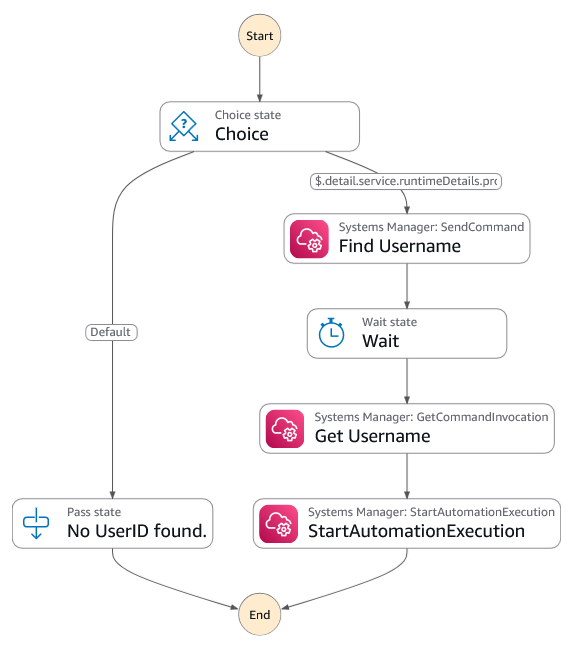
    3. The Step Functions workflow will:
      1. Extract the Active Directory username from the instance using a run command.
      2. Start an automation that will disable the account using the DisableUser API.
Figure 1: Diagram of the Step Functions workflow showing the process of Systems Manager finding the username and starting the automation to disable the account

Figure 1: Diagram of the Step Functions workflow showing the process of Systems Manager finding the username and starting the automation to disable the account

  1. Finally, another EventBridge rule will monitor the DisableUser API call. It will send an email to the user using Amazon Simple Notification Service (Amazon SNS) notifications.
    {
      "detail-type": ["AWS API Call via CloudTrail"],
      "source": ["aws.ds"],
      "detail": {
        "eventSource": ["ds.amazonaws.com"],
        "eventName": ["DisableUser"]
      }
    }

This solution delivers automated, near real-time remediation of potential security threats — significantly reducing exposure windows and containing the impact of unauthorized account access.

The following figure shows a high-level architecture diagram of the solution.

Figure 2: Diagram showing the workflow of what happens when potentially damaging activity is detected

Figure 2: Diagram showing the workflow of what happens when potentially damaging activity is detected

Note: The solution must be deployed in the primary AWS Region of your directory.

Prerequisites

To complete the walkthrough in this post, you must have the following prerequisites in place.

GuardDuty

GuardDuty is an automated threat detection service that continuously monitors for unexpected activity and unauthorized behavior to protect your AWS accounts, workloads, and data stored in Amazon Simple Storage Service (Amazon S3).

To activate GuardDuty:

  1. Go to the GuardDuty console.
    1. If you’re activating GuardDuty for the first time, under Try threat detection with GuardDuty, select All Features and then choose Get Started.
    2. If you’ve used GuardDuty before, select Runtime Monitoring and then choose Enable under Runtime Monitoring.
Figure 3: Runtime Monitoring enabled

Figure 3: Runtime Monitoring enabled

AWS Managed Microsoft AD

AWS Managed Microsoft AD provides a fully managed service for Microsoft Active Directory (AD) in the AWS Cloud. When you create your directory, AWS deploys two domain controllers that are exclusively yours in separate Availability Zones for high availability. For use cases that require even higher resilience and performance in a specific AWS Region or during specific hours, you can scale AWS Managed Microsoft AD by deploying additional domain controllers to meet your needs. These domain controllers can help load balance, increase overall performance, or provide additional nodes to protect against temporary availability issues. Using AWS Managed Microsoft AD, you can define the correct number of domain controllers for your directory based on your use case.

To deploy a new AWS Managed Microsoft AD:

  1. Go to the Directory Service console.
  2. Choose Set up directory and select AWS Managed Microsoft AD.
  3. Select Standard Edition and enter a directory DNS name and password.
  4. Select a virtual private cloud (VPC). For this example, use the Default VPC.
  5. Choose Create directory.

Create a test Active Directory user

You will use this test user account to sign in to an EC2 instance and initiate a command that simulates unexplained activity that results in this account being disabled.

To create the test user, you can use AWS CloudShell or the AWS CLI from your local machine. Run the following commands, replacing the --directory-id value with your own:

# Create the test user
aws ds-data create-user \
 --directory-id "your-directory-id" \
 --sam-account-name "TestUser" \
 --given-name "Test" \
 --surname "User"

Then

# Set a password for the test user 
aws ds reset-user-password \
 --directory-id "your-directory-id" \
 --user-name "TestUser" \
 --new-password "YourSecurePassword123!"

In this example, the password is set to YourSecurePassword123!. If you need to replace it with a password that meets your organization’s requirements, see Resetting and enabling an AWS Managed Microsoft AD user’s password. For more information on creating users, see Creating an AWS Managed Microsoft AD user in the AWS Directory Service documentation.

Test EC2 instance

To generate alerts on GuardDuty, you need a domain joined Linux EC2 instance. If you don’t have a domain joined EC2 Linux instance, follow these instructions for joining a Linux instance to an Active Directory domain. This instance will be used to simulate suspicious activity that triggers a GuardDuty finding and initiates the automated remediation workflow.

Implement the solution

Let’s walk through the steps to implement this solution in your AWS environment.

Deploy the solution

  1. Download the CloudFormation template
  2. Navigate to the CloudFormation console in the AWS account.
  3. For Create Stack, choose with new resources (standard).
  4. For Template source, choose Upload a template file. Choose Choose file and select the template you downloaded in step 1.
  5. Choose Next.
  6. For Stack name, enter a stack name (such as CRUD-API-MAD).
  7. In the Parameters area, do the following:
    1. For DirectoryID, enter the AWS Active Directory ID.
    2. For NotificationEmail, enter the email address to send the notification to.
  8. On the Configure stack options page, choose Next.
  9. Select I acknowledge that AWS CloudFormation might create IAM resources with custom names, then choose Submit.

After the page is refreshed, the status of your stack should be CREATE_IN_PROGRESS. When the status changes to CREATE_COMPLETE, proceed to the next section.

Test

To simulate a threat, use a GuardDuty test domain that GuardDuty will recognize as a command and control server.

  1. Go to the Amazon EC2 console.
  2. Choose Instances from the navigation pane.
  3. Select the test EC2 instance that you created earlier.
  4. Choose Connect, select the Session Manager tab, and choose Connect.
  5. Authenticate with your test user by entering su followed by the test user with the domain name that you created earlier. For example su TestUser@example.com, then enter the password.
  6. Enter the command curl guarddutyc2activityb.com.
    You will receive an error because the page won’t resolve, but GuardDuty will have detected concerning events.
  7. Go to the GuardDuty console and select Findings from the navigation pane.
  8. Within 3–5 minutes, you should see a high severity finding for Backdoor:Runtime/C&CActivity.B!DNS.
  9. This will then trigger the automation to disable the account.
    Figure 4: Account successfully disabled

    Figure 4: Account successfully disabled

  10. After the account is disabled, an email notification will be sent notifying an administrator that the account was disabled (it might take up to 5 minutes to receive the notification).

    Figure 5: AWS notification message showing the username has been disabled

    Figure 5: AWS notification message showing the username has been disabled

Note: You must archive the GuardDuty finding before running this test again, because the EventBridge rule only runs once against a GuardDuty finding with the same details. To archive the finding, select the check box next to the Backdoor:Runtime/C&CActivity.B!DNS finding, choose Actions (top right), and select Archive.

Conclusion

The new AWS Directory Service APIs for AWS Managed Microsoft AD provide powerful capabilities for programmatically managing Active Directory users and groups. By using these APIs in conjunction with services such as Amazon GuardDuty and AWS Step Functions, you can create sophisticated automation workflows that enhance your security posture and streamline identity management processes.

The solution we’ve explored in this post demonstrates just one of many possible use cases for these new APIs. As you integrate these capabilities into your own environments, you will probably discover numerous opportunities to improve efficiency, security, and compliance in your identity management practices.

For a solution that uses PowerShell Active Directory cmdlets with AWS Systems Manager Run Command to disable users, see How to automatically disable users in AWS Managed Microsoft AD based on GuardDuty findings.

For more information about AWS Directory Service and its APIs, visit the AWS Directory Service documentation.

We’re excited to see how you’ll use these new APIs to innovate and improve your identity management workflows. If you have any questions or want to share your own use cases, leave a comment below or reach out to AWS Support.

Remember, the cloud journey is all about continuous improvement and innovation. Keep exploring, keep learning, and keep pushing the boundaries of what’s possible with AWS.

Ali Alzand

Ali Alzand

Ali is a Senior Infrastructure Migration & Modernization Specialist Solutions Architect at AWS who helps enterprise customers migrate, modernize, and operate their Microsoft workloads on AWS. He specializes in Infrastructure as Code, automating at scale with AWS Systems Manager, EC2 Image Builder, and CloudFormation. He also designs event-driven architectures building responsive, loosely coupled solutions with EventBridge and Lambda. Outside of work, Ali enjoys grilling with friends and discovering new cuisines around town.

Kevin Sookhan

Kevin Sookhan

Kevin is a Specialist Solutions Architect at Amazon Web Services with over 20 years of experience working with Microsoft technologies. He has expertise in running Microsoft workloads on AWS with specialization in helping customers with their migrations, cost optimization, and infrastructure architecture.

Explore scaling options for AWS Directory Service for Microsoft Active Directory

30 January 2026 at 20:51

You can use AWS Directory Service for Microsoft Active Directory as your primary Active Directory Forest for hosting your users’ identities. Your IT teams can continue using existing skills and applications while your organization benefits from the enhanced security, reliability, and scalability of AWS managed services. You can also run AWS Managed Microsoft AD as a resource forest. In this configuration, AWS Managed Microsoft AD serves supported AWS services while users’ identities remain under exclusive control of your organization on a self-managed Active Directory. As your organization grows and scales, so will your AWS Managed Microsoft AD deployments.

In this post, you’ll learn how to use Amazon CloudWatch dashboards to monitor key performance metrics of your AWS Managed Microsoft AD deployment to track and analyze a directory’s performance over time. You can then use that information to determine when and how best to scale directory services for optimal performance.

Scaling your Active Directory

When you deploy AWS Managed Microsoft AD, the service initially creates two domain controller instances in two separate subnets of the same virtual private cloud (VPC). This architecture economically provides resiliency and high availability with a minimal set of resources. This initial configuration enables every feature that AWS Managed Microsoft AD offers. As your organization grows, its workflows will become larger and more complex, requiring that you scale your directories accordingly. AWS Managed Microsoft AD simplifies and makes the scaling process secure with minimal administrative effort. When it’s time to scale a directory, AWS Managed Microsoft AD offers two options: scale-up or scale-out.

Understanding scale-up and scale-out

Scale-up—also called upgrading your AWS Managed Microsoft AD—means changing the edition of an AWS Managed Microsoft AD from Standard to Enterprise. Enterprise Edition delivers larger domain controller instances, with higher compute capacity and larger storage for Active Directory objects. When a directory scales up, it retains the same number of domain controller instances that it previously had with larger quotas. Instances are replaced one at a time to minimize disruptions to production workflows.

A few features offered by the service are a better fit for the size and compute power of Enterprise Edition AWS Managed Microsoft AD and so are only available in Enterprise Edition. Consider scaling-up your directory if you encounter any of the following scenarios:

  • You plan to replicate your directory across multiple AWS Regions. Multi-Region replication is only available in Enterprise Edition.
  • The number of Active Directory objects in the directory will exceed the recommended threshold of 30,000 objects for Standard Edition. Enterprise Edition can accommodate up to 500,000 directory objects.
  • You plan to share your directory with more than 25 other AWS accounts. The default directory sharing quota is 25 accounts for Standard Edition and 500 for Enterprise Edition.

Important: Scaling up a directory from Standard to Enterprise is a one-way operation that cannot be reverted and operates at a higher hourly price.

Scale-out means deploying additional domain controllers for your AWS Managed Microsoft AD. You can scale out both Standard or Enterprise directories and can scale out different Regions independently. You don’t need to scale every Region to the same number of domain controller instances. When scale-out takes place, additional domain controller instances with the same compute resources and storage capacity as existing ones are launched in the same subnets.

Because some operations cannot be reverted, it’s important to understand the impact of each scaling operation. It’s preferable to scale out the number of domain controllers first, because you can revert that change if necessary. Consider scaling up first only if you need a feature that’s only available in Enterprise Edition.

Making an informed decision using CloudWatch

Since December 2021, AWS Managed Microsoft AD helps optimize scaling decisions with directory metrics in Amazon CloudWatch. Amazon CloudWatch metrics are a time-ordered set of data-points about performance indicators of a system that you can use to monitor and analyze performance over time. Metrics are stored as a time-series set and each data point has an associated timestamp. By using CloudWatch, you can create alarms based on metrics and visualize and analyze metrics to derive new insights.

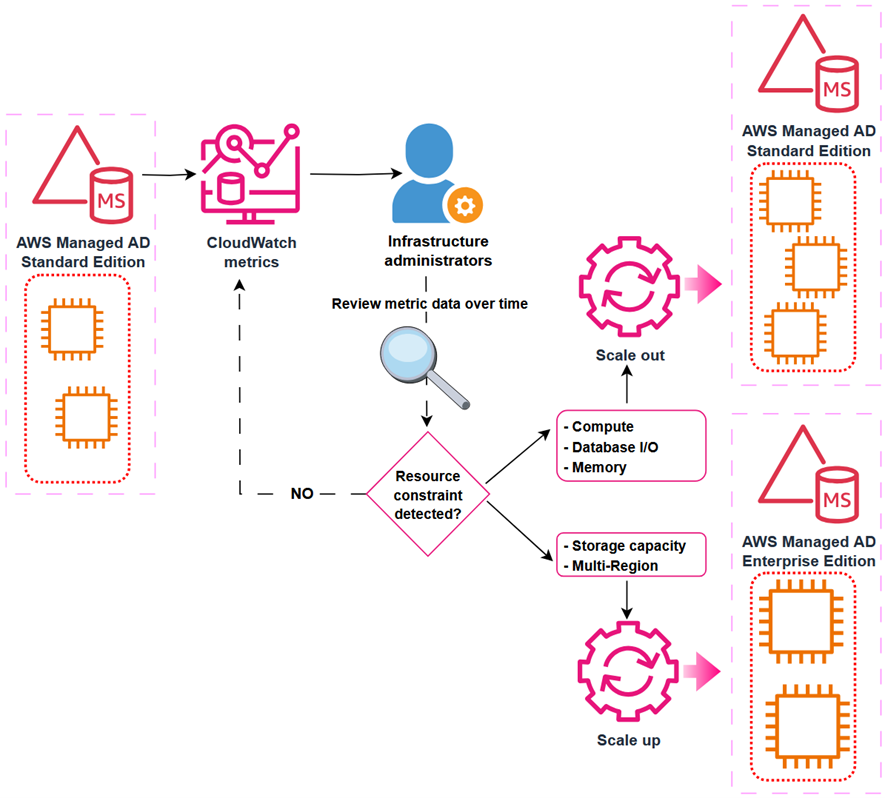
To understand the performance of a directory over time, define the key performance metrics based on your workload when you create the directory. Record the initial values of those metrics to create a performance baseline. Periodically revisit and compare data points for the same metrics to understand trends and use of resources over time. Based on the information provided by the performance baseline and periodic follow-ups, you can decide when to scale your directory and what scaling method to use. This process is depicted in Figure 1.

Figure 1: Decision-making process for scaling an Active Directory implementation

Figure 1: Decision-making process for scaling an Active Directory implementation

Depending on the characteristics of your workload, you might face different resource constraints in your directory system. From an infrastructure perspective, the more commonly demanded resources are:

  • Network Interface: Current Bandwidth
  • Processor: % Processor Time
  • LogicalDisk: % Free Space

From an Active Directory perspective, consider metrics such as:

  • NTDS: LDAP Searches/sec
  • NTDS: ATQ Estimated Queue Delay

The following table is an example decision matrix based on which resource is constrained.

Constrained resource Recommended action
% Processor Time Scale out
I/O Database Reads Average Latency Scale out
Committed Bytes in Use Scale out
% Free Space Scale up

For example, you can create a CloudWatch alarm that will trigger when Processor: % Processor Time is over 80% for more than 5 minutes. If this alarm triggers often, it could be a signal that domain controller instances are struggling to service the regular volume of user authentication requests. In such a scenario, you might consider scaling-out an additional domain controller to guarantee the service’s SLA. Conversely, if the LogicalDisk: % Free Space drops below 10% and trends downwards, you might consider scaling-up to Enterprise Edition, because it provides a larger capacity for directory objects.

To facilitate tracking and analyzing performance of AWS Managed Microsoft AD over time, you can use Amazon CloudWatch to create a custom dashboard including relevant metrics.

Prerequisites

Before you get started, make sure that you have the following prerequisites in place:

Create a CloudWatch dashboard

With the prerequisites in place, you’re ready to create a CloudWatch dashboard to track directory service metrics. For more information, see Getting started with CloudWatch automatic dashboards.

To create a dashboard:

  1. Open the AWS Management Console for CloudWatch.
  2. In the navigation pane, choose Dashboards, and then choose Create dashboard.
  3. In the Create new dashboard dialog box, enter a name for the dashboard and then choose Create dashboard.
  4. When the Add widget window appears:
    1. Under Data sources types, select CloudWatch.
    2. Under Data type, select Metrics.
    3. Under Widget type, select Line.
    4. Choose Next.
  5. In the Add metric graph window, choose DirectoryService and then select Processor as the Metric category and % Processor Time under Metric name. Select each instance of the metric, represented as the Domain Controller IP, for one Directory ID.
  6. Choose Create widget.

    Note: if there are multiple directories in the same Region, all instances (domain controllers IPs) will be available for selection. To help ensure effective monitoring and alarms, create a separate dashboard for each directory.

  7. Choose the plus sign (+) at the top of the window to add more widgets. Repeat steps 1–6 to add additional widgets for other relevant metrics. In this example the metric categories and names added are:
    • Processor: % Processor Time
    • LogicalDisk: % Free Space
    • Memory: Committed Bytes in Use
    • Database: I/O Database Reads Average Latency
    • Network Interface: Current Bandwidth
    • DNS: Recursive Queries/Sec
  8. After adding the desired metrics, choose Save.
Figure 2: CloudWatch dashboard showing directory services metrics

Figure 2: CloudWatch dashboard showing directory services metrics

(Optional) Create an alarm in CloudWatch

Now that you have a dashboard where you can view metrics, consider setting up CloudWatch alarms to alert you when a metric reaches or goes beyond a specified threshold. For more information, see Create a CloudWatch alarm based on a static threshold and Adding an alarm to a CloudWatch dashboard.

The following are recommended thresholds to monitor when determining the need to scale an AWS Managed Microsoft AD. These are general recommendations based on standard use cases. You might have to adjust these thresholds to make the best scaling decisions for your organization.

  • Processor: % Processor Time: Monitor CPU utilization to understand computational demands on your domain controllers. Set CloudWatch alarms at 80% for a period of 5 minutes. Sustained high values indicate potential sizing issues that might require scaling out your directory.
  • LogicalDisk: % Free Space: Maintain at least 25% free space on volumes containing Active Directory data for optimal performance. Set CloudWatch alarms to trigger when free space drops below 20%. Low disk space can severely impact directory operations and require implementing cleanup procedures or scaling up the directory.
  • Network Interface: Current Bandwidth: Average network utilization should be kept below 50% of available bandwidth during peak operations for optimal directory responsiveness. Set CloudWatch alarms at 70% utilization to allow room for spikes in activity. Consistently high values suggest network constraints that might require scaling out your directory.
  • Memory: Committed Bytes in Use: Monitor memory commitment levels to help ensure that your domain controllers have sufficient memory resources for Active Directory operations. This metric tracks the amount of virtual memory that has been committed, indicating the total memory load on your domain controllers. Set CloudWatch alarms at 80% of the commit limit. Sustained high values can lead to excessive paging, significantly degrading directory performance and potentially causing authentication delays.
  • Database: I/O Database Reads Average Latency: Maintain average read latencies below 25 milliseconds. Set CloudWatch alarms at a threshold of 50 milliseconds. If read latencies are consistently elevated, consider scaling-out your directory.
  • DNS: Recursive Queries/sec: Given the tight integration of Active Directory with DNS, monitor this metric for stability and predictable patterns. Use CloudWatch anomaly detection rather than fixed thresholds to identify unexpected behaviors that could indicate DNS configuration issues or potential security concerns.

Post-scaling considerations

Different resources across your architecture might contain references to the IP addresses of the AWS Managed Microsoft AD. After a scale-out operation that deploys additional domain controller instances on a directory, update existing references to maintain full functionality of workloads. References for the directory’s IP addresses can be found (but might not be limited to) the following services:

To maintain the full functionality of your workloads after a directory scaling operation, update the following:

  • Firewall rules that allow traffic to and from the IP addresses of domain controller instances
  • Route53 Resolver endpoint rules and DNS conditional forwarders that forward queries to the directory instances
  • CloudWatch dashboards that display metric data about the directory to include dimensions for the new IP addresses

Clean up resources

In this post, you created components that generate costs. Clean up these resources when no longer required to avoid additional charges.

  • Remove added domain controller’s IP addresses from firewall rules, resolver endpoint rules and DNS conditional forwarders.
  • Delete the custom CloudWatch dashboards you don’t plan to keep.
  • Scale back existing directories to the previous number of domain controller instances.

Conclusion

In this post, you learned how to monitor directory performance metrics using Amazon CloudWatch. By combining performance baselines, monitoring, and planning, you can make informed decisions about when and how to scale a directory safely and efficiently. By scaling directories in a timely manner, you can optimize efficiency and reduce the risk of outages by having a right-sized directory service to support your organization’s workloads.

Scale out your directory when your Active Directory-aware workflows have grown over time and the solution requires additional domain controller instances to maintain the service SLA. Scale up your directory when you require a feature that’s only available in Enterprise Edition AWS Managed Microsoft AD, such as multi-Region replication or additional storage to accommodate Active Directory objects. By using the flexible scaling capabilities and independent Regional expansion, you can optimize costs while maintaining appropriate service levels.

To learn more about AWS Managed Microsoft AD optimization and monitoring with Amazon CloudWatch, see:

Nahuel Benavidez Nahuel Benavidez
Nahuel is a Sr. CSE in AWS, specializing in AWS Directory Service, Microsoft Technologies, and SQL Server. He enjoys teaming with customers to discover exciting ways to explore AWS services. Nahuel loves to spoil his niece and goddaughters above all else. Also, Dungeons and Dragons (before it was popular), CrossFit, hiking, trekking and, sharing a pint with friends but “just one.”
❌