Reading view

Phishing crypto-wallet clones in the App Store and other attacks on iOS and macOS crypto owners | Kaspersky official blog

Even if you keep your crypto assets in a cold wallet and use Apple devices — which enjoy a strong reputation for security — cybercriminals may still find a way to swipe your funds. These bad actors are combining well-known tricks into new attack chains — including baiting victims right inside the App Store.

Crypto-wallet clones

This past March, we discovered phishing apps at the top of the Chinese App Store charts with icons and names mimicking popular crypto-wallet management tools. Because regional restrictions block several official wallet apps from the Chinese App Store, attackers have stepped in to fill the void. They created fake apps using icons similar to the originals and names with intentional typos — likely to bypass App Store moderation and deceive users.
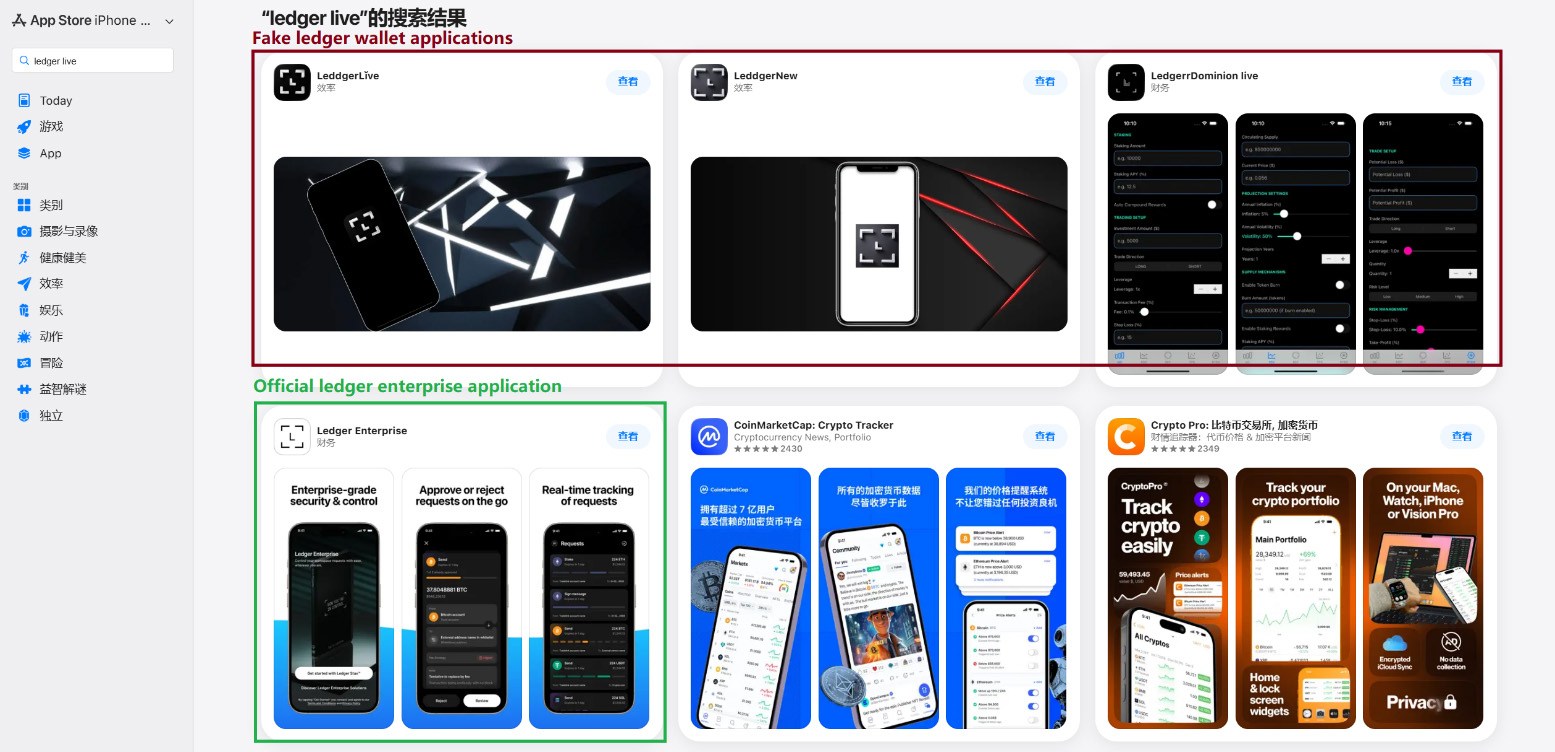
Phishing apps in the App Store appearing in search results for Ledger Wallet (formerly Ledger Live)

Phishing apps in the App Store appearing in search results for Ledger Wallet (formerly Ledger Live)

Beyond these, we found a number of apps with names and icons that had nothing to do with cryptocurrency. However, their promotional banners claimed they could be used to download and install official wallet apps that are otherwise unavailable in the regional App Store.
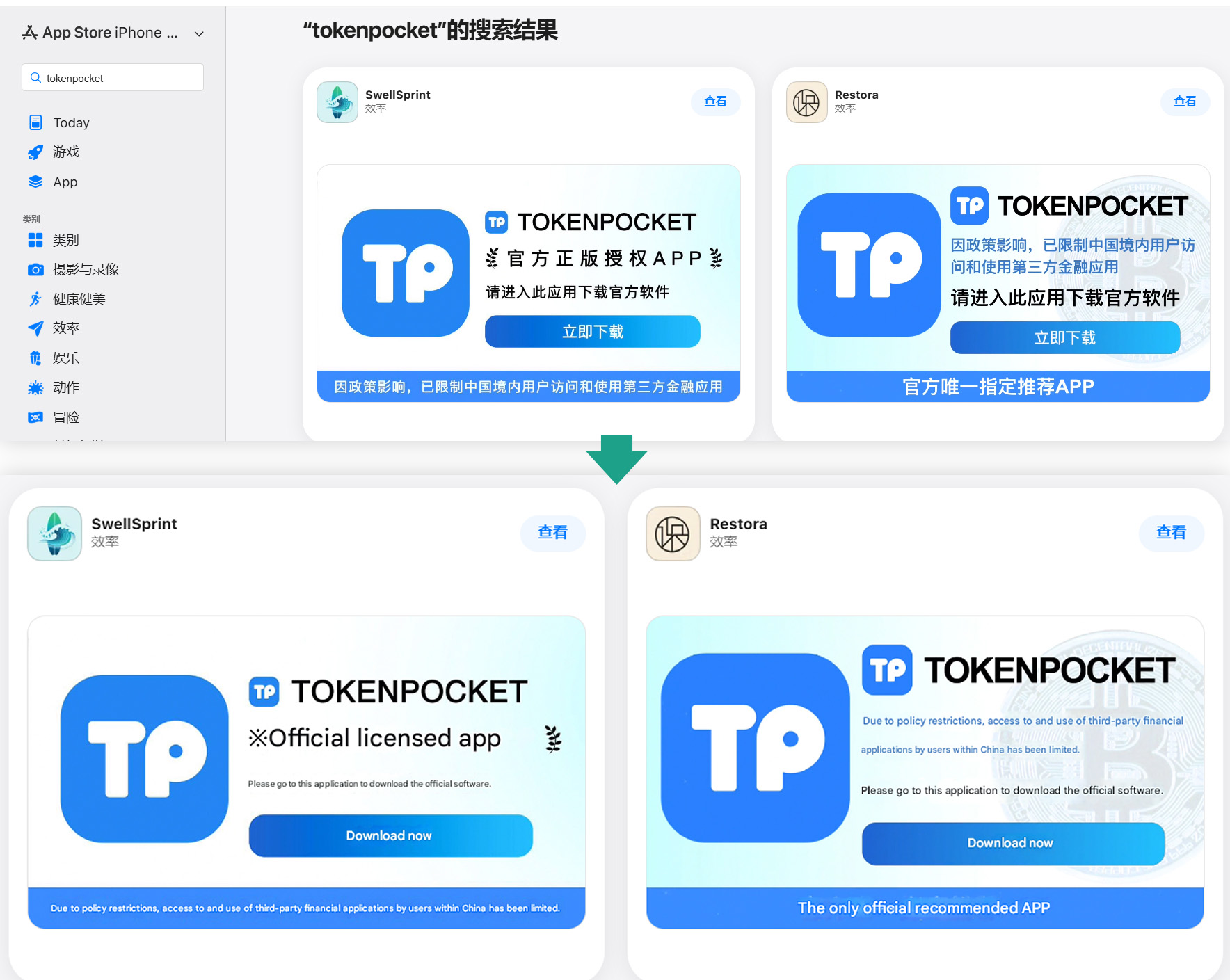
Banners on app pages claiming they can be used to download the official TokenPocket app, which is missing from the local App Store

Banners on app pages claiming they can be used to download the official TokenPocket app, which is missing from the local App Store

In total, we identified 26 phishing apps mimicking the following popular wallets:

  • MetaMask
  • Ledger
  • Trust Wallet
  • Coinbase
  • TokenPocket
  • imToken
  • Bitpie

A few other very similar apps didn’t contain phishing functionality yet, but all signs point to them being linked to the same attackers. It’s likely they plan to add malicious features in future updates.

To get these apps cleared for the App Store, the developers added basic functionality, such as a game, a calculator, or a task planner.

Installing any of these clones is the first step toward losing your crypto assets. While the apps themselves don’t steal cryptocurrency, seed phrases, or passwords, they serve as bait that builds user trust by virtue of being listed on the official App Store. Once installed and launched, however, the app opens a phishing site in the victim’s browser, designed to look like the App Store, which then prompts the user to install a compromised version of the relevant crypto wallet. The attackers have created multiple versions of these malicious modules, each tailored to a specific wallet. You can find a detailed technical breakdown of this attack in our Securelist post.

A victim who falls for the ruse is first prompted to install a provisioning profile, which allows apps to be sideloaded onto an iPhone outside the App Store. The profile is then used to install the malicious app itself.
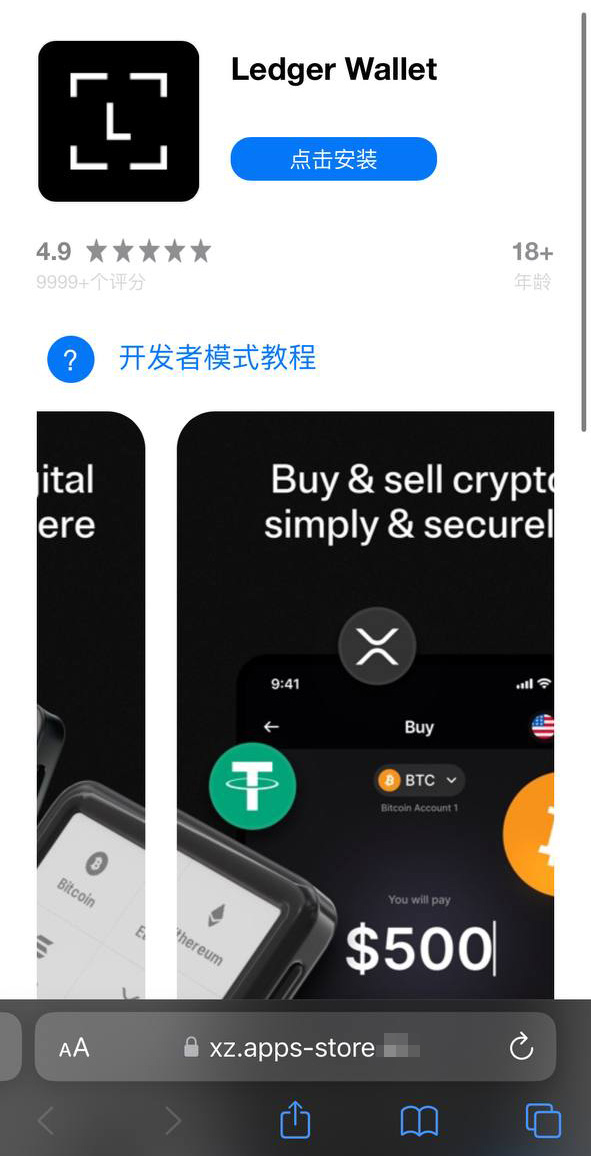
A fake App Store site prompting the user to install an app masquerading as Ledger Wallet

A fake App Store site prompting the user to install an app masquerading as Ledger Wallet

In the example above, the malware is built on the original Ledger app with integrated Trojan functionality. The app looks identical to the original, but when connected to a hardware wallet, it displays a window requiring a seed phrase, supposedly to restore access. This is not standard procedure: typically, you only need to enter a PIN — never a recovery phrase. If a victim is deceived by the app’s apparent legitimacy and enters their seed phrase, it’s immediately sent to the attackers’ server — granting them full access to the victim’s crypto assets.

Sideloading outside the App Store

A critical component of this scheme involves installing malware on the victim’s iPhone by bypassing the App Store and its verification process. This is executed much like the SparkKitty iOS infostealer we discovered previously. The attackers managed to gain access to the Apple Developer Enterprise Program. For just US$299 a year — and following an interview and corporate verification — this program allows entities to issue their own configuration profiles and apps for direct download to user devices without ever publishing them in the App Store.
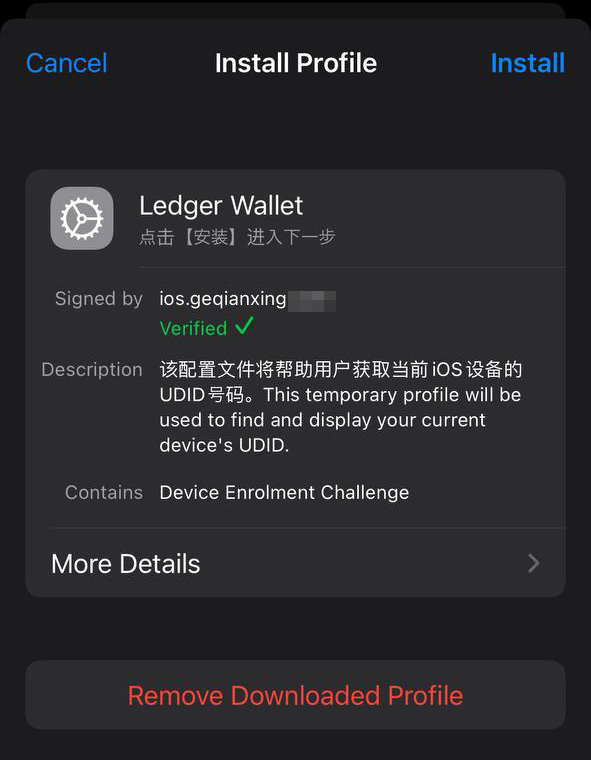
To install the app, the victim must first install a configuration profile that enables the malware to be downloaded directly, bypassing the App Store. Note the green verification checkmark

To install the app, the victim must first install a configuration profile that enables the malware to be downloaded directly, bypassing the App Store. Note the green verification checkmark


In general, enterprise profiles are designed to allow organizations to deploy internal apps to employees’ devices. These apps don’t require App Store publication and can be installed on an unlimited number of devices. Unfortunately, this feature is often abused. These profiles are frequently used for software that fails to meet Apple’s policies, such as online casinos, pirated mods, and, of course, malware.

This is precisely why the fake site mimicking the Apple Store prompts the user to install a configuration profile before delivering the app signed by that profile.

Stealing cryptocurrency via macOS apps and extensions

Many crypto owners prefer managing their wallets on a computer rather than a smartphone — often choosing Macs for the task. It’s no surprise, then, that most popular macOS infostealers target crypto-wallet data in one way or another. Recently, however, a new malicious tactic has been gaining traction: in addition to stealing saved data, attackers are embedding phishing dialogs directly into legitimate wallet applications already installed on users’ computers. Earlier this year, the MacSync infostealer adopted this functionality. It infiltrates systems via ClickFix attacks: users searching for software are lured to fake sites with fraudulent instructions to install the app by running commands in Terminal. This executes the infostealer, which scrapes passwords and cookies saved in Chrome, chats from popular messengers, and data from browser-based crypto-wallet extensions.

But the most interesting part is what happens next. If the victim already has a legitimate Trezor or Ledger app installed, the infostealer downloads additional modules and… swaps out fragments of the app with its own trojanized code. The malware then re-signs the modified file so that after these “fixes” are made, Gatekeeper (a built-in protection mechanism in macOS) allows the application to run without an additional permission request from the user. While this trick doesn’t always work, it’s effective for simpler apps built on the popular Electron framework.
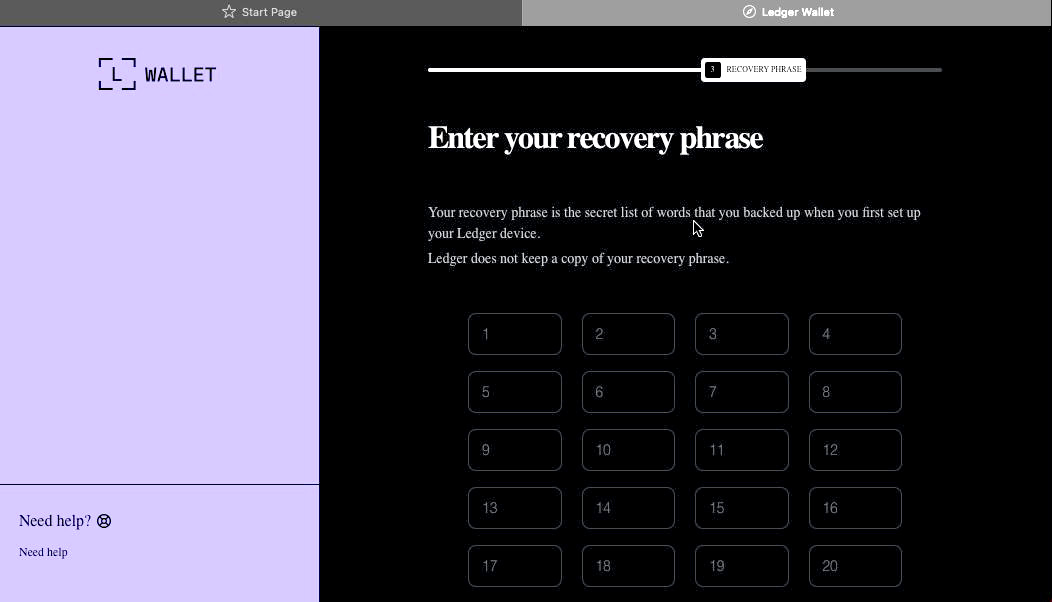
The trojanized app prompts the user for the seed phrase of their wallet

The trojanized app prompts the user for the seed phrase of their wallet

When the trojanized app is opened, it fakes an error and initiates a “recovery process”, prompting the user for their wallet seed phrase.

Besides MacSync, the developers behind other popular macOS infostealers have adopted this same trojanization approach. We previously detailed a similar mechanism used to compromise Exodus and Bitcoin-Qt wallets.

How to keep your crypto assets safe

Time and again, attackers have proved that no gadget is truly invincible. With so many developers and cryptocurrency users preferring macOS and iOS, threat actors have designed and deployed industrial-scale attacks for both platforms. Staying safe requires in-depth defense backed by skepticism and vigilance.

  • Download apps only from trusted sources: either the developer’s official website or their App Store page. Since malware can slip even into official stores, always verify the app’s publisher.
  • Check the app’s rating, publication date, and download counter.
  • Read the reviews — especially the negative ones. Sort reviews by date to evaluate the latest version. Attackers often start with a perfectly innocent app that earns high ratings before introducing malicious functionality in a later update.
  • Never copy and paste commands into your Terminal unless you’re 100% certain what they do. These attacks have become very popular lately, often disguised as installation steps for AI apps like Claude Code or OpenClaw.
  • Use a comprehensive security system on all your computers and smartphones. We recommend Kaspersky Premium. This goes a long way to mitigate the risk of visiting phishing sites or installing malicious apps.
  • Never enter your seed phrase into a hardware wallet app, on a website, or in a chat. In every scenario, whether migrating to a new wallet, reinstalling apps, or recovering a wallet, the seed phrase should be entered exclusively on the hardware device itself — never in a mobile or desktop app.
  • Always verify the recipient’s address on the hardware wallet’s screen to prevent attacks involving address swapping.
  • Store your seed phrases in the most secure way possible, such as on a metal plate or in a sealed envelope in a safe deposit box. It’s best not to store them on a computer at all, but if that’s your only option, use a secure, encrypted vault like Kaspersky Password Manager.

Still believe that Apple devices are bulletproof? Think again as you read the following:
  •  

BeatBanker and BTMOB trojans: infection techniques and how to stay safe | Kaspersky official blog

To achieve their malign aims, Android malware developers have to address several challenges in a row: trick users to get inside their smartphones, dodge security software, talk victims into granting various system permissions, keep away from built-in battery optimizers that kill resource hogs, and, after all that, make sure their malware actually turns a profit. The creators of the BeatBanker — an Android‑based malware campaign recently discovered by our experts — have come up with something new for each one of these steps. The attack is (for now) aimed at Brazilian users, but the developers’ ambitions will almost certainly push them toward international expansion, so it’s worth staying on guard and studying the threat actor’s tricks. You can find a full technical analysis of the malware on Securelist.

How BeatBanker infiltrates a smartphone

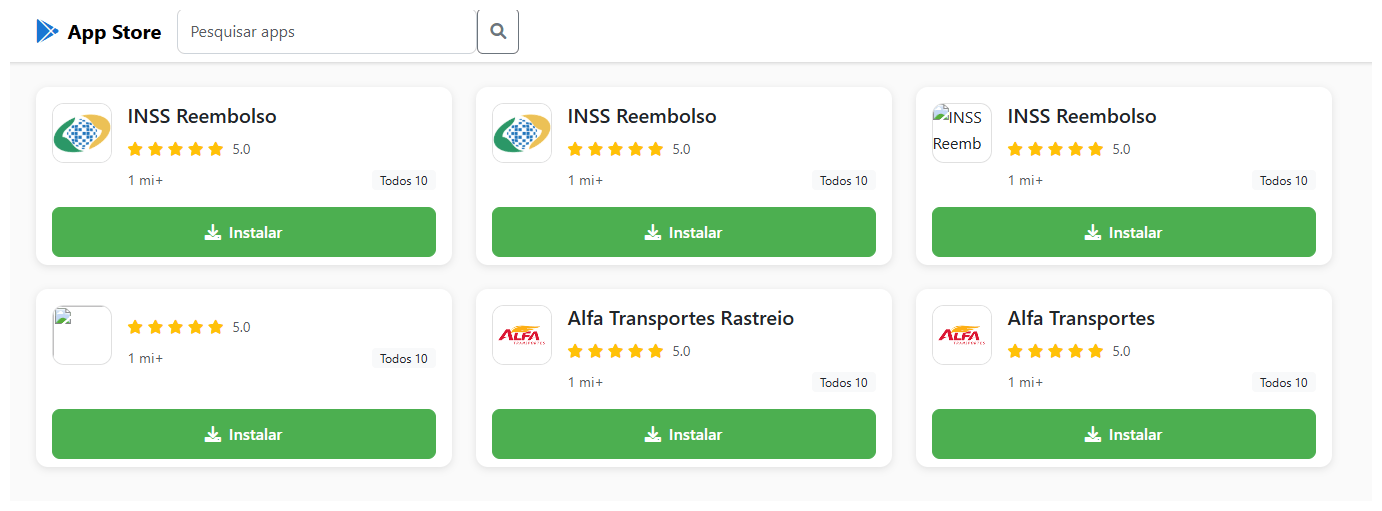
The malware is distributed through specially crafted phishing pages that mimic the Google Play Store. A page that’s easily mistaken for the official app marketplace invites users to download a seemingly useful app. In one campaign, the trojan disguised itself as the Brazilian government services app, INSS Reembolso; in another, it posed as the Starlink app.

The malicious site cupomgratisfood{.}shop does an excellent job imitating an app store. It's just unclear why the fake INSS Reembolso appears all of three times. To be extra sure, perhaps?!

The malicious site cupomgratisfood{.}shop does an excellent job imitating an app store. It’s just unclear why the fake INSS Reembolso appears all of three times. To be extra sure, perhaps?!

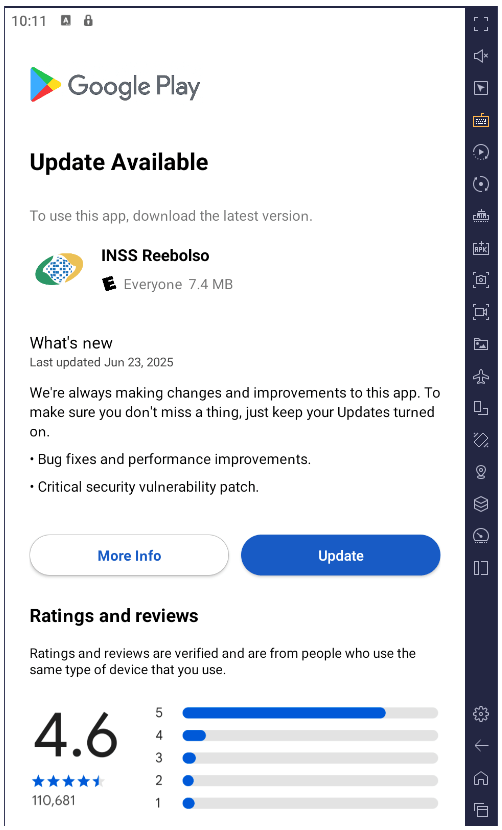
The installation takes place in several stages to avoid requesting too many permissions at once and to further lull the victim’s vigilance. After the first app is downloaded and launched, it displays an interface that also resembles Google Play and simulates an update for the decoy app — requesting the user’s permission to install apps, which doesn’t look out-of-the-ordinary in context. If you grant this permission, the malware downloads additional malicious modules to your smartphone.

After installation, the trojan simulates a decoy app update via Google Play by requesting permission to install applications while downloading additional malicious modules in the process

After installation, the trojan simulates a decoy app update via Google Play by requesting permission to install applications while downloading additional malicious modules in the process

All components of the trojan are encrypted. Before decrypting and proceeding to the next stages of infection, it checks to ensure it’s on a real smartphone and in the target country. BeatBanker immediately terminates its own process if it finds any discrepancies or detects that it’s running in emulated or analysis environments. This complicates dynamic analysis of the malware. Incidentally, the fake update downloader injects modules directly into RAM to avoid creating files on the smartphone that would be visible to security software.

All these tricks are nothing new and frequently used in complex malware for desktop computers. However, for smartphones, such sophistication is still a rarity, and not every security tool will spot it. Users of Kaspersky products are protected from this threat.

Playing audio as a shield

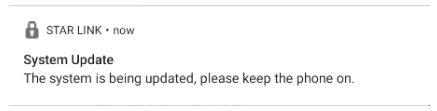
Once established on the smartphone, BeatBanker downloads a module for mining Monero cryptocurrency. The authors were very concerned that the smartphone’s aggressive battery optimization systems might shut down the miner, so they came up with a trick: playing an all-but-inaudible sound at all times. Power consumption control systems typically spare apps that are playing audio or video to avoid cutting off background music or podcast players. In this way, the malware can run continuously. Additionally, it displays a persistent notification in the status bar, asking the user to keep the phone on for a system update.

Example of a persistent system update notification from another malicious app masquerading as the Starlink app

Example of a persistent system update notification from another malicious app masquerading as the Starlink app

Control via Google

To manage the trojan, the authors leverage Google’s legitimate Firebase Cloud Messaging (FCM) — a system for receiving notifications and sending data from a smartphone. This feature is available to all apps and it’s the most popular method for sending and receiving data. Thanks to FCM, attackers can monitor the device’s status and change its settings as needed.

Nothing bad happens for a while after the malware is installed: the attackers wait it out. Then they trigger the miner, but they’re careful to throttle it back if the phone overheats, the battery starts dipping, or the owner happens to be using the device. All of this is handled via FCM.

Theft and espionage

In addition to the crypto miner, BeatBanker installs extra modules to spy on the user and rob them at the right moment. The spyware module requests Accessibility Services permission, and if this is granted, begins monitoring everything that’s happening on the smartphone.

If the owner opens the Binance or Trust Wallet app to send USDT, the malware overlays a fake screen on top of the wallet interface, effectively swapping the recipient’s address for its own. All transfers go to the attackers.

The trojan features an advanced remote control system and is capable of executing many other commands:

  • Intercepting one-time codes from Google Authenticator
  • Recording audio from the microphone
  • Streaming the screen in real-time
  • Monitoring the clipboard and intercept keystrokes
  • Sending SMS messages
  • Simulating taps on specific areas of the screen and text input according to a script sent by the attacker, and much more

All of this makes it possible to rob the victim when they use any other banking or payment services — not just crypto payments.

Sometimes victims are infected with a different module for espionage and remote smartphone control — the BTMOB remote access trojan. Its malicious capabilities are even broader, including:

  • Automatic acquisition of certain permissions on Android 13–15
  • Continuous geolocation tracking
  • Access to the front and rear cameras
  • Obtaining PIN codes and passwords for screen unlocking
  • Capturing keyboard input

How to protect yourself from BeatBanker

Cybercriminals are constantly refining their attacks and coming up with new ways to profit from their victims. Despite this, you can protect yourself by following a few simple precautions:

  • Download apps from official sources only, such as Google Play or the app store preinstalled by the vendor. If you find an app while searching the internet, don’t open it via a link from your browser; instead, head to the Google Play app or another branded store on your smartphone to search for it there. While you’re at it, check the number of downloads, the app’s age, and look at the ratings and reviews. Avoid new apps, apps with low ratings, and those with a small number of downloads.
  • Check any permissions you grant. Don’t grant permissions if you’re not sure what they do or why that specific app requires them. Be extra careful with permissions like Install unknown apps, Accessibility, Superuser, and Display over other apps. We’ve written about these in detail in a separate article.
  • Equip your device with a comprehensive anti-malware solution. We, naturally, recommend Kaspersky for Android. Users of Kaspersky products are protected from BeatBanker — detected with the verdicts HEUR:Trojan-Dropper.AndroidOS.BeatBanker and HEUR:Trojan-Dropper.AndroidOS.Banker.*.
  • Regularly update both your operating system and security software. For Kaspersky for Android, which is currently unavailable on Google Play, please review our detailed instructions on installing and updating the app.

Threats to Android users have been going through the roof lately. Check out our other posts on the most relevant and widespread Android attacks and tips for keeping you and your loved ones safe:

  •  
❌