
Reading view

Delete doesn’t mean gone. Here’s how File Shredder fixes that

You have done it a thousand times. Right-click. Delete. Empty Trash. Done.

Except it’s not done. That file, your tax return, your private photos, that EmbezzlementPlan.doc… it’s all still sitting on your drive. Invisible to you, but not to anyone with a $30 recovery tool downloaded from the internet.

The problem: Your deleted files aren’t actually gone

Most users assume that deleting a file removes it permanently. In reality, standard deletion only removes the file’s reference from the file system. The underlying data often remains intact on disk until it is overwritten by other files. Think of it like tearing the table of contents out of a book while leaving all the pages intact. The operating system forgets where the file is listed, but the data itself is still there.

The space the file used gets marked as available for new data. Until something else writes over it, the original file may remain fully readable on the disk. Depending on how you use your computer, that could take days, weeks, or even months.

Recovery software exploits this. It scans your drive for data that still exists but is no longer listed in the file system. If you’re trying to recover a file you accidentally deleted, this is a lifesaver. But if you’re trying to permanently dispose of sensitive information, it’s a serious problem.

The answer: Overwrite, don’t just delete

To address this privacy gap, we’ve introduced File Shredder for Windows. It permanently destroys the files and folders you’re trying to delete so they can’t be recovered.

When you overwrite a file, you replace every single byte of its contents with new data. The original information is physically altered on the disk surface. Once overwritten, the original data no longer exists. There is nothing left to recover.

But one overwrite is not always enough. Advanced recovery techniques can sometimes detect traces of previous data, especially on older hard drives where magnetic patterns leave subtle residue. That’s why File Shredder doesn’t just overwrite once. Depending on your chosen security level, it overwrites multiple times, using different patterns each pass.

How it works

File Shredder uses DoD 5220.22-M, a data sanitization standard developed by the US Department of Defense for securely destroying classified data stored on computers. 

The standard overwrites data using specific patterns: 

  • Zero-fill passes (every byte set to 0x00) 
  • One-fill passes (every byte set to 0xFF) 
  • Cryptographically random data passes 
  • Verification to confirm the overwrite was successful 

Why these specific patterns? Zeros and ones represent binary data. Random data adds unpredictability. By cycling through these patterns multiple times, the original magnetic or electronic state of the storage medium is thoroughly disrupted, making forensic recovery impractical. 

When File Shredder finishes, that file isn’t just deleted. It’s gone. 

Three levels of shredding

File Shredder overwrites a file before deleting it, helping prevent recovery after it is removed. This is most meaningful on traditional hard drives, where overwrite passes are more direct and predictable. On SSDs, storage works differently, so multiple passes do not provide the same level of assurance. File Shredder offers a few levels so you can choose the right balance of speed and confidence for your device and use case.

Not every file on your computer will need military-grade destruction. Shredding takes time because each pass means reading and writing the entire file contents. File Shredder gives you three options, so you can balance security against speed.  

Basic (1 Pass) 

The entire file is overwritten with zeros. This is the fastest option and is effective for everyday file deletion where you want to prevent casual recovery. If someone ran a recovery tool after a Basic shred, they would find nothing but empty data where your file used to be. 

Best for: Temporary files, downloads you no longer need, general cleanup where speed matters. 

Thorough (4 Passes, DoD 5220.22-M) 

The file is overwritten with zeros, then ones, then random data, then zeros again. After these passes complete, File Shredder performs a verification step, reading the file back to confirm the overwrite patterns were successfully written. This catches any disk errors or write failures that might have left original data intact. 

Pattern: Zeros (0x00) > Ones (0xFF) > Random > Zeros (0x00) 

Best for: Financial documents, tax records, personal identification documents, medical records, anything you would not want exposed in a data breach or if your computer were stolen. 

Paranoid (8 Passes, Extended DoD 5220.22-M) 

This runs the full zeros-ones-random-zeros sequence twice, with verification after completion. The additional passes provide extra assurance against advanced forensic recovery techniques. 

Pattern: Zeros > Ones > Random > Zeros > Zeros > Ones > Random > Zeros 

Best for: Highly confidential business data, legal documents, intellectual property, anything subject to regulatory compliance, or situations where you need absolute certainty. 

File Shredder from Malwarebytes has three levels of shredding.

A note on SSDs

Solid-state drives (SSDs) behave differently from traditional hard drives because wear leveling and flash translation layers may redirect writes to different physical blocks. This means overwriting a file once or multiple times does not guarantee the original data was overwritten. Multi-pass shredding methods were designed for HDDs and are less predictable on SSDs. 

How to get started 

File Shredder lives in the Tools section of your Malwarebytes desktop software, alongside other system utilities. We designed it to be straightforward while ensuring you understand the permanence of what you are about to do. 

Go to Tools in Malwarebytes, then File Shredder

Select 

Choose individual files, entire folders, or multiple items at once. File Shredder automatically protects critical system files, so you cannot accidentally shred something that would damage Windows or your Malwarebytes installation. Before anything happens, you’ll see a complete list of every file that will be shredded, with full visibility into file names, locations, and sizes. 

Confirm 

Clear warning dialogs explain that destruction is permanent. You must explicitly acknowledge before anything is destroyed. Once a file is shredded, it cannot be recovered.

Shred 

Choose your level (Basic, Thorough, or Paranoid) and confirm. During shredding, you’ll see real-time progress showing:

  • which file is being shredded
  • how far along the process is
  • estimated time remaining

You can pause or cancel the job. However, once File Shredder starts working on a file, it finishes shredding that file before stopping. This prevents files from being left in a partially overwritten state, which could leave them corrupted or difficult to delete properly.

Done 

When shredding completes, File Shredder shows a report listing every file that was successfully destroyed. You’ll also receive a notification confirming the job is finished.

How File Shredder handles large files safely

Shredding large files or deeply nested directories can use a lot of CPU and resources on your machine. To balance security with performance, the implementation includes:

  • Buffered write operations for efficient disk access
  • Chunked overwrite processing to handle large files without excessive memory use
  • Recursive folder shredding that processes entire directory trees
  • Cancellation handling where feasible, without leaving partial data behind
  • Error reporting so you know if any file could not be shredded (for example, if it’s open in another application)

Preventing accidental shredding

Building a feature that claims to permanently destroy data is a serious responsibility. We did not just write the code and assume it worked. We tested aggressively.

Because shredding is irreversible, the UI incorporates multiple safeguards before execution:

  • Explicit file or folder selection
  • Clear warnings about permanent deletion
  • Confirmation prompts before shredding begins
  • Shredding prevention on protected system paths  or Malwarebytes files

When you’re done with a file, it should really be done

For too long, “delete” has mostly meant out of sight, not out of existence. File Shredder changes that. By securely overwriting files before removing them, it helps ensure your sensitive data stays private even after you delete it.


We don’t just report on threats—we remove them

Cybersecurity risks should never spread beyond a headline. Keep threats off your devices by downloading Malwarebytes today.

  •  

How Manifest v3 forced us to rethink Browser Guard, and why that’s a good thing 

As a Browser Guard user, you might not have noticed much difference lately. Browser Guard still blocks scams and phishing attempts just like always, and, in many cases, even better.

But behind the scenes, almost everything changed. The rules that govern how browser extensions work went through a major overhaul, and we had to completely rebuild how Browser Guard protects you.

First, what is Manifest v3 (and v2)? 

Browser extensions include a configuration file called a “manifest”. Think of it as an instruction manual that tells your browser what an extension can do and how it’s allowed to do it.

Manifest v3 is the latest version of that system, and it’s now the only option allowed in major browsers like Chrome and Edge.

In Manifest v2, Browser Guard could use highly customized logic to analyze and block suspicious activity as it happened, protecting you as you browsed the web.

With Manifest v3, that flexibility is mostly gone. Extensions can no longer run deeply complex, custom logic in the same way. Instead, we can only pass static rule lists to the browser, called Declarative Net Request (DNR) rules.

But those DNR rules come with strict constraints.

Rule sets are size-limited by the browser to save space. Because rules are stored as raw JSON files, developers can’t use other data types to make them smaller. And updating those DNR rules can only be done by updating the extension entirely.

This is less of a problem on Chrome, which allows developers to push updates quickly, but other browsers don’t currently support this fast-track process. Dynamic rule updates exist, but they’re limited, and nowhere near large enough to hold the full set of rules.

In short, we couldn’t simply port Browser Guard from Manifest v2 to v3. The old approach wouldn’t keep our users protected.

A note about Firefox and Brave 

Firefox and Brave chose a different path and continue to support the more flexible Manifest v2 method of blocking requests.

However, since Brave doesn’t have its own extension store, users can only install extensions they already had before Google removed Manifest v2 extensions from the Chrome Web Store. Though Brave also has strong out-of-the-box ad protection.

For Browser Guard users on Firefox, rest assured the same great blocking techniques will continue to work.

How Browser Guard still protects you 

Given all of this, we had to get creative.

Many ad blockers already support pattern-based matching to stop ads and trackers. We asked a different question: what if we could use similar techniques to catch scam and phishing attempts before we know the specific URL is malicious?

Better yet, what if we did it without relying on the new DNR APIs?

So, we built a new pattern-matching system focused specifically on scam and phishing behavior, supporting:

  • Full regex-based URL matching
  • Full XPath and querySelector support
  • Matching against any content on the page
  • Favicon spoof detection

For example, if a site is hosted on Amazon S3, contains a password-input field, and uses a homoglyph in the URL to trick users into thinking they were logging into Facebook, Browser Guard can detect that combination—even if we’ve never seen the URL before.
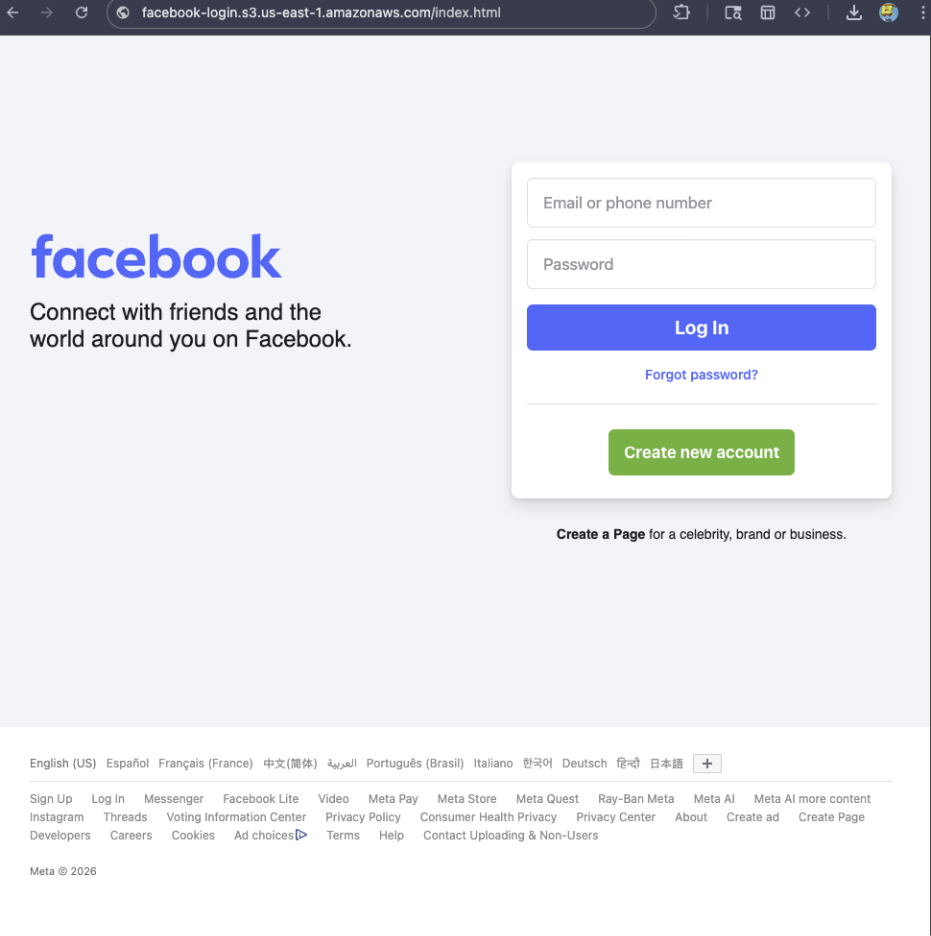
Fake Facebook login screen

Why this matters more now 

With AI, attackers can create near-perfect duplicates of websites easier than ever. And did you spot the homoglyph in the URL? Nope, neither did I!  

That’s why we designed this system so we can update its rules every 30 minutes, instead of waiting for full extension updates.  

But I still see static blocking rules in Browser Guard 

That’s true—for now.  

We’ve found a temporary workaround that lets us support all the rules that we had before. However, we had to remove some of the more advanced logic that used to sit on top of them.

For example, we can’t use these large datasets to block subframe requests, only main frame requests. Nor can we stack multiple logic layers together; blocking is limited to simple matches (regex, domains and URLs).

Those limits are a big reason we’re investing more heavily in pattern-based and heuristic protection. 

Pure heuristics 

From day one, Browser Guard has used heuristics (behavior) to detect scams and phishing, monitoring behavior on the page to match suspicious activity.

For example, some scam pages deliberately break your browser’s back button by abusing window.replaceState, then trick you into calling that scammer’s “computer helpline.” Others try to convince you to run malicious commands on your computer.

Browser Guard can detect these behaviors and warn you before you fall for them. 

What’s next? 

Did someone say AI?  

You’ve probably seen Scam Guard in other Malwarebytes products. We’re currently working on a version tailored specifically for Browser Guard. More soon!

Final thoughts 

While Manifest v3 introduced meaningful improvements to browser security, it also created real challenges for security tools like Browser Guard.

Rather than scaling back, the Browser Guard team rebuilt our approach from the ground up, focusing on behavior, patterns, and faster response times. The result is protection that’s different under the hood, but just as committed to keeping you safe online.


We don’t just report on scams—we help detect them

Cybersecurity risks should never spread beyond a headline. If something looks dodgy to you, check if it’s a scam using Malwarebytes Scam Guard, a feature of our mobile protection products. Submit a screenshot, paste suspicious content, or share a text or phone number, and we’ll tell you if it’s a scam or legit. Download Malwarebytes Mobile Security for iOS or Android and try it today!

  •  

How Manifest v3 forced us to rethink Browser Guard, and why that’s a good thing 

As a Browser Guard user, you might not have noticed much difference lately. Browser Guard still blocks scams and phishing attempts just like always, and, in many cases, even better.

But behind the scenes, almost everything changed. The rules that govern how browser extensions work went through a major overhaul, and we had to completely rebuild how Browser Guard protects you.

First, what is Manifest v3 (and v2)? 

Browser extensions include a configuration file called a “manifest”. Think of it as an instruction manual that tells your browser what an extension can do and how it’s allowed to do it.

Manifest v3 is the latest version of that system, and it’s now the only option allowed in major browsers like Chrome and Edge.

In Manifest v2, Browser Guard could use highly customized logic to analyze and block suspicious activity as it happened, protecting you as you browsed the web.

With Manifest v3, that flexibility is mostly gone. Extensions can no longer run deeply complex, custom logic in the same way. Instead, we can only pass static rule lists to the browser, called Declarative Net Request (DNR) rules.

But those DNR rules come with strict constraints.

Rule sets are size-limited by the browser to save space. Because rules are stored as raw JSON files, developers can’t use other data types to make them smaller. And updating those DNR rules can only be done by updating the extension entirely.

This is less of a problem on Chrome, which allows developers to push updates quickly, but other browsers don’t currently support this fast-track process. Dynamic rule updates exist, but they’re limited, and nowhere near large enough to hold the full set of rules.

In short, we couldn’t simply port Browser Guard from Manifest v2 to v3. The old approach wouldn’t keep our users protected.

A note about Firefox and Brave 

Firefox and Brave chose a different path and continue to support the more flexible Manifest v2 method of blocking requests.

However, since Brave doesn’t have its own extension store, users can only install extensions they already had before Google removed Manifest v2 extensions from the Chrome Web Store. Though Brave also has strong out-of-the-box ad protection.

For Browser Guard users on Firefox, rest assured the same great blocking techniques will continue to work.

How Browser Guard still protects you 

Given all of this, we had to get creative.

Many ad blockers already support pattern-based matching to stop ads and trackers. We asked a different question: what if we could use similar techniques to catch scam and phishing attempts before we know the specific URL is malicious?

Better yet, what if we did it without relying on the new DNR APIs?

So, we built a new pattern-matching system focused specifically on scam and phishing behavior, supporting:

  • Full regex-based URL matching
  • Full XPath and querySelector support
  • Matching against any content on the page
  • Favicon spoof detection

For example, if a site is hosted on Amazon S3, contains a password-input field, and uses a homoglyph in the URL to trick users into thinking they were logging into Facebook, Browser Guard can detect that combination—even if we’ve never seen the URL before.

Fake Facebook login screen

Why this matters more now 

With AI, attackers can create near-perfect duplicates of websites easier than ever. And did you spot the homoglyph in the URL? Nope, neither did I!  

That’s why we designed this system so we can update its rules every 30 minutes, instead of waiting for full extension updates.  

But I still see static blocking rules in Browser Guard 

That’s true—for now.  

We’ve found a temporary workaround that lets us support all the rules that we had before. However, we had to remove some of the more advanced logic that used to sit on top of them.

For example, we can’t use these large datasets to block subframe requests, only main frame requests. Nor can we stack multiple logic layers together; blocking is limited to simple matches (regex, domains and URLs).

Those limits are a big reason we’re investing more heavily in pattern-based and heuristic protection. 

Pure heuristics 

From day one, Browser Guard has used heuristics (behavior) to detect scams and phishing, monitoring behavior on the page to match suspicious activity.

For example, some scam pages deliberately break your browser’s back button by abusing window.replaceState, then trick you into calling that scammer’s “computer helpline.” Others try to convince you to run malicious commands on your computer.

Browser Guard can detect these behaviors and warn you before you fall for them. 

What’s next? 

Did someone say AI?  

You’ve probably seen Scam Guard in other Malwarebytes products. We’re currently working on a version tailored specifically for Browser Guard. More soon!

Final thoughts 

While Manifest v3 introduced meaningful improvements to browser security, it also created real challenges for security tools like Browser Guard.

Rather than scaling back, the Browser Guard team rebuilt our approach from the ground up, focusing on behavior, patterns, and faster response times. The result is protection that’s different under the hood, but just as committed to keeping you safe online.


We don’t just report on scams—we help detect them

Cybersecurity risks should never spread beyond a headline. If something looks dodgy to you, check if it’s a scam using Malwarebytes Scam Guard, a feature of our mobile protection products. Submit a screenshot, paste suspicious content, or share a text or phone number, and we’ll tell you if it’s a scam or legit. Download Malwarebytes Mobile Security for iOS or Android and try it today!

  •  

Celebrating reviews and recognitions for Malwarebytes in 2025

Independent recognition matters in cybersecurity, and it matters a lot to us. It shows how security products perform when they’re tested against in-the-wild threats, using lab environments designed to reflect what people actually face in the real world.

In 2025, Malwarebytes earned awards and recognition from a steady stream of third-party testing labs and industry groups. Here’s what those tests looked like and what they found.  

AVLab Cybersecurity Foundation: Real-world malware, real results  

Malwarebytes earned another Advanced In-The-Wild badge from AVLab Cybersecurity Foundation in 2025, continuing a run of accolades.

In November, AVLab Cybersecurity Foundation tested 244 real-world malware samples across 14 cybersecurity products. Malwarebytes Premium Security detected every single one. On top of that, it removed threats with an average remediation time of 2.18 seconds—nearly 12 seconds faster than the industry average.  

That result also marked our third Excellent badge in 2025, following earlier tests in July and September.

Earlier in the year, Malwarebytes Premium Security was also named Product of the Year for the third consecutive year, after it blocked 100% of in-the-wild malware samples. 

MRG Effitas: Consistent Android protection, proven over time

For the seventh consecutive time, Malwarebytes earned MRG Effitas’ Android 360° Certificate in November, one of the toughest independent tests in mobile security, underscoring the strength and reliability of Malwarebytes Mobile Security

MRG Effitas conducted in-depth testing of Android antivirus apps using real-world scenarios, combining in-the-wild malware with benign samples to assess detection gaps and weaknesses. 

Our mobile protection received the highest marks, achieving a near-perfect detection rate in MRG Effitas’ rigorous lab testing, reaffirming what our customers already know: Malwarebytes stops threats before they can cause harm. 

PCMag Readers’ Choice Awards: Multiple category wins 

Not all validation comes from labs. In PCMag’s 2025 Readers’ Choice Awards, Malwarebytes topped three award categories based on reader feedback: Best PC Security Suite, Best Android Antivirus, and Best iOS/iPadOS Antivirus.

A Digital Trends 2025 Recommended Product

Malwarebytes for Windows earned a Digital Trends 2025 Recommended Product designation, with reviewers highlighting its ease of use, fast and effective customer support, and strong value for money. 

CNET: Best Malware Removal Service 2025 

CNET named Malwarebytes the Best Malware Removal Service 2025 after testing setup, features, design, and performance. The review highlighted standout capabilities, including top-tier malware removal and comprehensive Browser Guard web protection. 

AV Comparatives Stalkerware Test: 100% detection rate

In collaboration with the Electronic Frontier Foundation (EFF), AV-Comparatives tested 13 Android security solutions against 17 stalkerware-type apps—software often used for covert surveillance and abuse.

Only a few products handled detection and alerting responsibly. Malwarebytes was the only solution to achieve a 100% detection rate in the September 2025 test.

What we learned from a year of testing

All these results highlight our mission to reimagine security and protect people and data across all devices and platforms. 

Recent innovations like Malwarebytes Scam Guard for Mobile and Windows Tools for PC set new standards for privacy and affordable protection, enhanced by AI-powered features like Trusted Advisor, your built-in personal digital health hub available on all platforms.

We’re grateful to the independent organizations that continue to test our products and to the users who trust Malwarebytes every day.


We don’t just report on threats—we help safeguard your entire digital identity

Cybersecurity risks should never spread beyond a headline. Protect your, and your family’s, personal information by using identity protection.

  •  
❌