
Reading view

AWS KMS or AWS CloudHSM: Choose the right key management solution

Choosing the right cryptographic key management service on Amazon Web Services (AWS) starts with understanding the difference between AWS Key Management Service (AWS KMS) and AWS CloudHSM. Both provide key storage backed by a hardware security module (HSM) but serve very different needs. AWS KMS is a fully managed service that integrates with all AWS services and all AWS Regions, making it the right choice for most key management workloads. AWS CloudHSM is a specialized option for use cases where you have strict requirements for dedicated HSM instances or must support legacy applications built around traditional HSM interfaces.

Quick comparison

The following table shows the pricing, AWS Region availability, algorithms, and AWS service integrations as of July 2026.

Criteria AWS KMS AWS CloudHSM
Best for Most cloud-based key management needs Lift-and-shift from on-premises applications and use of legacy algorithms
Deployment AWS managed HSMs, accessed through API endpoints Customer managed HSMs, accessed through an Elastic Network Interface (ENI) in your virtual private cloud (VPC)
Cost Pay per use (symmetric and RSA 2048 operations): $1 per key plus $0.03 per 10,000 requests per month Pay by the hour (us-east-1): $1.60 per HSM instance per hour
AWS integration All AWS services Custom integration with AWS services
Region coverage All AWS Regions 32 Regions

Quick decision guide

Choose AWS KMS for most use cases. Choose AWS CloudHSM only if you require:

  • Direct integration with third-party tools such as Microsoft SignTool, Nginx, and HAProxy that rely on traditional HSM interfaces, including: PKCS#11, Java Cryptographic Extension (JCE), OpenSSL Provider, and Key Storage Provider (KSP). These interfaces are required when your application is built to communicate with an HSM directly rather than through a cloud API.
  • Deprecated algorithms such as 3DES and PKCS#1 v1.5 with RSA. If you need to run less commonly used operations not supported by AWS KMS such as AES key wrapping and AES with CTR or CBC modes.

Shared benefits

AWS KMS and AWS CloudHSM both provide robust encryption key management capabilities that help organizations meet their security and compliance requirements. While each service offers distinct features tailored to different use cases, they share several core benefits that make them valuable tools for protecting sensitive data in the cloud.

Security

AWS KMS and AWS CloudHSM both provide tamper-resistant, HSM-based key management with physical data center controls. They secure administration and workloads with Transport Layer Security (TLS). Neither service allows AWS employees to access your key material. Both services deliver equivalent security through Federal Information Processing Standard (FIPS) 140-3 Level 3 validated hardware and enforce strict cryptographic isolation of customer keys. Compliance frameworks such as the ones listed below validate security based on cryptographic boundaries rather than hardware or partition dedication. The multi-tenant architecture of AWS KMS provides the same security guarantees as the single-tenant model used by AWS CloudHSM while reducing operational complexity and cost. Customer security teams consistently approve AWS KMS adoption after confirming that cryptographic isolation meets their single-tenant security and compliance requirements.

Regulatory compliance

AWS KMS and AWS CloudHSM meet major compliance certifications, including:

  • Federal Information Processing Standard (FIPS) 140-3 Level 3
  • Payment Card Industry Data Security Standard (PCI-DSS)
  • Health Insurance Portability and Accountability Act (HIPAA)
  • Federal Risk and Authorization Management Program (FedRAMP)

Both services protect data including personally identifiable information (PII) and Protected Health Information (PHI).

Standard algorithms

AWS KMS and AWS CloudHSM support standard cryptographic operations including AES-256, RSA, ECDSA, Ed25519, ECDH, ML-DSA, SHA-2, and HMAC. Both services are actively investing in post-quantum cryptography (PQC) to help customers prepare for future quantum computing threats and are committed to expanding PQC algorithm support as National Institute of Standards and Technology (NIST) standards are finalized.

Performance

AWS KMS supports a default request rate for cryptographic operations ranging from 10,000 transactions per second (TPS) to 100,000 TPS per account based on Region. You can request quota increases beyond the default limits. AWS CloudHSM requires explicit provisioning of additional instances for higher throughput. Customers typically provision at least one additional HSM instance to handle peak activity, which can be difficult to predict due to lack of utilization metrics.

Operational support

AWS KMS and AWS CloudHSM both support high availability, durability, automatic backup, and software patching. AWS KMS is a Regional service with high availability and durability provided without any customer management required. AWS CloudHSM is a zonal service with customers required to manage high availability and durability.

Given these shared capabilities, the choice of which service to use depends on your specific requirements. The following sections outline decision points to help you choose.

When to choose AWS KMS

AWS KMS offers a fully managed service that simplifies key management operations and reduces operational overhead compared to AWS CloudHSM. Organizations choose AWS KMS when they need seamless integration with AWS services, automatic key rotation, and a cost-effective solution that doesn’t require dedicated HSM management.

AWS integration

AWS KMS integrates with all AWS services across all major categories. These include AI platforms, storage, databases, and compute services. Most of these services support AWS KMS customer managed keys, giving you full control over the key using policies and access controls. For customers that value convenience over control, AWS services provide transparent encryption using AWS owned keys, eliminating the cost and lifecycle management overhead of customer-owned keys. Both customer managed and AWS owned keys are AWS KMS keys. AWS Identity and Access Management (IAM) enables least-privilege access controls, key policies to control access, and auditing all key usage through AWS CloudTrail.

Operational simplicity

AWS KMS handles all operational tasks including HSM instance provisioning and maintenance, automatic key rotation, auto-scaling, disaster recovery, and comprehensive audit logging. This eliminates the operational overhead required to maintain a solution based on AWS CloudHSM.

Cost considerations

AWS KMS costs $1 per month per key plus $0.03 per 10,000 requests (symmetric and RSA 2048 operations). AWS CloudHSM costs approximately $1.60 per hour per HSM (approximately $1,152 per month), excluding the operational overhead for staff to manage the cluster—which further favors AWS KMS for most workloads.

Break-even analysis:

  • Less than 500 million operations per month: AWS KMS typically costs 35–99% less
  • 500 million–1 billion operations per month: Costs are comparable
  • More than 1 billion operations per month: AWS CloudHSM might be more cost-effective.

Note: Many AWS services cache Data Encryption Keys (DEKs) locally, significantly reducing the number of AWS KMS API calls. Actual AWS KMS costs at scale are often much lower than raw operation counts suggest. For example: A workload with 100 keys and 100 million monthly operations using two HSMs for high availability:

  • AWS CloudHSM: Approximately $2,304 per month for two HSMs plus operational costs
  • AWS KMS: $100 per month (keys) plus $300 per month in operational costs for a total of $400 per month
  • Savings using AWS KMS: $1904 per month (83% reduction)

Region coverage

AWS KMS operates in every AWS Region, including all commercial Regions, GovCloud, China Regions, and the European Sovereign Cloud Region. AWS CloudHSM operates in 34 Regions, and AWS evaluates each new Region individually for AWS CloudHSM support.

When to choose AWS CloudHSM

AWS CloudHSM provides HSM-specific interfaces and support for legacy cryptographic algorithms that aren’t available from AWS KMS.

Lift-and-shift on-premises workloads

AWS CloudHSM supports traditional HSM interfaces such as PKCS#11, JCE, OpenSSL, and KSP, simplifying migration to AWS with minimal application changes. AWS is actively expanding AWS KMS integration options for these workloads. Contact AWS Support to discuss current alternatives.

Legacy cryptographic algorithms

AWS CloudHSM supports deprecated algorithms such as 3DES and PKCS#1 v1.5 padding with RSA. It also supports less commonly used operations such as AES key wrapping and AES with CTR or CBC modes.

Conclusion

For most organizations, AWS KMS delivers enterprise-grade security with lower costs and zero operational overhead. Choose AWS CloudHSM only if you have specific requirements for traditional HSM interfaces or less commonly used algorithms and can justify the additional cost and operational complexity.

Ready to get started? Use these guides to implement your chosen solution:

If you have feedback about this post, submit comments in the Comments section below.

Derek Tumulak

Derek Tumulak

Derek Tumulak is a seasoned cybersecurity leader and Principal Product Manager at Amazon Web Services. With over 20 years of experience, he has held executive roles at Thales and Vormetric. A University of Waterloo graduate, Derek is a recognized expert in data security and encryption, frequently advising Silicon Valley organizations on advanced technical strategies and product innovation.

  •  

How to clone an AWS CloudHSM cluster across Regions

Important: As of January 1, 2025, Client SDK 3 tools (CMU and KMU) are no longer supported. This guide has been updated to use Client SDK 5 commands exclusively. Ensure you’re using the latest Client SDK 5 version (5.17 or later) for the most recent features and security improvements.

You can use AWS CloudHSM to generate, store, import, export, and manage your cryptographic keys. It also permits hash functions to compute message digests and hash-based message authentication codes (HMACs) and supports cryptographically signing data and verifying signatures. To help ensure redundancy of data and simplification of the disaster recovery process, AWS recommends you to clone your CloudHSM cluster into a different AWS Region. By doing this, you can synchronize keys, including non-exportable keys, across Regions. Non-exportable keys can only be synchronized to cloned clusters. Non-exportable keys are keys that can never leave the CloudHSM device in plaintext. They reside on the CloudHSM device and are encrypted for security purposes.

In this post, I show you how to set up one cluster in Region 1 and how to use the CopyBackupToRegion feature to clone the cluster and hardware security modules (HSMs) to a virtual private cloud (VPC) in Region 2.

Note: This post doesn’t include instructions on how to set up a cross-Region VPC to synchronize HSMs across the two cloned clusters. If you need to set up a cross-Region VPC, see Building a Scalable and Secure Multi-VPC AWS Network Infrastructure.

Solution overview

You clone a cluster to another Region in a two-step process:

  1. Copy a backup to the destination Region
  2. Create a new cluster from this backup

To complete this solution, you can use either the AWS Command Line Interface (AWS CLI) or the CloudHSM API. For this post, I show you how to use the AWS CLI to copy the cluster backup from Region 1 to Region 2 and then launch a new cluster from that copied backup.
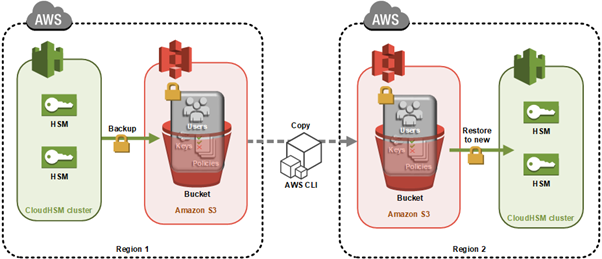
Figure 1 illustrates the process described in this post.

Figure 1: Architecture diagram

Figure 1: Architecture diagram

Here’s how the process works:

  1. CloudHSM creates a backup of the cluster and stores it in an Amazon Simple Storage Service (Amazon S3) bucket owned by the CloudHSM service.
  2. You use the AWS CLI API command to copy the backup to another Region.
  3. When the backup is completed, you use that backup to then create a new cluster and HSMs.
Note: Backups can’t be copied across partitions like the AWS GovCloud Regions, China Region and AWS European Sovereign Cloud.

As with all cluster backups, when you copy the backup to a new Region, it’s stored in an S3 bucket owned by a CloudHSM account. CloudHSM manages the security and storage of cluster backups for you. This means the backup in both Regions will also have the durability of Amazon S3, which has 99.999999999% durability. The backup in Region 2 will be encrypted and secured in the same way as your backup in Region 1. You can read more about the encryption process of your CloudHSM backups in AWS CloudHSM cluster backups.
Any HSMs created in this cloned cluster will have the same users and keys as the original cluster at the time the backup was taken. From this point on, you must manually keep the cloned clusters in sync. Specifically:

  • If you create users after creating your new cluster from the backup, you must create them on both clusters manually.
  • If you change the password for a user in one cluster, you must change the password on the cloned clusters to match.
  • If you create more keys in one cluster, you must sync them to at least one HSM in the cloned cluster. After you sync the key from cluster 1 to cluster 2, the CloudHSM automated cluster synchronization will take care of syncing the keys in the second cluster.

Prerequisites

Before starting, ensure you have the following in place:

Note: Syncing keys across clusters in more than one Region will only work if all clusters are created from the same backup. This is because synchronization requires the same secret key—called a masking key—to be present on the source and destination HSM. The masking key is specific to each cluster. It can’t be exported, and can’t be used for any purpose other than synchronizing keys across HSMs in a cluster.

Step 1: Create your first cluster in Region 1

The first step in cloning your CloudHSM cluster is to create the initial cluster—which will serve as the foundation for your cross-Region deployment—in your source Region.

Create the cluster

Replace <SUBNET_ID_1> with one of your private subnets. Make a note of the cluster ID to use later:
aws cloudhsmv2 create-cluster --hsm-type hsm2m.medium --subnet-ids <SUBNET_ID_1>

Launch the EC2 client

Launch an Amazon Elastic Compute Cloud (Amazon EC2) instance in your public subnet. See Step 1 of Get started with Amazon EC2 for detailed steps.

Create the first HSM

Replace <CLUSTER_ID> with the ID you recorded earlier and <AVAILABILITY_ZONE> with the Availability Zone matching your private subnet (for example, us-east-1a):
aws cloudhsmv2 create-hsm --cluster-id <CLUSTER_ID> --availability-zone <AVAILABILITY_ZONE>

Initialize the cluster

Before you initialize the cluster, create a self-signed certificate and use it to sign the cluster’s certificate signing request (CSR). Once you have the signed certificate, initialize the cluster:

aws cloudhsmv2 initialize-cluster \
    --cluster-id <CLUSTER_ID> \
    --signed-cert file://<CLUSTER_ID>_CustomerHsmCertificate.crt \
    --trust-anchor file://customerCA.crt

Important: Copy the certificate used to sign your cluster’s CSR to to maintain a secure connection.

After the command completes, the cluster transitions to the Initialized state. Copy the certificate used to sign your cluster’s CSR to /opt/cloudhsm/etc so that the CloudHSM client can verify the cluster’s identity when you configure it in the next step:

sudo cp _CustomerHsmCertificate.crt /opt/cloudhsm/etc/
sudo cp customerCA.crt /opt/cloudhsm/etc/

Install the CloudHSM Client SDK 5

Download and install the latest CloudHSM Client SDK 5 (version 5.17 or later):
For example, for Amazon Linux 2023:

wget https://s3.amazonaws.com/cloudhsmv2-software/CloudHsmClient/Amzn2023/cloudhsm-cli-latest.amzn2023.x86_64.rpm
sudo yum install -y ./cloudhsm-cli-latest.amzn2023.x86_64.rpm

Configure the client

Configure the CloudHSM client with your HSM’s elastic network interface (ENI IP) address:
configure-cli -a <HSM_IP>

Activate the cluster

To activate the cluster, run the CloudHSM CLI in interactive mode.

cloudhsm-cli interactive

You can run user list to see the admin user, which is not yet activated.

aws-cloudhsm > user list
{
  "error_code": 0,
  "data": {
    "users": [
      {
        "username": "admin",
        "role": "unactivated-admin",
        "locked": "false",
        "mfa": [],
        "cluster-coverage": "full"
      },
      {
        "username": "app_user",
        "role": "internal(APPLIANCE_USER)",
        "locked": "false",
        "mfa": [],
        "cluster-coverage": "full"
      }
    ]
  }
}

Use the cluster activate command to set the initial admin password.

aws-cloudhsm > cluster activate
Enter password:<NewPassword>
Confirm password:<NewPassword>
{
  "error_code": 0,
  "data": "Cluster activation successful"
}

When completed, sign out using the command quit, then sign back in with the new password, using the command login --username admin --role admin.

After doing this, you can create the first crypto user (CU). You create the user by running the command: user create --username <USERNAME> --role crypto-user. For more information, see HSM user types for CloudHSM CLI. Crypto users are permitted to create and share keys on the CloudHSM.

When completed, sign out using the command quit.

Step 2: Create keys in Region 1

Create a non-exportable AES-256 key:

aws-cloudhsm > key generate-symmetric aes \
    --label aes-example \
    --key-length-bytes 32 \
    --attributes extractable=false

Make note of the key reference returned in the output, because you’ll need it for synchronization later.

Step 3: Trigger a backup of your cluster

To trigger a backup for Region 2:

  1. Add another HSM to your cluster in Region 1 (can be done using the AWS Management Console or AWS CLI)
  2. The backup will contain:
    • All users (crypto officers (COs), crypto users (CUs), and appliance users)
    • All key material on the HSMs
    • All configurations and policies
Note: The user portion is critical because keys can only be synced across clusters to the same user.

Record the backup ID to use later. You can find this in the CloudHSM console under Backups, or using the following command:

aws cloudhsmv2 describe-backups --cluster-id

To avoid unnecessary charges, you can delete the additional HSM after the backup is created.

Step 4: Copy your backup Between Regions

Before you can transfer the backup to your destination Region, you need to configure the appropriate IAM permissions to allow the copy operation.

IAM permissions

Ensure proper permissions are configured for your IAM role or user. You need CloudHSM administrator privileges. Here’s an example permissions policy:

{
   "Version": "2012-10-17",
   "Statement": {
      "Effect": "Allow",
      "Action": [
         "cloudhsm:*",
         "ec2:CreateNetworkInterface",
         "ec2:DescribeNetworkInterfaces",
         "ec2:DescribeNetworkInterfaceAttribute",
         "ec2:DetachNetworkInterface",
         "ec2:DeleteNetworkInterface",
         "ec2:CreateSecurityGroup",
         "ec2:AuthorizeSecurityGroupIngress",
         "ec2:AuthorizeSecurityGroupEgress",
         "ec2:RevokeSecurityGroupEgress",
         "ec2:DescribeSecurityGroups",
         "ec2:DeleteSecurityGroup",
         "ec2:CreateTags",
         "ec2:DescribeVpcs",
         "ec2:DescribeSubnets",
         "iam:CreateServiceLinkedRole"
      ],
      "Resource": "*"
   }
}

Copy the backup

To copy your backup from Region 1 to Region 2, you need:

  • The destination Region
  • The source cluster ID and backup ID (you can use either or both) found in the CloudHSM console

If you specify only the cluster ID, the most recent backup will be chosen. For a specific backup, use the backup ID.

aws cloudhsmv2 copy-backup-to-region \
    --destination-region <DESTINATION_REGION> \
    --backup-id <BACKUP_ID>

Example response:

{
    "DestinationBackup": {
        "SourceBackup": "backup-4kuraxsqetz",
        "SourceCluster": "cluster-kzlczlspnho",
        "CreateTimestamp": 1531742400,
        "SourceRegion": "us-east-1"
    }
}

After copying, you will see a new backup ID in your console. Use this to create your new cluster in Region 2:

aws cloudhsmv2 create-cluster \
    --hsm-type hsm2m.medium \
    --subnet-ids <SUBNET_ID_REGION_2> \
    --source-backup-id <BACKUP_ID_REGION_2> \

Certificate transfer

Copy the cluster certificate from the original cluster to the new Region:

  1. Open two terminal sessions (one for each HSM)
  2. Copy the certificate content from cluster 1
  3. Create and paste into a new file in cluster 2

The certificate is required for encrypted connections between your client and HSM instances.

Security group configuration

Add the cloned cluster’s Security Group to your EC2 client instance:

  1. Select the Security Group for your EC2 client in the EC2 console
  2. Choose “Add rules”
  3. Add a rule allowing traffic from the cluster’s Security Group ID on port 2225

Then retrieve the ENI IP address of the HSM in Region 2 using the following command, and make a note of the output—you will use it in the next step to configure cross-Region connectivity:

aws cloudhsmv2 describe-clusters \
    --filters clusterIds=<cluster_ID_region_2> \
    --region <region_2> \
    --query 'Clusters.Hsms.EniIp' \
    --output text

Step 5: Configure cross-Region connectivity

To enable the CloudHSM CLI to communicate with both clusters simultaneously, add the Region 2 cluster to your existing client configuration using the ENI IP address you retrieved in the previous step:

Step 6: Synchronize keys between clusters

To synchronize keys between your source and destination clusters, you first need to verify which users and keys exist before replicating them.

configure-cli add-cluster \
    --cluster-id <cluster_ID_region_2> \
    --endpoint <hsm_eni_ip_region_2> \
    --region <region_2>

The CloudHSM CLI will now communicate with both clusters simultaneously using the certificates already configured during the initial setup, enabling key synchronization using the masking key shared between cloned clusters.

List users and keys

First, verify users and list available keys:
# List all users
cloudhsm-cli user list

# List keys for specific user
cloudhsm-cli key list --username

Replicate keys

To replicate a key from Region 1 to Region 2:

cloudhsm-cli key replicate \
    --filter key-reference=<key_ref> \
    --source-cluster-id <source_cluster_ID> \
    --destination-cluster-id <destination_cluster_ID>

Verify the key replication by listing keys again:

cloudhsm-cli key list --username <username>

The output should show identical key references on both clusters. Repeat this process for any additional keys that you want to synchronize.

Points to remember

After cloning a cluster to a backup cluster, remember these important points:

  • Always manually update users across clusters after the initial backup
  • Use key replication for any keys created after the initial backup
  • Keep your Client SDK 5 tools updated for the latest features and security improvements
  • The January 1, 2025, end-of-support date for Client SDK 3 tools (CMU and KMU) means you should migrate to Client SDK 5 as soon as possible

Client SDK 5 supports ARM64 architecture on the following Linux distributions:

  • Amazon Linux 2023
  • Amazon Linux 2
  • Red Hat Enterprise Linux (RHEL) 8 (8.3+)
  • Red Hat Enterprise Linux (RHEL) 9 (9.2+)
  • Red Hat Enterprise Linux (RHEL) 10 (10.0+)
  • Ubuntu 22.04 LTS
  • Ubuntu 24.04 LTS
  • Debian 12
  • USE Linux Enterprise Server 15

Conclusion

You now have a fault-tolerant AWS CloudHSM environment with synchronized keys across Regions using the latest tools and best practices. By implementing this cross-Region cluster configuration, you gain improved disaster recovery capabilities, reduced risk of data loss, and enhanced business continuity for your cryptographic operations. This approach helps ensure that your critical cryptographic keys remain available even in the event of a Regional outage, providing the resilience that enterprise workloads demand.

If you have feedback about this post, submit comments in the Comments section below. For questions about this post, start a new thread on the AWS re:Post.

Desiree Brunner

Desiree Brunner

Desiree is a Security Specialist Solutions Architect working with regulated customers as part of the AWS EMEA Security & Compliance team. She builds on her background in DevOps and platform engineering to support her customers in designing secure, compliant cloud environments. Passionate about mental health and knowledge sharing, she regularly speaks at AWS events and supports teams on their cloud security journey.

Rickard Löfström

Rickard Löfström

Rickard guides enterprises in building secure cloud environments as a Specialist Solutions Architect in the AWS EMEA Security & Compliance team. He advises customers on implementing AWS security services, focusing on identity management, data protection, and infrastructure security controls. He enjoys translating complex security requirements into technical solutions that enable organizations to meet their security objectives while maintaining operational efficiency.

  •  
❌