
Reading view

Chrome “preloading” could be leaking your data and causing problems in Browser Guard

This article explains why Chrome’s “preloading” feature can cause scary-looking blocks in Malwarebytes Browser Guard and how to turn it off.

Modern browsers want to provide content instantly. To do that, Chrome includes a feature called page preloading. When this is enabled, Chrome doesn’t just wait for you to click a link. It guesses what you’re likely to click next and starts loading those pages in the background—before you decide whether to visit them.

That guesswork happens in several places. When you type a search into the address bar, Chrome may start preloading one or more of the top search results so that, if you click them, they open almost immediately. It can also preload pages that are linked from the site you’re currently on, based on Google’s prediction that they’re “likely next steps.” All of this happens quietly, without any extra tabs opening, and often without any obvious sign that more pages are being fetched.​

From a performance point of view, that’s clever. From a privacy and security point of view, it’s more complicated.

Those preloaded pages can run code, drop cookies, and contact servers, even if you never actually visit them in the traditional sense. In other words, your browser can talk to a site you didn’t consciously choose to open.​

Malwarebytes Browser Guard inspects web traffic and blocks connections to domains it considers malicious or suspicious. So, if Chrome decides to preload a search result that leads to a site on our blocklist, Browser Guard will still do its job and stop that background connection. The result can be confusing: You see a warning page (called a block page) for a site you don’t recognize and are sure you never clicked.

Nothing unusual is happening there, and it does not mean your browser is “clicking links by itself.” It simply means Chrome’s preloading feature made a behind-the-scenes request, and Browser Guard intercepted it as designed. Other privacy tools take a similar approach. Some popular content blockers disable preloading by default because it leaks more data and can contact unwanted sites.

For now, the simplest way to stop these unexpected block pages is to turn off preloading in Chrome’s settings, which prevents those speculative background requests.

How to manage Chrome’s preloading setting

We recommend turning off page preloading in Chrome to protect your browsing privacy and to stop seeing unexpected block pages when searching the web. If you don’t want to turn off page preloading, you can try using a different browser and repeating your search.

To turn off page preloading:

  1. In your browser search bar, enter: chrome://settings
  2. In the left sidebar, click Performance.
  3. Scroll down to Speed, then toggle Preload pages off.
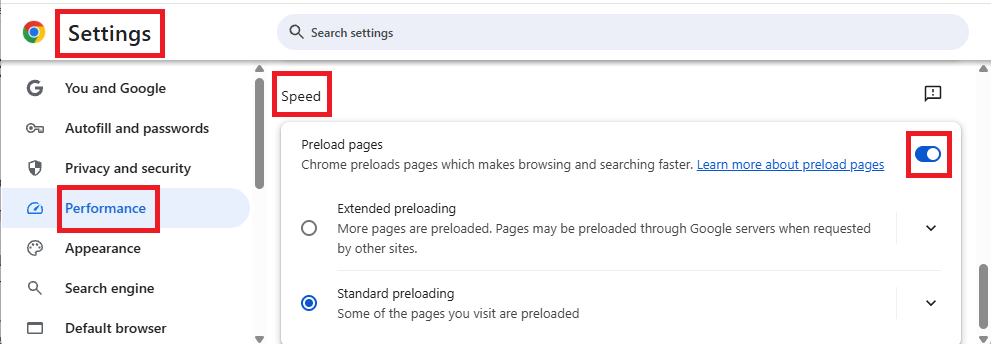
How to turn preload pages on and off

We don’t just report on data privacy—we help you remove your personal information

Cybersecurity risks should never spread beyond a headline. With Malwarebytes Personal Data Remover, you can scan to find out which sites are exposing your personal information, and then delete that sensitive data from the internet.

  •  

Chrome “preloading” could be leaking your data and causing problems in Browser Guard

This article explains why Chrome’s “preloading” feature can cause scary-looking blocks in Malwarebytes Browser Guard and how to turn it off.

Modern browsers want to provide content instantly. To do that, Chrome includes a feature called page preloading. When this is enabled, Chrome doesn’t just wait for you to click a link. It guesses what you’re likely to click next and starts loading those pages in the background—before you decide whether to visit them.

That guesswork happens in several places. When you type a search into the address bar, Chrome may start preloading one or more of the top search results so that, if you click them, they open almost immediately. It can also preload pages that are linked from the site you’re currently on, based on Google’s prediction that they’re “likely next steps.” All of this happens quietly, without any extra tabs opening, and often without any obvious sign that more pages are being fetched.​

From a performance point of view, that’s clever. From a privacy and security point of view, it’s more complicated.

Those preloaded pages can run code, drop cookies, and contact servers, even if you never actually visit them in the traditional sense. In other words, your browser can talk to a site you didn’t consciously choose to open.​

Malwarebytes Browser Guard inspects web traffic and blocks connections to domains it considers malicious or suspicious. So, if Chrome decides to preload a search result that leads to a site on our blocklist, Browser Guard will still do its job and stop that background connection. The result can be confusing: You see a warning page (called a block page) for a site you don’t recognize and are sure you never clicked.

Nothing unusual is happening there, and it does not mean your browser is “clicking links by itself.” It simply means Chrome’s preloading feature made a behind-the-scenes request, and Browser Guard intercepted it as designed. Other privacy tools take a similar approach. Some popular content blockers disable preloading by default because it leaks more data and can contact unwanted sites.

For now, the simplest way to stop these unexpected block pages is to turn off preloading in Chrome’s settings, which prevents those speculative background requests.

How to manage Chrome’s preloading setting

We recommend turning off page preloading in Chrome to protect your browsing privacy and to stop seeing unexpected block pages when searching the web. If you don’t want to turn off page preloading, you can try using a different browser and repeating your search.

To turn off page preloading:

  1. In your browser search bar, enter: chrome://settings
  2. In the left sidebar, click Performance.
  3. Scroll down to Speed, then toggle Preload pages off.

How to turn preload pages on and off

We don’t just report on data privacy—we help you remove your personal information

Cybersecurity risks should never spread beyond a headline. With Malwarebytes Personal Data Remover, you can scan to find out which sites are exposing your personal information, and then delete that sensitive data from the internet.

  •  

Scam Guard for desktop: A second set of eyes for suspicious moments 

Scams aren’t so obvious anymore. They’re well-written, have working grammar, and can lead victims to very convincing branded webpages. Scammers increasingly use AI tools to clone sites and create highly sophisticated scams at scale, so don’t expect to rely on spotting obvious typos anymore.

That’s why Scam Guard, Malwarebytes’ free, AI-powered scam detection assistant, is now available on Windows and Mac. Previously mobile-only, Scam Guard helps you quickly figure out whether something you’re looking at is risky, all before you click, reply, or share. 

When something feels off but you’re not sure what

Scams show up everywhere: emails, texts, pop-ups, messages, and websites that look legitimate. But when you’re moving fast, it’s easy to slip up. 

Scam Guard is designed for exactly those moments. If you’re unsure about a message or link, you can ask Scam Guard to take a look. It uses AI to analyze the content and give you a clear, fast assessment so you can decide what to do next with more confidence. 

How Scam Guard helps 

Scam Guard provides a quick reality check just when you need it: 

  • Real-time threat intelligence: An AI-powered chat companion backed by decades of Malwarebytes threat intelligence and cybersecurity expertise. Get instant verdicts you can trust, plus clear next steps.
  • Comprehensive scam detection: It flags suspicious messages and links, spots common scam tactics, and explains why something is risky. It covers romance, phishing, financial, text, robocall, and shipping scams, and more.
  • Built for where scams start: Works right on your desktop, where many scams begin.
  • 24/7 support: Available around the clock, so you can get help anytime you need it.

Stop wondering to yourself “Is this legit?” With Scam Guard, you get an answer you can trust.  

Now on desktop, right where scams happen 

Many scams target users while they’re on their computers—checking email, browsing the web, or managing accounts. Bringing Scam Guard to Windows and Mac helps where it’s most useful. 

Whether you’re reviewing an unexpected message, a pop-up that feels urgent, or a deal that sounds a little too good, Scam Guard gives you a smarter way to pause and check before reacting.  Here’s how to share a scam with Scam Guard on your computer.

Extra protection, without extra stress 

Staying safe online shouldn’t mean becoming suspicious of everything. It should mean having the right tools when something doesn’t add up. Scam Guard is there to help you slow down, spot warning signs, and avoid costly mistakes. It makes it easier to protect yourself from scams.


We don’t just report on scams—we help detect them

Cybersecurity risks should never spread beyond a headline. If something looks dodgy to you, check if it’s a scam using Malwarebytes Scam Guard. Submit a screenshot, paste suspicious content, or share a link, text or phone number, and we’ll tell you if it’s a scam or legit. Available with Malwarebytes Premium Security for all your devices, and in the Malwarebytes app for iOS and Android.

  •  

Scam Guard for desktop: A second set of eyes for suspicious moments 

Scams aren’t so obvious anymore. They’re well-written, have working grammar, and can lead victims to very convincing branded webpages. Scammers increasingly use AI tools to clone sites and create highly sophisticated scams at scale, so don’t expect to rely on spotting obvious typos anymore.

That’s why Scam Guard, Malwarebytes’ free, AI-powered scam detection assistant, is now available on Windows and Mac. Previously mobile-only, Scam Guard helps you quickly figure out whether something you’re looking at is risky, all before you click, reply, or share. 

When something feels off but you’re not sure what

Scams show up everywhere: emails, texts, pop-ups, messages, and websites that look legitimate. But when you’re moving fast, it’s easy to slip up. 

Scam Guard is designed for exactly those moments. If you’re unsure about a message or link, you can ask Scam Guard to take a look. It uses AI to analyze the content and give you a clear, fast assessment so you can decide what to do next with more confidence. 

How Scam Guard helps 

Scam Guard provides a quick reality check just when you need it: 

  • Real-time threat intelligence: An AI-powered chat companion backed by decades of Malwarebytes threat intelligence and cybersecurity expertise. Get instant verdicts you can trust, plus clear next steps.
  • Comprehensive scam detection: It flags suspicious messages and links, spots common scam tactics, and explains why something is risky. It covers romance, phishing, financial, text, robocall, and shipping scams, and more.
  • Built for where scams start: Works right on your desktop, where many scams begin.
  • 24/7 support: Available around the clock, so you can get help anytime you need it.

Stop wondering to yourself “Is this legit?” With Scam Guard, you get an answer you can trust.  

Now on desktop, right where scams happen 

Many scams target users while they’re on their computers—checking email, browsing the web, or managing accounts. Bringing Scam Guard to Windows and Mac helps where it’s most useful. 

Whether you’re reviewing an unexpected message, a pop-up that feels urgent, or a deal that sounds a little too good, Scam Guard gives you a smarter way to pause and check before reacting.  Here’s how to share a scam with Scam Guard on your computer.

Extra protection, without extra stress 

Staying safe online shouldn’t mean becoming suspicious of everything. It should mean having the right tools when something doesn’t add up. Scam Guard is there to help you slow down, spot warning signs, and avoid costly mistakes. It makes it easier to protect yourself from scams.


We don’t just report on scams—we help detect them

Cybersecurity risks should never spread beyond a headline. If something looks dodgy to you, check if it’s a scam using Malwarebytes Scam Guard. Submit a screenshot, paste suspicious content, or share a link, text or phone number, and we’ll tell you if it’s a scam or legit. Available with Malwarebytes Premium Security for all your devices, and in the Malwarebytes app for iOS and Android.

  •  
❌