Reading view

How to use the Secrets Store CSI Driver provider Amazon EKS add-on with Secrets Manager

In this post, we introduce the AWS provider for the Secrets Store CSI Driver, a new AWS Secrets Manager add-on for Amazon Elastic Kubernetes Service (Amazon EKS) that you can use to fetch secrets from Secrets Manager and parameters from AWS Systems Manager Parameter Store and mount them as files in Kubernetes pods. The add-on is straightforward to install and configure, works on Amazon Elastic Compute Cloud (Amazon EC2) instances and hybrid nodes, and includes the latest security updates and bugfixes. It provides a secure and reliable way to retrieve your secrets in Kubernetes workloads.

The AWS provider for the Secrets Store CSI Driver is an open source Kubernetes DaemonSet.

Amazon EKS add-ons provide installation and management of a curated set of add-ons for EKS clusters. You can use these add-ons to help ensure that your EKS clusters are secure and stable and reduce the number of steps required to install, configure, and update add-ons.

Secrets Manager helps you manage, retrieve, and rotate database credentials, application credentials, OAuth tokens, API keys, and other secrets throughout their lifecycles. By using Secrets Manager to store credentials, you can avoid using hard-coded credentials in application source code, helping to avoid unintended or inadvertent access.

New EKS add-on: AWS provider for the Secrets Store CSI Driver

We recommend installing the provider as an Amazon EKS add-on instead of the legacy installation methods (Helm, kubectl) to reduce the amount of time it takes to install and configure the provider. The add-on can be installed in several ways: using eksctl—which you will use in this post—the AWS Management Console, the Amazon EKS API, AWS CloudFormation, or the AWS Command Line Interface (AWS CLI).

Security considerations

The open-source Secrets Store CSI Driver maintained by the Kubernetes community enables mounting secrets as files in Kubernetes clusters. The AWS provider relies on the CSI driver and mounts secrets as file in your EKS clusters. Security best practice recommends caching secrets in memory where possible. If you prefer to adopt the native Kubernetes experience, please follow the steps in this blog post. If you prefer to cache secrets in memory, we recommend using the AWS Secrets Manager Agent.

IAM principals require Secrets Manager permissions to get and describe secrets. If using Systems Manager Parameter Store, principals also require Parameter Store permissions to get parameters. Resource policies on secrets serve as another access control mechanism, and AWS principals must be explicitly granted permissions to access individual secrets if they’re accessing secrets from a different AWS account (see Access AWS Secrets Manager secrets from a different account). The Amazon EKS add-on provides security features including support for using FIPS endpoints. AWS provides a managed IAM policy, AWSSecretsManagerClientReadOnlyAccess, which we recommend using with the EKS add-on.

Solution walkthrough

In the following sections, you’ll create an EKS cluster, create a test secret in Secrets Manager, install the Amazon EKS add-on, and use it to retrieve the test secret and mount it as a file in your cluster.

Prerequisites

  1. AWS credentials, which must be configured in your environment to allow AWS API calls and are required to allow access to Secrets Manager
  2. AWS CLI v2 or higher
  3. Your preferred AWS Region must be available in your environment. Use the following command to set your preferred region:
    aws configure set default.region <preferred_region>
    
  4. The kubectl and eksctl command-line tools
  5. A Kubernetes deployment file hosted in the GitHub repo for the provider

With the prerequisites in place, you’re ready to run the commands in the following steps in your terminal:

Create an EKS cluster

  1. Create a shell variable in your terminal with the name of your cluster:
    CLUSTER_NAME="my-test-cluster”
    
  2. Create an EKS cluster:
    eksctl create cluster $CLUSTER_NAME 
    

eksctl will automatically use a recent version of Kubernetes and create the resources needed for the cluster to function. This command typically takes about 15 minutes to finish setting up the cluster.

Create a test secret

Create a secret named addon_secret in Secrets Manager:

aws secretsmanager create-secret \
  --name addon_secret \
  --secret-string "super secret!"

Set up the Secrets Store CSI Driver provider EKS add-on

Install the Amazon EKS add-on:

eksctl create addon \
  --cluster $CLUSTER_NAME \
  --name aws-secrets-store-csi-driver-provider

Create an IAM role

Create an AWS Identity and Access Management (IAM) role that the EKS Pod Identity service principal can assume and save it in a shell variable (replace <region> with the AWS Region configured in your environment):

ROLE_ARN=$(aws --region <region> --query Role.Arn --output text iam create-role --role-name nginx-deployment-role --assume-role-policy-document '{
    "Version": "2012-10-17",
    "Statement": [
        {
            "Effect": "Allow",
            "Principal": {
                "Service": "pods.eks.amazonaws.com"
            },
            "Action": [
                "sts:AssumeRole",
                "sts:TagSession"
            ]
        }
    ]
}')

Attach a managed policy to the IAM role

Note: AWS provides a managed policy for client-side consumption of secrets through Secrets Manager: AWSSecretsManagerClientReadOnlyAccess. This policy grants access to get and describe secrets for the secrets in your account. If you want to further follow the principle of least privilege, create a custom policy scoped down to only the secrets you want to retrieve.

Attach the managed policy to the IAM role that you just created:

aws iam attach-role-policy \
  --role-name nginx-deployment-role \
  --policy-arn arn:aws:iam::aws:policy/AWSSecretsManagerClientReadOnlyAccess

Set up the EKS Pod Identity Agent

Note: The add-on provides two methods of authentication: IAM roles for service accounts (IRSA) and EKS Pod Identity. In this solution, you’ll use EKS Pod Identity.

  1. After you’ve installed the add-on in your cluster, install the EKS Pod Identity Agent add-on for authentication:
    eksctl create addon \
      --cluster $CLUSTER_NAME \
      --name eks-pod-identity-agent
    
  2. Create an EKS Pod Identity association for the cluster:
    eksctl create podidentityassociation \
        --cluster $CLUSTER_NAME \
        --namespace default \
        --region <region> \
        --service-account-name nginx-pod-identity-deployment-sa \
        --role-arn $ROLE_ARN \
        --create-service-account true
    

Set up your SecretProviderClass

The SecretProviderClass is a YAML file that defines which secrets and parameters to mount as files in your cluster.

  1. Create a minimal SecretProviderClass called spc.yaml for the test secret with the following content:
    apiVersion: secrets-store.csi.x-k8s.io/v1
    kind: SecretProviderClass
    metadata:
      name: nginx-pod-identity-deployment-aws-secrets
    spec:
      provider: aws
      parameters:
        objects: |
          - objectName: "addon_secret"
            objectType: "secretsmanager"
        usePodIdentity: "true"
    
  2. Deploy your SecretProviderClass (make sure you’re in the same directory as the spc.yaml you just created):
    kubectl apply -f spc.yaml
    

To learn more about the SecretProviderClass, see the GitHub readme for the provider.

Deploy your pod to your EKS cluster

For brevity, we’ve omitted the content of the Kubernetes deployment file. The following is an example deployment file for Pod Identity in the GitHub repository for the provider—use this file to deploy your pod:

kubectl apply -f https://raw.githubusercontent.com/aws/secrets-store-csi-driver-provider-aws/main/examples/ExampleDeployment-PodIdentity.yaml

This will mount addon_secret at /mnt/secrets-store in your cluster.

Retrieve your secret

  1. Print the value of addon_secret to confirm that the secret was mounted successfully:
    kubectl exec -it $(kubectl get pods | awk '/nginx-pod-identity-deployment/{print $1}' | head -1) -- cat /mnt/secrets-store/addon_secret
    
  2. You should see the following output:
    super secret!
    

You’ve successfully fetched your test secret from Secrets Manager using the new Amazon EKS add-on and mounted it as a file in your Kubernetes cluster.

Clean up

Run the following commands to clean up the resources that you created in this tutorial:

aws secretsmanager delete-secret \
  --secret-id addon_secret \
  --force-delete-without-recovery

aws iam delete-role --role-name nginx-deployment-role

eksctl delete cluster $CLUSTER_NAME

Conclusion

In this post, you learned how to use the new Amazon EKS add-on for the AWS Secrets Store CSI Driver provider to securely retrieve your secrets and parameters and mount them as files in your Kubernetes clusters. The new EKS add-on provides benefits such as the latest security patches and bug fixes, tighter integration with Amazon EKS, and reduces the time it takes to install and configure the AWS Secrets Store CSI Driver provider. The add-on is validated by EKS to work with EC2 instances and hybrid nodes.

Further reading

If you have feedback about this post, submit comments in the Comments section below. If you have questions about this post, contact AWS Support.
Angad Misra

Angad Misra

Angad is a Software Engineer on the AWS Secrets Manager team. When he isn’t building secure, reliable, and scalable software from first principles, he enjoys a good latte, live music, playing guitar, exploring the great outdoors, cooking, and lazing around with his cat, Freyja.

  •  

AWS Secrets Manager launches Managed External Secrets for Third-Party Credentials

Although AWS Secrets Manager excels at managing the lifecycle of Amazon Web Services (AWS) secrets, managing credentials from third-party software providers presents unique challenges for organizations as they scale usage of their cloud applications. Organizations using multiple third-party services frequently develop different security approaches for each provider’s credentials because there hasn’t been a standardized way to manage them. When storing these third-party credentials in Secrets Manager, organizations frequently maintain additional metadata within secret values to facilitate service connections. This approach requires updating entire secret values when metadata changes and implementing provider-specific secret rotation processes that are manual and time consuming. Organizations looking to automate secret rotation typically develop custom functions tailored to each third-party software provider, requiring specialized knowledge of both third-party and AWS systems.

To help customers streamline third-party secrets management, we’re introducing a new feature in AWS Secrets Manager called managed external secrets. In this post, we explore how this new feature simplifies the management and rotation of third-party software credentials while maintaining security best practices.

Introducing managed external secrets

AWS Secrets Manager has a proven track record of helping customers secure and manage secrets for AWS services such as Amazon Relational Database Service (Amazon RDS) or Amazon DocumentDB through managed rotation capabilities. Building on this success, Secrets Manager now introduces managed external secrets, a new secret type that extends this same seamless experience to third-party software applications like Salesforce, simplifying secret management challenges through standardized formats and automated rotation.

You can use this capability to store secrets vended by third-party software providers in predefined formats. These formats were developed in collaboration with trusted integration partners to define both the secret structure and required metadata for rotation, eliminating the need for you to define your own custom storage strategies. Managed external secrets also provides automated rotation by directly integrating with software providers. With no rotation functions to maintain, you can reduce your operational overhead while benefiting from essential security controls, including fine-grained permissions management using AWS Identity and Access Management (IAM), secret access monitoring through Amazon CloudWatch and AWS CloudTrail, and automated secret-specific threat detection through Amazon GuardDuty. Moreover, you can implement centralized and consistent secret management practices across both AWS and third-party secrets from a single service, eliminating the need to operate multiple secrets management solutions at your organization. Managed external secrets follows standard Secrets Manager pricing, with no additional cost for using this new secret type.

Prerequisites

To create a managed external secret, you need an active AWS account with appropriate access to Secrets Manager. The account must have sufficient permissions to create and manage secrets, including the ability to access the AWS Management Console or programmatic access through the AWS Command Line Interface (AWS CLI) or AWS SDKs. At minimum, you need IAM permissions for the following actions: secretsmanager:DescribeSecret, secretsmanager:GetSecretValue, secretsmanager:UpdateSecret, and secretsmanager:UpdateSecretVersionStage.

You must have valid credentials and necessary access permissions for the third-party software provider you plan to have AWS manage secrets for.

For secret encryption, you must decide whether to use an AWS managed AWS Key Management Service (AWS KMS) key or a customer managed KMS key. For customer managed keys, make sure you have the necessary key policies configured. The AWS KMS key policy should allow Secrets Manager to use the key for encryption and decryption operations.

Create a managed external secret

Today, managed external secrets supports three integration partners: Salesforce, Snowflake, and BigID. Secrets Manager will continue to expand its partner list and more third-party software providers will be added over time. For the latest list, refer to Integration Partners.

To create a managed external secret, follow the steps in the following sections.

Note: This example demonstrates the steps for retrieving Salesforce External Client App Credentials, but a similar process can be followed for other third-party vendor credentials integrated with Secrets Manager.

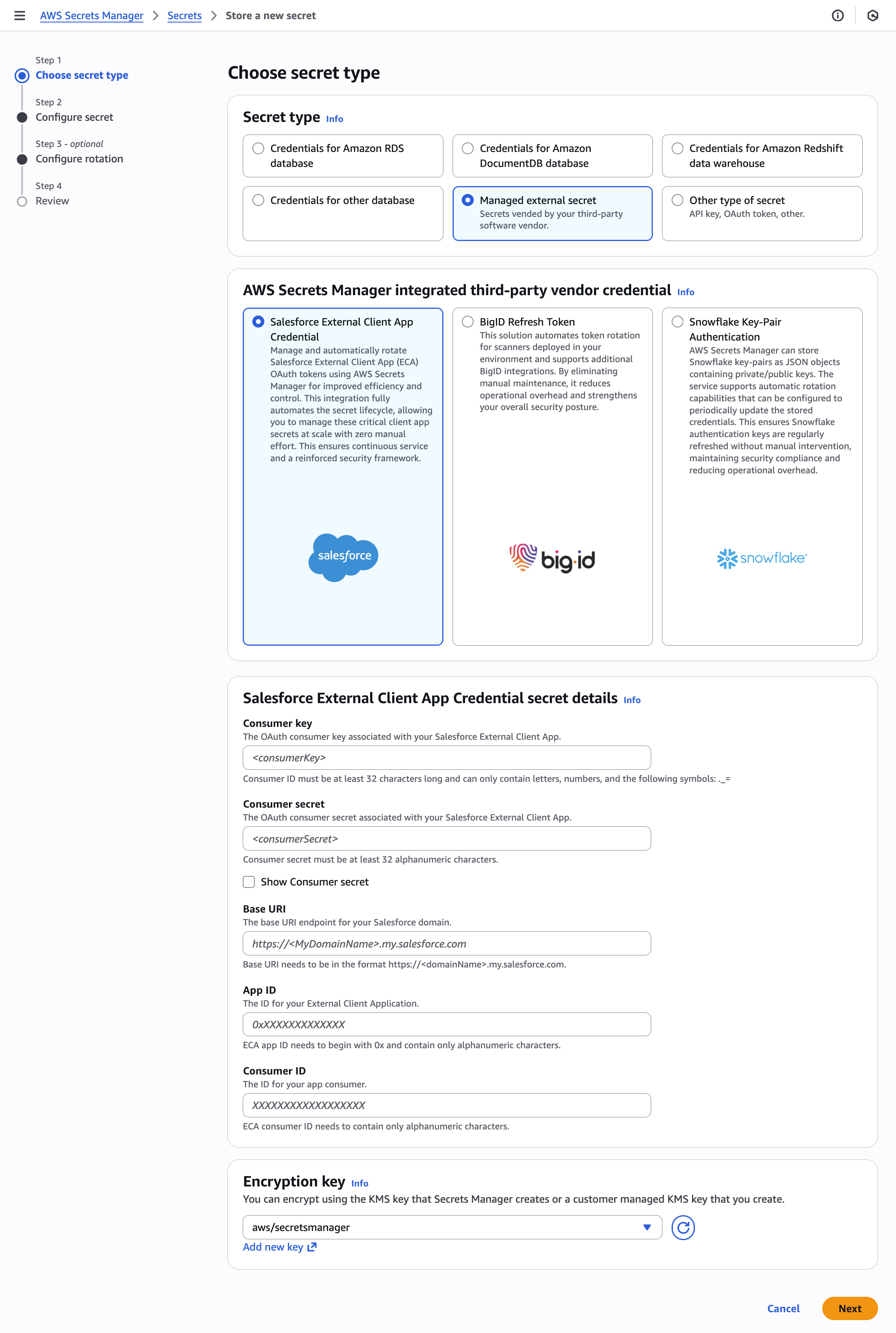
To select secret type and add details:

  1. Go to the Secrets Manager service in the AWS Management Console and choose Store a new secret.
  2. Under Secret type, select Managed external secret.
  3. In the AWS Secrets Manager integrated third-party vendor credential section, select your provider from the available options. For this walkthrough, we select Salesforce External Client App Credential.
  4. Enter your configurations in the Salesforce External Client App Credential secret details section. The Salesforce External Client App credentials consist of several key components:
    1. The Consumer key (client ID), which serves as the credential identifier for OAuth 2.0. You can retrieve the consumer key directly from the Salesforce External Client App Manager OAuth settings.
    2. The Consumer secret (client secret), which functions as the private password for OAuth 2.0 authentication. You can retrieve the consumer secret directly from the Salesforce External Client App Manager OAuth settings.
    3. The Base URI, which is your Salesforce org’s base URL (formatted as https://MyDomainName.my.salesforce.com), is used to interact with Salesforce APIs.
    4. The App ID, which identifies your Salesforce External Client Apps (ECAs) and can be retrieved by calling the Salesforce OAuth usage endpoint.
    5. The Consumer ID, which identifies your Salesforce ECA, can be retrieved by calling the Salesforce OAuth credentials by App ID endpoint. For a list of commands, refer to Stage, Rotate, and Delete OAuth Credentials for an External Client App in the Salesforce documentation.
  5. Select the Encryption key from the dropdown menu. You can use an AWS managed KMS key or a customer managed KMS key.
  6. Choose Next.
Figure 1: Choose secret type

Figure 1: Choose secret type

To configure a secret:

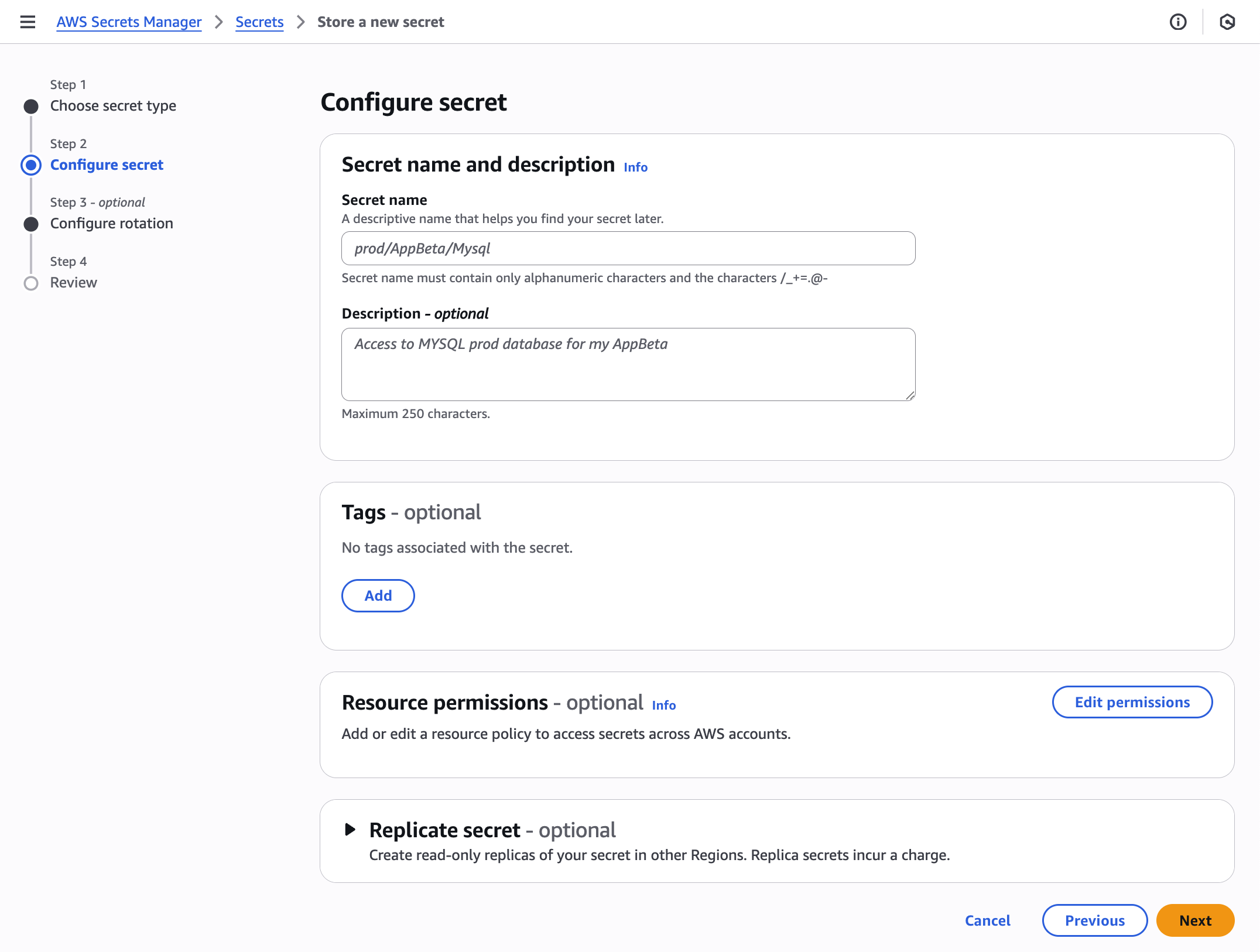
  1. In this section, you need to provide information for your secret’s configuration.
  2. In Secret name, enter a descriptive name and optionally enter a detailed Description that helps identify the secret’s purpose and usage. You also have additional configuration choices available: you can attach Tags for better resource organization, set specific Resource permissions to control access, and select Replicate secret for multi-Region resilience.
  3. Choose Next.
Figure 2: Configure secret

Figure 2: Configure secret

To configure rotation and permissions (optional):

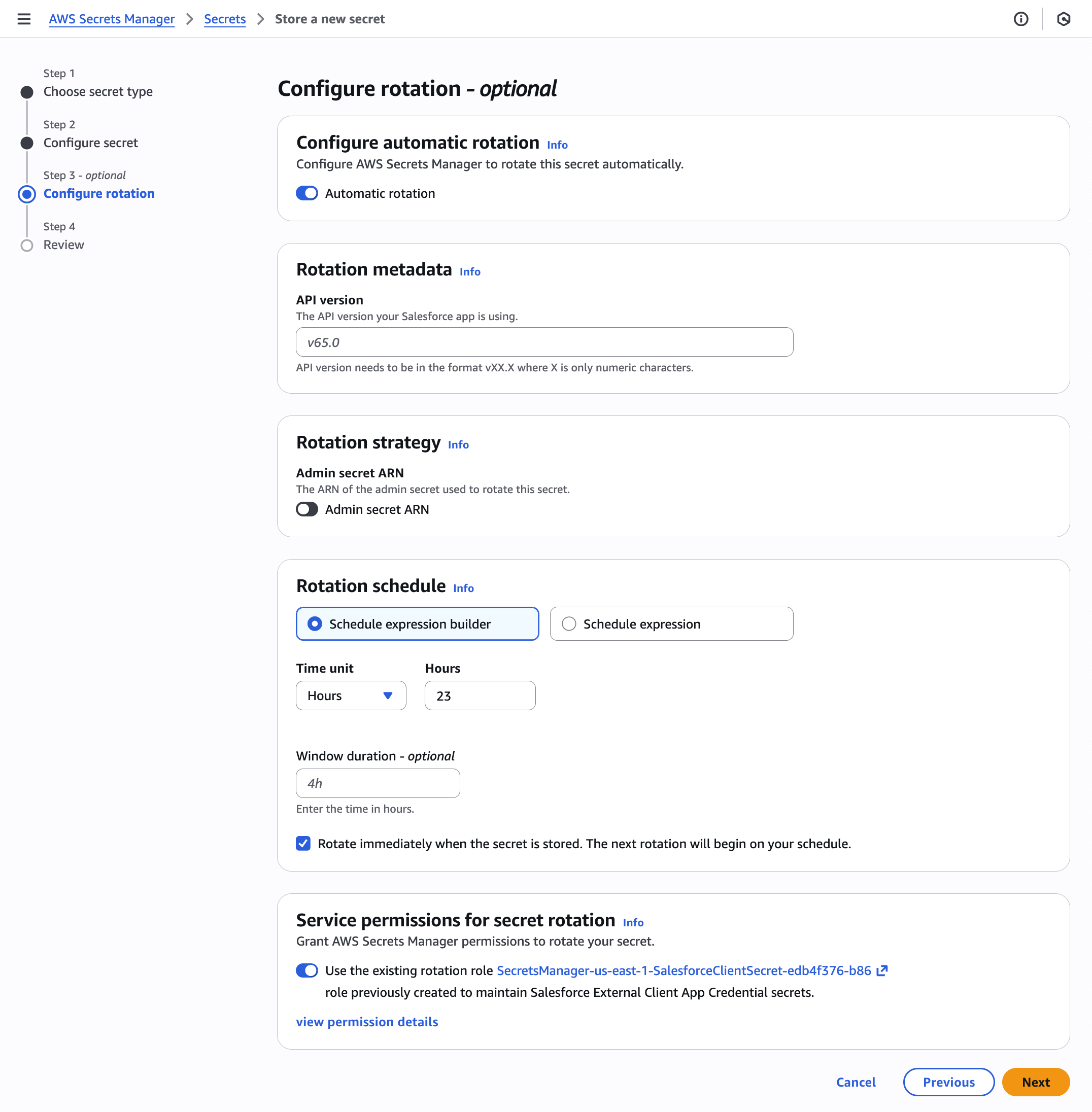
In the optional Configure rotation step, the new secret configuration introduces two key sections focused on metadata management, which are stored separately from the secret value itself.

  1. Under Rotation metadata, specify the API version your Salesforce app is using. To find the API version, refer to List Available REST API Versions in the Salesforce documentation. Note: The minimum version needed is v65.0.
  2. Select an Admin secret ARN, which contains the administrative OAuth credentials that are used to rotate the Salesforce client secret.
  3. In the Service permissions for secret rotation section, Secrets Manager automatically creates a role with necessary permissions to rotate your secret values. These default permissions are transparently displayed in the interface for review when you choose view permission details. You can deselect the default permissions for more granular control over secret rotation management.
  4. Choose Next.
Figure 3: Configure rotation

Figure 3: Configure rotation

To review:

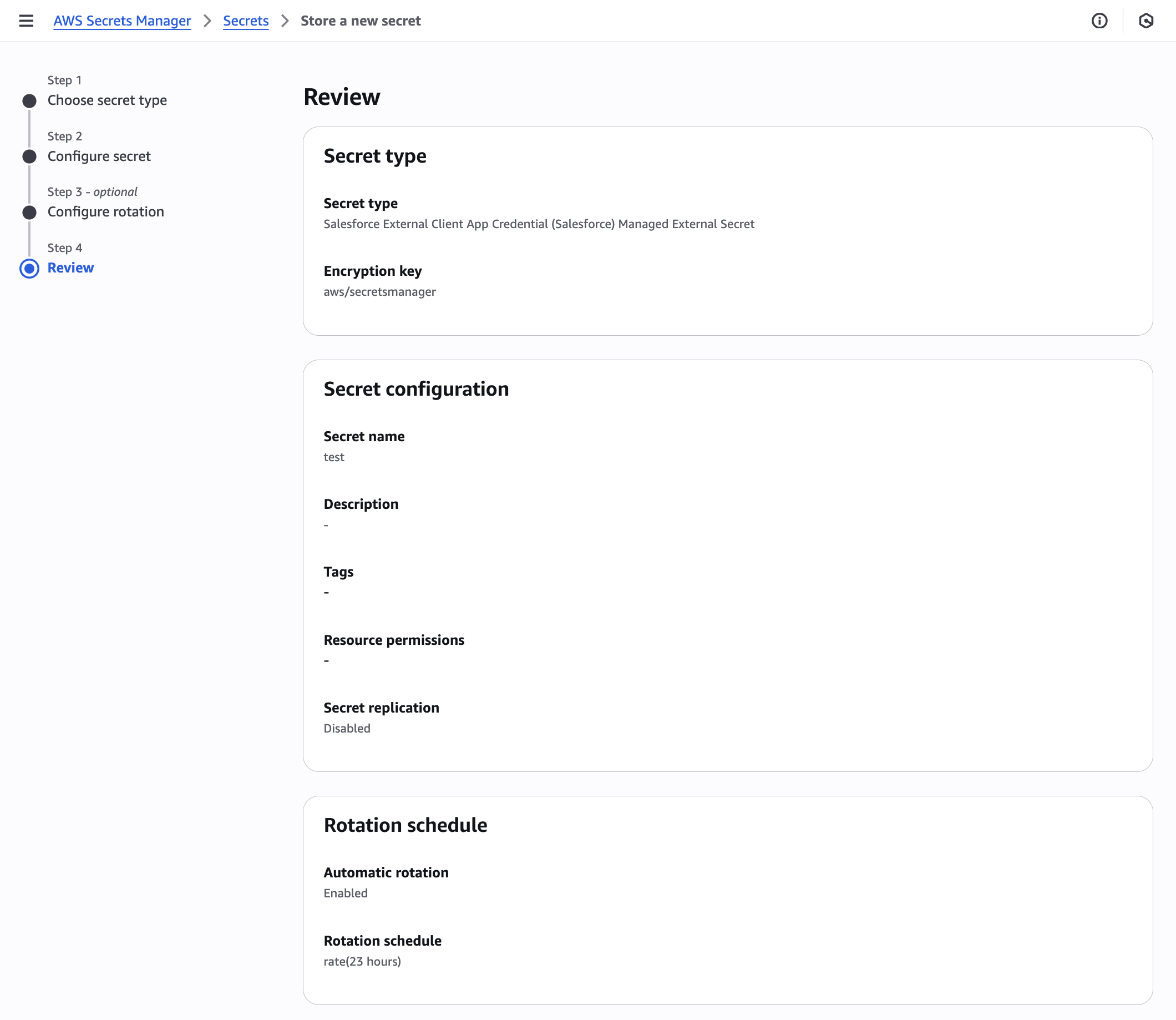
In the final step, you’ll be presented with a summary of your secret’s configuration. On the Review page, you can verify parameters before proceeding with secret creation.

After confirming that the configurations are correct, choose Store to complete the process and create your secret with the specified settings.

Figure 4: Review

Figure 4: Review

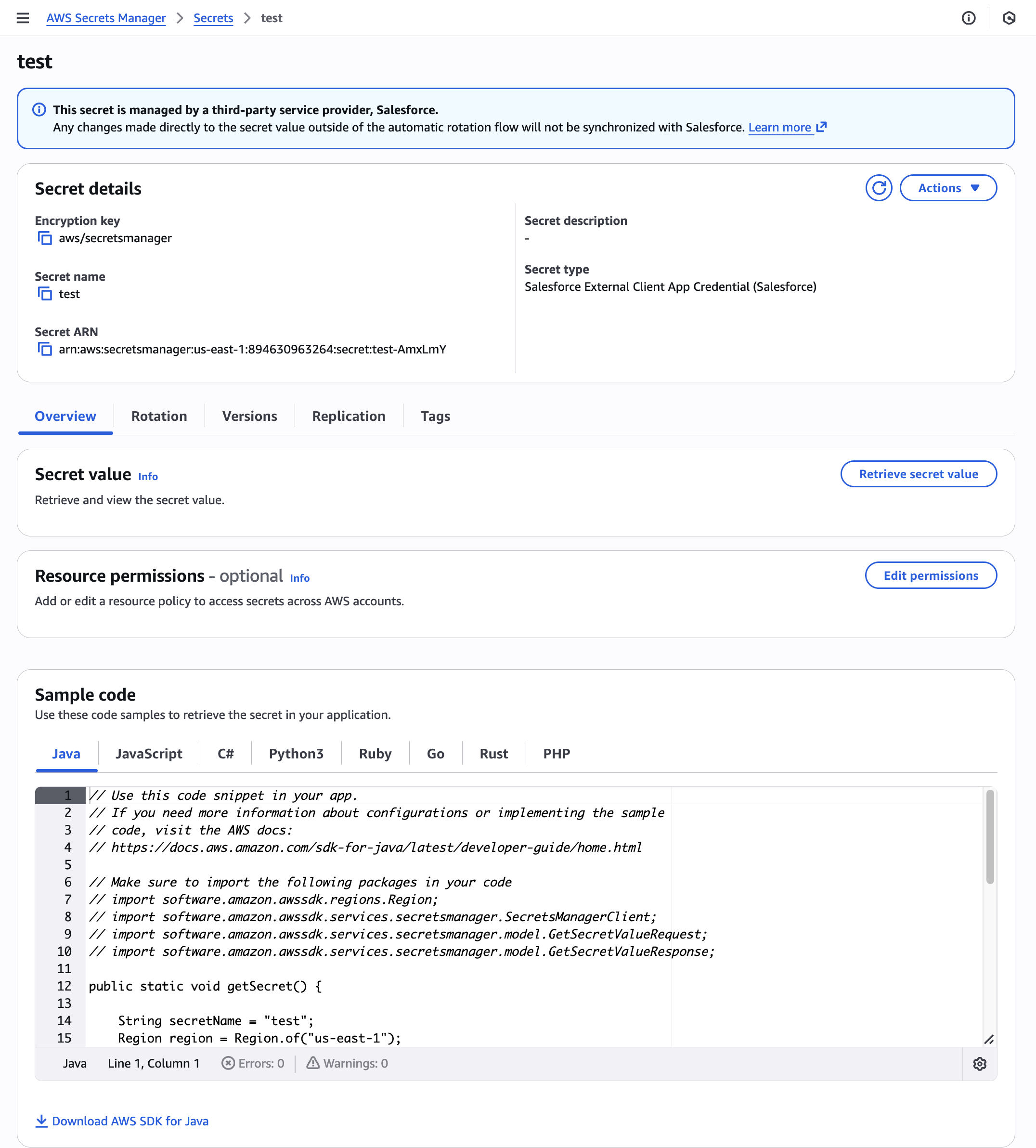
After successful creation, your secret will appear on the Secrets tab. You can view, manage, and monitor aspects of your secret, including its configuration, rotation status, and permissions. After creation, review your secret configuration, including encryption settings and resource policies for cross-account access, and examine the sample code provided for different AWS SDKs to integrate secret retrieval into your applications. The Secrets tab provides an overview of your secrets, allowing for central management of secrets. Select your secret to view Secret details.

Figure 5: View secret details

Figure 5: View secret details

Your managed external secret has been successfully created in Secrets Manager. You can access and manage this secret through the Secrets Manager console or programmatically using AWS APIs.

Onboard as an integration partner with Secrets Manager

With the new managed external secret type, third-party software providers can integrate with Secrets Manager and offer their customers a programmatic way to securely manage secrets vended by their applications on AWS. This integration provides their customers with a centralized solution for managing both the lifecycle of AWS and third-party secrets, including automatic rotation capabilities from the moment of secret creation. Software providers like Salesforce are already using this capability.

“At Salesforce, we believe security shouldn’t be a barrier to innovation, it should be an enabler. Our partnership with AWS on managed external secrets represents security-by-default in action, removing operational burden from our customers while delivering enterprise-grade protection. With AWS Secrets Manager now extending to partners and automated zero-touch rotation eliminating human risk, we’re setting a new industry standard where secure credentials become seamless without specialized expertise or additional costs.” — Jay Hurst, Sr. Vice President, Product Management at Salesforce

There is no additional cost to onboard with Secrets Manager as an integration partner. To get started, partners must follow the process listed on the partner onboarding guide. If you have questions about becoming an integration partner, contact our team at aws-secrets-mgr-partner-onboarding@amazon.com with Subject: [Partner Name] Onboarding request.

Conclusion

In this post, we introduced managed external secrets, a new secret type in Secrets Manager that addresses the challenges of securely managing the lifecycle of third-party secrets through predefined formats and automated rotation. By eliminating the need to define custom storage strategies and develop complex rotation functions, you can now consistently manage your secrets—whether from AWS services, custom applications, or third-party providers—from a single service. Managed external secrets provide the same security features as standard Secrets Manager secrets, including fine-grained permissions management, observability, and compliance controls, while adding built-in integration with trusted partners at no additional cost.

To get started, refer to the technical documentation. For information on migrating your existing partner secrets to managed external secrets, see Migrating existing secrets. The feature is available in all AWS commercial Regions. For a list of Regions where Secrets Manager is available, see the AWS Region table. If you have feedback about this post, submit comments in the Comments section below. If you have questions about this post, start a new thread on Secrets Manager re:Post or contact AWS Support.

Rohit Panjala

Rohit is a Security Specialist at AWS, focused on data protection and cryptography services. He is responsible for developing and implementing go-to-market (GTM) strategies and driving customer and partner adoptions for AWS data protection services on a global scale. Before joining AWS, he worked in security product management at IBM and electrical engineering roles. He holds a BS in engineering from The Ohio State University.

Rochak Karki

Rochak is a Security Specialist Solutions Architect at AWS, focusing on threat detection, incident response, and data protection to help customers build secure environments. Rochak is a US Army veteran and holds a BS in engineering from the University of Wyoming. Outside of work, he enjoys spending time with family and friends, hiking, and traveling.

  •  
❌