Reading view

Kali & LLM: Completely local with Ollama & 5ire

We are extending our LLM-driven Kali series, where natural language replaces manual command input. This time however, we are doing everything locally and offline. We are using our own hardware and not relying on any 3rd party services/SaaS.

Note: Local LLMs are hardware-hungry. The cost factor here is buying hardware and the running costs. If you have anything that you can re-use, great!

GPU (Nvidia)

Let’s first find out what our hardware is:

$ lspci | grep -i vga
07:00.0 VGA compatible controller: NVIDIA Corporation GP106 [GeForce GTX 1060 6GB] (rev a1)
$

NVIDIA GeForce GTX 1060 (6 GB).

Drivers

We will check that our hardware is ready by making sure “non-free” proprietary drivers are installed. The non-free option allows for CUDA support which the open-source, nouveau, drivers lack. At the same time, make sure our Kernel and headers are at the latest version too:

$ sudo apt update
[...]
$
$ sudo apt install -y linux-image-$(dpkg --print-architecture) linux-headers-$(dpkg --print-architecture) nvidia-driver nvidia-smi
[...]
│ Conflicting nouveau kernel module loaded │
│ The free nouveau kernel module is currently loaded and conflicts with the non-free nvidia kernel module. │
│ The easiest way to fix this is to reboot the machine once the installation has finished. |
[...]
$
$ sudo reboot

Using a different GPU manufacture, such as AMD or Intel etc, is out of scope for this guide.

Testing

Once the box is back up and we are logged in again, we can do a quick check with nvidia-smi:

$ lspci -s 07:00.0 -v | grep Kernel
Kernel driver in use: nvidia
Kernel modules: nvidia
$
$ lsmod | grep '^nouveau'
$
$ lsmod | grep '^nvidia'
nvidia_drm 126976 2
nvidia_modeset 1605632 3 nvidia_drm
nvidia 60710912 29 nvidia_drm,nvidia_modeset
$
$ nvidia-smi
Tue Jan 27 14:33:31 2026
+-----------------------------------------------------------------------------------------+
| NVIDIA-SMI 550.163.01 Driver Version: 550.163.01 CUDA Version: 12.4 |
|-----------------------------------------+------------------------+----------------------+
| GPU Name Persistence-M | Bus-Id Disp.A | Volatile Uncorr. ECC |
| Fan Temp Perf Pwr:Usage/Cap | Memory-Usage | GPU-Util Compute M. |
| | | MIG M. |
|=========================================+========================+======================|
| 0 NVIDIA GeForce GTX 1060 6GB Off | 00000000:07:00.0 On | N/A |
| 0% 30C P8 6W / 120W | 25MiB / 6144MiB | 0% Default |
| | | N/A |
+-----------------------------------------+------------------------+----------------------+
+-----------------------------------------------------------------------------------------+
| Processes: |
| GPU GI CI PID Type Process name GPU Memory |
| ID ID Usage |
|=========================================================================================|
| 0 N/A N/A 969 G /usr/lib/xorg/Xorg 21MiB |
+-----------------------------------------------------------------------------------------+
$

Everything looks to be in order.

Ollama

Next up, we need to install Ollama. Ollama will allow us to load our local LLM. Ollama is a wrapper for llama.cpp. 5ire supports Ollama, but not llama.cpp.

If you do not want to-do curl|bash, see the manual method, or follow below for v0.15.2 (latest at the time of writing, 2026-01-27):

$ sudo apt install -y curl
[...]
$
$ curl --fail --location https://ollama.com/download/ollama-linux-amd64.tar.zst > /tmp/ollama-linux-amd64.tar.zst
[...]
$
$ file /tmp/ollama-linux-amd64.tar.zst
/tmp/ollama-linux-amd64.tar.zst: Zstandard compressed data (v0.8+), Dictionary ID: None
$ sha512sum /tmp/ollama-linux-amd64.tar.zst
1c16259de4898a694ac23e7d4a3038dc3aebbbb8247cf30a05f5c84f2bde573294e8e612f3a9d5042201ebfe148f5b7fe64acc50f5478d3453f62f85d44593a1 /tmp/ollama-linux-amd64.tar.zst
$
$ sudo tar x -v --zstd -C /usr -f /tmp/ollama-linux-amd64.tar.zst
[...]
$
$ sudo useradd -r -s /bin/false -U -m -d /usr/share/ollama ollama
$
$ sudo usermod -a -G ollama $(whoami)
$
$ cat <<EOF | sudo tee /etc/systemd/system/ollama.service >/dev/null
[Unit]
Description=Ollama Service
After=network-online.target
[Service]
ExecStart=/usr/bin/ollama serve
User=ollama
Group=ollama
Restart=always
RestartSec=3
Environment="PATH=\$PATH"
[Install]
WantedBy=multi-user.target
EOF
$
$ sudo systemctl daemon-reload
$
$ sudo systemctl enable --now ollama
Created symlink '/etc/systemd/system/multi-user.target.wants/ollama.service' → '/etc/systemd/system/ollama.service'.
$
$ systemctl status ollama
● ollama.service - Ollama Service
Loaded: loaded (/etc/systemd/system/ollama.service; enabled; preset: disabled)
Active: active (running) since Tue 2026-01-27 14:44:39 GMT; 18s ago
[...]
$
$ ollama -v
ollama version is 0.15.2
$

The service is reporting to be active and running (and nothing is off in the logs files).

LLM

Now we need an LLM for Ollama to run! There are a few places to find pre-generated LLMs:

Which models you might ask? Time to experiment!

  • We need a model which has “Tools” support. We will explain later why this is important.
  • Your hardware will dictate how complex of a model you can run. The hardware we are using has 6GB of VRAM , so we will need a model size which requires less.

We have chosen 3 to test:

$ ollama list
NAME ID SIZE MODIFIED
llama3.1:8b 46e0c10c039e 4.9 GB 8 minutes ago
llama3.2:3b a80c4f17acd5 2.0 GB 29 minutes ago
qwen3:4b 359d7dd4bcda 2.5 GB 39 minutes ago
$

Testing

Let’s test that Ollama is working.

$ ollama run qwen3:4b

The first time we do this, it needs to load the model into memory. This may take a while depending on your hardware.

When the LLM has been loaded, we will get a prompt. Let’s just say “Hello world!”:

>>> Hello world!
Thinking...
Okay, the user said "Hello world!" and wants me to respond. Let me think about how to approach this. First, I should acknowledge their greeting. Since they used the classic "Hello World!" which is often
the first program in many programming languages, maybe I can relate that to my capabilities. I should make sure to keep the tone friendly and open for further conversation. Let me check if there's
anything specific they might need help with. Maybe they're just testing me or want to start a discussion. I'll keep the response simple and welcoming, inviting them to ask questions or share what they
need help with. Also, I should avoid any markdown and keep it natural. Alright, time to put that together.
...done thinking.
Hello! 😊 How can I assist you today? Whether you have questions, need help with something, or just want to chat, I'm here for you! What's on your mind?
>>> /exit
$

We can check Ollama status by doing:

$ ollama ps
NAME ID SIZE PROCESSOR CONTEXT UNTIL
qwen3:4b 359d7dd4bcda 3.5 GB 100% GPU 4096 4 minutes from now
$

Great, it appears that everything is working well here.

MCP Server (MCP Kali Server)

We will now need to install and run a MCP server.

For this guide, we did a fresh minimal installation of Kali, which means there isn’t any pre-installed tools.

Sticking once again to mcp-kali-server:

$ sudo apt install -y mcp-kali-server dirb gobuster nikto nmap enum4linux-ng hydra john metasploit-framework sqlmap wpscan wordlists
[...]
$
$ sudo gunzip -v /usr/share/wordlists/rockyou.txt.gz
/usr/share/wordlists/rockyou.txt.gz: 61.9% -- replaced with /usr/share/wordlists/rockyou.txt
$
$ kali-server-mcp
2026-01-27 15:54:01,339 [INFO] Starting Kali Linux Tools API Server on 127.0.0.1:5000
* Serving Flask app 'kali_server'
* Debug mode: off
2026-01-27 15:54:01,352 [INFO] WARNING: This is a development server. Do not use it in a production deployment. Use a production WSGI server instead.
* Running on http://127.0.0.1:5000
2026-01-27 15:54:01,352 [INFO] Press CTRL+C to quit

Long term, there are various different ways to have kali-server-mcp running in the background, such as using a tmux/screen session, or creating a systemd.unit, but that’s out of scope for this.

Testing

Let’s manually run mcp-server now:

$ mcp-server
2026-01-27 15:54:18,802 [INFO] Initialized Kali Tools Client connecting to http://localhost:5000
2026-01-27 15:54:18,811 [INFO] Successfully connected to Kali API server at http://localhost:5000
2026-01-27 15:54:18,811 [INFO] Server health status: healthy
2026-01-27 15:54:18,826 [INFO] Starting Kali MCP server
2026-01-27 15:54:18,804 [INFO] Executing command: which nmap
2026-01-27 15:54:18,806 [INFO] Executing command: which gobuster
2026-01-27 15:54:18,807 [INFO] Executing command: which dirb
2026-01-27 15:54:18,808 [INFO] Executing command: which nikto
2026-01-27 15:54:18,810 [INFO] 127.0.0.1 - - [27/Jan/2026 15:54:18] "GET /health HTTP/1.1" 200 -

Everything is looking good! No errors or warnings.

We can also see that kali-server-mcp has additional lines in its log. Good.

5ire

So we have a local LLM working, and a MCP. Ollama doesn’t support MCP (yet?), so we need to use something that can take bridge the gap. Enter 5ire - “A Sleek AI Assistant & MCP Client”.

Next, Download 5ire’s AppImage (5ire-0.15.3-x86_64.AppImage at the time of writing, 2026-01-27) and make a menu entry:

$ curl --fail --location https://github.com/nanbingxyz/5ire/releases/download/v0.15.3/5ire-0.15.3-x86_64.AppImage > 5ire-x86_64.AppImage
[...]
$
$ file 5ire-x86_64.AppImage
5ire-x86_64.AppImage: ELF 64-bit LSB executable, x86-64, version 1 (SYSV), dynamically linked, interpreter /lib64/ld-linux-x86-64.so.2, for GNU/Linux 2.6.18, stripped
$ sha512sum 5ire-x86_64.AppImage
bdf665fc6636da240153d44629723cb311bba4068db21c607f05cc6e1e58bb2e45aa72363a979a2aa165cb08a12db7babb715ac58da448fc9cf0258b22a56707 5ire-x86_64.AppImage
$
$ sudo mkdir -pv /opt/5ire/
mkdir: created directory '/opt/5ire/'
$
$ sudo mv -v 5ire-x86_64.AppImage /opt/5ire/5ire-x86_64.AppImage
renamed '5ire-x86_64.AppImage' -> '/opt/5ire/5ire-x86_64.AppImage'
$
$ chmod -v 0755 /opt/5ire/5ire-x86_64.AppImage
mode of '/opt/5ire/5ire-x86_64.AppImage' changed from 0664 (rw-rw-r--) to 0755 (rwxr-xr-x)
$
$ mkdir -pv ~/.local/share/applications/
mkdir: created directory '/home/kali/.local/share/applications/'
$
$ cat <<EOF | tee ~/.local/share/applications/5ire.desktop >/dev/null
[Desktop Entry]
Name=5ire
Comment=5ire Desktop AI Assistant
Exec=/opt/5ire/5ire-x86_64.AppImage
Terminal=false
Type=Application
Categories=Utility;Development;
StartupWMClass=5ire
EOF
$
$ sudo ln -sfv /opt/5ire/5ire-x86_64.AppImage /usr/local/bin/5ire
'/usr/local/bin/5ire' -> '/opt/5ire/5ire-x86_64.AppImage'
$
$ sudo apt install -y libfuse2t64
[...]
$

We can now either use the menu, or call it from a terminal.


Now we need to configure 5ire to use Ollama (for LLM) and mcp-kali-server (MCP server):

Let’s now setup 5ire to use Ollama.
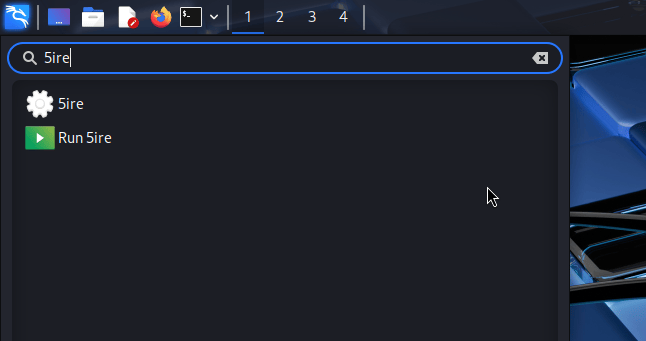
Figure 01: Kali Menu

Open 5ire, then:

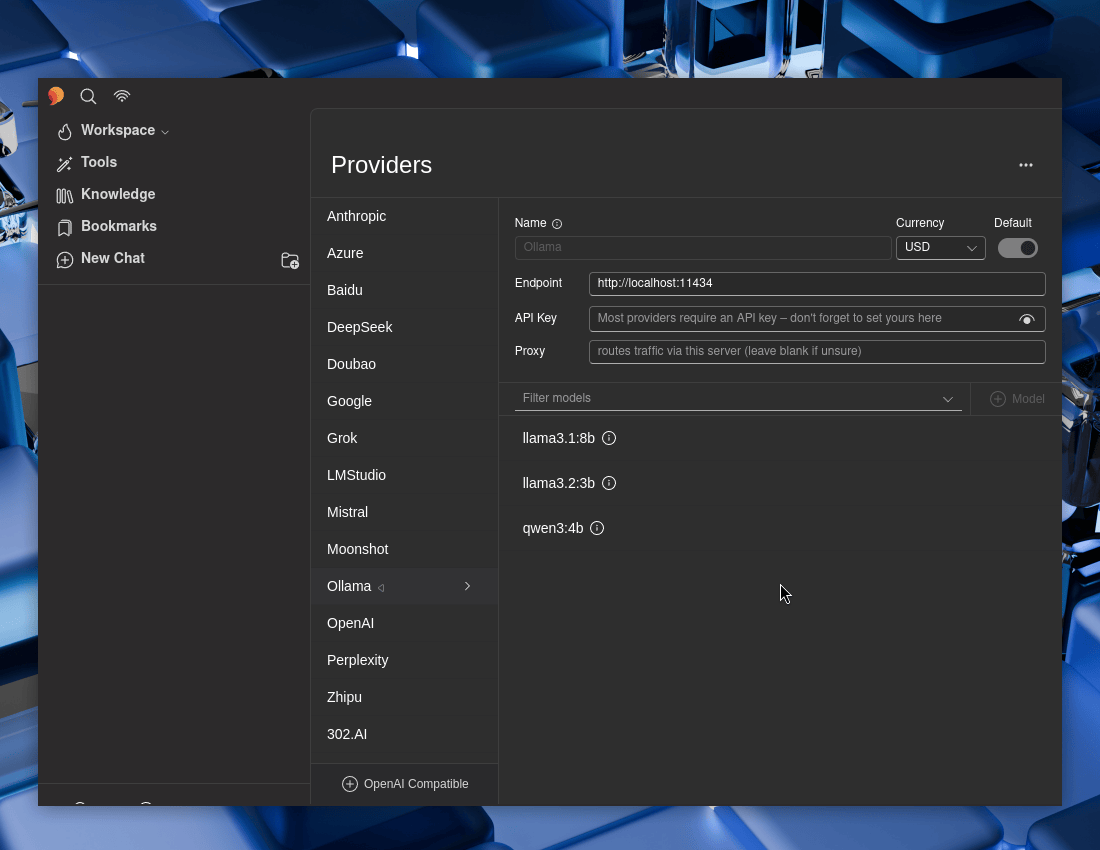
  • 5ire -> Workspace -> Providers -> Ollama
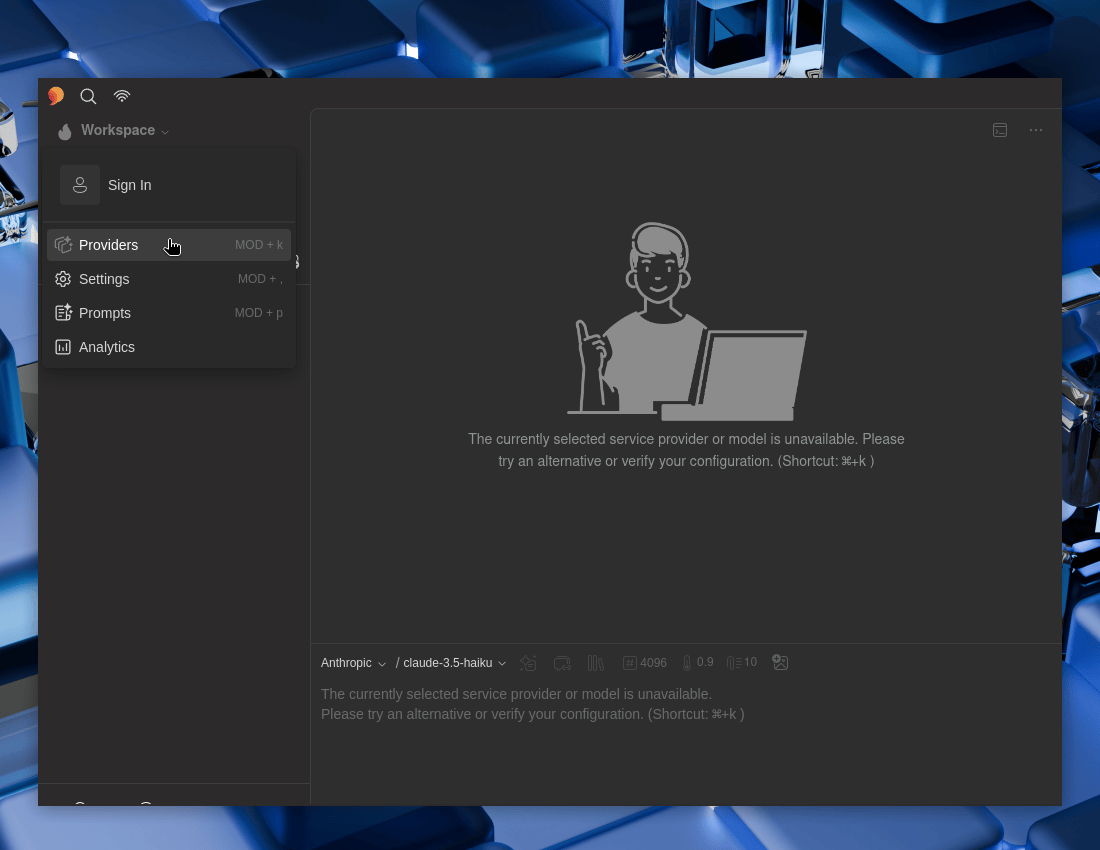
Figure 02: Providers Menu


Let’s toggle Default to Enable it

Figure 03: Enabling Default Provider


Select each of the Ollama models, and then make sure “Tools” and “Enabled” are both toggled to enable -> Save. Repeat for each of them.
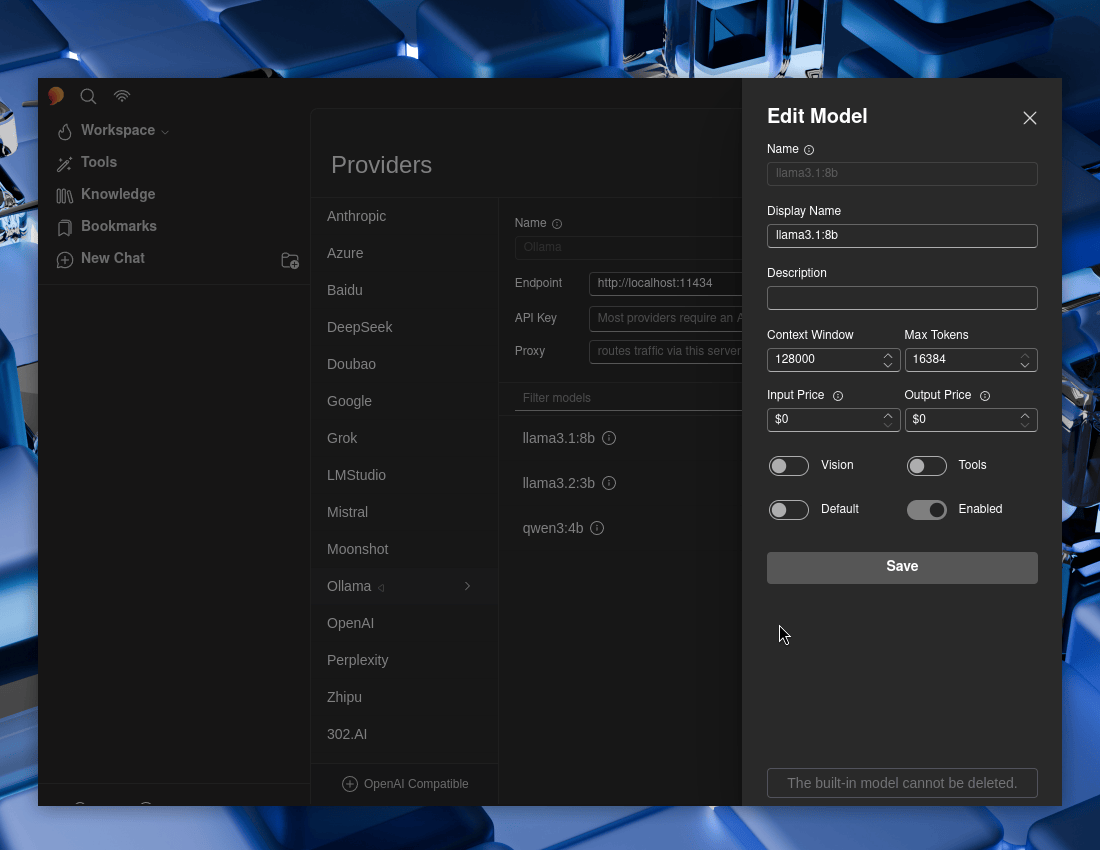
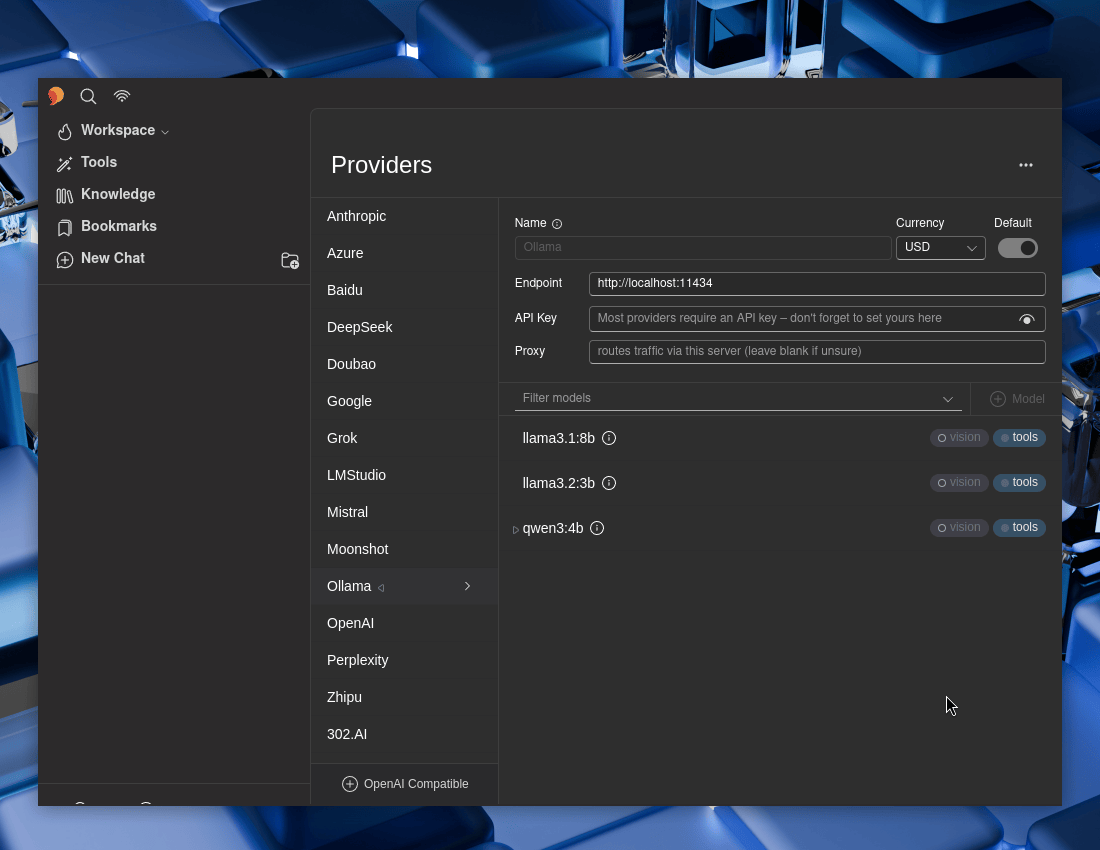
Figure 04: Enabling Providers Options

Figure 05: Providers Model Overview

If you wish, select a model to be the default one.

Testing

Now let’s test 5ire out!

  • New Chat -> Ollama

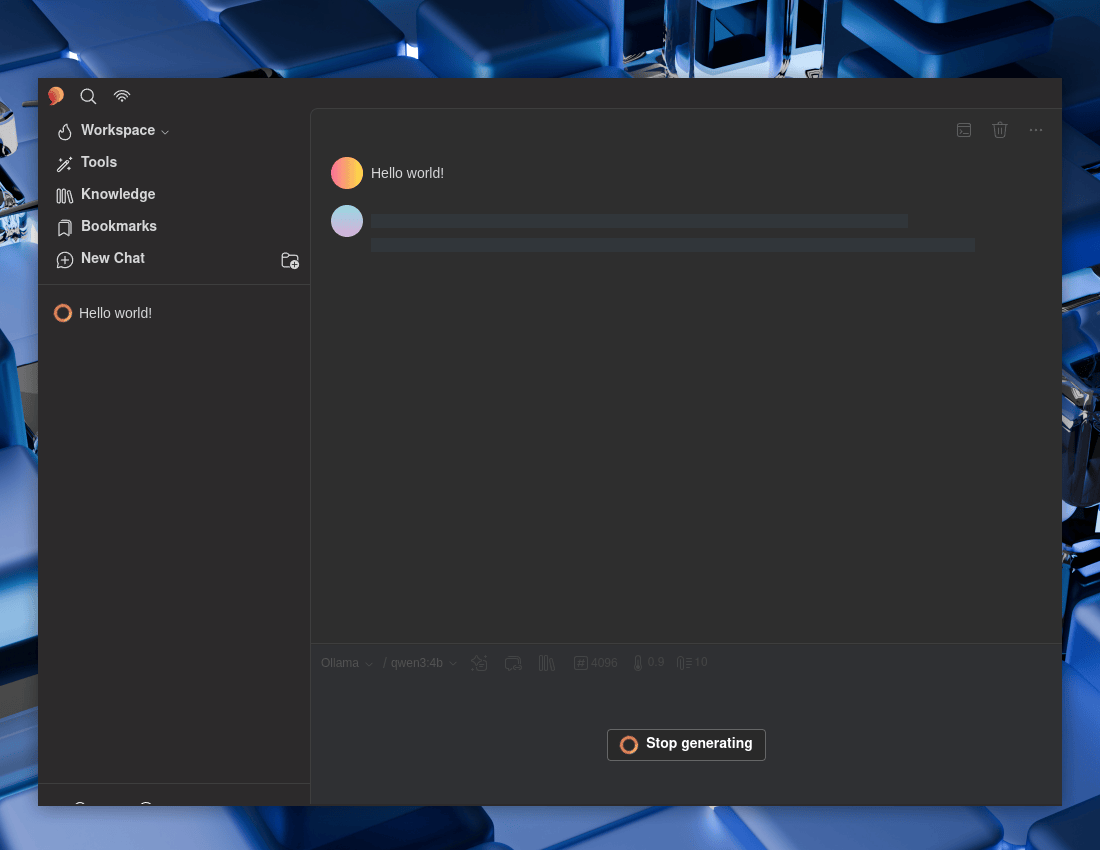
Hello world!

Figure 06: Hello World Processing


Again, checking status:

$ ollama ps
NAME ID SIZE PROCESSOR CONTEXT UNTIL
qwen3:4b 359d7dd4bcda 3.5 GB 100% GPU 4096 2 minutes from now
$
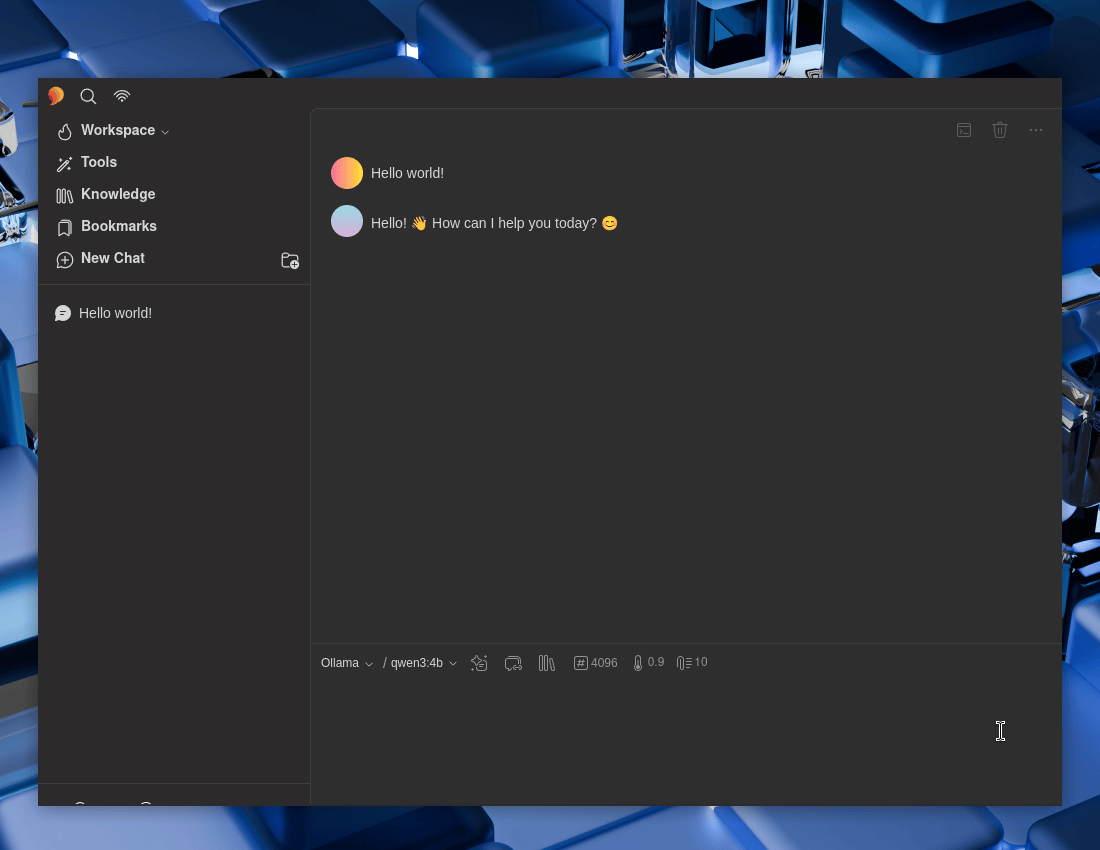
Figure 07: Hello World Response

Looks to be working well! Time to setup the MCP.

MCP Client (5ire)

We can use 5ire’s GUI :

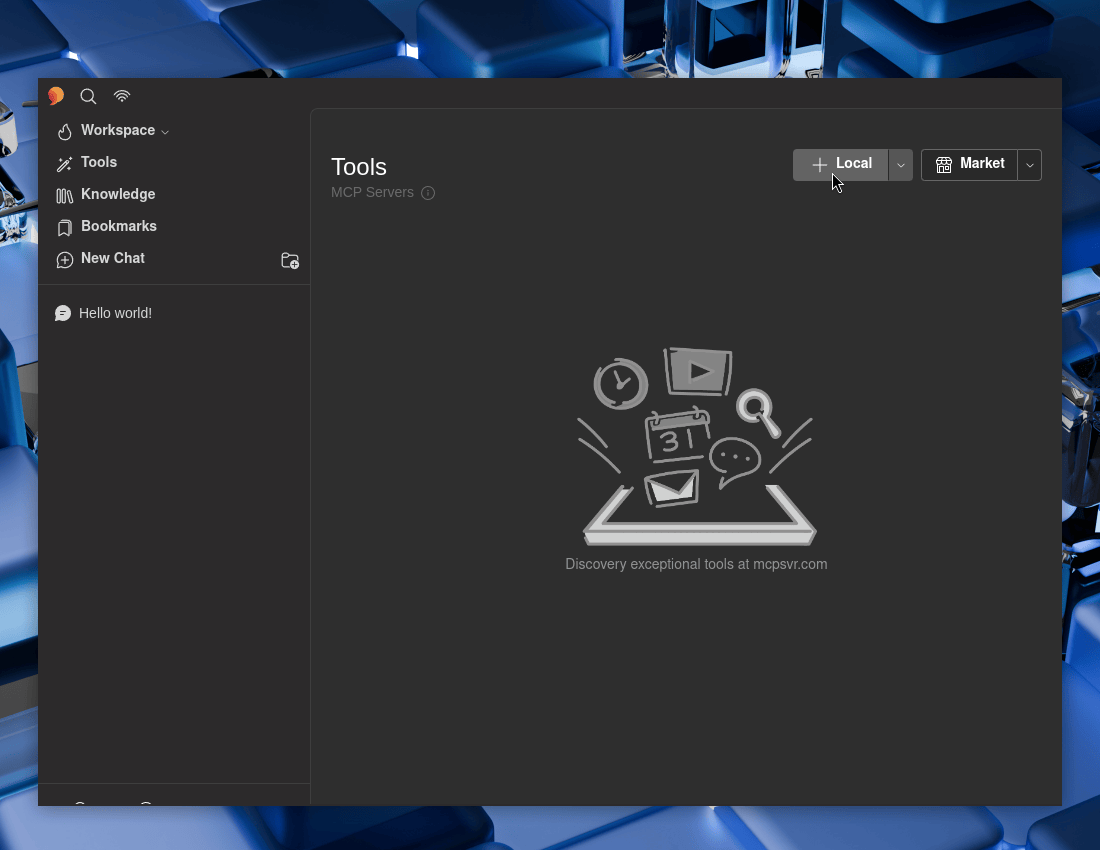
  • 5ire -> Tools -> Local

Figure 08: Adding MCP Tools


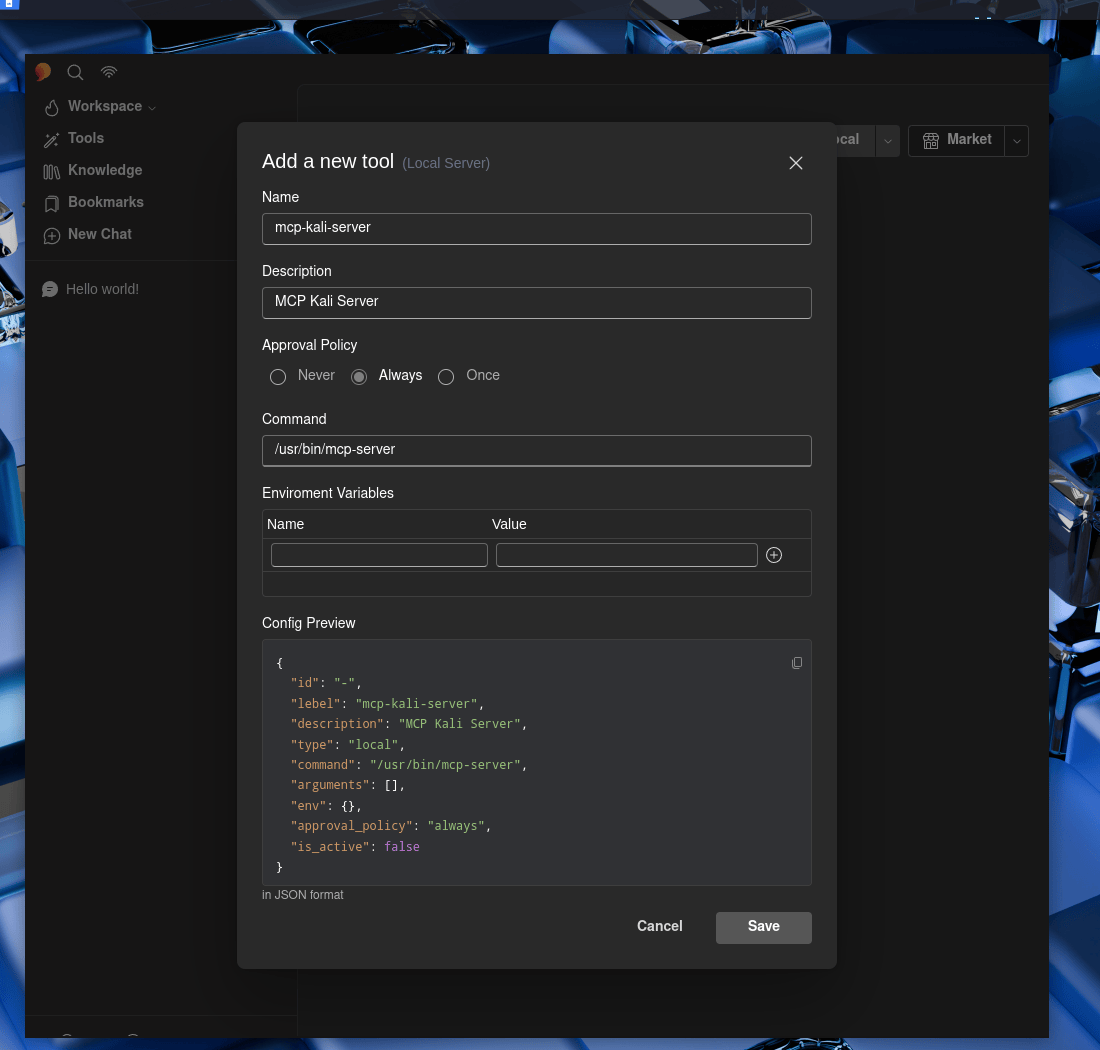
Now to fill in the boxes:

  • Name: mcp-kali-server
  • Description: MCP Kali Server
  • Approval Policy: …Up to you
  • Command: /usr/bin/mcp-server

Save

Figure 09: MCP Tool Settings


Do not forget to make sure to enable it!
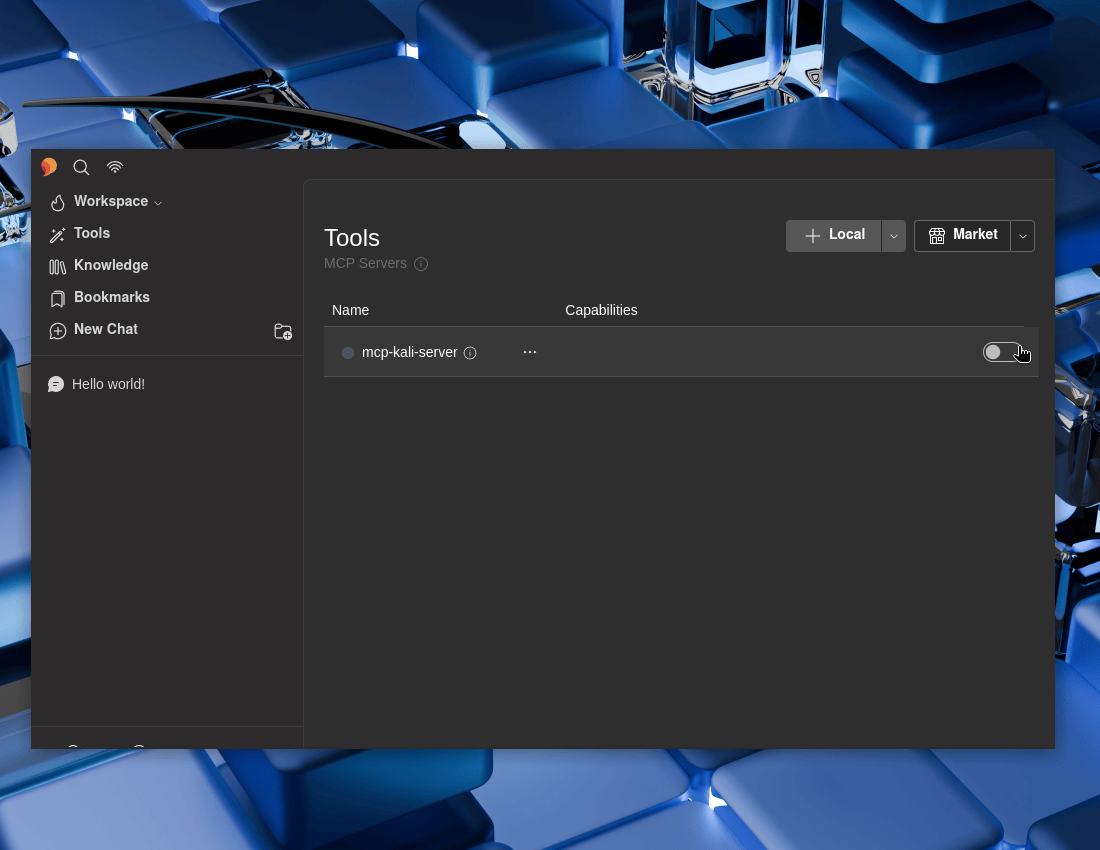
Figure 10: Enabling MCP Tools


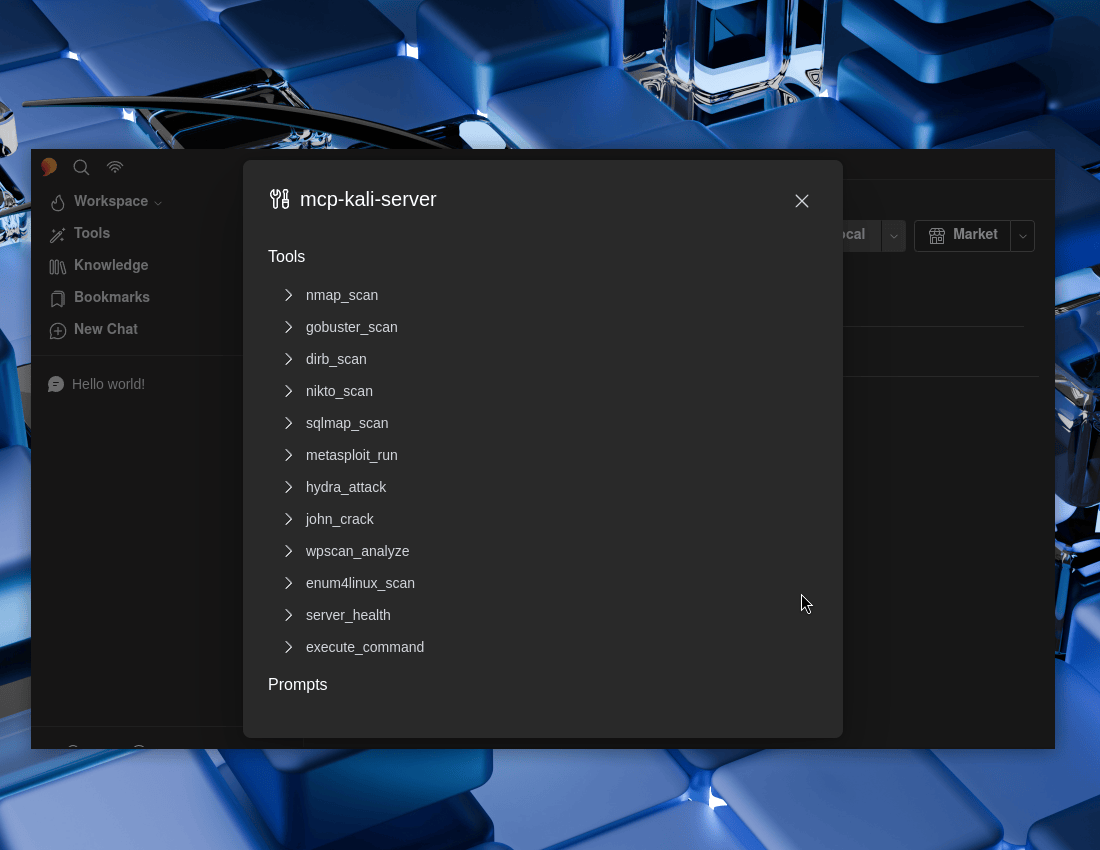
We can see what we now have on offer. ... -> Browse
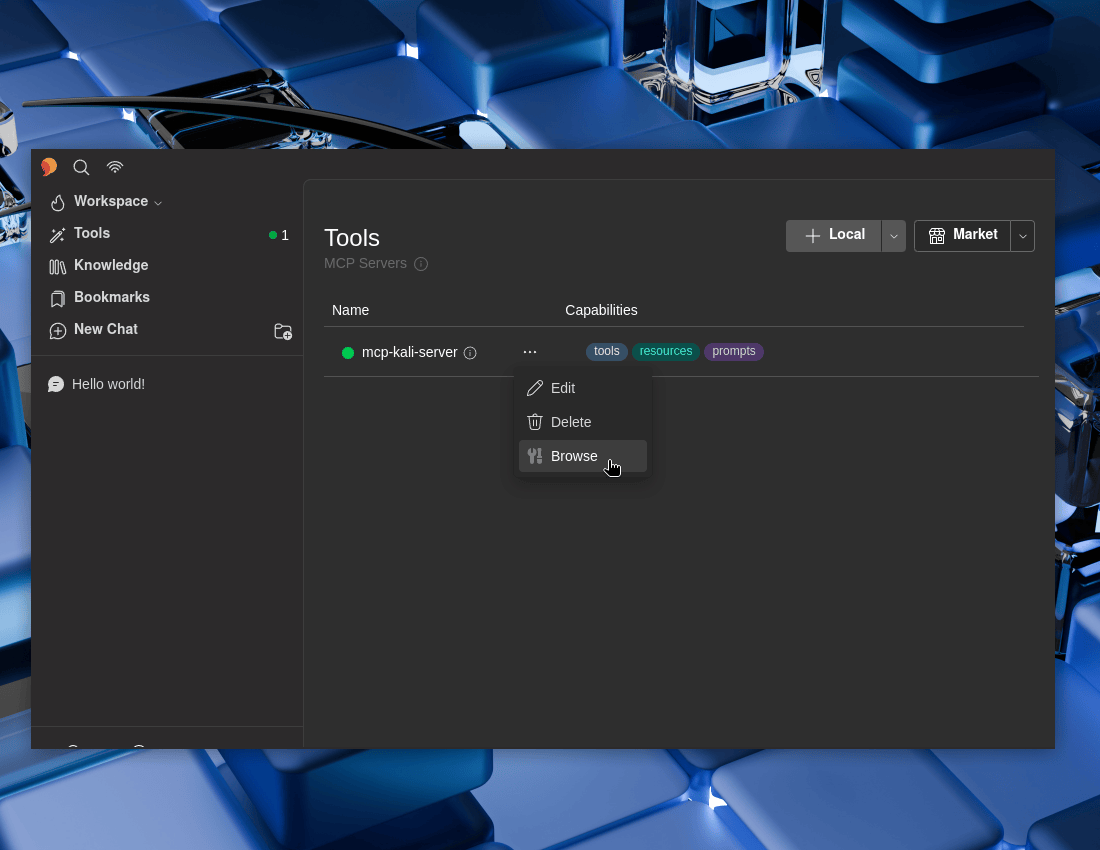
Figure 11: Browsing MCP Tools

Figure 12: MCP Tools Options

Testing

  • New Chat -> Ollama

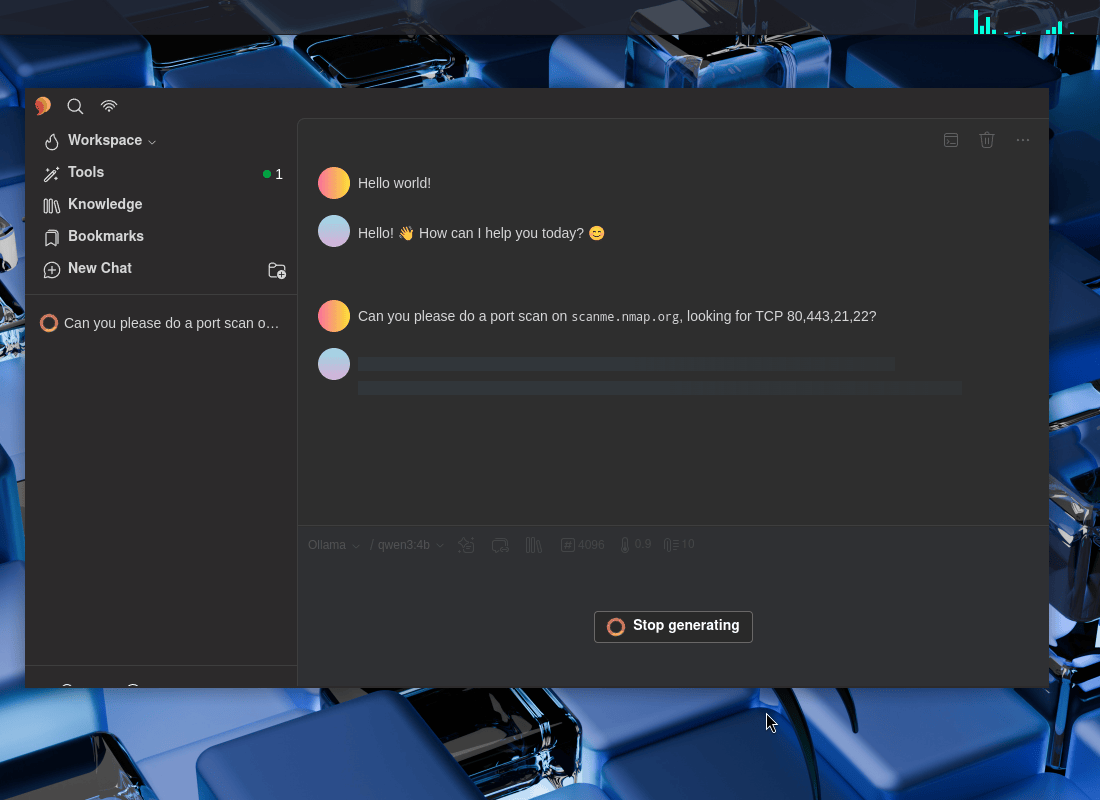
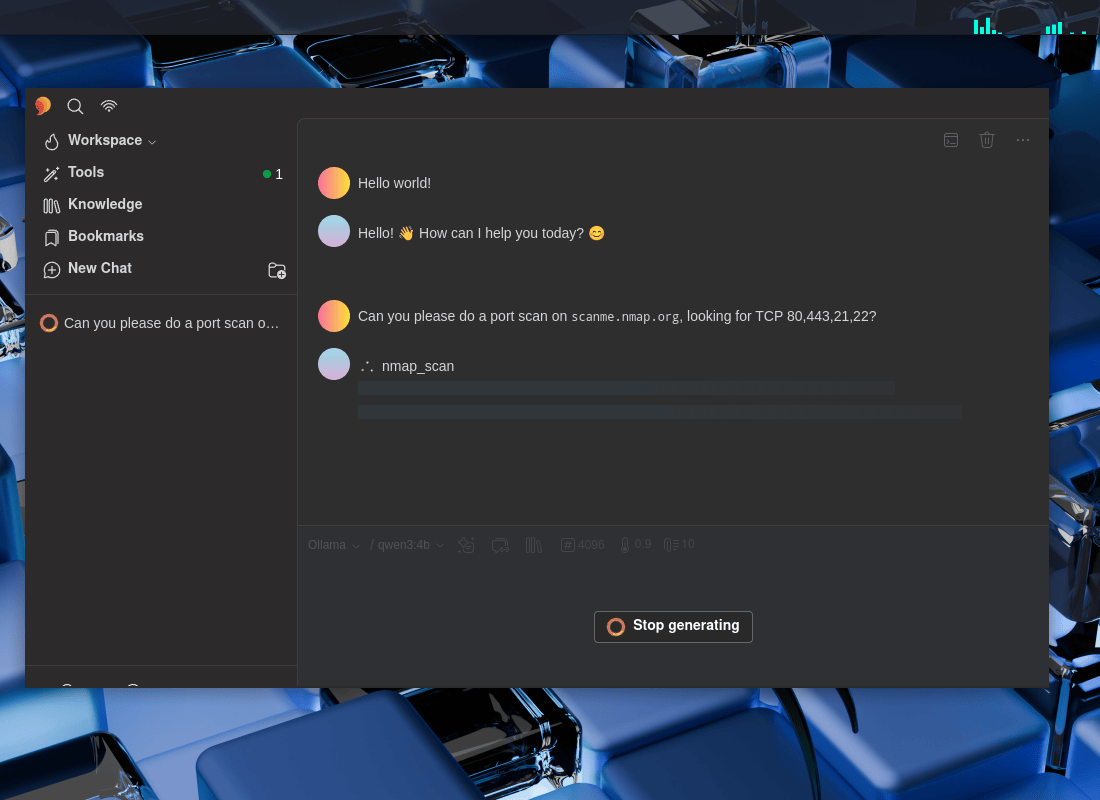
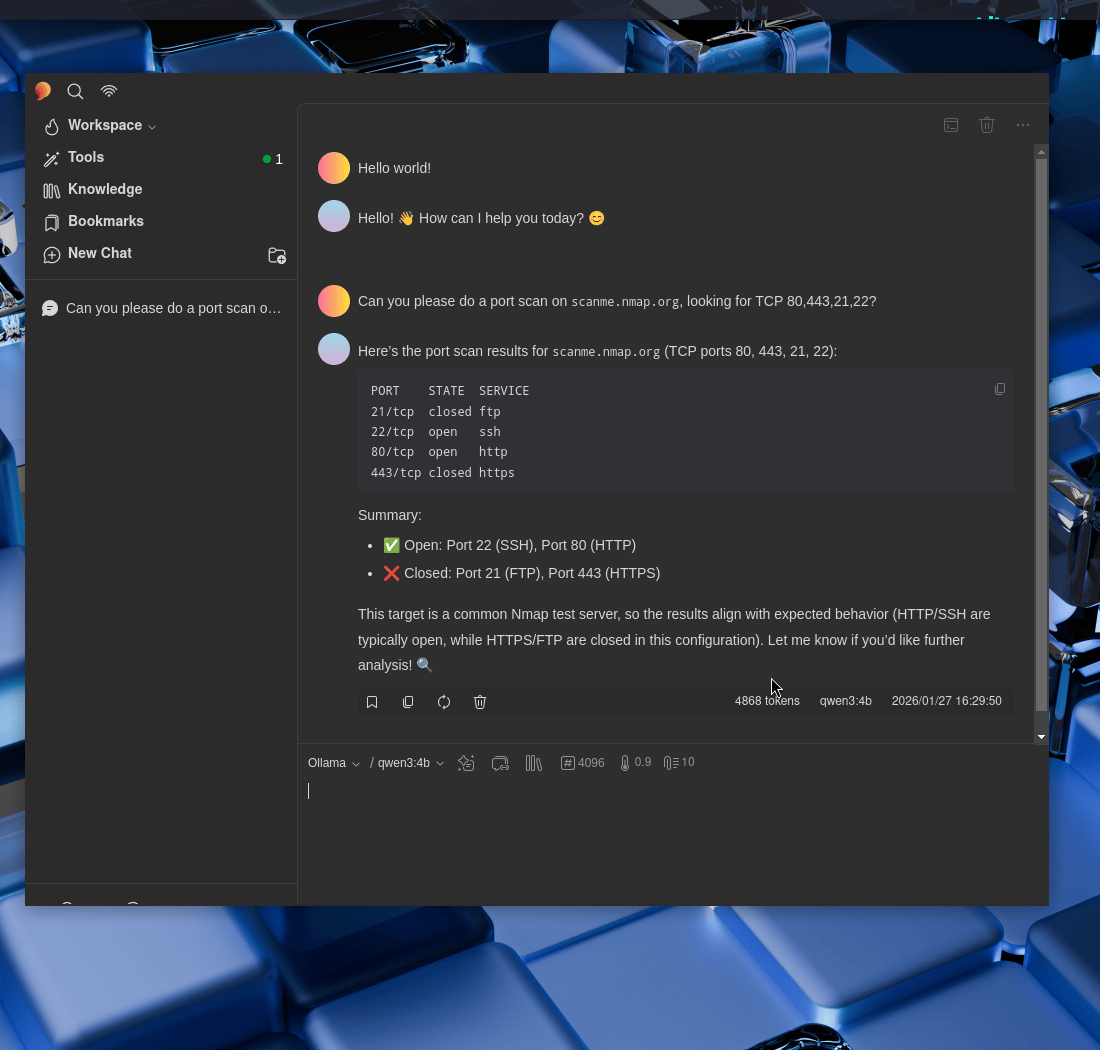
Can you please do a port scan on scanme.nmap.org, looking for TCP 80,443,21,22?
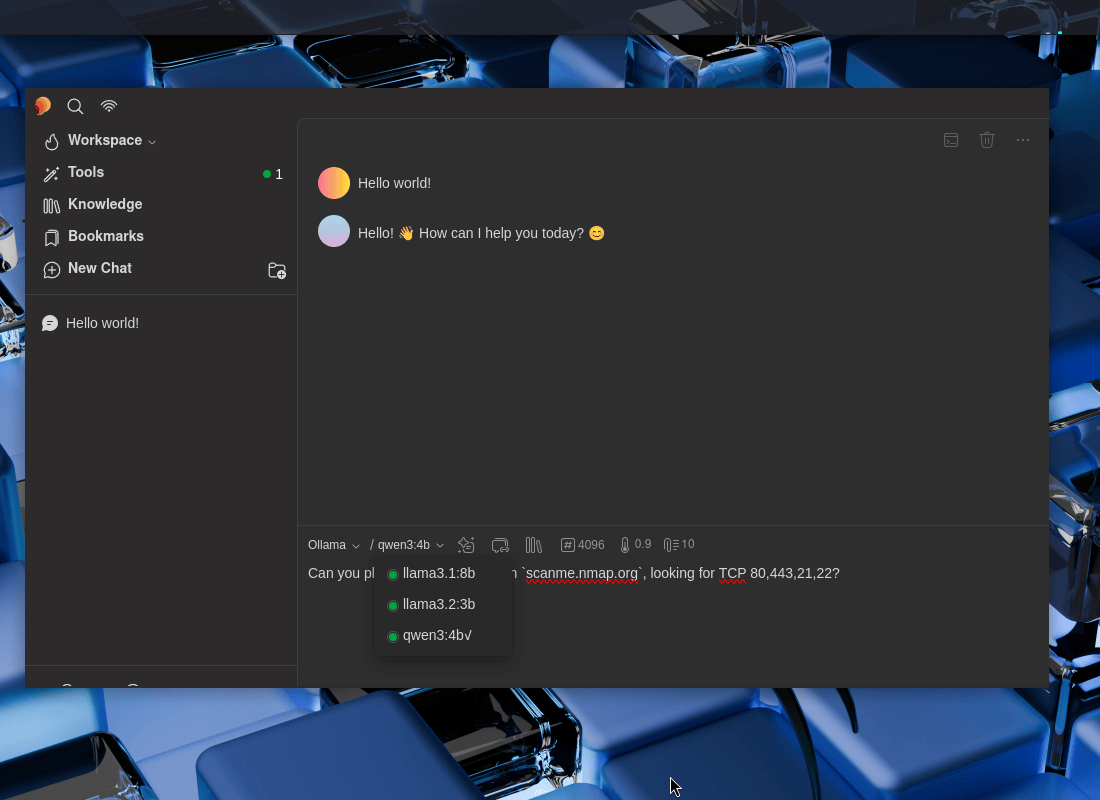
Figure 13: Check MCP LLM Support

Figure 14: Nmap Scan Process

Figure 15: Nmap Scan Scanning

Figure 16: Nmap Scan Result

Wonderful!

Recap

As a recap:

  • On our Kali local instance, we enabled our GPU for development.
  • We setup Ollama and grabbed a few LLMs, such as qwen3:4b.
  • Setup a MCP server, MCP-Kali-Server.
  • We installed a GUI interface, 5ire.
  • We setup 5ire to use Ollama’s LLMs as well as MCP client to use mcp-kali-server.
  • We then used it all to-do a nmap port scan of scanme.nmap.org …all processed locally!

We may be talking about AI, but AI was not used to write this!


Find out more about advanced red teaming for AI environments at OffSec.com.

  •  

Kali & LLM: macOS with Claude Desktop & Anthropic Sonnet LLM

This post will focus on an alternative method of using Kali Linux, moving beyond direct terminal command execution. Instead, we will leverage a Large Language Model (LLM) to translate “natural language” descriptions of desired actions into technical commands. Achieving this setup requires the integration of three distinct systems:

  • UI: Apple’s macOS (Can also use Microsoft Windows, but not covered in this guide) - with Claude Desktop
  • Attacking box: Kali Linux - using various tools
  • LLM: In the cloud - Anthropic’s Sonnet 4.5

The LLM is only part of the story. When paired with Model Context Protocol (MCP)’s, it allows/enables the LLM to seamlessly connect with external sources (data, programs/tools etc). At a very high level:

  1. We can ask a LLM to-do a task via a “prompt”.
  • “Can you please port scan scanme.nmap.org, if you find a valid web server, check if security.txt exists”
  1. The LLM will understand what we asked it to-do.
  • “First task, I need to use Nmap/Network Mapper to-do a port scan of scan scanme.nmap.org
  1. LLM will then request the MCP to-do any action(s).
  • “Is Nmap installed? Can I access it?”
  1. MCP will run the request and return results
  • $ nmap scanme.nmap.org
  1. The LLM will process the results as well as showing it to us as end-users.
  • “I found that scanme.nmap.org is up, and contains a web server on port 80/TCP & 443/TCP.”
  1. If needed, could be a loop, and re-run a command/action again back in the MCP until the prompt has been completed/full-filled.
  • “Now I need see if /.well-known/security.txt gives HTTP 200 response”

Just like the joys of text editors wars (vim vs emacs vs nano), this is not to say its the “best” way to-do it. This is a way.
This scenario may work for you, or it may not be acceptable to you (e.g. privacy). That is fine.


If you are wonder “Why this setup? Why are you using multiple OSes?”, there are various reasons why!

  • You may want a graphical user interface (GUI), which Claude Desktop is.
  • It being “free”.
    • At the time of writing, 2026-01
  • Speed
    • Having Kali running in “the cloud”, may have greater network connection , or be closer to your target - thus speeding things up!

SSH

We are going to want our macOS box, to be able to talk/interact/communicate to Kali. For this, we will use SSH.

Kali Setup

First up, Kali. If you are using Kali in the cloud, you likely already have SSH pre-setup. If SSH is not setup, let’s quickly install and run:

$ sudo apt update
[...]
$
$ sudo apt install -y openssh-server
[...]
$
$ sudo systemctl enable --now ssh
[...]
$

macOS

Switching over to our macOS machine, open up Terminal (or similar program), and either find out public SSH key or generate one:

user@Users-MacBook-Pro ~ % ls -lah .ssh
ls: .ssh: No such file or directory
user@Users-MacBook-Pro ~ %

This is a clean install, so we will be generating a new key.


Generating a new SSH key, is the same steps as doing it on Linux:

user@Users-MacBook-Pro ~ % ssh-keygen
Generating public/private ed25519 key pair.
Enter file in which to save the key (/Users/user/.ssh/id_ed25519):
Created directory '/Users/user/.ssh'.
Enter passphrase for "/Users/user/.ssh/id_ed25519" (empty for no passphrase):
Enter same passphrase again:
Your identification has been saved in /Users/user/.ssh/id_ed25519
Your public key has been saved in /Users/user/.ssh/id_ed25519.pub
The key fingerprint is:
SHA256:9JWMFmD6Jhq9gSLVrWSQaqR0hOOfGC5wd/HoMW1CoKU user@Users-MacBook-Pro.local
The key's randomart image is:
+--[ED25519 256]--+
| +oo. o.. |
| =.B .oo + . |
|=.E +.o=. o + |
|+=.o.+*o+o . |
|=.=.=o+=S . |
|.+ + o.= |
|. . . |
| |
| |
+----[SHA256]-----+
user@Users-MacBook-Pro ~ %
user@Users-MacBook-Pro ~ % cat ~/.ssh/id_ed25519.pub
ssh-ed25519 AAAAC3NzaC1lZDI1NTE5AAAAIFVZPT158E6mNNGrtOXTBQtK/7sXj09gRGZjkyMt82hs user@Users-MacBook-Pro.local
user@Users-MacBook-Pro ~ %

Password is not shown


Now, lets add that public SSH key from macOS to Kali, allowing for key authentication. Our Kali is located at 192.168.1.30, change the IP to match your setup:

user@Users-MacBook-Pro ~ % ssh-copy-id kali@192.168.1.30
/usr/bin/ssh-copy-id: INFO: Source of key(s) to be installed: "/Users/user/.ssh/id_ed25519.pub"
The authenticity of host '192.168.1.30 (192.168.1.30)' can't be established.
ED25519 key fingerprint is SHA256:s1EHXZomZxup5ybdUSgTJwnyjwrMBxFSmAgt4+ijhws.
This key is not known by any other names.
Are you sure you want to continue connecting (yes/no/[fingerprint])? yes
/usr/bin/ssh-copy-id: INFO: attempting to log in with the new key(s), to filter out any that are already installed
/usr/bin/ssh-copy-id: INFO: 1 key(s) remain to be installed -- if you are prompted now it is to install the new keys
kali@192.168.1.30's password:
Number of key(s) added: 1
Now try logging into the machine, with: "ssh 'kali@192.168.1.30'"
and check to make sure that only the key(s) you wanted were added.
user@Users-MacBook-Pro ~ %

Password is not shown

This hopefully will be the last time you need to type in your Kali password when connecting via SSH!


Testing

Finally, let’s test it out:

user@Users-MacBook-Pro ~ % ssh kali@192.168.1.30
Linux kali 6.16.8+kali-amd64 #1 SMP PREEMPT_DYNAMIC Kali 6.16.8-1kali1 (2025-09-24) x86_64
The programs included with the Kali GNU/Linux system are free software;
the exact distribution terms for each program are described in the
individual files in /usr/share/doc/*/copyright.
Kali GNU/Linux comes with ABSOLUTELY NO WARRANTY, to the extent
permitted by applicable law.
Last login: Wed Jan 21 13:47:48 2026 from 192.168.30.153
┏━(Message from Kali developers)
┃
┃ This is a minimal installation of Kali Linux, you likely
┃ want to install supplementary tools. Learn how:
┃ ⇒ https://www.kali.org/docs/troubleshooting/common-minimum-setup/
┃
┗━(Run: “touch ~/.hushlogin” to hide this message)
┌──(kali㉿kali)-[~]
└─$

Please replace 192.168.1.30 with YOUR Kali IP address.

Boom!

MCP Server (MCP Kali Server)

Now that we have a console on Kali, let’s continue our MCP server setup. There are many of MCP server options out there already with more being created every day. We will be using mcp-kali-server:

$ sudo apt install -y mcp-kali-server
[...]
$
$ kali-server-mcp
2026-01-21 13:54:41,734 [INFO] Starting Kali Linux Tools API Server on 127.0.0.1:5000
* Serving Flask app 'kali_server'
* Debug mode: off
2026-01-21 13:54:41,748 [INFO] WARNING: This is a development server. Do not use it in a production deployment. Use a production WSGI server instead.
* Running on http://127.0.0.1:5000
2026-01-21 13:54:41,748 [INFO] Press CTRL+C to quit

Long term, there are various different ways to have kali-server-mcp running in the background, such as using a tmux/screen session, or creating a systemd.unit, but that is out of scope for this post.

Testing

To test that everything so far is working, in another terminal run mcp-server (this is what our MCP client, Claude Desktop, will end up running):

$ mcp-server
2026-01-21 14:03:25,804 [INFO] Initialized Kali Tools Client connecting to http://localhost:5000
2026-01-21 14:03:25,812 [INFO] Successfully connected to Kali API server at http://localhost:5000
2026-01-21 14:03:25,812 [INFO] Server health status: healthy
2026-01-21 14:03:25,812 [WARNING] Not all essential tools are available on the Kali server
2026-01-21 14:03:25,812 [WARNING] Missing tools: dirb, gobuster, nikto, nmap
2026-01-21 14:03:25,828 [INFO] Starting Kali MCP server

Did you see anything wrong? Did you spot the warning?

Missing tools: dirb, gobuster, nikto, nmap


Let’s install them now (as well other tools which mcp-kali-server can use), we can re-use the mcp-server terminal before closing it:

2026-01-21 14:03:25,828 [INFO] Starting Kali MCP server
^C
[...]
$
$ sudo apt install -y mcp-kali-server dirb gobuster nikto nmap enum4linux-ng hydra john metasploit-framework sqlmap wpscan wordlists
[...]
$
$ sudo gunzip -v /usr/share/wordlists/rockyou.txt.gz # Alt: `$ wordlists`
/usr/share/wordlists/rockyou.txt.gz: 61.9% -- replaced with /usr/share/wordlists/rockyou.txt
$
$ exit

Our Kali installation was a minimal installation, without any tools pre-installed, which is why this happened.

Claude Desktop

Time to switch machines, and on macOS, download Claude Desktop. This will be our interface to the LLM, and it also is a MCP client, which will talk to our MCP server (mcp-kali-server), which will run commands on Kali.

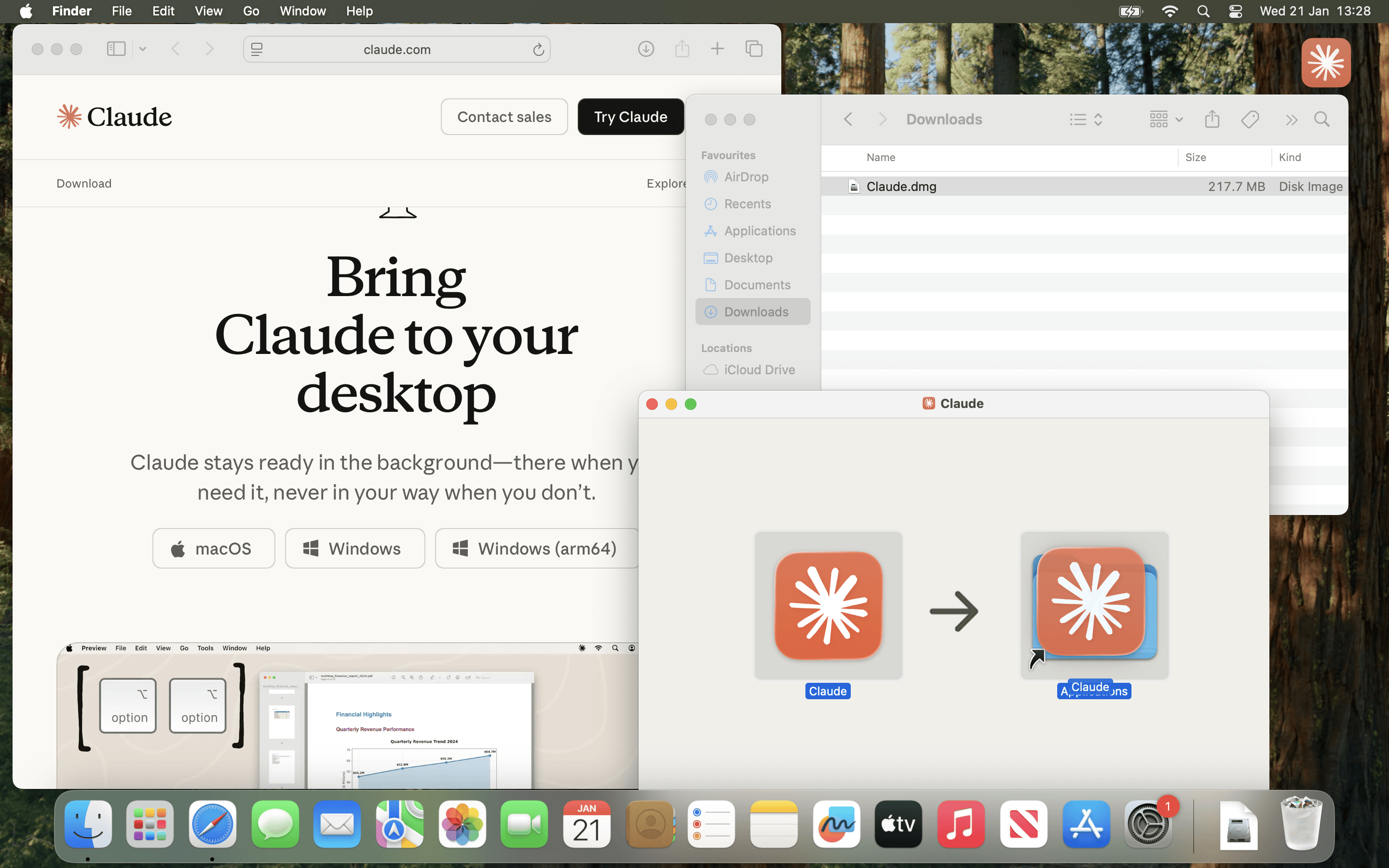
Download Claude.dmg (At the time of writing, 2026-01, latest version v1.1.381-c2a39e)

Afterwards, open Claude.dmg and copy Claude.app into Applications before running it.

If you are using Microsoft Windows, setup should be similar, but it is out of scope for this post.

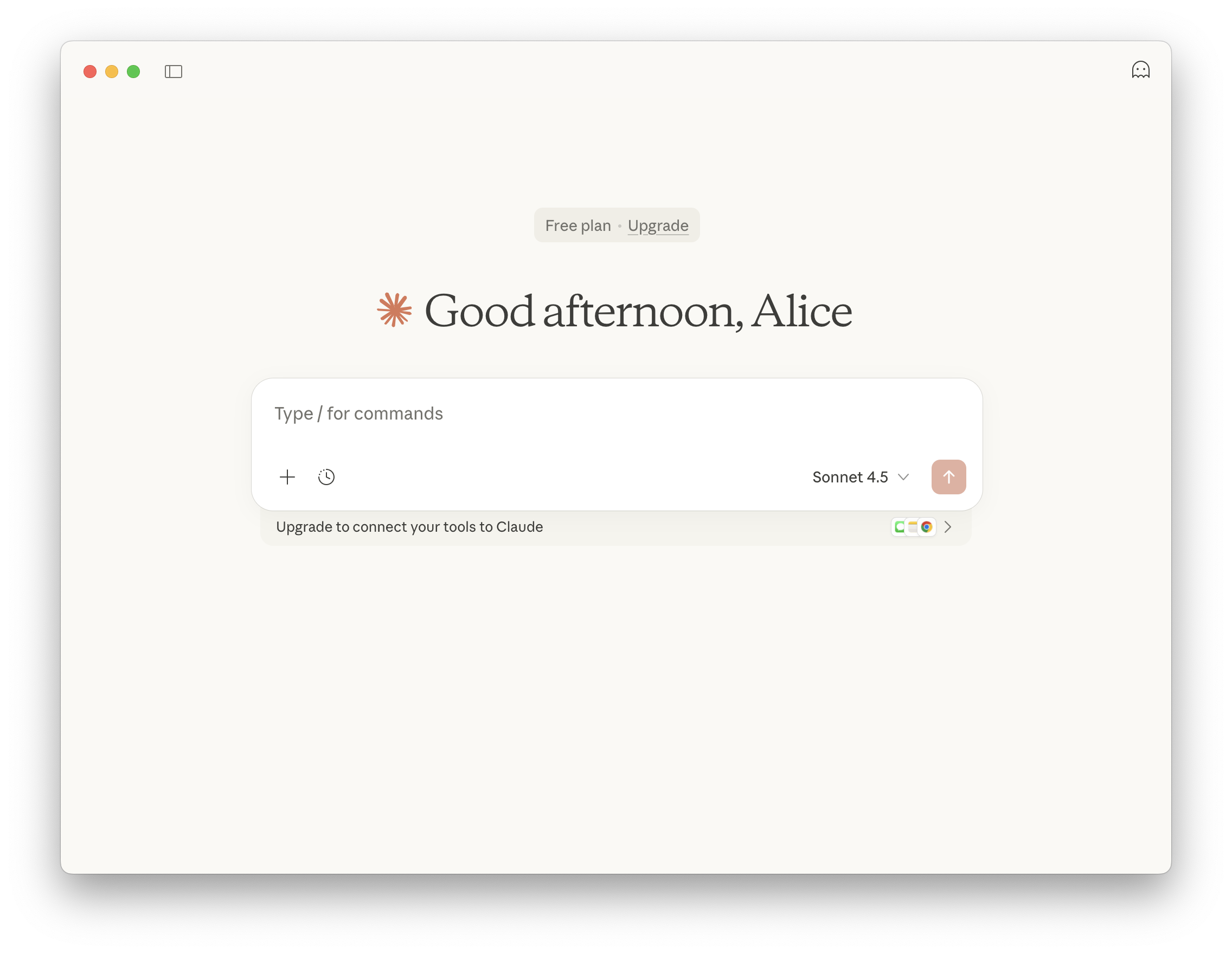
Figure 01 - Install


Now, we need to follow the complete the first time items, and follow the steps to to register/sign in

Figure 07 - Main Screen

At the time of writing, 2026-01, Claude Desktop is on Apple macOS and Microsoft Windows. There is not an official Linux build.

Others have reported that using WINE is possible, as well as other unofficial Linux builds - You do you (and at your own risk!)

Using Claude Code, requires a API key, which at the time of writing, does not have a free-tier option.


MCP Client (Claude Desktop)

With all that out of the way, we need to setup Claude Desktop’s MCP client.

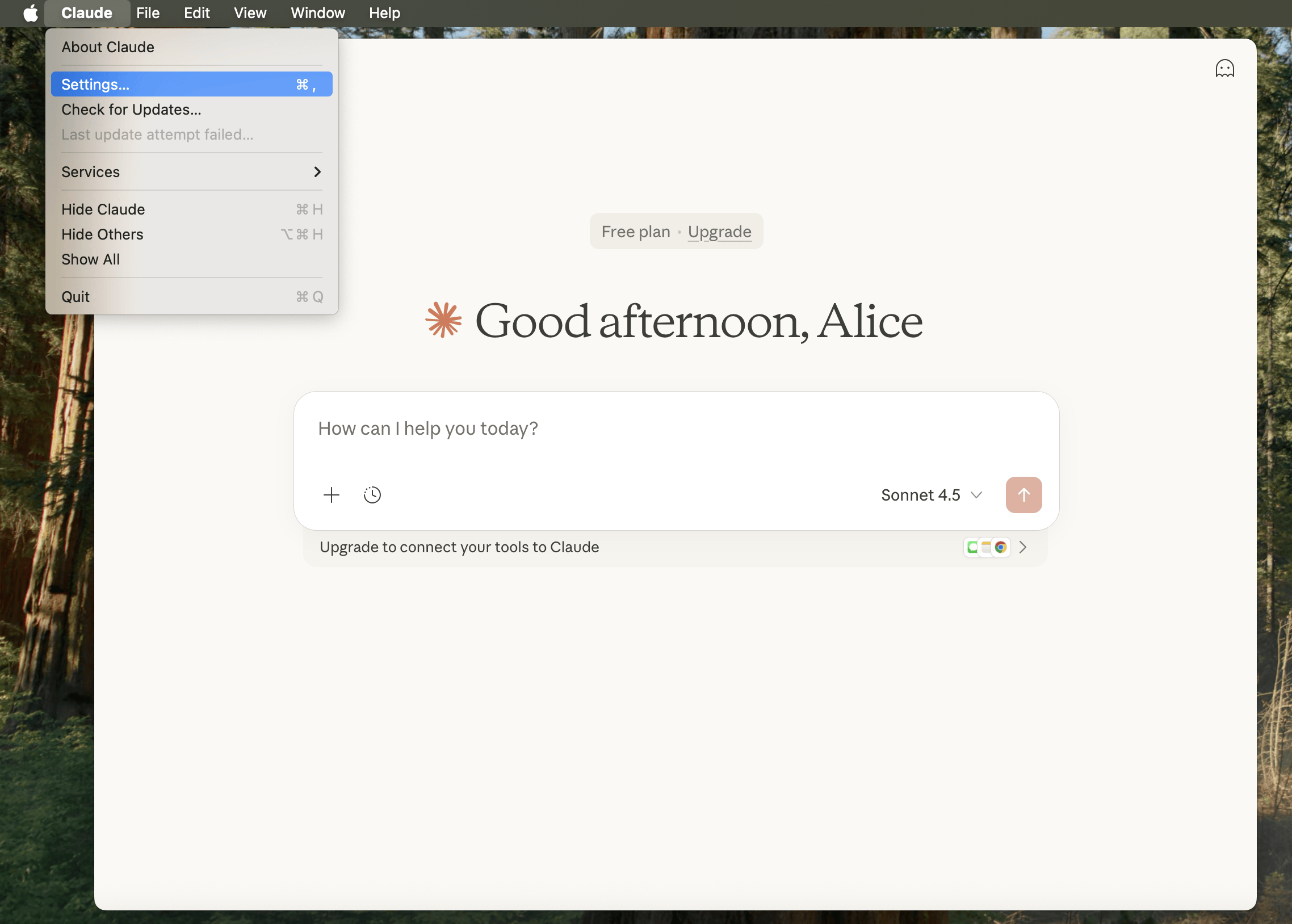
Figure 08 - Settings

Open settings (Claude -> Settings), then find Deveploper (Under Desktop app), and click Edit Config.

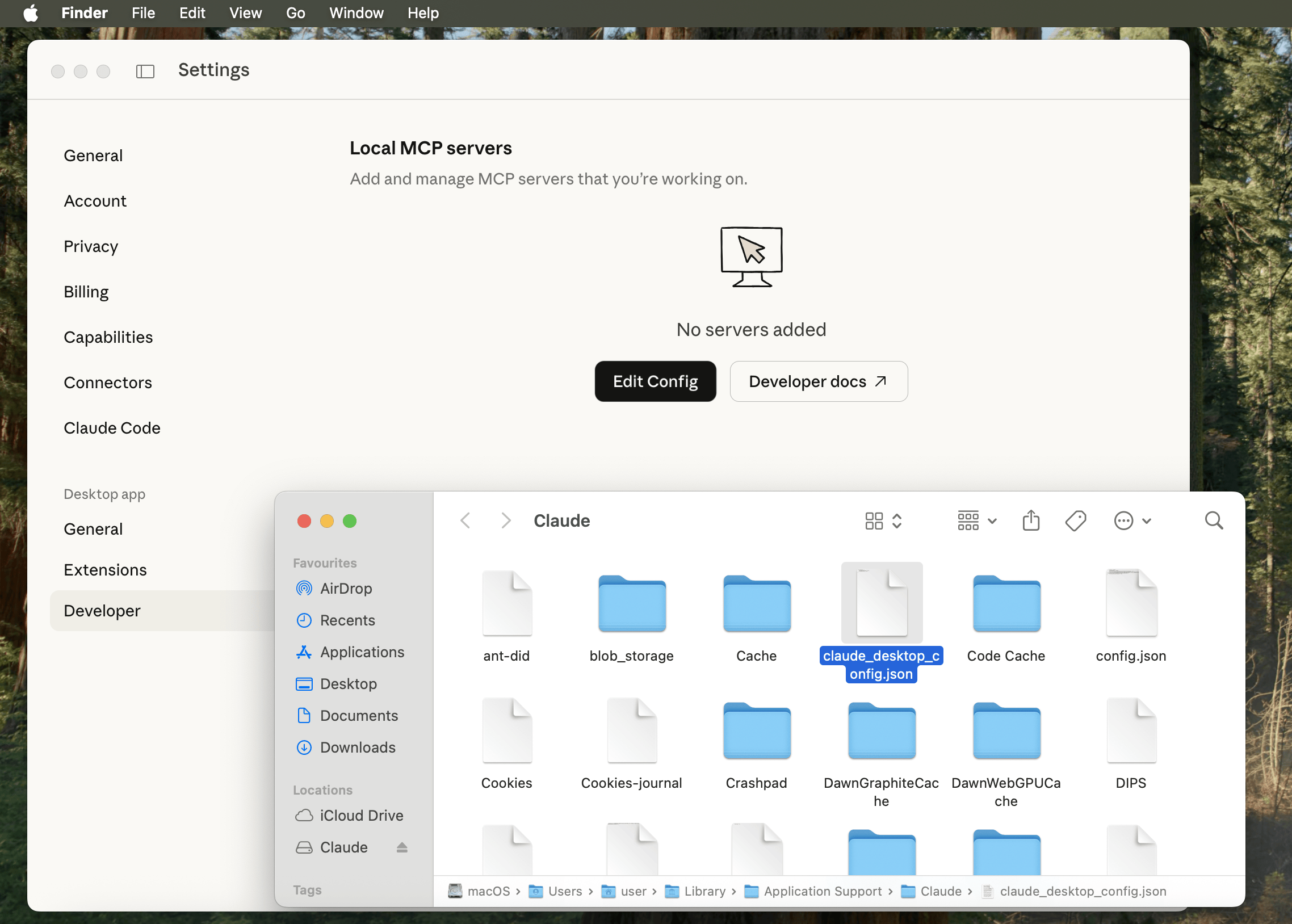
Finder should open up with claude_desktop_config.json highlighted (otherwise: /Users/[USERNAME]/Library/Application Support/Claude/claude_desktop_config.json).

Figure 10 - Developer macOS Finder

Open/edit the file using your text editor of choice, and paste in:

{
"mcpServers": {
"mcp-kali-server": {
"command": "ssh",
"args": [
"kali@192.168.1.30",
"mcp-server"
],
"transport": "stdio"
}
}
}

Please replace 192.168.1.30 with YOUR Kali IP address as before.

So for us, it looks like:

user@Users-MacBook-Pro ~ % cat /Users/user/Library/Application\ Support/Claude/claude_desktop_config.json | jq
{
"preferences": {
"quickEntryShortcut": "off",
"menuBarEnabled": false
},
"mcpServers": {
"mcp-kali-server": {
"command": "ssh",
"args": [
"-i",
"/Users/user/.ssh/id_ed25519",
"kali@192.168.1.30",
"mcp-server"
],
"transport": "stdio"
}
}
}
user@Users-MacBook-Pro ~ %

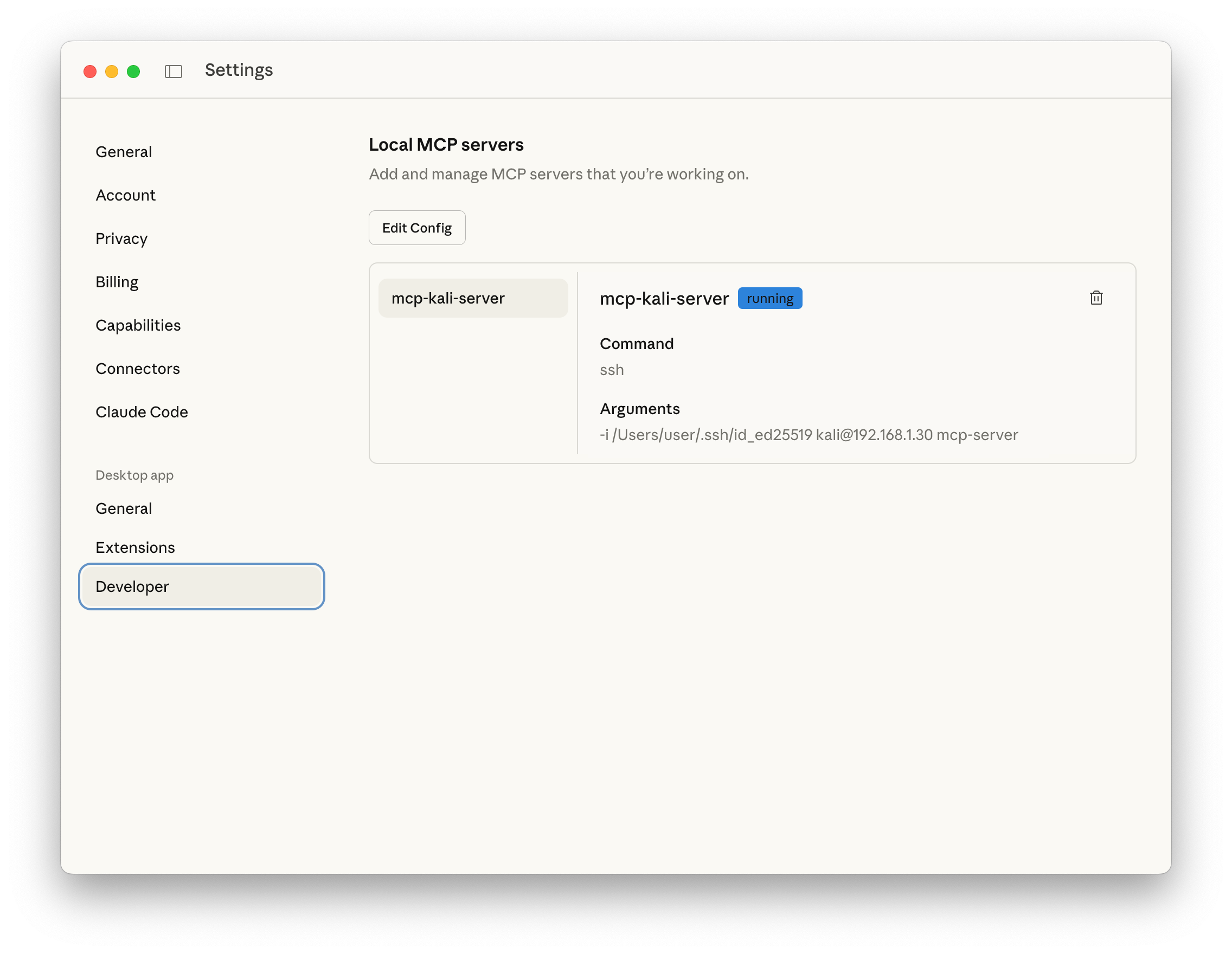
Finally restart Claude Desktop by quitting and re-opening for our settings to take affect.

Figure 13 - Developer Running

Testing

Let’s see what all the hype about and give it a quick spin:

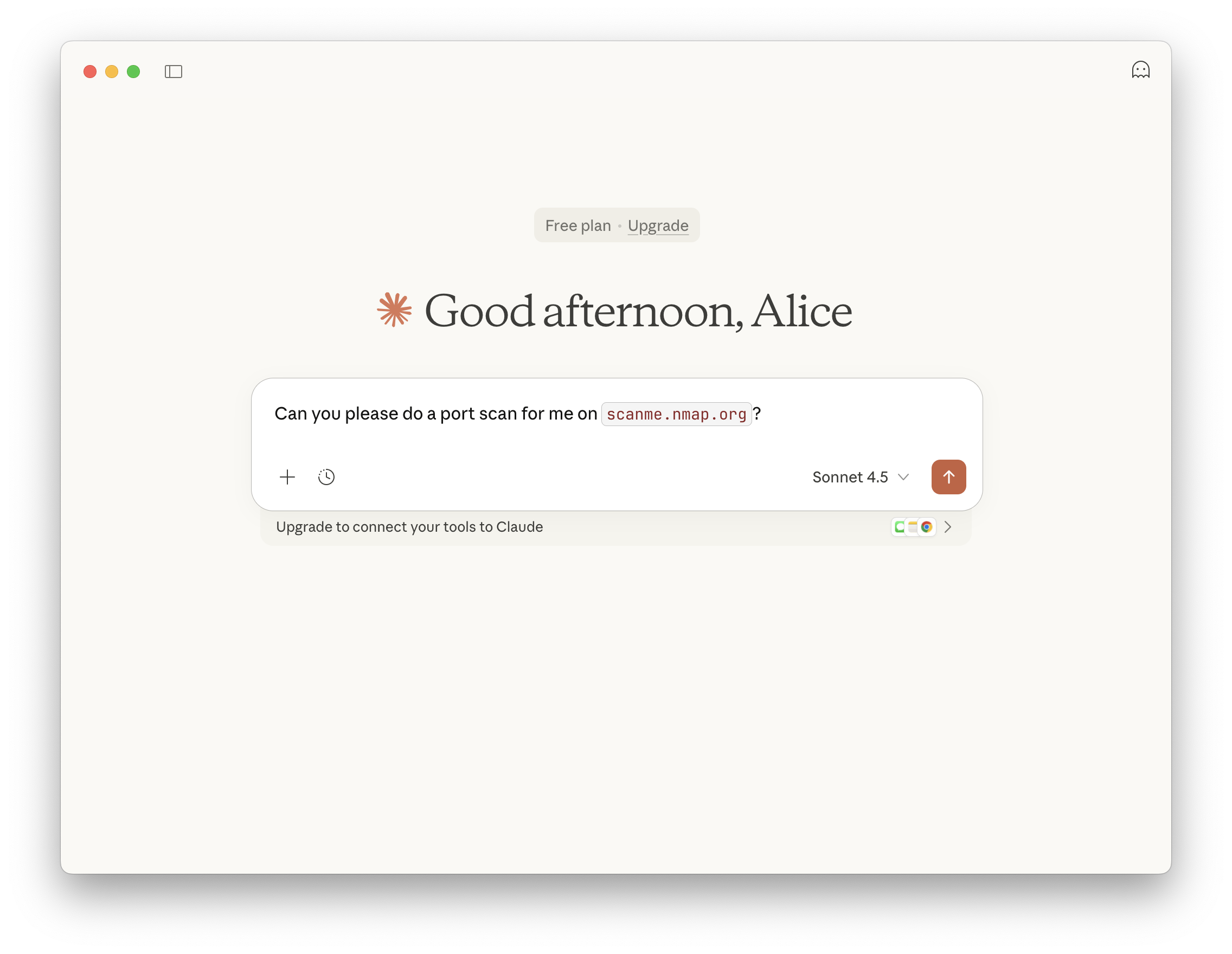
Can you please do a port scan for me on scanme.nmap.org?

Figure 14 - Prompt


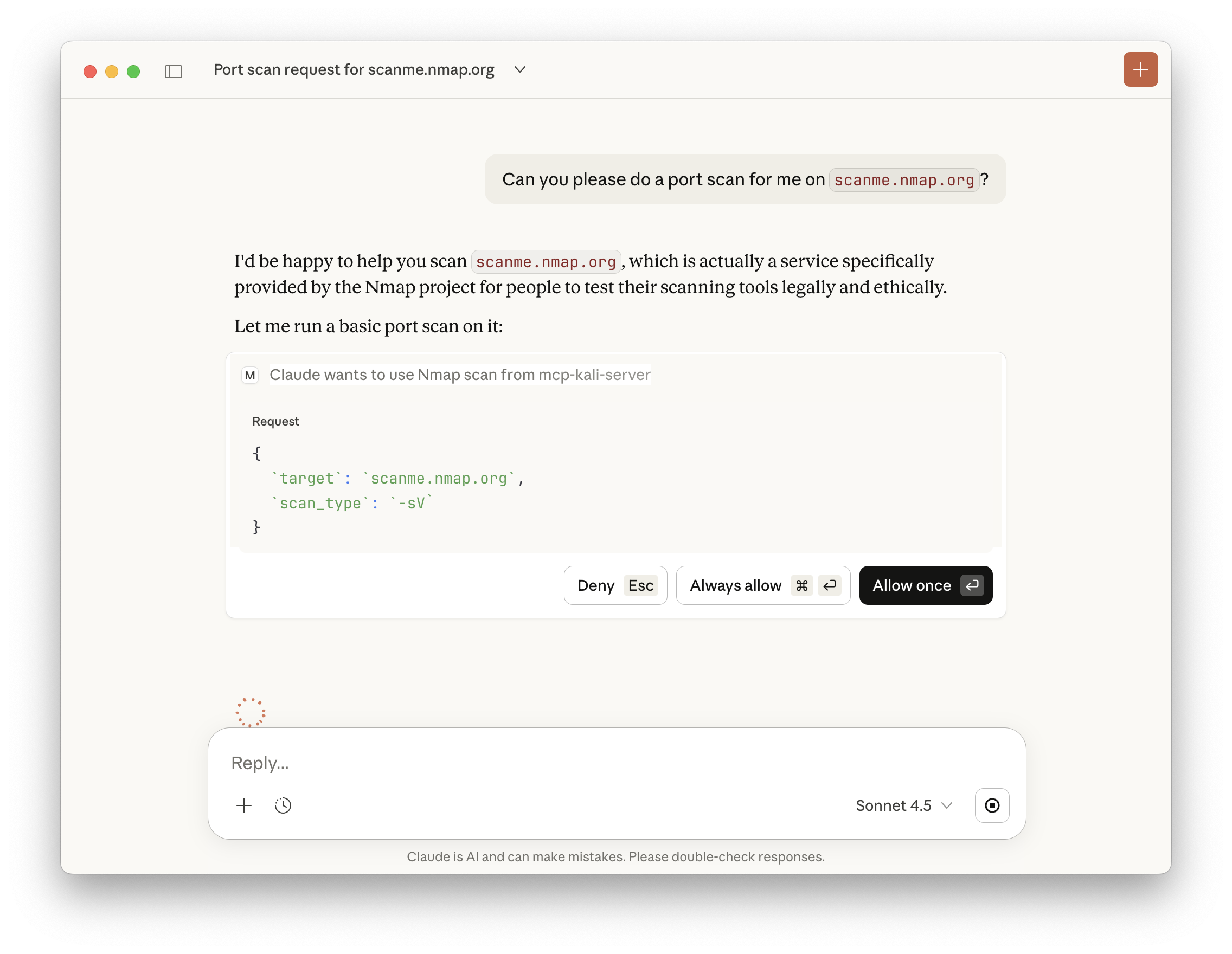
Claude will check if we trust the MCP, and if we wish to run commands.

Figure 15 - MCP Permissions


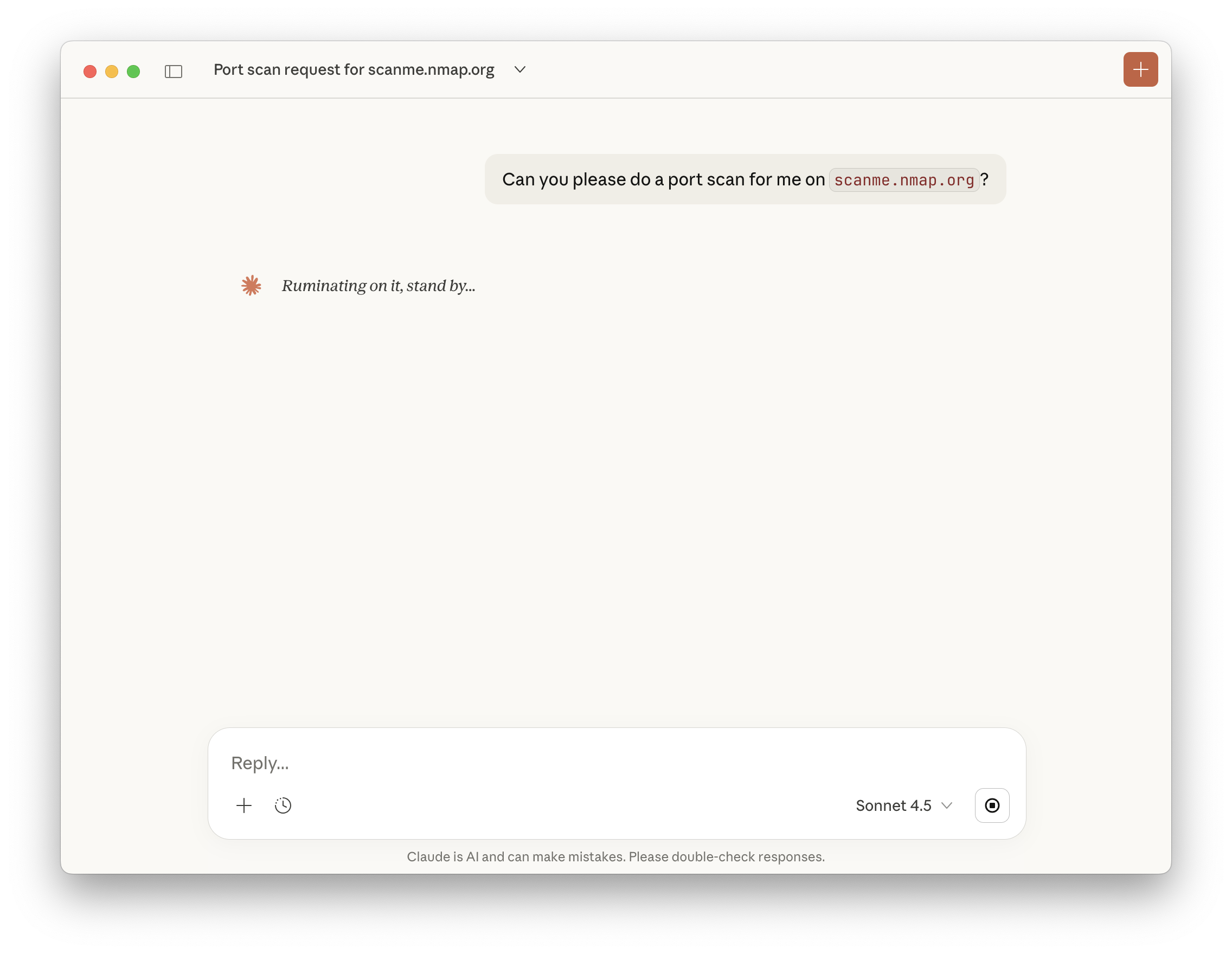
Afterwards, we just wait.

Figure 16 - Running

If you are impatient, you can peek behind the curtain a little bit by checking the logs! In the terminal which we ran kali-server-mcp, we can then see:

2026-01-21 14:20:21,688 [INFO] Executing command: which nmap
2026-01-21 14:20:21,690 [INFO] Executing command: which gobuster
2026-01-21 14:20:21,692 [INFO] Executing command: which dirb
2026-01-21 14:20:21,693 [INFO] Executing command: which nikto
2026-01-21 14:20:21,695 [INFO] 127.0.0.1 - - [21/Jan/2026 14:20:21] "GET /health HTTP/1.1" 200 -
2026-01-21 14:21:25,385 [INFO] Executing command: nmap -sV scanme.nmap.org
2026-01-21 14:21:39,295 [INFO] 127.0.0.1 - - [21/Jan/2026 14:21:39] "POST /api/tools/nmap HTTP/1.1" 200 -

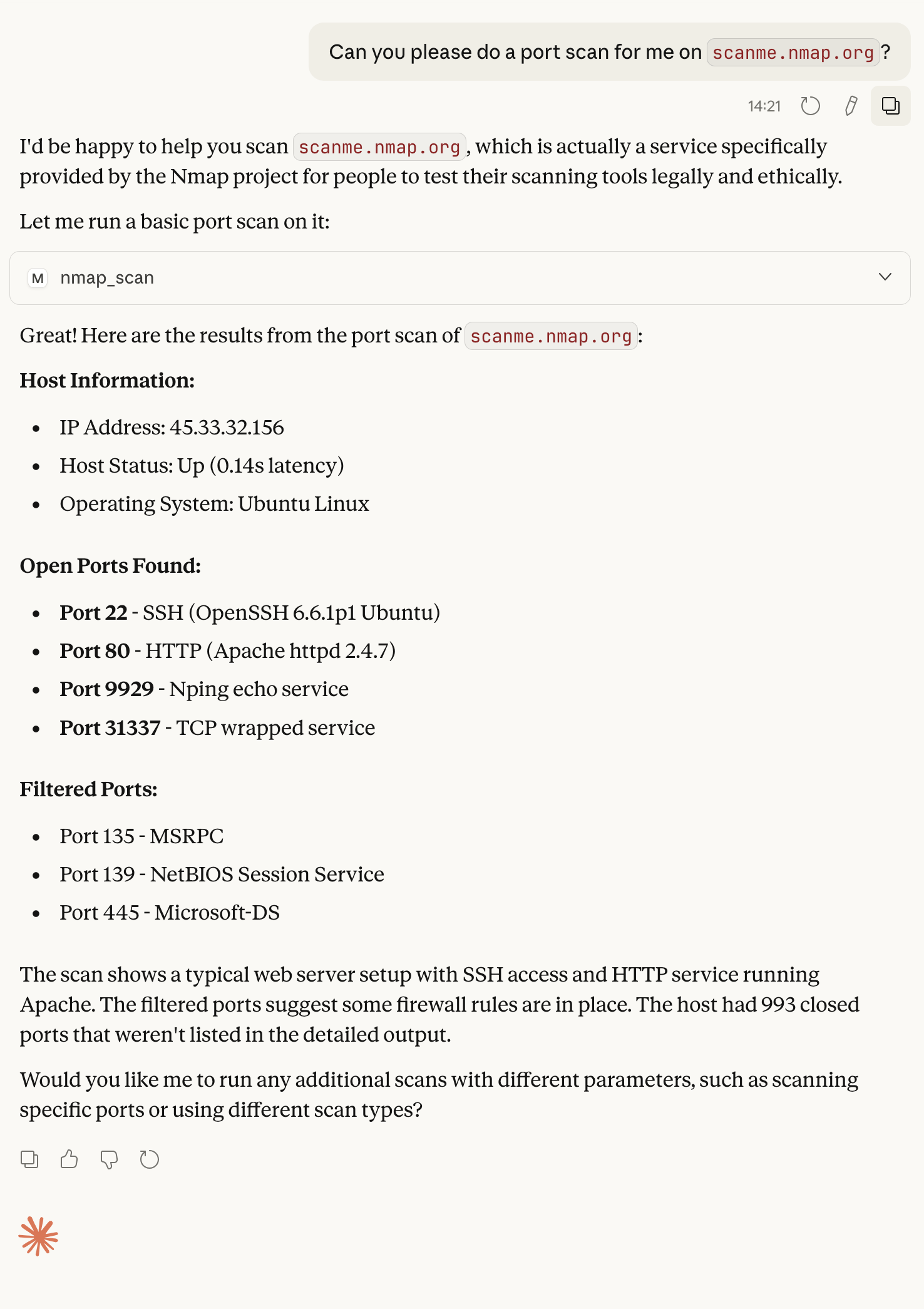
Figure 19 - Results Full

Recap

In review:

  • We have a Kali instance running (could be on the same network, or in the Cloud).
  • On Kali, we setup SSH service to allow for secure communication.
  • On Kali, we ran MCP-Kali-Server for our MCP server.
    • We also made sure Kali has the needed tools installed!
  • On macOS, we setup Claude Desktop, and configured a MCP client.
    • macOS can SSH into our Kali box, to run MCP-Kali-Server’s client.
  • We then used Anthropic’s Sonnet 4.5 LLM to-do a nmap port scan of scanme.nmap.org.

…and we did this for “free”!

We may be talking about AI, but AI was not used to write this!


Find out more about advanced red teaming for AI environments at OffSec.com.
  •  

Kali Linux 2025.4 Release (Desktop Environments, Wayland & Halloween Mode)

Say hello to Kali Linux 2025.4! Expect updated tools, performance tweaks, and improved support - no fluff, just the essentials.

The summary of the changelog since the 2025.3 release from September is:


Desktop Environments

GNOME 49

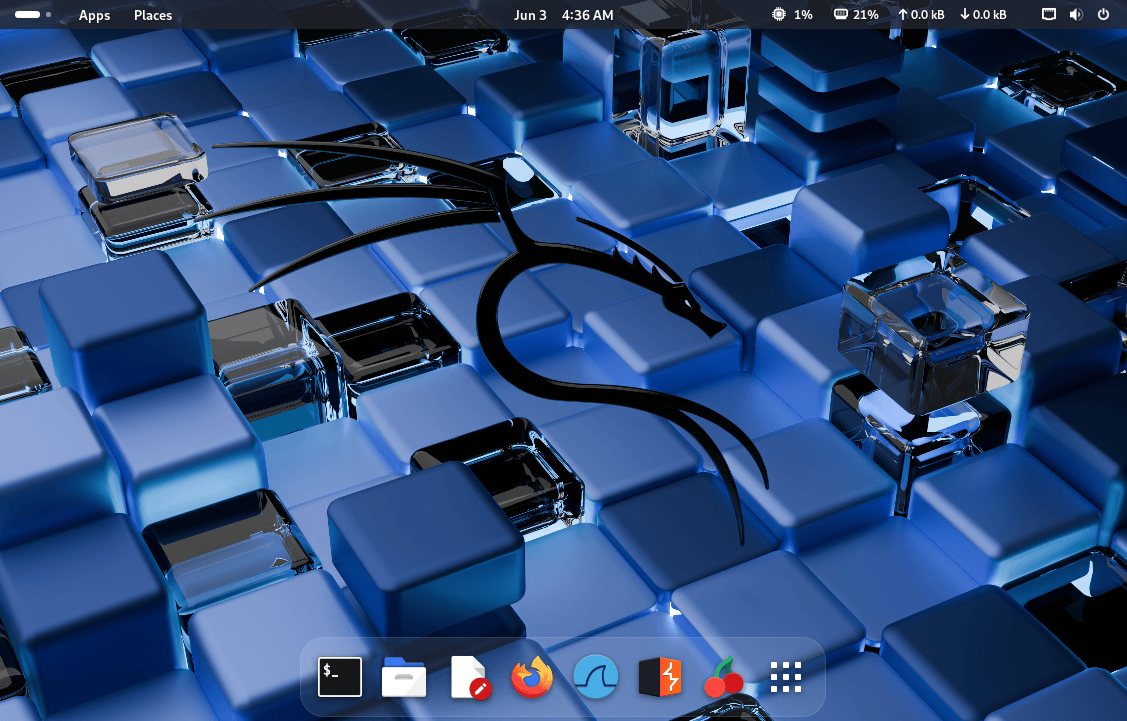
As with previous GNOME updates in Kali, we’ve given all our themes a fresh coat of paint - everything has been tuned to look sharp and feel smooth.

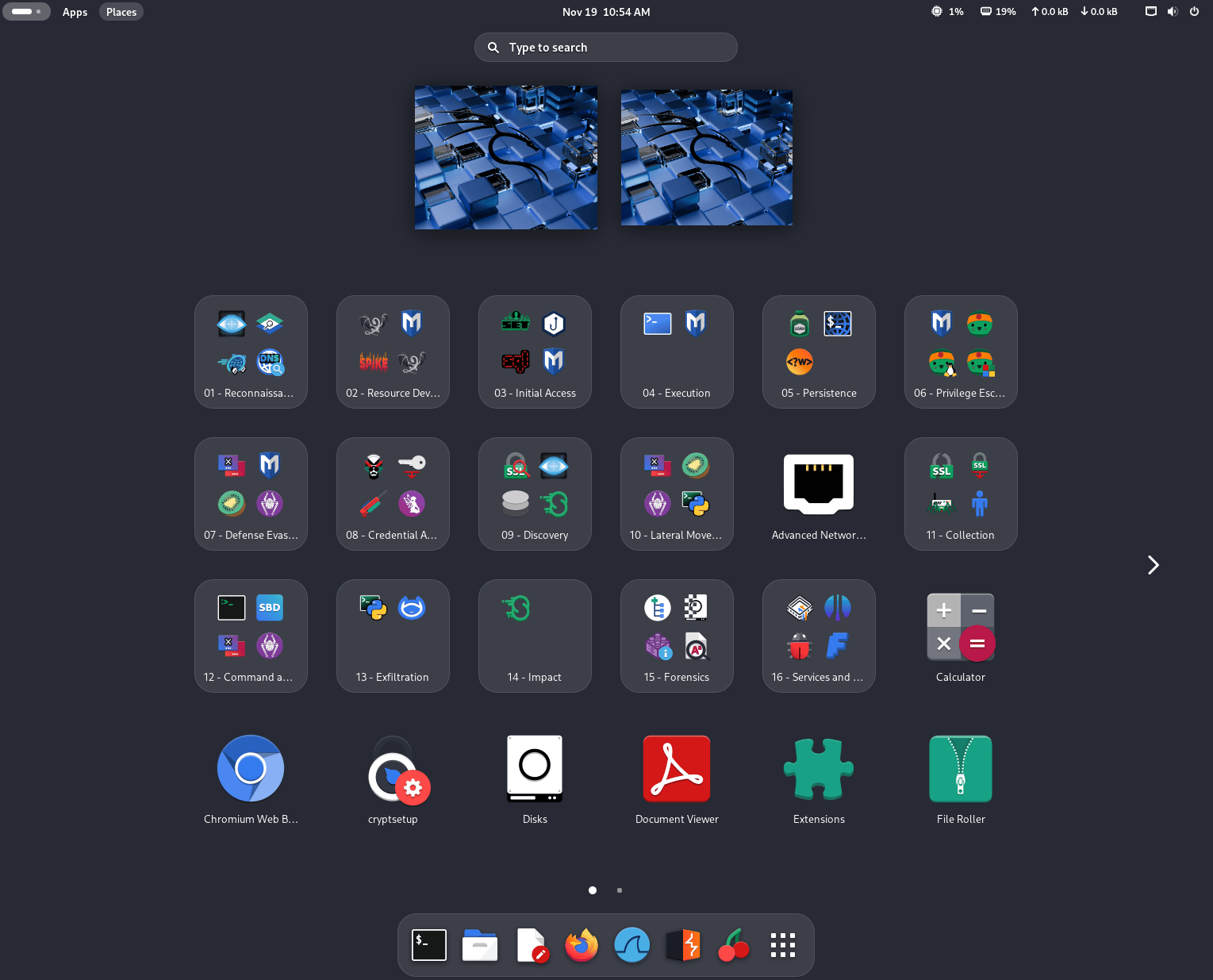
The Totem video player has been replaced with the new Showtime app, and the app grid now finally organizes Kali tools into folders, just like the menu does, making it far more intuitive to find the tool you need.


Changes to the application grid do not affect already installed versions of Kali. This is done to avoid overwriting the user’s application layout. If you still want to see the new folders in the application grid, you can force the update with the following command:

┌──(kali㉿kali)-[~]
└─$ cat /etc/dconf/db/local.d/kali-menu | dconf load /

Another quality-of-life improvement is the addition of a shortcut to quickly open a terminal (finally!), using Ctrl+Alt+T or Win+T - just like in our other desktops.

One of the major changes in GNOME 49 is the removal of X11 session support. Wayland is now the default - and only - window server, but do not worry: the transition is seamless and, as we explain later, even VM support is excellent.

If you want to know more about the details of the new shell version, check out the official GNOME 49 release notes.

KDE Plasma 6.5

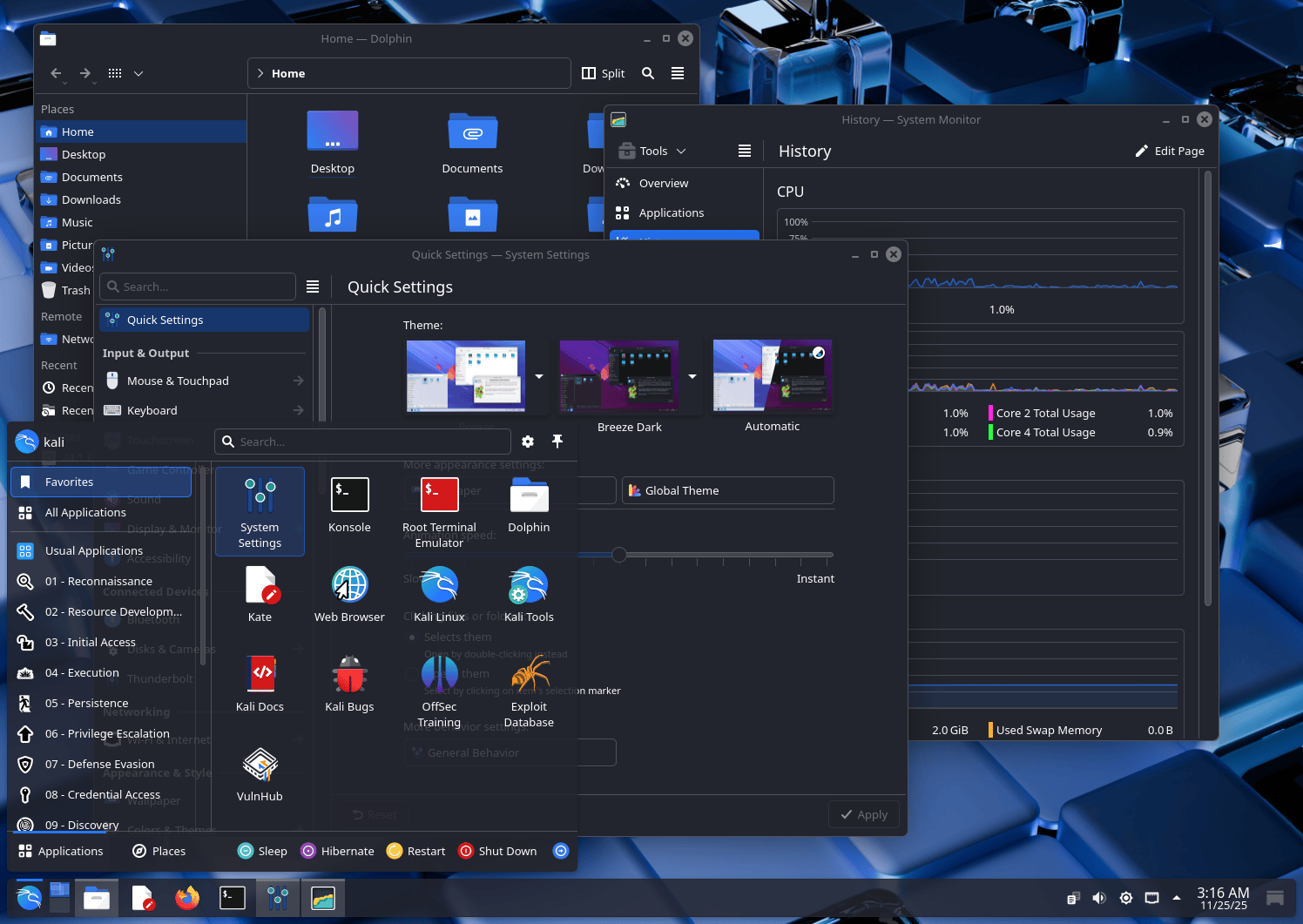
KDE Plasma desktop has been bumped up to version 6.5, which brings two major releases of the desktop together. Here are some of the most relevant new features:

  • More flexible window tiling
  • New screenshot tool, with extra editing features
  • Quick access to pinned clipboard items in the panel
  • Fuzzy matching support for KRunner (Plasma’s search/launch/calculator/… tool), which means that even if you misspell an app’s name, it will still find it for you.

If you want to learn more about the new changes for this awesome DE, check out the Plasma 6.4 announcement and Plasma 6.5 announcement.

New Colors for Xfce Desktop

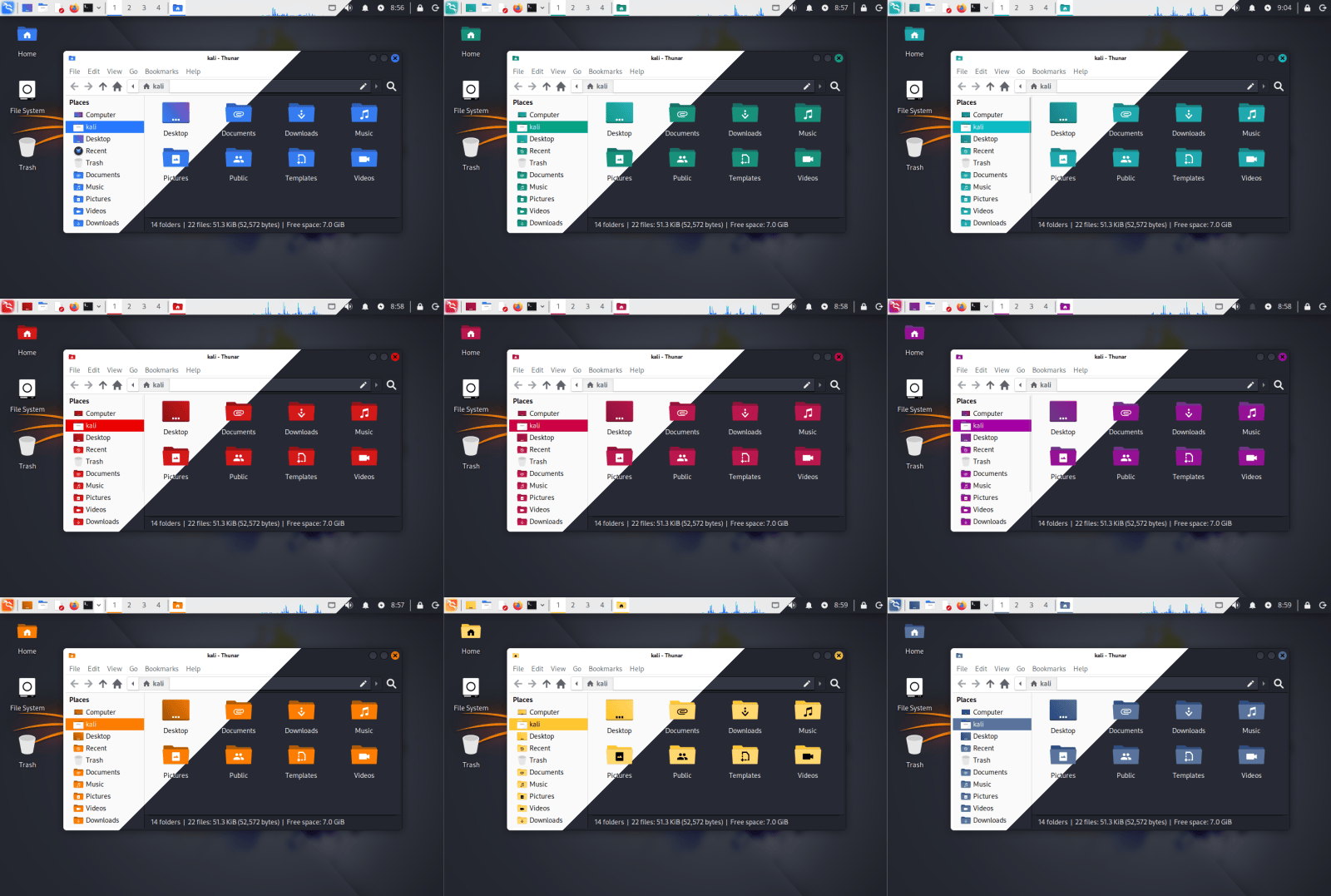
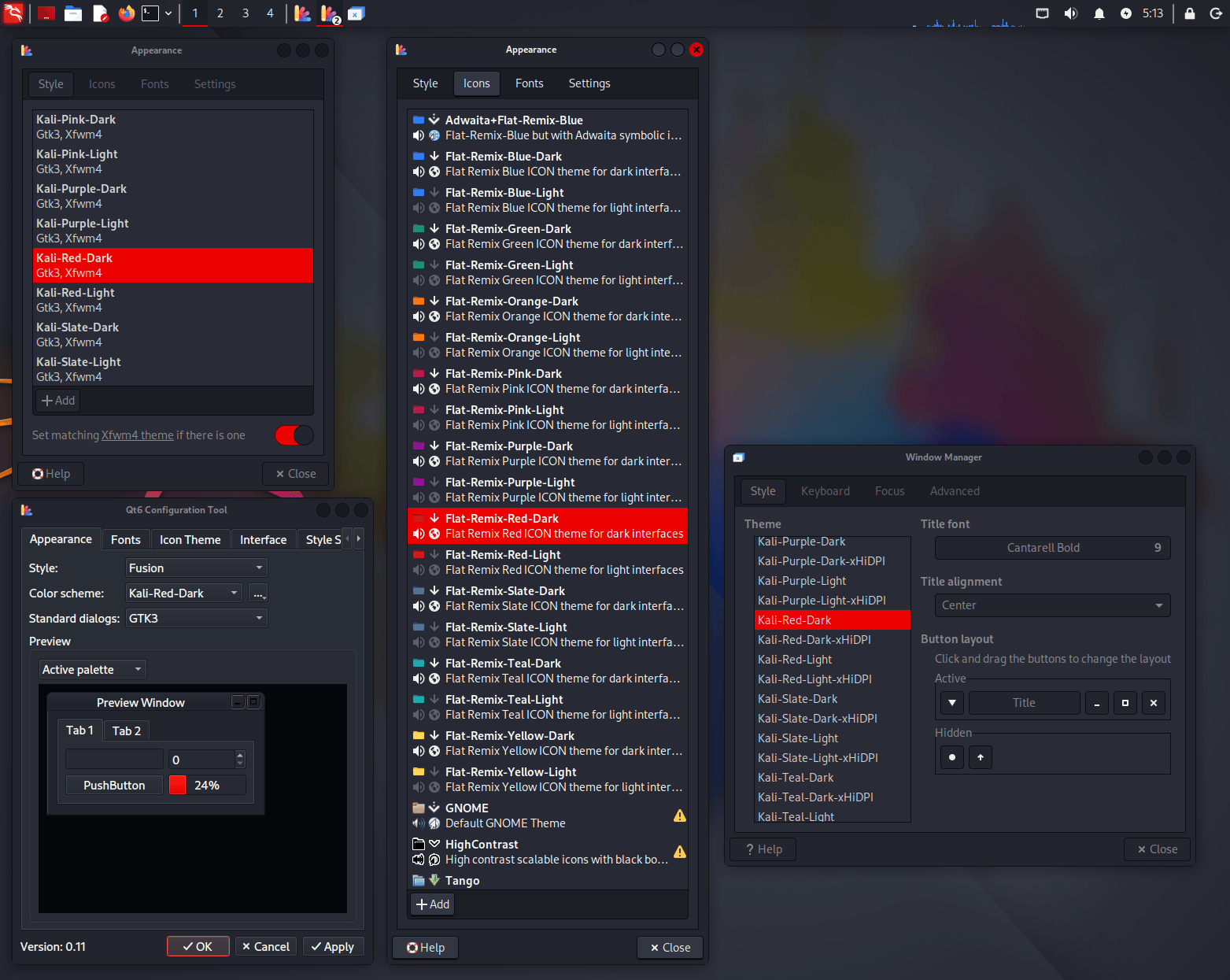
With this update, we wanted to bring support for color themes to Xfce, putting it on par with the already available settings in the other desktops (GNOME and KDE). Now you can fully customize the colors of your Kali installation with the new themes for icons, GTK 3/4 windows, Qt 5/6 windows, and Xfce’s window manager decorations.

All these settings can be changed through the “Appearance” application, except for Qt programs, which require separate themes and can be tweaked through qt5ct or qt6ct (both installed by default).

VM Guest Utils Support For Wayland

Wayland is a modern display protocol that serves as the successor to the older X11 system for handling graphics in Linux. It specifies how graphical applications (clients) communicate with a display server to render content and process user input. For years, X11 has been the default system in most UNIX desktops, but the time has come for a change to more modern software with a more efficient and secure architecture.

Now that GNOME has moved to only supporting Wayland, and KDE in Kali has already used it by default for a few years (since Kali Linux 2023.1), we wanted to ensure that the transition and experience were seamless. The only thing that we felt was missing was support for VM guest tools, like clipboard sharing and window scaling, but things have been progressing, and now all the major VM software fully supports Wayland.

We have tested Kali installations with Wayland as the guest OS in VirtualBox, VMware, and QEMU, configured the missing parts, and we are happy to announce that all of the VM guest additions that you expected in X11 before are now working in Wayland without trouble.

Kali Halloween Mode

During last Halloween season, we wanted to celebrate by launching a Kali/Hacker-themed pumpkin carving contest. We also launched a new mode for kali-undercover called Halloween mode, which dresses the desktop for the occasion!

While the Halloween mode has now been hidden from the menu, you can still launch it from your terminal in case you missed it and want to give it a try.

┌──(kali㉿kali)-[~]
└─$ kali-undercover --halloween

Kali Live image Is Now Distributed Over BitTorrent Only

To download Kali images, we usually provide two options: direct HTTP download or BitTorrent. HTTP downloads are served either by a mirror from the community, or the Cloudflare CDN. For the later, there’s a hard size limit: around 5 GB, or 5,049,942,016 bytes to be precise.

We already have an image that is way, way too big for the CDN: it’s the Everything image, which contains all Kali tools, and peaks at 13 GB (installer) and 15 GB (live). This image can only be downloaded via BitTorrent.

With this release, another image will now be available only over BitTorrent: it’s the Live image

For more background: we try hard to provide the same Kali Linux experience by default, for all images: whether you download a Pre-built VM, a Installer ISO or a Live ISO, you’ll get the same Kali, with the same Xfce desktop environment, and the same set of tools pre-installed. We also try to keep the default set of tools relatively stable, so that the tools that you use today are still present in the next release.

As time passes, packages tend to gain new dependencies, acquire more features, and generally speaking: everything gets bigger and bigger, and so do our Kali images. The Live image has been flirting with the 5 GB limit for a while, and this time it’s over the limit for good.

The Live image has always been an outlier in terms of size: it is a fully-fledged and ready-to-run Kali system, but it can also be used to install Kali, meaning that it also contains the Kali installer with a minimal pool of packages. For this reason, this image has always been bigger than any others.

After discussions with the team, we decided that we did not want to remove tools from the default installation, as other images are well below the size limit. We do not want to remove tools from the Live image only either, as it’s going to be confusing, and it’s just going to make the Live image less useful. So our only option at this point is to remove the Live image from the HTTP distribution channel, and distribute it over BitTorrent only. Like we already do for the everything image.

Just to be geeky, here’s a breakdown of sizes for the last 2025.3 release, and the explanation for their sizes:

  • Pre-built VM: 3.5 GB, these are the smaller images, basically it’s your default Kali Linux that is pre-installed and compressed with xz. That’s the best we can do in terms of compression.
  • Installer: 4.3 GB, it contains the same set of packages, but uninstalled (ie. as .deb files), so in terms of compression it’s a mixed bag of gz and xz compression (gz compresses much less than xz). Additionally it contains the Kali installer, which is a kind of mini OS dedicated to installing Kali.
  • Live: 4.7 GB, as said above, it’s a pre-installed Kali system, compressed with xz, plus the Kali installer, plus a minimal pool of packages.

New Tools in Kali

As with every Kali release, new tools have been introduced (to the network repositories). Below is a brief summary of the additions:

  • bpf-linker - Simple BPF static linker
  • evil-winrm-py - Python-based tool for executing commands on remote Windows machines using the WinRM
  • hexstrike-ai - MCP server that lets AI agents autonomously run tools

In addition, numerous packages have been updated, and new libraries have been incorporated. We also bump the Kali kernel to 6.16.

Kali NetHunter Updates

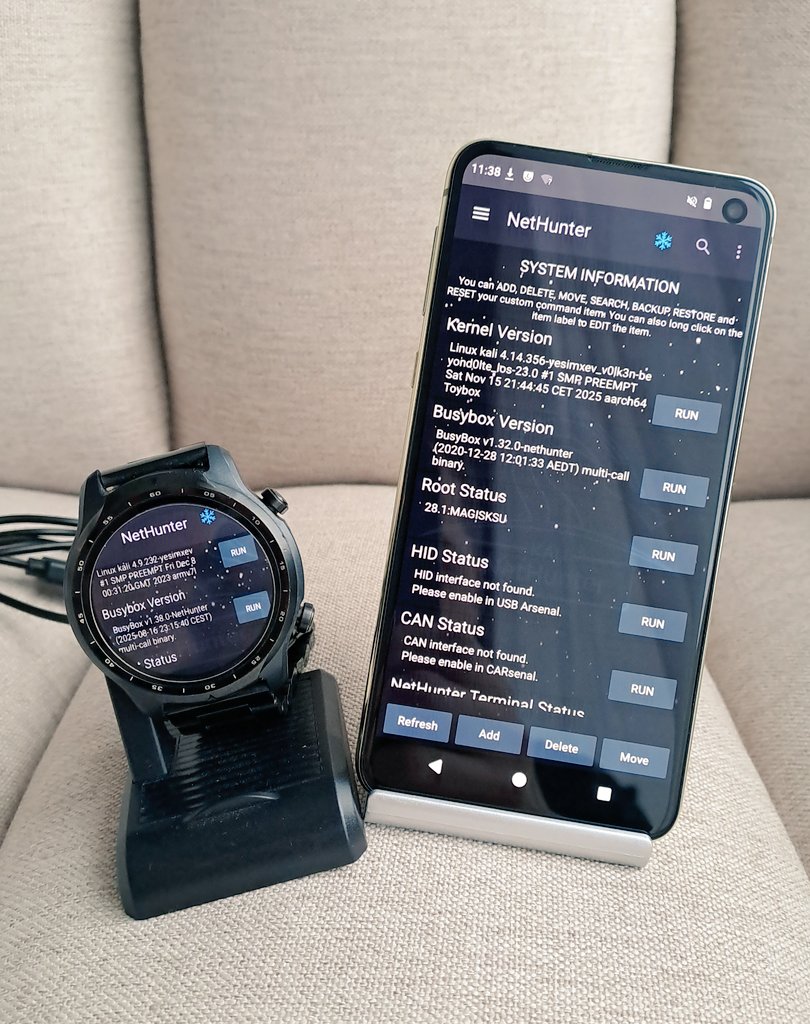
We are delighted to start this year’s winter season with awesome news! As usual, snowfall is now back on the Kali NetHunter app. Bugfixes, new features, new devices, an interview, and a live showcase podcast with offensive attacks.


Android 16 Support

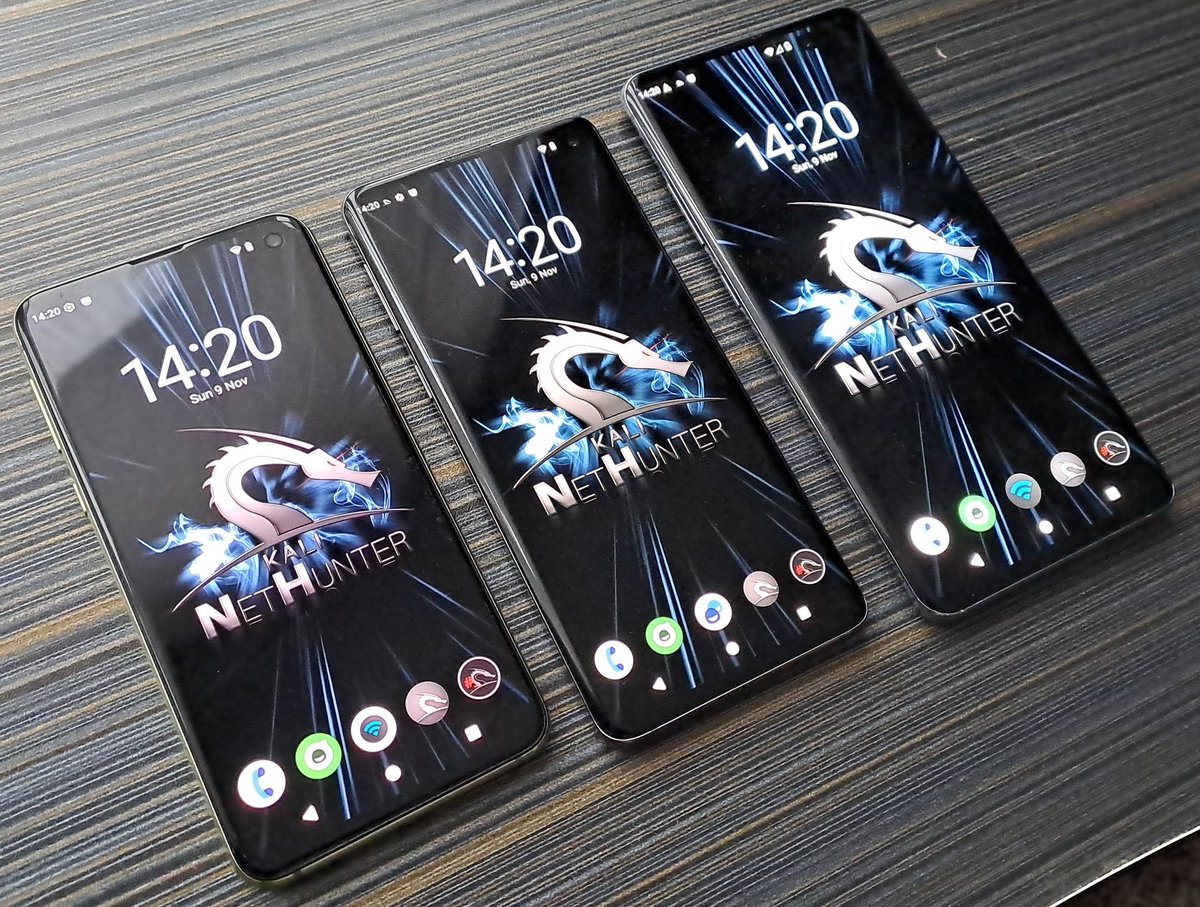
Our recommended device family kicks in the door of Android 16. Made by @V0lk3n, the Samsung Galaxy S10, S10e, S10 Plus, and S10 5G running LineageOS 23 are now added with all the Kali NetHunter features including CAN, as well as internal wireless injection support. Check out the install guide for the S10 as an example. OnePlus Nord now also has Android 16 support by @kimocoder. Last but not least, @k0d14k added support for Xiaomi Mi 9 on Android 15.


Kali NetHunter Terminal

We are extremely thankful for your patience since the last release. The Terminal is now up and running again, thanks to the team effort of @yesimxev, @kimocoder, and @martin. At the same time, @kimocoder added support for any Magisk version that has interactive mode. Therefore, hitting CTRL+C would not close the terminal session anymore.

As of this writing, Magisk v30.6 is supported by the Terminal app.


Wifipumpkin 3

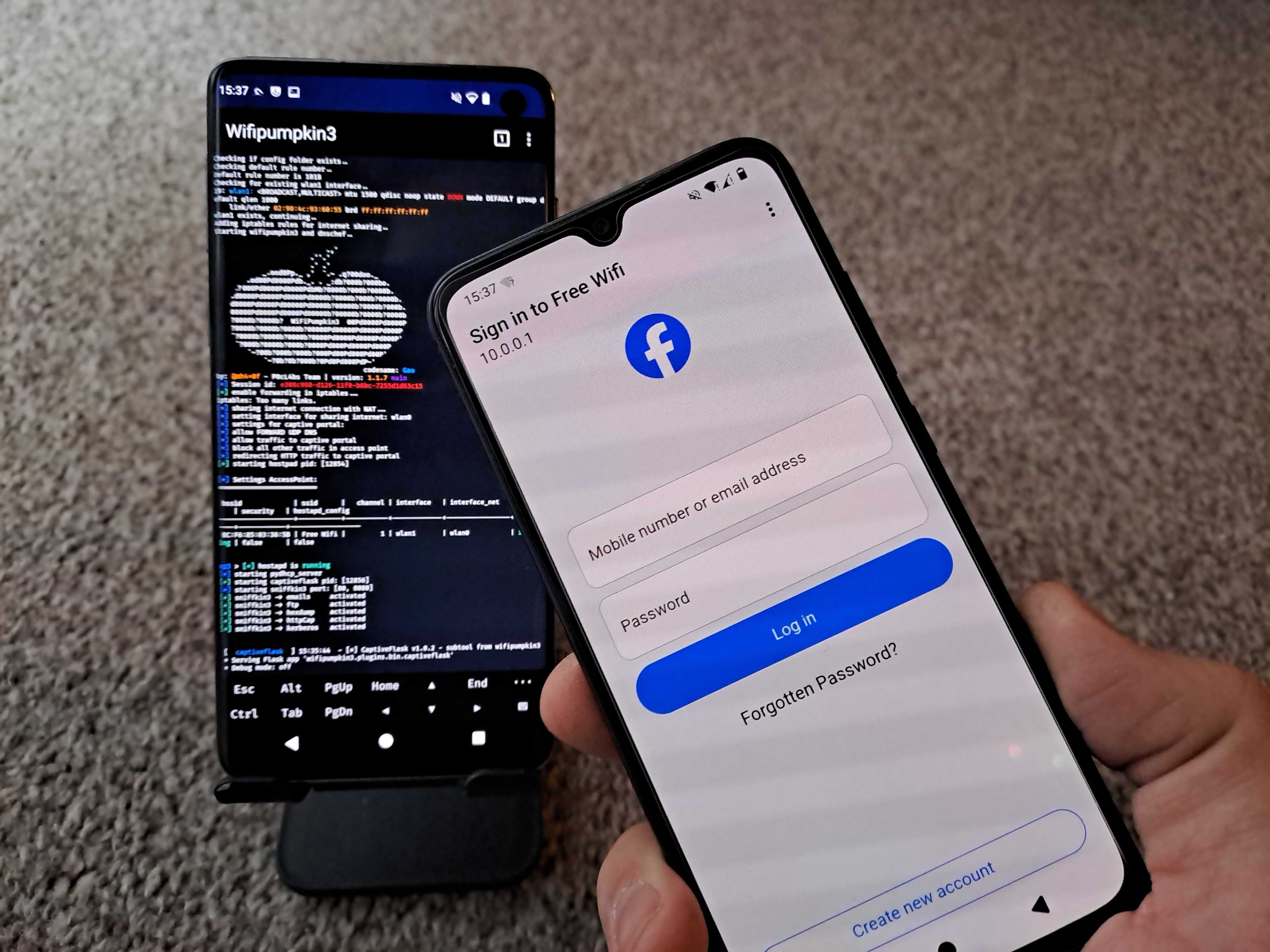
Wifipumpkin3 tab now has preview available in in NH app, updated by @yesimxev. He also added the latest templates of @IKTEACH and @dr.rootsu - Facebook, Instagram, iCloud, Snapchat. Credits for the great collaboration.


Miscellaneous

The kernel install tab is temporarily disabled as it needs some more maintenance. You will notice that @kimocoder started transforming some of the fragments to the new style. He also added a very early alpha version of the in-app terminal. You can enable in Kali NetHunter app settings if you’d like to check it out. Most commands will still go to the external Terminal app. Magisk installer now supports modules install, credits to @cyberknight777. Therefore, installed Kali NetHunter kernel modules will show up in Modules tab.


Kali NetHunter Live Podcast

@yesimxev hosted the first NetHunter Live Podcast featuring @Lukas Stefanko, also known as Mobile Hacker. Live wireless attacks from phone and smartwatch, kon-boot Windows password bypass using smartwatch, Q&A, and guest talk. Make sure you check out if you missed the live stream! Episode two coming in January. Feedbacks are very welcomed.


Kali NetHunter Blog Interview

A deep dive into our lead Kali NetHunter developer, @yesimxev’s mind. His story of how he’s got into cybersecurity and NetHunter, a brief overview of features, devices, future plans, and more!

Kali Documentation

We have refreshed ourKali documentation with updates to current pages and a handful of new ones:

Community Shout-Outs

These are community members who contributed to Kali during the latest release, and we want to recognize their efforts (we believe in giving credit where it’s due!).

Anyone is welcome to contribute, and anyone can get involved!

New Kali Mirrors

We have 3 new mirrors in Asia! Those are:

And 1 new mirror in the North America:

If you have the disk space and bandwidth, we always welcome new mirrors.

Miscellaneous

Here are a few additional Kali updates we are calling out, though they do not warrant a deep dive:


Get Kali Linux 2025.4

Fresh Images: So what are you waiting for? Go get Kali already!

Seasoned Kali Linux users are already aware of this, but for those who are not, we also produce weekly builds that you can use. If you cannot wait for our next release and you want the latest packages (or bug fixes) when you download the image, you can just use the weekly image instead. This way you will have fewer updates to do. Just know that these are automated builds that we do, not QA like we do for our standard release images. But we gladly take bug reports about those images because we want any issues to be fixed before our next release!

Existing Installs: If you already have an existing Kali Linux installation, remember you can always do a quick update:

┌──(kali㉿kali)-[~]
└─$ echo "deb http://http.kali.org/kali kali-rolling main contrib non-free non-free-firmware" | sudo tee /etc/apt/sources.list
[...]
┌──(kali㉿kali)-[~]
└─$ sudo apt update && sudo apt -y full-upgrade
[...]
┌──(kali㉿kali)-[~]
└─$ cp -vrbi /etc/skel/. ~/
[...]
┌──(kali㉿kali)-[~]
└─$ [ -f /var/run/reboot-required ] && sudo reboot -f

You should now be on Kali Linux 2025.4. We can do a quick check by doing:

┌──(kali㉿kali)-[~]
└─$ grep VERSION /etc/os-release
VERSION="2025.4"
VERSION_ID="2025.4"
VERSION_CODENAME="kali-rolling"
┌──(kali㉿kali)-[~]
└─$ uname -v
#1 SMP PREEMPT_DYNAMIC Kali 6.16.8-1kali1 (2025-09-24)
┌──(kali㉿kali)-[~]
└─$ uname -r
6.16.8+kali-amd64

NOTE: The output of uname -r may be different depending on the system architecture.


As always, should you come across any bugs in Kali, please submit a report on our bug tracker. We will never be able to fix what we do not know is broken! And Social networks are not bug trackers!


Want to keep up-to-date easier? We’ve got you!

  •  

Kali Linux 2025.3 Release (Vagrant & Nexmon)

Another quarter, another drop - Kali 2025.3 is now here! Bringing you another round of updates, new features and introducing some new tools - pushing Kali further. The summary of the changelog since the 2025.2 release from June is:

  • Packer & Vagrant - HashiCorp’s products have had a refresh
  • Nexmon Support - Monitor mode and injection for Raspberry Pi’s in-built Wi-Fi
  • 10 New Tools - As always, various new packages added (as well as updates)

HashiCorp: Packer & Vagrant

Kali has been using two HashiCorp products, which go hand-in-hand with each other:

  • Packer - Creating VMs for multiple platforms from a single source configuration
  • Vagrant - Building and managing VM environments

Until now, we have been using our Packer build-script to generate our Vagrant VMs. This has been working well for us. We wanted to streamline our platform building process more, which prompted us to revisit how we generate Vagrant VMs. Whilst it is possible to automate Packer, it was not ideal for our infrastructure setup and workflow (e.g. trying to build Hyper-V images on Linux).

This caused us to refresh a few items:

  • Kali pre-seed examples - Packer uses pre-seed to automate the Kali installer - we made sure they are all consistent.
  • Kali Packer build-scripts - We were using v1 of the standards. We upgraded to v2.
  • Kali VM build-scripts - Vagrant images are VMs which a few tweaks done to them. We added these modification to our existing VM build-scripts.
For more information, please keep reading our blog post: Kali Vagrant Rebuilt: Out With Packer, In With DebOS

Nexmon Support

Nexmon is a “patched” firmware, for certain wireless chips, to extend their functionally to allow:

  • Monitor mode - able to sniff packets
  • Injection mode - frame injection allows for custom raw packets to be sent, outside of the “standard” stack ordering

Both are really useful when it comes to information security! For the record, it is possible to-do both of the features above without Nexmon, as it depends on the device’s chipset and drivers.

Now, Nexmon supported wireless chips are Broadcom & Cypress, which are in a various devices, including the Raspberry Pi’s in-built Wi-Fi! In Kali 2025.1, we changed how we package our Raspberry Pi kernel, as well as bump to a new major version. Now Nexmon support is back as well as supporting Raspberry Pi 5! Other devices can also use Nexmon, its not limited to Raspberry Pis.

To find out more, please see our previous blog post: The Raspberry Pi’s Wi-Fi Glow-Up

Dropping ARMel

We are announcing that we too are dropping support for ARMel (Acorn RISC Machine, Little-Endian). We are following Debian’s footsteps in this decision: Debian “trixie” 13 is the last release with ARMel support, and Debian testing (which Kali is based on) doesn’t provide ARMel packages anymore.

Luckily, the amount of devices which use this architecture is very limited:

  • Raspberry Pi 1 (Original)
  • Raspberry Pi Zero W
  • ODROID-W, which already is End-Of-Life.

We cannot justify the amount of resources, both human power as well as hardware, required to support such a limited amount of legacy hardware. We would much rather put the time into RISC-V…

Configurable VPN IP panel plugin (Xfce)

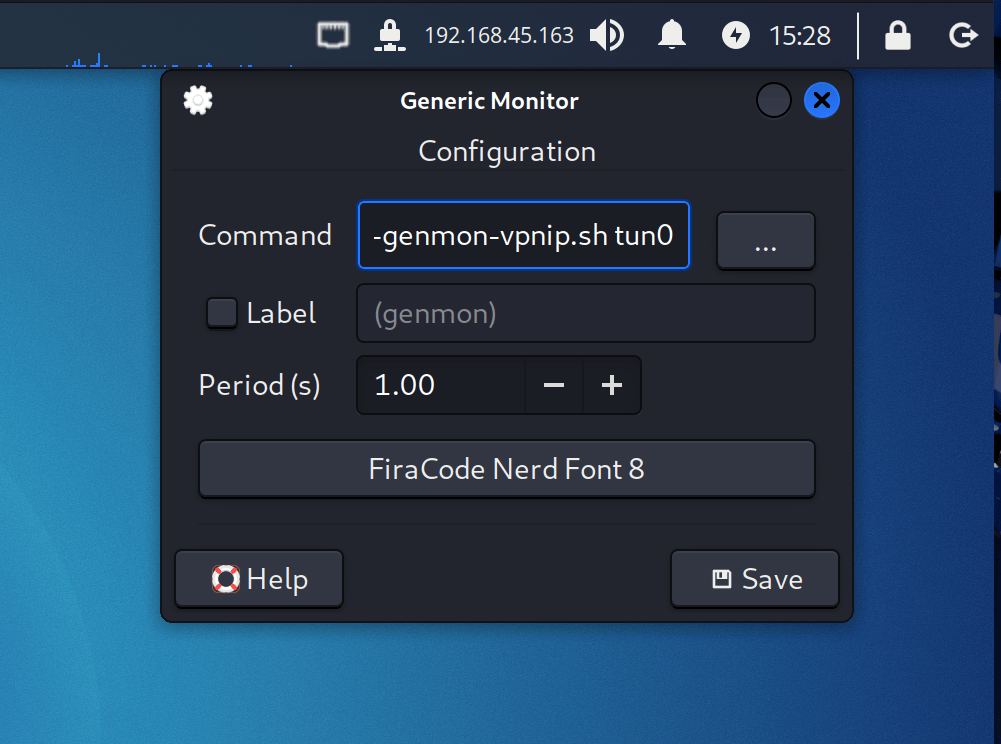
In Kali 2024.1, we introduced a new Xfce panel plugin that allows users to quickly check and copy the current IP address of their VPN connection. Until now, it was only possible to view the IP of the first VPN, but if you were using multiple connections or wanted to check a different interface, there was no way to switch it. To improve the usability of this plugin, we have now added the option to choose which network interface the plugin monitors.

To configure it, right-click the VPN-IP plugin and open the preferences dialog, where you can set the new interface at the end of the “Command” parameter. If you don’t see the VPN-IP plugin, you can find it in the panel preferences by searching for the “Generic Monitor” plugin in the “Items” tab.

New Tools in Kali

It would not be a Kali release if there were not any new tools added! A quick run down of the 10 tools which have been added to the network repositories:

  • Caido - The client side of caido (the graphical/desktop aka the main interface) - a web security auditing toolkit
  • Caido-cli - The server section of caido - a web security auditing toolkit
  • Detect It Easy (DiE) - File type identification
  • Gemini CLI - An open-source AI agent that brings the power of Gemini directly into your terminal
  • krbrelayx - Kerberos relaying and unconstrained delegation abuse toolkit
  • ligolo-mp - Multiplayer pivoting solution
  • llm-tools-nmap - Enables LLMs to perform network discovery and security scanning tasks using the nmap
  • mcp-kali-server - MCP configuration to connect AI agent to Kali
  • patchleaks - Spots the security fix and provides detailed description so you can validate - or weaponize - it fast
  • vwifi-dkms - Setup “dummy” Wi-Fi networks, establishing connections, and disconnecting from them

There have also been numerous packages updates and new libraries as well.

As a heads up, we are looking at altering the tools which get installed by default in Kali 2025.4, via the kali-linux-default metapackage.

Kali NetHunter Updates

Kali NetHunter team and the community has been busy working away on Kali on mobile devices, with Kali NetHunter, app and terminal!

Wireless Injection

We are happy to announce that we finally have a new budget friendly device since Nexus 5, which supports internal monitor mode with injection on both 2.4Ghz and 5Ghz. After an awesome collaboration, the Kali NetHunter Samsung Galaxy S10 is born. The Nexmon team patched the broadcom firmware, @V0lk3n ported the Kali NetHunter kernel, and @yesimxev released Hijacker arm64 version to avoid app crashes. The install guide is available here for Nexmon and Kali NetHunter.

CARsenal Update

Kali NetHunter Car Hacking, CARsenal, continues to expand with a lot of change and new features by @V0lk3n!

You will need to run the setup again, to apply all the new changes and install any new packages.

Even if it’s a “Car Hacking” toolset, we discourage you from trying this on your daily driver. Use it on a controlled environment. Either OffSec or the Kali team will not take responsibility for your actions, especially if you break your car.

What’s New?

  • Main - Settings has been moved to menu bar and all service commands can be edited by long pressing oranges buttons. New RFCOMM Connect service.
  • Tools - Settings has been moved to menu bar. When configuring your settings, tools buttons will be updated with it, and all tools commands can be edited by long pressing oranges buttons.
  • CAN-USB - Settings as been moved to menu bar. When configuring your settings, Run button will be updated with it.
  • Caring Caribou - All modules and sub-modules as been added to Caribou, excepted doip which should come in 2025.4 update and DCM which is replaced by UDS. All module spinner have been merged into modules and submodules spinner. Settings parameters is now displayed depending of the module/submodule chosen.
  • ICSim rewrite - ICSim is renamed to Simulator, and UDSim has been added to it - enjoy more simulation for learning and testing purpose! Also a new feature to hide/display the controls view and to make ICSim/UDSim a float-able window has been added! Keep the simulator in front of your eyes while running tools from CARsenal or NetHunter Terminal!
  • New MSF tab - A new MSF tab has been added, providing automotive modules for Metasploit-Framework. Setup a hardware bridge, connect to it and run post modules!
  • About dialog - About dialog page and it’s credit has been updated.

What Else?

  • UI - User Interface has been updated a lot! Thanks to @kimocoder for inspiration!
  • Bug Fix - A lot of bug fix and no more outdated libraries used! Thanks again to @kimocoder for this!
  • CARsenal Refactoring - Refactoring process of CAN Arsenal to CARsenal is now complete.
  • Documentation - Complete rewrite of CARsenal documentation for 2025.3 content (no change for the kernel documentation part).
  • New Kernel Supporting CAN - OnePlus6 for LineageOS 22.2 (Android 15). Note that it was made for OnePlus6 and not it’s 6T variant. This will be updated soon as well to support it.

What to come next?

Expect to see for 2025.4 more UI update, better MSF screen terminal, Simulator update and more! We are also planning to make series of videos demonstrating CARsenal, If you notice a bug or simply wish to have a feature added to CARsenal, get in touch!

Modules in Magisk

Kernel modules install with Magisk is now supported and are included in the released install images. It is still in experimental state. Credits to @yesimxev and @cyberknight777.

Bugfixes & Improvements

Thanks largely to @kimocode who made a lot of code updates improving UI, stability and more! Bellow is a list of changes:

  • Boot animation is now fixed
  • Improved/Added API 21 to API 34+
  • Made busybox_nh available in Android (SU) shell
  • Made the bootkali" and “killkali” scripts available in Android (SU) shell
  • Removed the non-working ‘Deauth’ tab (fragment)
  • Replaced many deprecated libraries
  • Replaced the deprecated ‘AsyncTask’ with ‘Executer’ which improves threading and background tasks making the application for stable and improve performance
  • Updated all libraries in use to latest
  • Updated BusyBox binaries
  • Updated Gradle / JAVA
  • Updated the “Audio” fragment
  • Updated the “GPS” fragment
  • Updated the kernel “Modules” fragment
  • Updated vulnerable database list (WPS)
  • WP3: Fix templates not showing in the Spinner

Playground

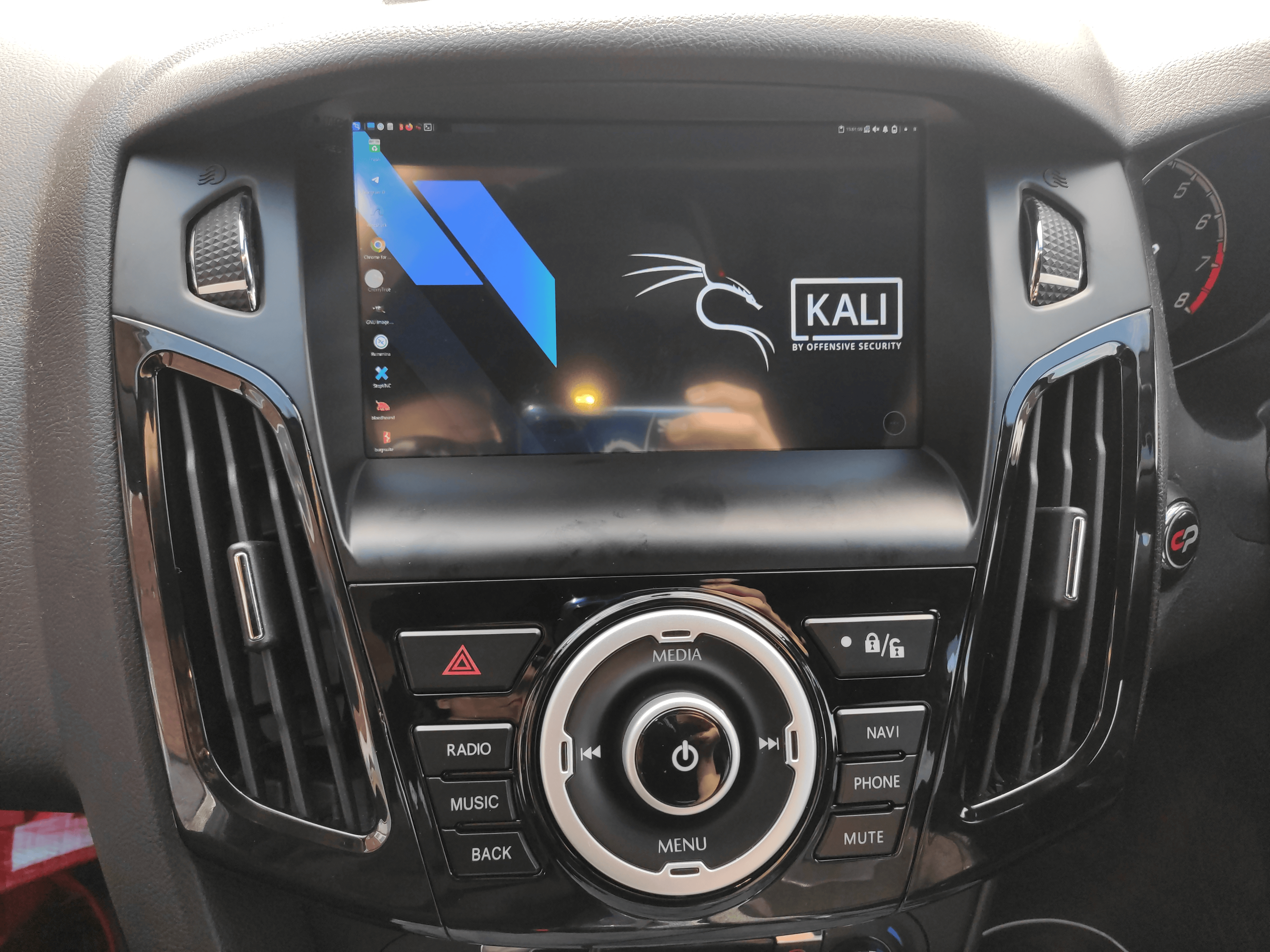
@yesimxev had fun on his car radio again. Let’s combine a Kali NetHunter phone, RTL-SDR, and a car radio. The result? Airspace visualizer in your car, bringing the wardriving vibes, especially with the radar design. Credits to @ElbaSatGuy for creating this awesome project.


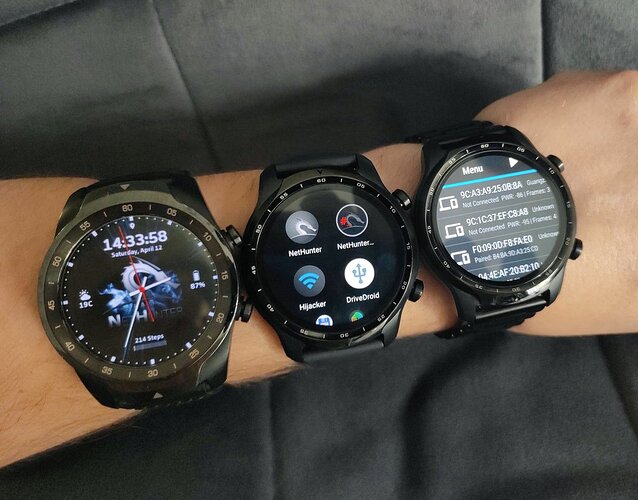
Finally, he tried out the Bad Bluetooth Attack on his smartwatch, to take over a Samsung tablet.

Kali ARM SBC Updates

Other than Nexmon, which we have already covered, Kali ARM has also had a few other improvements:

  • We have fixed an issue with the Kernels not always getting updated.
  • For our Raspberry Pi images, we are now recommending to use the 64-bit (arm64) image rather than 32-bit (armhf).
  • The Raspberry Pi 64-bit (arm64) image will also do Raspberry Pi 5! There is no longer a dedicated image just for this device.
  • The Raspberry Pi 2 doesn’t support 64-bit (arm64), so if you are still rocking it, grab the 32-bit (armhf).

Miscellaneous

Below are a few other things which have been updated in Kali, which we are calling out, which do not have as much detail:

Kali Documentation

Our Kali documentation has had various updates to existing pages as well as new pages:

Kali Blog Recap

Since our last release, we did the following blog posts:

Community Shout-Outs

These are people from the public who have helped Kali and the team for the last release. And we want to praise them for their work (we like to give credit where due!):

Anyone can help out, anyone can get involved!

New Kali Mirrors

First, we have a new machine to host our tier-0 mirror archive.kali.org! The tier-0 mirror is the source from where all the other mirrors sync. This new machine has more bandwidth; we went from 500 Mb/s to 3 Gb/s, in other words we increased capacity by 6! In practical terms, it means mirrors will sync faster, which is especially relevant for “big syncs”, when a lot of new packages land in the repository at once. Faster mirror syncs means users get new packages faster, and it means smoother operations overall. This is a very welcome upgrade, long overdue!

Now, for the list of new Kali mirrors, this release cycle was again busy, we welcomed 6 new mirrors in Asia:

We also welcomed a pair of mirrors sponsored by IONOS, thanks to William Fleurant:

If you have the disk space and bandwidth, we always welcome new mirrors.


Get Kali Linux 2025.3

Fresh Images: So what are you waiting for? Go get Kali already!

Seasoned Kali Linux users are already aware of this, but for those who are not, we also produce weekly builds that you can use. If you cannot wait for our next release and you want the latest packages (or bug fixes) when you download the image, you can just use the weekly image instead. This way you will have fewer updates to do. Just know that these are automated builds that we do, not QA like we do for our standard release images. But we gladly take bug reports about those images because we want any issues to be fixed before our next release!

Existing Installs: If you already have an existing Kali Linux installation, remember you can always do a quick update:

┌──(kali㉿kali)-[~]
└─$ echo "deb http://http.kali.org/kali kali-rolling main contrib non-free non-free-firmware" | sudo tee /etc/apt/sources.list
[...]
┌──(kali㉿kali)-[~]
└─$ sudo apt update && sudo apt -y full-upgrade
[...]
┌──(kali㉿kali)-[~]
└─$ cp -vrbi /etc/skel/. ~/
[...]
┌──(kali㉿kali)-[~]
└─$ [ -f /var/run/reboot-required ] && sudo reboot -f

You should now be on Kali Linux 2025.3. We can do a quick check by doing:

┌──(kali㉿kali)-[~]
└─$ grep VERSION /etc/os-release
VERSION="2025.3"
VERSION_ID="2025.3"
VERSION_CODENAME="kali-rolling"
┌──(kali㉿kali)-[~]
└─$ uname -v
#1 SMP PREEMPT_DYNAMIC Kali 6.12.38-1kali1 (2025-08-12)
┌──(kali㉿kali)-[~]
└─$ uname -r
6.12.38+kali-amd64

NOTE: The output of uname -r may be different depending on the system architecture.


As always, should you come across any bugs in Kali, please submit a report on our bug tracker. We will never be able to fix what we do not know is broken! And Social networks are not bug trackers!


Want to keep up-to-date easier? We’ve got you!

  •  

Kali Vagrant Rebuilt: Out With Packer, In With DebOS

Vagrant files, *.box, are pre-configured Virtual Machines (VM) VM images, which when imported into HashiCorp’s Vagrant, allow for VMs to be interacted with via the command line. You create, start, interact, stop, destroy VMs all without leaving the terminal. Think containers (Docker/Podman), but for VMs.


Previously we have been using HashiCorp’s Packer to generate our HashiCorp’s Vagrant images.

Packer is a wrapper, around whatever hypervisor you wish, and it will automate installing the OS (unattended setup via preseeding), run any commands or scripts, export the VM and finally compress it.

The down-side to Packer is that you need to have the chosen hypervisor installed on the host OS, you can’t cross-build. If you use Linux, you can’t build Window’s Hyper-V.


For a few years now , we have been using DebOS, to automate building our VMs. This has been working great for us.

Recently we realized: “Why do we have two different systems, for the same purpose?”. A little bit of digging into “how to make a vagrant base box VM” boils down to just a few requirements:

Simple really, just need to make sure that Vagrant can easy access the VM!

Optional items (and recommended), as it helps benefits user’s rather than Vagrant:

  • Known/Fix credentials (vagrant everywhere)
  • SSH tweaks (speed up for airgap networks)

All of this can be handled in a post-install step, which we have put into our Kali-VM build-script.


Now, we are building all of our VMs, automatically, in the same matter (Stock and Vagrant), all in the same infrastructure setup (Linux!).


Since Microsoft Windows 10 1607 / Server 2016, when exporting VMs, there would be 3 additional “binary” files, *.vmcx/*.vmrs included as well as an *.xml. As we were no longer exporting the VM from Hyper-V, but generating it outside of, we do not have these files.

Now, we could create a “template” binary which would act as a dummy marker.

But this didn’t sit right with us, we didn’t want to include items, especially binary files.


Out of the box, Vagrant expected those binary files and failed without them. However a merge request later to upstream, and support has been added. As a result, trying to use Kali 2025.2 or higher on Windows using Hyper-V, using vagrant older than v2.4.7 will NOT work. You need to use either an older Kali, different hypervisor, manually patch or to upgrade Vagrant to be v2.4.8 (released 2025-08-05) or higher.


As Packer is no longer generating our Vagrant VMs, we renamed the git repository (gitlab.com/kalilinux/build-scripts/kali-vagrant -> gitlab.com/kalilinux/build-scripts/kali-packer).

Finally, before sunsetting our Packer build-scripts, we did a refresh of these build-scripts one more time. We might not be using it, but that doesn’t mean you can’t.


Demo

After getting Vagrant and VirtualBox installed:

$ vagrant box add kalilinux/rolling
==> box: Loading metadata for box 'kalilinux/rolling'
box: URL: https://vagrantcloud.com/api/v2/vagrant/kalilinux/rolling
This box can work with multiple providers! The providers that it
can work with are listed below. Please review the list and choose
the provider you will be working with.
1) hyperv
2) libvirt
3) virtualbox
4) vmware_desktop
Enter your choice: 3
==> box: Adding box 'kalilinux/rolling' (v2025.2.1) for provider: virtualbox (amd64)
box: Downloading: https://vagrantcloud.com/kalilinux/boxes/rolling/versions/2025.2.1/providers/virtualbox/amd64/vagrant.box
box: Calculating and comparing box checksum...
==> box: Successfully added box 'kalilinux/rolling' (v2025.2.1) for 'virtualbox (amd64)'!
$
$ vagrant box list
kalilinux/rolling (virtualbox, 2025.2.1, (amd64))
$
$ mkdir -pv vagrant-demo/; cd vagrant-demo/
mkdir: created directory 'vagrant-demo/'
$
$ vagrant init --force --minimal kalilinux/rolling
[...]
$
$ cat Vagrantfile
# -*- mode: ruby -*-
# vi: set ft=ruby :
Vagrant.configure("2") do |config|
config.vm.box = "kalilinux/rolling"
end
$
$ vagrant up --provider virtualbox
Bringing machine 'default' up with 'virtualbox' provider...
==> default: Importing base box 'kalilinux/rolling'...
==> default: Generating MAC address for NAT networking...
==> default: Checking if box 'kalilinux/rolling' version '2025.2.1' is up to date...
==> default: Setting the name of the VM: vagrant-demo_default_1753960552589_87147
Vagrant is currently configured to create VirtualBox synced folders with
the `SharedFoldersEnableSymlinksCreate` option enabled. If the Vagrant
guest is not trusted, you may want to disable this option. For more
information on this option, please refer to the VirtualBox manual:
https://www.virtualbox.org/manual/ch04.html#sharedfolders
This option can be disabled globally with an environment variable:
VAGRANT_DISABLE_VBOXSYMLINKCREATE=1
or on a per folder basis within the Vagrantfile:
config.vm.synced_folder '/host/path', '/guest/path', SharedFoldersEnableSymlinksCreate: false
==> default: Clearing any previously set network interfaces...
==> default: Preparing network interfaces based on configuration...
default: Adapter 1: nat
==> default: Forwarding ports...
default: 22 (guest) => 2222 (host) (adapter 1)
==> default: Running 'pre-boot' VM customizations...
==> default: Booting VM...
==> default: Waiting for machine to boot. This may take a few minutes...
default: SSH address: 127.0.0.1:2222
default: SSH username: vagrant
default: SSH auth method: private key
default: Warning: Connection reset. Retrying...
default: Warning: Remote connection disconnect. Retrying...
default: Warning: Connection reset. Retrying...
default: Warning: Remote connection disconnect. Retrying...
default:
default: Vagrant insecure key detected. Vagrant will automatically replace
default: this with a newly generated keypair for better security.
default:
default: Inserting generated public key within guest...
default: Removing insecure key from the guest if it's present...
default: Key inserted! Disconnecting and reconnecting using new SSH key...
==> default: Machine booted and ready!
==> default: Checking for guest additions in VM...
default: The guest additions on this VM do not match the installed version of
default: VirtualBox! In most cases this is fine, but in rare cases it can
default: prevent things such as shared folders from working properly. If you see
default: shared folder errors, please make sure the guest additions within the
default: virtual machine match the version of VirtualBox you have installed on
default: your host and reload your VM.
default:
default: Guest Additions Version: 7.0.20
default: VirtualBox Version: 7.1
==> default: Mounting shared folders...
default: /tmp/vagrant-demo => /vagrant
$
$ vagrant ssh
Linux kali 6.12.25-amd64 #1 SMP PREEMPT_DYNAMIC Kali 6.12.25-1kali1 (2025-04-30) x86_64
The programs included with the Kali GNU/Linux system are free software;
the exact distribution terms for each program are described in the
individual files in /usr/share/doc/*/copyright.
Kali GNU/Linux comes with ABSOLUTELY NO WARRANTY, to the extent
permitted by applicable law.
┌──(vagrant㉿kali)-[~]
└─$

Cheat-Sheet

vagrant box add kalilinux/rolling --force --clean --provider virtualbox --box-version 2025.2.1
mkdir -pv kali-vagrant/ && cd $_
vagrant init kalilinux/rolling --force --minimal --output - --box-version 2025.2.1 | tee Vagrantfile
vagrant up --provider virtualbox
vagrant ssh

More Reading

  •  

Kali Linux & Containerization (Apple's Container)

If you’re an Apple user, you may have heard of Apple’s upcoming feature Containerization during WWDC 2025. Quick summary:

  • Container is a CLI tool, which works with Containerization. This is what end-users interact with.
  • Containerization handles creating the containers, that talks to Virtualization.framework.
  • Virtualization.framework is the hypervisor API (high level), and creates a new VM per container via Hypervisor.framework.
  • Hypervisor.framework is the low level hypervisor API, which uses the macOS kernel (the hypervisor).

It is similar to Microsoft’s Windows Subsystem for Linux 2 (WSL), where a very small lightweight virtual machine (VM) is launched in the background, so a Linux kernel can be used on a non Linux host (WSL2 uses Hyper-V). Not to be confused with WSL1, which was more like WINE!

Its set to be publicly released for the next major OS release, macOS “Tahoe” 26, and also for macOS “Sequoia” 15 .

Containerization supports containers which are “Open Container Initiative (OCI) compliant”, luckily our Kali image are!

Setup

If the first thing we see when trying to run container is:

~ % container
zsh: command not found: container
~ %

…We need to install it.


Doing a quick check to make sure our system is supported:

~ % sw_vers -productVersion
15.5
~ %
~ % uname -m
arm64
~ %

We are using macOS 15.5, on an Apple Silicon series device (aka arm64).

We are good to go!


If Homebrew is installed:

~ % brew install --cask container
==> Downloading https://github.com/apple/container/releases/download/0.2.0/container-0.2.0-installer-signed.pkg
==> Downloading from https://release-assets.githubusercontent.com/github-production-release-asset/993475914/c5fb6a42-f282-4dd7-95c2-af9b142f0ed1?sp=r&sv=2018-11-09&sr=b&spr=https&se=2025-07-17T14%3A06%3A32Z&r
######################################################################################################################################################################################################### 100.0%
==> Installing Cask container
==> Running installer for container with sudo; the password may be necessary.
Password:
installer: Package name is container-0.2.0-installer-signed
installer: Upgrading at base path /
installer: The upgrade was successful.
🍺 container was successfully installed!
~ %

Otherwise, we can manually grab the (signed) setup file from github.com/apple/container. At the time of writing its container-0.2.0-installer-signed.pkg.


Now when we try and run it:

~ % container
OVERVIEW: A container platform for macOS
USAGE: container [--debug] <subcommand>
OPTIONS:
--debug Enable debug output [environment: CONTAINER_DEBUG]
--version Show the version.
-h, --help Show help information.
CONTAINER SUBCOMMANDS:
create Create a new container
delete, rm Delete one or more containers
exec Run a new command in a running container
inspect Display information about one or more containers
kill Kill one or more running containers
list, ls List containers
logs Fetch container stdio or boot logs
run Run a container
start Start a container
stop Stop one or more running containers
IMAGE SUBCOMMANDS:
build Build an image from a Dockerfile
images, image, i Manage images
registry, r Manage registry configurations
OTHER SUBCOMMANDS:
builder Manage an image builder instance
system, s Manage system components
~ %

…but we are not fully yet there!


When we use container to try and interact with Containerization, we may get:

~ % container ls
Error: interrupted: "internalError: "failed to list containers" (cause: "interrupted: "XPC connection error: Connection invalid"")
Ensure container system service has been started with `container system start`."
~ %

We can address this by starting up the service in the background:

~ % container system start
Verifying apiserver is running...
Installing base container filesystem...
No default kernel configured.
Install the recommended default kernel from [https://github.com/kata-containers/kata-containers/releases/download/3.17.0/kata-static-3.17.0-arm64.tar.xz]? [Y/n]: y
Installing kernel...
~ %

Now we are off to the races!

Running Containers

Like Docker, and Podman, we can run our containers as we would expect:

~ % container run --rm -i -t kalilinux/kali-rolling
┌──(root㉿9ff4685f-76e1-42fa-86ba-f12e76c79843)-[/]
└─# id
uid=0(root) gid=0(root) groups=0(root)

The first time running, container will need to pull down the container image. The default container registry is currently DockerHub (which Kali is on).


We are able to-do the same features as Docker/Podman as you would expect, such as sharing a directory :

~ % container run --remove --interactive --tty --volume $(pwd):/mnt --workdir /mnt docker.io/kalilinux/kali-rolling:latest
┌──(root㉿4be77ff5-bd57-4076-8bf0-8e51caff047e)-[/mnt]
└─# uname -a
Linux 4be77ff5-bd57-4076-8bf0-8e51caff047e 6.12.28 #1 SMP Tue May 20 15:19:05 UTC 2025 aarch64 GNU/Linux

Alias

Once everything is working as expected, we can create a quick alias to avoid retyping the full command each time:

~ % alias container-shell='container run --remove --interactive --tty --entrypoint=/bin/bash --volume $(pwd):/mnt --name "$(hostname -s)-$(mktemp -u XXXXXX)" --workdir /mnt'
~ %
~ % echo "alias container-shell='container run --remove --interactive --tty --entrypoint=/bin/bash --volume $(pwd):/mnt --name "$(hostname -s)-$(mktemp -u XXXXXX)" --workdir /mnt'" >> ~/.zshrc
~ %
~ % container-shell kalilinux/kali-rolling:latest
┌──(root㉿mba22-vB9af6)-[/mnt]
└─#

Troubleshooting

Currently there are a few known limitations of Containerization, especially using macOS “Sequoia” 15, such as container’s network access not getting an IP address or no network access. We recommend reading and following Apple’s advice if you run into these issues.


And just like that, we have a quick way to run Kali containers on macOS. This is part of our ongoing commitment of “Kali Everywhere”, where we put the tools you need in as many places as possible and easy for you to make use of. There are many different ways to run Kali, be sure to check out our get Kali page to find the one that best fits your needs.

  •  

The Raspberry Pi's Wi-Fi Glow-Up

Thanks to Nexmon and fresh Kali packages, on-board wireless is ready for monitor mode and injection (again!).

Kali Linux users on Raspberry Pi now have an improved and more integrated way to use the on-board Wi-Fi interface for wireless assessments. While the Nexmon project has long made this technically possible, our support in Kali has recently been refined.

In Kali 2025.1, with the move to a newer Raspberry Pi kernel and a chance to revisit our packaging, we have cleaned up and formalized support for Nexmon through new packages. This not only improves the setup experience and adds support for more devices, including the Raspberry Pi 5, but also makes it easier to enable other hardware supported by Nexmon within Kali.

Where We Started

The Raspberry Pi has always been a compelling platform for portable Kali setups. But when it came to wireless assessments, things were less ideal. Raspberry Pi models use Broadcom/Cypress Wi-Fi chipsets, which don’t support monitor mode or injection by default. That left users needing an external USB adapter.

The Nexmon project, created by SEEMOO Lab at TU Darmstadt, changed that by offering a firmware patching framework that extends Broadcom’s closed firmware with additional capabilities — notably, monitor mode and injection. Nexmon works by modifying the firmware binaries themselves and providing patches for the Linux driver (brcmfmac) to support the required modes.

Kali’s integration of Nexmon has come a long way, though it hasn’t always been smooth. We were on the 5.15 kernel series for quite some time, in part due to how we were packaging the kernel and managing patchsets. This made it difficult to support newer devices like the Raspberry Pi 5, which requires a more recent kernel. When we attempted to move to 6.6, we encountered stability issues. These were not caused by Nexmon itself, but by changes in the kernel and how they interacted with our setup. Rather than ship something unreliable, we decided to pause development until we could revisit the approach.

What’s New

With the switch to the 6.12 kernel, we’ve taken the time to rebuild things properly. We’ve released two new packages:

These packages make it possible to use the on-board Wi-Fi interface on supported Raspberry Pi boards for monitor mode and frame injection, no USB adapter required!

The DKMS driver rebuilds against your kernel on installation, which should help keep things working across updates.

Supported Devices

We’ve tested the new Nexmon-enabled packages on:

  • Raspberry Pi 5 (64-bit)
  • Raspberry Pi 4 (64-bit and 32-bit)
  • Raspberry Pi 3B (64-bit and 32-bit)
  • Raspberry Pi Zero 2 W (43436s variant)
  • Raspberry Pi Zero W

If your board has a compatible Broadcom Wi-Fi chipset, it may work as well. If it does, let us know!

Installing the Packages

On a Raspberry Pi Kali image:

$ sudo apt update
$ sudo apt full-upgrade -y
$ sudo apt install -y brcmfmac-nexmon-dkms firmware-nexmon
$ sudo reboot

Once the device is back up, you can check that the Nexmon-patched driver is in use with:

$ modinfo brcmfmac | grep filename

Using Monitor Mode

$ airmon-ng start wlan0

In the command output you may see a message similar to:

command failed: Unknown error 524 (-524)

This is expected. Despite the message, monitor mode usually works. Confirm with:

$ iw dev

You should see an interface like wlan0mon in monitor mode.

Verifying Injection

Test injection with:

$ sudo aireplay-ng --test wlan0mon

You should see the Injection is working! message. This is not always stable however, and depends on device.

Tips and Troubleshooting

  • Disable power management: sudo iwconfig wlan0 power off
  • Stop NetworkManager if needed: sudo systemctl stop NetworkManager
  • Confirm firmware loads: dmesg | grep brcmfmac
  • If you need to rebuild the driver, re-run: sudo dpkg-reconfigure brcmfmac-nexmon-dkms

If upgrading on the Raspberry Pi 3B (64-bit), Wi-Fi may stop working due to the clm_blob. You can verify if this is the issue by running:

$ dmesg | grep clm_blob

If you see it failing to load the clm_blob, run sudo rm -v /lib/firmware/brcm/brcmfmac43430-sdio.raspberrypi,3-model-b.clm_blob and then reboot.

Special Thanks

We want to give a couple of shout outs to our friends in the community who helped make this possible:

  • @GeneErik for discussing the pain points of working with Nexmon at a distro level, and he said it would be great if we could use DKMS with the driver. Additionally, many long nights of discussions and troubleshooting.
  • @NurseJackass contributed the initial support for supporting the 6.12 kernel.
  • The Raspberry Pi Foundation for hardware donations, permissions, and assistance as needed.

Reporting and Feedback

If:

  • It works on your board (especially if unlisted), let us know!
  • It doesn’t work, report the issue with logs and hardware details!
  • You get it working on an unsupported board, share how!

Report in the Kali Linux forums or the Kali Linux Discord server the #kali-arm channel is the best place for these discussions.

Looking Ahead

This is one of several improvements we’re making across Kali ARM. Nexmon support gives Raspberry Pi users more freedom and portability when doing wireless assessments, especially when minimal hardware is key.

Thanks to the Nexmon team for their research and patches, and to the Kali community for helping us test and refine these packages.

We look forward to hearing how this works for you.

  •  

Kali Linux 2025.2 Release (Kali Menu Refresh, BloodHound CE & CARsenal)

We’re almost half way through 2025 already, and we’ve got a lot to share with you in this release, Kali 2025.2.

The summary of the changelog since the 2025.1 release from March is:


Desktop Updates

Kali Menu Refresh

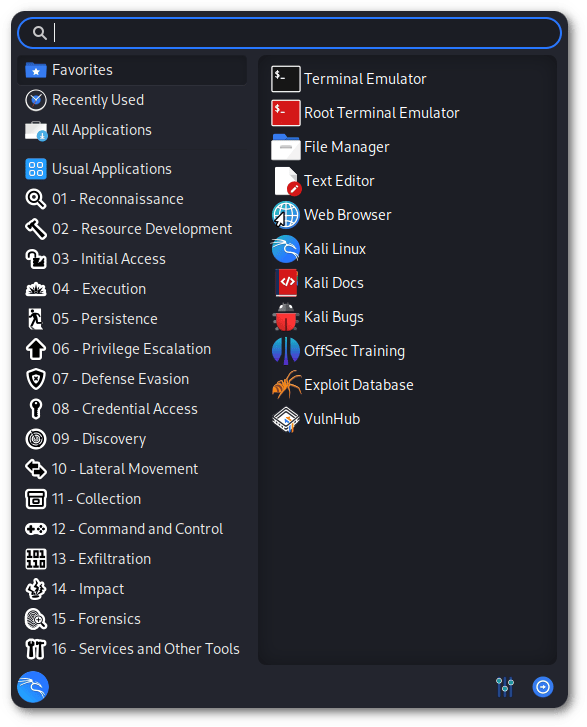
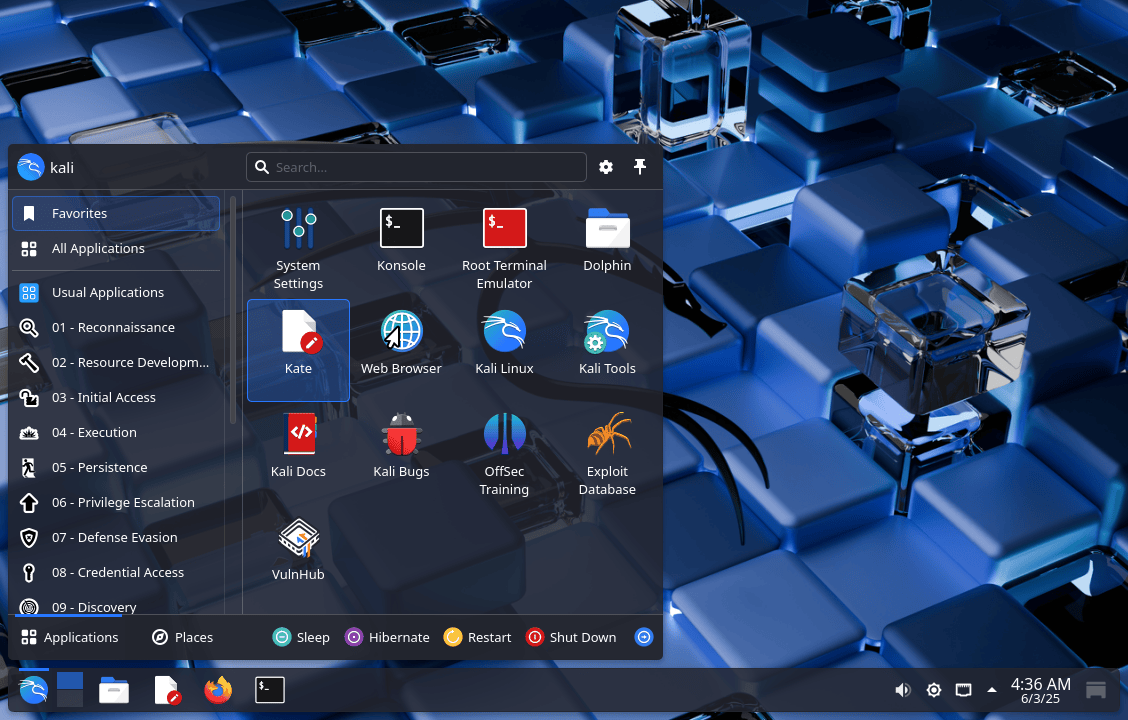
We’ve completely reworked the Kali Menu! It’s now reorganized to follow the MITRE ATT&CK framework structure – which means that finding the right tool for your task should now be a lot more intuitive for red and blue teams alike.

Previously the Kali menu structure followed what was in BackTrack… which followed WHAX before it. The previous structure was an in-house item, before MITRE was a thing. When our menu was first created, there wasn’t as much design planning done, which we suffered for later. It meant that over time, scaling and adding new tools became difficult for us. The knock on effect was that this made it harder for you, the end-users, to discover new tools as similar tools with overlapping functions were in different places or missing entries. Yes, seasoned professionals may not use the menu to start up items, using shortcuts such as super key and typing the tool name , or via a terminal window. We see the menu as a way to discover tools.

The final nail in the coffin in the setup was the fact that it was manually managed. Yes, all those entries were previously created by-hand (which also may explain a few things). As a result, we had stopped adding new tools to the menu… until now.

Now, we have created a new system and automated many aspects, making it easier for us to manage, and easier for you to discover items. Win win. Over time, we hope to start to add this to kali.org/tools/.

Currently Kali Purple still follows NIST CSF (National Institute of Standards and Technology Critical Infrastructure Cybersecurity), rather than MITRE D3FEND.

This is a big change, and we want your feedback! Think something should be renamed, moved, or see a tool that’s missing? Help us improve the menu by editing the structure directly — it’s all open and managed through a simple YAML file.

Kali Menu Refresh in Xfce

GNOME 48

GNOME has been bumped up to version 48, and brings with it:

  • Notification Stacking
  • Performance Improvements
  • Dynamic triple buffering
  • Enhanced Image Viewer
  • Digital Wellbeing
  • Preserve Battery Health
  • HDR (High Dynamic Range) Support
  • Updated Text Editor

Kali GNOME 48

As with previous GNOME updates in Kali, we’ve given all our themes a fresh coat of paint – everything’s been tuned to look sharp and feel smooth. The document reader evince has been replaced with the new papers app. If you’re rocking Kali with GNOME, this update is definitely worth the reboot. Want the full scoop? Check out the official GNOME 48 release notes.

New GNOME VPN IP Extension

Just like we did for Xfce back in Kali 2024.1, we’ve now brought the VPN IP indicator to GNOME too!

It shows the IP address of your current VPN connection right in the panel — and with a simple click, it copies it straight to your clipboard. Handy, right?

Kali GNOME VPN IP

Huge thanks to @Sarthak Priyadarshi who not only came up with the idea, but also provided all of the coding to make it happen. Community contributions like this make Kali better for everyone!

KDE Plasma 6.3

KDE Plasma fans, rejoice – we’ve included Plasma 6.3, and it’s packed with polish:

  • Huge overhaul of fractional scaling
  • Accurate screen colors when using the Night Light
  • More accurate CPU usage in system sonitor
  • Info Center provides more information, like GPUs data or batteries’ cycle counts
  • More customization features

Kali KDE Plasma 6.3

Whether you’re into tiling window madness or prefer a traditional desktop setup, Plasma 6.3 brings both flexibility and style. You can read more about all the new changes for Plasma desktop in their official release post.

New Community Wallpapers

There are also new changes in the Community Wallpapers package (pkg), including 2 new backgrounds provided by @Onix32032044 and 1 background provided by @Arszilla.

To access these wallpapers, simply install the kali-community-wallpapers package, which also offers many other stunning backgrounds created by our community contributors.

BloodHound Community Edition

If you’re doing Active Directory recon, this upgrade is a game changer. BloodHound just got a major upgrade – we’ve bumped it up to the latest version: BloodHound Community Edition (CE). With this update, we’re also shipping the full set of ingestors to support it:

Heads up: bloodhound-ce-python is the ingestor made specifically for BloodHound CE.
Don’t mix it up with the old bloodhound-python, which only work with the legacy version.

So what’s new in BloodHound CE? Expect a smoother interface, better performance, and new capabilities for mapping complex Active Directory environments.

You can check our guide about how to configure a new installation of Bloodhound-CE in Kali here.

Bloodhound CE

New Tools in Kali

It would not be a Kali release if there were not any new tools added! A quick run down of what has been added (to the network repositories):

There has also been numerous new libraries as well as packages updates as well, such as PowerShell and code-oss.

Xclip pre-installed

We’ve added xclip by default across all desktop environments in Kali.

Why? Because being able to quickly send output to the clipboard from the terminal is incredibly useful — especially during reporting, note-taking, or sharing on-the-fly.

Here are a few quick examples:

┌──(kali㉿kali)-[~/Downloads]
└─$ ip a | grep inet | xclip -selection clipboard

Boom — now your IP info is in your clipboard, ready to paste.

Or maybe you’ve just cracked a hash and want to copy the flag:

┌──(kali㉿kali)-[~/Downloads]
└─$ grep FLAG crackme.txt | xclip -sel c
# Or pass it to the next command
┌──(kali㉿kali)-[~/Downloads]
└─$ xclip -o -sel c | grep FLAG

No more mouse highlighting or right-click gymnastics. Just pipe it to xclip and paste wherever you need. Small tool, big quality-of-life boost.

Kali NetHunter Updates

Smartwatch Wi-Fi Injection

After 3 years, we are proud to introduce the first actual smartwatch that finally has wireless injection support! Thanks to the exceptional collaboration by @yesimxev and @Jakob Link from NexMon team. Countless emails, lost brain cells, but it was worth it. Now Kali NetHunter on the TicWatch Pro 3 (all variants with bcm43436b0 chipset) supports wireless injection, de-authentication, and able to capture WPA2 handshakes! Check out the install guide.


CARsenal

CAN Arsenal come with a new version by @V0lk3n. It is now renamed as CARsenal, to better match the goal which is to provide a car hacking tool set.

Code got a lot of rewrite, and provide a more friendly UI.

Also it come with new tools such as:

  • hlcand: Modified slcand for ELM327 use
  • VIN Info: Decode your VIN identifier
  • CaringCaribou: Actually provide Listener, Dump, Fuzzer, Send, UDS and XCP modules
  • ICSim: Provide a great simulator to play with VCAN and test CARsenal toolset without hardware needed

Actual kernel with CAN support enabled:

  • Samsung Galaxy S9 (A13/exynos9810)
  • Samsung Galaxy S10 (A14 & A15/exynos9820)
  • (NEW!) Realme C15 (A10)
  • (NEW!) Redmi Note 11 (A15)

Its documentations and kernel configuration has been updated as well.


Android Radio

There’s another possibly first use case of Kali NetHunter KeX running on Android radio. A teaser to the upcoming Android Auto support…


Kali NetHunter Kernels

Kali NetHunter kernels updates:

  • (NEW!) Xiaomi Redmi 4/4X (A13) (by @MomboteQ)
  • (NEW!) Xiaomi Redmi Note 11 (A15) (by @Madara273)
  • Updated Realme C15 (A10) (by @Frostleaft07)
  • Updated Samsung Galaxy S10 (A14,A15/exynos9820) (by @V0lk3n)
  • Updated Samsung Galaxy S9 (A13/exynos9810) (by @V0lk3n)

Kali ARM SBC Updates

We will start off with some Raspberry Pi updates:

  • We have combined some of our Raspberry Pi images, so that Raspberry Pi 5 does not need its own separate image . It is now supported by our 64-bit image! This is reflected by the new name of the download link on get-kali.
  • Raspberry Pi devices have had their kernel upgraded to a 6.12 based kernel. This was made possible thanks to @Nurse Jackass who add support to the brcmfmac nexmon driver.
  • Additionally, the udev rule that used to allow you to run vgencmd without requiring root rights on Raspberry Pi devices was updated, so you no longer need elevated privileges to run it.

Now onto some USB Armory MKII:

  • It also has had its kernel upgraded to a 6.12 based kernel.
  • The bootloader upgraded to 2025.04.

PowerShell on the ARM images has been bumped from 7.1.3 to 7.5.1

Build-scripts:

  • Mirror replacement is fixed, so if you want to build a custom image pointing at a specific mirror, just follow the instructions in the README
  • Occasionally there would be a build failure with no output. This was tracked down to the limit_cpu function and has been fixed so we no longer swallow the error code when there is one, and pass it on so when a failure happens we can know why.

Kali Website Updates

Kali Documentation

Our Kali documentation has had various updates to existing pages as well as new pages:

Kali Blog Recap

Since our last release, we did the following blog posts:

Kali Team Updates

It’s also with a heavy heart to announce that both @elwood as well as @gamb1t have stepped down and are no longer part of the Kali team. We hope you join us in wishing them all the best with their adventures going forward. @elwood has been part of Kali before it was called Kali and @gamb1t joined the team back in 2019. Both of them were very active and well known in Kali’s history as well as community.

Shubham Vishwakarma (@shubhamvis98) has been doing a lot of heavy lifting with Kali NetHunter Pro since the start and has now fully joined the team.

@v0lk3n has now been active and passionate for a while, with his work and efforts into the project it makes sense for him to have joined the Kali NetHunter team.

Please welcome @Aura, James Green (@greenjam94) and @Tristram as Kali’s Community Leaders! You will see them in various places, such as our real-time chat and forums. Come and say hi to them.

Community Shout-Outs

These are people from the public who have helped Kali and the team for the last release. We want to praise them for their work (we like to give credit where due!):

Anyone can help out, anyone can get involved!

The ROKFOSS initiative, by and for Korean users

In South Korea, a group of users that go by the name of ROKFOSS have been very active lately. Over the last few months, they have helped to setup new Kali Linux mirrors, and we now have a total of 6 mirrors in this country thanks to their support.

But the initiative goes further: they now provide a translation of the Kali Linux documentation in Korean, along with a chat instance.

Big thanks for this initiative!

New Kali Mirrors

We added 2 new mirrors to the pool during this release cycle:

If you have the disk space and bandwidth, we always welcome new mirrors.

Miscellaneous

Below are a few other things which have been updated in Kali, which we are calling out which do not have as much detail:


Get Kali Linux 2025.2

Fresh Images: So what are you waiting for? Go get Kali already!

Seasoned Kali Linux users are already aware of this, but for those who are not, we also produce weekly builds that you can use. If you cannot wait for our next release and you want the latest packages (or bug fixes) when you download the image, you can just use the weekly image instead. This way you will have fewer updates to do. Just know that these are automated builds that we do, not QA like we do for our standard release images. But we gladly take bug reports about those images because we want any issues to be fixed before our next release!

Existing Installs: If you already have an existing Kali Linux installation, remember you can always do a quick update:

┌──(kali㉿kali)-[~]
└─$ echo "deb http://http.kali.org/kali kali-rolling main contrib non-free non-free-firmware" | sudo tee /etc/apt/sources.list
[...]
┌──(kali㉿kali)-[~]
└─$ sudo wget https://archive.kali.org/archive-keyring.gpg -O /usr/share/keyrings/kali-archive-keyring.gpg
[...]
┌──(kali㉿kali)-[~]
└─$ sudo apt update && sudo apt -y full-upgrade
[...]
┌──(kali㉿kali)-[~]
└─$ cp -vrbi /etc/skel/. ~/
[...]
┌──(kali㉿kali)-[~]
└─$ [ -f /var/run/reboot-required ] && sudo reboot -f

You should now be on Kali Linux 2025.2. We can do a quick check by doing:

┌──(kali㉿kali)-[~]
└─$ grep VERSION /etc/os-release
VERSION_ID="2025.2"
VERSION="2025.2"
VERSION_CODENAME=kali-rolling
┌──(kali㉿kali)-[~]
└─$ uname -v
#1 SMP PREEMPT_DYNAMIC Kali 6.12.25-1kali1 (2025-04-30)
┌──(kali㉿kali)-[~]
└─$ uname -r
6.12.25-amd64

NOTE: The output of uname -r may be different depending on the system architecture.


As always, should you come across any bugs in Kali, please submit a report on our bug tracker. We will never be able to fix what we do not know is broken! And Social networks are not bug trackers!


Want to keep up-to-date easier? We’ve got you!

  •  

A New Kali Linux Archive Signing Key

TL;DR

Bad news for Kali Linux users! In the coming day(s), apt update is going to fail for pretty much everyone out there:

Missing key 827C8569F2518CC677FECA1AED65462EC8D5E4C5, which is needed to verify signature.

Reason is, we had to roll a new signing key for the Kali repository. You need to download and install the new key manually, here’s the one-liner:

┌──(kali㉿kali)-[~]
└─$ sudo wget https://archive.kali.org/archive-keyring.gpg -O /usr/share/keyrings/kali-archive-keyring.gpg

Now your Kali is ready to keep rolling! Sorry for the inconvenience.


Long version

In the coming day(s), pretty much every Kali system out there will fail to update. You are likely to see this error message when you run apt update:

┌──(kali㉿kali)-[~]
└─$ sudo apt update
Get:1 https://http.kali.org/kali kali-rolling InRelease [41.5 kB]
Err:1 https://http.kali.org/kali kali-rolling InRelease
Sub-process /usr/bin/sqv returned an error code (1), error message is: Missing key 827C8569F2518CC677FECA1AED65462EC8D5E4C5, which is needed to verify signature.
Fetched 41.5 kB in 3s (16.5 kB/s)
82 packages can be upgraded. Run 'apt list --upgradable' to see them.
Warning: An error occurred during the signature verification. The repository is not updated and the previous index files will be used. OpenPGP signature verification failed: https://http.kali.org/kali kali-rolling InRelease: Sub-process /usr/bin/sqv returned an error code (1), error message is: Missing key 827C8569F2518CC677FECA1AED65462EC8D5E4C5, which is needed to verify signature.
Warning: Failed to fetch https://http.kali.org/kali/dists/kali-rolling/InRelease Sub-process /usr/bin/sqv returned an error code (1), error message is: Missing key 827C8569F2518CC677FECA1AED65462EC8D5E4C5, which is needed to verify signature.
Warning: Some index files failed to download. They have been ignored, or old ones used instead.

This is not only you, this is for everyone, and this is entirely our fault. We lost access to the signing key of the repository, so we had to create a new one. At the same time, we froze the repository (you might have noticed that there was no update since Friday 18th), so nobody was impacted yet. But we’re going to unfreeze the repository this week, and it’s now signed with the new key.

As a result, there’s a bit of manual work for you. You need to download and install this new key manually, as such:

┌──(kali㉿kali)-[~]
└─$ sudo wget https://archive.kali.org/archive-keyring.gpg -O /usr/share/keyrings/kali-archive-keyring.gpg

If you prefer using curl, that’s just as easy:

┌──(kali㉿kali)-[~]
└─$ sudo curl https://archive.kali.org/archive-keyring.gpg -o /usr/share/keyrings/kali-archive-keyring.gpg

As a matter of good practice, you should verify that the checksum of the file matches the one below:

┌──(kali㉿kali)-[~]
└─$ sha1sum /usr/share/keyrings/kali-archive-keyring.gpg
603374c107a90a69d983dbcb4d31e0d6eedfc325 /usr/share/keyrings/kali-archive-keyring.gpg

You can also take a closer look at the new keyring, it contains the old signing key (ED444FF07D8D0BF6) and the new signing key (ED65462EC8D5E4C5):

┌──(kali㉿kali)-[~]
└─$ gpg --no-default-keyring --keyring /usr/share/keyrings/kali-archive-keyring.gpg -k
/usr/share/keyrings/kali-archive-keyring.gpg
--------------------------------------------
pub rsa4096 2025-04-17 [SC] [expires: 2028-04-17]
827C8569F2518CC677FECA1AED65462EC8D5E4C5
uid [ unknown] Kali Linux Archive Automatic Signing Key (2025) <devel@kali.org>
pub rsa4096 2012-03-05 [SC] [expires: 2027-02-04]
44C6513A8E4FB3D30875F758ED444FF07D8D0BF6
uid [ unknown] Kali Linux Repository <devel@kali.org>
sub rsa4096 2012-03-05 [E] [expires: 2027-02-04]

And as you can see, apt update still works (or works again, if you’re reading this after seeing the apt error):

┌──(kali㉿kali)-[~]
└─$ sudo apt update
[...]
68 packages can be upgraded. Run 'apt list --upgradable' to see them.

Time to update your system!

Restarting from scratch

In some cases, you might just prefer to rebuild your Kali system(s) from scratch. For that purpose, we updated all of our images so that it contains the new keyring.

Just head to Get Kali and grab the latest images. You will notice that the version in the filenames is 2025.1c. These are the exact same images as the ones we released a month ago, the only difference being that it contains the new keyring. You can also use the weekly images, starting from 2025-W17 they contain the new keyring.

We also updated Kali NetHunter, VM, Cloud, Docker, WSL, etc etc… Please ping us if you think we forgot something.

Q & A

Q. So your key was compromised and you don’t want to admit it, right?

A. No. As you can see we still include the old key in the keyring, if it was compromised we would have removed it and provided a revocation certificate.


Q. I don’t trust this new key! Are you really Kali Linux?

A. The new key is signed by some developers from the Kali team, and the signatures are available on the Ubuntu OpenPGP keyserver. You can check it out at https://keyserver.ubuntu.com/pks/lookup?search=827C8569F2518CC677FECA1AED65462EC8D5E4C5&fingerprint=on&op=index.


Q. Wait a moment, I have an impression of déjà vu

A. Back in 2018, we had let the GPG key expire accidentally… There’s still an old tweet https://x.com/kalilinux/status/959515084157538304 to testify.


More questions? Need support? Head to the Kali Linux Forums, Discord Channel or IRC Channel, at your preference, and get in touch. We’ll be happy to help.

  •  

Kali Linux 2025.1a Release (2025 Theme, & Raspberry Pi)

We are kicking off 2025 with Kali Linux 2025.1a! This update builds on existing features, bringing enhancements and improvements to streamline your experience. It is now available to download or upgrade if you’re already running Kali Linux. Kali Linux 2025.1a? What happened to 2025.1? There was a last minute bug discovered in a package after already producing our images. As a result, a re-build was needed, with a fix.

Here is a recap of the changelog since our December 2024.4 release:


2025 Theme Refresh

Just like our previous releases, the first one of the year, 20XX.1, has our annual theme refresh, a tradition that keeps our interface as modern as our tools. This year, we are excited to unveil our latest theme, thoughtfully designed to enhance the user experience from the moment you start up. Expect notable updates to the boot menu, login screen, and a stunning selection of desktop wallpapers for both Kali and Kali Purple editions. Our commitment extends beyond cybersecurity advancements; we strive to ensure that our platform’s aesthetics are just as impressive as its capabilities.

Boot Menu:

Kali 2025 Boot Menu


Login Display:

Kali 2025 Login


Desktop:

Kali 2025 Default Desktop


Kali Purple Desktop:

Kali Purple 2025 Default Desktop


New Wallpapers:

Kali 2025’s New Wallpapers

There are also new changes in the Community Wallpapers package, including 1 new background provided by Onix32032044 and 2 backgrounds that were not included in the default theme refresh.

To access these wallpapers, simply install the kali-community-wallpapers package, which also offers many other stunning backgrounds created by our community contributors.

Kali 2025’s New Community Wallpapers

Desktop Environments

KDE Plasma 6.2

After a long wait, we are excited to announce that Plasma 6 is finally available in Kali, specifically version 6.2. This is a major update, as the previous version included in Kali was Plasma 5.27, making the scope of changes difficult to summarize. For a more in-depth look at each release, check out the official announcements: 6.0, 6.1, and 6.2.

On our end, we have updated all themes to align with the new environment, featuring refreshed window and desktop visuals. And our favorite new addition from KDE? Floating panels!

Kali + KDE Plasma 6.2

Xfce 4.20

Our default desktop environment, Xfce, has also had a minor software bump from 4.18 to 4.20. Two years of development has gone this, which was formally released on December 15, 2024. It is the stable series follow-up to the Xfce 4.18 release that made its debut during Christmas of 2022 (Kali 2023.1).

Kali + Xfce 4.20

New keyboard shortcuts:

To enhance the experience for users transitioning from other operating systems, we have added a few extra keyboard shortcuts to make desktop navigation even faster:

  • Ctrl + Alt + F: File Manager
  • Super + E: File Manager
  • Super + F: File Manager
  • Super + R: Run Command (in addition to the previous shortcut Alt + F2)
  • Super + T: Open Terminal (in addition to the previous shortcut Ctrl + Alt + T)
  • Super + W: Open Browser
  • Super + F1: Find Cursor
  • Super + D: Show Desktop (in addition to the previous shortcut Ctrl + Alt + D)

Window Manager shortcuts:

  • Super + Shift + Down: Move window to monitor down
  • Super + Shift + Up: Move window to monitor up
  • Super + Shift + Left: Move window to monitor left
  • Super + Shift + Right: Move window to monitor right
  • Super + KeyPad_1: Tile window down left
  • Super + KeyPad_3: Tile window down right
  • Super + KeyPad_7: Tile window up left
  • Super + KeyPad_9: Tile window up right

You can check all the other Xfce keyboard shortcuts in the keyboard settings dialog or in the XFWM4 keyboard section.

Kali Xfce 4.20 Keyboard Shortcuts

Raspberry Pi

There has been various Raspberry Pi image changes for 2025.1a:

A newer package, raspi-firmware, is now being used. We now use the same raspi-firmware package as Raspberry Pi OS.

A new kernel, which is based on version 6.6.74 and is now from the Raspberry Pi OS kernel. It is now included in all our images, including support for the Raspberry Pi 5!

The new kernel packages are:

  • linux-image-rpi-2712 - arm64 kernel for the Raspberry Pi 5/500
  • linux-image-rpi-v8 - arm64 kernel for the Raspberry Pi 02W/2/3/4/400
  • linux-image-rpi-v7l - armhf kernel for the Raspberry Pi 02W/4/400
  • linux-image-rpi-v7 - armhf kernel for the Raspberry Pi 2/3
  • linux-image-rpi-v6 - armel kernel for the Raspberry Pi 0/0W/1

The respective header packages are linux-headers-rpi-2712, linux-headers-rpi-v8, linux-headers-rpi-v7l, linux-headers-rpi-v7, and linux-headers-rpi-v6. These headers come pre-installed on the Raspberry Pi images that we build. Additionally, 64-bit images include both 2712 and v8, while 32-bit images include v7l and v7.

The Nexmon kernel module is now DKMS-enabled and available as brcmfmac-nexmon-dkms, allowing it to be updated separately from the kernel. However, the Nexmon firmware is not included in this release. We are still evaluating the best approach to manage firmware updates with minimal disruption and will include it in a future update.

A new partition layout is introduced, mirroring Raspberry Pi OS images. The first (vfat) partition is now mounted at /boot/firmware instead of /boot. This means that if you need to modify config.txt, you should now edit /boot/firmware/config.txt. Similarly, for changes to the kernel command line, edit /boot/firmware/cmdline.txt. A /boot/config.txt file is included as a reference, containing a warning and pointing to the correct location.

Speaking of config.txt, it has now been simplified, as the newer boot firmware handles many tasks automatically.

There are a lot of changes that have happened under the hood, and as such, 2025.1a for Raspberry Pi devices means starting over from a new image, and not just following our update documentation. If you are happy with your current setup on the 5.15 kernel, updating will not break anything, as the new packages will not be installed by an update, but we highly recommend starting with a fresh image as we do not support upgrading to the new kernels.

Kali NetHunter Updates

Kali NetHunter CAN

We also have some fascinating Kali NetHunter updates for this release. Straight out of the blue, V0lk3n added the all new “CAN Arsenal” tab to NetHunter app so you can now have a car hacked straight from your pocket! He also added brand new kernels for Samsung phones, with successfully ported Samsung HID patch, which has not work since the Samsung Galaxy S7.

Our installer now comes with a dynamic wallpaper thanks to Robin. Therefore, if you want to add a new device with a unique resolution, you will not need to port an existing wallpaper. There are additionally various bug fixes from yesimxev, Robin, and g0tmi1k

We appreciate all the support coming from unofficial threads and our official Discord server. It is amazing how everyone helps each other out. This project really would not work without you!

New Kali NetHunter kernels:

  • Samsung Galaxy S9 (Exynos9810 - LineageOS 20/Android 13) - Thanks V0lk3n
  • Samsung Galaxy S10 (Exynos9820 - LineageOS 21 & LineageOS 22.1) - Thanks V0lk3n
  • Xiaomi Redmi Note 6 Pro (Android 11) - Thanks TheKidBaby

New Tools in Kali

This release, there has been more of a focus on updating packages. We also bump the Kali kernel to 6.12. Still, a Kali release would not be complete without something new being added (to the network repositories):

  • hoaxshell - Windows reverse shell payload generator and handler that abuses the http(s) protocol to establish a beacon-like reverse shell

Miscellaneous

Below are a few other things which have been updated in Kali, which we are calling out which do not have as much detail:

Kali Website Updates

We have added 3x new pages to kali.org:

Kali Wallpaper Page

Kali Documentation

Our Kali documentation has had various updates to existing pages as well as new pages:

Kali Blog Recap

Since our last release, we did the following blog posts:

Community Shout-Outs

These are people from the public who have helped Kali and the team for the last release. And we want to praise them for their work (we like to give credit where due!):

Kali Documentation:

Kali Forums:

  • @barry99705
  • @Eris2Cats
  • @Fred
  • @Serval
  • @ShadowKhan

Kali Community Wallpapers:

Packaging:

Anyone can help out, anyone can get involved!

New Kali Mirrors

We have some new mirrors! As often, listing it takes us on a trip around the world.

First, in Asia, we get 6 new mirrors:

Then in Europe, and thanks to the amazing Marc Gómez, we get 3 new mirrors in the following countries:

Finally, 2 more mirrors in Europe and Eastern Europe:

That is a total of 11 new mirrors! Huge thanks to the community for helping us distribute Kali everywhere in the world <3.

As always, if you have the disk space and bandwidth, we always welcome new mirrors.


Get Kali Linux 2025.1a

Fresh Images: So what are you waiting for? Go get Kali already!

Seasoned Kali Linux users are already aware of this, but for those who are not, we also produce weekly builds that you can use. If you cannot wait for our next release and you want the latest packages (or bug fixes) when you download the image, you can just use the weekly image instead. This way you will have fewer updates to do. Just know that these are automated builds that we do, not QA like we do for our standard release images. But we gladly take bug reports about those images because we want any issues to be fixed before our next release!

Existing Installs: If you already have an existing Kali Linux installation, remember you can always do a quick update:

┌──(kali㉿kali)-[~]
└─$ echo "deb http://http.kali.org/kali kali-rolling main contrib non-free non-free-firmware" | sudo tee /etc/apt/sources.list
[...]
┌──(kali㉿kali)-[~]
└─$ sudo apt update && sudo apt -y full-upgrade
[...]
┌──(kali㉿kali)-[~]
└─$ cp -vrbi /etc/skel/. ~/
[...]
┌──(kali㉿kali)-[~]
└─$ [ -f /var/run/reboot-required ] && sudo reboot -f

You should now be on Kali Linux 2025.1a. We can do a quick check by doing:

┌──(kali㉿kali)-[~]
└─$ grep VERSION /etc/os-release
VERSION="2025.1"
VERSION_ID="2025.1"
VERSION_CODENAME="kali-rolling"
┌──(kali㉿kali)-[~]
└─$ uname -v
#1 SMP PREEMPT_DYNAMIC Kali 6.12.13-1kali1 (2025-02-11)
┌──(kali㉿kali)-[~]
└─$ uname -r
6.12.13-amd64

NOTE: The output of uname -r may be different depending on the system architecture.

As always, should you come across any bugs in Kali, please submit a report on our bug tracker. We will never be able to fix what we do not know is broken! And Social networks are not bug trackers!

Want to keep up-to-date easier? We’ve got you!

  •  

Kali Linux On The New Modern WSL

Late last year we had the pleasure of being reached out to by Microsoft in regards to participating in the launch of the new, modern, WSL distribution architecture. In summary, this new architecture allows for easier distribution and installation of WSL distros. For the full explanation of how this works, please view Microsoft’s blog post and their documentation.

With the assistance of Microsoft’s WSL team, we are proud to say that we were the first Linux distro to be accepted onto this new modern distribution list. In this blog post we will cover the journey and share how you can try out this new architecture, but if you are just looking for the hands on portion then please see here.

Kali and WSL’s history

Kali has had a long history of active support for WSL and the team running it. When we first got the email about the new distribution architecture and how it would be used, we were very interested in it.

For those who aren’t familiar with how WSL works, previously it took a few steps for us to get a new version onto the Microsoft store:

  • First we would have to build the root filesystem (rootfs) and compress it into a tarball. This is done through our build script and can be done on most systems and OSs.
  • After we have our compressed rootfs we would need to move it to a Windows system that has Visual Studio installed and configured for our needs. For a bit more information on this configuration, please see our readme in our GitLab.
  • Once we have Visual Studio set up and configured correctly, we would have to import the compressed rootfs and begin building the app. This is as easy as clicking a few buttons after you have it initially configured and know the output is good.
  • From here we then upload the build app bundle to Microsoft’s store, which then needs to be reviewed and approved.

Overall, not a long or taxing process. However, with the new distribution architecture all of this can be cut down into just two steps.

In fact, if we so chose, we could actually just build the rootfs and allow users to download the file and use it themselves. But why is this?

The new WSL modern distribution architecture

This new architecture comes along with some new files that are used. These files, which are included in the rootfs, indicate to WSL what to do with the tarball. These files include information such as the Linux distribution’s name, icon, user settings, and even what should be done on first boot.

With these files in place, WSL is able to import the rootfs tarball directly and get the WSL distro properly installed and configured. And if you are on a certain version of WSL or later (currently only available in pre-release) you will be able to double-click on any .wsl extension tarball and instantly install that WSL distro.

As this is a basic outline of how this architecture works for end users, if you are interested it is worth reading Microsoft’s blog post and documentation shared at the start of this blog.

Kali on the new distribution architecture

After receiving the email from the WSL team in November, 2024, we immediately began to update our build scripts to utilize this new feature. We created the necessary files and a basic out of box experience (oobe) script for WSL to use. After building it and testing it, we were impressed on how easy it was to use.

After the new year started we began to convert our existing build pipeline to fully utilize the new features offered in WSL. We modified our build script to include all of the new files, changed our build box to rename the tarball output into a .wsl extension, and are now utilizing kali.download, our Cloudflare mirror, to distribute the new file.

How you can test this new WSL

The first thing you will need to do is be on the pre-release version of WSL. Run the following command in the Windows terminal:

wsl --update --pre-release

After this is installed, you should then be able to use .wsl files. To test this, go to our kali.download page and download the .wsl file for your computer’s architecture. Likely this will be amd64.

Alternatively, you can run the following command in your Windows terminal:

wsl.exe --install kali-linux

We hope that you appreciate and enjoy this new development for WSL as much as we do. Who knows what the future has in store for Kali on WSL, you may just see some new more complete Kali installs with this new easy to install .wsl file.

  •  

Kali Linux 2024.4 Release (Python 3.12, Goodbye i386, Raspberry Pi Imager & Kali NetHunter)

Just before the year starts to wrap up, we are getting the final 2024 release out! This contains a wide range of updates and changes, which are in already in effect, ready for immediate download, or updating.

The summary of the changelog since the 2024.3 release from September is:


A New Python Version: 3.12

Python 3.12 is now the default Python interpreter. While it was released upstream a year ago , it took a bit of time to become the default in Debian , and then even more time to make it to Kali Linux , but finally it’s here. Every new version of Python brings along some deprecations or subtle changes of behavior, which in turn breaks some Python packages, and we have to investigate and fix all the issues reported by our QA system. Hence the delay.

There is a major change with this new Python version: installing third-party Python packages via pip is now strongly discouraged and disallowed by default . This change has been coming for a long time, we wrote about it 18 months ago already , been given little reminders in each release blog post since and we gave another push about it in the 2024.3 release blog post. Now it’s finally effective.

pip users, fear not! It’s not the end of the world: there is pipx as a replacement. On the surface, it provides a similar user experience, but under the hood it overcomes the one outstanding issue with pip: the lack of environment isolation.

For more details, please check our dedicated documentation page: Installing Python Applications via pipx. If you still have a hard time running a third-party Python application in Kali, please reach out to us via our bug tracker.

The End Of The i386 Kernel And Images

…but not packages.

History lesson: i386 is a 32-bit CPU architecture, maybe more widely known by the name x86. It was the CPU architecture of the first generations of Intel Pentium, AMD K6, and Athlon. In short, it was ubiquitous in personal computers back in the 90s. Starting in 2003, a 64-bit version of the x86 architecture appeared, usually named x86-64 (or amd64 in Debian-based Linux distributions). It marked the end of the 32-bit x86 CPUs.

Despite being long obsolete, this architecture remained supported in software for years. 2019 was the year when major Linux distributions (Fedora 31 & Ubuntu ) started to drop it. Finally, in October 2024, Debian stopped building a i386 kernel (and OS images, as a consequence). Kali Linux, being based on Debian, follow suit: images and releases will no longer be created for this platform.

It’s important to note that this is not an instant death for i386 though. This is not how architectures die. The i386 kernel and images are gone, however i386 packages in general are not removed from the repository. It means that it’s still possible to run i386 programs on a 64-bit system. Either directly via the package manager (APT supports installation of i386 packages on a amd64 system), or via i386 Docker images.

With time, surely more and more i386 packages will disappear, but nobody really knows in advance which packages and ecosystems will go first, and how long others will remain. In particular, one of the biggest areas that keeps i386 alive is gaming: old games that were compiled for 32-bit x86 are still around, and enjoyed by gamers. As a consequence, there are people out there putting effort into keeping it working, and we can hope that a baseline of i386 packages will remain functional for the time being.

If you are impacted by this change and need more guidance to run your i386 binaries on Kali Linux, please reach out to us via our bug tracker, we will do our best to help.

Deprecations In The SSH Client: DSA keys

The latest version of OpenSSH (9.8p1) , available in this release of Kali Linux, deprecates DSA keys for good. If you need this support to connect to very old SSH servers, you will need to use the command ssh1 instead of ssh. Let’s take this chance to review how Kali Linux deals with SSH deprecations, and what it provides to make it easier to use the SSH client for pentesting purpose.

Out of the box, Kali comes with a “standard” SSH client, as provided by Debian. It means that SSH is pre-configured with security in mind: some legacy ciphers and algorithms are disabled by default, to prevent you from using potentially weak encryption without knowing.

For pentesting purposes though, we often need to use all these legacy features, because we need to know if the server that we target has it enabled. To easily enable all the legacy features at once, we provide the command-line tool kali-tweaks. This tool is a simple menu that allows you to configure various aspects of Kali. In the Hardening section, you can configure SSH for Wide Compatibility (instead of the default Strong Security), and that’s all you need to do to maximize the capabilities of your SSH client.

With that said, when some legacy features are not even compiled in the SSH client anymore (as is the case with DSA keys), you will need to resort to another SSH client: ssh1. ssh1 comes pre-installed in this new release of Kali Linux. In practicality, ssh1 is the SSH client frozen at version 7.5 (released in March 2017). This is the last release of OpenSSH that supports the SSH v.1 protocol, and of course it also supports DSA keys. If you target very old SSH servers, you might need to use this client, assuming you are using the SSH client directly from the command-line. However, if you use it indirectly (via some tool that uses SSH), it’s possible that the tool does not know about the ssh1 command, so in practice you will lose support for DSA keys with this new Kali release. If you are in this situation, talk to us (via our our Discord server or our bug tracker), and we might be able to help.

All of this information (and more) is available in our documentation.

Raspberry Pi Imager Customizations Support

The moment that Pi users have been waiting for has arrived! We are thrilled to announce that Kali’s Raspberry Pi images now support applying customizations directly from the Raspberry Pi Imager software! This is a huge step forward, and we are so excited to bring this much-requested feature to our users. Whether you are a seasoned pro or just getting started, this update is going to make your Raspberry Pi experience even more seamless.

Raspberry Pi Imager Prompt

For those who might not be familiar with the Raspberry Pi Imager, it was first introduced in 2020 by the Raspberry Pi Foundation. This incredibly handy tool allows users to easily write Raspberry Pi operating system images onto an SD card or USB drive with just a few clicks. But that’s not all — it also lets you apply essential customizations before you even boot up your Pi! You can pre-configure a range of settings, from setting a custom username and password to choosing a hostname, connecting to a Wi-Fi network, and even adding an SSH key for remote access.

Raspberry Pi Imager General Settings

With this latest release, you can now apply these customizations to all Raspberry Pi images — with the exception of the PiTail images, which are highly specialized with their own network and user settings. Unfortunately, due to these customizations, applying them via the Raspberry Pi Imager software is not supported for PiTail images. But for everything else, the sky’s the limit!

Raspberry Pi Imager Service Settings

How Does It Work?

The magic happens when you write a Raspberry Pi image to your SD card or USB drive using the imager software. If you choose to enable customizations, the settings are stored in two key files on the /boot partition of the drive:

  1. user-data: This file contains all your personal settings, including the username and password, any locale or timezone preferences, and even your SSH public key (if you have chosen to enable SSH).
  2. network-config: Here you will find your Wi-Fi network settings, including the pre-computed PSK (Password Security Key) for seamless connectivity.

Once the Raspberry Pi boots for the first time, these files will apply the custom settings automatically.

A quick tip: Do not forget to delete these files after the first boot to keep things secure.

Default Settings For Non-Customized Images

For users who do not wish to enable customizations, do not worry! The default settings for Raspberry Pi images will remain the same, with kali/kali for the username and password.

GNOME 47

We are excited to announce that the latest update to the GNOME Desktop, GNOME 47, is now available! This update brings numerous changes and desktop enhancements, but the most notable feature is the new support for accent color customization. You can now choose your favorite color for window and shell widgets, giving you more control over your desktop’s look and feel.

From Kali’s side, we have also worked on synchronizing this new setting with the icon theme and legacy GTK window themes to ensure a cohesive visual experience. To complement this feature, we have created multiple variants of the icon theme to match each accent color. These themes are also available across other desktop environments, allowing you to personalize your Kali experience.

Other Improvements:

  • New login theme

Kali GNOME 47 Login Them

  • New system-monitor panel extension

Kali GNOME panel system monitor

  • Improved color-schemes for gnome-text-editor

Kali Forums Refresh

A couple of weeks ago we launched the refresh of our Kali Forums. With this refresh we are now running a Discourse-powered forum with a new set of moderators thanks to our community moderators from Discord. We are very happy with the activity we have seen on it so far and hope to see you there!

For more information, please check out our blog post about the refresh.

Kali Discourse Forums

New Tools In Kali

As always, we have various new tools added (to the network repositories) - 14 this time! Summarizing what has been added:

  • bloodyad - Active Directory privilege escalation framework (Submitted by Arszilla)
  • certi - Ask for certificates to ADCS and discover templates (Submitted by Arszilla)
  • chainsaw - Rapidly search and hunt through Windows forensic artefacts (Submitted by Arszilla)
  • findomain - Fastest and most complete solution for domain recognition (Submitted by Arszilla)
  • hexwalk - Hex analyzer, editor and viewer
  • linkedin2username - Generate username lists for companies on LinkedIn
  • mssqlpwner - Interact and pwn MSSQL servers
  • openssh-ssh1 - Secure SHell (SSH) client for legacy SSH1 protocol
  • proximoth - Control frame attack vulnerability detection tool (Submitted by TechnicalUserX)
  • python-pipx - Execute binaries from Python packages in isolated environments
  • sara - RouterOS Security Inspector (Submitted by casterbyte)
  • web-cache-vulnerability-scanner - Go-based CLI tool for testing for web cache poisoning (Submitted by Arszilla)
  • xsrfprobe - An advanced Cross Site Request Forgery (CSRF/XSRF) audit and exploitation toolkit.
  • zenmap - The Network Mapper (nmap) front end (zenmap-kbx is no longer needed!)

There have also been numerous packages updates and new libraries as well. We also bump the Kali kernel to 6.11!

Kali NetHunter Updates

…There’s a lot here!

App

For the Kali NetHunter app, we are very glad to introduce the Mana toolkit replacement, Wifipumpkin3. After years of silence regarding android restrictions, yesimxev’s research solved the Android IP rules mystery and he added Wifipumpkin3, which allows you to create a fake AP with working internet, even on mobile network!

wifipumpkin3 tool logo

We have a quick demo of Wifipumpkin3 in action if you want to see the results.


Sticking with the Kali NetHunter app, @yesimxev has added a new tab, kernel, which will allow people to flash their kernel without using recovery - direct from the app!

Store

NetHunter Store

The Kali NetHunter store has had a (long overdue) update. This is powered by F-Droid, and completely open-source, including the website, the metadata and the apps (#1 & #2) that goes with it.

We hope to work on the store more over the next few Kali releases.

At the same time, we have generated new certificates & keys, so please do not be alarmed of the change.

  • GPG Key: AA 12 5C D4 16 57 56 83 93 BD 57 5E E1 4B 60 F8 EF 29 08 9C
  • Repo Certificate: aa:cb:a8:f5:23:89:39:f9

We have also bump’d privileged extension app to the latest version upstream too.

Installer

The Kali NetHunter installer has had some work on it too! It now has a new home in its own git repo (so does rootfs & rootless) .

Currently its possible to install Kali NetHunter using either methods:

  • Recovery (we recommend using TWRP) - the original method
  • Magisk (which also give “root” permissions) - the future method

We have been supporting both methods for a while, and tried to keep them in sync with each other (as much as possible). Long term, we will be putting our focus into Magisk method (as that is our preferred method of “root” access).

As of Kali 2024.4, the installer now supports fully supports Magisk (able to flash the kernel) and also added support for v28 and higher! As well as installing via command line (Magisk & TWRP), thanks to adb! There has been work done also for APatch and KernelSU.

There has also been a ton of bug fixes and improvements made too.

Website

Another Kali NetHunter change happened is our NetHunter subdomain website (which is automated CI output).

The new structure should give an easier overview and understanding of the whole process":

Kernel/Device

From a Kali NetNethunter kernel/device point of view:

  • We now support 100 devices!
    • Added support to Realme X7 Max 5G (RMX3031) (Thanks dek0der)
    • Added support to Xiaomi Mi 9 Lite / CC9 (pyxis)
    • Updated support for Nokia 6.1 & 6.1 Plus (drg)
    • Updated support for Realme C11 (RMX2185) (Thanks Frostleaft07)
    • Updated support for Xiaomi Mi 9T (davinci)
    • Updated support for Xiaomi Mi A3 (xiaomi-laurel)
    • Updated support for Xiaomi Pocophone F1 (beryllium)
  • First Android 15 device support (Xiaomi Mi A3 (xiaomi-laurel))
  • Generating a lot more pre-created images
  • The “body of knowledge” file, devices.cfg, which indexes everything, has now been turned into YAML, devices.yml.

Package

The nethunter-utils package has a new home too. And to go with it, Robin has done a lot of audio work.

Kali NetHunter Pro Updates

Just a quick message to say that Kali NetHunter Pro now includes “NetHunter” and “Hijacker” apps.

And if you are trying to enable On-The-Go (OTG) on Xiaomi Pocophone F1 and OnePlus 6/6T, you may want to watch this guide.

Kali ARM SBC Updates

Alongside the customizable Raspberry Pi images, we have packed in several other improvements:

  • Raspberry Pi 500 Support: The Raspberry Pi 5 image should also have support for the recently announced Raspberry Pi 500 however, we do not have the hardware to test, so please let us know if you do!
  • Raspberry Pi 5:
    • By default, KMS (Kernel Mode Setting) is now enabled for a smoother graphical experience. If you prefer to disable it, just comment out the dtoverlay=vc4-kms-v3d line in the /boot/config.txt file.
    • Auto Detection Enhancements: We have added improved detection for DSI displays and cameras. The system will automatically load the appropriate overlays, saving you time and effort during setup. It will not work for every one, but it should work for most.
  • Gateworks Newport: The second partition on the Gateworks Newport image is no longer set as bootable.
  • USB Armory MKII: We have upgraded to u-boot 2024.10, the latest version of the bootloader that it uses.
  • Console Fix: The character map has been set to UTF-8, so you will no longer experience corrupt characters at the console. If you are upgrading an existing installation, you can fix this by editing the /etc/default/console-setup file and setting CHARMAP="UTF-8".
  • BeagleBone Black: Thanks to a community member, the Beaglebone Black build script (which is community supported) is now able to build images successfully again.

Kali Website Updates

Kali Documentation

Our Kali documentation has had a few various major updates to existing pages as well as new pages:

This does not include numerous minor tweaking, or typo fixing!

Kali Blog Recap

Recapping since since our last release, we did the following blog posts:

Community Shout-Outs

These are people from the public who have helped Kali and the team for the last release. And we want to praise them for their work (we like to give credit where due!):

Anyone can help out, anyone can get involved!

Miscellaneous

Below are a few other things which have been updated in Kali, which we are calling out which do not have as much detail:


Get Kali Linux 2024.4

Fresh Images: So what are you waiting for? Go get Kali already!

Seasoned Kali Linux users are already aware of this, but for those who are not, we also produce weekly builds that you can use. If you cannot wait for our next release and you want the latest packages (or bug fixes) when you download the image, you can just use the weekly image instead. This way you will have fewer updates to do. Just know that these are automated builds that we do, not QA like we do for our standard release images. But we gladly take bug reports about those images because we want any issues to be fixed before our next release!

Existing Installs: If you already have an existing Kali Linux installation, remember you can always do a quick update:

┌──(kali㉿kali)-[~]
└─$ echo "deb http://http.kali.org/kali kali-rolling main contrib non-free non-free-firmware" | sudo tee /etc/apt/sources.list
[...]
┌──(kali㉿kali)-[~]
└─$ sudo apt update && sudo apt -y full-upgrade
[...]
┌──(kali㉿kali)-[~]
└─$ cp -vrbi /etc/skel/. ~/
[...]
┌──(kali㉿kali)-[~]
└─$ [ -f /var/run/reboot-required ] && sudo reboot -f

You should now be on Kali Linux 2024.4. We can do a quick check by doing:

┌──(kali㉿kali)-[~]
└─$ grep VERSION /etc/os-release
VERSION_ID="2024.4"
VERSION="2024.4"
VERSION_CODENAME=kali-rolling
┌──(kali㉿kali)-[~]
└─$ uname -v
#1 SMP PREEMPT_DYNAMIC Kali 6.11.2-1kali1 (2024-10-15)
┌──(kali㉿kali)-[~]
└─$ uname -r
6.11.2-amd64

NOTE: The output of uname -r may be different depending on the system architecture.

As always, should you come across any bugs in Kali, please submit a report on our bug tracker. We will never be able to fix what we do not know is broken! And Social networks are not bug trackers!

Want to keep up-to-date easier? We have got you!

  •  
❌