Imagine handing your smartphone over for repair. A couple of days later, you pick it up — and great, it’s working again! But you won’t even realize that your device has been injected with malicious code, allowing attackers to access your smartphone even when it’s locked.
This is the beginning of the story shared by Kaspersky ICS CERT researchers, Alexander Kozlov and Sergey Anufrienko, at the Black Hat Asia 2026 conference. They managed to uncover a vulnerability that flips conventional assumptions about smartphone and IoT security on their head. Its core lies at the very heart of Qualcomm chips.
What is BootROM?
To grasp the severity of this discovery, we first need to look at how a modern device powered by a Qualcomm chip boots up. Think of it as a fortress with multiple layers of security. Each subsequent layer verifies the pass issued by the previous one. The bedrock foundation — the most trusted layer of them all — is the BootROM, a read-only memory baked directly into the silicon that can’t be modified once it comes off the fab.
The BootROM is the very first thing to run when a device powers on. It verifies the signature of the next bootloader, which in turn verifies the next, building a chain of trust all the way up to the operating system. If an attacker can compromise this chain at the BootROM level, it’s game over: the malicious code will execute before the main operating system even has a chance to load.
This is exactly what attackers can do by exploiting the CVE-2026-25262 vulnerability discovered by Kaspersky ICS CERT researchers.
Emergency Download Mode as an entry point
The research began with a protocol called Sahara. This is a component of Emergency Download Mode (EDL). Manufacturers and service centers use it to revive bricked devices: the phone is connected to a computer via USB, and a special utility program signed by the manufacturer (in this case, Qualcomm) is uploaded to it.
Sahara is implemented directly within the ARM PBL (Primary Boot Loader) — the BootROM itself. This means the protocol runs before any operating system boots, before any user access privileges are checked, and before any security controls are activated. The device simply waits for a USB connection, ready to accept data.
The communication scheme looks simple: the device sends a handshake (HELLO) to the computer, the computer selects the mode, a cycle begins to upload the utility program in chunks, and finally, the device executes the uploaded code. And it was within the verification logic of these very file chunks that the vulnerability was identified.
Write-what-where: the core of the vulnerability
In technical terms, the bug introduced by the developers is classified as CWE-123: Write-What-Where Condition. This is about as bad as it gets when it comes to flaws in low-level programming. An attacker can write arbitrary data to an arbitrary address in the device memory.
Without diving too deep into the technical weeds, suffice it to say that by exploiting the discovered vulnerability, attackers can gain access to any data on the device, including user-entered passwords, files, contacts, geolocation data, as well as the hardware sensors like the camera and microphone. In certain scenarios, complete control over the device is possible. Just a few minutes of physical access to the device via a cable connection, and the gadget has been compromised. This creates a risk if you hand your smartphone over to a repair shop, pass it to someone else to set up and install apps on, or just leave it unattended.
Which devices are affected
The CVE-2026-25262 vulnerability affects the following Qualcomm chip series: MDM9x07, MDM9x45, MDM9x65, MSM8909, MSM8916, MSM8952, and SDX50 — every single version released to date, until the vulnerability is patched by the manufacturer.
These are no obsolete museum pieces. The MDM9207, which we used for the bulk of our research, is integrated into modem modules for the internet of things (IoT), industrial equipment, smart home devices, healthcare monitoring systems, logistics trackers, and banking terminals. The MSM8916 powers many budget smartphones, while the SDX50 is used in automotive control units.
How vulnerable devices get attacked
The catch is that the attacker needs physical access to the device to pull this off. In the real world, this translates to:
Smartphone repairs at third-party repair shops, where the phone is left for several hours
Customs checkpoints in certain countries, where devices are withheld, inspected, and then returned
Lost and found scams, where your phone is stolen, tampered with, and then mysteriously found
Corporate espionage via an insider or a rogue employee
With just a few minutes of physical access to the device an attacker can plant a backdoor so deep inside that standard research tools won’t even detect it in most cases.
Why there’s no patch — and what to do
Qualcomm was notified of the discovery in March 2025 and confirmed the vulnerability in its chips. To identify it, the vendor reserved CVE-2026-25262, and on April 20, 2026, Kaspersky ICS CERT published technical information on the vulnerability and recommendations for users.
Qualcomm included this vulnerability in its May security bulletin. While fixing already-made devices is fundamentally impossible, the company promised to make all future chips without this vulnerability.
If you currently own a device with an affected chip, use our recommendations below to help mitigate the risk of infection.
Enforce strict physical control: don’t leave your devices unattended, especially when traveling or on business trips.
Choose only authorized service centers for repairs and maintenance.
Regularly update your firmware — this won’t patch the BootROM vulnerability, but it can eliminate many related vulnerabilities at higher levels.
Use a Kaspersky for Android on your device. This will safeguard your gadget from other threats that, combined with this vulnerability, could lead to unpredictable consequences.
If you notice that your gadget with a vulnerable Qualcomm chip starts acting up — overheating when idle, reporting unexpected spikes in network traffic, or exhibiting strange app behavior — you may have fallen victim to this vulnerability. You can wipe the malicious code and reset your device to its baseline state simply by completely cutting its power. This means either pulling the battery or letting it drain all the way to zero until the gadget shuts down entirely. In this case, the malicious code will most likely not persist on the device — during our research, we were unable to confirm that it could achieve persistence in non-volatile memory.
Want to learn more about severe vulnerabilities in Android phones? Check out these posts:
Netflix, Apple TV+, Disney+, Hulu, Amazon Prime, YouTube Premium… The average law-abiding family today pays for five to 10 subscriptions just to watch their shows of choice, with the monthly bill easily crossing the hundred-dollar mark. It’s no surprise, then, that social media and online marketplaces are seeing a surge in demand for the “magic boxes” that popped up at the end of 2025: Android-powered TV boxes that promise to unlock thousands of channels and every streaming service subscription-free for a one-time purchase.
Ads for these devices are flooding TikTok and Instagram: smiling influencers unbox the SuperBoxes, plug them into a TV, and browse endlessly through channels. It looks like the ultimate life hack against subscription fatigue, right? In reality, it’s one of the easiest ways to invite a botnet into your home network.
A promotional video on TikTok explaining how great it is when the cheese is free you can just go ahead and cancel all your subscriptions
What’s wrong with these cheap TV boxes?
Stories about malicious TV boxes have surfaced before, but right now, their marketing has reached a truly alarming scale.
At the end of 2025, analysts examined several models of the popular SuperBox device available from major retail stores and online marketplaces. The findings were deeply concerning: immediately upon powering up, the devices began pinging the servers of the Chinese messaging app Tencent QQ, as well as the Grass proxy service — effectively renting out the owner’s internet bandwidth to third parties.
Inside the firmware, researchers discovered applications completely uncharacteristic of a media player: a network scanner, a traffic analyzer, and tools for DNS hijacking. Consequently, the device not only streams pirated content but also scans the local network for other targets (including industrial SCADA interfaces), and stands ready to participate in DDoS attacks. The SuperBoxes were also found to contain folders with the telltale name “secondstage”, a textbook indication of multi-stage malware.
More recently, in April 2026, the Darknet Diaries podcast featured an interview with a security researcher known by the alias D3ada55, who shared plenty of intriguing details about these boxes — including the fact that they were still openly sold on major platforms like Amazon, Walmart, and Best Buy.
The infection chronicles: BADBOX to Keenadu
The SuperBox case is far from the only instance where Android devices have been turned into botnet nodes — or sold infected right out of the box. Here’s a look at the most recent cases:
BADBOX 2.0. In July 2025, Google filed a lawsuit against the operators of a botnet that compromised over 10 million Android devices — mostly cheap TV boxes, tablets, and projectors lacking Google Play Protect certification. As we reported earlier, BADBOX 2.0 specifically targets TV boxes, operating simultaneously as a proxy network and an ad fraud engine.
Kimwolf. In December 2025, the QiAnXin XLab team uncovered a DDoS botnet that had hijacked around 1.8 million Android devices. The infected hardware included generic models from off-brand manufacturers sporting high-profile names like TV BOX, SuperBox, XBOX, SmartTV, and others. The infection footprint was massive, with compromised devices shipped worldwide. Among the hardest-hit countries were Brazil, India, the U.S., Argentina, South Africa, the Philippines, and Mexico.
Keenadu. Our experts discovered this malware lurking in the firmware of brand-new devices back November 2025, though it didn’t gain widespread attention until after we published a study about it in February 2026. Keenadu masquerades as legitimate system components, embedding itself even into facial-recognition unlock apps, potentially granting attackers access to biometrics, banking data, and personal messages.
All of these stories share the same origin: the Triada Trojan, first documented by our researchers back in 2016 and dubbed at the time “one of the most advanced mobile Trojans”. Over the past decade it has evolved from a standard piece of malware into a modular backdoor baked directly into firmware during manufacturing.
How the infection scheme works
Manufacturers of cheap TV boxes cut corners on absolutely everything: Google Play Protect certification, firmware audits, and security updates. Many of these devices run on the Android Open Source Project without any security guarantees whatsoever. Somewhere along the supply chain — whether at the factory, through a middleman, or at a distributor — a backdoor gets injected into the firmware image. Our experts suspect that the manufacturer itself might not even be aware of the compromise.
The sheer scale of the infection turns millions of identical boxes into the perfect foundation for a botnet: every compromised device represents a unique IP address that can be rented out to anyone. Botnet operators like Kimwolf monetize this not only through distributed DDoS attacks but also by reselling the bandwidth of infected smart TVs and streaming boxes.
What this means for you
An infected TV box sits right in your living room, connected to your home Wi-Fi. That means it can see smartphones running banking apps, network-attached storage (NAS) units holding family archives, IP cameras, smart locks, work laptops, and any other the devices connected to your Wi-Fi network.
With this kind of beachhead inside your home network, an attacker can intercept unencrypted traffic, spoof DNS requests, scan ports, and hunt for vulnerabilities on neighboring devices. On top of that, they can use your IP address for fraudulent activity. As a result, in the best-case scenario, your IP will end up blacklisted, and legitimate services will start blocking you for suspicious activity; in the worst-case scenario, law enforcement could come knocking on your door.
How to spot a potentially dangerous gadget
You should be on alert if a device:
Is sold under a no-name brand like T95, X96Q, MX10, TV BOX, SuperBox, or some such
Promises free lifetime access to paid premium services for a one-time fee
Requires you to disable Google Play Protect, or install third-party APK files during the initial setup
Lacks Play Protect certification entirely
Is promoted through aggressive spam campaigns on social media
How to avoid hosting a botnet node
Buy certified TV boxes that feature Google Play Protect, or purchase devices directly from reputable telecom operators and internet service providers.
Isolate all smart home devices. Set up a separate Wi-Fi network on your home router for TV boxes, cameras, smart speakers, robot vacuums, and similar gear, while keeping smartphones, NAS units, and computers on the main network. This prevents malware from spreading to your critical gadgets.
Regularly update the firmware on all your devices, and don’t forget about your router — it’s another vulnerable link in the chain.
Remove any applications from your Android TV box that you didn’t install yourself, especially alternative app stores, Wi-Fi “boosters”, and “system cleaners”.
Monitor your traffic. Modern routers and Kaspersky Premium can display which devices are connecting to where. Frequent connections from a media player to servers in China are a major security red flag.
Install Kaspersky Premiumon all your devices — it protects against Trojans, and blocks the phishing pages often used to distribute infected APK files.
Don’t disable Google Play Protect, and avoid installing APKs from shady sources — this is the primary infection vector that bypasses the official app store.
If in doubt, return the TV box. A cheap streaming device isn’t worth risking your biometrics, banking data, or the reputation of your IP address.
Want to know how else to protect your smart home devices? Read more in our related posts:
To achieve their malign aims, Android malware developers have to address several challenges in a row: trick users to get inside their smartphones, dodge security software, talk victims into granting various system permissions, keep away from built-in battery optimizers that kill resource hogs, and, after all that, make sure their malware actually turns a profit. The creators of the BeatBanker — an Android‑based malware campaign recently discovered by our experts — have come up with something new for each one of these steps. The attack is (for now) aimed at Brazilian users, but the developers’ ambitions will almost certainly push them toward international expansion, so it’s worth staying on guard and studying the threat actor’s tricks. You can find a full technical analysis of the malware on Securelist.
How BeatBanker infiltrates a smartphone
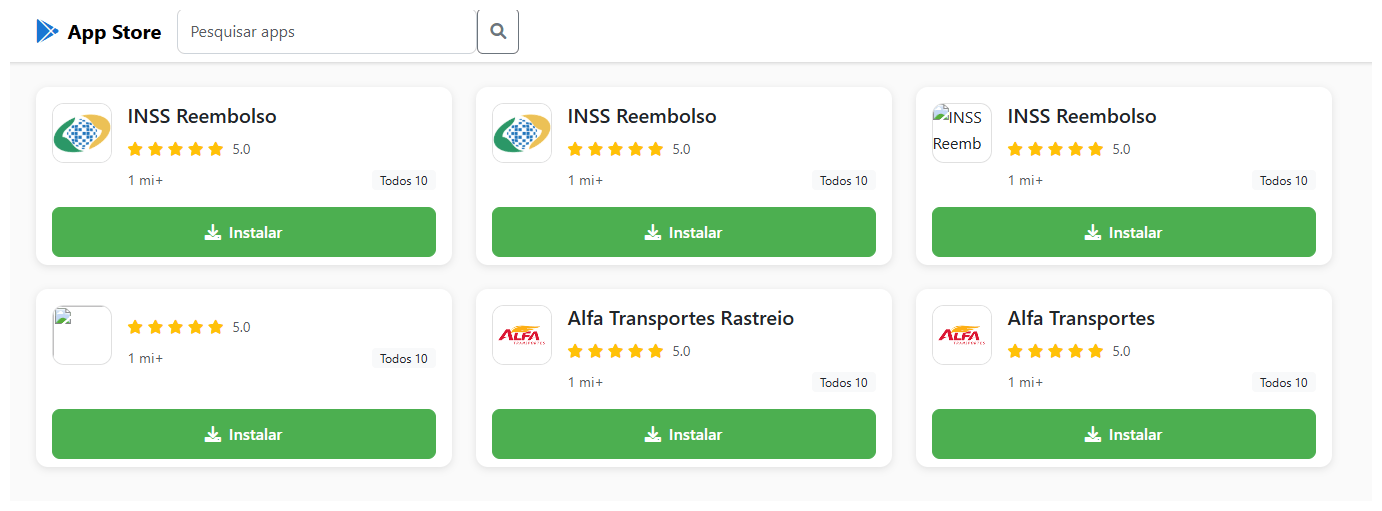
The malware is distributed through specially crafted phishing pages that mimic the Google Play Store. A page that’s easily mistaken for the official app marketplace invites users to download a seemingly useful app. In one campaign, the trojan disguised itself as the Brazilian government services app, INSS Reembolso; in another, it posed as the Starlink app.
The malicious site cupomgratisfood{.}shop does an excellent job imitating an app store. It’s just unclear why the fake INSS Reembolso appears all of three times. To be extra sure, perhaps?!
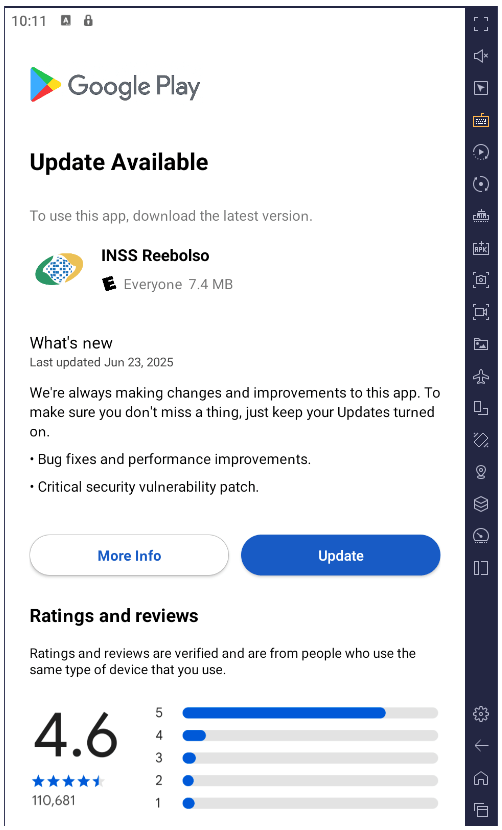
The installation takes place in several stages to avoid requesting too many permissions at once and to further lull the victim’s vigilance. After the first app is downloaded and launched, it displays an interface that also resembles Google Play and simulates an update for the decoy app — requesting the user’s permission to install apps, which doesn’t look out-of-the-ordinary in context. If you grant this permission, the malware downloads additional malicious modules to your smartphone.
After installation, the trojan simulates a decoy app update via Google Play by requesting permission to install applications while downloading additional malicious modules in the process
All components of the trojan are encrypted. Before decrypting and proceeding to the next stages of infection, it checks to ensure it’s on a real smartphone and in the target country. BeatBanker immediately terminates its own process if it finds any discrepancies or detects that it’s running in emulated or analysis environments. This complicates dynamic analysis of the malware. Incidentally, the fake update downloader injects modules directly into RAM to avoid creating files on the smartphone that would be visible to security software.
All these tricks are nothing new and frequently used in complex malware for desktop computers. However, for smartphones, such sophistication is still a rarity, and not every security tool will spot it. Users of Kaspersky products are protected from this threat.
Playing audio as a shield
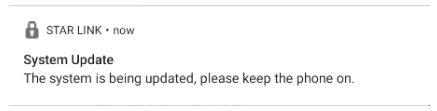
Once established on the smartphone, BeatBanker downloads a module for mining Monero cryptocurrency. The authors were very concerned that the smartphone’s aggressive battery optimization systems might shut down the miner, so they came up with a trick: playing an all-but-inaudible sound at all times. Power consumption control systems typically spare apps that are playing audio or video to avoid cutting off background music or podcast players. In this way, the malware can run continuously. Additionally, it displays a persistent notification in the status bar, asking the user to keep the phone on for a system update.
Example of a persistent system update notification from another malicious app masquerading as the Starlink app
Control via Google
To manage the trojan, the authors leverage Google’s legitimate Firebase Cloud Messaging (FCM) — a system for receiving notifications and sending data from a smartphone. This feature is available to all apps and it’s the most popular method for sending and receiving data. Thanks to FCM, attackers can monitor the device’s status and change its settings as needed.
Nothing bad happens for a while after the malware is installed: the attackers wait it out. Then they trigger the miner, but they’re careful to throttle it back if the phone overheats, the battery starts dipping, or the owner happens to be using the device. All of this is handled via FCM.
Theft and espionage
In addition to the crypto miner, BeatBanker installs extra modules to spy on the user and rob them at the right moment. The spyware module requests Accessibility Services permission, and if this is granted, begins monitoring everything that’s happening on the smartphone.
If the owner opens the Binance or Trust Wallet app to send USDT, the malware overlays a fake screen on top of the wallet interface, effectively swapping the recipient’s address for its own. All transfers go to the attackers.
The trojan features an advanced remote control system and is capable of executing many other commands:
Intercepting one-time codes from Google Authenticator
Recording audio from the microphone
Streaming the screen in real-time
Monitoring the clipboard and intercept keystrokes
Sending SMS messages
Simulating taps on specific areas of the screen and text input according to a script sent by the attacker, and much more
All of this makes it possible to rob the victim when they use any other banking or payment services — not just crypto payments.
Sometimes victims are infected with a different module for espionage and remote smartphone control — the BTMOB remote access trojan. Its malicious capabilities are even broader, including:
Automatic acquisition of certain permissions on Android 13–15
Continuous geolocation tracking
Access to the front and rear cameras
Obtaining PIN codes and passwords for screen unlocking
Capturing keyboard input
How to protect yourself from BeatBanker
Cybercriminals are constantly refining their attacks and coming up with new ways to profit from their victims. Despite this, you can protect yourself by following a few simple precautions:
Download apps from official sources only, such as Google Play or the app store preinstalled by the vendor. If you find an app while searching the internet, don’t open it via a link from your browser; instead, head to the Google Play app or another branded store on your smartphone to search for it there. While you’re at it, check the number of downloads, the app’s age, and look at the ratings and reviews. Avoid new apps, apps with low ratings, and those with a small number of downloads.
Check any permissions you grant. Don’t grant permissions if you’re not sure what they do or why that specific app requires them. Be extra careful with permissions like Install unknown apps, Accessibility, Superuser, and Display over other apps. We’ve written about these in detail in a separate article.
Equip your device with a comprehensive anti-malware solution. We, naturally, recommend Kaspersky for Android. Users of Kaspersky products are protected from BeatBanker — detected with the verdicts HEUR:Trojan-Dropper.AndroidOS.BeatBanker and HEUR:Trojan-Dropper.AndroidOS.Banker.*.
Threats to Android users have been going through the roof lately. Check out our other posts on the most relevant and widespread Android attacks and tips for keeping you and your loved ones safe:
In February 2026, the cybersecurity firm Oversecured published a report that makes you want to factory reset your phone and move into a remote cabin in the woods. Researchers audited 10 popular Android mental health apps — ranging from mood trackers and AI therapists to tools for managing depression and anxiety — and uncovered… 1575 vulnerabilities! Fifty-four of those flaws were classified as critical. Given the download stats on Google Play, as many as 15 million people could be affected. The real kicker? Six out of the ten apps tested explicitly promised users that their data was “fully encrypted and securely protected”.
We’re breaking down this scandalous “brain drain”: what exactly could leak, how it’s happening, and why “anonymity” in these services is usually just a marketing myth.
What was found in the apps
Oversecured is a mobile app security firm that uses a specialized scanner to analyze APK files for known vulnerability patterns across dozens of categories. In January 2026, researchers ran ten mental health monitoring apps from Google Play through the scanner — and the results were, shall we say, “spectacular”.
App Type
Installs
Security vulnerabilities
High-severity
Medium-severity
Low-severity
Total
Mood & habit tracker
10M+
1
147
189
337
AI therapy chatbot
1M+
23
63
169
255
AI emotional health platform
1M+
13
124
78
215
Health & symptom tracker
500k+
7
31
173
211
Depression management tool
100k+
0
66
91
157
CBT-based anxiety app
500k+
3
45
62
110
Online therapy & support community
1M+
7
20
71
98
Anxiety & phobia self-help
50k+
0
15
54
69
Military stress management
50k+
0
12
50
62
AI CBT chatbot
500k+
0
15
46
61
Total
14.7М+
54
538
983
1575
Vulnerabilities found in the 10 tested mental health apps. Source
The anatomy of the flaws
The discovered vulnerabilities are diverse, but they all boil down to one thing: giving attackers access to data that should be under lock and key.
For starters, one of the vulnerabilities allows an attacker to access any internal activity of the app — even that never intended for external eyes. This opens the door to hijacking authentication tokens and user session data. Once an attacker has those, they essentially could gain access to a user’s therapy records.
Another issue is insecure local data storage with read permissions granted to any other app on the device. In other words, that random flashlight app or calculator on your smartphone could potentially read your cognitive behavioral therapy (CBT) logs, personal notes, and mood assessments.
The researchers also found unencrypted configuration data baked right into the APK installation files. This included backend API endpoints and hardcoded URLs for Firebase databases.
Furthermore, several apps were caught using the cryptographically weak java.util.Random class to generate session tokens and encryption keys.
Finally, most of the tested apps lacked root/jailbreak detection. On a rooted device, any third-party app with root privileges could gain total access to every bit of locally stored medical data.
Shockingly, of the 10 apps analyzed, only four received updates in February 2026. The rest haven’t seen a patch since November 2025, and one hasn’t been touched since September 2024. Going 18 months without a security patch is a lifetime in this industry — especially for an app housing mood journals, therapy transcripts, and medication schedules.
Here’s a quick reminder of just how dangerous the misuse of this type of data gets. In 2024, the tech world was rocked by a sophisticated attack on XZ Utils, a critical component found in virtually every operating system based on the Linux kernel. The attacker successfully pressured the maintainer into handing over code commit permissions by exploiting the developer’s public admission of burnout and a lack of motivation to carry on with the project. Had the attack been completed, the damage would have been mind-boggling given that roughly 80% of the world’s servers run on Linux.
What could leak?
What do these apps collect and store? It’s the kind of stuff you’d likely only share with a trusted clinician: therapy session transcripts, mood logs, medication schedules, self-harm indicators, CBT notes, and various clinical assessment scales.
As far back as 2021, complete medical records were selling on the dark web for US$1000 each. For comparison, a stolen credit card number goes for anywhere between US$5 and US$30. Medical records contain a full identity package: name, address, insurance details, and diagnostic history. Unlike a credit card, you can’t exactly “reissue” your medical history. Furthermore, medical fraud is notoriously difficult to spot. While a bank might flag a suspicious transaction in hours, a fraudulent insurance claim for a phantom treatment can go unnoticed for years.
We’ve seen this movie before
The Oversecured study isn’t just an isolated horror story.
Back in 2020, Julius Kivimäki hacked the database of the Finnish psychotherapy clinic Vastaamo, making off with the records of 33 000 patients. When the clinic refused to cough up a €400 000 ransom, Kivimäki began sending direct threats to patients: “Pay €200 in Bitcoin within 24 hours, or else your records go public”. Ultimately, he leaked the entire database onto the dark web anyway. At least two people died by suicide, and the clinic was forced into bankruptcy. Kivimäki was eventually sentenced to six years and three months in prison, marking a record-breaking trial in Finland for the sheer number of victims involved.
In 2023, the U.S. Federal Trade Commission (FTC) slapped the online therapy giant BetterHelp with a US$7.8 million fine. Despite stating on their sign-up page that your data was strictly confidential, the company was caught funneling user info — including mental health questionnaire responses, emails, and IP addresses — to Facebook, Snapchat, Criteo, and Pinterest for targeted advertising. After the dust settled, 800 000 affected users received a grand total of… US$10 each in compensation.
By 2024, the FTC set its sights on the telehealth firm Cerebral, tagging them with a US$7 million fine. Through tracking pixels, Cerebral leaked the data of 3.2 million users to LinkedIn, Snapchat, and TikTok. The haul included names, medical histories, prescriptions, appointment dates, and insurance info. And the cherry on top? The company sent promotional postcards (sans envelopes) to 6000 patients, which effectively broadcasted that the recipients were undergoing psychiatric treatment.
In September 2024, security researcher Jeremiah Fowler stumbled upon an exposed database belonging to Confidant Health, a provider specializing in addiction recovery and mental health services. The database contained audio and video recordings of therapy sessions, transcripts, psychiatric notes, drug test results, and even copies of driver’s licenses. In total, 5.3 terabytes of data, 126 000 files, or 1.7 million records were sitting there without a password.
Why anonymity is an illusion
Developers love to drop the line: “We never share your personal data with anyone.” Technically, that might be true — instead, they share “anonymized profiles”. The catch? De-anonymizing that data isn’t exactly rocket science anymore. Recent research highlights that using LLMs to strip away anonymity has become a routine reality.
Even the “anonymization” process itself is often a mess. A study by Duke University revealed that data brokers are openly hawking the mental health data of Americans. Out of 37 brokers surveyed, 11 agreed to sell data linked to specific diagnoses (like depression, anxiety, and bipolar disorder), demographic parameters, and in some cases, even names and home addresses. Prices started as low as US$275 for 5000 aggregated records.
According to the Mozilla Foundation, by 2023, 59% of popular mental health apps failed to meet even the most basic privacy standards, and 40% had actually become less secure than the previous year. These apps allowed account creation via third-party services (like Google, Apple, and Facebook), featured suspiciously brief privacy policies that glossed over data collection details, and employed a clever little loophole: some privacy policies applied strictly to the company’s website, but not the app itself. In short, your clicks on the site were “protected”, but your actions within the app were fair game.
How to protect yourself
Cutting these apps out of your life entirely is, of course, the most foolproof option — but it’s not the most realistic one. Besides, there’s no guarantee you can actually nuke the data already collected — even if you delete your account. We previously covered the grueling process of scrubbing your info from data broker databases; it’s possible, but prepare for a headache. So, how can you stay safe?
Check permissions before you hit “Install”. In Google Play, navigate to App description → About this app → Permissions. A mood tracker has no business asking for access to your camera, microphone, contacts, or precise GPS location. If it does, it’s not looking out for your well-being — it’s harvesting data.
Actually read the privacy policy. We get it — nobody reads these multi-page manifestos. But when a service is vacuuming up your most intimate thoughts, it’s worth a skim. Look for the red flags: does the company share data with third parties? Can you manually delete your records? Does the policy explicitly cover the app itself, or just the website? You can always feed the policy text into an AI and ask it to flag any privacy deal-breakers.
Check the last updated date. An app that hasn’t seen an update in over six months is likely a playground for unpatched vulnerabilities. Remember: six out of the 10 apps Oversecured tested hadn’t been touched in months.
Disable everything non-essential in your phone’s privacy settings. Whenever prompted, always select “ask not to track”. When an app pleads with you to enable a specific type of tracking — claiming it’s for “internal optimization” — it’s almost always a marketing ploy rather than a functional necessity. After all, if the app truly won’t work without a certain permission, you can always go back and toggle it on later.
Don’t use “Sign in with…” services. Authenticating via Facebook, Apple, Google, or Microsoft creates additional identifiers and gives companies a golden opportunity to link your data across different platforms.
Treat everything you type like a public social media post. If you wouldn’t want a random stranger on the internet reading it, you probably shouldn’t be typing it into an app with over 150 vulnerabilities that hasn’t seen a patch since the year before last.
What else you should know about privacy settings and controlling your personal data online:
If you don’t go searching for AI services, they’ll find you all the same. Every major tech company feels a moral obligation not just to develop an AI assistant, integrated chatbot, or autonomous agent, but to bake it into their existing mainstream products and forcibly activate it for tens of millions of users. Here are just a few examples from the last six months:
Google activated Gemini for all U.S. Chrome users, cranked its browser functionality to the max, aggressively expanded the reach of AI Overviews in search results, and baked a whole suite of AI features into its online services (Gmail, Google Docs, and others).
Apple integrated its own Apple Intelligence (conveniently sharing the AI acronym) into the latest OS versions across all device types and most of its native apps.
On the flip side, geeks have rushed to build their own “personal Jarvises” by renting VPS instances or hoarding Mac minis to run the OpenClaw AI agent. Unfortunately, OpenClaw’s security issues with default settings turned out to be so massive that it’s already been dubbed the biggest cybersecurity threat of 2026.
Beyond the sheer annoyance of having something shoved down your throat, this AI epidemic brings some very real practical risks and headaches. AI assistants hoover up every bit of data they can get their hands on, parsing the context of the websites you visit, analyzing your saved documents, reading through your chats, and so on. This gives AI companies an unprecedentedly intimate look into every user’s life.
A leak of this data during a cyberattack — whether from the AI provider’s servers or from the cache on your own machine — could be catastrophic. These assistants can see and cache everything you can, including data usually tucked behind multiple layers of security: banking info, medical diagnoses, private messages, and other sensitive intel. We took a deep dive into how this plays out when we broke down the issues with the AI-powered Copilot+ Recall system, which Microsoft also planned to force-feed to everyone. On top of that, AI can be a total resource hog, eating up RAM, GPU cycles, and storage, which often leads to a noticeable hit to system performance.
For those who want to sit out the AI storm and avoid these half-baked, rushed-to-market neural network assistants, we’ve put together a quick guide on how to kill the AI in popular apps and services.
How to disable AI in Google Docs, Gmail, and Google Workspace
Google’s AI assistant features in Mail and Docs are lumped together under the umbrella of “smart features”. In addition to the large language model, this includes various minor conveniences, like automatically adding meetings to your calendar when you receive an invite in Gmail. Unfortunately, it’s an all-or-nothing deal: you have to disable all of the “smart features” to get rid of the AI.
To do this, open Gmail, click the Settings (gear) icon, and then select See all settings. On the General tab, scroll down to Google Workspace smart features. Click Manage Workspace smart feature settings and toggle off two options: Smart features in Google Workspace and Smart features in other Google products. We also recommend unchecking the box next to Turn on smart features in Gmail, Chat, and Meet on the same general settings tab. You’ll need to restart your Google apps afterward (which usually happens automatically).
How to disable AI Overviews in Google Search
You can kill off AI Overviews in search results on both desktops and smartphones (including iPhones), and the fix is the same across the board. The simplest way to bypass the AI overview on a case-by-case basis is to append -ai to your search query — for example, how to make pizza -ai. Unfortunately, this method occasionally glitches, causing Google to abruptly claim it found absolutely nothing for your request.
If that happens, you can achieve the same result by switching the search results page to Web mode. To do this, select the Web filter immediately below the search bar — you’ll often find it tucked away under the More button.
A more radical solution is to jump ship to a different search engine entirely. For instance, DuckDuckGo not only tracks users less and shows little ads, but it also offers a dedicated AI-free search — just bookmark the search page at noai.duckduckgo.com.
How to disable AI features in Chrome
Chrome currently has two types of AI features baked in. The first communicates with Google’s servers and handles things like the smart assistant, an autonomous browsing AI agent, and smart search. The second handles locally more utility-based tasks, such as identifying phishing pages or grouping browser tabs. The first group of settings is labeled AI mode, while the second contains the term Gemini Nano.
To disable them, type chrome://flags into the address bar and hit Enter. You’ll see a list of system flags and a search bar; type “AI” into that search bar. This will filter the massive list down to about a dozen AI features (and a few other settings where those letters just happen to appear in a longer word). The second search term you’ll need in this window is “Gemini“.
After reviewing the options, you can disable the unwanted AI features — or just turn them all off — but the bare minimum should include:
AI Mode Omnibox entrypoint
AI Entrypoint Disabled on User Input
Omnibox Allow AI Mode Matches
Prompt API for Gemini Nano
Prompt API for Gemini Nano with Multimodal Input
Set all of these to Disabled.
How to disable AI features in Firefox
While Firefox doesn’t have its own built-in chatbots and hasn’t (yet) tried to force upon users agent-based features, the browser does come equipped with smart-tab grouping, a sidebar for chatbots, and a few other perks. Generally, AI in Firefox is much less “in your face” than in Chrome or Edge. But if you still want to pull the plug, you’ve two ways to do it.
The first method is available in recent Firefox releases — starting with version 148, a dedicated AI Controls section appeared in the browser settings, though the controls are currently a bit sparse. You can use a single toggle to completely Block AI enhancements, shutting down AI features entirely. You can also specify whether you want to use On-device AI by downloading small local models (currently just for translations) and configure AI chatbot providers in sidebar, choosing between Anthropic Claude, ChatGPT, Copilot, Google Gemini, and Le Chat Mistral.
The second path — for older versions of Firefox — requires a trip into the hidden system settings. Type about:config into the address bar, hit Enter, and click the button to confirm that you accept the risk of poking around under the hood.
A massive list of settings will appear along with a search bar. Type “ML” to filter for settings related to machine learning.
To disable AI in Firefox, toggle the browser.ml.enabled setting to false. This should disable all AI features across the board, but community forums suggest this isn’t always enough to do the trick. For a scorched-earth approach, set the following parameters to false (or selectively keep only what you need):
ml.chat.enabled
ml.linkPreview.enabled
ml.pageAssist.enabled
ml.smartAssist.enabled
ml.enabled
ai.control.translations
tabs.groups.smart.enabled
urlbar.quicksuggest.mlEnabled
This will kill off chatbot integrations, AI-generated link descriptions, assistants and extensions, local translation of websites, tab grouping, and other AI-driven features.
How to disable AI features in Microsoft apps
Microsoft has managed to bake AI into almost every single one of its products, and turning it off is often no easy task — especially since the AI sometimes has a habit of resurrecting itself without your involvement.
How to disable AI features in Edge
Microsoft’s browser is packed with AI features, ranging from Copilot to automated search. To shut them down, follow the same logic as with Chrome: type edge://flags into the Edge address bar, hit Enter, then type “AI” or “Copilot” into the search box. From there, you can toggle off the unwanted AI features, such as:
Enable Compose (AI-writing) on the web
Edge Copilot Mode
Edge History AI
Another way to ditch Copilot is to enter edge://settings/appearance/copilotAndSidebar into the address bar. Here, you can customize the look of the Copilot sidebar and tweak personalization options for results and notifications. Don’t forget to peek into the Copilot section under App-specific settings — you’ll find some additional controls tucked away there.
How to disable Microsoft Copilot
Microsoft Copilot comes in two flavors: as a component of Windows (Microsoft Copilot), and as part of the Office suite (Microsoft 365 Copilot). Their functions are similar, but you’ll have to disable one or both depending on exactly what the Redmond engineers decided to shove onto your machine.
The simplest thing you can do is just uninstall the app entirely. Right-click the Copilot entry in the Start menu and select Uninstall. If that option isn’t there, head over to your installed apps list (Start → Settings → Apps) and uninstall Copilot from there.
In certain builds of Windows 11, Copilot is baked directly into the OS, so a simple uninstall might not work. In that case, you can toggle it off via the settings: Start → Settings → Personalization → Taskbar→ turn off Copilot.
If you ever have a change of heart, you can always reinstall Copilot from the Microsoft Store.
It’s worth noting that many users have complained about Copilot automatically reinstalling itself, so you might want to do a weekly check for a couple of months to make sure it hasn’t staged a comeback. For those who are comfortable tinkering with the System Registry (and understand the consequences), you can follow this detailed guide to prevent Copilot’s silent resurrection by disabling the SilentInstalledAppsEnabled flag and adding/enabling the TurnOffWindowsCopilot parameter.
How to disable Microsoft Recall
The Microsoft Recall feature, first introduced in 2024, works by constantly taking screenshots of your computer screen and having a neural network analyze them. All that extracted information is dumped into a database, which you can then search using an AI assistant. We’ve previously written in detail about the massive security risks Microsoft Recall poses.
Under pressure from cybersecurity experts, Microsoft was forced to push the launch of this feature from 2024 to 2025, significantly beefing up the protection of the stored data. However, the core of Recall remains the same: your computer still remembers your every move by constantly snapping screenshots and OCR-ing the content. And while the feature is no longer enabled by default, it’s absolutely worth checking to make sure it hasn’t been activated on your machine.
To check, head to the settings: Start → Settings → Privacy & Security →Recall & snapshots. Ensure the Save snapshots toggle is turned off, and click Delete snapshots to wipe any previously collected data, just in case.
How to disable AI in Notepad and Windows context actions
AI has seeped into every corner of Windows, even into File Explorer and Notepad. You might even trigger AI features just by accidentally highlighting text in an app — a feature Microsoft calls “AI Actions”. To shut this down, head to Start → Settings → Privacy & Security → Click to Do.
Notepad has received its own special Copilot treatment, so you’ll need to disable AI there separately. Open the Notepad settings, find the AI features section, and toggle Copilot off.
Finally, Microsoft has even managed to bake Copilot into Paint. Unfortunately, as of right now, there is no official way to disable the AI features within the Paint app itself.
How to disable AI in WhatsApp
In several regions, WhatsApp users have started seeing typical AI additions like suggested replies, AI message summaries, and a brand-new Chat with Meta AI button. While Meta claims the first two features process data locally on your device and don’t ship your chats off to their servers, verifying that is no small feat. Luckily, turning them off is straightforward.
To disable Suggested Replies, go to Settings → Chats → Suggestions & smart replies and toggle off Suggested replies. You can also kill off AI Sticker suggestions in that same menu. As for the AI message summaries, those are managed in a different location: Settings → Notifications → AI message summaries.
How to disable AI on Android
Given the sheer variety of manufacturers and Android flavors, there’s no one-size-fits-all instruction manual for every single phone. Today, we’ll focus on killing off Google’s AI services — but if you’re using a device from Samsung, Xiaomi, or others, don’t forget to check your specific manufacturer’s AI settings. Just a heads-up: fully scrubbing every trace of AI might be a tall order — if it’s even possible at all.
In Google Messages, the AI features are tucked away in the settings: tap your account picture, select Messages settings, then Gemini in Messages, and toggle the assistant off.
Broadly speaking, the Gemini chatbot is a standalone app that you can uninstall by heading to your phone’s settings and selecting Apps. However, given Google’s master plan to replace the long-standing Google Assistant with Gemini, uninstalling it might become difficult — or even impossible — down the road.
If you can’t completely uninstall Gemini, head into the app to kill its features manually. Tap your profile icon, select Gemini Apps activity, and then choose Turn off or Turn off and delete activity. Next, tap the profile icon again and go to the Connected Apps setting (it may be hiding under the Personal Intelligence setting). From here, you should disable all the apps where you don’t want Gemini poking its nose in.
Apple’s platform-level AI features, collectively known as Apple Intelligence, are refreshingly straightforward to disable. In your settings — on desktops, smartphones, and tablets alike — simply look for the section labeled Apple Intelligence & Siri. By the way, depending on your region and the language you’ve selected for your OS and Siri, Apple Intelligence might not even be available to you yet.
Other posts to help you tune the AI tools on your devices:
The year 2025 saw a record-breaking number of attacks on Android devices. Scammers are currently riding a few major waves: the hype surrounding AI apps, the urge to bypass site blocks or age checks, the hunt for a bargain on a new smartphone, the ubiquity of mobile banking, and, of course, the popularity of NFC. Let’s break down the primary threats of 2025–2026, and figure out how to keep your Android device safe in this new landscape.
Sideloading
Malicious installation packages (APK files) have always been the Final Boss among Android threats, despite Google’s multi-year efforts to fortify the OS. By using sideloading — installing an app via an APK file instead of grabbing it from the official store — users can install pretty much anything, including straight-up malware. And neither the rollout of Google Play Protect, nor the various permission restrictions for shady apps have managed to put a dent in the scale of the problem.
According to preliminary data from Kaspersky for 2025, the number of detected Android threats grew almost by half. In the third quarter alone, detections jumped by 38% compared to the second. In certain niches, like Trojan bankers, the growth was even more aggressive. In Russia alone, the notorious Mamont banker attacked 36 times more users than it did the previous year, while globally this entire category saw a nearly fourfold increase.
Today, bad actors primarily distribute malware via messaging apps by sliding malicious files into DMs and group chats. The installation file usually sports an enticing name (think “party_pics.jpg.apk” or “clearance_sale_catalog.apk”), accompanied by a message “helpfully” explaining how to install the package while bypassing the OS restrictions and security warnings.
Once a new device is infected, the malware often spams itself to everyone in the victim’s contact list.
Search engine spam and email campaigns are also trending, luring users to sites that look exactly like an official app store. There, they’re prompted to download the “latest helpful app”, such as an AI assistant. In reality, instead of an installation from an official app store, the user ends up downloading an APK package. A prime example of these tactics is the ClayRat Android Trojan, which uses a mix of all these techniques to target Russian users. It spreads through groups and fake websites, blasts itself to the victim’s contacts via SMS, and then proceeds to steal the victim’s chat logs and call history; it even goes as far as snapping photos of the owner using the front-facing camera. In just three months, over 600 distinct ClayRat builds have surfaced.
The scale of the disaster is so massive that Google even announced an upcoming ban on distributing apps from unknown developers starting in 2026. However, after a couple of months of pushback from the dev community, the company pivoted to a softer approach: unsigned apps will likely only be installable via some kind of superuser mode. As a result, we can expect scammers to simply update their how-to guides with instructions on how to toggle that mode on.
Once an Android device is compromised, hackers can skip the middleman to steal the victim’s money directly thanks to the massive popularity of mobile payments. In the third quarter of 2025 alone, over 44 000 of these attacks were detected in Russia alone — a 50% jump from the previous quarter.
There are two main scams currently in play: direct and reverse NFC exploits.
Direct NFC relay is when a scammer contacts the victim via a messaging app and convinces them to download an app — supposedly to “verify their identity” with their bank. If the victim bites and installs it, they’re asked to tap their physical bank card against the back of their phone and enter their PIN. And just like that the card data is handed over to the criminals, who can then drain the account or go on a shopping spree.
Reverse NFC relay is a more elaborate scheme. The scammer sends a malicious APK and convinces the victim to set this new app as their primary contactless payment method. The app generates an NFC signal that ATMs recognize as the scammer’s card. The victim is then talked into going to an ATM with their infected phone to deposit cash into a “secure account”. In reality, those funds go straight into the scammer’s pocket.
We break both of these methods down in detail in our post, NFC skimming attacks.
NFC is also being leveraged to cash out cards after their details have been siphoned off through phishing websites. In this scenario, attackers attempt to link the stolen card to a mobile wallet on their own smartphone — a scheme we covered extensively in NFC carders hide behind Apple Pay and Google Wallet.
The stir over VPNs
In many parts of the world, getting onto certain websites isn’t as simple as it used to be. Some sites are blocked by local internet regulators or ISPs via court orders; others require users to pass an age verification check by showing ID and personal info. In some cases, sites block users from specific countries entirely just to avoid the headache of complying with local laws. Users are constantly trying to bypass these restrictions —and they often end up paying for it with their data or cash.
Many popular tools for bypassing blocks — especially free ones — effectively spy on their users. A recent audit revealed that over 20 popular services with a combined total of more than 700 million downloads actively track user location. They also tend to use sketchy encryption at best, which essentially leaves all user data out in the open for third parties to intercept.
The permissions that this category of apps actually requires are a perfect match for intercepting data and manipulating website traffic. It’s also much easier for scammers to convince a victim to grant administrative privileges to an app responsible for internet access than it is for, say, a game or a music player. We should expect this scheme to only grow in popularity.
Trojan in a box
Even cautious users can fall victim to an infection if they succumb to the urge to save some cash. Throughout 2025, cases were reported worldwide where devices were already carrying a Trojan the moment they were unboxed. Typically, these were either smartphones from obscure manufacturers or knock-offs of famous brands purchased on online marketplaces. But the threat wasn’t limited to just phones; TV boxes, tablets, smart TVs, and even digital photo frames were all found to be at risk.
It’s still not entirely clear whether the infection happens right on the factory floor or somewhere along the supply chain between the factory and the buyer’s doorstep, but the device is already infected before the first time it’s turned on. Usually, it’s a sophisticated piece of malware called Triada, first identified by Kaspersky analysts back in 2016. It’s capable of injecting itself into every running app to intercept information: stealing access tokens and passwords for popular messaging apps and social media, hijacking SMS messages (confirmation codes: ouch!), redirecting users to ad-heavy sites, and even running a proxy directly on the phone so attackers can browse the web using the victim’s identity.
Technically, the Trojan is embedded right into the smartphone’s firmware, and the only way to kill it is to reflash the device with a clean OS. Usually, once you dig into the system, you’ll find that the device has far less RAM or storage than advertised — meaning the firmware is literally lying to the owner to sell a cheap hardware config as something more premium.
Another common pre-installed menace is the BADBOX 2.0 botnet, which also pulls double duty as a proxy and an ad-fraud engine. This one specializes in TV boxes and similar hardware.
How to go on using Android without losing your mind
Despite the growing list of threats, you can still use your Android smartphone safely! You just have to stick to some strict mobile hygiene rules.
Install a comprehensive security solution on all your smartphones. We recommend Kaspersky for Android to protect against malware and phishing.
Avoid sideloading apps via APKs whenever you can use an app store instead. A known app store — even a smaller one — is always a better bet than a random APK from some random website. If you have no other choice, download APK files only from official company websites, and double-check the URL of the page you’re on. If you aren’t 100% sure what the official site is, don’t just rely on a search engine; check official business directories or at least Wikipedia to verify the correct address.
Read OS warnings carefully during installation. Don’t grant permissions if the requested rights or actions seem illogical or excessive for the app you’re installing.
Under no circumstances should you install apps from links or attachments in chats, emails, or similar communication channels.
Buy smartphones and other electronics from official retailers, and steer clear of brands you’ve never heard of. Remember: if a deal seems too good to be true, it almost certainly is.
A newly discovered vulnerability named WhisperPair can turn Bluetooth headphones and headsets from many well-known brands into personal tracking beacons — regardless of whether the accessories are currently connected to an iPhone, Android smartphone, or even a laptop. Even though the technology behind this flaw was originally developed by Google for Android devices, the tracking risks are actually much higher for those using vulnerable headsets with other operating systems — like iOS, macOS, Windows, or Linux. For iPhone owners, this is especially concerning.
Connecting Bluetooth headphones to Android smartphones became a whole lot faster when Google rolled out Fast Pair, a technology now used by dozens of accessory manufacturers. To pair a new headset, you just turn it on and hold it near your phone. If your device is relatively modern (produced after 2019), a pop-up appears inviting you to connect and download the accompanying app, if it exists. One tap, and you’re good to go.
Unfortunately, it seems quite a few manufacturers didn’t pay attention to the particulars of this tech when implementing it, and now their accessories can be hijacked by a stranger’s smartphone in seconds — even if the headset isn’t actually in pairing mode. This is the core of the WhisperPair vulnerability, recently discovered by researchers at KU Leuven and recorded as CVE-2025-36911.
The attacking device — which can be a standard smartphone, tablet or laptop — broadcasts Google Fast Pair requests to any Bluetooth devices within a 14-meter radius. As it turns out, a long list of headphones from Sony, JBL, Redmi, Anker, Marshall, Jabra, OnePlus, and even Google itself (the Pixel Buds 2) will respond to these pings even when they aren’t looking to pair. On average, the attack takes just 10 seconds.
Once the headphones are paired, the attacker can do pretty much anything the owner can: listen in through the microphone, blast music, or — in some cases — locate the headset on a map if it supports Google Find Hub. That latter feature, designed strictly for finding lost headphones, creates a perfect opening for stealthy remote tracking. And here’s the twist: it’s actually most dangerous for Apple users and anyone else rocking non-Android hardware.
Remote tracking and the risks for iPhones
When headphones or a headset first shake hands with an Android device via the Fast Pair protocol, an owner key tied to that smartphone’s Google account is tucked away in the accessory’s memory. This info allows the headphones to be found later by leveraging data collected from millions of Android devices. If any random smartphone spots the target device nearby via Bluetooth, it reports its location to the Google servers. This feature — Google Find Hub — is essentially the Android version of Apple’s Find My, and it introduces the same unauthorized tracking risks as a rogue AirTag.
When an attacker hijacks the pairing, their key can be saved as the headset owner’s key — but only if the headset targeted via WhisperPair hasn’t previously been linked to an Android device and has only been used with an iPhone, or other hardware like a laptop with a different OS. Once the headphones are paired, the attacker can stalk their location on a map at their leisure — crucially, anywhere at all (not just within the 14-meter range).
Android users who’ve already used Fast Pair to link their vulnerable headsets are safe from this specific move, since they’re already logged in as the official owners. Everyone else, however, should probably double-check their manufacturer’s documentation to see if they’re in the clear — thankfully, not every device vulnerable to the exploit actually supports Google Find Hub.
How to neutralize the WhisperPair threat
The only truly effective way to fix this bug is to update your headphones’ firmware, provided an update is actually available. You can typically check for and install updates through the headset’s official companion app. The researchers have compiled a list of vulnerable devices on their site, but it’s almost certainly not exhaustive.
After updating the firmware, you absolutely must perform a factory reset to wipe the list of paired devices — including any unwanted guests.
If no firmware update is available and you’re using your headset with iOS, macOS, Windows, or Linux, your only remaining option is to track down an Android smartphone (or find a trusted friend who has one) and use it to reserve the role of the original owner. This will prevent anyone else from adding your headphones to Google Find Hub behind your back.
The update from Google
In January 2026, Google pushed an Android update to patch the vulnerability on the OS side. Unfortunately, the specifics haven’t been made public, so we’re left guessing exactly what they tweaked under the hood. Most likely, updated smartphones will no longer report the location of accessories hijacked via WhisperPair to the Google Find Hub network. But given that not everyone is exactly speedy when it comes to installing Android updates, it’s a safe bet that this type of headset tracking will remain viable for at least another couple of years.
Want to find out how else your gadgets might be spying on you? Check out these posts:
Thanks to the convenience of NFC and smartphone payments, many people no longer carry wallets or remember their bank card PINs. All their cards reside in a payment app, and using that is quicker than fumbling for a physical card. Mobile payments are also secure — the technology was developed relatively recently and includes numerous anti-fraud protections. Still, criminals have invented several ways to abuse NFC and steal your money. Fortunately, protecting your funds is straightforward: just know about these tricks and avoid risky NFC usage scenarios.
What are NFC relay and NFCGate?
NFC relay is a technique where data wirelessly transmitted between a source (like a bank card) and a receiver (like a payment terminal) is intercepted by one intermediate device, and relayed in real time to another. Imagine you have two smartphones connected via the internet, each with a relay app installed. If you tap a physical bank card against the first smartphone and hold the second smartphone near a terminal or ATM, the relay app on the first smartphone will read the card’s signal using NFC, and relay it in real time to the second smartphone, which will then transmit this signal to the terminal. From the terminal’s perspective, it all looks like a real card is tapped on it — even though the card itself might physically be in another city or country.
This technology wasn’t originally created for crime. The NFCGate app appeared in 2015 as a research tool after it was developed by students at the Technical University of Darmstadt in Germany. It was intended for analyzing and debugging NFC traffic, as well as for education purposes and experiments with contactless technology. NFCGate was distributed as an open-source solution and used in academic and enthusiast circles.
Five years later, cybercriminals caught on to the potential of NFC relay and began modifying NFCGate by adding mods that allowed it to run through a malicious server, disguise itself as legitimate software, and perform social engineering scenarios.
What began as a research project morphed into the foundation for an entire class of attacks aimed at draining bank accounts without physical access to bank cards.
A history of misuse
The first documented attacks using a modified NFCGate occurred in late 2023 in the Czech Republic. By early 2025, the problem had become large scale and noticeable: cybersecurity analysts uncovered more than 80 unique malware samples built on the NFCGate framework. The attacks evolved rapidly, with NFC relay capabilities being integrated into other malware components.
By February 2025, malware bundles combining CraxsRAT and NFCGate emerged, allowing attackers to install and configure the relay with minimal victim interaction. A new scheme, a so-called “reverse” version of NFCGate, appeared in spring 2025, fundamentally changing the attack’s execution.
Particularly noteworthy is the RatOn Trojan, first detected in the Czech Republic. It combines remote smartphone control with NFC relay capabilities, letting attackers target victims’ banking apps and cards through various technique combinations. Features like screen capture, clipboard data manipulation, SMS sending, and stealing info from crypto wallets and banking apps give criminals an extensive arsenal.
Cybercriminals have also packaged NFC relay technology into malware-as-a-service (MaaS) offerings, and reselling them to other threat actors through subscription. In early 2025, analysts uncovered a new and sophisticated Android malware campaign in Italy, dubbed SuperCard X. Attempts to deploy SuperCard X were recorded in Russia in May 2025, and in Brazil in August of the same year.
The direct NFCGate attack
The direct attack is the original criminal scheme exploiting NFCGate. In this scenario, the victim’s smartphone plays the role of the reader, while the attacker’s phone acts as the card emulator.
First, the fraudsters trick the user into installing a malicious app disguised as a banking service, a system update, an “account security” app, or even a popular app like TikTok. Once installed, the app gains access to both NFC and the internet — often without requesting dangerous permissions or root access. Some versions also ask for access to Android accessibility features.
Then, under the guise of identity verification, the victim is prompted to tap their bank card to their phone. When they do, the malware reads the card data via NFC and immediately sends it to the criminals’ server. From there, the information is relayed to a second smartphone held by a money mule, who helps extract the money. This phone then emulates the victim’s card to make payments at a terminal or withdraw cash from an ATM.
The fake app on the victim’s smartphone also asks for the card PIN — just like at a payment terminal or ATM — and sends it to the attackers.
In early versions of the attack, criminals would simply stand ready at an ATM with a phone to use the duped user’s card in real time. Later, the malware was refined so the stolen data could be used for in-store purchases in a delayed, offline mode, rather than in a live relay.
For the victim, the theft is hard to notice: the card never left their possession, they didn’t have to manually enter or recite its details, and the bank alerts about the withdrawals can be delayed or even intercepted by the malicious app itself.
Among the red flags that should make you suspect a direct NFC attack are:
prompts to install apps not from official stores;
requests to tap your bank card on your phone.
The reverse NFCGate attack
The reverse attack is a newer, more sophisticated scheme. The victim’s smartphone no longer reads their card — it emulates the attacker’s card. To the victim, everything appears completely safe: there’s no need to recite card details, share codes, or tap a card to the phone.
Just like with the direct scheme, it all starts with social engineering. The user gets a call or message convincing them to install an app for “contactless payments”, “card security”, or even “using central bank digital currency”. Once installed, the new app asks to be set as the default contactless payment method — and this step is critically important. Thanks to this, the malware requires no root access — just user consent.
The malicious app then silently connects to the attackers’ server in the background, and the NFC data from a card belonging to one of the criminals is transmitted to the victim’s device. This step is completely invisible to the victim.
Next, the victim is directed to an ATM. Under the pretext of “transferring money to a secure account” or “sending money to themselves”, they are instructed to tap their phone on the ATM’s NFC reader. At this moment, the ATM is actually interacting with the attacker’s card. The PIN is dictated to the victim beforehand — presented as “new” or “temporary”.
The result is that all the money deposited or transferred by the victim ends up in the criminals’ account.
The hallmarks of this attack are:
requests to change your default NFC payment method;
a “new” PIN;
any scenario where you’re told to go to an ATM and perform actions there under someone else’s instructions.
How to protect yourself from NFC relay attacks
NFC relay attacks rely not so much on technical vulnerabilities as on user trust. Defending against them comes down to some simple precautions.
Make sure you keep your trusted contactless payment method (like Google Pay or Samsung Pay) as the default.
Never tap your bank card on your phone at someone else’s request, or because an app tells you to. Legitimate apps might use your camera to scan a card number, but they’ll never ask you to use the NFC reader for your own card.
Never follow instructions from strangers at an ATM — no matter who they claim to be.
Avoid installing apps from unofficial sources. This includes links sent via messaging apps, social media, SMS, or recommended during a phone call — even if they come from someone claiming to be customer support or the police.
Stick to official app stores only. When downloading from a store, check the app’s reviews, number of downloads, publication date, and rating.
When using an ATM, rely on your physical card instead of your smartphone for the transaction.
Make it a habit to regularly check the “Payment default” setting in your phone’s NFC menu. If you see any suspicious apps listed, remove them immediately and run a full security scan on your device.
Review the list of apps with accessibility permissions — this is a feature commonly abused by malware. Either revoke these permissions for any suspicious apps, or uninstall the apps completely.
Save the official customer service numbers for your banks in your phone’s contacts. At the slightest hint of foul play, call your bank’s hotline directly without delay.
If you suspect your card details may have been compromised, block the card immediately.

 Login
Login