Reading view

How Google phone number verification works, and whether you should turn it off | Kaspersky official blog

Starting last year, Android users have been seeing the “number is now verified” system notification more frequently. And in some cases people even find mysterious outgoing text messages in their history that they never sent.

These messages often cause confusion and even anxiety: has a virus infected the phone? Are tech giants spying on our phone numbers? Let’s break down how this feature works, and what potential risks it poses to your privacy.

Why all these phone number verifications?

The notification pops up whenever Google’s phone number verification feature is triggered on your device.

Its main job is to make sure that the SIM card tied to a specific phone number is physically inside the phone. Once verified, that phone number automatically links to all active Google accounts on the device.

There are several key services that rely on the verification. Most importantly, it drives Rich Communication Services (RCS) — the modern standard for “rich” messaging right inside your standard text messaging app. It feels like a popular chat app, but without the need to install anything extra. Unlike iMessage, which is locked to Apple’s ecosystem, RCS works across compatible smartphones on various platforms since it’s an industry standard set by carriers rather than tech giants. Since recently, both Apple and Android users have been able to exchange RCS messages. For this feature to work in the Google Messages app, Google needs ongoing confirmation that your SIM card is active. If you pull out your SIM card, RCS chats will keep working for about eight days before turning off automatically.

According to Google, phone number verification serves several other purposes as well:

  • Account security and recovery. A verified phone number enables quick sign-ins to your Google account, two-factor authentication, and easy password recovery.
  • Emergency services and device location. This includes Find My Device, remote phone lock, and sharing your location with emergency responders — including via satellite messaging on the Pixel 9 and certain other modern smartphones.
  • Better sharing on Google. This feature helps other people find you faster on Google Meet or Duo, use Quick Share to send you files, and see that the phone number is linked to your profile.

Google also recently confirmed that this data is used to counter scams. Verification helps block calls or text messages from spoofed numbers if both the real owner of the number and the recipient are using Android devices with verified phone numbers.

How does Google verify phone numbers?

Phone number verification technology has been around on Android for quite some time — Google was sending test SMS messages as far back as in 2019. However, it became widely visible to most users following a Google system update in September 2025. The process was baked deeper into the operating system, with number verification now running by default during initial phone setup, and re-running periodically in the background.

There are two main technical methods for the verification process. Which one your device uses depends on your mobile carrier and your version of Android.

The older method relies on hidden text messages. In the background, your smartphone sends a specialized technical text message to Google’s servers. The operating system intercepts this message before you ever see it, which is why it rarely appears in your standard text messaging app. However, due to software glitches or Android customization quirks, these texts occasionally surface in sent messages, startling users. They typically look like this: “(string of letters and numbers) Google is re-verifying the phone# of this device.” Google explicitly notes in its help documentation that standard messaging rates from your carrier may apply.

In recent years, direct carrier verification (via carrier APIs) has become the primary verification method. This approach is more modern and secure than previous ones. The smartphone sends an encrypted token containing device and SIM card identifiers to the mobile carrier, and the carrier responds with the confirmed phone number. The whole process takes just a couple of seconds and runs completely unnoticed by the user. Both global telecom giants and smaller providers have connected to this verification network. Notably, third-party apps can also tap into the results of this check through Firebase Phone Number Verification, getting confirmation from your mobile carrier about which phone number is active on the device.

“Other device data” and privacy concerns

In its official documentation, Google notes that device identifiers and SIM card data may be collected during verification. In practice, this refers to unique identifiers for the SIM card and its subscriber profile (ICCID and IMSI), as well as technical device identifiers needed to run mobile networks. Google also explicitly states that it does not sell your personal information, including your phone number, to anyone.

Naturally, sending additional unique identifiers to Google — especially given the scale of its advertising business — always raises concern among privacy-conscious users. Here’s what you should keep in mind:

Metadata collection. To run RCS, Google exchanges data with your mobile carrier. Even when the content of RCS messages is encrypted, metadata — such as who is messaging whom and when — can still be stored on your carrier’s servers, and in some cases, on Google’s servers. As cybersecurity experts at the Electronic Frontier Foundation point out, if privacy is your top priority, you’re better off sticking to dedicated encrypted messaging apps.

Linked accounts. If you have both a personal and a work Google account (or a personal and a family account) set up on the same phone, the verified number will automatically link to both profiles. The operating system does not offer built-in tools to separate numbers for different accounts on a single device.

Phone number leaks. Apps on your device can already access various user identifiers, including your phone number. However, this verification system makes it easier to link multiple phone numbers to a user who has multiple Google accounts. And while Google states that it never sells phone numbers, you cannot say the same with confidence about obscure third-party Android developers.

On by default. The feature is enabled out of the box, and most users have no idea their device is silently querying their carrier in the background. While you can opt out in your Google settings once you notice it, there’s no guarantee that any data already collected will actually be deleted.

Turning off verification — why and how

For most users, verification is genuinely helpful. It simplifies account recovery, makes finding a lost phone easier, powers modern text messaging features, and assists emergency services when every second counts.

However, if you want to minimize the amount of metadata sent to Google, mobile carriers, and other data brokers, you can manually disable the feature. Here’s how:

  1. Open your Android smartphone’s settings.
  2. Tap Google, select the account at the top, and switch to the All services tab.
  3. Under Privacy and security, tap Phone number verification.
  4. Turn off automatic phone number verification.

If you also want to disable Better sharing on Google, go to SettingsGoogleManage your Google AccountPersonal infoContact infoPhone, select your number, and turn off the setting.

If you have multiple Google accounts on your phone, you’ll need to repeat these steps for each one. Unfortunately, verification sometimes turns itself back on automatically, and there’s no reliable way to prevent this on standard consumer phones with stock software.

Keep in mind that disabling verification means losing access to RCS chats in Google Messages — forcing you to fall back on basic SMS, or switch to alternative secure messaging apps. You also won’t be able to use that number for quick account recovery should you forget your password.

To thoughtfully customize your privacy settings across all your devices — regardless of the operating system, browser, or app — check out our free online tool, Privacy Checker.

Curious about other privacy risks you might not even know exist? Check out our other deep dives, here:
  •  

Study on the Wi-Fi security situation in Mexico | Kaspersky official blog

One of the biggest football (soccer) events of this summer is the World Cup 2026. The tournament is co-hosted by three countries: the U.S., Canada, and Mexico. Unfortunately, events of this scale attract not just fans, but also scammers from all over the globe. We’ve already covered how cybercriminals are prepping for the World Cup online, and today we’re talking about digital security for fans on the ground in Mexico.

The country will host 13 matches and welcome millions of tourists. They’ll be staying in hotels, heading to games, checking out restaurants, navigating airports, and visiting popular tourist spots — and everywhere they go, the temptation to connect to public Wi-Fi will be high.

We’ve surveyed more than 84 500 (!) public Wi-Fi access points in Mexico City, Guadalajara, and Monterrey — and we have a lot to share about their security. Spoiler alert: many networks are still using outdated security standards, so you really shouldn’t go on vacation without reliable protection and an eSIM.

What and how we tested

Walking across Mexico looking for public Wi-Fi access points would have been a bit tough, though that’s exactly what we did for a similar Wi-Fi security survey in Paris. You can check out the results of that in our post, How safe is Wi-Fi in Paris?

This time the mission was far more demanding: mapping the wireless landscape of three major metropolises. That’s why we went wardriving — scanning for and logging wireless networks from a moving vehicle while equipped with a smartphone or laptop. It’s similar to searching for Wi-Fi on your phone, where the device constantly listens for nearby networks. Except instead of connecting to them, we just collect data about them.

All information was used strictly for passive observation and infrastructure analysis. Beyond receiving publicly broadcast service information, the experts of Kaspersky’s Global Research and Analysis Team (GReAT) didn’t attempt to authenticate, intercept traffic, exploit systems, or otherwise interact with the wireless networks they discovered. Mobile access points deployed in cars and on mobile devices were excluded from the sample.

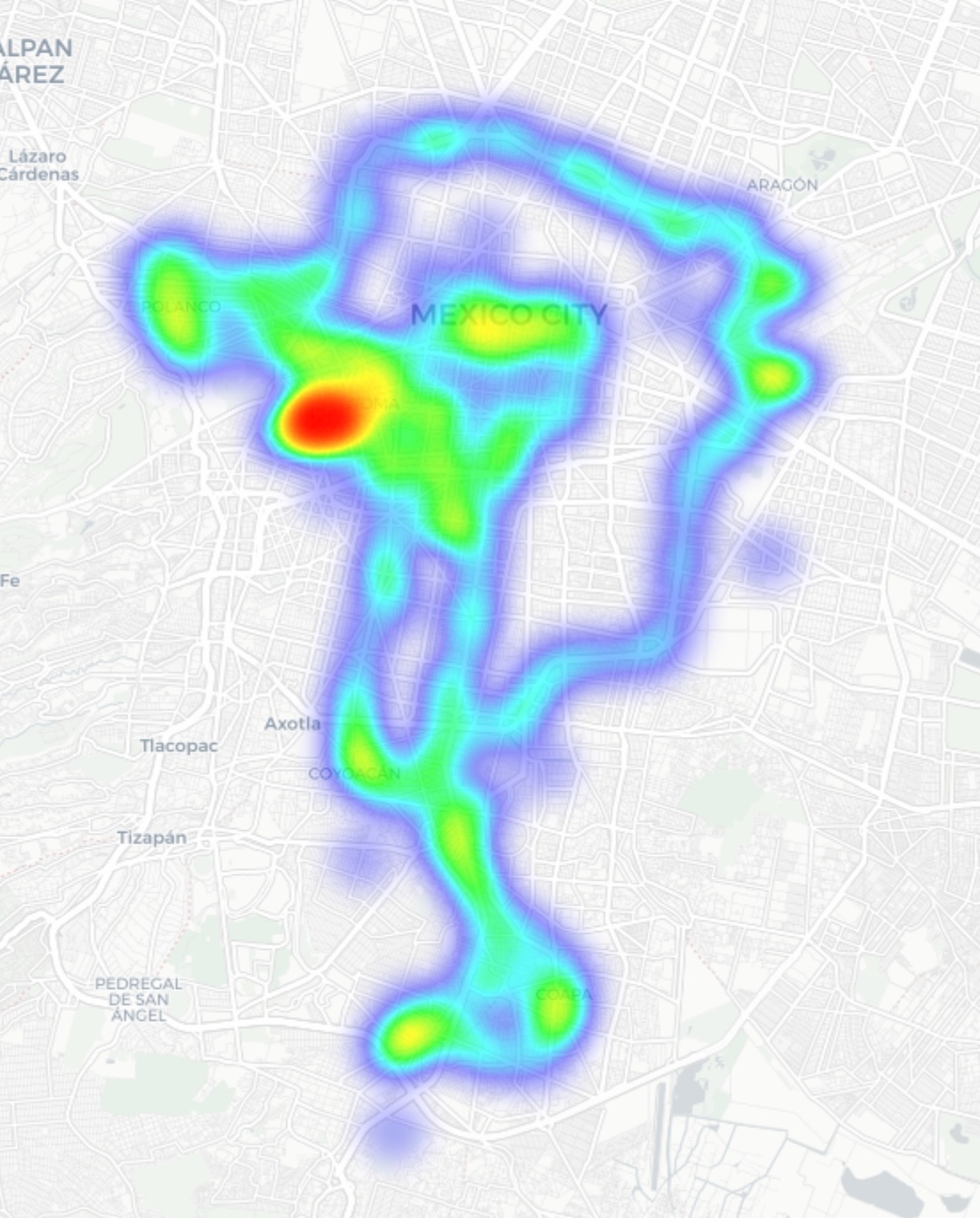
Our main target was Mexico City — the capital and one of the most densely populated cities in Latin America. We took a drive through popular tourist spots: Mexico City Stadium, Mexico City International Airport, Zócalo, Paseo de la Reforma, Colonia Roma, La Condesa, Polanco, Coyoacán.

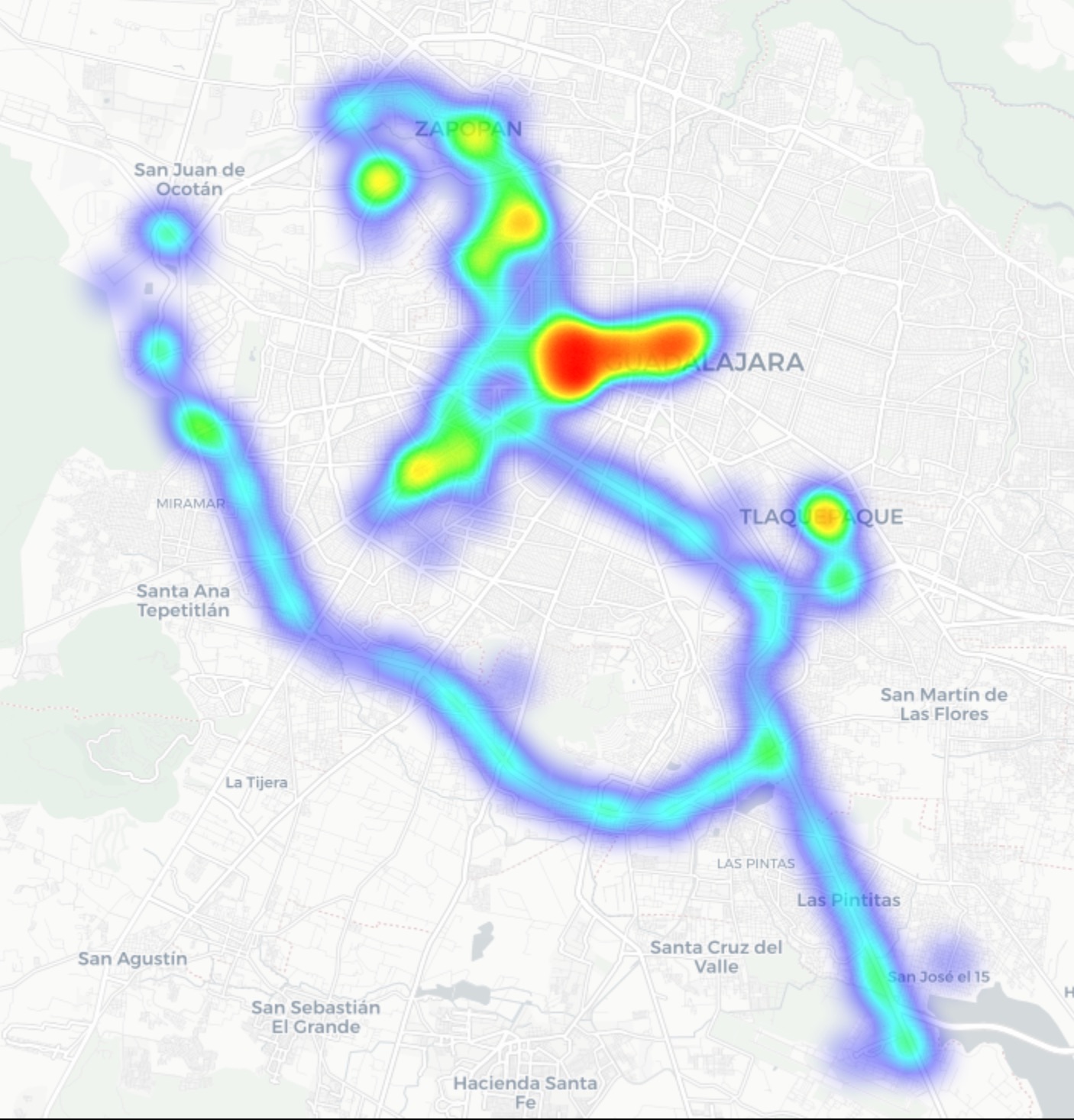
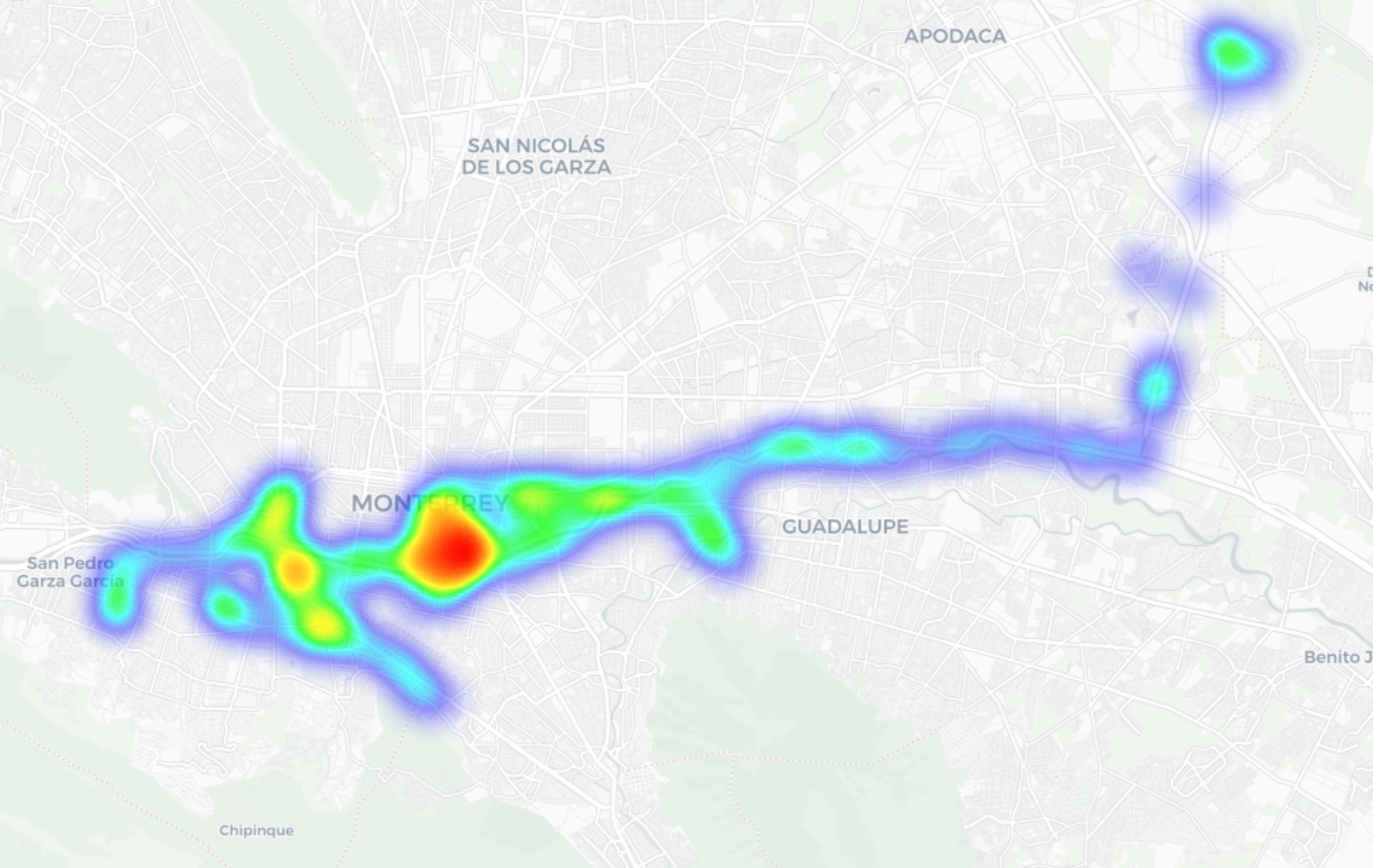
In Guadalajara and Monterrey, we drove similar routes: stadiums, main avenues, airports, and popular neighborhoods. Below you can see a heatmap of the areas we covered, ranging from red for areas with the highest density of public access points, through yellow and green, to blue for the lowest concentration.

Heatmap showing the locations of all Wi-Fi access points we covered in Mexico City
Heatmap showing the locations of all Wi-Fi access points we covered in Guadalajara
Heatmap showing the locations of all Wi-Fi access points we covered in Monterrey

We used passive radio reconnaissance to log 84 500 signals and 69 500 unique network identifiers across these three cities. The majority of the signals were caught in Mexico City (61.4%), followed by Guadalajara (23.6%) and Monterrey (14.8%).

What we analyzed:

  • Wireless network identifiers (SSIDs): the names that show up in your list of available Wi-Fi networks
  • Information that can be gleaned from these identifiers
  • Default router configurations and how ISPs deploy their networks
  • Frequencies used and signal characteristics
  • Channel load and radio frequency spectrum usage
  • Wireless network security configurations:
    • Open and insecure networks
    • Networks with WPS enabled
    • Secure networks (WPA2/WPA3) with WPS activated

You can find the full version of the study on the Securelist blog.

Telltale public Wi-Fi access point names

Network names (SSIDs) can tell you a lot by unintentionally revealing information about hardware manufacturers, ISPs, deployment methods, and whether an access point belongs to a business or a private user.

About 34% of the public Wi-Fi networks we logged didn’t bother changing their names at all, either sticking with the factory SSIDs from the router manufacturers or using standard naming conventions from their ISPs. For attackers, this can be a pretty solid hint, since this kind of network name lets them know which provider owns a given access point, what hardware is being used, and how it’s likely configured by default.

Another troubling nuance is the large number of Wi-Fi networks (over 30%) that use the access point’s MAC address (BSSID) as the visible network name. The first few bytes of a BSSID contain an Organizationally Unique Identifier (OUI), which gives away the router’s manufacturer. This is a useful lead for bad actors: they can find out who made the hardware and test for vulnerabilities specific to that brand’s models.

Is Mexican Wi-Fi well-protected?

An access point secured with WPA2/WPA3 can be considered more or less safe. All other authentication mechanisms yield much weaker results. We grouped the public Wi-Fi networks into four categories:

  • Secure (WPA2/WPA3)
  • Unsecured (open/WEP)
  • Weak (WPA)
  • Undetermined

The results are roughly the same across all three cities: about 82% of all analyzed access points are protected by secure standards. The outdated and insecure WPA protocol was practically nonexistent. However, more than 10% of the access points turned out to be completely unsecured. Connecting to these networks carries the risk of traffic interception and hidden surveillance.

But security isn’t evaluated by WPA protocols alone. We also checked for the presence of WPS, the infamous feature for quickly connecting to a network without entering a password, which is highly vulnerable to attacks. It turned out that WPS is enabled on nearly half (47%) of the access points in Mexico City, 43% in Guadalajara, and 41% in Monterrey. On average, 45% of the access points are potentially vulnerable to WPS-related attacks — sacrificing security for the sake of convenience.

What’s more, this feature frequently remained active even on seemingly secure WPA2/WPA3 networks — about half of them utilized WPS. This shows that having WPA2/WPA3 is still not enough to consider a Wi-Fi access point safe, as additional features like WPS can still leave the door open to attacks.

What else every tourist needs to know

Digital risks on a trip aren’t limited to public Wi-Fi alone, especially now that many are shifting away from public Wi-Fi to an eSIM. There are still plenty of threats in crowded places: public USB chargers, QR codes with swapped links, NFC and Bluetooth attacks, and, of course, social engineering tactics. Let’s break it all down.

Charging stations. Public USB chargers can also be dangerous: bad actors could potentially gain access to the data on your device or try to install malware. We covered these attacks in detail in our post, Data theft during smartphone charging.

Dangerous QR codes. Criminals can plant phishing QR codes in popular tourist spots. The pretexts can vary wildly; for instance, ads for team-specific fan “events”, or links supposedly offering discounts or restaurant menus. In reality, any QR code posted on the street can be considered insecure by default, and you shouldn’t scan them with your smartphone unless you have a QR code threat analyzer installed.

Fake broadcasts, tickets, and betting pools. Earlier, we described cases where bad actors were distributing malware via fake IPTV apps to capitalize on the WC26 hype. Remember, even if you plan to watch the tournament from home, you still need to stay alert and not trust the first sites that pop up advertising free broadcasts, offering betting pools, or promising unbelievably generous payouts.

NFC and Bluetooth attacks. Leaving Bluetooth enabled in crowded places can also cause problems: someone might try to discover your device, track you, or initiate an unwanted pairing request. NFC services with contactless payments create additional risks too — especially when paying in sketchy spots.

How to protect yourself and your devices

Despite the prevalence of secure WPA2/WPA3 public Wi-Fi access points in Mexico City, Guadalajara, and Monterrey, our study shows that public Wi-Fi networks remain vulnerable. It’s also important to remember that attackers can create fake networks — so-called evil twins — disguised as legitimate public Wi-Fi in airports, hotels, cafés, and tourist spots.

For the average user, it’s practically impossible to tell how safe a specific access point is when trying to connect. That’s why the safest option is to use cellular data to access the internet — completely eliminating the need for Wi-Fi. Besides, there’s no need to research the nuances of local laws, rates, and other cellular details for every country you plan to visit; you can just buy a global eSIM online in two clicks. We explained how to make the entire process hassle-free in our post, Internet on the go with Kaspersky eSIM Store.

If you still plan on connecting to public Wi-Fi, always use a VPN to secure your device and data when connecting to unfamiliar — especially unsecured — Wi-Fi networks. This creates an encrypted tunnel between your device and the VPN server, making it impossible to intercept your data along the way. Haven’t picked a VPN yet? Try Kaspersky VPN Secure Connection, which is included with both Kaspersky Premium and Kaspersky Plus subscriptions.

Now, if you still plan to attend the World Cup without any cybersecurity solution, at least follow these basic rules of digital hygiene:

  • Don’t use public USB chargers
  • Don’t send sensitive information over connections that aren’t secure
  • Don’t log in to banking, email, or social media accounts over unsecured Wi-Fi
  • Turn off Bluetooth and NFC while walking around in crowded places
  • Don’t trust QR codes posted on the street
  • Connect to public Wi-Fi only when absolutely necessary

What else to read to make sure cheering for your favorite team isn’t only exciting, but also safe:

  •  
❌