The UK’s Metropolitan Police has reached an agreement with Apple designed to make stolen iPhones harder to resell and less attractive to thieves. The approach combines stronger technical protections with direct data sharing between Apple and law enforcement.
As part of this effort, Apple has strengthened its Stolen Device Protection feature in iOS 26.4, making it harder for thieves to change security settings, factory‑reset a stolen iPhone, or set it up as new.
Previously, thieves with your passcode (or who snatched your iPhone while it was still unlocked) could factory reset it, wiping your account and making the device look new for resale. Stolen Device Protection blocks this, requiring biometric authentication, not just a passcode, to make critical changes.
The Met has started sharing identifiers for reported stolen devices with Apple. In return, Apple can provide data on whether those devices later attempt to reconnect to a network or attempt to be reactivated.
Police say this gives them a better picture of what happens to stolen devices: Are they being switched back on locally? Shipped abroad? Broken down for parts?
Met Police Commissioner Sir Mark Rowley said Apple believes it has “cracked” the engineering problem. Phone thefts in London have since fallen 18% year-on-year, with Westminster (the capital’s worst-affected borough) down 45.8%.
Given the early signs of success, the Met is pressing for broader changes.
The Commissioner has written to the Home Secretary asking for laws that would require all phone manufacturers and mobile operators to share information about stolen devices and implement measures that make stolen handsets unusable.
As part of that effort, the Met has explicitly said that Samsung and Google are also improving device security to address phone theft, suggesting this will become an industry‑wide expectation rather than an Apple‑only initiative.
Possible pitfalls
From a privacy perspective, it’s important to keep an eye on what data is shared, and who can see it.
Reports so far suggest that Apple and the Met are exchanging device identifiers and high‑level information about whether a stolen phone has attempted to reconnect or be reactivated. In theory, that sounds narrow and purpose‑bound: device X was reported stolen, later tried to come online in country Y, at time Z. There is no public indication that content, contacts, or location histories are being handed over wholesale.
There’s also a risk of someone reporting your phone as stolen. If a device is incorrectly marked as stolen, the protections designed to stop thieves could lock an innocent user out, turning a valuable asset into a brick. Without transparent appeal mechanisms, this is a notable concern.
The measures could also create challenges for recycling initiatives, legitimate repair shops, and refurbishers. They may face additional hurdles when diagnosing, restoring, or reselling devices if anti-theft protections become more restrictive.
Stay safe
Make sure your phone is protected with a strong passcode and biometric security, such as Face ID or a fingerprint.
Enable Apple’s Find My feature, or the Android equivalent, and make sure it is linked to a strong account password.
Keep lock screen notifications to a minimum so thieves cannot quickly access your sensitive information if they get hold of your device.
When buying a used phone, use a reputable seller and make sure the device has been reset by its owner. Complete the initial setup process with the seller present to confirm the phone isn’t locked to someone else’s account or reported stolen.
Scammers know more about you than you think.
Malwarebytes Mobile Security protects you from phishing, scam texts, malicious sites, and more. With real-time AI-powered Scam Guard built right in.
DarkSword and Coruna are two new tools for invisible attacks on iOS devices. These attacks require no user interaction and are already being actively used by bad actors in the wild. Before these threats emerged, most iPhone users didn’t have to lose sleep over their data security. Protection was really only a major concern for a narrow group — politicians, activists, diplomats, high-level business execs, and others who handle extremely sensitive data — who might be targeted by foreign intelligence agencies. We’ve covered sophisticated spyware used against such a group before — noting how hard to come by those tools were.
However, DarkSword and Coruna — discovered by researchers earlier this year — are total game-changers. This malware is being used for mass infections of everyday users. In this post, we dive into why this shift happened, why these tools are so dangerous, and how you can stay protected.
What we know about DarkSword, and how it can target your iPhone
In mid-March 2026, three separate research teams coordinated the release of their findings on a new spyware strain called DarkSword. This tool is capable of silently hacking devices running iOS 18 without the user ever knowing something is wrong.
First, we should clear up some confusion: iOS 18 isn’t as vintage as it might sound. Even though the latest version is iOS 26, Apple recently overhauled its versioning system, which threw everyone for a loop. They decided to jump ahead eight versions — from 18 straight to 26 — so the OS number matches the current year. Despite the jump, Apple estimates that about a quarter of all active devices still run iOS 18 or older.
With that cleared up, let’s get back to DarkSword. Research shows that this malware infects victims when they visit perfectly legitimate websites that have been injected with malicious code. The spyware installs itself without any user interaction at all: you just have to land on a compromised page. This is what’s known as a zero-click infection technique. Researchers report that several thousand devices have already been hit this way.
To compromise a device, DarkSword uses a six-vulnerability exploit chain to escape the sandbox, escalate privileges, and execute code. Once it’s in, the malware harvests data from the infected device, including:
Passwords
Photos
Chats and data from iMessage, WhatsApp, and Telegram
Browser history
Information from Apple’s Calendar, Notes, and Health apps
On top of all that, DarkSword lets attackers scoop up crypto-wallet data, making it essentially dual-purpose malware that functions as both a spy tool and a way to drain your crypto.
The only bit of good news is that the spyware doesn’t survive a reboot. DarkSword is fileless malware, meaning it lives in the device’s RAM, and never actually embeds itself into the file system.
Coruna: how older iOS versions are being targeted
Just two weeks before the DarkSword findings went public, researchers flagged another iOS threat dubbed Coruna. This malware is capable of compromising devices running older software — specifically iOS 13 through 17.2.1. Coruna uses the exact same playbook as DarkSword: victims visit a legitimate site injected with malicious code which then drops the malware onto the device. The whole process is completely invisible and requires zero user interaction.
A deep dive into Coruna’s code revealed it exploits a total of 23 different iOS vulnerabilities, several of which are tucked away in Apple’s WebKit. It’s worth reminding that, generally speaking (outside the EU), all iOS browsers are required to use the WebKit engine. This means these vulnerabilities don’t just affect Safari users — they’re a threat to anyone using a third-party browser on their iPhone as well.
The latest version of Coruna, much like DarkSword, includes modifications designed to drain crypto wallets. It also harvests photos and, in certain instances, email data. From what we can tell, stealing cryptocurrency seems to be the primary motive behind Coruna’s widespread deployment.
Who created Coruna and DarkSword — and how did they end up in the wild?
Code analysis of both tools suggests that Coruna and DarkSword were likely built by different developers. However, in both cases, we’re looking at software originally created by state-affiliated companies, possibly from the U.S. The high quality of the code points to this; these aren’t just Frankenstein kits cobbled together from random parts, but uniformly engineered exploits. Somewhere along the line, these tools leaked into the hands of cybercrime gangs.
One theory suggests an employee at the company that developed Coruna sold it to hackers. Since then, the malware has been used to drain crypto wallets belonging to users in China; experts estimate that at least 42 000 devices were infected there alone.
As for DarkSword, cybercriminals have already used it to compromise users in Saudi Arabia, Turkey, and Malaysia. The problem is exacerbated by the fact that the attackers who first deployed DarkSword left the full source code on infected websites, meaning it could easily be picked up by other criminal groups.
The code also includes detailed comments in English explaining exactly what each component does, which supports the theory of its Western origins. These step-by-step instructions make it easy for other hackers to adapt the tool for their own purposes.
How to protect yourself from Coruna and DarkSword
Serious malware that allows for the mass infection of iPhones while requiring zero interaction from the user has now landed in the hands of an essentially unlimited pool of cybercriminals. To pick up Coruna or DarkSword, you simply have to visit the wrong site at the wrong time. So this is one of those cases where every user needs to take iOS security seriously — not just those in high-risk groups.
The best thing you can do to protect yourself from Coruna and DarkSword is to update your devices to the latest version of iOS or iPadOS 26, as soon as you can. If you can’t update to the newest software — for instance, if your device is older and doesn’t support iOS 26 — you should still install the latest version available to you. Specifically, look for versions 15.8.7, 16.7.15, or 18.7.7. In a rare move, Apple patched a wide range of older operating systems.
To protect your Apple devices from similar malware that will likely pop up in the future, we recommend the following:
Install updates promptly on all your Apple devices. The company regularly releases OS versions that patch known vulnerabilities — don’t skip them.
Enable Background Security Improvements. This feature allows your device to receive critical security fixes separately from full iOS updates, reducing the window for hackers to exploit vulnerabilities. To enable it, go to Settings → Privacy & Security → Background Security Improvements and turn on the Automatically Install
Consider using Lockdown Mode. This is a heightened security setting that limits some device features but simultaneously blocks or significantly complicates attacks. To enable this, go to Settings → Privacy & Security → Lockdown Mode → Turn On Lockdown Mode.
Reboot your device once a day (or more). This stops fileless malware in its tracks, since these threats aren’t embedded in the system and disappear after a restart.
Use encrypted storage for sensitive data. Keep things like crypto wallet keys, photos of IDs, and confidential info in a secure vault. Kaspersky Password Manager is a great fit for this; it manages your passwords, two-factor authentication tokens, and passkeys across all your devices while also keeping your notes, photos, and docs synced and encrypted.
The idea that Apple devices are bulletproof is a myth. They’re vulnerable to zero-click attacks, Trojans, and ClickFix infection techniques — and we’ve even seen malicious apps slip into the App Store more than once. Read more here:
Cybersecurity researchers have taken a close look at the inner workings of the Predator spyware, developed by the Cyprus-based company Intellexa. Rather than focusing on how the spyware initially infects a device, this latest research zooms in on how the malware behaves once a device has already been compromised.
The most fascinating discovery involves the mechanisms the Trojan uses to hide iOS camera and microphone indicators. By doing so, it can covertly spy on the infected user. In today’s post, we break down what Predator spyware actually is, how the iOS indicator system is designed to work, and how this malware manages to disable these indicators.
What Predator is, how it works, and what… Alien has to do with it
We previously took a deep dive into the most notorious commercial spyware out there in a dedicated feature — where we discussed the star of today’s post, Predator, among the others. You can check out that earlier post for a detailed review of this spyware, but for now, here’s a quick refresher on the essentials.
Predator was originally developed by a North Macedonian company named Cytrox. It was later acquired by the aforementioned Intellexa, a Cyprus-registered firm owned by a former Israeli intelligence officer — a truly international spy games collaboration.
Strictly speaking, Predator is the second half of a spyware duo designed to monitor iOS and Android users. The first component is named Alien; it’s responsible for compromising a device and installing Predator. As you might’ve guessed, these pieces of malware are named after the famous Alien vs. Predator franchise.
An attack using Intellexa’s software typically begins with a message containing a malicious link. When the victim clicks it, they’re directed to a site that leverages a chain of browser and OS vulnerabilities to infect the device. To keep things looking normal and avoid raising suspicion, the user is then redirected to a legitimate website.
Besides Alien, Intellexa offers several other delivery vehicles for landing Predator on a target’s device. These include the Mars and Jupiter systems, which are installed on the service provider’s side to infect devices through a man-in-the-middle attack.
Predator spyware for iOS comes packed with a wide array of surveillance tools. Most notably, it can record and transmit data from the device’s camera and microphone. Naturally, to keep the user from catching on to this suspicious activity, the system’s built-in recording indicators — the green and orange dots at the top of the screen — must be disabled. While it’s been known for some time that Predator could somehow hide these alerts, it’s only thanks to this research that we know how exactly it pulls it off.
How the iOS camera and microphone indicator system works
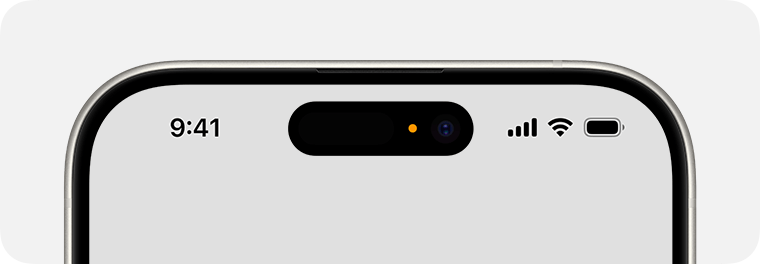
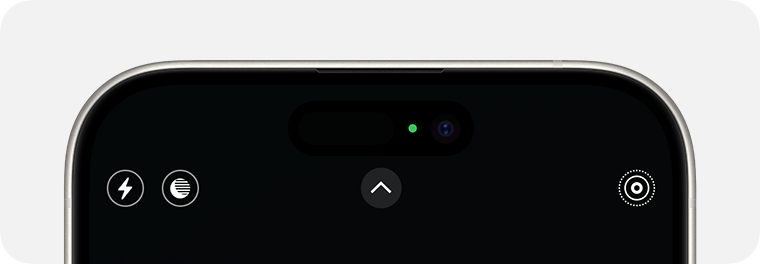
To understand how Predator disables these indicators, we first need to look at how iOS handles them. Since the release of iOS 14 in 2020, Apple devices have alerted users whenever the microphone or camera is active by displaying an orange or green dot at the top of the screen. If both are running simultaneously, only the green dot is shown.
In iOS 14 and later, an orange dot appears at the top of the screen when the microphone is in use. Source
Just like other iOS user interface elements, recording indicators are managed by a process called SpringBoard, which is responsible for the device’s system-wide UI. When an app starts using the camera or microphone, the system registers the change in that specific module’s state. This activity data is then gathered by an internal system component, which passes the information to SpringBoard for processing. Once SpringBoard receives word that the camera or microphone is active, it toggles the green or orange dot on or off based on that data.
If the camera is in use (or both the camera and microphone are), a green dot appears. Source
From an app’s perspective, the process works like this: first, the app requests permission to access the camera or microphone through the standard iOS permission mechanism. When the app actually needs to use one or both of these modules, it calls the iOS system API. If the user has granted permission, iOS activates the requested module and automatically updates the status indicator. These indicators are strictly controlled by the operating system; third-party apps have no direct access to them.
How Predator interferes with the iOS camera and microphone indicators
Cybersecurity researchers analyzed a captured version of Predator and uncovered traces of multiple techniques used by the spyware’s creators to bypass built-in iOS mechanisms and disable recording indicators.
In the first approach — which appears to have been used during early development — the malware attempted to interfere with the indicators at the display stage right after SpringBoard received word that the camera or microphone was active. However, this method was likely deemed too complex and unreliable by the developers. As a result, this specific function remains in the Trojan as dead code — it’s never actually executed.
Ultimately, Predator settled on a simpler, more effective method that operates at the very level where the system receives data about the camera or microphone being turned on. To do this, Predator intercepts the communication between SpringBoard and the specific component responsible for collecting activity data from these modules.
By exploiting the specific characteristics of Objective-C — the programming language used to write the SpringBoard application — the malware completely blocks the signals indicating that the camera or microphone has been activated. As a result, SpringBoard never receives the signal that the module’s status has changed, so it never triggers the recording indicators.
How to lower your risk of spyware infection
Predator-grade spyware is quite expensive, and typically reserved for high-stakes industrial or state-sponsored espionage. On one hand, this means defending against such a high-tier threat is difficult — and achieving 100% protection is likely impossible. On the other hand, for these same reasons, the average user is statistically unlikely to be targeted.
However, if you’ve reason to believe you’re at risk from Predator or Pegasus-class spyware, here are a few steps you can take to make an attacker’s job much harder:
Don’t click suspicious links from unknown senders.
Regularly update your operating system, browsers, and messaging apps.
Reboot your device occasionally. A simple restart can often help “lose the tail”, forcing attackers to reinfect the device from scratch.
If you don’t go searching for AI services, they’ll find you all the same. Every major tech company feels a moral obligation not just to develop an AI assistant, integrated chatbot, or autonomous agent, but to bake it into their existing mainstream products and forcibly activate it for tens of millions of users. Here are just a few examples from the last six months:
Google activated Gemini for all U.S. Chrome users, cranked its browser functionality to the max, aggressively expanded the reach of AI Overviews in search results, and baked a whole suite of AI features into its online services (Gmail, Google Docs, and others).
Apple integrated its own Apple Intelligence (conveniently sharing the AI acronym) into the latest OS versions across all device types and most of its native apps.
On the flip side, geeks have rushed to build their own “personal Jarvises” by renting VPS instances or hoarding Mac minis to run the OpenClaw AI agent. Unfortunately, OpenClaw’s security issues with default settings turned out to be so massive that it’s already been dubbed the biggest cybersecurity threat of 2026.
Beyond the sheer annoyance of having something shoved down your throat, this AI epidemic brings some very real practical risks and headaches. AI assistants hoover up every bit of data they can get their hands on, parsing the context of the websites you visit, analyzing your saved documents, reading through your chats, and so on. This gives AI companies an unprecedentedly intimate look into every user’s life.
A leak of this data during a cyberattack — whether from the AI provider’s servers or from the cache on your own machine — could be catastrophic. These assistants can see and cache everything you can, including data usually tucked behind multiple layers of security: banking info, medical diagnoses, private messages, and other sensitive intel. We took a deep dive into how this plays out when we broke down the issues with the AI-powered Copilot+ Recall system, which Microsoft also planned to force-feed to everyone. On top of that, AI can be a total resource hog, eating up RAM, GPU cycles, and storage, which often leads to a noticeable hit to system performance.
For those who want to sit out the AI storm and avoid these half-baked, rushed-to-market neural network assistants, we’ve put together a quick guide on how to kill the AI in popular apps and services.
How to disable AI in Google Docs, Gmail, and Google Workspace
Google’s AI assistant features in Mail and Docs are lumped together under the umbrella of “smart features”. In addition to the large language model, this includes various minor conveniences, like automatically adding meetings to your calendar when you receive an invite in Gmail. Unfortunately, it’s an all-or-nothing deal: you have to disable all of the “smart features” to get rid of the AI.
To do this, open Gmail, click the Settings (gear) icon, and then select See all settings. On the General tab, scroll down to Google Workspace smart features. Click Manage Workspace smart feature settings and toggle off two options: Smart features in Google Workspace and Smart features in other Google products. We also recommend unchecking the box next to Turn on smart features in Gmail, Chat, and Meet on the same general settings tab. You’ll need to restart your Google apps afterward (which usually happens automatically).
How to disable AI Overviews in Google Search
You can kill off AI Overviews in search results on both desktops and smartphones (including iPhones), and the fix is the same across the board. The simplest way to bypass the AI overview on a case-by-case basis is to append -ai to your search query — for example, how to make pizza -ai. Unfortunately, this method occasionally glitches, causing Google to abruptly claim it found absolutely nothing for your request.
If that happens, you can achieve the same result by switching the search results page to Web mode. To do this, select the Web filter immediately below the search bar — you’ll often find it tucked away under the More button.
A more radical solution is to jump ship to a different search engine entirely. For instance, DuckDuckGo not only tracks users less and shows little ads, but it also offers a dedicated AI-free search — just bookmark the search page at noai.duckduckgo.com.
How to disable AI features in Chrome
Chrome currently has two types of AI features baked in. The first communicates with Google’s servers and handles things like the smart assistant, an autonomous browsing AI agent, and smart search. The second handles locally more utility-based tasks, such as identifying phishing pages or grouping browser tabs. The first group of settings is labeled AI mode, while the second contains the term Gemini Nano.
To disable them, type chrome://flags into the address bar and hit Enter. You’ll see a list of system flags and a search bar; type “AI” into that search bar. This will filter the massive list down to about a dozen AI features (and a few other settings where those letters just happen to appear in a longer word). The second search term you’ll need in this window is “Gemini“.
After reviewing the options, you can disable the unwanted AI features — or just turn them all off — but the bare minimum should include:
AI Mode Omnibox entrypoint
AI Entrypoint Disabled on User Input
Omnibox Allow AI Mode Matches
Prompt API for Gemini Nano
Prompt API for Gemini Nano with Multimodal Input
Set all of these to Disabled.
How to disable AI features in Firefox
While Firefox doesn’t have its own built-in chatbots and hasn’t (yet) tried to force upon users agent-based features, the browser does come equipped with smart-tab grouping, a sidebar for chatbots, and a few other perks. Generally, AI in Firefox is much less “in your face” than in Chrome or Edge. But if you still want to pull the plug, you’ve two ways to do it.
The first method is available in recent Firefox releases — starting with version 148, a dedicated AI Controls section appeared in the browser settings, though the controls are currently a bit sparse. You can use a single toggle to completely Block AI enhancements, shutting down AI features entirely. You can also specify whether you want to use On-device AI by downloading small local models (currently just for translations) and configure AI chatbot providers in sidebar, choosing between Anthropic Claude, ChatGPT, Copilot, Google Gemini, and Le Chat Mistral.
The second path — for older versions of Firefox — requires a trip into the hidden system settings. Type about:config into the address bar, hit Enter, and click the button to confirm that you accept the risk of poking around under the hood.
A massive list of settings will appear along with a search bar. Type “ML” to filter for settings related to machine learning.
To disable AI in Firefox, toggle the browser.ml.enabled setting to false. This should disable all AI features across the board, but community forums suggest this isn’t always enough to do the trick. For a scorched-earth approach, set the following parameters to false (or selectively keep only what you need):
ml.chat.enabled
ml.linkPreview.enabled
ml.pageAssist.enabled
ml.smartAssist.enabled
ml.enabled
ai.control.translations
tabs.groups.smart.enabled
urlbar.quicksuggest.mlEnabled
This will kill off chatbot integrations, AI-generated link descriptions, assistants and extensions, local translation of websites, tab grouping, and other AI-driven features.
How to disable AI features in Microsoft apps
Microsoft has managed to bake AI into almost every single one of its products, and turning it off is often no easy task — especially since the AI sometimes has a habit of resurrecting itself without your involvement.
How to disable AI features in Edge
Microsoft’s browser is packed with AI features, ranging from Copilot to automated search. To shut them down, follow the same logic as with Chrome: type edge://flags into the Edge address bar, hit Enter, then type “AI” or “Copilot” into the search box. From there, you can toggle off the unwanted AI features, such as:
Enable Compose (AI-writing) on the web
Edge Copilot Mode
Edge History AI
Another way to ditch Copilot is to enter edge://settings/appearance/copilotAndSidebar into the address bar. Here, you can customize the look of the Copilot sidebar and tweak personalization options for results and notifications. Don’t forget to peek into the Copilot section under App-specific settings — you’ll find some additional controls tucked away there.
How to disable Microsoft Copilot
Microsoft Copilot comes in two flavors: as a component of Windows (Microsoft Copilot), and as part of the Office suite (Microsoft 365 Copilot). Their functions are similar, but you’ll have to disable one or both depending on exactly what the Redmond engineers decided to shove onto your machine.
The simplest thing you can do is just uninstall the app entirely. Right-click the Copilot entry in the Start menu and select Uninstall. If that option isn’t there, head over to your installed apps list (Start → Settings → Apps) and uninstall Copilot from there.
In certain builds of Windows 11, Copilot is baked directly into the OS, so a simple uninstall might not work. In that case, you can toggle it off via the settings: Start → Settings → Personalization → Taskbar→ turn off Copilot.
If you ever have a change of heart, you can always reinstall Copilot from the Microsoft Store.
It’s worth noting that many users have complained about Copilot automatically reinstalling itself, so you might want to do a weekly check for a couple of months to make sure it hasn’t staged a comeback. For those who are comfortable tinkering with the System Registry (and understand the consequences), you can follow this detailed guide to prevent Copilot’s silent resurrection by disabling the SilentInstalledAppsEnabled flag and adding/enabling the TurnOffWindowsCopilot parameter.
How to disable Microsoft Recall
The Microsoft Recall feature, first introduced in 2024, works by constantly taking screenshots of your computer screen and having a neural network analyze them. All that extracted information is dumped into a database, which you can then search using an AI assistant. We’ve previously written in detail about the massive security risks Microsoft Recall poses.
Under pressure from cybersecurity experts, Microsoft was forced to push the launch of this feature from 2024 to 2025, significantly beefing up the protection of the stored data. However, the core of Recall remains the same: your computer still remembers your every move by constantly snapping screenshots and OCR-ing the content. And while the feature is no longer enabled by default, it’s absolutely worth checking to make sure it hasn’t been activated on your machine.
To check, head to the settings: Start → Settings → Privacy & Security →Recall & snapshots. Ensure the Save snapshots toggle is turned off, and click Delete snapshots to wipe any previously collected data, just in case.
How to disable AI in Notepad and Windows context actions
AI has seeped into every corner of Windows, even into File Explorer and Notepad. You might even trigger AI features just by accidentally highlighting text in an app — a feature Microsoft calls “AI Actions”. To shut this down, head to Start → Settings → Privacy & Security → Click to Do.
Notepad has received its own special Copilot treatment, so you’ll need to disable AI there separately. Open the Notepad settings, find the AI features section, and toggle Copilot off.
Finally, Microsoft has even managed to bake Copilot into Paint. Unfortunately, as of right now, there is no official way to disable the AI features within the Paint app itself.
How to disable AI in WhatsApp
In several regions, WhatsApp users have started seeing typical AI additions like suggested replies, AI message summaries, and a brand-new Chat with Meta AI button. While Meta claims the first two features process data locally on your device and don’t ship your chats off to their servers, verifying that is no small feat. Luckily, turning them off is straightforward.
To disable Suggested Replies, go to Settings → Chats → Suggestions & smart replies and toggle off Suggested replies. You can also kill off AI Sticker suggestions in that same menu. As for the AI message summaries, those are managed in a different location: Settings → Notifications → AI message summaries.
How to disable AI on Android
Given the sheer variety of manufacturers and Android flavors, there’s no one-size-fits-all instruction manual for every single phone. Today, we’ll focus on killing off Google’s AI services — but if you’re using a device from Samsung, Xiaomi, or others, don’t forget to check your specific manufacturer’s AI settings. Just a heads-up: fully scrubbing every trace of AI might be a tall order — if it’s even possible at all.
In Google Messages, the AI features are tucked away in the settings: tap your account picture, select Messages settings, then Gemini in Messages, and toggle the assistant off.
Broadly speaking, the Gemini chatbot is a standalone app that you can uninstall by heading to your phone’s settings and selecting Apps. However, given Google’s master plan to replace the long-standing Google Assistant with Gemini, uninstalling it might become difficult — or even impossible — down the road.
If you can’t completely uninstall Gemini, head into the app to kill its features manually. Tap your profile icon, select Gemini Apps activity, and then choose Turn off or Turn off and delete activity. Next, tap the profile icon again and go to the Connected Apps setting (it may be hiding under the Personal Intelligence setting). From here, you should disable all the apps where you don’t want Gemini poking its nose in.
Apple’s platform-level AI features, collectively known as Apple Intelligence, are refreshingly straightforward to disable. In your settings — on desktops, smartphones, and tablets alike — simply look for the section labeled Apple Intelligence & Siri. By the way, depending on your region and the language you’ve selected for your OS and Siri, Apple Intelligence might not even be available to you yet.
Other posts to help you tune the AI tools on your devices:

 Login
Login