❌

Normal view

Releasing the Cobalt Strike Beacon Corpus

13 October 2026 at 16:26

Authors: Yun Zheng Hu

Introduction

Today Fox-IT is publicly releasing its full Cobalt Strike Beacon Corpus, containing 56,843 raw beacons and their parsed configurations, from 190,182 sightings collected from 30,604 unique IP addresses running a Team Server (the Cobalt Strike command-and-control server that beacons connect back to) between 4 July 2018 and 29 September 2026, over eight years of beacon data. The corpus is available on Hugging Face: https://huggingface.co/datasets/fox-srt/cobaltstrike-beacon-corpus

Back in March 2022 we published Mining Data from Cobalt Strike Beacons. That post covered 128,340 beacon sightings collected from July 2018 to February 2022, and it introduced our Python project dissect.cobaltstrike for parsing them.

Since then, public scanning for Team Servers has become routine, and Cobalt Strike has shipped versions 4.6 through 4.13. Researchers have regularly asked us for an updated dataset. And here it is, a large, consistent, long-running dataset for the infosec community to build on. The corpus includes the raw beacon payloads, not just our parsed output, so anyone can reproduce our results or improve on them.

We also see publishing this corpus as an act of preservation. C2 infrastructure is short-lived, as the median Team Server is reachable for just 14 days, and the beacons it serves vanish with it. Eight years of collection captures things that can no longer be observed today, like the waves of cracked 4.0 builds or the adoption of leaked versions. By publishing the raw beacons alongside the parsed data, we keep that record available for anyone to study, long after the servers themselves are gone.

What’s in the corpus

The corpus is published on Hugging Face as two Parquet files:

FileSizeRowsContents
beacons.parquet52 MB190,182Every sighting of a beacon, with collection metadata, network context and the parsed beacon configuration.
payloads.parquet9.7 GB56,843The raw beacon payloads, wrapped in CaRT as an extra safety layer so the samples are neutered until you deliberately unpack them.

All beacons were downloaded directly from internet-facing Team Servers, mostly on TCP ports 80 and 443 (HTTP and HTTPS) and UDP port 53 (DNS), with a small number on other ports. We deliberately didn’t include samples from other sources such as VirusTotal, so the corpus reflects the Cobalt Strike landscape as it was visible on the internet.

How we collected it

The collection method matches our 2022 post. We fingerprint likely Team Servers on the internet, then request a beacon payload from each one using a URI that passes Cobalt Strike’s checksum8 check. Every beacon that comes back is parsed with dissect.cobaltstrike, which decodes the configuration block. The result is stored as a sighting.

  • Discovery: candidate hosts from our own internet-wide scanning. As in 2022, we’re keeping our fingerprints private so they stay effective; writing your own is left as an exercise for the reader.
  • Download: x86 beacons over HTTP(S) and DNS.
  • DNS: for DNS listeners we’re not publishing that fingerprint either, but it’s not rocket science. The beacon is fetched as a series of TXT record lookups sent over UDP port 53 directly to the Team Server’s DNS listener.
  • Parse: Use dissect.cobaltstrike to parse the beacon and export the configuration
  • Enrich: TLS certificate data captured at collection time (where available) and GeoIP/ASN via historical GeoIP databases.

Note that there might be some small gaps in the collection due to automation issues that we did not catch in time.

Getting started

Most research only needs the beacons.parquet dataset. The payloads.parquet dataset containing raw beacon payloads is only required if you want to re-parse the beacons or look into the ones that failed parsing.

I’m a big fan of DuckDB (and SQLite), and over time I’ve become fond of SQL for querying data as well. DuckDB is very fast, and AI assistants are very good at writing SQL queries. These days, that beats hand-writing pandas code and the matching matplotlib charts. That’s why I recommend exploring the data with DuckDB, for example in a Jupyter notebook.

An example of using DuckDB to query the dataset on Hugging Face directly:

SELECT watermark,
       count(*)                          AS sightings,
       count(DISTINCT collected_from_ip) AS servers,
       min(collected_on)                 AS first_seen,
       max(collected_on)                 AS last_seen
FROM 'hf://datasets/fox-srt/cobaltstrike-beacon-corpus/data/beacons.parquet'
GROUP BY watermark
ORDER BY sightings DESC
LIMIT 20;
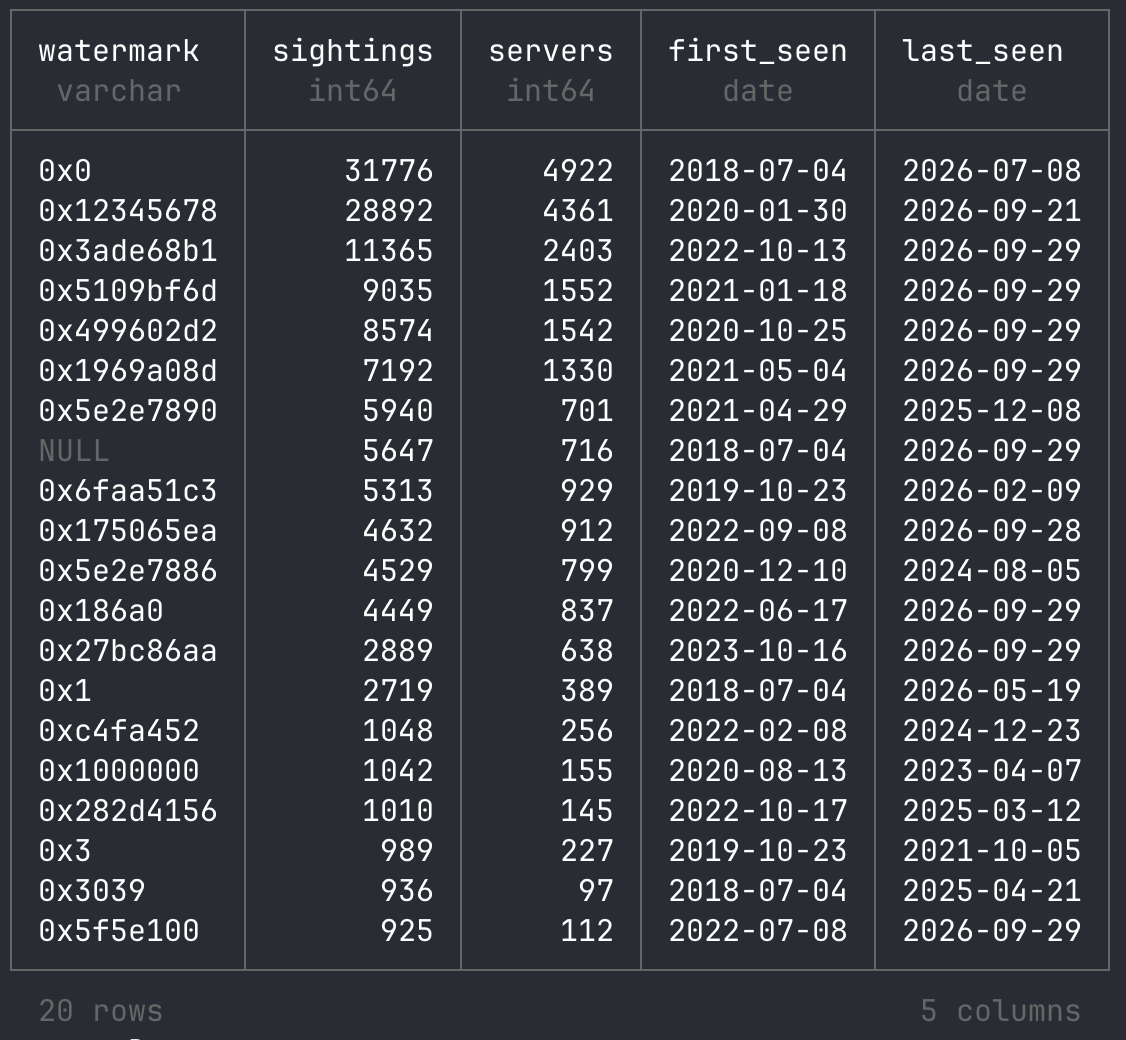
Take a look at our Jupyter notebook in the Hugging Face repository as a starting point. It contains every query and chart from the sections below, so you can rerun them or adapt them to your own research questions.

A first look at the data

Here are a few quick results to show what the corpus can answer. They’re a starting point, not a full analysis. As with our 2022 post, we invite researchers to explore the data; see also “Research ideas” below.

Old versions never die
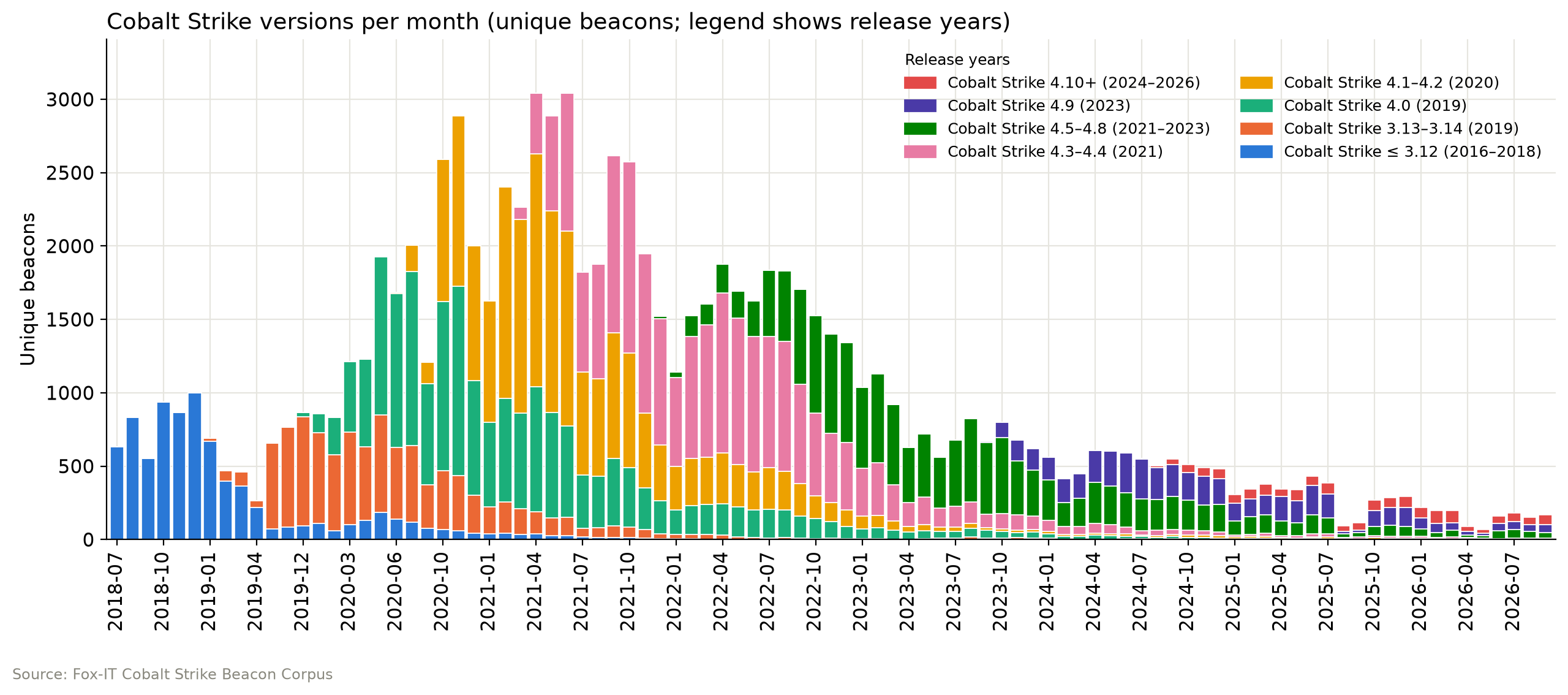
Each Cobalt Strike release takes over from the last, but old versions linger. Cobalt Strike 4.0 dominated most of 2020, 4.1–4.2 drove the early 2021 peak of about 3,000 beacons a month, 4.3–4.4 led from mid-2021 through 2022, and 4.5–4.8 took over in 2023. Since 2024, 4.9 and 4.5–4.8 have shared the lead, while 4.10+ remains a small share. Volume has since dropped to around 200 beacons a month, partly because fewer servers stage their beacon, which brings us to the next graph.

No beacon for you
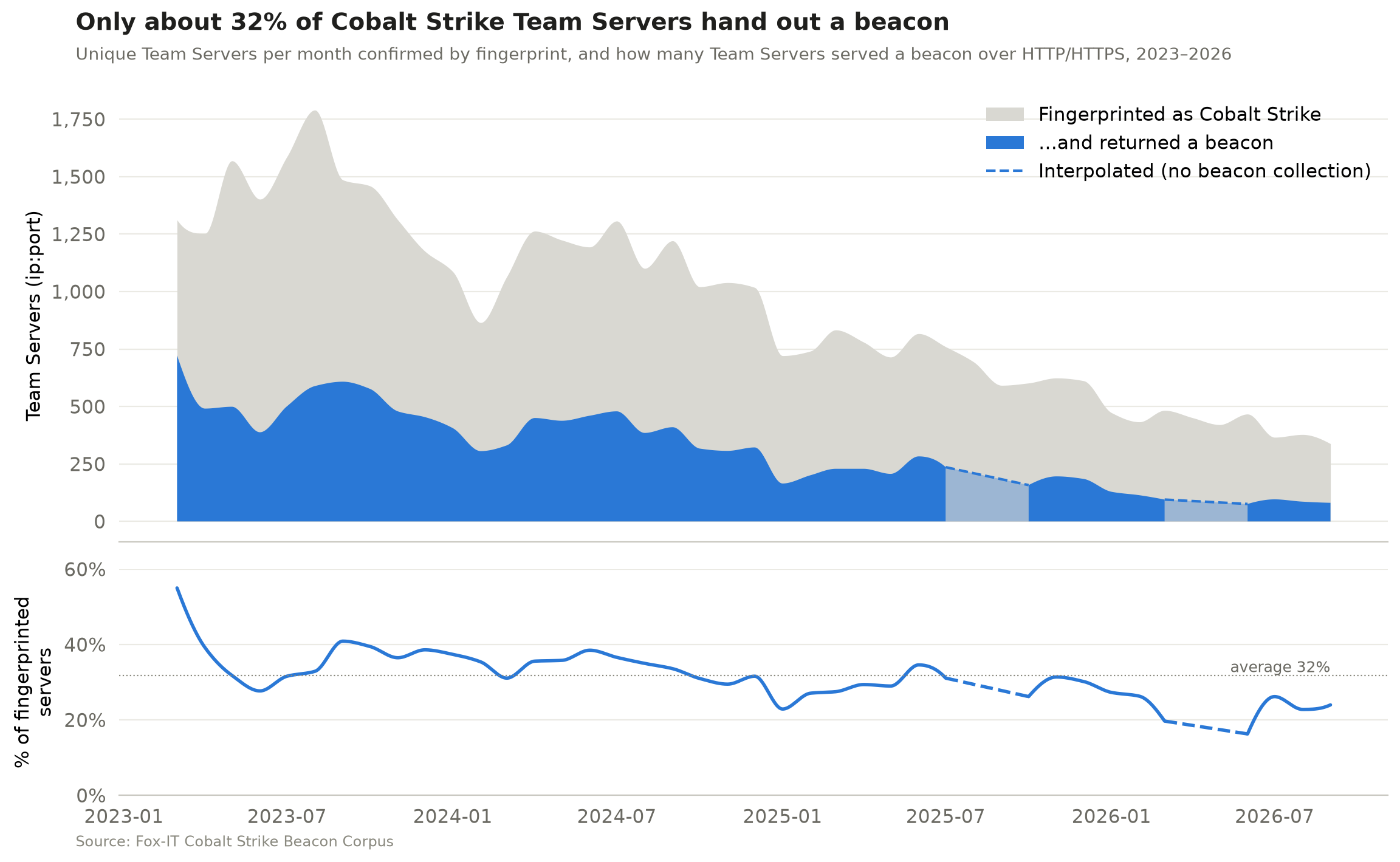
Our collection relies on beacon staging, meaning a Team Server can serve its beacon as a downloadable payload to anyone who requests the right URI or DNS record. Operators can turn this off (the host_stage option in the Malleable C2 profile), and disabling it is common OPSEC advice. To measure how much this affects our beacon collection, we counted two numbers per month:

  1. The unique Team Servers (ip:port) confirmed by our high-confidence HTTP fingerprint
  2. The unique Team Servers (ip:port) that handed out a beacon over HTTP(S)

These are monthly totals, not a server-by-server match. On average, the Team Servers that handed out a beacon were only about 32% of those we fingerprinted, and that share has drifted down from around 40% in 2023 to 20–25% in 2026. In other words, because not every server hands out a beacon, the corpus shows only part of the Cobalt Strike landscape, and that part is getting smaller. Disabled beacon staging is the most likely reason, but not the only one. Servers can go offline between fingerprinting and download or block our scanners, and our fingerprint doesn’t catch every Team Server.

The dashed sections mark months when beacon collection wasn’t running, because of an automation error that went unnoticed for a while.

The short life of a Cobalt Strike Team Server
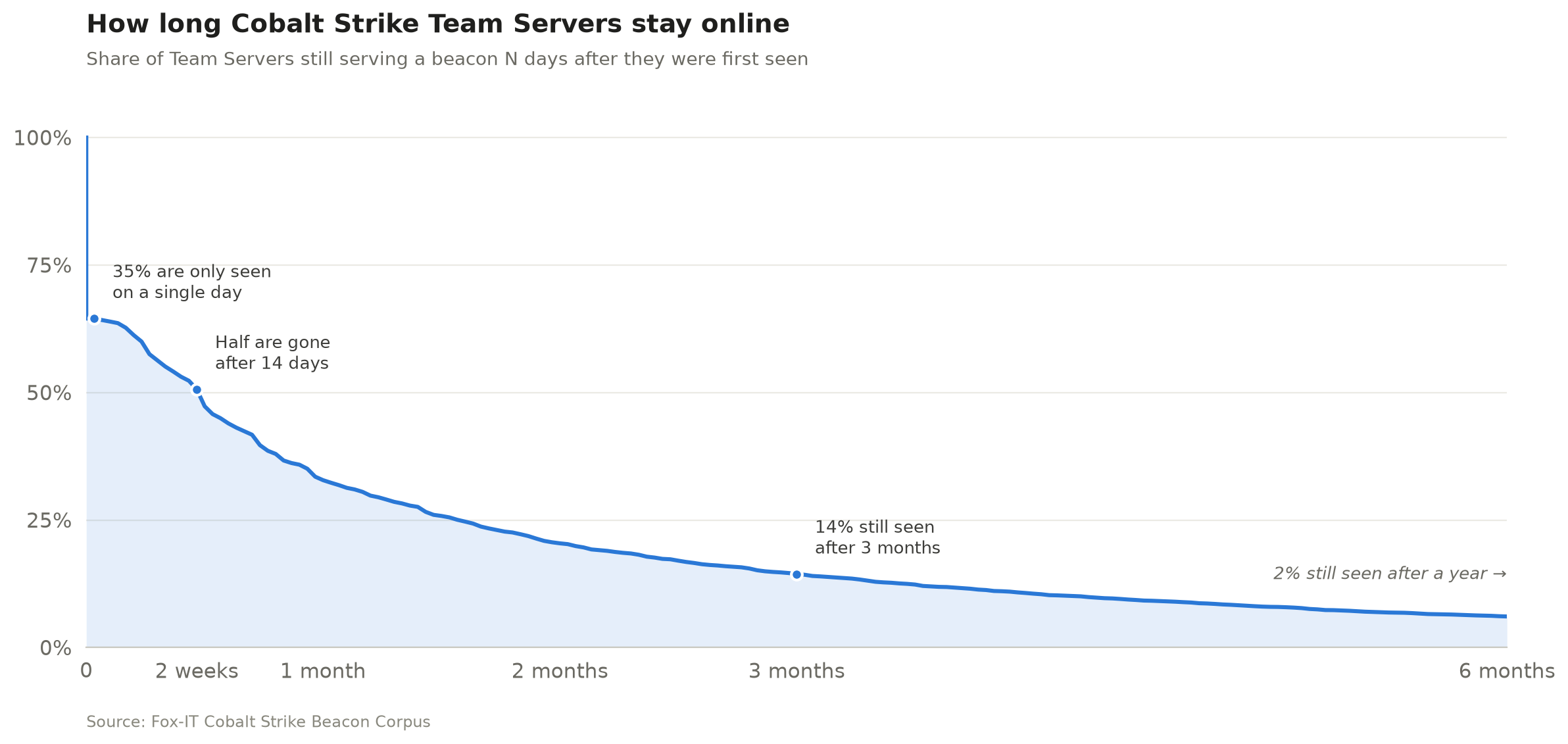
The median Team Server was reachable for 14 days. 35% were seen on a single day only, just 14% were still serving a beacon after three months, and only 2% after a year.

We identify a Team Server by its public key and C2 domains from the beacon configuration (or its IP address when the configuration contains no domains), so a server that moves to a new IP is still counted once. This allows us to measure how long a Team Server typically stays online. Identifying servers by public key alone or by ip:port gives almost the same result, a median lifetime of 14–15 days. These are first-to-last-sighting spans, so a server may have been online before our first and after our last sighting. Servers still active in the last 30 days are left out.

It’s always DNS
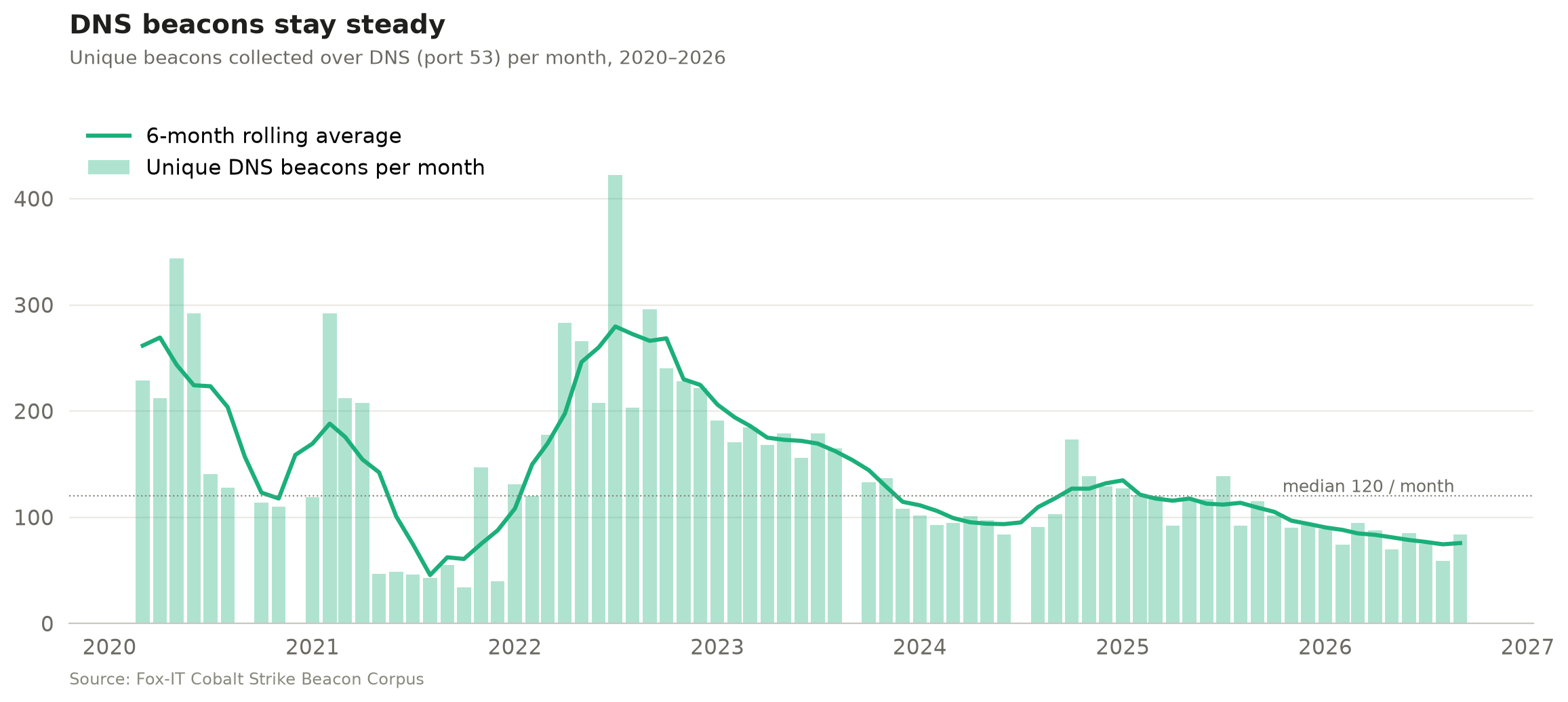
Most public scanning focuses only on HTTP(S) beacons, but we’ve also collected DNS beacons since 2020 (apart from the months when our automation broke). DNS beacons have declined much less steeply than HTTP(S) ones, perhaps because they get far less attention in public research and OPSEC advice, so fewer operators think to lock them down. After a peak in 2022, they have mostly hovered around 100 a month since 2024, with a median of 120 over the whole period.

Parse me if you can

The corpus also includes 128 unique beacons (0.23%) that we downloaded but couldn’t parse. Note that the corpus doesn’t contain HTML pages or other responses that were unlikely to be a beacon. We excluded those before publishing. At first glance, most are beacons with custom modifications that dissect.cobaltstrike can’t parse yet. And some payloads from the early years aren’t Cobalt Strike at all, but Metasploit Meterpreter payloads. We’ve deliberately left them in for researchers to analyse. You can find all unparsed beacons with: WHERE config_json IS NULL

The unparsed count used to be higher, but we managed to bring that down. We noticed some operators customised their beacon configs, for example by shuffling the order of the configuration settings or changing their type values, which broke our parser (and probably most others). The corpus helped us find these cases, so we made the config scanning of dissect.cobaltstrike independent of layout and added many other features and fixes along the way. See the dissect.cobaltstrike v1.3.0 release notes.

Research ideas

Some other research questions that could be answered using the corpus:

  • Clustering: Group operators by config features (watermark, SPAWNTO/PROCINJ hash, C2 profile, certificate, sleep/jitter, specific beacon modifications)
  • Classification: Separate red team from criminal infrastructure. Build and publish labelled subsets.
  • Infrastructure: Top hosting providers that are hosting a Cobalt Strike Team Server.
  • Certificates: Pivot on x509 reuse across servers and time or find how many are running the default Cobalt Strike keystore certificate.
  • Benchmarks: Use the corpus as a shared test set for config extractors and ML models.
  • Parser failures: 128 beacons can’t be parsed by dissect.cobaltstrike. Figure out why.

Over to you

Eight years of Cobalt Strike beacons are now one download away on Hugging Face. Run your own queries, pick up one of the research ideas above or come up with your own, dig into the beacons we couldn’t parse, and share what you find.

Before you start, read the Limitations section on the dataset card. The raw payloads are real Cobalt Strike beacons, so handle them like any other malware sample.

Decrypting Full Disk Encryption with Dissect

11 December 2024 at 08:30

Author: Guus Beckers

Back in 2022 Fox-IT decided to open source its proprietary incident response tooling known as Dissect. Since then it has been adopted by many different companies in their regular workflow. For those of you who are not yet familiar with Dissect, it is an incident response framework built with incident response engagements of any scale in mind. It allows you to extract artifacts from a variety of data formats and export them to a format of your choosing. Ever since Dissect has been open sourced a large number of individuals and institutions have contributed to the Dissect framework, culminating in the first Dissect partner day earlier in 2024.  

One of the most popular requests has been the capability to use Dissect in combination with common disk encryption methods like Microsoft’s BitLocker or its Linux equivalent LUKS. Internally at Fox-IT we were able to already use these capabilities. With the release of Dissect version 3.17 these capabilities are now also available to the community at large.  

Of course, a blog post is not complete without a demo. In this scenario a data acquisition has been performed against a disk protected with BitLocker. We are interested in a specific file located on the user’s desktop. During this scenario, a virtual machine was created with VMware Fusion which uses the .vmwarevm file format. Dissect can parse this format thanks to its associated loader.

First, we use Dissect to examine the disk properties:  

$ target-info "Windows 11 x64.vmwarevm" -v                                                                                                                                               
2024-11-27T11:57:18.474060Z [error    ] Failed to open an encrypted volume <Volume name='Basic data partition' size=67921509888 fs=None> with volume manager bitlocker: Failed to unlock BDE volume [dissect.target.volume] 
2024-11-27T11:57:18.634092Z [warning  ] <Target Windows 11 x64.vmwarevm>: Can't identify filesystem: <Volume name='Microsoft reserved partition' size=16776704 fs=None> [dissect.target.target] 
2024-11-27T11:57:19.416120Z [warning  ] <Target Windows 11 x64.vmwarevm>: Failed to find OS plugin, falling back to default [dissect.target.target] 
<Target Windows 11 x64.vmwarevm> 
 
 
Disks 
- <Disk type="VmdkContainer" size="68719476736"> 
 
 
Volumes 
- <Volume name="Basic data partition" size="104857088" fs="FatFilesystem"> 
- <Volume name="Microsoft reserved partition" size="16776704" fs="NoneType"> 
- <Volume name="Basic data partition" size="67921509888" fs="NoneType"> 
- <Volume name="part_fd7c00000" size="673185280" fs="NtfsFilesystem"> 
 
 
Hostname       : None 
Domain         : None 
Ips            : 
Os family      : default 
Os version     : None 
Architecture   : None 
Language       : 
Timezone       : None 
Install date   : 1970-01-01T00:00:00.000000+00:00 
Last activity  : None 

It seems the disk is encrypted, now we can use the latest version of BitLocker to decrypt the information.  Dissect supports three different types of decryption capabilities. An analyst can either use the user’s passphrase, the recovery key or can use a BitLocker file. Please check the updated documentation on the Dissect Docs page for more information.  For now we have created a keychain CSV file with the following information:  

$ cat keychain.csv 
bitlocker,recovery_key,,395791-328042-677721-279895-554466-214599-232023-709148 

We can use Dissect’s commands like target-info to check if the keychain works: 

$ target-info "Windows 11 x64.vmwarevm" -K keychain.csv                                                                                                                                     
2024-11-27T10:18:01.698079Z [warning  ] <Target Windows 11 x64.vmwarevm>: Can't identify filesystem: <Volume name='Microsoft reserved partition' size=16776704 fs=None> [dissect.target.target] 
2024-11-27T10:18:02.731474Z [warning  ] <Target Windows 11 x64.vmwarevm>: Empty hive: sysvol/windows/SECURITY [dissect.target.target] 
2024-11-27T10:18:02.737980Z [warning  ] <Target Windows 11 x64.vmwarevm>: Empty hive: sysvol/windows/SYSTEM [dissect.target.target] 
<Target Windows 11 x64.vmwarevm> 
 
 
Disks 
- <Disk type="VmdkContainer" size="68719476736"> 
 
 
Volumes 
- <Volume name="Basic data partition" size="104857088" fs="FatFilesystem"> 
- <Volume name="Microsoft reserved partition" size="16776704" fs="NoneType"> 
- <Volume name="Basic data partition" size="67921509888" fs="NoneType"> 
- <Volume name="part_fd7c00000" size="673185280" fs="NtfsFilesystem"> 
- <Volume name="Basic data partition" size="67921509888" fs="NtfsFilesystem"> 
 
 
Hostname       : SECRETDATAVM 
Domain         : None 
Ips            : 192.168.212.129 
Os family      : windows 
Os version     : Windows 11 Pro (NT 10.0) 26100.2314 
Architecture   : amd64-win64 
Language       : en_GB, en_NL, en_US 
Timezone       : Europe/Berlin 
Install date   : 2024-11-27T17:34:07.000000+00:00 
Last activity  : 2024-11-27T17:33:31.670376+00:00 

Alternatively, we can pass the recovery key value directly like this: 

$ target-info "Windows 11 x64.vmwarevm" -Kv 395791-328042-677721-279895-554466-214599-232023-709148 -v

Now we can browse through the decrypted filesystem and view the file on the user’s desktop: 

$ target-shell "Windows 11 x64.vmwarevm" -Kv 395791-328042-677721-279895-554466-214599-232023-709148 -q
                                                                                       
SECRETDATAVM:/$ cat c:/Users/Staff/Desktop/SuperSecretFile.txt 
Lorem ipsum dolor sit amet, consectetur adipiscing elit, sed do eiusmod tempor incididunt ut labore et dolore magna aliqua. Ut enim ad minim veniam, quis nostrud exercitation ullamco laboris nisi ut aliquip ex ea commodo consequat. Duis aute irure dolor in reprehenderit in voluptate velit esse cillum dolore eu fugiat nulla pariatur. Excepteur sint occaecat cupidatat non proident, sunt in culpa qui officia deserunt mollit anim id est laborum.

As you can imagine this also works with Linux in the exact same manner.  This time we use a LUKS passphrase in conjunction with Dissect:

$ target-info "Ubuntu 64-bit 24.04.1.vmwarevm" -Kv glad-design-paper-airplane                                                                                                                          
2024-11-27T11:48:07.224355Z [warning  ] Failed to decode raw key as hex, ignoring: glad-design-paper-airplane [dissect.target.helpers.keychain] 
2024-11-27T11:48:08.910029Z [warning  ] <Target Ubuntu 64-bit 24.04.1.vmwarevm>: Can't identify filesystem: <Volume name='part_00100000' size=1048064 fs=None> [dissect.target.target] 
2024-11-27T11:48:09.826056Z [warning  ] <Target Ubuntu 64-bit 24.04.1.vmwarevm>: Unsupported mount device: /dev/disk/by-id/dm-uuid-LVM-YZiSLhoYFljS62k2vIjl3IcTwSkd0QguADKOf0a8t9am1jNdm9J1zerrDU7SWWFd / [dissect.target.target] 
<Target Ubuntu 64-bit 24.04.1.vmwarevm> 
2024-11-27T11:48:13.916382Z [warning  ] No timestamp found in one of the lines in /var/log/syslog! [dissect.target.helpers.utils] 
2024-11-27T11:48:13.925913Z [warning  ] Timestamp '27 2024 12:40:57' does not match format '%b %d %H:%M:%S', skipping line. [dissect.target.helpers.utils] 
2024-11-27T11:48:13.936096Z [warning  ] Timestamp 'Nov 2024 11:40:35' does not match format '%b %d %H:%M:%S', skipping line. [dissect.target.helpers.utils] 
2024-11-27T11:48:13.936416Z [warning  ] Timestamp 'Nov 2024 11:40:35' does not match format '%b %d %H:%M:%S', skipping line. [dissect.target.helpers.utils] 
2024-11-27T11:48:13.944841Z [warning  ] Timestamp 'Nov 2024 11:40:15' does not match format '%b %d %H:%M:%S', skipping line. [dissect.target.helpers.utils] 
2024-11-27T11:48:13.950083Z [warning  ] Timestamp 'Nov 2024 11:40:11' does not match format '%b %d %H:%M:%S', skipping line. [dissect.target.helpers.utils] 
2024-11-27T11:48:13.985809Z [warning  ] Timestamp 'Nov 2024 11:40:04' does not match format '%b %d %H:%M:%S', skipping line. [dissect.target.helpers.utils] 
2024-11-27T11:48:14.037897Z [warning  ] <Target Ubuntu 64-bit 24.04.1.vmwarevm>: Could not match cloud-init log line in file: /var/log/cloud-init.log [dissect.target.target] 
2024-11-27T11:48:14.037992Z [warning  ] <Target Ubuntu 64-bit 24.04.1.vmwarevm>: Could not match cloud-init log line in file: /var/log/cloud-init.log [dissect.target.target] 
2024-11-27T11:48:14.038056Z [warning  ] <Target Ubuntu 64-bit 24.04.1.vmwarevm>: Could not match cloud-init log line in file: /var/log/cloud-init.log [dissect.target.target] 
 
Disks 
- <Disk type="VmdkContainer" size="21474836480"> 
 
Volumes 
- <Volume name="part_00100000" size="1048064" fs="NoneType"> 
- <Volume name="part_00200000" size="1902116352" fs="ExtFilesystem"> 
- <Volume name="part_71800000" size="19569573376" fs="NoneType"> 
- <Volume name="part_71800000" size="19552796160" fs="NoneType"> 
- <Volume name="ubuntu--vg-ubuntu--lv" size="19549650944" fs="ExtFilesystem">
 
Hostname       : personnel-VMware-Virtual-Platform 
Domain         : None 
Ips            : 
Os family      : linux 
Os version     : Ubuntu 24.04.1 LTS (Noble Numbat) 
Architecture   : x86_64-linux 
Language       : en_US, en_US 
Timezone       : Europe/Amsterdam 
Install date   : 2024-11-27T11:33:29.665213+00:00 
Last activity  : 2024-11-27T11:45:34.821181+00:00 

We can use the same technique to extract another file from the Ubuntu desktop: 

$ target-shell "Ubuntu 64-bit 24.04.1.vmwarevm" -K keychain.csv -v                                                                                                                           
2024-11-27T11:59:52.227142Z [info     ] Registered key Key(key_type=<KeyType.PASSPHRASE: 'passphrase'>, value='glad-design-paper-airplane', provider='luks', identifier=None, is_wildcard=False) [dissect.target.helpers.keychain] 
2024-11-27T11:59:52.227562Z [info     ] Registered key Key(key_type=<KeyType.RECOVERY_KEY: 'recovery_key'>, value='395791-328042-677721-279895-554466-214599-232023-709148', provider='bitlocker', identifier=None, is_wildcard=False) [dissect.target.helpers.keychain] 
2024-11-27T11:59:53.719915Z [info     ] Volume <Volume name='part_71800000' size=19569573376 fs=None> unlocked with Key(key_type=<KeyType.PASSPHRASE: 'passphrase'>, value='glad-design-paper-airplane', provider='luks', identifier=None, is_wildcard=False) (keyslot: 0) [dissect.target.volumes.luks] 
2024-11-27T11:59:53.922164Z [warning  ] <Target Ubuntu 64-bit 24.04.1.vmwarevm>: Can't identify filesystem: <Volume name='part_00100000' size=1048064 fs=None> [dissect.target.target] 
2024-11-27T11:59:54.733524Z [info     ] <Target Ubuntu 64-bit 24.04.1.vmwarevm>: Found compatible OS plugin: DebianPlugin [dissect.target.target] 
2024-11-27T11:59:54.770648Z [info     ] <Target Ubuntu 64-bit 24.04.1.vmwarevm>: Found compatible OS plugin: LinuxPlugin [dissect.target.target] 
2024-11-27T11:59:54.791479Z [info     ] <Target Ubuntu 64-bit 24.04.1.vmwarevm>: Found compatible OS plugin: UnixPlugin [dissect.target.target] 
2024-11-27T11:59:54.802888Z [warning  ] <Target Ubuntu 64-bit 24.04.1.vmwarevm>: Unsupported mount device: /dev/disk/by-id/dm-uuid-LVM-YZiSLhoYFljS62k2vIjl3IcTwSkd0QguADKOf0a8t9am1jNdm9J1zerrDU7SWWFd / [dissect.target.target] 

personnel-VMware-Virtual-Platform:/$ cat /home/personnel/Desktop/secretLinuxfile 
"Lorem ipsum dolor sit amet, consectetur adipiscing elit, sed do eiusmod tempor incididunt ut labore et dolore magna aliqua. Ut enim ad minim veniam, quis nostrud exercitation ullamco laboris nisi ut aliquip ex ea commodo consequat. Duis aute irure dolor in reprehenderit in voluptate velit esse cillum dolore eu fugiat nulla pariatur. Excepteur sint occaecat cupidatat non proident, sunt in culpa qui officia deserunt mollit anim id est laborum."

Last but not least, Dissect also contains the fve-dd utility.  fve-dd can be used to decrypt an entire disk which allows a wider range of external tools to be used. fve-dd works on any supported Dissect containers. The individual VMDK files can be extracted from the .vmwarevm container:

$ ls                                                                                                                                                                                           
Virtual Disk-s001.vmdk Virtual Disk-s002.vmdk Virtual Disk-s003.vmdk Virtual Disk-s004.vmdk Virtual Disk-s005.vmdk Virtual Disk-s006.vmdk Virtual Disk.vmdk

Now the disk can be decrypted using fve-dd. The decryption can take some time depending on the size of the disk:

$ fve-dd -p glad-design-paper-airplane -o decrypted.dd "Virtual Disk.vmdk" -v

Dissect and other tools can be used on the decrypted disk:

$ target-info decrypted.dd                                                                                                                                                                     
[…]

Disks
- <Disk type="RawContainer" size="21458059264">

Volumes
- <Volume name="part_00100000" size="1048064" fs="NoneType">
- <Volume name="part_00200000" size="1902116352" fs="ExtFilesystem">
- <Volume name="part_71800000" size="19569573376" fs="NoneType">
- <Volume name="ubuntu--vg-ubuntu--lv" size="19549650944" fs="ExtFilesystem">

Hostname       : personnel-VMware-Virtual-Platform
Domain         : None
Ips            :
Os family      : linux
Os version     : Ubuntu 24.04.1 LTS (Noble Numbat)
Architecture   : x86_64-linux
Language       : en_US, en_US
Timezone       : Europe/Amsterdam
Install date   : 2024-11-27T11:33:29.665213+00:00
Last activity  : 2024-11-27T11:45:34.821181+00:00

Have fun with the latest version of Dissect!  

Decrypting Full Disk Encryption with Dissect

11 December 2024 at 08:30

Author: Guus Beckers

Back in 2022 Fox-IT decided to open source its proprietary incident response tooling known as Dissect. Since then it has been adopted by many different companies in their regular workflow. For those of you who are not yet familiar with Dissect, it is an incident response framework built with incident response engagements of any scale in mind. It allows you to extract artifacts from a variety of data formats and export them to a format of your choosing. Ever since Dissect has been open sourced a large number of individuals and institutions have contributed to the Dissect framework, culminating in the first Dissect partner day earlier in 2024.  

One of the most popular requests has been the capability to use Dissect in combination with common disk encryption methods like Microsoft’s BitLocker or its Linux equivalent LUKS. Internally at Fox-IT we were able to already use these capabilities. With the release of Dissect version 3.17 these capabilities are now also available to the community at large.  

Of course, a blog post is not complete without a demo. In this scenario a data acquisition has been performed against a disk protected with BitLocker. We are interested in a specific file located on the user’s desktop. During this scenario, a virtual machine was created with VMware Fusion which uses the .vmwarevm file format. Dissect can parse this format thanks to its associated loader.

First, we use Dissect to examine the disk properties:  

$ target-info "Windows 11 x64.vmwarevm" -v                                                                                                                                               
2024-11-27T11:57:18.474060Z [error    ] Failed to open an encrypted volume <Volume name='Basic data partition' size=67921509888 fs=None> with volume manager bitlocker: Failed to unlock BDE volume [dissect.target.volume] 
2024-11-27T11:57:18.634092Z [warning  ] <Target Windows 11 x64.vmwarevm>: Can't identify filesystem: <Volume name='Microsoft reserved partition' size=16776704 fs=None> [dissect.target.target] 
2024-11-27T11:57:19.416120Z [warning  ] <Target Windows 11 x64.vmwarevm>: Failed to find OS plugin, falling back to default [dissect.target.target] 
<Target Windows 11 x64.vmwarevm> 
 
 
Disks 
- <Disk type="VmdkContainer" size="68719476736"> 
 
 
Volumes 
- <Volume name="Basic data partition" size="104857088" fs="FatFilesystem"> 
- <Volume name="Microsoft reserved partition" size="16776704" fs="NoneType"> 
- <Volume name="Basic data partition" size="67921509888" fs="NoneType"> 
- <Volume name="part_fd7c00000" size="673185280" fs="NtfsFilesystem"> 
 
 
Hostname       : None 
Domain         : None 
Ips            : 
Os family      : default 
Os version     : None 
Architecture   : None 
Language       : 
Timezone       : None 
Install date   : 1970-01-01T00:00:00.000000+00:00 
Last activity  : None 

It seems the disk is encrypted, now we can use the latest version of BitLocker to decrypt the information.  Dissect supports three different types of decryption capabilities. An analyst can either use the user’s passphrase, the recovery key or can use a BitLocker file. Please check the updated documentation on the Dissect Docs page for more information.  For now we have created a keychain CSV file with the following information:  

$ cat keychain.csv 
bitlocker,recovery_key,,395791-328042-677721-279895-554466-214599-232023-709148 

We can use Dissect’s commands like target-info to check if the keychain works: 

$ target-info "Windows 11 x64.vmwarevm" -K keychain.csv                                                                                                                                     
2024-11-27T10:18:01.698079Z [warning  ] <Target Windows 11 x64.vmwarevm>: Can't identify filesystem: <Volume name='Microsoft reserved partition' size=16776704 fs=None> [dissect.target.target] 
2024-11-27T10:18:02.731474Z [warning  ] <Target Windows 11 x64.vmwarevm>: Empty hive: sysvol/windows/SECURITY [dissect.target.target] 
2024-11-27T10:18:02.737980Z [warning  ] <Target Windows 11 x64.vmwarevm>: Empty hive: sysvol/windows/SYSTEM [dissect.target.target] 
<Target Windows 11 x64.vmwarevm> 
 
 
Disks 
- <Disk type="VmdkContainer" size="68719476736"> 
 
 
Volumes 
- <Volume name="Basic data partition" size="104857088" fs="FatFilesystem"> 
- <Volume name="Microsoft reserved partition" size="16776704" fs="NoneType"> 
- <Volume name="Basic data partition" size="67921509888" fs="NoneType"> 
- <Volume name="part_fd7c00000" size="673185280" fs="NtfsFilesystem"> 
- <Volume name="Basic data partition" size="67921509888" fs="NtfsFilesystem"> 
 
 
Hostname       : SECRETDATAVM 
Domain         : None 
Ips            : 192.168.212.129 
Os family      : windows 
Os version     : Windows 11 Pro (NT 10.0) 26100.2314 
Architecture   : amd64-win64 
Language       : en_GB, en_NL, en_US 
Timezone       : Europe/Berlin 
Install date   : 2024-11-27T17:34:07.000000+00:00 
Last activity  : 2024-11-27T17:33:31.670376+00:00 

Alternatively, we can pass the recovery key value directly like this: 

$ target-info "Windows 11 x64.vmwarevm" -Kv 395791-328042-677721-279895-554466-214599-232023-709148 -v

Now we can browse through the decrypted filesystem and view the file on the user’s desktop: 

$ target-shell "Windows 11 x64.vmwarevm" -Kv 395791-328042-677721-279895-554466-214599-232023-709148 -q
                                                                                       
SECRETDATAVM:/$ cat c:/Users/Staff/Desktop/SuperSecretFile.txt 
Lorem ipsum dolor sit amet, consectetur adipiscing elit, sed do eiusmod tempor incididunt ut labore et dolore magna aliqua. Ut enim ad minim veniam, quis nostrud exercitation ullamco laboris nisi ut aliquip ex ea commodo consequat. Duis aute irure dolor in reprehenderit in voluptate velit esse cillum dolore eu fugiat nulla pariatur. Excepteur sint occaecat cupidatat non proident, sunt in culpa qui officia deserunt mollit anim id est laborum.

As you can imagine this also works with Linux in the exact same manner.  This time we use a LUKS passphrase in conjunction with Dissect:

$ target-info "Ubuntu 64-bit 24.04.1.vmwarevm" -Kv glad-design-paper-airplane                                                                                                                          
2024-11-27T11:48:07.224355Z [warning  ] Failed to decode raw key as hex, ignoring: glad-design-paper-airplane [dissect.target.helpers.keychain] 
2024-11-27T11:48:08.910029Z [warning  ] <Target Ubuntu 64-bit 24.04.1.vmwarevm>: Can't identify filesystem: <Volume name='part_00100000' size=1048064 fs=None> [dissect.target.target] 
2024-11-27T11:48:09.826056Z [warning  ] <Target Ubuntu 64-bit 24.04.1.vmwarevm>: Unsupported mount device: /dev/disk/by-id/dm-uuid-LVM-YZiSLhoYFljS62k2vIjl3IcTwSkd0QguADKOf0a8t9am1jNdm9J1zerrDU7SWWFd / [dissect.target.target] 
<Target Ubuntu 64-bit 24.04.1.vmwarevm> 
2024-11-27T11:48:13.916382Z [warning  ] No timestamp found in one of the lines in /var/log/syslog! [dissect.target.helpers.utils] 
2024-11-27T11:48:13.925913Z [warning  ] Timestamp '27 2024 12:40:57' does not match format '%b %d %H:%M:%S', skipping line. [dissect.target.helpers.utils] 
2024-11-27T11:48:13.936096Z [warning  ] Timestamp 'Nov 2024 11:40:35' does not match format '%b %d %H:%M:%S', skipping line. [dissect.target.helpers.utils] 
2024-11-27T11:48:13.936416Z [warning  ] Timestamp 'Nov 2024 11:40:35' does not match format '%b %d %H:%M:%S', skipping line. [dissect.target.helpers.utils] 
2024-11-27T11:48:13.944841Z [warning  ] Timestamp 'Nov 2024 11:40:15' does not match format '%b %d %H:%M:%S', skipping line. [dissect.target.helpers.utils] 
2024-11-27T11:48:13.950083Z [warning  ] Timestamp 'Nov 2024 11:40:11' does not match format '%b %d %H:%M:%S', skipping line. [dissect.target.helpers.utils] 
2024-11-27T11:48:13.985809Z [warning  ] Timestamp 'Nov 2024 11:40:04' does not match format '%b %d %H:%M:%S', skipping line. [dissect.target.helpers.utils] 
2024-11-27T11:48:14.037897Z [warning  ] <Target Ubuntu 64-bit 24.04.1.vmwarevm>: Could not match cloud-init log line in file: /var/log/cloud-init.log [dissect.target.target] 
2024-11-27T11:48:14.037992Z [warning  ] <Target Ubuntu 64-bit 24.04.1.vmwarevm>: Could not match cloud-init log line in file: /var/log/cloud-init.log [dissect.target.target] 
2024-11-27T11:48:14.038056Z [warning  ] <Target Ubuntu 64-bit 24.04.1.vmwarevm>: Could not match cloud-init log line in file: /var/log/cloud-init.log [dissect.target.target] 
 
Disks 
- <Disk type="VmdkContainer" size="21474836480"> 
 
Volumes 
- <Volume name="part_00100000" size="1048064" fs="NoneType"> 
- <Volume name="part_00200000" size="1902116352" fs="ExtFilesystem"> 
- <Volume name="part_71800000" size="19569573376" fs="NoneType"> 
- <Volume name="part_71800000" size="19552796160" fs="NoneType"> 
- <Volume name="ubuntu--vg-ubuntu--lv" size="19549650944" fs="ExtFilesystem">
 
Hostname       : personnel-VMware-Virtual-Platform 
Domain         : None 
Ips            : 
Os family      : linux 
Os version     : Ubuntu 24.04.1 LTS (Noble Numbat) 
Architecture   : x86_64-linux 
Language       : en_US, en_US 
Timezone       : Europe/Amsterdam 
Install date   : 2024-11-27T11:33:29.665213+00:00 
Last activity  : 2024-11-27T11:45:34.821181+00:00 

We can use the same technique to extract another file from the Ubuntu desktop: 

$ target-shell "Ubuntu 64-bit 24.04.1.vmwarevm" -K keychain.csv -v                                                                                                                           
2024-11-27T11:59:52.227142Z [info     ] Registered key Key(key_type=<KeyType.PASSPHRASE: 'passphrase'>, value='glad-design-paper-airplane', provider='luks', identifier=None, is_wildcard=False) [dissect.target.helpers.keychain] 
2024-11-27T11:59:52.227562Z [info     ] Registered key Key(key_type=<KeyType.RECOVERY_KEY: 'recovery_key'>, value='395791-328042-677721-279895-554466-214599-232023-709148', provider='bitlocker', identifier=None, is_wildcard=False) [dissect.target.helpers.keychain] 
2024-11-27T11:59:53.719915Z [info     ] Volume <Volume name='part_71800000' size=19569573376 fs=None> unlocked with Key(key_type=<KeyType.PASSPHRASE: 'passphrase'>, value='glad-design-paper-airplane', provider='luks', identifier=None, is_wildcard=False) (keyslot: 0) [dissect.target.volumes.luks] 
2024-11-27T11:59:53.922164Z [warning  ] <Target Ubuntu 64-bit 24.04.1.vmwarevm>: Can't identify filesystem: <Volume name='part_00100000' size=1048064 fs=None> [dissect.target.target] 
2024-11-27T11:59:54.733524Z [info     ] <Target Ubuntu 64-bit 24.04.1.vmwarevm>: Found compatible OS plugin: DebianPlugin [dissect.target.target] 
2024-11-27T11:59:54.770648Z [info     ] <Target Ubuntu 64-bit 24.04.1.vmwarevm>: Found compatible OS plugin: LinuxPlugin [dissect.target.target] 
2024-11-27T11:59:54.791479Z [info     ] <Target Ubuntu 64-bit 24.04.1.vmwarevm>: Found compatible OS plugin: UnixPlugin [dissect.target.target] 
2024-11-27T11:59:54.802888Z [warning  ] <Target Ubuntu 64-bit 24.04.1.vmwarevm>: Unsupported mount device: /dev/disk/by-id/dm-uuid-LVM-YZiSLhoYFljS62k2vIjl3IcTwSkd0QguADKOf0a8t9am1jNdm9J1zerrDU7SWWFd / [dissect.target.target] 

personnel-VMware-Virtual-Platform:/$ cat /home/personnel/Desktop/secretLinuxfile 
"Lorem ipsum dolor sit amet, consectetur adipiscing elit, sed do eiusmod tempor incididunt ut labore et dolore magna aliqua. Ut enim ad minim veniam, quis nostrud exercitation ullamco laboris nisi ut aliquip ex ea commodo consequat. Duis aute irure dolor in reprehenderit in voluptate velit esse cillum dolore eu fugiat nulla pariatur. Excepteur sint occaecat cupidatat non proident, sunt in culpa qui officia deserunt mollit anim id est laborum."

Last but not least, Dissect also contains the fve-dd utility.  fve-dd can be used to decrypt an entire disk which allows a wider range of external tools to be used. fve-dd works on any supported Dissect containers. The individual VMDK files can be extracted from the .vmwarevm container:

$ ls                                                                                                                                                                                           
Virtual Disk-s001.vmdk Virtual Disk-s002.vmdk Virtual Disk-s003.vmdk Virtual Disk-s004.vmdk Virtual Disk-s005.vmdk Virtual Disk-s006.vmdk Virtual Disk.vmdk

Now the disk can be decrypted using fve-dd. The decryption can take some time depending on the size of the disk:

$ fve-dd -p glad-design-paper-airplane -o decrypted.dd "Virtual Disk.vmdk" -v

Dissect and other tools can be used on the decrypted disk:

$ target-info decrypted.dd                                                                                                                                                                     
[…]

Disks
- <Disk type="RawContainer" size="21458059264">

Volumes
- <Volume name="part_00100000" size="1048064" fs="NoneType">
- <Volume name="part_00200000" size="1902116352" fs="ExtFilesystem">
- <Volume name="part_71800000" size="19569573376" fs="NoneType">
- <Volume name="ubuntu--vg-ubuntu--lv" size="19549650944" fs="ExtFilesystem">

Hostname       : personnel-VMware-Virtual-Platform
Domain         : None
Ips            :
Os family      : linux
Os version     : Ubuntu 24.04.1 LTS (Noble Numbat)
Architecture   : x86_64-linux
Language       : en_US, en_US
Timezone       : Europe/Amsterdam
Install date   : 2024-11-27T11:33:29.665213+00:00
Last activity  : 2024-11-27T11:45:34.821181+00:00

Have fun with the latest version of Dissect!  

❌