
Normal view

Kali & LLM: Completely local with Ollama & 5ire

10 March 2026 at 01:00

We are extending our LLM-driven Kali series, where natural language replaces manual command input. This time however, we are doing everything locally and offline. We are using our own hardware and not relying on any 3rd party services/SaaS.

Note: Local LLMs are hardware-hungry. The cost factor here is buying hardware and the running costs. If you have anything that you can re-use, great!

GPU (Nvidia)

Let’s first find out what our hardware is:

$ lspci | grep -i vga
07:00.0 VGA compatible controller: NVIDIA Corporation GP106 [GeForce GTX 1060 6GB] (rev a1)
$

NVIDIA GeForce GTX 1060 (6 GB).

Drivers

We will check that our hardware is ready by making sure “non-free” proprietary drivers are installed. The non-free option allows for CUDA support which the open-source, nouveau, drivers lack. At the same time, make sure our Kernel and headers are at the latest version too:

$ sudo apt update
[...]
$
$ sudo apt install -y linux-image-$(dpkg --print-architecture) linux-headers-$(dpkg --print-architecture) nvidia-driver nvidia-smi
[...]
│ Conflicting nouveau kernel module loaded │
│ The free nouveau kernel module is currently loaded and conflicts with the non-free nvidia kernel module. │
│ The easiest way to fix this is to reboot the machine once the installation has finished. |
[...]
$
$ sudo reboot

Using a different GPU manufacture, such as AMD or Intel etc, is out of scope for this guide.

Testing

Once the box is back up and we are logged in again, we can do a quick check with nvidia-smi:

$ lspci -s 07:00.0 -v | grep Kernel
Kernel driver in use: nvidia
Kernel modules: nvidia
$
$ lsmod | grep '^nouveau'
$
$ lsmod | grep '^nvidia'
nvidia_drm 126976 2
nvidia_modeset 1605632 3 nvidia_drm
nvidia 60710912 29 nvidia_drm,nvidia_modeset
$
$ nvidia-smi
Tue Jan 27 14:33:31 2026
+-----------------------------------------------------------------------------------------+
| NVIDIA-SMI 550.163.01 Driver Version: 550.163.01 CUDA Version: 12.4 |
|-----------------------------------------+------------------------+----------------------+
| GPU Name Persistence-M | Bus-Id Disp.A | Volatile Uncorr. ECC |
| Fan Temp Perf Pwr:Usage/Cap | Memory-Usage | GPU-Util Compute M. |
| | | MIG M. |
|=========================================+========================+======================|
| 0 NVIDIA GeForce GTX 1060 6GB Off | 00000000:07:00.0 On | N/A |
| 0% 30C P8 6W / 120W | 25MiB / 6144MiB | 0% Default |
| | | N/A |
+-----------------------------------------+------------------------+----------------------+
+-----------------------------------------------------------------------------------------+
| Processes: |
| GPU GI CI PID Type Process name GPU Memory |
| ID ID Usage |
|=========================================================================================|
| 0 N/A N/A 969 G /usr/lib/xorg/Xorg 21MiB |
+-----------------------------------------------------------------------------------------+
$

Everything looks to be in order.

Ollama

Next up, we need to install Ollama. Ollama will allow us to load our local LLM. Ollama is a wrapper for llama.cpp. 5ire supports Ollama, but not llama.cpp.

If you do not want to-do curl|bash, see the manual method, or follow below for v0.15.2 (latest at the time of writing, 2026-01-27):

$ sudo apt install -y curl
[...]
$
$ curl --fail --location https://ollama.com/download/ollama-linux-amd64.tar.zst > /tmp/ollama-linux-amd64.tar.zst
[...]
$
$ file /tmp/ollama-linux-amd64.tar.zst
/tmp/ollama-linux-amd64.tar.zst: Zstandard compressed data (v0.8+), Dictionary ID: None
$ sha512sum /tmp/ollama-linux-amd64.tar.zst
1c16259de4898a694ac23e7d4a3038dc3aebbbb8247cf30a05f5c84f2bde573294e8e612f3a9d5042201ebfe148f5b7fe64acc50f5478d3453f62f85d44593a1 /tmp/ollama-linux-amd64.tar.zst
$
$ sudo tar x -v --zstd -C /usr -f /tmp/ollama-linux-amd64.tar.zst
[...]
$
$ sudo useradd -r -s /bin/false -U -m -d /usr/share/ollama ollama
$
$ sudo usermod -a -G ollama $(whoami)
$
$ cat <<EOF | sudo tee /etc/systemd/system/ollama.service >/dev/null
[Unit]
Description=Ollama Service
After=network-online.target
[Service]
ExecStart=/usr/bin/ollama serve
User=ollama
Group=ollama
Restart=always
RestartSec=3
Environment="PATH=\$PATH"
[Install]
WantedBy=multi-user.target
EOF
$
$ sudo systemctl daemon-reload
$
$ sudo systemctl enable --now ollama
Created symlink '/etc/systemd/system/multi-user.target.wants/ollama.service' → '/etc/systemd/system/ollama.service'.
$
$ systemctl status ollama
● ollama.service - Ollama Service
Loaded: loaded (/etc/systemd/system/ollama.service; enabled; preset: disabled)
Active: active (running) since Tue 2026-01-27 14:44:39 GMT; 18s ago
[...]
$
$ ollama -v
ollama version is 0.15.2
$

The service is reporting to be active and running (and nothing is off in the logs files).

LLM

Now we need an LLM for Ollama to run! There are a few places to find pre-generated LLMs:

Which models you might ask? Time to experiment!

  • We need a model which has “Tools” support. We will explain later why this is important.
  • Your hardware will dictate how complex of a model you can run. The hardware we are using has 6GB of VRAM , so we will need a model size which requires less.

We have chosen 3 to test:

$ ollama list
NAME ID SIZE MODIFIED
llama3.1:8b 46e0c10c039e 4.9 GB 8 minutes ago
llama3.2:3b a80c4f17acd5 2.0 GB 29 minutes ago
qwen3:4b 359d7dd4bcda 2.5 GB 39 minutes ago
$

Testing

Let’s test that Ollama is working.

$ ollama run qwen3:4b

The first time we do this, it needs to load the model into memory. This may take a while depending on your hardware.

When the LLM has been loaded, we will get a prompt. Let’s just say “Hello world!”:

>>> Hello world!
Thinking...
Okay, the user said "Hello world!" and wants me to respond. Let me think about how to approach this. First, I should acknowledge their greeting. Since they used the classic "Hello World!" which is often
the first program in many programming languages, maybe I can relate that to my capabilities. I should make sure to keep the tone friendly and open for further conversation. Let me check if there's
anything specific they might need help with. Maybe they're just testing me or want to start a discussion. I'll keep the response simple and welcoming, inviting them to ask questions or share what they
need help with. Also, I should avoid any markdown and keep it natural. Alright, time to put that together.
...done thinking.
Hello! 😊 How can I assist you today? Whether you have questions, need help with something, or just want to chat, I'm here for you! What's on your mind?
>>> /exit
$

We can check Ollama status by doing:

$ ollama ps
NAME ID SIZE PROCESSOR CONTEXT UNTIL
qwen3:4b 359d7dd4bcda 3.5 GB 100% GPU 4096 4 minutes from now
$

Great, it appears that everything is working well here.

MCP Server (MCP Kali Server)

We will now need to install and run a MCP server.

For this guide, we did a fresh minimal installation of Kali, which means there isn’t any pre-installed tools.

Sticking once again to mcp-kali-server:

$ sudo apt install -y mcp-kali-server dirb gobuster nikto nmap enum4linux-ng hydra john metasploit-framework sqlmap wpscan wordlists
[...]
$
$ sudo gunzip -v /usr/share/wordlists/rockyou.txt.gz
/usr/share/wordlists/rockyou.txt.gz: 61.9% -- replaced with /usr/share/wordlists/rockyou.txt
$
$ kali-server-mcp
2026-01-27 15:54:01,339 [INFO] Starting Kali Linux Tools API Server on 127.0.0.1:5000
* Serving Flask app 'kali_server'
* Debug mode: off
2026-01-27 15:54:01,352 [INFO] WARNING: This is a development server. Do not use it in a production deployment. Use a production WSGI server instead.
* Running on http://127.0.0.1:5000
2026-01-27 15:54:01,352 [INFO] Press CTRL+C to quit

Long term, there are various different ways to have kali-server-mcp running in the background, such as using a tmux/screen session, or creating a systemd.unit, but that’s out of scope for this.

Testing

Let’s manually run mcp-server now:

$ mcp-server
2026-01-27 15:54:18,802 [INFO] Initialized Kali Tools Client connecting to http://localhost:5000
2026-01-27 15:54:18,811 [INFO] Successfully connected to Kali API server at http://localhost:5000
2026-01-27 15:54:18,811 [INFO] Server health status: healthy
2026-01-27 15:54:18,826 [INFO] Starting Kali MCP server
2026-01-27 15:54:18,804 [INFO] Executing command: which nmap
2026-01-27 15:54:18,806 [INFO] Executing command: which gobuster
2026-01-27 15:54:18,807 [INFO] Executing command: which dirb
2026-01-27 15:54:18,808 [INFO] Executing command: which nikto
2026-01-27 15:54:18,810 [INFO] 127.0.0.1 - - [27/Jan/2026 15:54:18] "GET /health HTTP/1.1" 200 -

Everything is looking good! No errors or warnings.

We can also see that kali-server-mcp has additional lines in its log. Good.

5ire

So we have a local LLM working, and a MCP. Ollama doesn’t support MCP (yet?), so we need to use something that can take bridge the gap. Enter 5ire - “A Sleek AI Assistant & MCP Client”.

Next, Download 5ire’s AppImage (5ire-0.15.3-x86_64.AppImage at the time of writing, 2026-01-27) and make a menu entry:

$ curl --fail --location https://github.com/nanbingxyz/5ire/releases/download/v0.15.3/5ire-0.15.3-x86_64.AppImage > 5ire-x86_64.AppImage
[...]
$
$ file 5ire-x86_64.AppImage
5ire-x86_64.AppImage: ELF 64-bit LSB executable, x86-64, version 1 (SYSV), dynamically linked, interpreter /lib64/ld-linux-x86-64.so.2, for GNU/Linux 2.6.18, stripped
$ sha512sum 5ire-x86_64.AppImage
bdf665fc6636da240153d44629723cb311bba4068db21c607f05cc6e1e58bb2e45aa72363a979a2aa165cb08a12db7babb715ac58da448fc9cf0258b22a56707 5ire-x86_64.AppImage
$
$ sudo mkdir -pv /opt/5ire/
mkdir: created directory '/opt/5ire/'
$
$ sudo mv -v 5ire-x86_64.AppImage /opt/5ire/5ire-x86_64.AppImage
renamed '5ire-x86_64.AppImage' -> '/opt/5ire/5ire-x86_64.AppImage'
$
$ chmod -v 0755 /opt/5ire/5ire-x86_64.AppImage
mode of '/opt/5ire/5ire-x86_64.AppImage' changed from 0664 (rw-rw-r--) to 0755 (rwxr-xr-x)
$
$ mkdir -pv ~/.local/share/applications/
mkdir: created directory '/home/kali/.local/share/applications/'
$
$ cat <<EOF | tee ~/.local/share/applications/5ire.desktop >/dev/null
[Desktop Entry]
Name=5ire
Comment=5ire Desktop AI Assistant
Exec=/opt/5ire/5ire-x86_64.AppImage
Terminal=false
Type=Application
Categories=Utility;Development;
StartupWMClass=5ire
EOF
$
$ sudo ln -sfv /opt/5ire/5ire-x86_64.AppImage /usr/local/bin/5ire
'/usr/local/bin/5ire' -> '/opt/5ire/5ire-x86_64.AppImage'
$
$ sudo apt install -y libfuse2t64
[...]
$

We can now either use the menu, or call it from a terminal.


Now we need to configure 5ire to use Ollama (for LLM) and mcp-kali-server (MCP server):

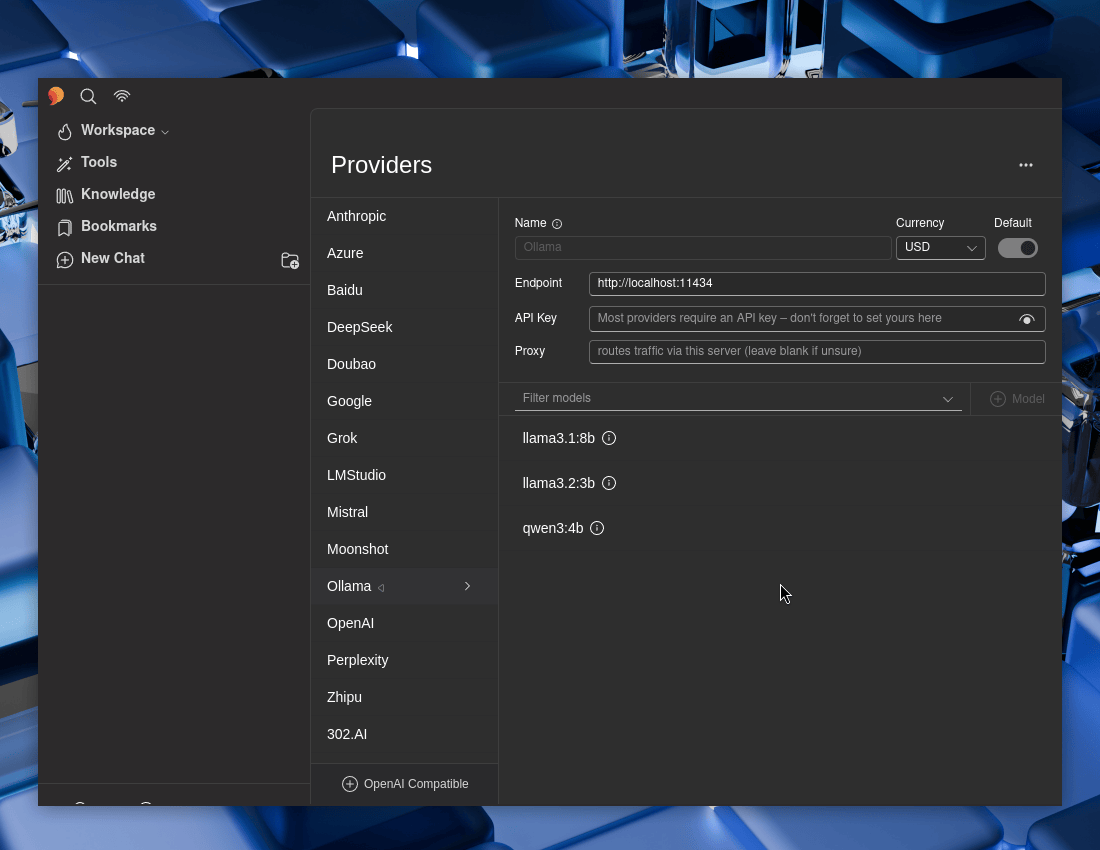
Let’s now setup 5ire to use Ollama.
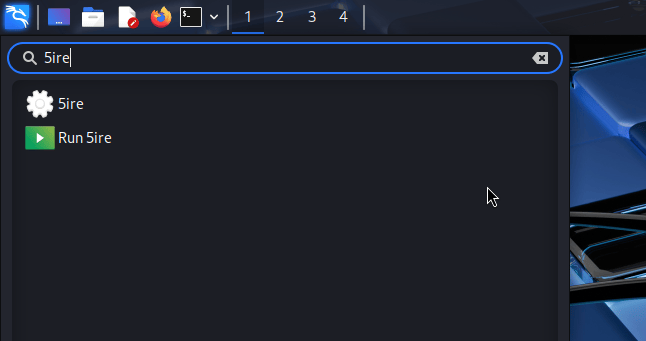
Figure 01: Kali Menu

Open 5ire, then:

  • 5ire -> Workspace -> Providers -> Ollama
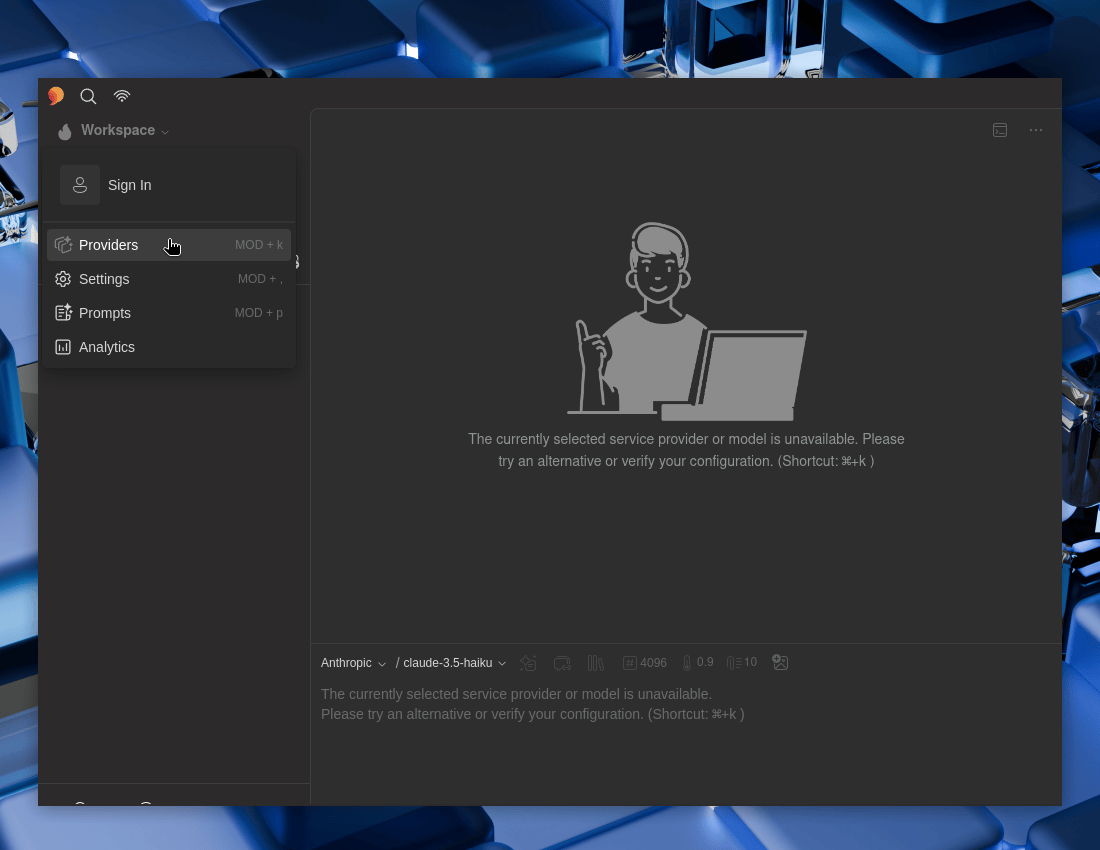
Figure 02: Providers Menu


Let’s toggle Default to Enable it

Figure 03: Enabling Default Provider


Select each of the Ollama models, and then make sure “Tools” and “Enabled” are both toggled to enable -> Save. Repeat for each of them.
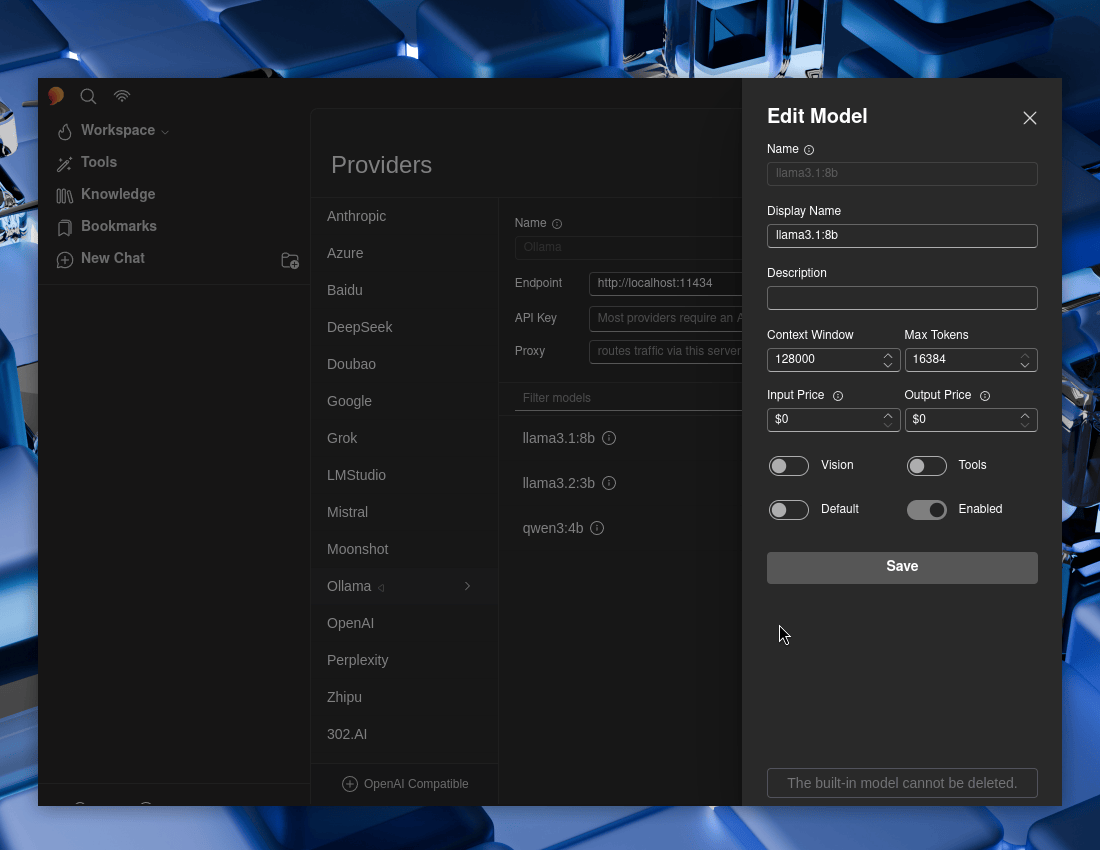
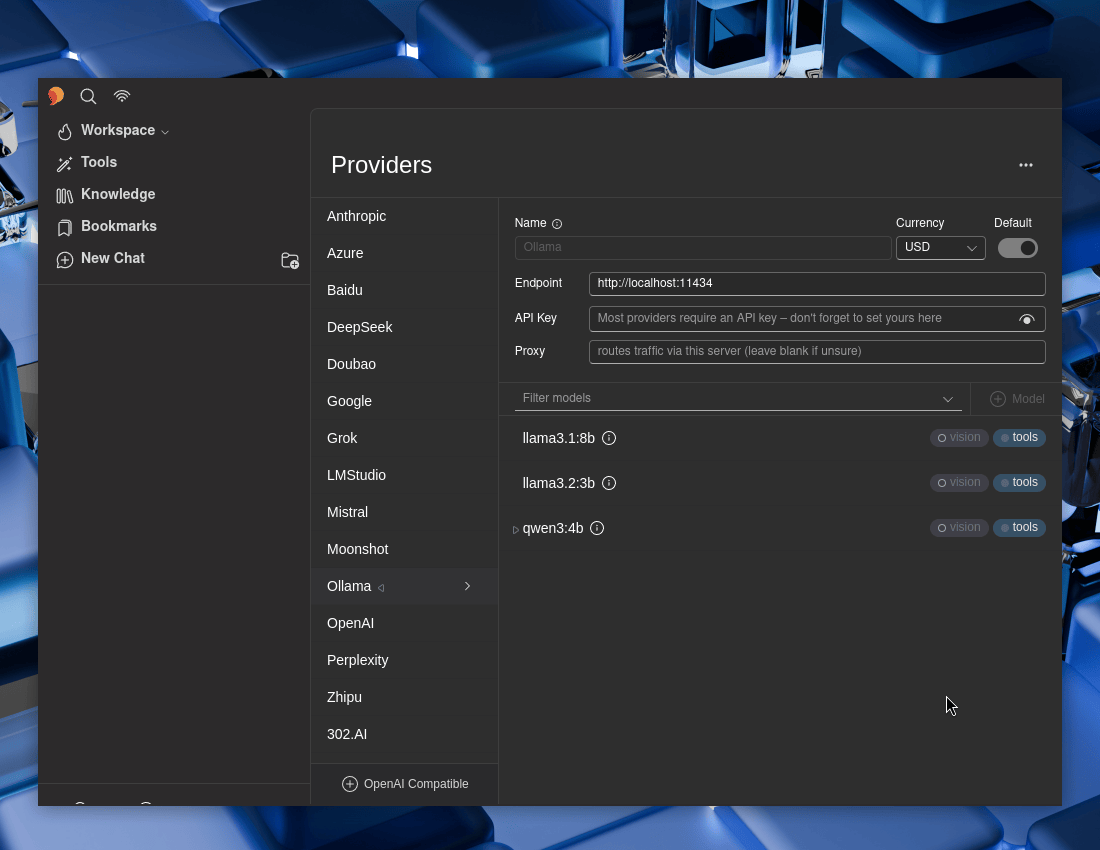
Figure 04: Enabling Providers Options

Figure 05: Providers Model Overview

If you wish, select a model to be the default one.

Testing

Now let’s test 5ire out!

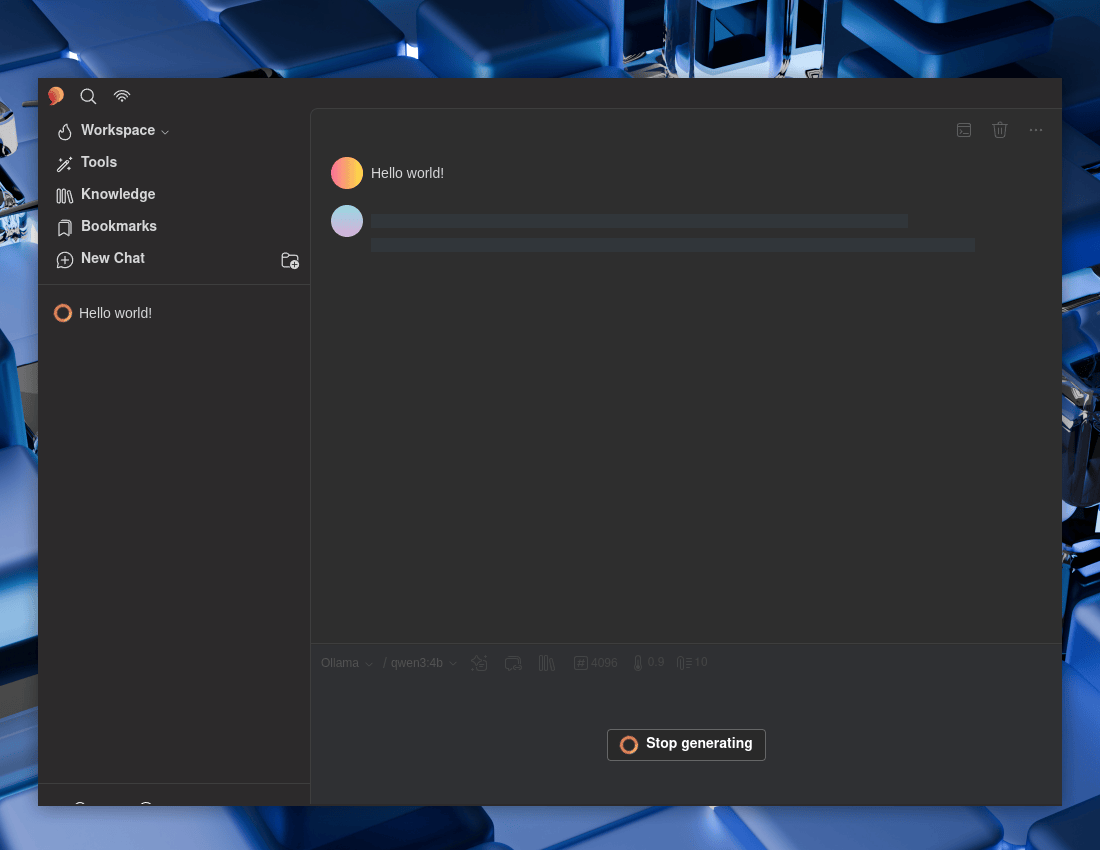
  • New Chat -> Ollama

Hello world!

Figure 06: Hello World Processing


Again, checking status:

$ ollama ps
NAME ID SIZE PROCESSOR CONTEXT UNTIL
qwen3:4b 359d7dd4bcda 3.5 GB 100% GPU 4096 2 minutes from now
$
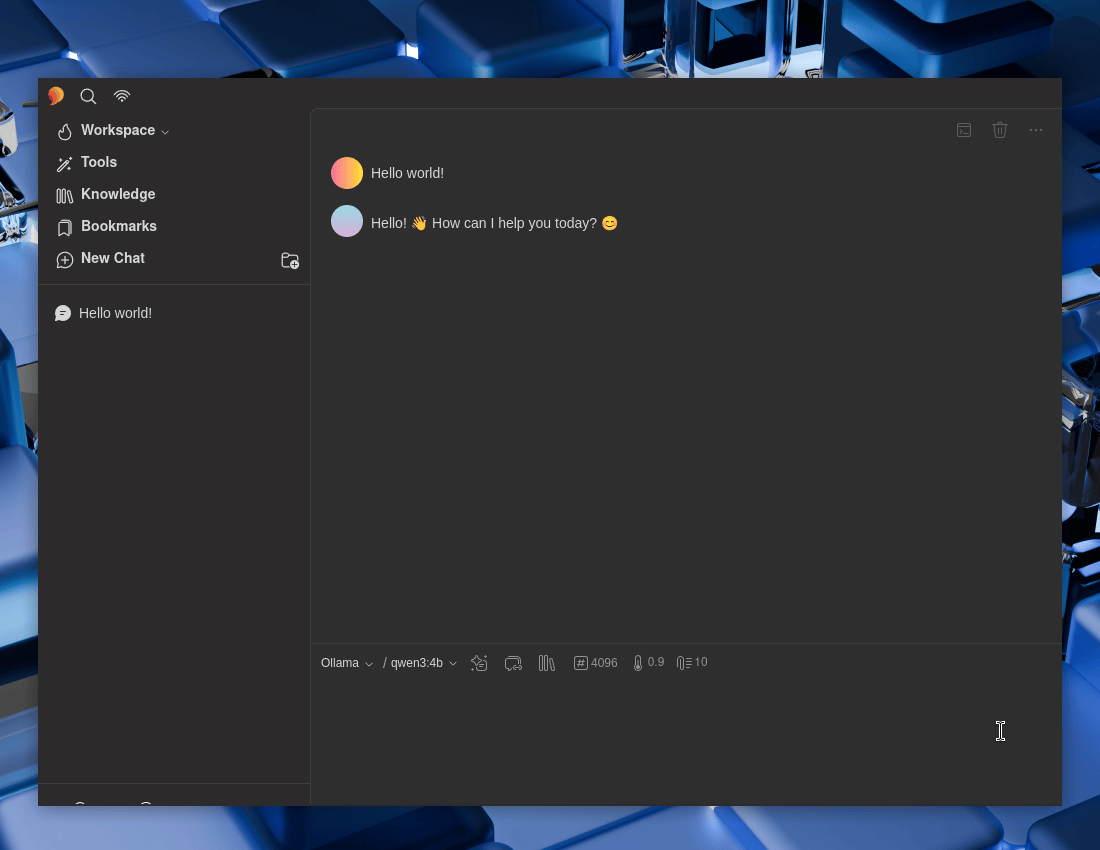
Figure 07: Hello World Response

Looks to be working well! Time to setup the MCP.

MCP Client (5ire)

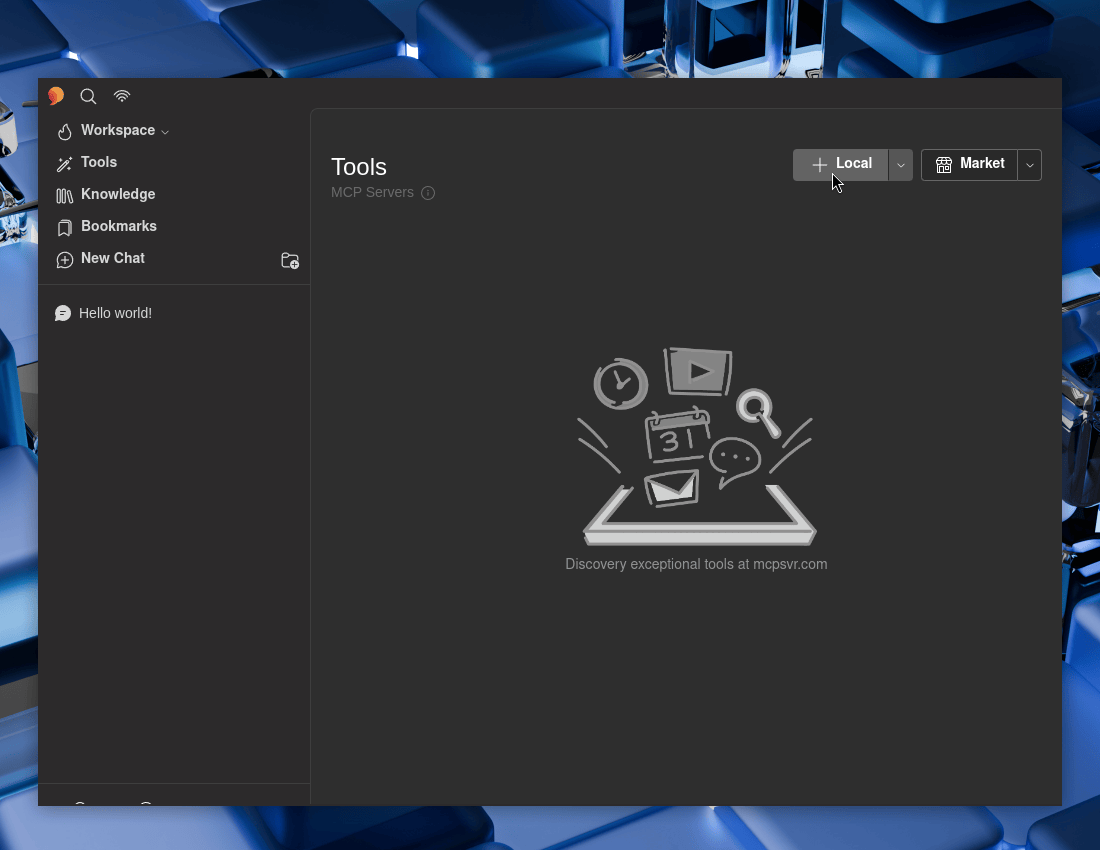
We can use 5ire’s GUI :

  • 5ire -> Tools -> Local

Figure 08: Adding MCP Tools


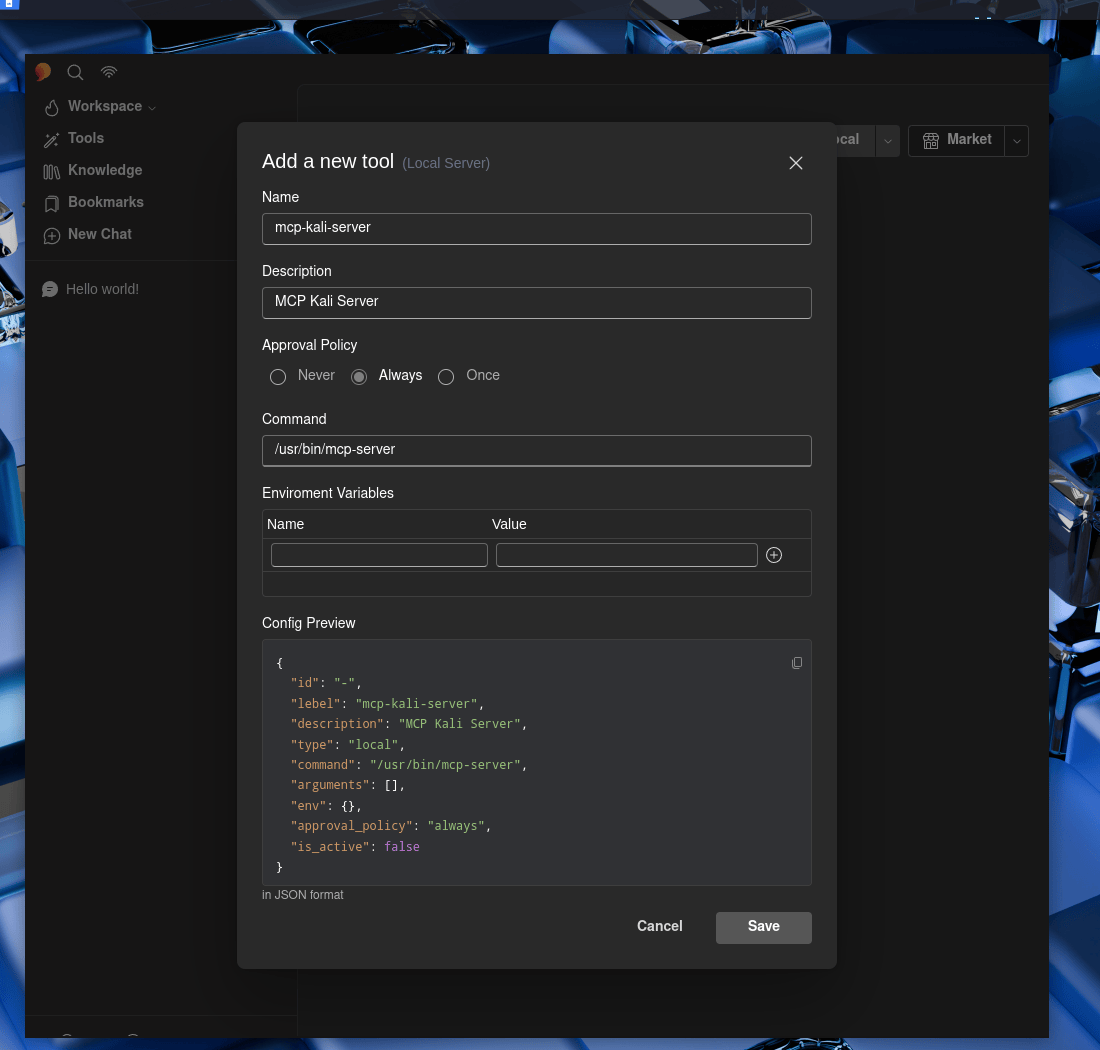
Now to fill in the boxes:

  • Name: mcp-kali-server
  • Description: MCP Kali Server
  • Approval Policy: …Up to you
  • Command: /usr/bin/mcp-server

Save

Figure 09: MCP Tool Settings


Do not forget to make sure to enable it!
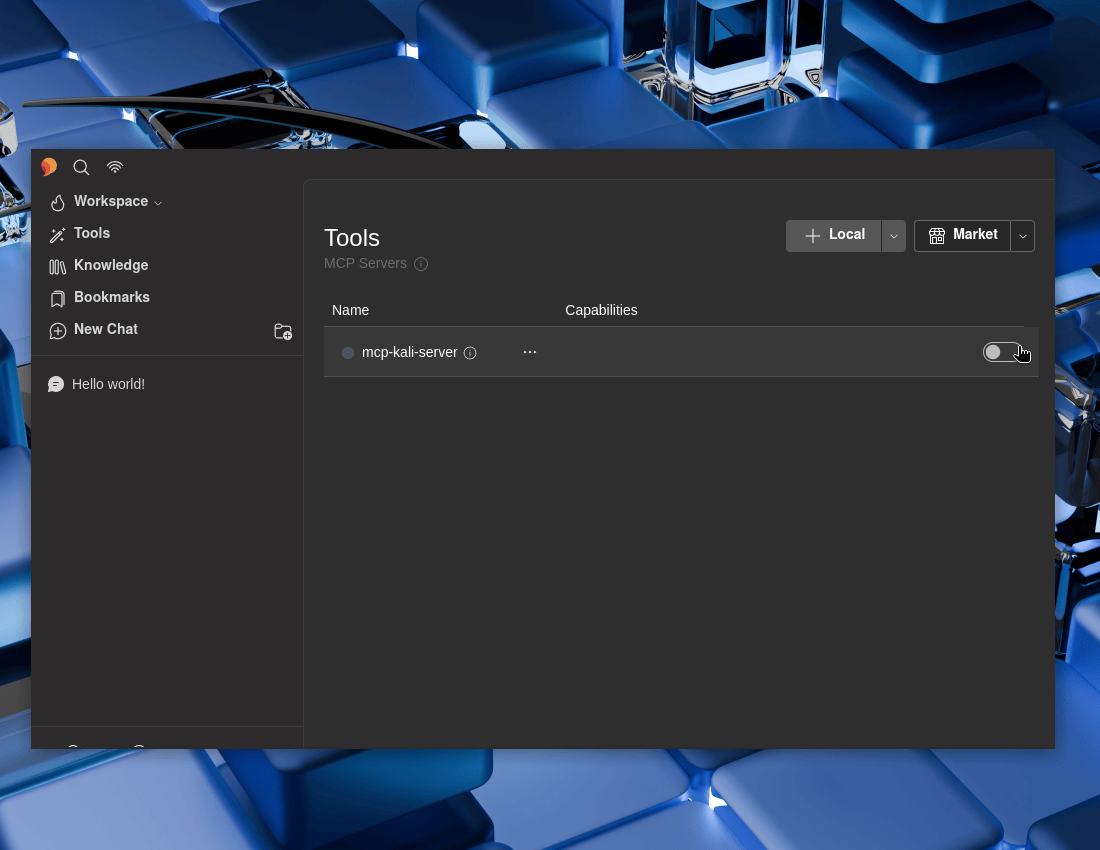
Figure 10: Enabling MCP Tools


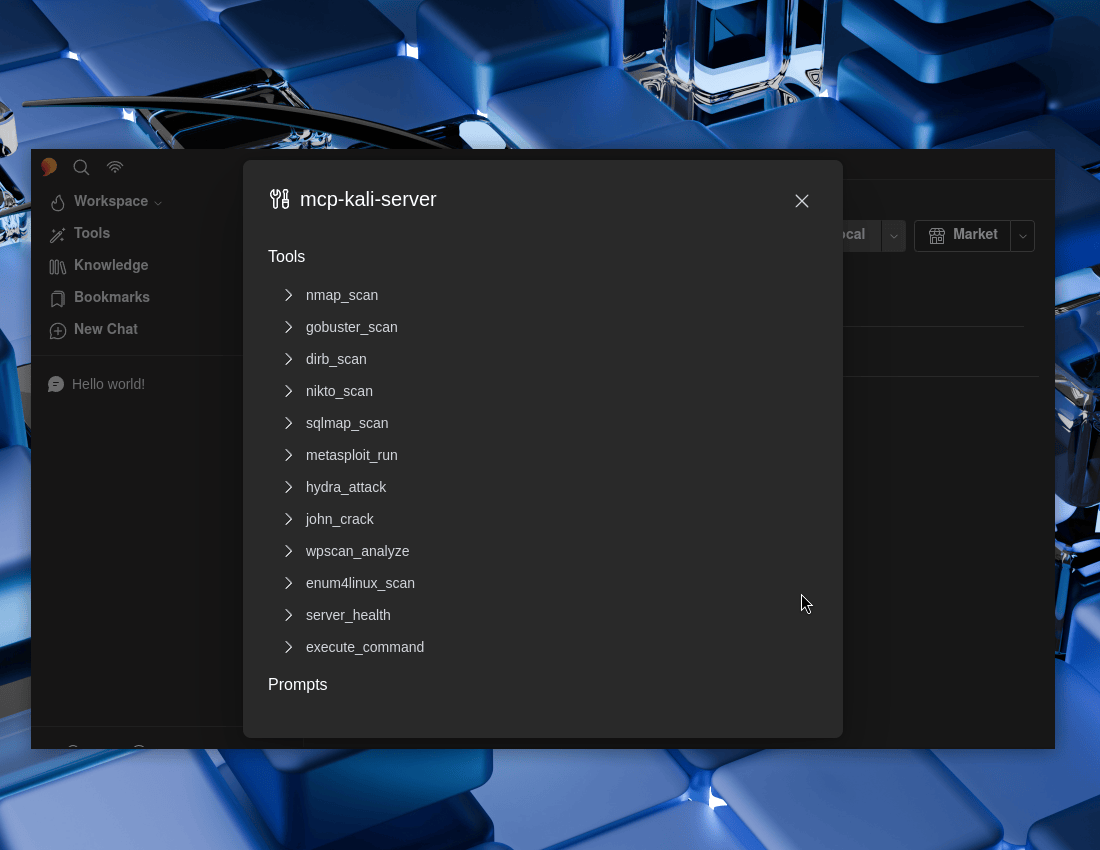
We can see what we now have on offer. ... -> Browse
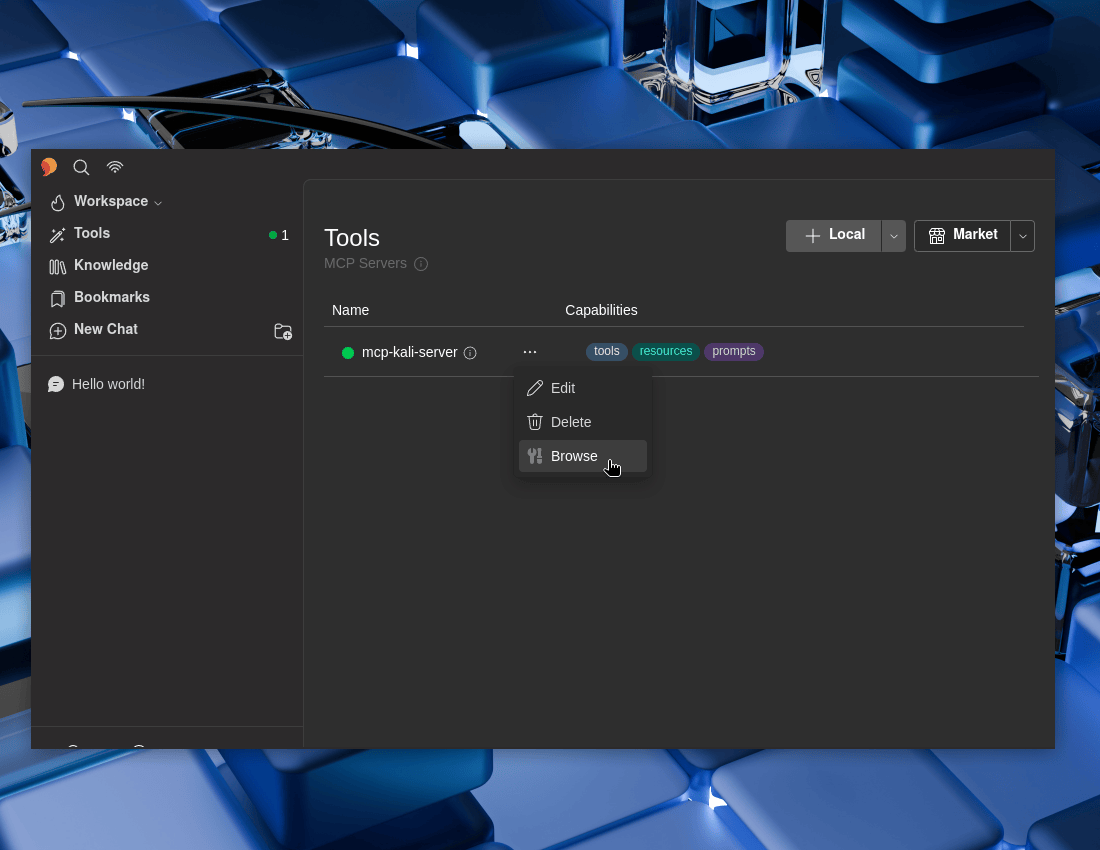
Figure 11: Browsing MCP Tools

Figure 12: MCP Tools Options

Testing

  • New Chat -> Ollama

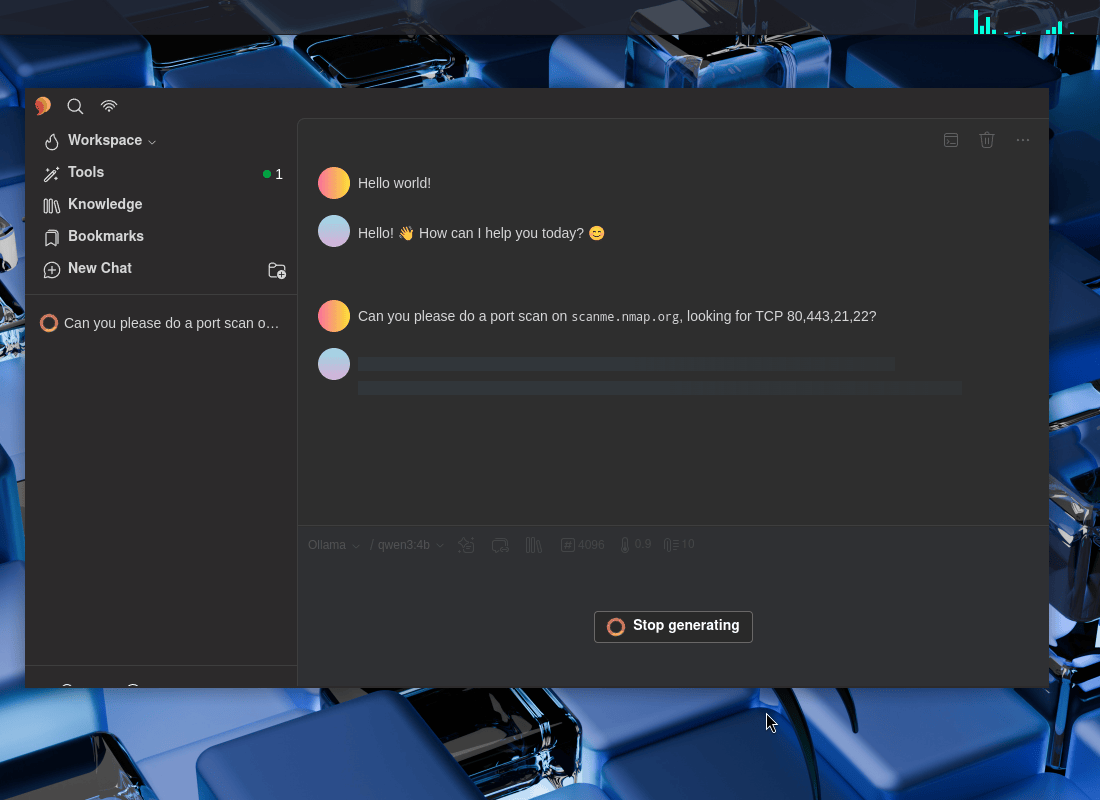
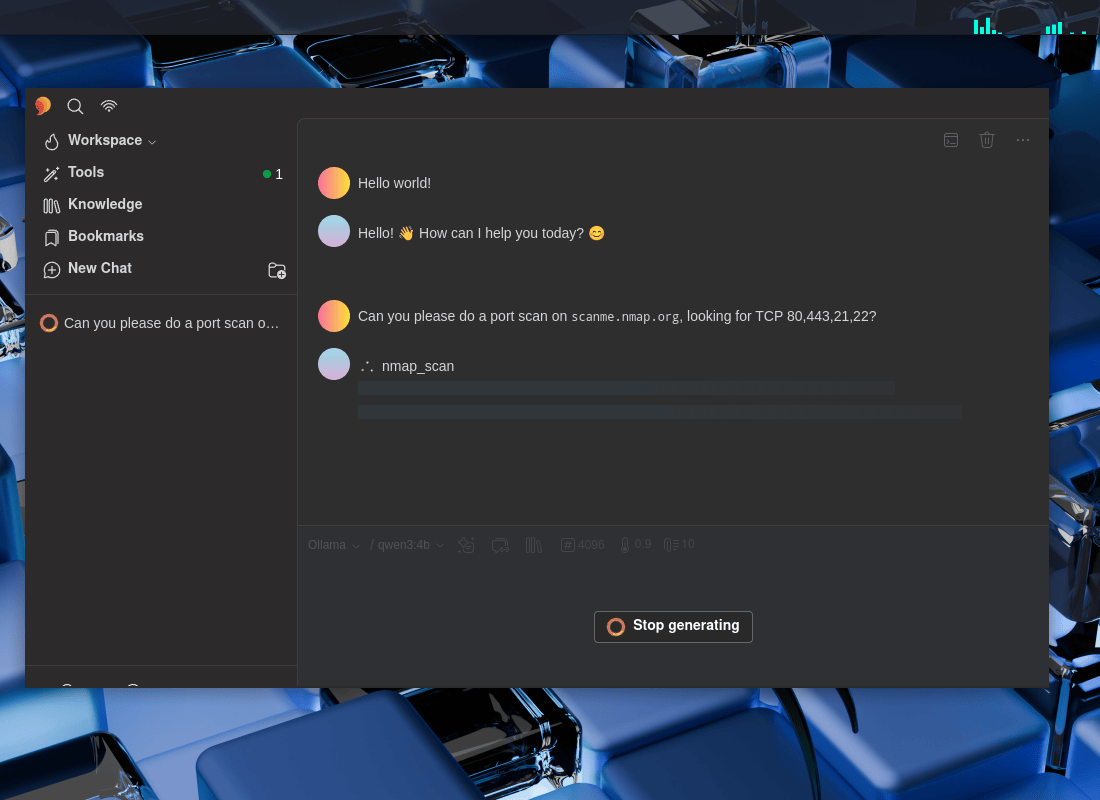
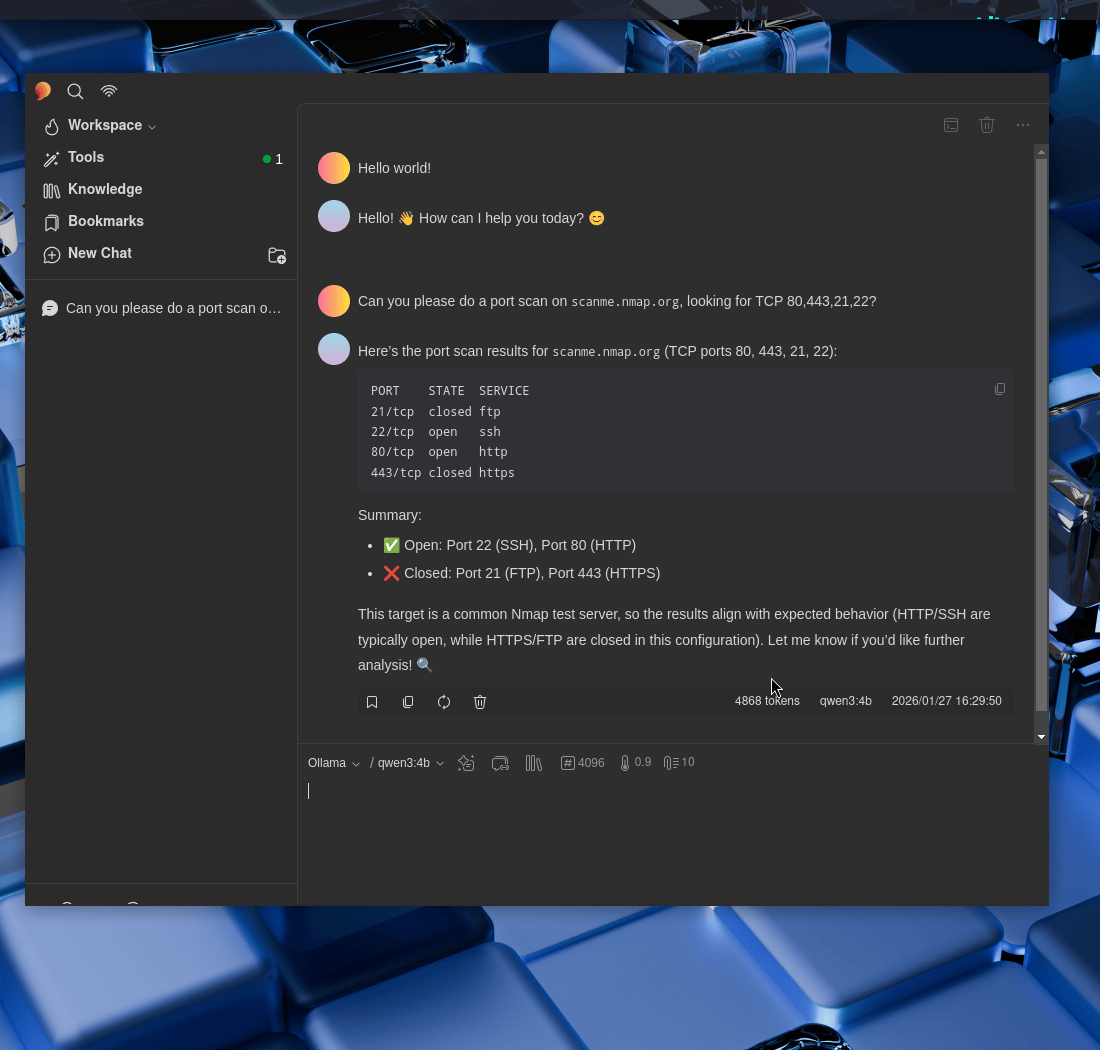
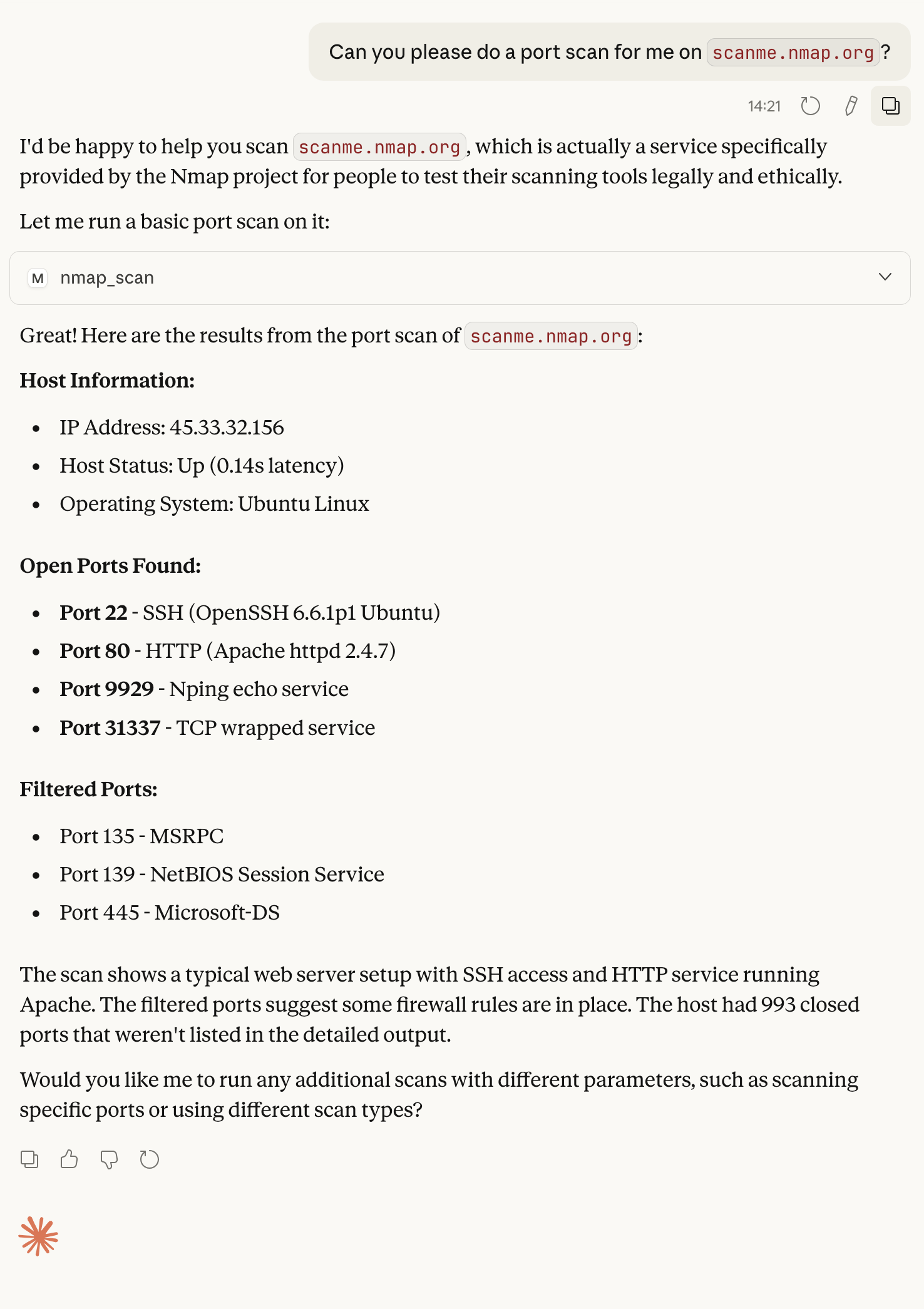
Can you please do a port scan on scanme.nmap.org, looking for TCP 80,443,21,22?
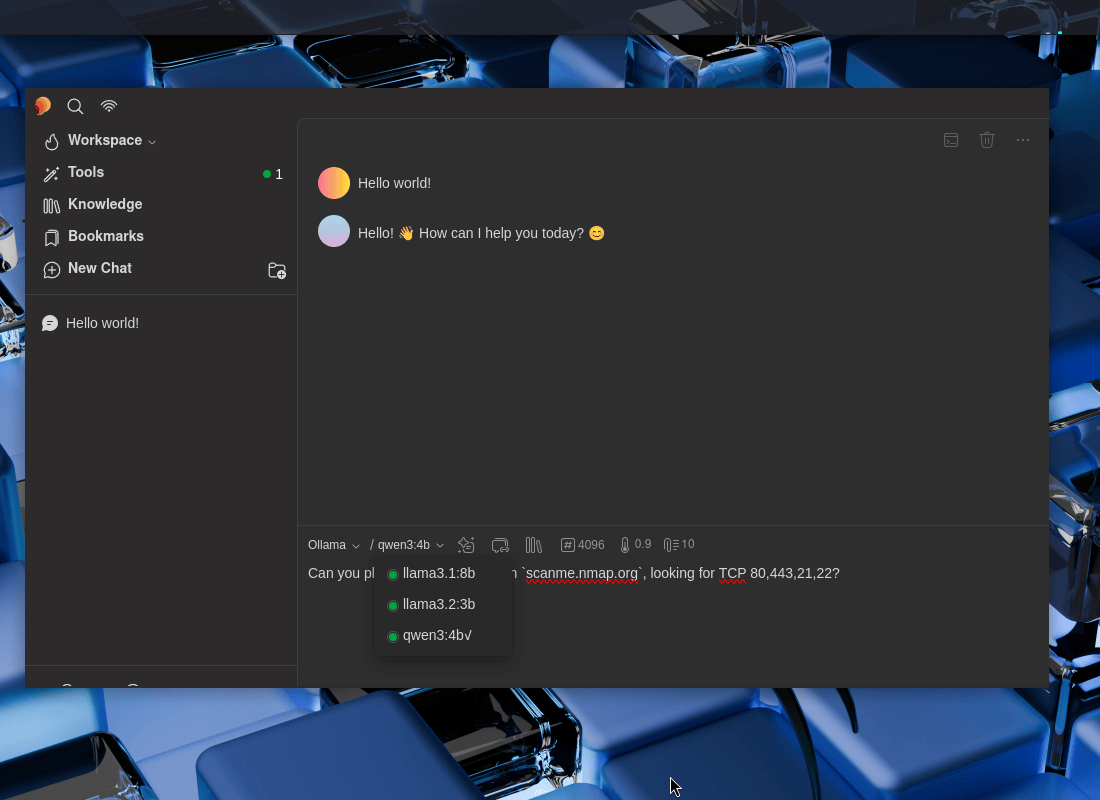
Figure 13: Check MCP LLM Support

Figure 14: Nmap Scan Process

Figure 15: Nmap Scan Scanning

Figure 16: Nmap Scan Result

Wonderful!

Recap

As a recap:

  • On our Kali local instance, we enabled our GPU for development.
  • We setup Ollama and grabbed a few LLMs, such as qwen3:4b.
  • Setup a MCP server, MCP-Kali-Server.
  • We installed a GUI interface, 5ire.
  • We setup 5ire to use Ollama’s LLMs as well as MCP client to use mcp-kali-server.
  • We then used it all to-do a nmap port scan of scanme.nmap.org …all processed locally!

We may be talking about AI, but AI was not used to write this!


Find out more about advanced red teaming for AI environments at OffSec.com.

Kali & LLM: macOS with Claude Desktop & Anthropic Sonnet LLM

25 February 2026 at 01:00

This post will focus on an alternative method of using Kali Linux, moving beyond direct terminal command execution. Instead, we will leverage a Large Language Model (LLM) to translate “natural language” descriptions of desired actions into technical commands. Achieving this setup requires the integration of three distinct systems:

  • UI: Apple’s macOS (Can also use Microsoft Windows, but not covered in this guide) - with Claude Desktop
  • Attacking box: Kali Linux - using various tools
  • LLM: In the cloud - Anthropic’s Sonnet 4.5

The LLM is only part of the story. When paired with Model Context Protocol (MCP)’s, it allows/enables the LLM to seamlessly connect with external sources (data, programs/tools etc). At a very high level:

  1. We can ask a LLM to-do a task via a “prompt”.
  • “Can you please port scan scanme.nmap.org, if you find a valid web server, check if security.txt exists”
  1. The LLM will understand what we asked it to-do.
  • “First task, I need to use Nmap/Network Mapper to-do a port scan of scan scanme.nmap.org
  1. LLM will then request the MCP to-do any action(s).
  • “Is Nmap installed? Can I access it?”
  1. MCP will run the request and return results
  • $ nmap scanme.nmap.org
  1. The LLM will process the results as well as showing it to us as end-users.
  • “I found that scanme.nmap.org is up, and contains a web server on port 80/TCP & 443/TCP.”
  1. If needed, could be a loop, and re-run a command/action again back in the MCP until the prompt has been completed/full-filled.
  • “Now I need see if /.well-known/security.txt gives HTTP 200 response”

Just like the joys of text editors wars (vim vs emacs vs nano), this is not to say its the “best” way to-do it. This is a way.
This scenario may work for you, or it may not be acceptable to you (e.g. privacy). That is fine.


If you are wonder “Why this setup? Why are you using multiple OSes?”, there are various reasons why!

  • You may want a graphical user interface (GUI), which Claude Desktop is.
  • It being “free”.
    • At the time of writing, 2026-01
  • Speed
    • Having Kali running in “the cloud”, may have greater network connection , or be closer to your target - thus speeding things up!

SSH

We are going to want our macOS box, to be able to talk/interact/communicate to Kali. For this, we will use SSH.

Kali Setup

First up, Kali. If you are using Kali in the cloud, you likely already have SSH pre-setup. If SSH is not setup, let’s quickly install and run:

$ sudo apt update
[...]
$
$ sudo apt install -y openssh-server
[...]
$
$ sudo systemctl enable --now ssh
[...]
$

macOS

Switching over to our macOS machine, open up Terminal (or similar program), and either find out public SSH key or generate one:

user@Users-MacBook-Pro ~ % ls -lah .ssh
ls: .ssh: No such file or directory
user@Users-MacBook-Pro ~ %

This is a clean install, so we will be generating a new key.


Generating a new SSH key, is the same steps as doing it on Linux:

user@Users-MacBook-Pro ~ % ssh-keygen
Generating public/private ed25519 key pair.
Enter file in which to save the key (/Users/user/.ssh/id_ed25519):
Created directory '/Users/user/.ssh'.
Enter passphrase for "/Users/user/.ssh/id_ed25519" (empty for no passphrase):
Enter same passphrase again:
Your identification has been saved in /Users/user/.ssh/id_ed25519
Your public key has been saved in /Users/user/.ssh/id_ed25519.pub
The key fingerprint is:
SHA256:9JWMFmD6Jhq9gSLVrWSQaqR0hOOfGC5wd/HoMW1CoKU user@Users-MacBook-Pro.local
The key's randomart image is:
+--[ED25519 256]--+
| +oo. o.. |
| =.B .oo + . |
|=.E +.o=. o + |
|+=.o.+*o+o . |
|=.=.=o+=S . |
|.+ + o.= |
|. . . |
| |
| |
+----[SHA256]-----+
user@Users-MacBook-Pro ~ %
user@Users-MacBook-Pro ~ % cat ~/.ssh/id_ed25519.pub
ssh-ed25519 AAAAC3NzaC1lZDI1NTE5AAAAIFVZPT158E6mNNGrtOXTBQtK/7sXj09gRGZjkyMt82hs user@Users-MacBook-Pro.local
user@Users-MacBook-Pro ~ %

Password is not shown


Now, lets add that public SSH key from macOS to Kali, allowing for key authentication. Our Kali is located at 192.168.1.30, change the IP to match your setup:

user@Users-MacBook-Pro ~ % ssh-copy-id kali@192.168.1.30
/usr/bin/ssh-copy-id: INFO: Source of key(s) to be installed: "/Users/user/.ssh/id_ed25519.pub"
The authenticity of host '192.168.1.30 (192.168.1.30)' can't be established.
ED25519 key fingerprint is SHA256:s1EHXZomZxup5ybdUSgTJwnyjwrMBxFSmAgt4+ijhws.
This key is not known by any other names.
Are you sure you want to continue connecting (yes/no/[fingerprint])? yes
/usr/bin/ssh-copy-id: INFO: attempting to log in with the new key(s), to filter out any that are already installed
/usr/bin/ssh-copy-id: INFO: 1 key(s) remain to be installed -- if you are prompted now it is to install the new keys
kali@192.168.1.30's password:
Number of key(s) added: 1
Now try logging into the machine, with: "ssh 'kali@192.168.1.30'"
and check to make sure that only the key(s) you wanted were added.
user@Users-MacBook-Pro ~ %

Password is not shown

This hopefully will be the last time you need to type in your Kali password when connecting via SSH!


Testing

Finally, let’s test it out:

user@Users-MacBook-Pro ~ % ssh kali@192.168.1.30
Linux kali 6.16.8+kali-amd64 #1 SMP PREEMPT_DYNAMIC Kali 6.16.8-1kali1 (2025-09-24) x86_64
The programs included with the Kali GNU/Linux system are free software;
the exact distribution terms for each program are described in the
individual files in /usr/share/doc/*/copyright.
Kali GNU/Linux comes with ABSOLUTELY NO WARRANTY, to the extent
permitted by applicable law.
Last login: Wed Jan 21 13:47:48 2026 from 192.168.30.153
┏━(Message from Kali developers)
┃
┃ This is a minimal installation of Kali Linux, you likely
┃ want to install supplementary tools. Learn how:
┃ ⇒ https://www.kali.org/docs/troubleshooting/common-minimum-setup/
┃
┗━(Run: “touch ~/.hushlogin” to hide this message)
┌──(kali㉿kali)-[~]
└─$

Please replace 192.168.1.30 with YOUR Kali IP address.

Boom!

MCP Server (MCP Kali Server)

Now that we have a console on Kali, let’s continue our MCP server setup. There are many of MCP server options out there already with more being created every day. We will be using mcp-kali-server:

$ sudo apt install -y mcp-kali-server
[...]
$
$ kali-server-mcp
2026-01-21 13:54:41,734 [INFO] Starting Kali Linux Tools API Server on 127.0.0.1:5000
* Serving Flask app 'kali_server'
* Debug mode: off
2026-01-21 13:54:41,748 [INFO] WARNING: This is a development server. Do not use it in a production deployment. Use a production WSGI server instead.
* Running on http://127.0.0.1:5000
2026-01-21 13:54:41,748 [INFO] Press CTRL+C to quit

Long term, there are various different ways to have kali-server-mcp running in the background, such as using a tmux/screen session, or creating a systemd.unit, but that is out of scope for this post.

Testing

To test that everything so far is working, in another terminal run mcp-server (this is what our MCP client, Claude Desktop, will end up running):

$ mcp-server
2026-01-21 14:03:25,804 [INFO] Initialized Kali Tools Client connecting to http://localhost:5000
2026-01-21 14:03:25,812 [INFO] Successfully connected to Kali API server at http://localhost:5000
2026-01-21 14:03:25,812 [INFO] Server health status: healthy
2026-01-21 14:03:25,812 [WARNING] Not all essential tools are available on the Kali server
2026-01-21 14:03:25,812 [WARNING] Missing tools: dirb, gobuster, nikto, nmap
2026-01-21 14:03:25,828 [INFO] Starting Kali MCP server

Did you see anything wrong? Did you spot the warning?

Missing tools: dirb, gobuster, nikto, nmap


Let’s install them now (as well other tools which mcp-kali-server can use), we can re-use the mcp-server terminal before closing it:

2026-01-21 14:03:25,828 [INFO] Starting Kali MCP server
^C
[...]
$
$ sudo apt install -y mcp-kali-server dirb gobuster nikto nmap enum4linux-ng hydra john metasploit-framework sqlmap wpscan wordlists
[...]
$
$ sudo gunzip -v /usr/share/wordlists/rockyou.txt.gz # Alt: `$ wordlists`
/usr/share/wordlists/rockyou.txt.gz: 61.9% -- replaced with /usr/share/wordlists/rockyou.txt
$
$ exit

Our Kali installation was a minimal installation, without any tools pre-installed, which is why this happened.

Claude Desktop

Time to switch machines, and on macOS, download Claude Desktop. This will be our interface to the LLM, and it also is a MCP client, which will talk to our MCP server (mcp-kali-server), which will run commands on Kali.

Download Claude.dmg (At the time of writing, 2026-01, latest version v1.1.381-c2a39e)

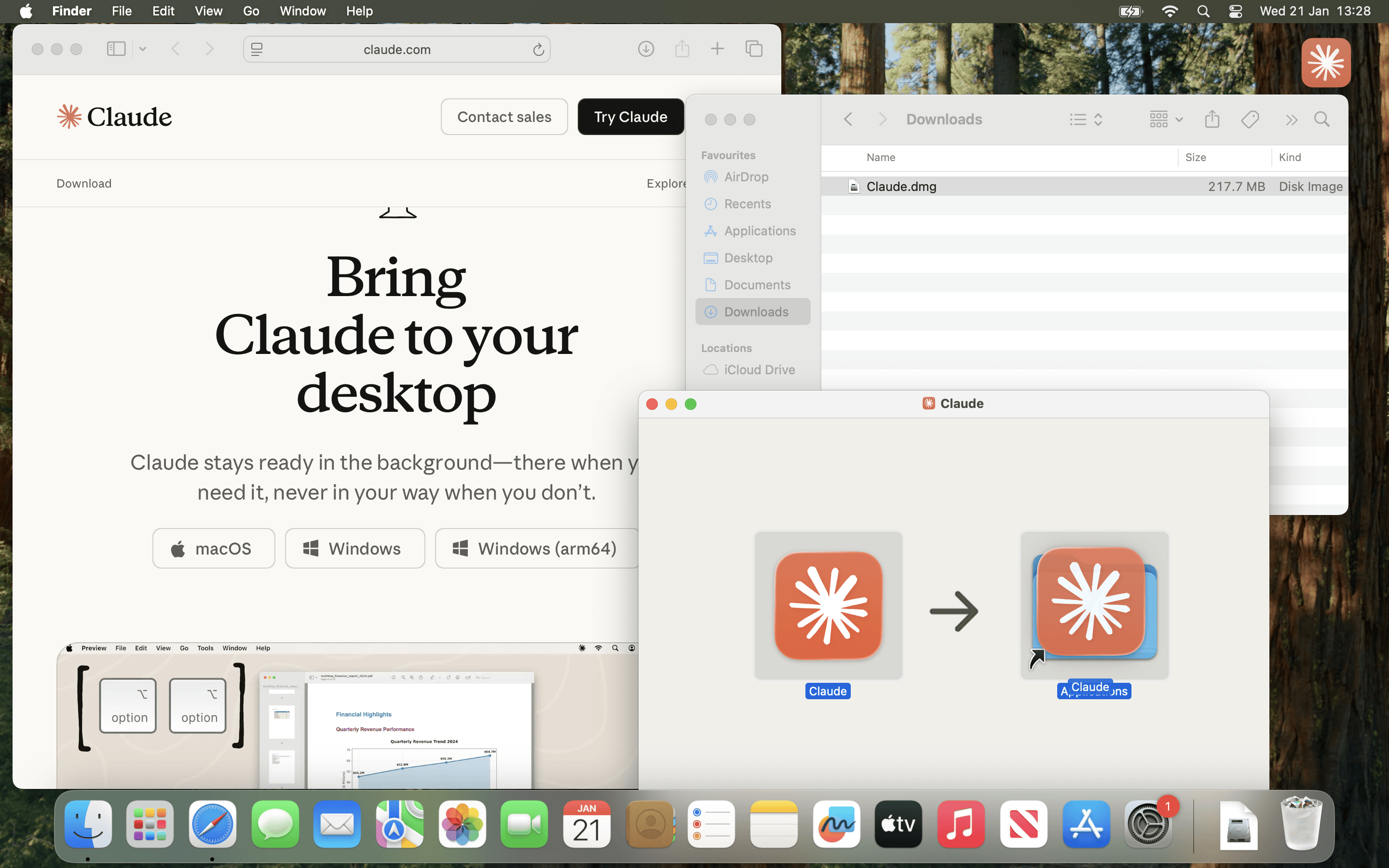
Afterwards, open Claude.dmg and copy Claude.app into Applications before running it.

If you are using Microsoft Windows, setup should be similar, but it is out of scope for this post.

Figure 01 - Install


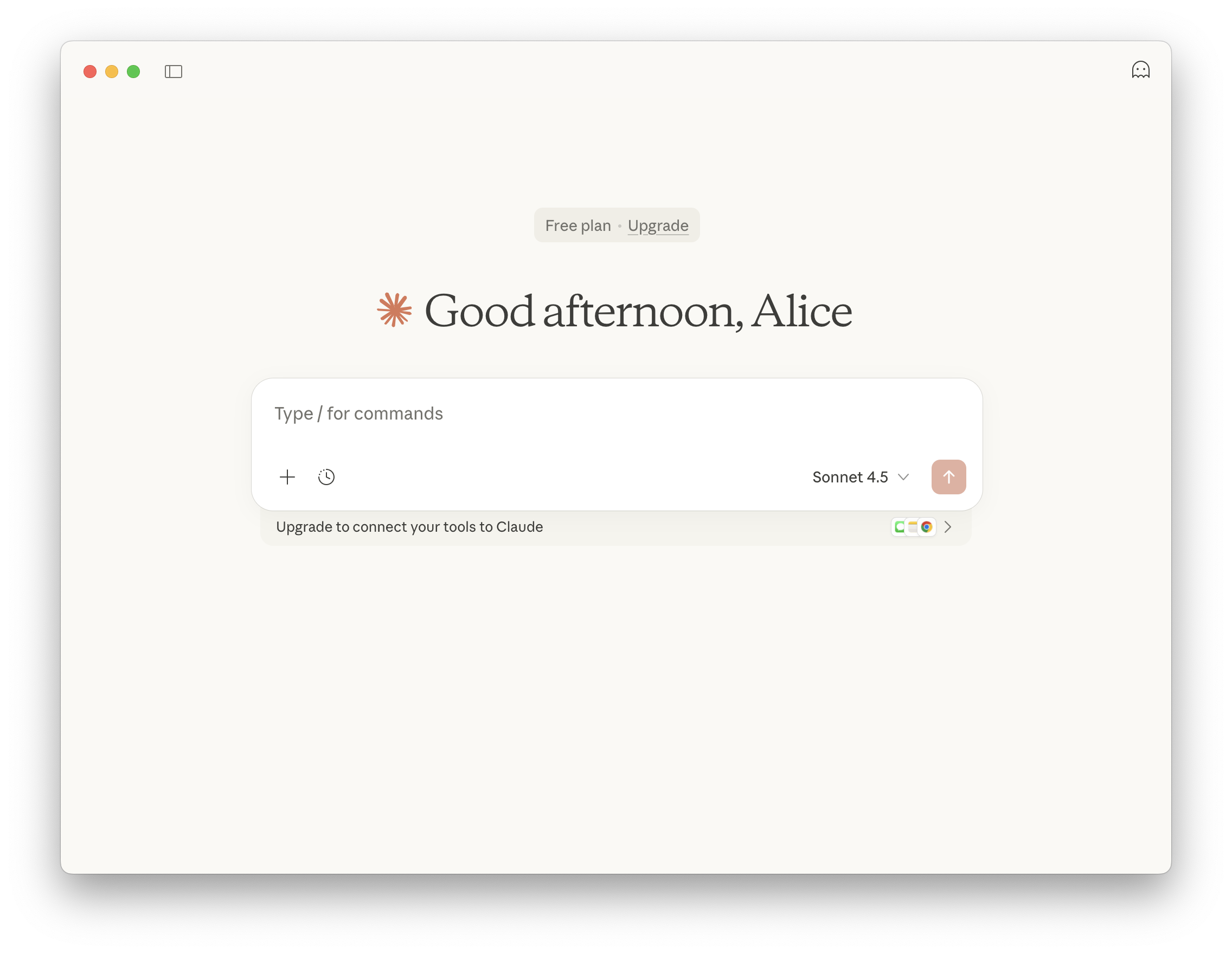
Now, we need to follow the complete the first time items, and follow the steps to to register/sign in

Figure 07 - Main Screen

At the time of writing, 2026-01, Claude Desktop is on Apple macOS and Microsoft Windows. There is not an official Linux build.

Others have reported that using WINE is possible, as well as other unofficial Linux builds - You do you (and at your own risk!)

Using Claude Code, requires a API key, which at the time of writing, does not have a free-tier option.


MCP Client (Claude Desktop)

With all that out of the way, we need to setup Claude Desktop’s MCP client.

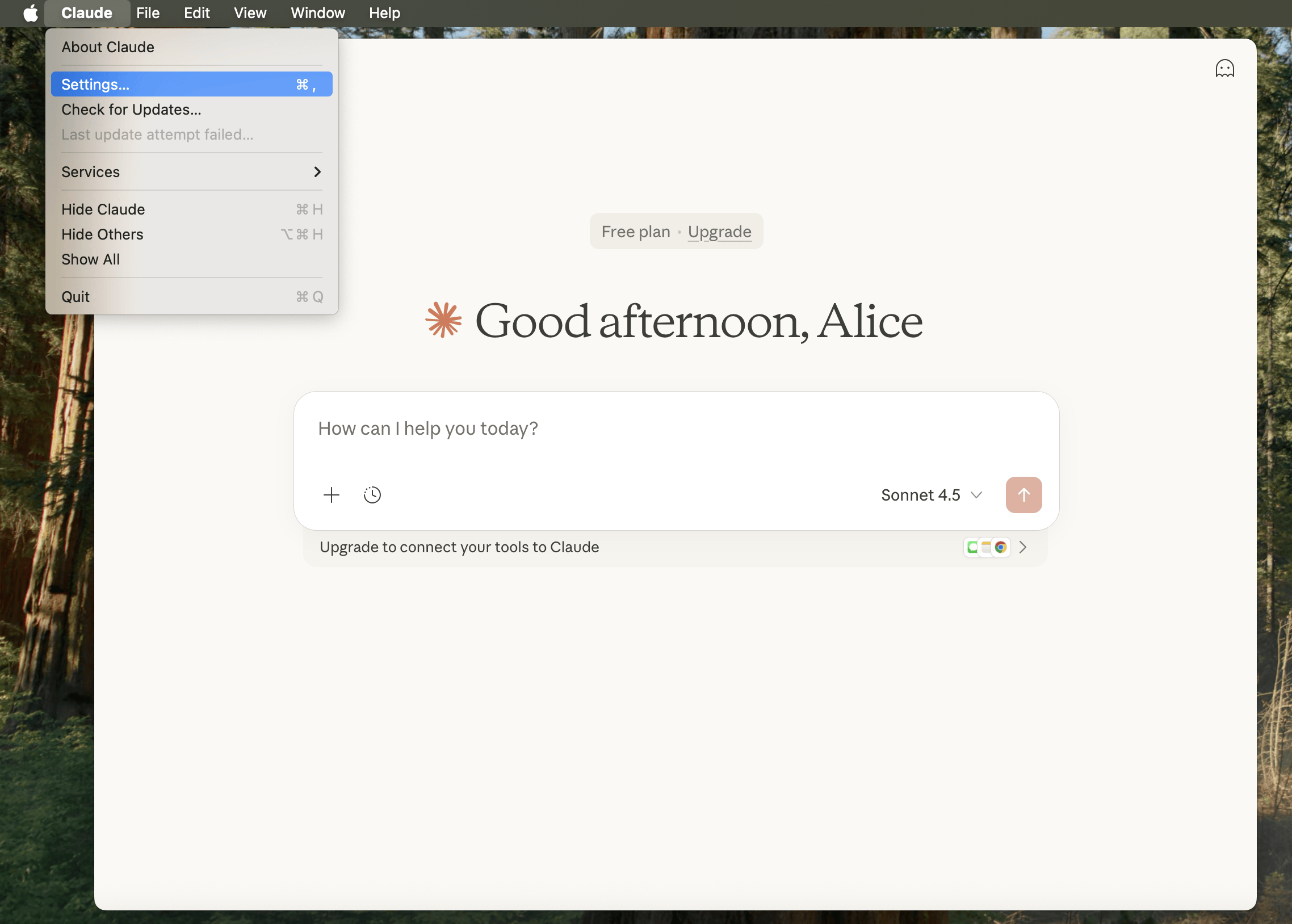
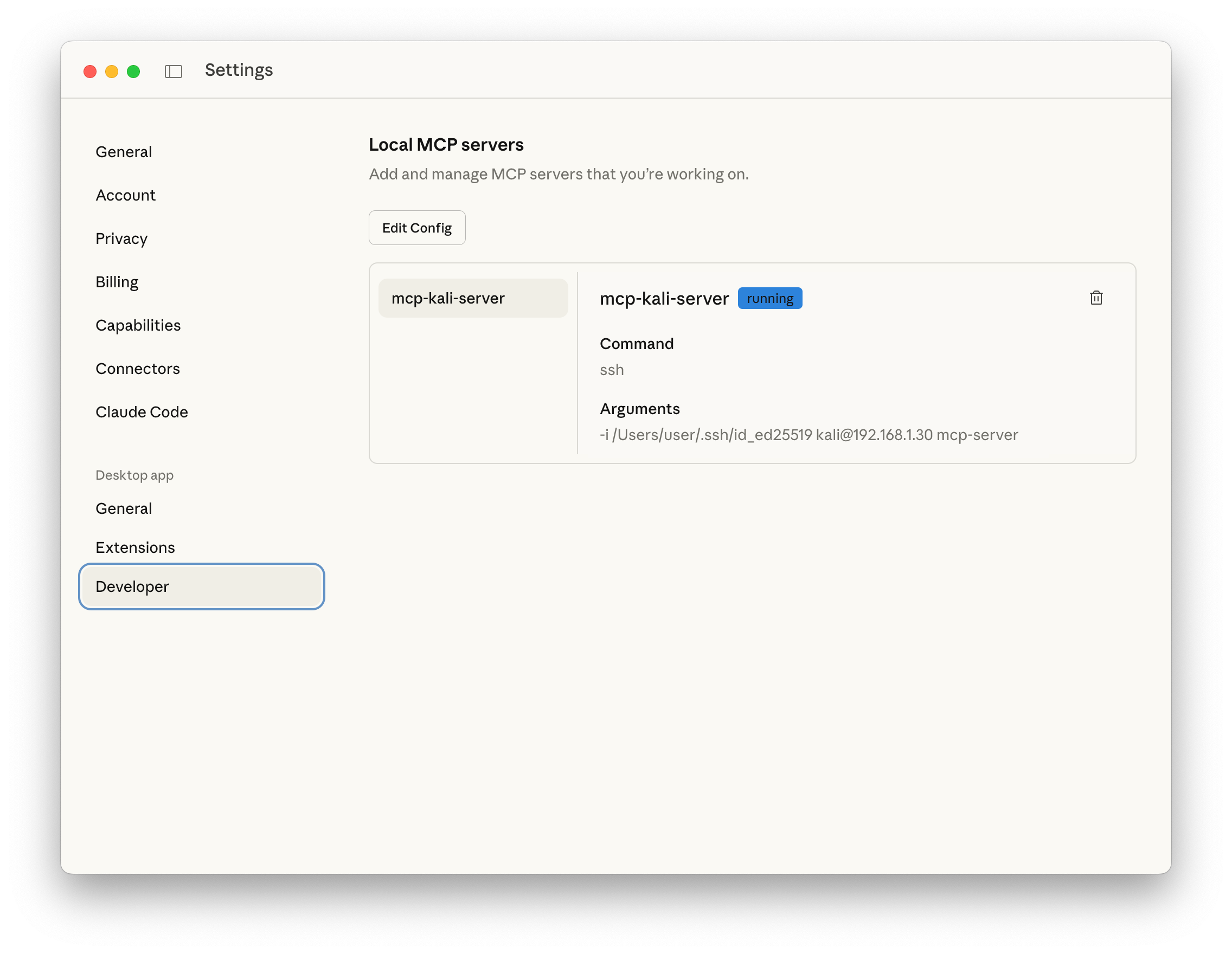
Figure 08 - Settings

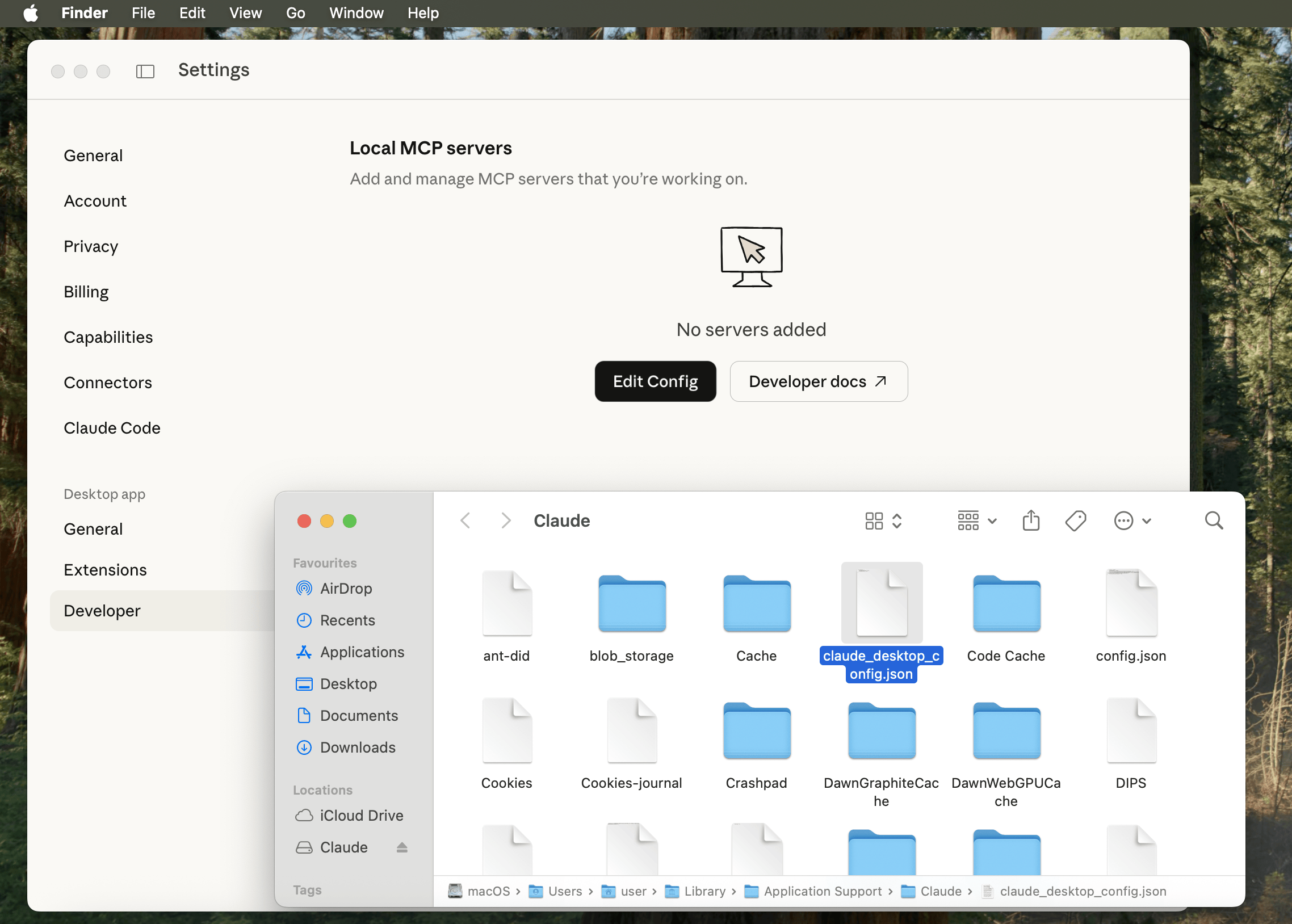
Open settings (Claude -> Settings), then find Deveploper (Under Desktop app), and click Edit Config.

Finder should open up with claude_desktop_config.json highlighted (otherwise: /Users/[USERNAME]/Library/Application Support/Claude/claude_desktop_config.json).

Figure 10 - Developer macOS Finder

Open/edit the file using your text editor of choice, and paste in:

{
"mcpServers": {
"mcp-kali-server": {
"command": "ssh",
"args": [
"kali@192.168.1.30",
"mcp-server"
],
"transport": "stdio"
}
}
}

Please replace 192.168.1.30 with YOUR Kali IP address as before.

So for us, it looks like:

user@Users-MacBook-Pro ~ % cat /Users/user/Library/Application\ Support/Claude/claude_desktop_config.json | jq
{
"preferences": {
"quickEntryShortcut": "off",
"menuBarEnabled": false
},
"mcpServers": {
"mcp-kali-server": {
"command": "ssh",
"args": [
"-i",
"/Users/user/.ssh/id_ed25519",
"kali@192.168.1.30",
"mcp-server"
],
"transport": "stdio"
}
}
}
user@Users-MacBook-Pro ~ %

Finally restart Claude Desktop by quitting and re-opening for our settings to take affect.

Figure 13 - Developer Running

Testing

Let’s see what all the hype about and give it a quick spin:

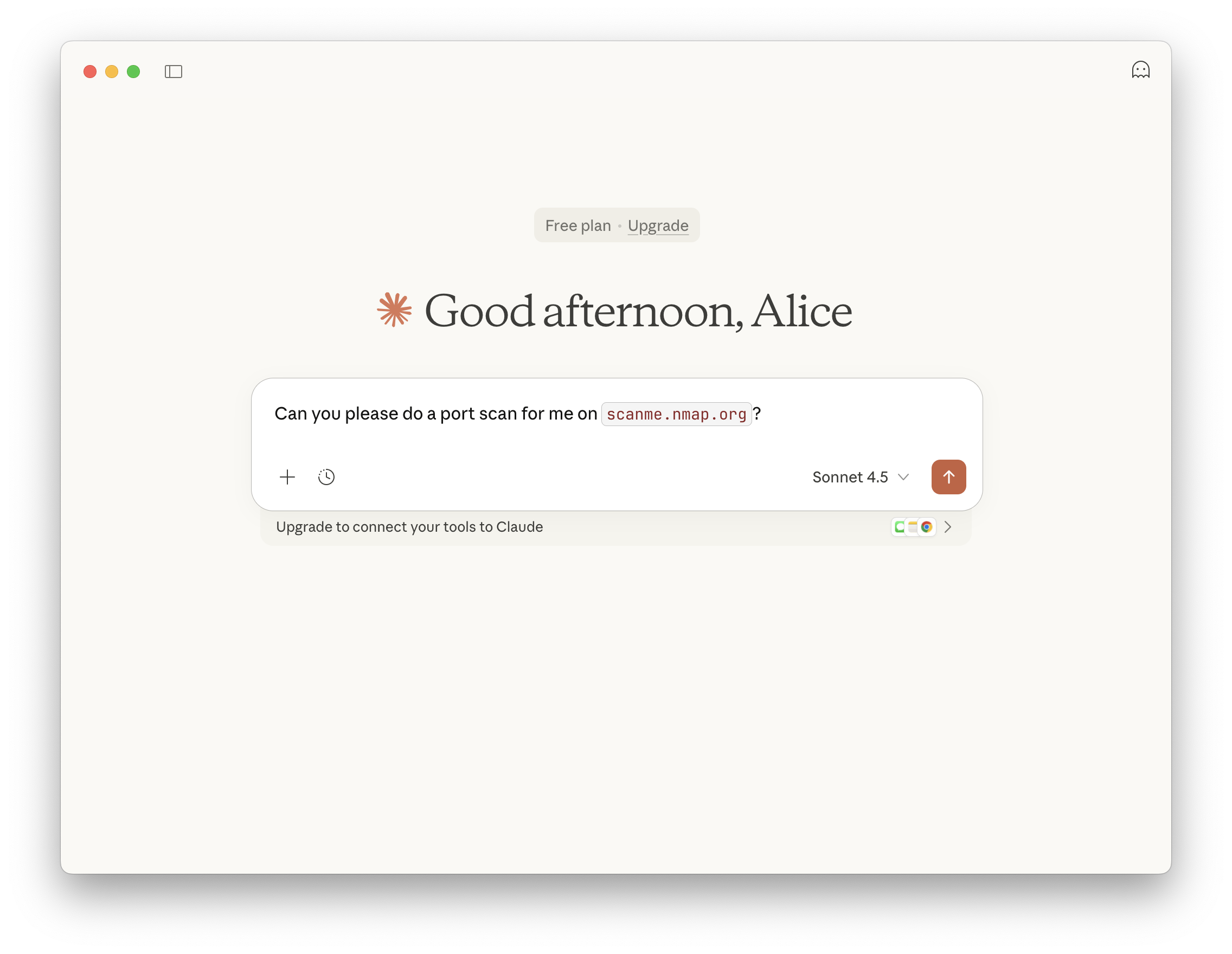
Can you please do a port scan for me on scanme.nmap.org?

Figure 14 - Prompt


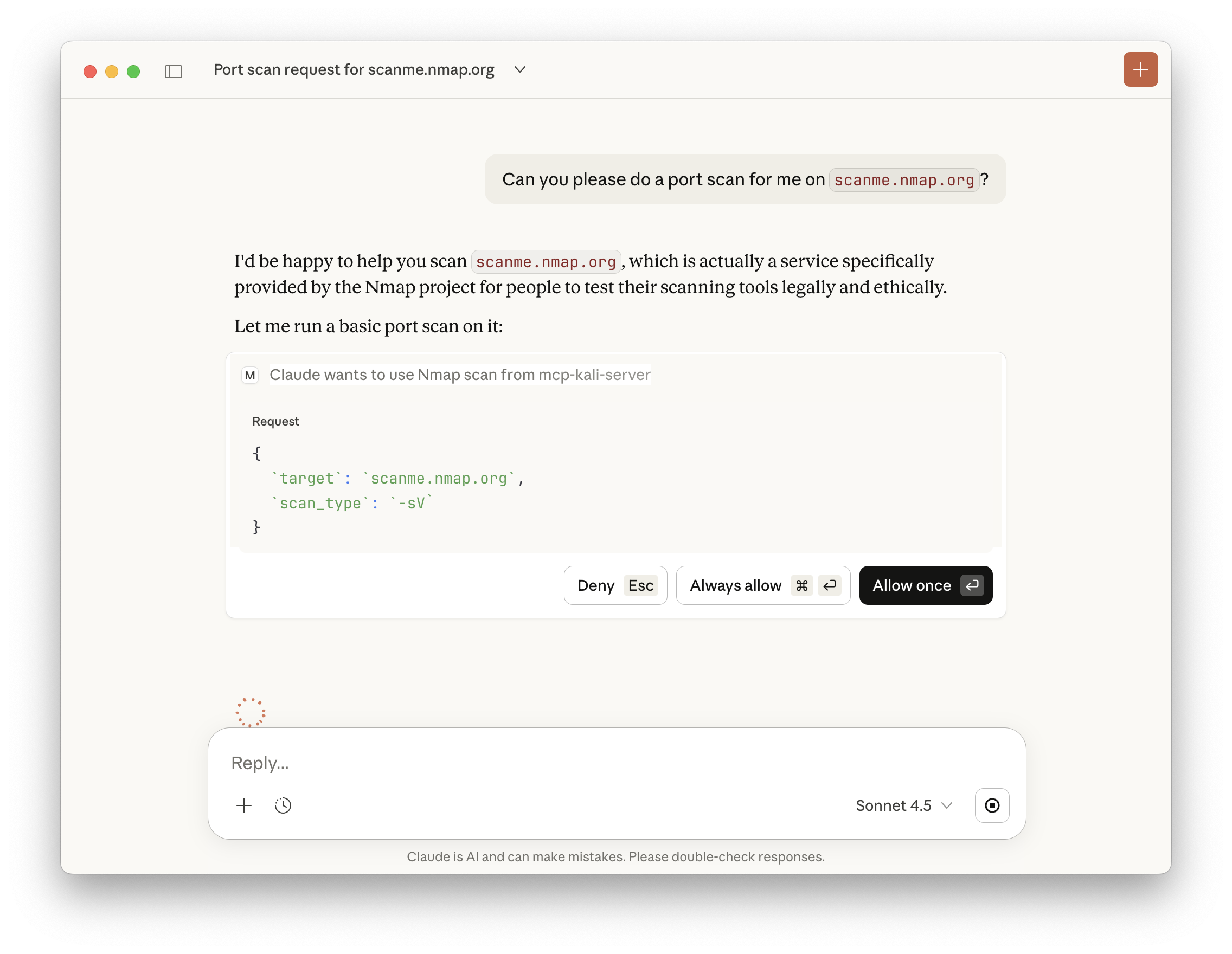
Claude will check if we trust the MCP, and if we wish to run commands.

Figure 15 - MCP Permissions


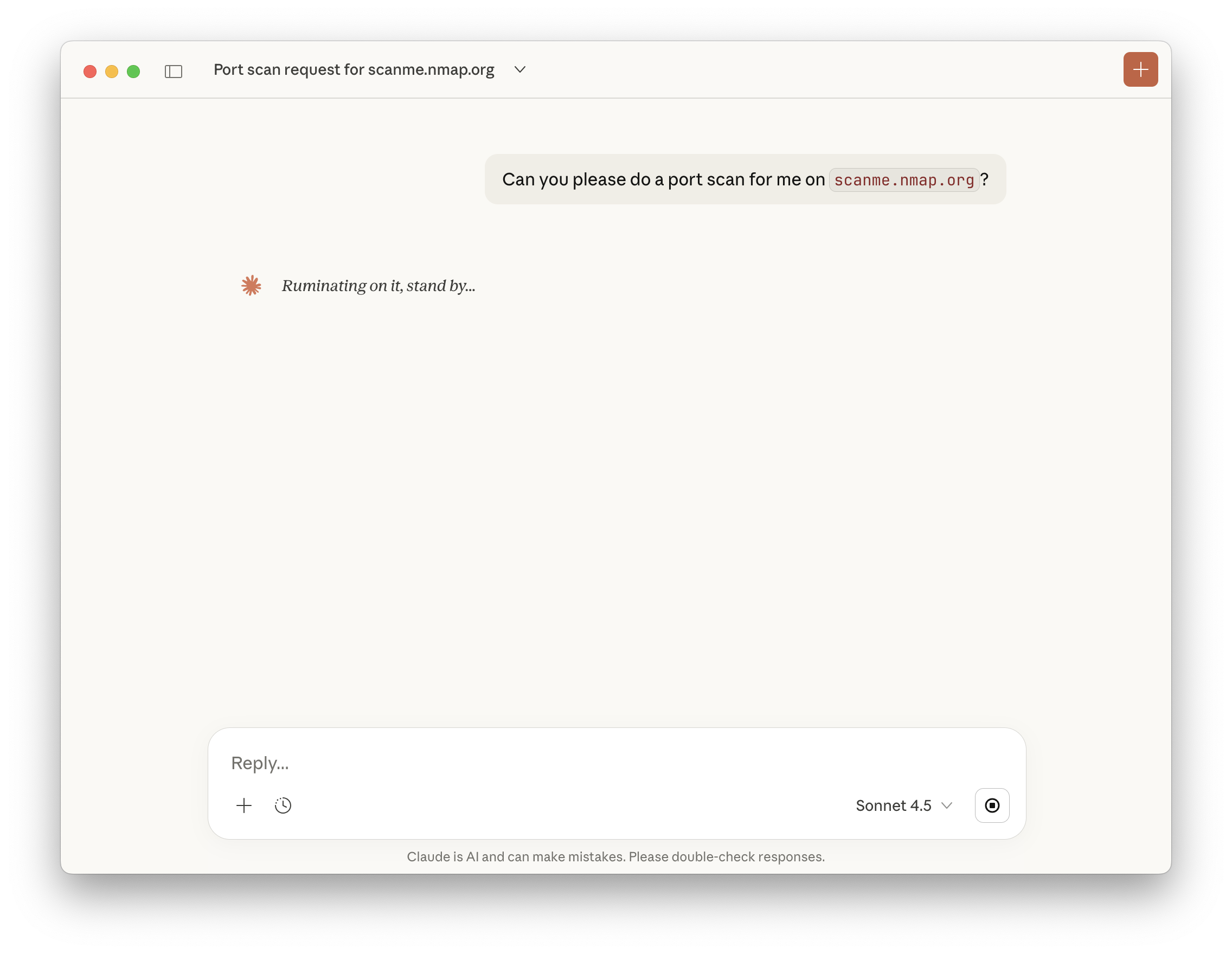
Afterwards, we just wait.

Figure 16 - Running

If you are impatient, you can peek behind the curtain a little bit by checking the logs! In the terminal which we ran kali-server-mcp, we can then see:

2026-01-21 14:20:21,688 [INFO] Executing command: which nmap
2026-01-21 14:20:21,690 [INFO] Executing command: which gobuster
2026-01-21 14:20:21,692 [INFO] Executing command: which dirb
2026-01-21 14:20:21,693 [INFO] Executing command: which nikto
2026-01-21 14:20:21,695 [INFO] 127.0.0.1 - - [21/Jan/2026 14:20:21] "GET /health HTTP/1.1" 200 -
2026-01-21 14:21:25,385 [INFO] Executing command: nmap -sV scanme.nmap.org
2026-01-21 14:21:39,295 [INFO] 127.0.0.1 - - [21/Jan/2026 14:21:39] "POST /api/tools/nmap HTTP/1.1" 200 -

Figure 19 - Results Full

Recap

In review:

  • We have a Kali instance running (could be on the same network, or in the Cloud).
  • On Kali, we setup SSH service to allow for secure communication.
  • On Kali, we ran MCP-Kali-Server for our MCP server.
    • We also made sure Kali has the needed tools installed!
  • On macOS, we setup Claude Desktop, and configured a MCP client.
    • macOS can SSH into our Kali box, to run MCP-Kali-Server’s client.
  • We then used Anthropic’s Sonnet 4.5 LLM to-do a nmap port scan of scanme.nmap.org.

…and we did this for “free”!

We may be talking about AI, but AI was not used to write this!


Find out more about advanced red teaming for AI environments at OffSec.com.

❌